Now that Windows 7 is creeping up on general availability, you'll probably want to remove your RC installation. I assume most of you interested are running these pre-release versions in a dual boot configuration, and so this directly corresponds to our dual boot guide.
If you recall, in the dual boot guide we looked at two separate (yet, fundamentally identical) approaches to creating a new partition with Windows XP or Vista and we intend to do the same here.
Because we originally developed this guide when Microsoft was releasing Windows 7 betas and release candidates, we aim at removing those versions in favor of the now nearly available final version. It should be mentioned however that you could potentially follow the same guidelines as explained below to remove your older XP or Vista installations (while in a dual boot configuration) in favor of Windows 7 Final.
Before you light the match remember that all accumulated documents, pictures, songs, videos etc. on the Windows partition you are deleting will be gone. If you haven't made a backup yet, please do so before proceeding.
Boot up Vista, click the Start menu and enter "diskmgmt.msc" into the search bar. A window titled "Disk Management" should open displaying basic information about the drives attached to your PC.

Right click the partition you previously created for Windows 7 (it's probably the second partition on "Disk 0" if you followed our previous guide) and opt to "Delete Volume".

You should now see unallocated space on your hard drive where Windows 7 once lay.

Right click your original (and probably only remaining) partition, choose "Extend Volume" and enter the full capacity of the unallocated space.
Break out your Vista DVD, boot from it and after the initial loading process is completed you should be met with a screen with three options; "Install now", "What to know before installing Windows" and "Repair your computer". We want the third option, "Repair your computer".

You'll then be asked to choose a recovery tool. Choose the first one there, "Startup Repair".

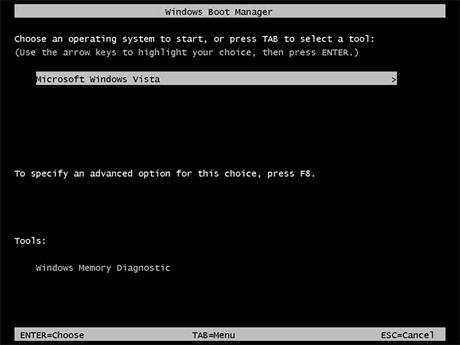
In a relatively short amount of time it will proclaim the issue(s) to be resolved, at which point all should be well. Reboot and remove your Vista DVD.
We will look at a similar process but for Windows XP users using a third party tool on the next page.