update tdsskiller
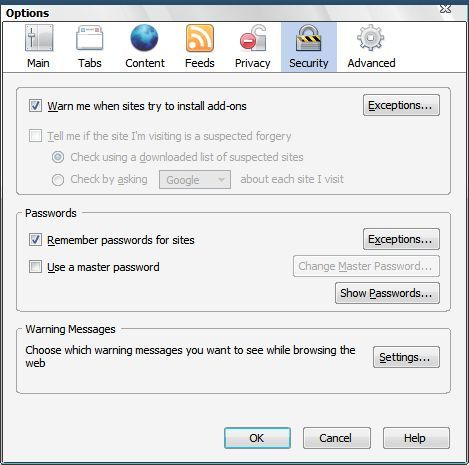
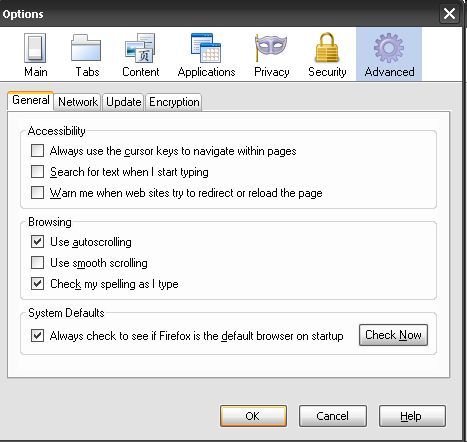
yes the redirects are different now. just got a secondary window popping up as i went from page 1 to 2 of this thread.
http://www.upliftsearch.com/?keyword=accounting&aid=2384&cid=2431&subid=20681_21440
the google redirects were going to clicksor "i think" and now seems to be going to a facebook site(i'll get more specific next time it happens)
here's the tdsskiller log
2011/03/10 13:59:56.0608 5748 TDSS rootkit removing tool 2.4.21.0 Mar 10 2011 12:26:28
2011/03/10 13:59:57.0686 5748 ================================================================================
2011/03/10 13:59:57.0686 5748 SystemInfo:
2011/03/10 13:59:57.0686 5748
2011/03/10 13:59:57.0686 5748 OS Version: 6.0.6002 ServicePack: 2.0
2011/03/10 13:59:57.0686 5748 Product type: Workstation
2011/03/10 13:59:57.0686 5748 ComputerName: TOWER
2011/03/10 13:59:57.0686 5748 UserName: Hall
2011/03/10 13:59:57.0686 5748 Windows directory: C:\Windows
2011/03/10 13:59:57.0686 5748 System windows directory: C:\Windows
2011/03/10 13:59:57.0686 5748 Processor architecture: Intel x86
2011/03/10 13:59:57.0686 5748 Number of processors: 2
2011/03/10 13:59:57.0686 5748 Page size: 0x1000
2011/03/10 13:59:57.0686 5748 Boot type: Normal boot
2011/03/10 13:59:57.0686 5748 ================================================================================
2011/03/10 13:59:58.0045 5748 Initialize success
2011/03/10 14:00:03.0452 4404 ================================================================================
2011/03/10 14:00:03.0452 4404 Scan started
2011/03/10 14:00:03.0452 4404 Mode: Manual;
2011/03/10 14:00:03.0452 4404 ================================================================================
2011/03/10 14:00:04.0545 4404 ACPI (82b296ae1892fe3dbee00c9cf92f8ac7) C:\Windows\system32\drivers\acpi.sys
2011/03/10 14:00:04.0592 4404 adp94xx (2edc5bbac6c651ece337bde8ed97c9fb) C:\Windows\system32\drivers\adp94xx.sys
2011/03/10 14:00:04.0655 4404 adpahci (b84088ca3cdca97da44a984c6ce1ccad) C:\Windows\system32\drivers\adpahci.sys
2011/03/10 14:00:04.0717 4404 adpu160m (7880c67bccc27c86fd05aa2afb5ea469) C:\Windows\system32\drivers\adpu160m.sys
2011/03/10 14:00:04.0780 4404 adpu320 (9ae713f8e30efc2abccd84904333df4d) C:\Windows\system32\drivers\adpu320.sys
2011/03/10 14:00:04.0889 4404 AFD (a201207363aa900abf1a388468688570) C:\Windows\system32\drivers\afd.sys
2011/03/10 14:00:04.0952 4404 agp440 (ef23439cdd587f64c2c1b8825cead7d8) C:\Windows\system32\drivers\agp440.sys
2011/03/10 14:00:04.0999 4404 aic78xx (ae1fdf7bf7bb6c6a70f67699d880592a) C:\Windows\system32\drivers\djsvs.sys
2011/03/10 14:00:05.0045 4404 aliide (90395b64600ebb4552e26e178c94b2e4) C:\Windows\system32\drivers\aliide.sys
2011/03/10 14:00:05.0092 4404 amdagp (2b13e304c9dfdfa5eb582f6a149fa2c7) C:\Windows\system32\drivers\amdagp.sys
2011/03/10 14:00:05.0139 4404 amdide (0577df1d323fe75a739c787893d300ea) C:\Windows\system32\drivers\amdide.sys
2011/03/10 14:00:05.0170 4404 AmdK7 (dc487885bcef9f28eece6fac0e5ddfc5) C:\Windows\system32\drivers\amdk7.sys
2011/03/10 14:00:05.0233 4404 AmdK8 (0ca0071da4315b00fc1328ca86b425da) C:\Windows\system32\drivers\amdk8.sys
2011/03/10 14:00:05.0311 4404 arc (5f673180268bb1fdb69c99b6619fe379) C:\Windows\system32\drivers\arc.sys
2011/03/10 14:00:05.0342 4404 arcsas (957f7540b5e7f602e44648c7de5a1c05) C:\Windows\system32\drivers\arcsas.sys
2011/03/10 14:00:05.0405 4404 AsyncMac (53b202abee6455406254444303e87be1) C:\Windows\system32\DRIVERS\asyncmac.sys
2011/03/10 14:00:05.0452 4404 atapi (1f05b78ab91c9075565a9d8a4b880bc4) C:\Windows\system32\drivers\atapi.sys
2011/03/10 14:00:05.0545 4404 Beep (67e506b75bd5326a3ec7b70bd014dfb6) C:\Windows\system32\drivers\Beep.sys
2011/03/10 14:00:05.0670 4404 bowser (74b442b2be1260b7588c136177ceac66) C:\Windows\system32\DRIVERS\bowser.sys
2011/03/10 14:00:05.0749 4404 BrFiltLo (9f9acc7f7ccde8a15c282d3f88b43309) C:\Windows\system32\drivers\brfiltlo.sys
2011/03/10 14:00:05.0795 4404 BrFiltUp (56801ad62213a41f6497f96dee83755a) C:\Windows\system32\drivers\brfiltup.sys
2011/03/10 14:00:05.0858 4404 Brserid (b304e75cff293029eddf094246747113) C:\Windows\system32\drivers\brserid.sys
2011/03/10 14:00:05.0920 4404 BrSerWdm (203f0b1e73adadbbb7b7b1fabd901f6b) C:\Windows\system32\drivers\brserwdm.sys
2011/03/10 14:00:05.0967 4404 BrUsbMdm (bd456606156ba17e60a04e18016ae54b) C:\Windows\system32\drivers\brusbmdm.sys
2011/03/10 14:00:06.0030 4404 BrUsbSer (af72ed54503f717a43268b3cc5faec2e) C:\Windows\system32\drivers\brusbser.sys
2011/03/10 14:00:06.0077 4404 BTHMODEM (ad07c1ec6665b8b35741ab91200c6b68) C:\Windows\system32\drivers\bthmodem.sys
2011/03/10 14:00:06.0170 4404 cdfs (7add03e75beb9e6dd102c3081d29840a) C:\Windows\system32\DRIVERS\cdfs.sys
2011/03/10 14:00:06.0233 4404 cdrom (6b4bffb9becd728097024276430db314) C:\Windows\system32\DRIVERS\cdrom.sys
2011/03/10 14:00:06.0280 4404 circlass (da8e0afc7baa226c538ef53ac2f90897) C:\Windows\system32\drivers\circlass.sys
2011/03/10 14:00:06.0358 4404 CLFS (d7659d3b5b92c31e84e53c1431f35132) C:\Windows\system32\CLFS.sys
2011/03/10 14:00:06.0405 4404 cmdide (45201046c776ffdaf3fc8a0029c581c8) C:\Windows\system32\drivers\cmdide.sys
2011/03/10 14:00:06.0436 4404 Compbatt (82b8c91d327cfecf76cb58716f7d4997) C:\Windows\system32\drivers\compbatt.sys
2011/03/10 14:00:06.0467 4404 crcdisk (2a213ae086bbec5e937553c7d9a2b22c) C:\Windows\system32\drivers\crcdisk.sys
2011/03/10 14:00:06.0499 4404 Crusoe (22a7f883508176489f559ee745b5bf5d) C:\Windows\system32\drivers\crusoe.sys
2011/03/10 14:00:06.0577 4404 DfsC (218d8ae46c88e82014f5d73d0236d9b2) C:\Windows\system32\Drivers\dfsc.sys
2011/03/10 14:00:06.0655 4404 disk (5d4aefc3386920236a548271f8f1af6a) C:\Windows\system32\drivers\disk.sys
2011/03/10 14:00:06.0749 4404 drmkaud (97fef831ab90bee128c9af390e243f80) C:\Windows\system32\drivers\drmkaud.sys
2011/03/10 14:00:06.0827 4404 DXGKrnl (c68ac676b0ef30cfbb1080adce49eb1f) C:\Windows\System32\drivers\dxgkrnl.sys
2011/03/10 14:00:06.0874 4404 e1express (04944f4fc4f0477185f5d26ae0ddb90e) C:\Windows\system32\DRIVERS\e1e6032.sys
2011/03/10 14:00:06.0920 4404 E1G60 (f88fb26547fd2ce6d0a5af2985892c48) C:\Windows\system32\DRIVERS\E1G60I32.sys
2011/03/10 14:00:06.0999 4404 Ecache (7f64ea048dcfac7acf8b4d7b4e6fe371) C:\Windows\system32\drivers\ecache.sys
2011/03/10 14:00:07.0061 4404 elxstor (e8f3f21a71720c84bcf423b80028359f) C:\Windows\system32\drivers\elxstor.sys
2011/03/10 14:00:07.0170 4404 exfat (22b408651f9123527bcee54b4f6c5cae) C:\Windows\system32\drivers\exfat.sys
2011/03/10 14:00:07.0249 4404 fastfat (1e9b9a70d332103c52995e957dc09ef8) C:\Windows\system32\drivers\fastfat.sys
2011/03/10 14:00:07.0295 4404 fdc (afe1e8b9782a0dd7fb46bbd88e43f89a) C:\Windows\system32\DRIVERS\fdc.sys
2011/03/10 14:00:07.0358 4404 FileInfo (a8c0139a884861e3aae9cfe73b208a9f) C:\Windows\system32\drivers\fileinfo.sys
2011/03/10 14:00:07.0389 4404 Filetrace (0ae429a696aecbc5970e3cf2c62635ae) C:\Windows\system32\drivers\filetrace.sys
2011/03/10 14:00:07.0436 4404 flpydisk (6603957eff5ec62d25075ea8ac27de68) C:\Windows\system32\DRIVERS\flpydisk.sys
2011/03/10 14:00:07.0514 4404 FltMgr (01334f9ea68e6877c4ef05d3ea8abb05) C:\Windows\system32\drivers\fltmgr.sys
2011/03/10 14:00:07.0592 4404 fssfltr (d909075fa72c090f27aa926c32cb4612) C:\Windows\system32\DRIVERS\fssfltr.sys
2011/03/10 14:00:07.0655 4404 Fs_Rec (65ea8b77b5851854f0c55c43fa51a198) C:\Windows\system32\drivers\Fs_Rec.sys
2011/03/10 14:00:07.0686 4404 gagp30kx (4e1cd0a45c50a8882616cae5bf82f3c5) C:\Windows\system32\drivers\gagp30kx.sys
2011/03/10 14:00:07.0764 4404 GEARAspiWDM (8182ff89c65e4d38b2de4bb0fb18564e) C:\Windows\system32\Drivers\GEARAspiWDM.sys
2011/03/10 14:00:07.0827 4404 HdAudAddService (3f90e001369a07243763bd5a523d8722) C:\Windows\system32\drivers\HdAudio.sys
2011/03/10 14:00:07.0920 4404 HDAudBus (062452b7ffd68c8c042a6261fe8dff4a) C:\Windows\system32\DRIVERS\HDAudBus.sys
2011/03/10 14:00:07.0967 4404 HECI (cc2c8c23417cc7ddf5eddb17e60a14db) C:\Windows\system32\DRIVERS\HECI.sys
2011/03/10 14:00:08.0014 4404 HidBth (1338520e78d90154ed6be8f84de5fceb) C:\Windows\system32\drivers\hidbth.sys
2011/03/10 14:00:08.0045 4404 HidIr (ff3160c3a2445128c5a6d9b076da519e) C:\Windows\system32\drivers\hidir.sys
2011/03/10 14:00:08.0124 4404 HidUsb (cca4b519b17e23a00b826c55716809cc) C:\Windows\system32\DRIVERS\hidusb.sys
2011/03/10 14:00:08.0186 4404 HpCISSs (df353b401001246853763c4b7aaa6f50) C:\Windows\system32\drivers\hpcisss.sys
2011/03/10 14:00:08.0264 4404 HTTP (f870aa3e254628ebeafe754108d664de) C:\Windows\system32\drivers\HTTP.sys
2011/03/10 14:00:08.0295 4404 i2omp (324c2152ff2c61abae92d09f3cca4d63) C:\Windows\system32\drivers\i2omp.sys
2011/03/10 14:00:08.0342 4404 i8042prt (22d56c8184586b7a1f6fa60be5f5a2bd) C:\Windows\system32\DRIVERS\i8042prt.sys
2011/03/10 14:00:08.0389 4404 iaStor (997e8f5939f2d12cd9f2e6b395724c16) C:\Windows\system32\DRIVERS\iaStor.sys
2011/03/10 14:00:08.0436 4404 iaStorV (c957bf4b5d80b46c5017bf0101e6c906) C:\Windows\system32\drivers\iastorv.sys
2011/03/10 14:00:08.0483 4404 ICAM5USB (0a8a464d0dfd3257b72792248b44fc93) C:\Windows\system32\Drivers\Icam5USB.sys
2011/03/10 14:00:08.0624 4404 igfx (9378d57e2b96c0a185d844770ad49948) C:\Windows\system32\DRIVERS\igdkmd32.sys
2011/03/10 14:00:08.0686 4404 iirsp (2d077bf86e843f901d8db709c95b49a5) C:\Windows\system32\drivers\iirsp.sys
2011/03/10 14:00:08.0733 4404 intelide (97469037714070e45194ed318d636401) C:\Windows\system32\drivers\intelide.sys
2011/03/10 14:00:08.0780 4404 intelppm (224191001e78c89dfa78924c3ea595ff) C:\Windows\system32\DRIVERS\intelppm.sys
2011/03/10 14:00:08.0827 4404 IpFilterDriver (62c265c38769b864cb25b4bcf62df6c3) C:\Windows\system32\DRIVERS\ipfltdrv.sys
2011/03/10 14:00:08.0905 4404 IPMIDRV (40f34f8aba2a015d780e4b09138b6c17) C:\Windows\system32\drivers\ipmidrv.sys
2011/03/10 14:00:08.0920 4404 IPNAT (8793643a67b42cec66490b2a0cf92d68) C:\Windows\system32\DRIVERS\ipnat.sys
2011/03/10 14:00:08.0983 4404 irda (e50a95179211b12946f7e035d60af560) C:\Windows\system32\DRIVERS\irda.sys
2011/03/10 14:00:09.0014 4404 IRENUM (109c0dfb82c3632fbd11949b73aeeac9) C:\Windows\system32\drivers\irenum.sys
2011/03/10 14:00:09.0061 4404 irsir (5896b5ff6332ab2be1582523e9656a67) C:\Windows\system32\DRIVERS\irsir.sys
2011/03/10 14:00:09.0108 4404 isapnp (350fca7e73cf65bcef43fae1e4e91293) C:\Windows\system32\drivers\isapnp.sys
2011/03/10 14:00:09.0170 4404 iScsiPrt (232fa340531d940aac623b121a595034) C:\Windows\system32\DRIVERS\msiscsi.sys
2011/03/10 14:00:09.0217 4404 iteatapi (bced60d16156e428f8df8cf27b0df150) C:\Windows\system32\drivers\iteatapi.sys
2011/03/10 14:00:09.0249 4404 iteraid (06fa654504a498c30adca8bec4e87e7e) C:\Windows\system32\drivers\iteraid.sys
2011/03/10 14:00:09.0295 4404 kbdclass (37605e0a8cf00cbba538e753e4344c6e) C:\Windows\system32\DRIVERS\kbdclass.sys
2011/03/10 14:00:09.0358 4404 kbdhid (ede59ec70e25c24581add1fbec7325f7) C:\Windows\system32\DRIVERS\kbdhid.sys
2011/03/10 14:00:09.0436 4404 KL1 (94d67d49bd9503bb1d838405d80f2058) C:\Windows\system32\DRIVERS\kl1.sys
2011/03/10 14:00:09.0499 4404 kl2 (713576569667ac9e0f8556076004a96b) C:\Windows\system32\DRIVERS\kl2.sys
2011/03/10 14:00:09.0592 4404 KLIF (39920d69eaedb51757527aa54fe25216) C:\Windows\system32\DRIVERS\klif.sys
2011/03/10 14:00:09.0639 4404 KLIM6 (cf88b4985d957eee45c9939092e87c92) C:\Windows\system32\DRIVERS\klim6.sys
2011/03/10 14:00:09.0670 4404 klmouflt (3de1771c135328420315e21dde229bba) C:\Windows\system32\DRIVERS\klmouflt.sys
2011/03/10 14:00:09.0749 4404 KSecDD (86165728af9bf72d6442a894fdfb4f8b) C:\Windows\system32\Drivers\ksecdd.sys
2011/03/10 14:00:09.0842 4404 lltdio (d1c5883087a0c3f1344d9d55a44901f6) C:\Windows\system32\DRIVERS\lltdio.sys
2011/03/10 14:00:09.0905 4404 LSI_FC (a2262fb9f28935e862b4db46438c80d2) C:\Windows\system32\drivers\lsi_fc.sys
2011/03/10 14:00:09.0936 4404 LSI_SAS (30d73327d390f72a62f32c103daf1d6d) C:\Windows\system32\drivers\lsi_sas.sys
2011/03/10 14:00:09.0967 4404 LSI_SCSI (e1e36fefd45849a95f1ab81de0159fe3) C:\Windows\system32\drivers\lsi_scsi.sys
2011/03/10 14:00:10.0014 4404 luafv (8f5c7426567798e62a3b3614965d62cc) C:\Windows\system32\drivers\luafv.sys
2011/03/10 14:00:10.0077 4404 megasas (d153b14fc6598eae8422a2037553adce) C:\Windows\system32\drivers\megasas.sys
2011/03/10 14:00:10.0139 4404 Modem (e13b5ea0f51ba5b1512ec671393d09ba) C:\Windows\system32\drivers\modem.sys
2011/03/10 14:00:10.0217 4404 monitor (0a9bb33b56e294f686abb7c1e4e2d8a8) C:\Windows\system32\DRIVERS\monitor.sys
2011/03/10 14:00:10.0264 4404 mouclass (5bf6a1326a335c5298477754a506d263) C:\Windows\system32\DRIVERS\mouclass.sys
2011/03/10 14:00:10.0311 4404 mouhid (93b8d4869e12cfbe663915502900876f) C:\Windows\system32\DRIVERS\mouhid.sys
2011/03/10 14:00:10.0342 4404 MountMgr (bdafc88aa6b92f7842416ea6a48e1600) C:\Windows\system32\drivers\mountmgr.sys
2011/03/10 14:00:10.0389 4404 mpio (583a41f26278d9e0ea548163d6139397) C:\Windows\system32\drivers\mpio.sys
2011/03/10 14:00:10.0420 4404 mpsdrv (22241feba9b2defa669c8cb0a8dd7d2e) C:\Windows\system32\drivers\mpsdrv.sys
2011/03/10 14:00:10.0483 4404 Mraid35x (4fbbb70d30fd20ec51f80061703b001e) C:\Windows\system32\drivers\mraid35x.sys
2011/03/10 14:00:10.0545 4404 MRxDAV (82cea0395524aacfeb58ba1448e8325c) C:\Windows\system32\drivers\mrxdav.sys
2011/03/10 14:00:10.0608 4404 mrxsmb (454341e652bdf5e01b0f2140232b073e) C:\Windows\system32\DRIVERS\mrxsmb.sys
2011/03/10 14:00:10.0670 4404 mrxsmb10 (2a4901aff069944fa945ed5bbf4dcde3) C:\Windows\system32\DRIVERS\mrxsmb10.sys
2011/03/10 14:00:10.0749 4404 mrxsmb20 (28b3f1ab44bdd4432c041581412f17d9) C:\Windows\system32\DRIVERS\mrxsmb20.sys
2011/03/10 14:00:10.0795 4404 msahci (742aed7939e734c36b7e8d6228ce26b7) C:\Windows\system32\drivers\msahci.sys
2011/03/10 14:00:10.0842 4404 msdsm (3fc82a2ae4cc149165a94699183d3028) C:\Windows\system32\drivers\msdsm.sys
2011/03/10 14:00:10.0936 4404 Msfs (a9927f4a46b816c92f461acb90cf8515) C:\Windows\system32\drivers\Msfs.sys
2011/03/10 14:00:10.0983 4404 msisadrv (0f400e306f385c56317357d6dea56f62) C:\Windows\system32\drivers\msisadrv.sys
2011/03/10 14:00:11.0030 4404 MSKSSRV (d8c63d34d9c9e56c059e24ec7185cc07) C:\Windows\system32\drivers\MSKSSRV.sys
2011/03/10 14:00:11.0092 4404 MSPCLOCK (1d373c90d62ddb641d50e55b9e78d65e) C:\Windows\system32\drivers\MSPCLOCK.sys
2011/03/10 14:00:11.0139 4404 MSPQM (b572da05bf4e098d4bba3a4734fb505b) C:\Windows\system32\drivers\MSPQM.sys
2011/03/10 14:00:11.0217 4404 MsRPC (b49456d70555de905c311bcda6ec6adb) C:\Windows\system32\drivers\MsRPC.sys
2011/03/10 14:00:11.0311 4404 mssmbios (e384487cb84be41d09711c30ca79646c) C:\Windows\system32\DRIVERS\mssmbios.sys
2011/03/10 14:00:11.0342 4404 MSTEE (7199c1eec1e4993caf96b8c0a26bd58a) C:\Windows\system32\drivers\MSTEE.sys
2011/03/10 14:00:11.0420 4404 Mup (6a57b5733d4cb702c8ea4542e836b96c) C:\Windows\system32\Drivers\mup.sys
2011/03/10 14:00:11.0530 4404 NativeWifiP (85c44fdff9cf7e72a40dcb7ec06a4416) C:\Windows\system32\DRIVERS\nwifi.sys
2011/03/10 14:00:11.0639 4404 NDIS (1357274d1883f68300aeadd15d7bbb42) C:\Windows\system32\drivers\ndis.sys
2011/03/10 14:00:11.0811 4404 NdisTapi (0e186e90404980569fb449ba7519ae61) C:\Windows\system32\DRIVERS\ndistapi.sys
2011/03/10 14:00:11.0842 4404 Ndisuio (d6973aa34c4d5d76c0430b181c3cd389) C:\Windows\system32\DRIVERS\ndisuio.sys
2011/03/10 14:00:11.0905 4404 NdisWan (818f648618ae34f729fdb47ec68345c3) C:\Windows\system32\DRIVERS\ndiswan.sys
2011/03/10 14:00:11.0936 4404 NDProxy (71dab552b41936358f3b541ae5997fb3) C:\Windows\system32\drivers\NDProxy.sys
2011/03/10 14:00:11.0983 4404 NetBIOS (bcd093a5a6777cf626434568dc7dba78) C:\Windows\system32\DRIVERS\netbios.sys
2011/03/10 14:00:12.0061 4404 netbt (ecd64230a59cbd93c85f1cd1cab9f3f6) C:\Windows\system32\DRIVERS\netbt.sys
2011/03/10 14:00:12.0139 4404 nfrd960 (2e7fb731d4790a1bc6270accefacb36e) C:\Windows\system32\drivers\nfrd960.sys
2011/03/10 14:00:12.0233 4404 Npfs (d36f239d7cce1931598e8fb90a0dbc26) C:\Windows\system32\drivers\Npfs.sys
2011/03/10 14:00:12.0295 4404 nsiproxy (609773e344a97410ce4ebf74a8914fcf) C:\Windows\system32\drivers\nsiproxy.sys
2011/03/10 14:00:12.0405 4404 Ntfs (6a4a98cee84cf9e99564510dda4baa47) C:\Windows\system32\drivers\Ntfs.sys
2011/03/10 14:00:12.0483 4404 ntrigdigi (e875c093aec0c978a90f30c9e0dfbb72) C:\Windows\system32\drivers\ntrigdigi.sys
2011/03/10 14:00:12.0530 4404 Null (c5dbbcda07d780bda9b685df333bb41e) C:\Windows\system32\drivers\Null.sys
2011/03/10 14:00:12.0561 4404 nvraid (e69e946f80c1c31c53003bfbf50cbb7c) C:\Windows\system32\drivers\nvraid.sys
2011/03/10 14:00:12.0608 4404 nvstor (9e0ba19a28c498a6d323d065db76dffc) C:\Windows\system32\drivers\nvstor.sys
2011/03/10 14:00:12.0639 4404 nv_agp (07c186427eb8fcc3d8d7927187f260f7) C:\Windows\system32\drivers\nv_agp.sys
2011/03/10 14:00:12.0795 4404 ohci1394 (6f310e890d46e246e0e261a63d9b36b4) C:\Windows\system32\DRIVERS\ohci1394.sys
2011/03/10 14:00:12.0874 4404 Parport (0fa9b5055484649d63c303fe404e5f4d) C:\Windows\system32\drivers\parport.sys
2011/03/10 14:00:12.0905 4404 partmgr (57389fa59a36d96b3eb09d0cb91e9cdc) C:\Windows\system32\DRIVERS\PARTMGR.SYS
2011/03/10 14:00:12.0936 4404 Parvdm (4f9a6a8a31413180d0fcb279ad5d8112) C:\Windows\system32\drivers\parvdm.sys
2011/03/10 14:00:13.0014 4404 pci (941dc1d19e7e8620f40bbc206981efdb) C:\Windows\system32\drivers\pci.sys
2011/03/10 14:00:13.0045 4404 pciide (1636d43f10416aeb483bc6001097b26c) C:\Windows\system32\drivers\pciide.sys
2011/03/10 14:00:13.0092 4404 pcmcia (e6f3fb1b86aa519e7698ad05e58b04e5) C:\Windows\system32\drivers\pcmcia.sys
2011/03/10 14:00:13.0139 4404 PEAUTH (6349f6ed9c623b44b52ea3c63c831a92) C:\Windows\system32\drivers\peauth.sys
2011/03/10 14:00:13.0280 4404 Ph3xIB32 (9f2f541c52cd7a452e235e885f7d95de) C:\Windows\system32\DRIVERS\Ph3xIB32.sys
2011/03/10 14:00:13.0452 4404 PptpMiniport (ecfffaec0c1ecd8dbc77f39070ea1db1) C:\Windows\system32\DRIVERS\raspptp.sys
2011/03/10 14:00:13.0514 4404 Processor (0e3cef5d28b40cf273281d620c50700a) C:\Windows\system32\drivers\processr.sys
2011/03/10 14:00:13.0608 4404 PSched (99514faa8df93d34b5589187db3aa0ba) C:\Windows\system32\DRIVERS\pacer.sys
2011/03/10 14:00:13.0670 4404 ql2300 (ccdac889326317792480c0a67156a1ec) C:\Windows\system32\drivers\ql2300.sys
2011/03/10 14:00:13.0717 4404 ql40xx (81a7e5c076e59995d54bc1ed3a16e60b) C:\Windows\system32\drivers\ql40xx.sys
2011/03/10 14:00:13.0780 4404 QWAVEdrv (9f5e0e1926014d17486901c88eca2db7) C:\Windows\system32\drivers\qwavedrv.sys
2011/03/10 14:00:13.0811 4404 RasAcd (147d7f9c556d259924351feb0de606c3) C:\Windows\system32\DRIVERS\rasacd.sys
2011/03/10 14:00:13.0874 4404 Rasl2tp (a214adbaf4cb47dd2728859ef31f26b0) C:\Windows\system32\DRIVERS\rasl2tp.sys
2011/03/10 14:00:13.0952 4404 RasPppoe (509a98dd18af4375e1fc40bc175f1def) C:\Windows\system32\DRIVERS\raspppoe.sys
2011/03/10 14:00:13.0999 4404 RasSstp (2005f4a1e05fa09389ac85840f0a9e4d) C:\Windows\system32\DRIVERS\rassstp.sys
2011/03/10 14:00:14.0092 4404 rdbss (b14c9d5b9add2f84f70570bbbfaa7935) C:\Windows\system32\DRIVERS\rdbss.sys
2011/03/10 14:00:14.0139 4404 RDPCDD (89e59be9a564262a3fb6c4f4f1cd9899) C:\Windows\system32\DRIVERS\RDPCDD.sys
2011/03/10 14:00:14.0202 4404 rdpdr (e8bd98d46f2ed77132ba927fccb47d8b) C:\Windows\system32\drivers\rdpdr.sys
2011/03/10 14:00:14.0233 4404 RDPENCDD (9d91fe5286f748862ecffa05f8a0710c) C:\Windows\system32\drivers\rdpencdd.sys
2011/03/10 14:00:14.0295 4404 RDPWD (30bfbdfb7f95559ede971f9ddb9a00ba) C:\Windows\system32\drivers\RDPWD.sys
2011/03/10 14:00:14.0420 4404 rspndr (9c508f4074a39e8b4b31d27198146fad) C:\Windows\system32\DRIVERS\rspndr.sys
2011/03/10 14:00:14.0483 4404 sbp2port (3ce8f073a557e172b330109436984e30) C:\Windows\system32\drivers\sbp2port.sys
2011/03/10 14:00:14.0577 4404 secdrv (90a3935d05b494a5a39d37e71f09a677) C:\Windows\system32\drivers\secdrv.sys
2011/03/10 14:00:14.0655 4404 Serenum (ce9ec966638ef0b10b864ddedf62a099) C:\Windows\system32\DRIVERS\serenum.sys
2011/03/10 14:00:14.0702 4404 Serial (6d663022db3e7058907784ae14b69898) C:\Windows\system32\DRIVERS\serial.sys
2011/03/10 14:00:14.0780 4404 sermouse (8af3d28a879bf75db53a0ee7a4289624) C:\Windows\system32\drivers\sermouse.sys
2011/03/10 14:00:14.0858 4404 sffdisk (103b79418da647736ee95645f305f68a) C:\Windows\system32\drivers\sffdisk.sys
2011/03/10 14:00:14.0889 4404 sffp_mmc (8fd08a310645fe872eeec6e08c6bf3ee) C:\Windows\system32\drivers\sffp_mmc.sys
2011/03/10 14:00:14.0920 4404 sffp_sd (9cfa05fcfcb7124e69cfc812b72f9614) C:\Windows\system32\drivers\sffp_sd.sys
2011/03/10 14:00:14.0967 4404 sfloppy (46ed8e91793b2e6f848015445a0ac188) C:\Windows\system32\drivers\sfloppy.sys
2011/03/10 14:00:15.0061 4404 sisagp (d2a595d6eebeeaf4334f8e50efbc9931) C:\Windows\system32\drivers\sisagp.sys
2011/03/10 14:00:15.0092 4404 SiSRaid2 (cedd6f4e7d84e9f98b34b3fe988373aa) C:\Windows\system32\drivers\sisraid2.sys
2011/03/10 14:00:15.0139 4404 SiSRaid4 (df843c528c4f69d12ce41ce462e973a7) C:\Windows\system32\drivers\sisraid4.sys
2011/03/10 14:00:15.0249 4404 Smb (7b75299a4d201d6a6533603d6914ab04) C:\Windows\system32\DRIVERS\smb.sys
2011/03/10 14:00:15.0342 4404 spldr (7aebdeef071fe28b0eef2cdd69102bff) C:\Windows\system32\drivers\spldr.sys
2011/03/10 14:00:15.0452 4404 sptd (cdddec541bc3c96f91ecb48759673505) C:\Windows\system32\Drivers\sptd.sys
2011/03/10 14:00:15.0452 4404 Suspicious file (NoAccess): C:\Windows\system32\Drivers\sptd.sys. md5: cdddec541bc3c96f91ecb48759673505
2011/03/10 14:00:15.0467 4404 sptd - detected Locked file (1)
2011/03/10 14:00:15.0577 4404 srv (ff3cbc13db84d81f56931bc922cc37c4) C:\Windows\system32\DRIVERS\srv.sys
2011/03/10 14:00:15.0639 4404 srv2 (d15959d9f69f0d39a0153e9c244f20dd) C:\Windows\system32\DRIVERS\srv2.sys
2011/03/10 14:00:15.0686 4404 srvnet (faa0d553a49e85008c6bb3781987c574) C:\Windows\system32\DRIVERS\srvnet.sys
2011/03/10 14:00:15.0795 4404 StMp3Rec (833ac40f6e7be17951d6d9a956829547) C:\Windows\system32\Drivers\StMp3Rec.sys
2011/03/10 14:00:15.0858 4404 swenum (7ba58ecf0c0a9a69d44b3dca62becf56) C:\Windows\system32\DRIVERS\swenum.sys
2011/03/10 14:00:15.0920 4404 Symc8xx (192aa3ac01df071b541094f251deed10) C:\Windows\system32\drivers\symc8xx.sys
2011/03/10 14:00:15.0952 4404 Sym_hi (8c8eb8c76736ebaf3b13b633b2e64125) C:\Windows\system32\drivers\sym_hi.sys
2011/03/10 14:00:15.0983 4404 Sym_u3 (8072af52b5fd103bbba387a1e49f62cb) C:\Windows\system32\drivers\sym_u3.sys
2011/03/10 14:00:16.0139 4404 Tcpip (6a10afce0b38371064be41c1fbfd3c6b) C:\Windows\system32\drivers\tcpip.sys
2011/03/10 14:00:16.0217 4404 Tcpip6 (6a10afce0b38371064be41c1fbfd3c6b) C:\Windows\system32\DRIVERS\tcpip.sys
2011/03/10 14:00:16.0249 4404 tcpipreg (9bf343f4c878d6ad6922b2c5a4fefe0d) C:\Windows\system32\drivers\tcpipreg.sys
2011/03/10 14:00:16.0295 4404 TDPIPE (5dcf5e267be67a1ae926f2df77fbcc56) C:\Windows\system32\drivers\tdpipe.sys
2011/03/10 14:00:16.0342 4404 TDTCP (389c63e32b3cefed425b61ed92d3f021) C:\Windows\system32\drivers\tdtcp.sys
2011/03/10 14:00:16.0420 4404 tdx (76b06eb8a01fc8624d699e7045303e54) C:\Windows\system32\DRIVERS\tdx.sys
2011/03/10 14:00:16.0499 4404 TermDD (3cad38910468eab9a6479e2f01db43c7) C:\Windows\system32\DRIVERS\termdd.sys
2011/03/10 14:00:16.0592 4404 tssecsrv (dcf0f056a2e4f52287264f5ab29cf206) C:\Windows\system32\DRIVERS\tssecsrv.sys
2011/03/10 14:00:16.0639 4404 tunmp (caecc0120ac49e3d2f758b9169872d38) C:\Windows\system32\DRIVERS\tunmp.sys
2011/03/10 14:00:16.0702 4404 tunnel (300db877ac094feab0be7688c3454a9c) C:\Windows\system32\DRIVERS\tunnel.sys
2011/03/10 14:00:16.0749 4404 uagp35 (c3ade15414120033a36c0f293d4a4121) C:\Windows\system32\drivers\uagp35.sys
2011/03/10 14:00:16.0827 4404 udfs (d9728af68c4c7693cb100b8441cbdec6) C:\Windows\system32\DRIVERS\udfs.sys
2011/03/10 14:00:16.0889 4404 uliagpkx (75e6890ebfce0841d3291b02e7a8bdb0) C:\Windows\system32\drivers\uliagpkx.sys
2011/03/10 14:00:16.0952 4404 uliahci (3cd4ea35a6221b85dcc25daa46313f8d) C:\Windows\system32\drivers\uliahci.sys
2011/03/10 14:00:16.0983 4404 UlSata (8514d0e5cd0534467c5fc61be94a569f) C:\Windows\system32\drivers\ulsata.sys
2011/03/10 14:00:17.0030 4404 ulsata2 (38c3c6e62b157a6bc46594fada45c62b) C:\Windows\system32\drivers\ulsata2.sys
2011/03/10 14:00:17.0077 4404 umbus (32cff9f809ae9aed85464492bf3e32d2) C:\Windows\system32\DRIVERS\umbus.sys
2011/03/10 14:00:17.0124 4404 usbccgp (caf811ae4c147ffcd5b51750c7f09142) C:\Windows\system32\DRIVERS\usbccgp.sys
2011/03/10 14:00:17.0186 4404 usbcir (e9476e6c486e76bc4898074768fb7131) C:\Windows\system32\drivers\usbcir.sys
2011/03/10 14:00:17.0264 4404 usbehci (79e96c23a97ce7b8f14d310da2db0c9b) C:\Windows\system32\DRIVERS\usbehci.sys
2011/03/10 14:00:17.0327 4404 usbhub (4673bbcb006af60e7abddbe7a130ba42) C:\Windows\system32\DRIVERS\usbhub.sys
2011/03/10 14:00:17.0374 4404 usbohci (38dbc7dd6cc5a72011f187425384388b) C:\Windows\system32\drivers\usbohci.sys
2011/03/10 14:00:17.0420 4404 usbprint (e75c4b5269091d15a2e7dc0b6d35f2f5) C:\Windows\system32\DRIVERS\usbprint.sys
2011/03/10 14:00:17.0483 4404 usbscan (a508c9bd8724980512136b039bba65e9) C:\Windows\system32\DRIVERS\usbscan.sys
2011/03/10 14:00:17.0561 4404 USBSTOR (be3da31c191bc222d9ad503c5224f2ad) C:\Windows\system32\DRIVERS\USBSTOR.SYS
2011/03/10 14:00:17.0608 4404 usbuhci (814d653efc4d48be3b04a307eceff56f) C:\Windows\system32\DRIVERS\usbuhci.sys
2011/03/10 14:00:17.0655 4404 VClone (94d73b62e458fb56c9ce60aa96d914f9) C:\Windows\system32\DRIVERS\VClone.sys
2011/03/10 14:00:17.0717 4404 vga (7d92be0028ecdedec74617009084b5ef) C:\Windows\system32\DRIVERS\vgapnp.sys
2011/03/10 14:00:17.0780 4404 VgaSave (2e93ac0a1d8c79d019db6c51f036636c) C:\Windows\System32\drivers\vga.sys
2011/03/10 14:00:17.0811 4404 viaagp (045d9961e591cf0674a920b6ba3ba5cb) C:\Windows\system32\drivers\viaagp.sys
2011/03/10 14:00:17.0858 4404 ViaC7 (56a4de5f02f2e88182b0981119b4dd98) C:\Windows\system32\drivers\viac7.sys
2011/03/10 14:00:17.0905 4404 viaide (fd2e3175fcada350c7ab4521dca187ec) C:\Windows\system32\drivers\viaide.sys
2011/03/10 14:00:17.0967 4404 vmfilter303 (233509e1ad024a3e451d8df6795eeed5) C:\Windows\system32\drivers\vmfilter303.sys
2011/03/10 14:00:18.0030 4404 volmgr (69503668ac66c77c6cd7af86fbdf8c43) C:\Windows\system32\drivers\volmgr.sys
2011/03/10 14:00:18.0108 4404 volmgrx (23e41b834759917bfd6b9a0d625d0c28) C:\Windows\system32\drivers\volmgrx.sys
2011/03/10 14:00:18.0170 4404 volsnap (147281c01fcb1df9252de2a10d5e7093) C:\Windows\system32\drivers\volsnap.sys
2011/03/10 14:00:18.0249 4404 vsmraid (d984439746d42b30fc65a4c3546c6829) C:\Windows\system32\drivers\vsmraid.sys
2011/03/10 14:00:18.0311 4404 WacomPen (48dfee8f1af7c8235d4e626f0c4fe031) C:\Windows\system32\drivers\wacompen.sys
2011/03/10 14:00:18.0374 4404 Wanarp (55201897378cca7af8b5efd874374a26) C:\Windows\system32\DRIVERS\wanarp.sys
2011/03/10 14:00:18.0389 4404 Wanarpv6 (55201897378cca7af8b5efd874374a26) C:\Windows\system32\DRIVERS\wanarp.sys
2011/03/10 14:00:18.0452 4404 Wd (afc5ad65b991c1e205cf25cfdbf7a6f4) C:\Windows\system32\drivers\wd.sys
2011/03/10 14:00:18.0530 4404 Wdf01000 (b6f0a7ad6d4bd325fbcd8bac96cd8d96) C:\Windows\system32\drivers\Wdf01000.sys
2011/03/10 14:00:18.0702 4404 WmiAcpi (701a9f884a294327e9141d73746ee279) C:\Windows\system32\drivers\wmiacpi.sys
2011/03/10 14:00:18.0795 4404 WpdUsb (0cec23084b51b8288099eb710224e955) C:\Windows\system32\DRIVERS\wpdusb.sys
2011/03/10 14:00:18.0858 4404 ws2ifsl (e3a3cb253c0ec2494d4a61f5e43a389c) C:\Windows\system32\drivers\ws2ifsl.sys
2011/03/10 14:00:18.0920 4404 WUDFRd (ac13cb789d93412106b0fb6c7eb2bcb6) C:\Windows\system32\DRIVERS\WUDFRd.sys
2011/03/10 14:00:19.0030 4404 ZSMC303 (3de80baa4af21883cf938197d508b848) C:\Windows\system32\Drivers\usbVM303.sys
2011/03/10 14:00:19.0077 4404 ================================================================================
2011/03/10 14:00:19.0077 4404 Scan finished
2011/03/10 14:00:19.0077 4404 ================================================================================
2011/03/10 14:00:19.0108 3044 Detected object count: 1
2011/03/10 14:00:36.0936 3044 sptd (cdddec541bc3c96f91ecb48759673505) C:\Windows\system32\Drivers\sptd.sys
2011/03/10 14:00:36.0936 3044 Suspicious file (NoAccess): C:\Windows\system32\Drivers\sptd.sys. md5: cdddec541bc3c96f91ecb48759673505
2011/03/10 14:00:36.0967 3044 C:\Windows\system32\Drivers\sptd.sys - copied to quarantine
2011/03/10 14:00:36.0967 3044 Locked file(sptd) - User select action: Quarantine
2011/03/10 14:00:45.0874 5140 Deinitialize success