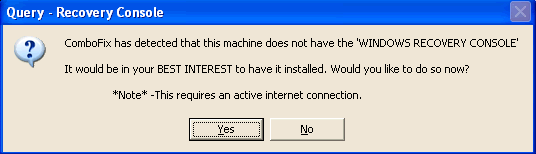
ComboFix log
omboFix 11-01-23.07 - Administrator 01/24/2011 11:56:15.1.2 - x86
Microsoft Windows XP Professional 5.1.2600.3.1252.1.1033.18.3582.3011 [GMT -6:00]
Running from: c:\documents and settings\Administrator\My Documents\Downloads\ComboFix.exe
AV: Norton 360 *Disabled/Updated* {E10A9785-9598-4754-B552-92431C1C35F8}
FW: Norton 360 *Enabled* {7C21A4C9-F61F-4AC4-B722-A6E19C16F220}
.
((((((((((((((((((((((((((((((((((((((( Other Deletions )))))))))))))))))))))))))))))))))))))))))))))))))
.
c:\program files\Internet Explorer\Plugins\npqtplugin2.dll
c:\program files\Internet Explorer\Plugins\npqtplugin3.dll
c:\program files\Internet Explorer\PLUGINS\npqtplugin4.dll
c:\program files\Internet Explorer\Plugins\npqtplugin5.dll
c:\program files\Internet Explorer\Plugins\npqtplugin6.dll
c:\program files\Mozilla Firefox\Plugins\npqtplugin2.dll
c:\program files\Mozilla Firefox\plugins\npqtplugin3.dll
c:\program files\Mozilla Firefox\plugins\npqtplugin4.dll
c:\program files\Mozilla Firefox\plugins\npqtplugin5.dll
c:\program files\Mozilla Firefox\Plugins\npqtplugin6.dll
c:\program files\QuickTime\Plugins\npqtplugin2.dll
c:\program files\QuickTime\Plugins\npqtplugin3.dll
c:\program files\QuickTime\Plugins\npqtplugin4.dll
c:\program files\QuickTime\Plugins\npqtplugin5.dll
c:\program files\QuickTime\Plugins\npqtplugin6.dll
.
((((((((((((((((((((((((( Files Created from 2010-12-24 to 2011-01-24 )))))))))))))))))))))))))))))))
.
2011-01-24 07:16 . 2011-01-24 07:16 -------- d-----w- c:\windows\system32\wbem\Repository
2011-01-24 07:16 . 2011-01-24 07:16 -------- d-----w- c:\program files\Broadcom
2011-01-24 06:44 . 2011-01-24 06:44 0 ----a-w- c:\windows\invcol.tmp
2011-01-24 04:51 . 2011-01-24 07:29 -------- d-----w- c:\documents and settings\Administrator\Local Settings\Application Data\Deployment
2011-01-24 04:50 . 2011-01-24 04:50 -------- d-----w- c:\windows\system32\XPSViewer
2011-01-24 04:49 . 2011-01-24 04:49 -------- d-----w- c:\program files\MSBuild
2011-01-24 04:49 . 2011-01-24 04:49 -------- d-----w- c:\program files\Reference Assemblies
2011-01-24 04:49 . 2008-07-06 12:06 89088 ----a-w- c:\windows\system32\Spool\prtprocs\w32x86\filterpipelineprintproc.dll
2011-01-24 04:49 . 2008-07-06 12:06 117760 ------w- c:\windows\system32\prntvpt.dll
2011-01-24 04:49 . 2011-01-24 04:49 -------- d-----w- C:\af22e6bd792b09d33bb2c3bdf2addce7
2011-01-24 04:49 . 2008-07-06 12:06 89088 -c----w- c:\windows\system32\dllcache\filterpipelineprintproc.dll
2011-01-24 04:49 . 2008-07-06 12:06 575488 -c----w- c:\windows\system32\dllcache\xpsshhdr.dll
2011-01-24 04:49 . 2008-07-06 12:06 575488 ------w- c:\windows\system32\xpsshhdr.dll
2011-01-24 04:49 . 2008-07-06 12:06 1676288 -c----w- c:\windows\system32\dllcache\xpssvcs.dll
2011-01-24 04:49 . 2008-07-06 12:06 1676288 ------w- c:\windows\system32\xpssvcs.dll
2011-01-24 04:49 . 2008-07-06 10:50 597504 -c----w- c:\windows\system32\dllcache\printfilterpipelinesvc.exe
2011-01-24 04:49 . 2008-07-06 10:50 597504 ------w- c:\windows\system32\Spool\prtprocs\w32x86\printfilterpipelinesvc.exe
2011-01-24 02:57 . 2011-01-24 02:57 -------- d-----w- c:\program files\Common Files\Futuremark Shared
2011-01-21 00:11 . 2011-01-21 00:11 -------- d-----w- c:\program files\Common Files\ATI Technologies
2011-01-21 00:11 . 2011-01-21 00:11 -------- d-----w- c:\program files\ATI
2011-01-21 00:10 . 2011-01-21 00:10 -------- d-----w- c:\program files\ATI Technologies
2011-01-21 00:09 . 2011-01-21 00:09 -------- d-----w- C:\ATI
2011-01-20 22:11 . 2010-07-21 11:30 101904 ----a-r- c:\windows\system32\drivers\AtihdXP3.sys
2011-01-20 22:10 . 2011-01-20 22:10 0 ----a-w- c:\windows\ativpsrm.bin
2011-01-20 22:10 . 2010-10-27 09:03 311296 ----a-w- c:\windows\system32\atiiiexx.dll
2011-01-20 22:10 . 2010-10-27 08:50 450560 ----a-w- c:\windows\system32\ATIDEMGX.dll
2011-01-17 22:02 . 2011-01-17 22:02 -------- d-----w- c:\documents and settings\Administrator\Local Settings\Application Data\Help
2011-01-17 21:54 . 2011-01-17 22:02 -------- d-----w- c:\program files\CDisplay
2011-01-16 06:45 . 2011-01-16 06:45 -------- d-sh--w- c:\documents and settings\Administrator\IECompatCache
2011-01-14 06:38 . 2011-01-14 06:38 -------- d-----w- c:\windows\system32\N360_BACKUP
2011-01-14 05:22 . 2009-05-18 21:17 26600 ----a-r- c:\windows\system32\drivers\GEARAspiWDM.sys
2011-01-14 05:22 . 2008-04-17 20:12 107368 ----a-r- c:\windows\system32\GEARAspi.dll
2011-01-14 05:22 . 2011-01-14 05:56 -------- d-----w- c:\program files\Common Files\Symantec Shared
2011-01-14 05:22 . 2011-01-14 05:22 -------- d-----w- c:\program files\Symantec
2011-01-14 05:22 . 2011-01-14 05:22 60808 ----a-w- c:\windows\system32\S32EVNT1.DLL
2011-01-14 05:22 . 2011-01-14 05:22 124976 ----a-w- c:\windows\system32\drivers\SYMEVENT.SYS
2011-01-14 05:21 . 2011-01-15 01:45 -------- d-----w- c:\windows\system32\drivers\N360
2011-01-14 05:21 . 2011-01-14 05:21 -------- d-----w- c:\program files\Norton 360
2011-01-14 05:21 . 2011-01-14 05:21 -------- d-----w- c:\program files\Windows Sidebar
2011-01-14 05:21 . 2011-01-14 05:22 -------- d-----w- c:\documents and settings\All Users\Application Data\Norton
2011-01-14 05:20 . 2011-01-14 05:20 -------- d-----w- c:\program files\NortonInstaller
2011-01-13 23:00 . 2011-01-13 23:00 -------- d-----w- c:\documents and settings\Administrator\Local Settings\Application Data\Temp
2011-01-13 22:59 . 2011-01-13 22:59 -------- d-----w- c:\program files\Common Files\Adobe AIR
2011-01-13 22:59 . 2011-01-13 23:00 -------- d-----w- c:\documents and settings\Administrator\Local Settings\Application Data\Adobe
2011-01-13 22:59 . 2011-01-13 22:59 -------- d-----w- c:\program files\Common Files\Adobe
2011-01-13 22:56 . 2011-01-13 22:56 -------- d-----w- c:\documents and settings\All Users\Application Data\McAfee
2011-01-13 04:19 . 2011-01-13 04:19 -------- d-----w- c:\documents and settings\Administrator\Application Data\SUPERAntiSpyware.com
2011-01-13 04:18 . 2011-01-22 23:29 -------- d-----w- c:\program files\SUPERAntiSpyware
2011-01-02 21:52 . 2011-01-02 21:52 398744 ----a-r- c:\windows\system32\cpnprt2.cid
2011-01-01 00:16 . 2009-08-07 01:23 274288 ----a-w- c:\windows\system32\mucltui.dll
2011-01-01 00:09 . 2011-01-01 00:09 102400 ----a-w- c:\windows\RegBootClean.exe
2010-12-31 23:58 . 2010-12-31 23:58 -------- d-sh--w- c:\documents and settings\Administrator\PrivacIE
2010-12-30 23:51 . 2010-12-30 23:51 -------- d-sh--w- c:\documents and settings\LocalService\IETldCache
2010-12-30 23:51 . 2010-12-30 23:51 -------- d-sh--w- c:\documents and settings\Administrator\IETldCache
2010-12-30 23:43 . 2010-10-18 11:10 7680 -c----w- c:\windows\system32\dllcache\iecompat.dll
2010-12-30 23:42 . 2010-11-06 00:26 12800 -c----w- c:\windows\system32\dllcache\xpshims.dll
2010-12-30 23:42 . 2010-11-06 00:26 743424 -c----w- c:\windows\system32\dllcache\iedvtool.dll
2010-12-30 23:42 . 2010-11-06 00:26 247808 -c----w- c:\windows\system32\dllcache\ieproxy.dll
2010-12-30 23:39 . 2010-12-30 23:42 -------- dc-h--w- c:\windows\ie8
2010-12-30 23:23 . 2010-11-02 15:17 40960 -c----w- c:\windows\system32\dllcache\ndproxy.sys
2010-12-30 23:22 . 2010-10-11 14:59 45568 -c----w- c:\windows\system32\dllcache\wab.exe
2010-12-30 23:21 . 2010-09-18 06:53 974848 -c----w- c:\windows\system32\dllcache\mfc42.dll
2010-12-30 23:21 . 2010-09-18 06:53 953856 -c----w- c:\windows\system32\dllcache\mfc40u.dll
2010-12-30 23:20 . 2010-08-23 16:12 617472 -c----w- c:\windows\system32\dllcache\comctl32.dll
2010-12-29 20:32 . 2008-04-13 18:47 25856 -c--a-w- c:\windows\system32\dllcache\usbprint.sys
2010-12-29 20:32 . 2008-04-13 18:47 25856 ----a-w- c:\windows\system32\drivers\usbprint.sys
2010-12-29 20:32 . 2008-04-13 18:45 15104 -c--a-w- c:\windows\system32\dllcache\usbscan.sys
2010-12-29 20:32 . 2008-04-13 18:45 15104 ----a-w- c:\windows\system32\drivers\usbscan.sys
2010-12-29 20:31 . 2008-04-13 18:45 32128 -c--a-w- c:\windows\system32\dllcache\usbccgp.sys
2010-12-29 20:31 . 2008-04-13 18:45 32128 ----a-w- c:\windows\system32\drivers\usbccgp.sys
2010-12-29 20:31 . 2010-12-29 20:39 -------- d-----w- c:\documents and settings\All Users\Application Data\HP Photo Creations
2010-12-29 20:31 . 2010-12-29 20:31 -------- d-----w- c:\program files\HP Photo Creations
2010-12-29 20:31 . 2010-12-29 20:31 -------- d-----w- c:\windows\Cache
2010-12-29 20:31 . 2010-12-29 20:31 -------- d-----w- c:\program files\Coupons
2010-12-29 20:30 . 2010-12-29 20:30 -------- d-----w- c:\documents and settings\Administrator\Application Data\HpUpdate
2010-12-29 20:30 . 2010-06-14 20:14 1907560 ----a-w- c:\windows\system32\HPScanMiniDrv_DJ2050_510g.dll
2010-12-29 20:30 . 2010-06-14 20:14 232296 ----a-w- c:\windows\system32\hpinksts8711.dll
2010-12-29 20:30 . 2010-06-14 20:14 264552 ----a-w- c:\windows\system32\hpinksts8711LM.dll
2010-12-29 20:30 . 2010-06-14 20:14 213352 ----a-w- c:\windows\system32\hpinkcoi8711.dll
2010-12-29 20:27 . 2010-12-29 20:27 -------- d-----w- c:\documents and settings\All Users\Application Data\HP
2010-12-29 20:27 . 2010-12-29 20:30 -------- d-----w- c:\program files\HP
2010-12-29 19:44 . 2010-12-29 21:54 -------- d-----w- c:\documents and settings\Administrator\Local Settings\Application Data\HP
2010-12-29 05:30 . 2010-12-29 05:30 -------- d-----w- c:\documents and settings\Administrator\Local Settings\Application Data\Identities
2010-12-26 06:40 . 2010-12-26 06:41 -------- d-----w- c:\program files\Common Files\Motive
2010-12-26 06:40 . 2010-12-26 06:40 -------- d-----w- c:\documents and settings\All Users\Application Data\Motive
.
(((((((((((((((((((((((((((((((((((((((( Find3M Report ))))))))))))))))))))))))))))))))))))))))))))))))))))
.
2011-01-22 19:10 . 2010-11-27 01:25 1409 ----a-w- c:\windows\QTFont.for
2011-01-14 07:21 . 2004-08-04 12:00 10752 ----a-w- c:\windows\hh.exe
2010-11-27 20:47 . 2010-11-27 20:47 98392 ----a-w- c:\windows\system32\drivers\SBREDrv.sys
2010-11-18 18:12 . 2010-04-07 22:11 81920 ----a-w- c:\windows\system32\isign32.dll
2010-11-13 00:53 . 2010-11-27 00:04 472808 ----a-w- c:\windows\system32\deployJava1.dll
2010-11-12 22:34 . 2010-04-07 22:43 73728 ----a-w- c:\windows\system32\javacpl.cpl
2010-11-09 14:52 . 2004-08-04 12:00 249856 ----a-w- c:\windows\system32\odbc32.dll
2010-11-06 00:34 . 2010-11-06 00:34 78336 ------w- c:\windows\system32\ieencode.dll
2010-11-06 00:26 . 2004-08-04 12:00 916480 ----a-w- c:\windows\system32\wininet.dll
2010-11-06 00:26 . 2004-08-04 12:00 43520 ------w- c:\windows\system32\licmgr10.dll
2010-11-06 00:26 . 2004-08-04 12:00 1469440 ------w- c:\windows\system32\inetcpl.cpl
2010-11-03 12:25 . 2004-08-04 12:00 385024 ------w- c:\windows\system32\html.iec
2010-11-02 15:17 . 2004-08-04 12:00 40960 ----a-w- c:\windows\system32\drivers\ndproxy.sys
2010-10-28 13:13 . 2004-08-04 12:00 290048 ----a-w- c:\windows\system32\atmfd.dll
2010-10-27 09:55 . 2010-12-03 04:45 5524480 ----a-w- c:\windows\system32\drivers\ati2mtag.sys
2010-10-27 09:17 . 2010-08-26 02:01 16330752 ----a-w- c:\windows\system32\atioglxx.dll
2010-10-27 09:10 . 2010-08-26 02:12 57344 ----a-w- c:\windows\system32\aticalrt.dll
2010-10-27 09:10 . 2010-08-26 02:11 53248 ----a-w- c:\windows\system32\aticalcl.dll
2010-10-27 09:09 . 2010-08-26 02:10 4489216 ----a-w- c:\windows\system32\aticaldd.dll
2010-10-27 08:51 . 2008-04-14 00:11 3958784 ----a-w- c:\windows\system32\ati3duag.dll
2010-10-27 08:49 . 2008-04-14 00:11 301056 ----a-w- c:\windows\system32\ati2dvag.dll
2010-10-27 08:48 . 2010-08-26 01:30 393216 ----a-w- c:\windows\system32\atiok3x2.dll
2010-10-27 08:36 . 2008-04-14 00:11 2671744 ----a-w- c:\windows\system32\ativvaxx.dll
2010-10-27 08:30 . 2010-08-26 01:39 212992 ----a-w- c:\windows\system32\atipdlxx.dll
2010-10-27 08:30 . 2010-08-26 01:39 155648 ----a-w- c:\windows\system32\Oemdspif.dll
2010-10-27 08:30 . 2010-08-26 01:38 26112 ----a-w- c:\windows\system32\Ati2mdxx.exe
2010-10-27 08:30 . 2010-08-26 01:38 43520 ----a-w- c:\windows\system32\ati2edxx.dll
2010-10-27 08:30 . 2010-08-26 01:38 159744 ----a-w- c:\windows\system32\ati2evxx.dll
2010-10-27 08:28 . 2010-08-26 01:37 614400 ----a-w- c:\windows\system32\ati2evxx.exe
2010-10-27 08:27 . 2010-08-26 01:35 53248 ----a-w- c:\windows\system32\ATIDDC.DLL
2010-10-27 08:26 . 2010-08-26 01:34 143360 ----a-w- c:\windows\system32\atiapfxx.exe
2010-10-27 08:22 . 2010-08-26 01:30 651264 ----a-w- c:\windows\system32\atikvmag.dll
2010-10-27 08:20 . 2010-08-26 01:29 196608 ----a-w- c:\windows\system32\atiadlxx.dll
2010-10-27 08:20 . 2010-08-26 01:22 64512 ----a-w- c:\windows\system32\atimpc32.dll
2010-10-27 08:20 . 2010-08-26 01:22 64512 ----a-w- c:\windows\system32\amdpcom32.dll
2010-10-27 08:20 . 2010-08-26 01:28 17408 ----a-w- c:\windows\system32\atitvo32.dll
2010-10-27 08:19 . 2010-08-26 01:21 53248 ----a-w- c:\windows\system32\drivers\ati2erec.dll
2010-10-27 08:14 . 2008-04-14 00:11 704512 ----a-w- c:\windows\system32\ati2cqag.dll
.
((((((((((((((((((((((((((((((((((((( Reg Loading Points ))))))))))))))))))))))))))))))))))))))))))))))))))
.
.
*Note* empty entries & legit default entries are not shown
REGEDIT4
[HKEY_LOCAL_MACHINE\SOFTWARE\Microsoft\Windows\CurrentVersion\Run]
"igfxtray"="c:\windows\system32\igfxtray.exe" [2006-03-24 94208]
"igfxhkcmd"="c:\windows\system32\hkcmd.exe" [2006-03-24 77824]
"igfxpers"="c:\windows\system32\igfxpers.exe" [2006-03-24 118784]
"SoundMAXPnP"="c:\program files\Analog Devices\Core\smax4pnp.exe" [2004-10-14 1404928]
"SunJavaUpdateSched"="c:\program files\Common Files\Java\Java Update\jusched.exe" [2010-05-14 248552]
"RemoteControl"="c:\windows\system32\rmctrl.exe" [2003-12-25 32768]
"NeroFilterCheck"="c:\windows\system32\NeroCheck.exe" [2001-07-09 155648]
"HP Software Update"="c:\program files\Hp\HP Software Update\HPWuSchd2.exe" [2010-03-12 49208]
"Adobe Reader Speed Launcher"="c:\program files\Adobe\Reader 10.0\Reader\Reader_sl.exe" [2010-11-10 35736]
"Adobe ARM"="c:\program files\Common Files\Adobe\ARM\1.0\AdobeARM.exe" [2010-11-10 932288]
"QuickTime Task"="c:\program files\QuickTime\qttask.exe" [2011-01-24 98304]
[hkey_local_machine\software\microsoft\windows\currentversion\explorer\ShellExecuteHooks]
"{5AE067D3-9AFB-48E0-853A-EBB7F4A000DA}"= "c:\program files\SUPERAntiSpyware\SASSEH.DLL" [2008-05-13 77824]
[HKEY_LOCAL_MACHINE\software\microsoft\windows nt\currentversion\winlogon\notify\!SASWinLogon]
2009-09-03 22:21 548352 ----a-w- c:\program files\SUPERAntiSpyware\SASWINLO.DLL
[HKLM\~\services\sharedaccess\parameters\firewallpolicy\standardprofile]
"EnableFirewall"= 0 (0x0)
[HKLM\~\services\sharedaccess\parameters\firewallpolicy\standardprofile\AuthorizedApplications\List]
"%windir%\\system32\\sessmgr.exe"=
"%windir%\\Network Diagnostic\\xpnetdiag.exe"=
R0 SymDS;Symantec Data Store;c:\windows\system32\drivers\N360\0403000.005\symds.sys [1/14/2011 10:14 AM 328752]
R0 SymEFA;Symantec Extended File Attributes;c:\windows\system32\drivers\N360\0403000.005\symefa.sys [1/14/2011 10:14 AM 173104]
R1 BHDrvx86;BHDrvx86;c:\documents and settings\All Users\Application Data\Norton\{0C55C096-0F1D-4F28-AAA2-85EF591126E7}\N360_4.1.0.32\Definitions\BASHDefs\20110114.001\BHDrvx86.sys [1/18/2011 9:12 PM 691248]
R1 ccHP;Symantec Hash Provider;c:\windows\system32\drivers\N360\0403000.005\cchpx86.sys [1/14/2011 10:14 AM 501888]
R1 SASDIFSV;SASDIFSV;c:\program files\SUPERAntiSpyware\sasdifsv.sys [2/17/2010 12:25 PM 12872]
R1 SASKUTIL;SASKUTIL;c:\program files\SUPERAntiSpyware\SASKUTIL.SYS [5/10/2010 12:41 PM 67656]
R1 SymIRON;Symantec Iron Driver;c:\windows\system32\drivers\N360\0403000.005\ironx86.sys [1/14/2011 10:14 AM 116784]
R2 N360;Norton 360;c:\program files\Norton 360\Engine\4.3.0.5\ccsvchst.exe [1/14/2011 10:14 AM 126392]
R3 AtiHDAudioService;ATI Function Driver for HD Audio Service;c:\windows\system32\drivers\AtihdXP3.sys [1/20/2011 4:11 PM 101904]
R3 EraserUtilRebootDrv;EraserUtilRebootDrv;c:\program files\Common Files\Symantec Shared\EENGINE\EraserUtilRebootDrv.sys [1/13/2011 11:46 PM 102448]
R3 IDSxpx86;IDSxpx86;c:\documents and settings\All Users\Application Data\Norton\{0C55C096-0F1D-4F28-AAA2-85EF591126E7}\N360_4.1.0.32\Definitions\IPSDefs\20110120.001\IDSXpx86.sys [1/22/2011 10:57 AM 341944]
S3 cpuz135;cpuz135;\??\c:\windows\TEMP\cpuz135\cpuz135_x32.sys --> c:\windows\TEMP\cpuz135\cpuz135_x32.sys [?]
S3 Futuremark SystemInfo Service;Futuremark SystemInfo Service;c:\program files\Common Files\Futuremark Shared\Futuremark SystemInfo\FMSISvc.exe [1/23/2011 8:57 PM 129440]
.
Contents of the 'Scheduled Tasks' folder
2011-01-24 c:\windows\Tasks\At1.job
- c:\program files\HP\HP Deskjet 2050 J510 series\Bin\HPCustPartic.exe [2010-06-14 22:07]
2011-01-24 c:\windows\Tasks\At2.job
- c:\program files\HP\HP Deskjet 2050 J510 series\Bin\HPCustPartic.exe [2010-06-14 22:07]
2011-01-23 c:\windows\Tasks\At3.job
- c:\program files\HP\HP Deskjet 2050 J510 series\Bin\HPCustPartic.exe [2010-06-14 22:07]
2011-01-23 c:\windows\Tasks\At4.job
- c:\program files\HP\HP Deskjet 2050 J510 series\Bin\HPCustPartic.exe [2010-06-14 22:07]
.
.
------- Supplementary Scan -------
.
uStart Page = hxxp://www.yahoo.com/
DPF: {8CFCF42C-1C64-47D6-AEEC-F9D001832ED3} - hxxp://xserv.dell.com/DellDriverScanner/DellSystem.CAB
FF - ProfilePath - c:\documents and settings\Administrator\Application Data\Mozilla\Firefox\Profiles\ga180uks.default\
FF - prefs.js: browser.startup.homepage - hxxp://www.yahoo.com/
FF - Ext: Default: {972ce4c6-7e08-4474-a285-3208198ce6fd} - c:\program files\Mozilla Firefox\extensions\{972ce4c6-7e08-4474-a285-3208198ce6fd}
FF - Ext: Java Console: {CAFEEFAC-0016-0000-0016-ABCDEFFEDCBA} - c:\program files\Mozilla Firefox\extensions\{CAFEEFAC-0016-0000-0016-ABCDEFFEDCBA}
FF - Ext: Java Console: {CAFEEFAC-0016-0000-0022-ABCDEFFEDCBA} - c:\program files\Mozilla Firefox\extensions\{CAFEEFAC-0016-0000-0022-ABCDEFFEDCBA}
FF - Ext: Java Console: {CAFEEFAC-0016-0000-0023-ABCDEFFEDCBA} - c:\program files\Mozilla Firefox\extensions\{CAFEEFAC-0016-0000-0023-ABCDEFFEDCBA}
FF - Ext: Java Quick Starter:
[email protected] - c:\program files\Java\jre6\lib\deploy\jqs\ff
FF - Ext: Norton IPS: {BBDA0591-3099-440a-AA10-41764D9DB4DB} - c:\documents and settings\All Users\Application Data\Norton\{0C55C096-0F1D-4F28-AAA2-85EF591126E7}\N360_4.1.0.32\IPSFFPlgn
FF - Ext: Norton Toolbar: {2D3F3651-74B9-4795-BDEC-6DA2F431CB62} - c:\documents and settings\All Users\Application Data\Norton\{0C55C096-0F1D-4F28-AAA2-85EF591126E7}\N360_4.1.0.32\coFFPlgn
.
**************************************************************************
catchme 0.3.1398 W2K/XP/Vista - rootkit/stealth malware detector by Gmer,
http://www.gmer.net
Rootkit scan 2011-01-24 12:00
Windows 5.1.2600 Service Pack 3 NTFS
scanning hidden processes ...
scanning hidden autostart entries ...
scanning hidden files ...
scan completed successfully
hidden files: 0
**************************************************************************
[HKEY_LOCAL_MACHINE\System\ControlSet001\Services\N360]
"ImagePath"="\"c:\program files\Norton 360\Engine\4.3.0.5\ccSvcHst.exe\" /s \"N360\" /m \"c:\program files\Norton 360\Engine\4.3.0.5\diMaster.dll\" /prefetch:1"
.
--------------------- LOCKED REGISTRY KEYS ---------------------
[HKEY_USERS\S-1-5-21-790525478-796845957-725345543-500\Software\Microsoft\Internet Explorer\User Preferences]
@Denied: (2) (Administrator)
"88D7D0879DAB32E14DE5B3A805A34F98AFF34F5977"=hex:01,00,00,00,d0,8c,9d,df,01,15,
d1,11,8c,7a,00,c0,4f,c2,97,eb,01,00,00,00,95,82,2c,b4,0e,ee,47,49,a0,8d,fd,\
"2D53CFFC5C1A3DD2E97B7979AC2A92BD59BC839E81"=hex:01,00,00,00,d0,8c,9d,df,01,15,
d1,11,8c,7a,00,c0,4f,c2,97,eb,01,00,00,00,95,82,2c,b4,0e,ee,47,49,a0,8d,fd,\
[HKEY_LOCAL_MACHINE\software\Classes\CLSID\{A483C63A-CDBC-426E-BF93-872502E8144E}]
@Denied: (A 2) (Everyone)
@="FlashBroker"
"LocalizedString"="@c:\\WINDOWS\\system32\\Macromed\\Flash\\FlashUtil10l_ActiveX.exe,-101"
[HKEY_LOCAL_MACHINE\software\Classes\CLSID\{A483C63A-CDBC-426E-BF93-872502E8144E}\Elevation]
"Enabled"=dword:00000001
[HKEY_LOCAL_MACHINE\software\Classes\CLSID\{A483C63A-CDBC-426E-BF93-872502E8144E}\LocalServer32]
@="c:\\WINDOWS\\system32\\Macromed\\Flash\\FlashUtil10l_ActiveX.exe"
[HKEY_LOCAL_MACHINE\software\Classes\CLSID\{A483C63A-CDBC-426E-BF93-872502E8144E}\TypeLib]
@="{FAB3E735-69C7-453B-A446-B6823C6DF1C9}"
[HKEY_LOCAL_MACHINE\software\Classes\Interface\{E3F2C3CB-5EB8-4A04-B22C-7E3B4B6AF30F}]
@Denied: (A 2) (Everyone)
@="IFlashBroker4"
[HKEY_LOCAL_MACHINE\software\Classes\Interface\{E3F2C3CB-5EB8-4A04-B22C-7E3B4B6AF30F}\ProxyStubClsid32]
@="{00020424-0000-0000-C000-000000000046}"
[HKEY_LOCAL_MACHINE\software\Classes\Interface\{E3F2C3CB-5EB8-4A04-B22C-7E3B4B6AF30F}\TypeLib]
@="{FAB3E735-69C7-453B-A446-B6823C6DF1C9}"
"Version"="1.0"
.
--------------------- DLLs Loaded Under Running Processes ---------------------
- - - - - - - > 'winlogon.exe'(676)
c:\program files\SUPERAntiSpyware\SASWINLO.DLL
c:\windows\system32\WININET.dll
c:\documents and settings\Administrator\Application Data\SUPERAntiSpyware.com\SUPERAntiSpyware\SDDLLS\UIREPAIR.DLL
c:\documents and settings\Administrator\Application Data\SUPERAntiSpyware.com\SUPERAntiSpyware\SDDLLS\SD10005.dll
c:\documents and settings\Administrator\Application Data\SUPERAntiSpyware.com\SUPERAntiSpyware\SDDLLS\SD10006.dll
c:\documents and settings\Administrator\Application Data\SUPERAntiSpyware.com\SUPERAntiSpyware\SDDLLS\SD10007.dll
c:\windows\system32\Ati2evxx.dll
c:\windows\system32\atiadlxx.dll
c:\windows\WinSxS\x86_Microsoft.VC80.CRT_1fc8b3b9a1e18e3b_8.0.50727.4053_x-ww_e6967989\MSVCR80.dll
.
Completion time: 2011-01-24 12:02:39
ComboFix-quarantined-files.txt 2011-01-24 18:02
Pre-Run: 67,560,173,568 bytes free
Post-Run: 67,517,628,416 bytes free
WindowsXP-KB310994-SP2-Pro-BootDisk-ENU.exe
[boot loader]
timeout=2
default=multi(0)disk(0)rdisk(0)partition(1)\WINDOWS
[operating systems]
c:\cmdcons\BOOTSECT.DAT="Microsoft Windows Recovery Console" /cmdcons
UnsupportedDebug="do not select this" /debug
multi(0)disk(0)rdisk(0)partition(1)\WINDOWS="Microsoft Windows XP Professional" /noexecute=optin /fastdetect
- - End Of File - - E0344FB7C0AD15C98A422B86AD3CCD18