Hello, I decided to post here after seeing all the great advice people had to offer. My problem is much like the earlier ones with xp pro hanging up after the logo. Well right now my main hard drive which is an 80gb Western Digital can't load xp pro. I'm on a smaller hard drive at the moment.
I tried to repair the hard drive with the cd but it doesn't even come up on the list just the one I'm using right now.
I can't use any of the safe mode, safe mode with networking, last known configuration. It just hangs up.
I went into Automated System Recovery with the cd but it'll just hang up after choosing the harddrive.
I have the hard drive as my slave right now and it's detected by windows. I even ran a diagnostics from data life guard and it reports it as functional and working.
Please help me fix this problem as it just happened a few days ago.
ericamae
09-11-2005, 11:37 AM
OK, So, I hate the hateful blue screen UNMOUNTABLE_BOOT_VOLUME issue. Seems I had a power outtage or a virus that corrupted some startup data, so I can't boot. I am all set with going forward to repair the OS as outlined in this thread. But, I'd like to grab the data off the HD before I do that *just in case.* In addition to the affected desktop, I also have a lap top with plenty of HD space that I can transfer the data to. Just have no clue how to hook the non-booting CPU to the lap top as a slave so I can grab the data. Any advise on how to hook up a master/slave for data transfer is GREATLY appreciated.
Of course my backups are old. What's the general consensus recommendation for Back-up software?
Ad
09-11-2005, 11:37 AM
Mictlantecuhtli
09-16-2005, 12:36 PM
The first way I can think of would be buying an external 3.5" hdd case, like these (http://www.newegg.com/ProductSort/SubCategory.asp?SubCategory=92), and putting the drive there.
Of course, that requires the desktop hdd to be Parallel ATA. If it has about two inches wide flat connector, then it is.
Mictlantecuhtli
09-16-2005, 12:38 PM
I have the hard drive as my slave right now and it's detected by windows.
How "detected" ? Can you see all the files there?
Bang
09-19-2005, 06:53 PM
Hi there
I`ve got an IBM thinkpad pentium II 300. Its quite old. 64mb.
About a year ago i tried upgrading from windows 98 to Xp Pro. I went through all the stages of loading it but right near the end before it finishes it restarts by itself. When it came back it said that it cannot find the CD and it cannot continue with loading and press F3 to quit. Then when it came back on it asked me if i wanted to start xp or xp set up , so i chose xp but when it comes up it says: "this copy of windows must be activated with microsoft before you can log on. Do you wish to activate windows now" i clicked yes. Then a window comes (window product Activattion): " a problem is preventing windows from accurately checking the license for this computer. Error code: 0X80004005." there was only OK there so i clicked it and it went back to the welcome page.
I couldn`t get back into windows. so i just left it.
A Year later i thought i`d get it out and try it again. I put the CD in and it doesn`t ask me if i want to boot from the CD. Then i tried going in safe mode and wanted to remove windows xp from the computer. But it is not there in the add and remove.
The think pad is not connected to the internet.
Do you think it is too old to upgrade?
Or not enough memory?
I really want to get it working on xp so i can connect it wirelessly with the other computers.
Thank you to anyone that helps.
x Bang
rcon
10-28-2005, 12:24 AM
I'm runing XP professional SP2. I followed instructions to reinstall using XP disk up to selecting Enter to reinstall, not R for repair. Instead of license agreement page, at that point the machine reverts to BSOD. Any advice on how to proceed?
Thanks.
R
BillyChan
10-28-2005, 06:50 AM
I had the same problem before didn't able to repair my C: drive using XP CD, and I didn't want to format my drive either. I received all kind of error message after accidently renamed all my drives' name and defraged my drives with errors and power outage (really bad luck).
After 2 days (I mean really 48hrs) searching online trying all kinds of possible rescues. I finally got back most of my data (not all as I'm still trying now in day 2). And I really feel that people are so kind to share their expertise to help the others on this problem (especially those who made the program and let people use it for free, like PTedit.exe (http://www.goodells.net/multiboot/ptedit.htm) and TestDisk.exe (http://www.cgsecurity.org/index.html?testdisk.html), they should really get credits).
I tried Norton Antivirus 05 rescue bootable disks and hope it would fix my drive somehow but no luck on that (or it did, but I just didn't notice, cuz still unbootable after that). Later I tried Partition Magic 8 resuce disk (you have to have PartitionMagic to make that resuce floppy) and once it loaded in DOC, it realized there's error in my boot drive and fixed the partition table. So I tried to reboot but still XP didn't bootup. But this time I was able to repair my XP using XP CD (repair XP I don't mean using "Automated Recovery Console" which is kinda technical, even I did try some comment like fixboot, fixmbr. Luckily I didn't erase all my data in my drive. I suggest try this at last after you have tried all I said in this message) I mean using XP CD to boot and don't hit "R" for repair, instead hit "Enter" to install XP, go to lincese agreement page, press F8, then you MIGHT have the option to "repair previous version of Windows" or "just F3 to quit". If you don't see the repair option, try to use TestDisk.exe, which I mention above, or PTedit.exe (which is downloadable for free and included in Nortion Antivirus Resuce Disk and PartitionMagic 8 resuce disk)to modifiy the PartitionTable, change the "Type" to 07 (which means unhide NTFS, You can find your TYPE using "set type" button in PTedit if you use other format instead of NTFS).
After that I was able to boot to Windows XP but my other 3 drives are gone. After this I found the TestDisk.exe (I wish I found this before, it might have fixed everything in the first place) and it fixed two of my drives. I give up on the third one since there's only some songs in that drive. Only problem is some of my programs don't run anymore and I think I have to reinstall them. But I think a better way is to format all my drive and reinstall everything again after I save the data that I need.
Lawless33
11-05-2005, 03:06 PM
Hey, guys....having a big issue...my nice Gateway system was infected with a ton of trojans...i used Spybot, Ad-Aware and McAfee 8.0 to clean them out...then although nothing else was found, my system would still do funky things like: 1) when the desktop and icons would appear, the screen would be moved in to the right about 6 inches...it would do this every time I booted up or rebooted. I followed the instructions on here to try and restore the lost or deleted Windows XP files that were needed...However, when doing the restore, my system gets past the "Collecting Info", "Dynamic Update" and "Preparing Installation" steps...then while it's in the "Installing Windows" stage, it pops up a Windows Logo Compatability warning about my Hauppage WinTV PVR PCI 2 Encoder. The system then freezes and will not allow me to choose either yes or no...the mouse freezes, and no buttons will work...when I reboot, it just goes right back to start the restoration and freezes at the identical point. I can't even boot into Safe mode because of this. Any suggestions? Thanks!
Wes LeROY
lawless33@insightbb.com
BillyChan
11-05-2005, 10:36 PM
It seems like your video card has some conflict which i don't think it should, or you can try to flash your BIOS: either remove the round battery from your motherboard for about 30 sec (don't forget to unplug the power first) and try using the same video card, or try a new video card directly. :angel:
Lawless33
11-07-2005, 07:54 PM
Would that be happening even if this Hauppage thing isn't my video card? My vid card is an Nvidia brand...the Hauppage just has to do with my Gateway pc with XP Media Center Edition's ability to record live TV. Thanks!
Ad
11-07-2005, 07:54 PM
Redux
11-07-2005, 10:39 PM
My computer was working incorrectly and I decided to just restart everything. I deleted un-needed files and remove SP2 because my SP1 disc wouldn't reinstall with SP2 on it. I went through the setup and it made me restart my computer. I restart it and as usual i get a dell screen. Then, a Windows screen with Windows XP Home Edition comes up. After that, a light blue screen comes up saying "Setup is restarting...........................". Then the screen goes black for about 20 seconds and I get a blue screen. This screen says:
"STOP: c000021a {Fatal System Error}
The Windows Logon Process system process terminated unexpectedly with a status of 0x0000005 (0x00000000 0x00000000).
The system has been shut down."
I have a fairly new Dell Dimension XPS and nothing has ever happened like this before. Your help would be deeply appreciated.
Sincerely,
Redux
:chef:
Michelle2
11-21-2005, 08:43 AM
This is good info, however, my system comes up with system not formatted properly or drive could be damaged.
It advises me to format the system. Not an option at the moment.
Can boot to dos using an old win98se disk, but then I cant open the winnt dir as it isnt there.
Any advise how I can backup files using dos and network. I know there is a netuse command in there somewhere!
Thank you
poertner_1274
11-21-2005, 10:05 AM
You clould always take the drive out and put it into a different computer (spare at home, friends, etc.). Set it as a slave and copy your data to their computer then burn to CD or DVD. Then you can format and do whatever you want to do to your current computer to get it working again.
BTW
:wave:Welcome to TechSpot:wave:
Michelle2
11-21-2005, 10:33 AM
You clould always take the drive out and put it into a different computer (spare at home, friends, etc.). Set it as a slave and copy your data to their computer then burn to CD or DVD. Then you can format and do whatever you want to do to your current computer to get it working again.
BTW
:wave:Welcome to TechSpot:wave:
A great idea, was trying to do this over a network instead though. Im trying to quicklearn a program called BART to see if I can do it on here first. Problem is the "no system files found" error keeps appearing! Argh
Michelle2
11-21-2005, 12:30 PM
A great idea, was trying to do this over a network instead though. Im trying to quicklearn a program called BART to see if I can do it on here first. Problem is the "no system files found" error keeps appearing! Argh
Thank you kindly. And thank you for your advise, problem is, Im getting disk I/O errors now, so I believe the drive is cream crackered. OH well back to the shops I go!
Juca64
11-26-2005, 01:29 PM
Hi.
Please I am having similar problem and I can not find any solution.
I tried to upgrade windows xp and in the middle of the process just appeard a black screen without any message and with the mouse cursor on center.
I tried to use F8 to retore everything and nothing happend. Also I can go to the safety mode but still the same problem .
My computer is a Laptop HP pavilion,and it was running windows xp professional and I just wanted to upgrade it.
Please someone can help me?
Juca64
11-26-2005, 01:54 PM
Hi.
Please I still having the problem and I can not find any solution.
I tried to upgrade windows xp and in the middle of the process just appeard a black screen without any message and with the mouse cursor on center.
I tried to use F8 to retore everything and nothing happend. Also I can go to the safety mode but still the same problem .
My computer is a Laptop HP pavilion,and it was running windows xp professional and I just wanted to upgrade it.
I followed all the steps in order tu solve this but after the computer is copying all files like a new installation, and the system boot itself, the black screen is back.
Please someone can help me?
rcarter
11-28-2005, 09:49 AM
I had a power outage recently and now my Dell Dimension 8100 does not boot in safe mode, last existing config, etc... When I tried the repair option for XP, it didn't seem to do anything. Is it safe to choose the Install option for XP. I understand that this would probably reset certain files and updates, but will all of the data in My Docs still be there? What about the other non-system programs that were already loaded?
can someone please help me!!!
i have winxp home and i have loaded optimal setting on my bios.
after doing this i reset my computer and when it starts to boots it says at the bottom : NVIDIA boot agent 201.0462
PXE-E61: media test failure, check cable
PXE-MOF: exiting NVIDIA boot agent.
wat do i do?
Mictlantecuhtli
12-10-2005, 11:08 AM
That's not related to Windows, it's just saying that network cable is unplugged. Change the BIOS boot order so that it won't try to boot from LAN first.
lil_miss_n00b
12-12-2005, 09:34 PM
I've been having big problems with my new laptop. I got a new Inspiron 6000 and am running Windows XP Home on it. This weekend, I kept getting blue screens with a STOP 0x00000024 error, which I found out pertains to Ntfs.sys. I tried following the instructions in the first post, but I'm not sure what to do when it asks me which partition I want to install Windows in. As my username suggests, I don't know a lot about computers, so any help/suggestions would be greatly appreciated. Also, I was reading some of the replies in this thread where people were talking about adding an external hard drive and using it as a slave or something like that. Could someone explain this to me? Thanks!
gooderguy
12-18-2005, 04:34 PM
Here is something I slapped together from my experience as a tech all day, everyday, for too long.
These are suggestions on things you can try if you can't boot to Windows XP desktop.
If you want to backup your files:
Try to backup your data before attempting any kind of repair to your system. Here is a simple and cheap suggestion. Buy an external USB hard drive enclosure, they can be found for around $29. This way, you can temporarily remove your hard drive from your computer, install it in the USB enclosure and connected via USB to any other system and copy over your data. Note if your file system is NTFS, as is the case most of the time with Windows XP and 2000, you won't be able to access the files if you plug it onto a Windows 9x/ME system.
The files you want to backup will likely be within your user(s) profile. After connecting the USB enclosure with your hard drive in it to another system preferably running Windows XP or 2000, it will assign a drive letter for it. You can then access that drive through “My Computer” or Windows Explorer. You might want to scan that drive for viruses before going any further. Once you open your drive, go to “Documents and Settings” folder then find your username folder, it may have your name or be called “Owner” or “User”. If you have more than one user you obviously will have more than one username folder. Don't worry about the following four folders if they appear: All Users, Default User, LocalService and NetworkService. Once in a “username” folder, you probably want to copy the Desktop (may contain only shortcuts but some people save files there), Favorites and My Documents (may be called Username's Documents) folders. Save those onto the hard drive your USB enclosure is connected to. Do this for any other user you may have.
Also if you use Outlook Express for email and want to save your email and address book you can. These are located in hidden folders, to be able to see hidden folders, click on “Tools” in the top menu of Windows Explorer, then click “Folder Options”, click the “View” tab, go down and click to select “Show hidden files and folders” and click “Ok”.
To save your address book, still within the “Local Settings\username folder, go to “Application Data”, then “Microsoft” and then copy the “Address Book” folder.
To save your email, again within the “Local Settings\username folder, go to “Local Settings”, “Application Data”, Identities”, next folder is a big long number like “{0C99E7CD-2119-4A33-8C58-FF498AAA4A0B}”, “Microsoft” and copy the “Outlook Express” folder.
If you get or can get to Windows XP boot menu:
Try selecting “last known good configuration”
Boot to Windows “safe mode” preferably with “network support”, this way most antivirus and antispyware programs will let you download updates and then you can scan your system for viruses, spyware and adware.
In safe mode you can restore your system to an earlier date. Click “Start”, go to “Programs” or “All Programs”, then to “Accessories”, “System Tools” and click on “System Restore”. Pick a earlier date hope it works.
Also in safe mode you can disable many startup applications by clicking on “Start” then “Run” and type “msconfig”, click “Ok”. Click the “Startup” tab, you can uncheck all items for now. Also click on the “Services” tab, then at the bottom, check “Hide all Microsoft Services” and uncheck the rest, click “Ok” then click “Restart” and cross your fingers.
If “Last known good configuration” or “Safe mode” don't work for you, try “Safe mode with command prompt”. Once at the command prompt you can try running system restore from there by typing “cd C:\WINDOWS\system32\Restore” and press “Enter”, then type “rstrui.exe” and press “Enter”. This should start the System Restore interface where can try restoring your system to an earlier date.
If the above is not an option or didn't work for you, you can try some commands from the Recovery Console depending on your problem.
The following has helped me fix some customer's systems with problems like missing files on Windows startup such as missing NTLDR or C:\windows\system32\config\ files.
Boot from the Windows XP CD (see post #2 in this thread if you can't boot from CDROM). Press “R” to select the option that says “To repair a Windows XP installation using recovery console”. It will then ask you which Windows installation you want to log onto and should show one with the number 1 so press “1” then “Enter”. If it asks you for an administrator password and one exists, enter it, otherwise just press “Enter”.
There are a few things we can try here to attempt a repair on your hard drive.
First try running the CHKDSK command. The CHKDSK command checks the specified drive and repairs or recovers the drive if the drive requires it. The command also marks any bad sectors and it recovers readable information.
Type “CHKDSK /P” then press “Enter”. This does an exhaustive check of the drive and corrects any errors.
Also try “CHKDSK /R” them press “Enter”. This option locates bad sectors and recovers readable information and can take a long time to complete.
You can try and see if this fixed your problem by rebooting now, type “Exit” then press enter to reboot.
If your system still won't boot. Boot from the Windows XP CD to the recovery console again as mentioned above and try the following commands.
Type “FIXBOOT” then press “Enter. This command writes a new Windows boot sector code on the system partition.
Also try “FIXMBR” and press “Enter”. This command repairs the MBR of the boot partition.
For more details on the above commands, see http://support.microsoft.com/default.aspx?scid=kb;EN-US;314058.
The above may help you if your problem is software related. Don't forget to check for hardware problems as mentioned by Rick in post #1.
Hard drive and RAM problems are fairly common causes for Windows not booting. On several occasions I have seen bad RAM causing Windows to generate misleading error messages like missing files and such.
Also incorrect CPU and RAM clock speed settings in the BIOS can also cause similar problems. Sometimes a dead CMOS battery, a surge or power loss and reset the BIOS to default values which may not have the right settings for you CPU and RAM or boot order.
Power supplies can also fail. And most people would expect them to either work or not, but they can sometimes get damages by a power surge or overheating so this may be something else to check.
A failing video card can is also possible. If your screen is messed us from the very first boot screen, that's a good clue to change the video card. I've also seen corrupt video drivers causing a blank screen when booting to Windows normal mode, in this case you can boot to safe mode and uninstall the driver and let Windows re-install a driver on next boot.
Worst component to fail would be the motherboard in which case you would have to replace it. This is the main component in your system and is the most time consuming to replace as you must re-install Windows XP or at least run a repair as mentioned in post #1.
Hope this helps at least some of you, good luck to all.
jhonea
12-21-2005, 02:58 AM
hey guys,
I am new to this forum. I have been reading through as much info as I can. I think this is the correct post for me to be in. Anyways...My computer will not boot up, it goes to a screen with options safe mode, last known configuration, and boot windows normally. I have tried all these, this results in it going to the windows xp loading screen but then it doesn't load windows, it goes back to the same screen with the options of safe mode, etc.
I have all my info backed up luckily so I would just like to reformat the hard drive. I try to load the windows xp cd. I go to the setup at the very beginning and change it so it is supposed to boot the cd. I exit and save changes, then it goes to the screen with the options of safe mode, etc. It then repeats the same cycle and goes back to the options of safe mode, etc.
I have a laptop, Toshiba Satellite M55-S135. I am running Windows XP home. Any help would be great. I don't mind if i have to wipe the hard drive as long as everything will load back up okay.
Thanks,
Jim
zar4
12-21-2005, 03:07 AM
hi guys... so ok i have this common problem, missing or corrupt \WINDOWS\SYSTEM32\CONFIG\SYSTEM...
so i did pop up the win xp pro cd. and when i got to the screen selection i chose "R" for repair... then it said cannot perform coz hard drive is not detected...
now i'm back to my old problem... i have a 160gb hd wit an asus P5LD2-VM motherboard. when i 1st try and install the xp the HD is nowhere to be detected, i've done everythin i know with my limited knowledge. then my friend told me to format the HD first, which i did, but i could only format 2gigz... and then i cant even install SP2 coz of the limited space... so i went to a professional tech and paid for him to install it... he had only 1 partition with all the 160gz...
afterwards i checked it and asked why is the HD not detected in the bios setup, he said it's normal like that and it's in the system... things run perfect till i got that system32 error...
i would want to reformat or re-install the windows but i'm afraid i'm goin to encounter the same problem again...
could anyone please be kind and cool enough to help me... also posting the dos commands for partition and everything step by step and accurately would be very helpful as i don't know much about computers but i could learn very fast.... thank you very much....
(edit) o yeah before goin to the technician, i tried to piggy back it and put it in the same cable wit the cd-rom as a primary and the rom slave, but it's not very fast. i dunt like that set up... as my motherboard got another ide slot, and i dunt know much about ide slot...
dmherlin
01-06-2006, 05:49 AM
Hi all, my system was running smooth, i did an update from microsoft and now the system on reboot goes into the win xp logo (the progress bar does not even start up) and xp does not load at all - i tried booting up in safe, and this works fine. I have tried reparing the system with the win xp cd, i booted into the cd and it took me as far as to say windows cannot load setup ( or something similar)..short - i cant boot in - i cant repair from cd,, all this from a few stupid updates from microsoft.
Anyone got any ideas?
Jayne
01-06-2006, 01:37 PM
I was having this very problem and I researched it on the web, but this was the only site that had a response that a non-computer type could understand. The fix worked like a dream. Thank you so very, very much!
rosemeadoil
01-08-2006, 10:32 PM
I did a XP home repair as detailed here to try and fix some problems I had with incomplete windows activation code and problems with outlook express and now my pc's so slow. It's slow even from initial boot. Seems like the processor's running at 10% speed. Anyone have any ideas?
canuck
01-10-2006, 10:32 PM
Hi
I'm new to this forum and need some major help please. I have this same problem of not being able to boot into windows, so I took the steps to get into the windows setup page with my cd-rom. As soon as I am at this setup page I get a blue warning screen stating PAGE_FAULT_IN_NONPAGED_AREA and STOP: 0x00000050. It basically stated that there is something wrong and I can go no further. Any idea what's going on?
christine0701
01-12-2006, 08:13 PM
sorry if this has been asked already, I didn't want to browse through all 12 pages of this thread
I have the winxp CD, and tried repairing first, but it just stayed with the "checking current configuration" at the bottom forever
so then I went to just install it, and it's staying at the "please wait..." going on 10 minutes now
my computer won't even start up, i get an error about a driver being not_less_than_or_equal
it's not the memory, because it works on my friend's computer so I know that's not it. any ideas?
Sanguinairius
01-12-2006, 09:50 PM
I had this problem for the past few days and was unable to backup any information due to the frequent restarts that were hardly under my control. I did a "non-destructive" HP System Recovery and recently found out that everything that was in my "My Documents" folder was erased. Everything else remains. Is there any way to retrieve this lost data? I had some very important information on there such as manuscripts (in draft form), organizational planning, term papers, etc. I'm even considering getting a Mac.
Why was it this particular folder that was wiped?
BMAC
01-19-2006, 02:07 PM
I still get the stop error 0x00000024 when trying to do the install!
G-Code04
01-26-2006, 01:22 PM
I've read this entire thread and have a lot of similar issues but have not see anything exactly like what I am experiencing.
All I was doing was writing down some things on notepad, hadn't installed anything new, then I rebooted.
My screen loads the Microsoft Windows XP Home Edition loading screen. The three green bars move and stop, move and stop, move and stop. There is no sound or notice of activity coming from my hard drive (ie, the light isn't blinking) so I reboot.
Upon second reboot, it gives me the option of rebooting to safe mode, safe mode to command prompt, safe mode to network, last known working specs, or as normal. I choose as normal, and reach the same "hangtime" on the XP Load screen.
After a few more reboots, I try safe mode. It loads some drivers and then at the bottom it says "press esc to cancel loading a347bus.sys" which disappears rather I press it or not, then hangs on "multi(0)disk(0)partition(2)\WINDOWS\System32\Drivers\Mup.sys" and hangs and hangs.
So I came here, and saw about trying stuff. I have tried pressing F12 and going into the diagnostic menu, which has the "symptoms" testing, I chose OS Fails to load, it ran a 30 minute multitude of tests all which passed, as did the extended test that tested everything.
I also tried booting from the XP CD, and tried both repairing, which fails to work because it hangs on "Examining 250000 Disk:0 Partition 0" and the same goes for trying to do a fresh install. I cannot even boot to the command prompt.
So basically, I hang at the OS load screen, cannot get into any type of safe mode, the internal diagnostics tested everything fine, and I cannot repair or install a fresh copy of XP, so I have 2 questions.
1-Is it possible, since I was able to safely unhook my hard disk to make sure it was clean with canned air, to hook it up to a second computer to see if it loads, or will it just do the same thing since it's all on the hard disk.
2-Are there any fresh ideas on what to try that I have not listed. Nothing I have seen as a solution has worked, or I just can't do them, is it possible my processor is fried, or my drive, or maybe the cross cables, and how much would it cost to fix those (rough estimate) and is it easy to do with instructions or would it be better handled by a tech.
Sorry for the long posts and all the questions, and any help would be most appreciated.
Im having this exact same problem can someone please help me? :confused:
aznmagic2015
02-03-2006, 09:56 PM
I just installed a new vid card (Radeon 9250) and set that as primary display adapter in Display properties instead of my onboard video card. My question is if my new Card fails(which is a PCI) or I remove the PCI vid card, will windows automatically detect that there is no PCI card and will switch back to my onboard as primary display adapter? Or am I royally screwed?
manning
02-06-2006, 05:37 AM
I get the stop error message 0x00000024 etc when trying to boot up windows. i cant run in safe mode or previous good configuration. cant loada windows at all.. ahhh.. i want to try to fix problem without losing all my data. if anyone knows how please help
manning
02-06-2006, 08:01 PM
I tried to boot from CD. It asked me wether to repair existing installation or new installation. No matter what option i choose the screen seems to hang. it doesnt come up with the screen asking to press f8 to continue. Im running windows xp home edition and when i try to boot up windows i get the stop error message and i cant even run in safe mode. need help badly!! thanks
techsuppk-9
02-09-2006, 07:57 PM
How Do I Boot My System With The 6 Floopy Disk Xp Boot Disk Didn't Work. System Crashed And Is In The Loop..
rimarj
02-10-2006, 05:36 PM
Hey, im not sure if this has been posted, sorry if it has:
I have a problem of XP Pro not booting past the splash screen, it gets up to it, where i have to choose safe mode or whatever, but then just restarts.
I read in this topic earlier about booting up from the CD and choosing repair, but when i set my CD to my first boot device, it says booting from CD, then nothing else and tries to boot up windows again.
Also i tried using F11 and selecting CD ROM, but then it just did the same thing.
Im not sure how i am supposed to repair or anything if i cant properly boot from the CD..
zinzara
02-13-2006, 06:07 PM
I am having trouble booting into WinXP. It loads up and recognizes my HDD. but, whenever it should be loading windows it just has a black screen for a few mins. and then says that Windows could not load because the file C:\Windows\system32\config\system is either missing or corrupt. and it says to use the cd to repair it. I tried booting from cd but when i go to the install screen, it shows that what's on my HDD is unknown. is there anyway that i can get windows back up without completely reinstalling? because i don't want to lose my data. would it be possible to just copy the files over for the system directory? i can get into the actual repair console. please help.
zinzara
02-13-2006, 07:31 PM
nevermind. it just worked all of a sudden after like the 10th try. it recognized my windows in the installation menu.
Mictlantecuhtli
02-14-2006, 05:19 AM
Hey, im not sure if this has been posted, sorry if it has:
I have a problem of XP Pro not booting past the splash screen, it gets up to it, where i have to choose safe mode or whatever, but then just restarts.
If I remember correctly, the boot menu has an option to disable rebooting on system failure. That might give you time to see what's causing the reboot. Or maybe that's only for BSODs.
I read in this topic earlier about booting up from the CD and choosing repair, but when i set my CD to my first boot device, it says booting from CD, then nothing else and tries to boot up windows again.
Are you sure the CD is bootable? Sounds like it's not.
rimarj
02-14-2006, 01:27 PM
I found the problem, the disk i had was a copy of the original, because its on a corporate license and i couldnt get the proper original, then i made a copy of the copy becuz the first copy had to go back, and i still had to install windows, and i used a programme, cant remember which, but it said the disk wasnt finalized, then i used nero to make a boot disk, now it boots, but goes into DR-DOS?
BlueBeetle
02-22-2006, 03:00 AM
My computer crashed due to a virus problem. I did a format from DOS to re-format my hard drive. I then rebooted my computer and entered Setup to change the first bootup to CD-ROM and had the WinXP Pro SP1 CD in it. However, it only loaded up to the second screen, after the "Veriying the DMI Pool Data" and prompted me to press any key to boot from the CD-ROM, which I did but it hung right then and there and did not do anything. I tried removing the CD and re-inserted and press a key but still nothing happens.
Help!!!! Does anyone know what the problem can be? Thanks in advance for any advice.
BlueBeetle
BlueBeetle
02-22-2006, 04:01 AM
I can see the blue Windows Setup screen now and it was checking my hardware and loading up files to my computer but when it finally came to the "Setup is starting Windows" part, it stopped and hung. Usually how long does it take for setup to start Windows? It didn't load up the screen with the options to install or repair Windows. What is wrong? HELP!!!!
BlueBeetle
dark.deadpool
03-01-2006, 05:40 PM
"Next, Windows Setup will find existing Windows XP/2000 installations. You will be asked to repair an existing XP installation or install a fresh copy of Windows XP/2000.
If no installations are found, then you will not be given the option to repair. This may happen if the data or partition on your drive is too corrupted."
SO what happens if there's a partition? There's no repair option... can't delete, can't reinstall on the partition... help please.
milky
03-01-2006, 05:54 PM
SO what happens if there's a partition? There's no repair option... can't delete, can't reinstall on the partition... help please.not sure exactly whos post you are replying to, but if you have data on that drive that you need to get at, then you could always install that HD in another computer with a working operating system as a slave and back the data up to the good HD.
If you don't have another computer, ask a friend to let you install it in theirs. Otherwise buy a new HD, install an OS, then install old HD as slave and do the same as above.
This may not be the best solution. Just one solution.
pc_guy
03-02-2006, 12:43 AM
I have a laptop (from a friend) that won't boot into XP. It hangs whn loading the video driver (using F8 boot mode). I tried doing a windows recovery but, the drive appears to be too corrupted (per windows). What is the best way to recover a laptop drive? I am looking for a bootable CD to diagnose the drive and potentially fix the drive (NTFS).
milky
03-02-2006, 04:59 PM
which F8 option did you choose?
try "Enable VGA Mode". This loads a standard VGA driver without starting in Safe Mode (Windows boots normally with the exception of the video driver). If the video driver is corrupt you can uninstall and reinstall an updated driver with this mode.
If your problem goes deeper than that, you might want to start a new thread being that this one is very old and long.
wilko92
03-08-2006, 07:51 AM
System history
Windows XP Home SP1 originally installed. All updates including SP2 installed to current date.
Hard disk – 80GB, NTFS
Symptoms
During normal use, computer froze. Attempts to reboot – failure to locate config system files.
During an attempt to CHKDSK the power supply failed.
I suspect the faulty power supply has damaged/corrupted the hard drive.
What I have tried/errors received.
Boot from disc into setup
C: Partition(unknown) 78152MB (78152MB free)
Unpartitioned space 8MB
When I enter into setup (from the original installation disk) I get – Partition is either too full, damaged, not formatted or formatted with an incompatible file system. To continue, windows must format etc……
From recovery consul
CHKDSK /R reaches 50% then gives – one or more areas are unrepairable etc…
FIXBOOT recognizes the NTFS and tells me that is has been successful. There is then no difference in its boot capabilities.
FIXMBR gives – This computer appears to have a non standard or invalid boot record. Fixmbr may damage your partition tables if you proceed. This could cause all the partitions on the current hard disk to become inaccesable. If you are not having problems accessing your drive do not continue.
I have not continued into this as yet.
Attempt to use MS article 307545
At the recovery consul prompt when MD TMP is entered I get - Access denied. (At no point am I asked for administrator details)
Conclusions
I am going to install a new drive and start again but there are files I want to recover if possible with the original drive as a slave. Although I suspect the slave drive would not read from the windows system.
Should I continue with FIXMBR?
Is there a recommended recovery utility that would get my data back once the new drive is in place?
Any help would be more than welcome
graham
Heather S
03-09-2006, 01:21 PM
Hi I tried what you suggested it said could not delete some files and did what it suggested press esc at each file then it continued then it stated it could not replace?? I think that is what it said I386 folder so i had to quit. I started the process again and it said that an attempt had already been made do I wish to continue which I did it worled away for a while then said to reboot which I did. But I still have the same problem. Windows could not start because the following file is missing or corrupt \Windows\syetm32\1_intl.nls you can attempt to repir this file etc etc by doing a repaie. I am back at square 1. I cant boot up in safe mode or comand prompt so I do not know what to do now. any ideas. Thanks
HOW TO PERFORM AN 'IN PLACE UPGRADE' / SYSTEM REPAIR
Is your system unable to boot into Windows XP/2000 or even Safe Mode? Whether you get a blue screen or XP/2000 just hangs, then this information is for you. This will allow you to repair your Windows XP/2000 installation (hopefully) without having to losing your data or settings.
Indications:
May allow Windows to load properly if there are critical driver, software or registry problems which have rendered the system unbootable. (Blue screens, hanging, errors etc..)
May repair/reinstall missing Windows components or solve otherwise quirky behavior
May allow drive to be installed on another system or motherboard with different chipset
This information will also allow you to install new motherboards or make other large hardware changes that XP may not readily accept with PnP.
Note: The system repair function will remove any updates you have previously installed that are not included on the CD. Drivers will also be reverted to their original XP versions, as well as some settings (network & performance settings may sometimes be reset to their defaults). It may be necessary to reactivate your Windows XP as well.
Step 1: Determine the problem
First, figure out what CAUSED the problem. Often times, when Windows is rendered unbootable, there is a good reason. This can often be due to hardware failure (bad hard disk, memory or CPU for example). In these cases, the system repair function will not work. System repair will only repair your software.
Memory can also cause these problems. A good memory test can be found here: www.memtest86.com
Step 2: Begin the repair processYou must boot from your XP or 2000 CD. Please make sure it is the same version of Windows that is currently installed on your computer (ex. XP Home cannot upgrade XP Professional). Place the CD in your CDROM and start your computer. Newer versions will work as well (ie. Windows XP Pro SP1 CD will work on an older WinXP Pro non-SP1 installation)
Before the Windows logo appears, you will be asked to press any key to boot from CD, so do just that.
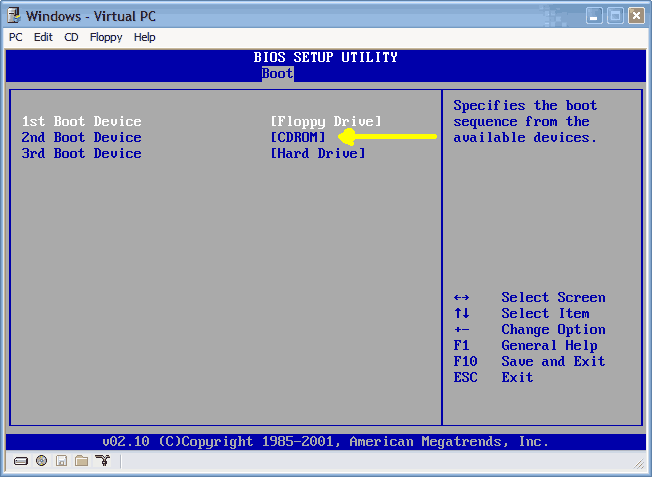
If you are unable to boot from the XP/2000 CD, then please check the last step in this short guide.
Step 3: System repair stepsA blue screen will appear and will begin loading XP setup from the CD.
RAID/SCSI/Unsupported UDMA users:
You will be prompted to "press F6 to install any third party SCSI or RAID drivers". Most users will not have to press F6, but if you are running RAID, SCSI or unsupported UDMA controllers, then you will have to have your controller drivers on a floppy disk. If you are unsure whether you have RAID/SCSI, then simply let the CD load without pressing F6.
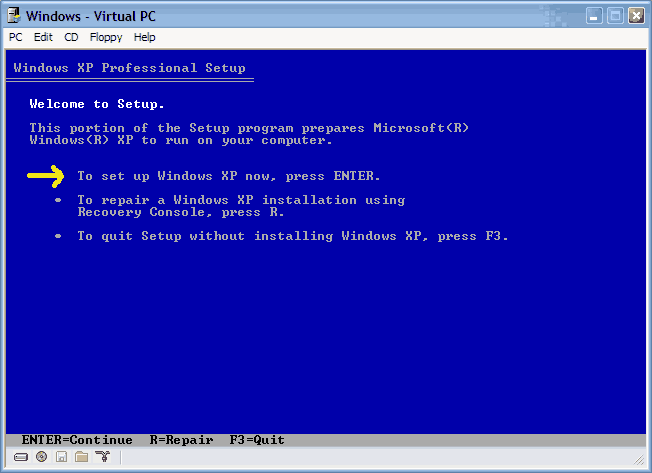
Once completed, you will be confronted with "Windows Setup". You will be asked to setup up Windows, or repair Windows with the recovery console. Choose the FIRST option, NOT recovery console.
http://web.qx.net/rburgess/storage/XPrepair/2.gif
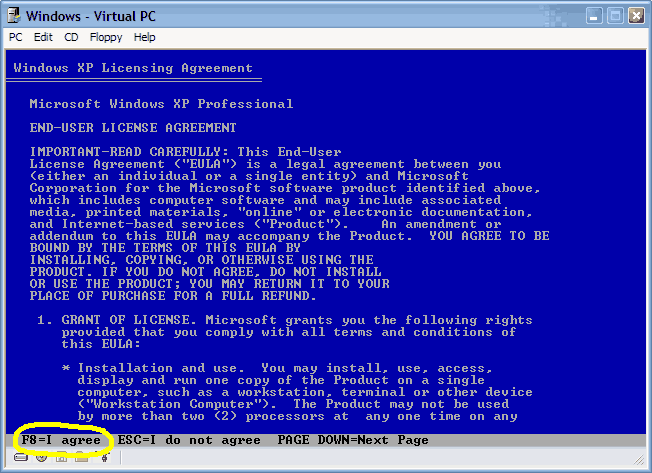
Choose F8 to continue.
http://web.qx.net/rburgess/storage/XPrepair/3.gif
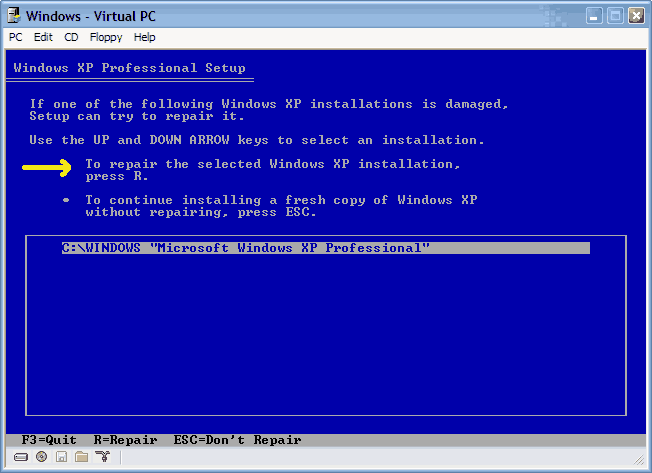
Next, Windows Setup will find existing Windows XP/2000 installations. You will be asked to repair an existing XP installation or install a fresh copy of Windows XP/2000.
If no installations are found, then you will not be given the option to repair. This may happen if the data or partition on your drive is too corrupted.
http://web.qx.net/rburgess/storage/XPrepair/4.gif
That should be it. Windows XP/2000 will appear to be installing itself for the first time, but it will retain all of your data and settings. Just follow the prompts, have your CD-KEY handy and hope for the best!
etgsgroup
03-13-2006, 01:20 AM
I don't have cd bootdable xp, how I can make if?
I start up from boot disk win98 and copy file smartdirve.exe from win98. (I setup my winxp from that)