Welcome to the TechSpot OpenBoards. Please read the FAQ if you have any questions. Login to participate.
|
|||||||
Reboot and select proper boot device or insert boot media in selected boot device?
![]() |
|
|
|
Thread Tools |
|
#1
|
|||
|
|||
|
Reboot and select proper boot device or insert boot media in selected boot device?
I have absolutely no idea what I'm doing. I tried to get my desktop computer set up for the school year, but found myself with a Blue Screen Error every time I would turn it on. I had this problem on my laptop just weeks earlier, and when I turned it into the shop, they informed me that it was caused by corrupted RAM. So, instead of wanting to pay another $300 to get the desktop fixed, I chose to take out the RAM myself. Bad idea...
For some reason, the RAM appeared to be melted or scratched away a little bit at the bottom (gold part that goes into the slot). So I took that RAM out. Only now when I turn on the computer, it gives me a screen saying "reboot and select proper boot device or insert boot media in selected boot device". I go into the Boot Menu, and it gives me two options, both bringing me back to the same "reboot and select proper boot device or insert boot media in selected boot device" message. I tried taking out a RAM drive from a different desktop computer and putting it into the one I'm trying to fix, but then the monitor wouldn't read the computer being on. I switched monitors, but to no avail. I switched RAMs from other computers, but that doesn't work either. I can't afford to take this into the shop or buy new parts for it, but I really need it for school. I don't even care about it running slower or files on their disappearing forever. I just want my computer to run. So how does a person with no skills get their computer to run? |
|
#2
|
||||
|
||||
|
I just want to be clear here (point form is sometimes good)
PC Bluescreens Removed Ram (looks to be physically faulty, gold plate scratched off) Turned on computer (not sure if you re-inserted the original Ram here again) Now cannot find HardDrive boot sector Tried Ram from another (unknown) computer (Note: Ram specs may be incorrect) Would not POST (Power On Self Test) Put the original Ram back in From here, I don't know what's happening, probably not Booting again (ie your long heading) This is what I recommend (even though I'm still a little unsure where your at!) Remove the Ram (By the way 1 or 2 Ram Cards?) Blow out (either compressed air in a can, or just using your breath) the Ram slots Re-insert the Ram (you usually just need one in there to test with) Note: They click in Unplug the cables going to your HardDrive (HardDrive end and Motherboard end) Re-insert the HardDrive data cable (securely) Do the same for the HardDrive Power Connector (pull it out, then push it in with a little force) Now do the same for the CD/DVD Drive data and power cables (you can even just leave these cables fully out) Turn on ! Did it work? |
|
|
|
#3
|
|||
|
|||
|
I find that this reply will show just how incompetent I am with computers...
For refreshment's sake, here's what has previously happened (in point form ^^) Blue Screen Took out first RAM (there are 2) and found it to be faulty Turned on computer (without RAM in), but the monitor wouldn't respond. Took out the bad RAM again, this time monitor responded. Got "Reboot...." message. Inserted RAM from diff computer into 1st slot. Monitor wouldn't read, again. Took out foreign RAM, got "Reboot..." message again. Now, I completed the first few of your steps: I blew on the RAM slots and clearned them of dust and whatnot. However, I'm at a loss as to what the harddrive or the motherboard look like. I know, I'm a hopeless case, but if there's some way to describe it, I will be forever grateful. |
|
#4
|
||||
|
||||
|
Well it just so happens that there are two different looking data cables that can plug into a HardDrive or DVD Drive.
So I'll show them both to you ! ![]() ![]() The Red Sata is on the left, and the IDE data cable is on the right You probably have IDE (flat ribbon cable) Pull it out, then plug it back in (Remember it has two ends, 1-into Motherboard 2-into HardDrive or DVD Drive) An IDE data cable (and Sata too actually), can only go in one way around (ie the way it came out!) |
|
#5
|
|||
|
|||
|
Thank you for the visual, for it helped me through my confusion!
How worried should I be that the Sata cable is only plugged into one thing? I replugged the end that was connected, though, but it didn't solve the problem. As to the other kind of cable, I'm pretty sure it's hooked up on both ends, but I cant find the other end... There's an obvious one that I replugged (didn't work either). The hidden end goes into a metal box. Do I want to take that apart? =/... |
|
#6
|
||||
|
||||
|
Quote:
(well not that worried )The Sata cable plugs into the Motherboard, and the other end plugs into the HardDrive. Oh, just thought, you now want a pic of the HardDrive, hang on... Here's a yucky black one: http://www.upgradecomputermemory.com...e-dhd-s500.jpg (they're usually silver) Anyway at the end on the HardDrive you will see the connections: http://www.mysuperpc.com/build/sata_..._jumpers_2.jpg (this one has a red outline showing the Sata connection part) |
|
#7
|
|||
|
|||
|
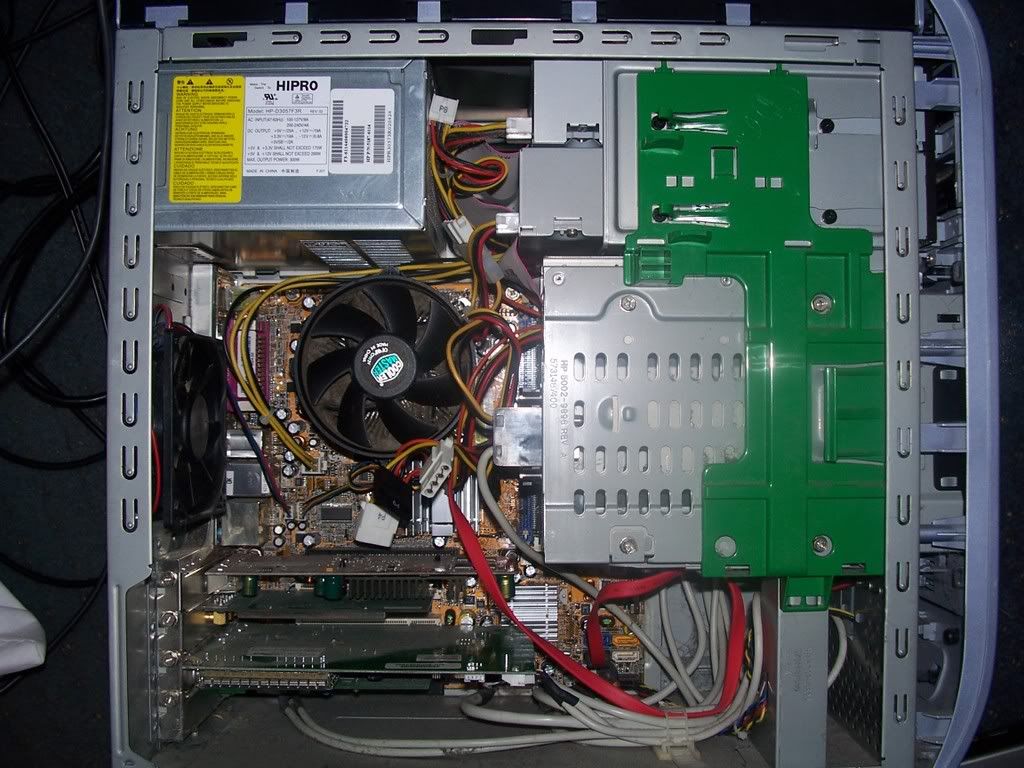
Perhaps this will help in our situation:
![]() ![]() Poor quality, but perhaps it can help with the understanding. Based on the images, is it easier to tell where the other end of the Sata plug goes? |
|
#8
|
|||
|
|||
|
Wait. I found out where it should go in, and plugged it in... Still nothing =/
|
|
#9
|
||||
|
||||
|
lol
Yes that helps (although I had to move away from the screen a bit Anyway you see that grey (with red stripe) flat data cable (going to two CD/DVD drives) Find the Motherboard end of that single IDE Cable, and unplug it (Um looks difficult to do, better you than me )Anyway, with the smaller Sata cable securely plugged in (you said you did this now) Turn it on (ie you don't need the CD/DVD Drive for the computer to work) And we're in test mode now. Oh and the back of the HardDrive also has a power cable , make sure that is plugged in too A picture tells a thousand words |
|
|
|
#10
|
||||
|
||||
|
Here's some more specific pics (Now I know the Model !)
http://h10025.www1.hp.com/ewfrf/wc/d...&product=92882 Open link, and then scroll down the page Edit: Perhaps another pic: http://h10025.www1.hp.com/ewfrf/wc/d...&product=92883 Also I'm not exactly sure on the model number But as you can see HP have a large range of helpful guides Last edited by kimsland; 08-29-2008 at 07:16 PM.. |
![]() |
| Thread Tools | |
|
|
| Similar Topics | ||||
| Topic | Category | Replies | Last Post | |
| Reboot and select proper boot device or insert boot media in selected boot device | Storage & Networking | 18 | 12-27-2008 12:01 PM | |
| Reboot and select proper boot device or insert boot media in selected boot device | Storage & Networking | 8 | 07-10-2008 03:17 AM | |
| Reboot and Select proper Boot device or Insert Boot Media in selected... | Windows OS | 2 | 11-02-2007 06:15 PM | |
| Reboot and Select proper Boot device or Insert Boot Media in selected... | Windows OS | 3 | 08-02-2007 06:48 PM | |
| reboot and select proper boot device.... | Windows OS | 0 | 07-31-2007 10:14 AM | |
All times are GMT -4. The time now is 12:00 AM.


(well not that worried