also @ TechSpot: ATI Radeon HD 5970 Review: Dual-GPU Graphics
Welcome to the TechSpot OpenBoards. Please read the FAQ if you have any questions. Login to participate.

Go Back   TechSpot OpenBoards > Operating Systems & Software > Virus & Malware removal

Google redirect

Closed Thread
Page 2 of 2 1 2
Bookmark Thread Tools
  #21  
Old 11-26-2008
Blind Dragon's Avatar
TechSpot Evangelist
 
Location: Tampa FL
Member since: Oct 2007, 4,048 posts
System specs
yes you should. I am just curious as I would like to recommend the program more often.

If it does, post a fresh hijackthis log - i wanna see if it clears those appinetdll's.

If not - just let me know
  #22  
Old 11-26-2008
Newcomer, in training
 
Location: London, UK
Member since: Nov 2008, 17 posts
It didn't give me the option to quarantine. I'll attach the log just in case you want to see it.
Attached Files
File Type: txt avirarkd 2.txt (7.0 KB, 2 views)
To remove this ad, sign in. To register for a new account, click here.
  
  #23  
Old 11-26-2008
Blind Dragon's Avatar
TechSpot Evangelist
 
Location: Tampa FL
Member since: Oct 2007, 4,048 posts
System specs
Sorry for running you around a bit. We will move forward, so you understand what we are up against.

The AppInit_DLLs registry value contains a list of dlls that will be loaded when user32.dll is loaded. As most Windows executables use the user32.dll, that means that any DLL that is listed in the AppInit_DLLs registry key will be loaded also. This makes it very difficult to remove the DLL as it will be loaded within multiple processes, some of which can not be stopped without causing system instability. The user32.dll file is also used by processes that are automatically started by the system when you log on. This means that the files loaded in the AppInit_DLLs value will be loaded very early in the Windows startup routine allowing the DLL to hide itself or protect itself before we have access to the system.

================================================

Run CFScript

Open notepad and copy/paste the text in the code box below into it:
NOTE* make sure to only highlight and copy what is inside the quote box nothing out side of it.
Also ..

Pay particular attention to this :-

Make sure the word File:: is on the first line of the text file you save (no blank line above it, & no space in front of it)
Quote:
Save this as CFScript.txt

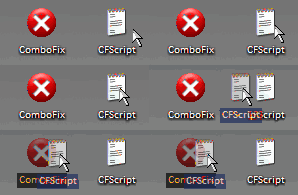
Then drag the CFScript.txt into ComboFix.exe as you see in the screenshot below.


This will start ComboFix again. After reboot, (in case it asks to reboot), post the contents of Combofix.txt in your next reply together with a fresh HJT log.

Last edited by Blind Dragon; 11-27-2008 at 01:52 PM..
  #24  
Old 11-27-2008
Newcomer, in training
 
Location: London, UK
Member since: Nov 2008, 17 posts
You're not running me around. Believe me, I'm very grateful for the help!

Logs requested are attached.
Attached Files
File Type: txt hijackthis 5.txt (9.8 KB, 1 views)
File Type: txt combofix log 6.txt (22.6 KB, 3 views)
  #25  
Old 11-27-2008
Blind Dragon's Avatar
TechSpot Evangelist
 
Location: Tampa FL
Member since: Oct 2007, 4,048 posts
System specs
Almost there

OTMoveit3 by OldTimer
  • Please double-click OTMoveIt3.exe to run it. (Vista users, please right click on OTMoveit3.exe and select "Run as an Administrator")
  • Copy the file paths below to the clipboard by highlighting ALL of them and pressing CTRL + C (or, after highlighting, right-click and choose Copy):

    Code:
    
    
  • Return to OTMoveIt3, right click in the "Paste List of Files/Folders to Move" window (under the light Yellow bar) and choose Paste.
  • Click the red Moveit! button.
  • A log of files and folders moved will be created in the c:\_OTMoveIt\MovedFiles folder in the form of Date and Time (mmddyyyy_hhmmss.log). Please open this log in Notepad and post its contents in your next reply.
  • Close OTMoveIt3
If a file or folder cannot be moved immediately you may be asked to reboot the machine to finish the move process. If you are asked to reboot the machine choose Yes.

Last edited by Blind Dragon; 11-27-2008 at 01:52 PM..
  #26  
Old 11-27-2008
Newcomer, in training
 
Location: London, UK
Member since: Nov 2008, 17 posts
Did as asked, attached log.

Would've done this last night but realised it was 4.30am and I needed some sleep. Sorry!
Attached Files
File Type: log 11282008_135621.log (9.5 KB, 1 views)
  #27  
Old 11-27-2008
Blind Dragon's Avatar
TechSpot Evangelist
 
Location: Tampa FL
Member since: Oct 2007, 4,048 posts
System specs
No problem, I went to bed as well. One more time - then we can clean up -

Are you attached to Mcafee? Or would you be willing to consider some free alternatives? I know they have definitions on this one, but it doesn't seem to be doing anything about it

===================================================

OTMoveit3 by OldTimer
  • Please double-click OTMoveIt3.exe to run it. (Vista users, please right click on OTMoveit3.exe and select "Run as an Administrator")
  • Copy the file paths below to the clipboard by highlighting ALL of them and pressing CTRL + C (or, after highlighting, right-click and choose Copy):

    Code:
    
    
  • Return to OTMoveIt3, right click in the "Paste List of Files/Folders to Move" window (under the light Yellow bar) and choose Paste.
  • Click the red Moveit! button.
  • A log of files and folders moved will be created in the c:\_OTMoveIt\MovedFiles folder in the form of Date and Time (mmddyyyy_hhmmss.log). Please open this log in Notepad and post its contents in your next reply.
  • Close OTMoveIt3
If a file or folder cannot be moved immediately you may be asked to reboot the machine to finish the move process. If you are asked to reboot the machine choose Yes.

Last edited by Blind Dragon; 11-27-2008 at 01:51 PM..
  #28  
Old 11-27-2008
Newcomer, in training
 
Location: London, UK
Member since: Nov 2008, 17 posts
I was running Avira, but changed to McAfee because I was given a free 12 month subscription. Funnily enough, it was the day I changed over that I started to get these problems. Thinking maybe I should have stayed with Avira!

Have attached the log as requested.
Attached Files
File Type: log 11282008_163133.log (604 Bytes, 1 views)
  #29  
Old 11-27-2008
Blind Dragon's Avatar
TechSpot Evangelist
 
Location: Tampa FL
Member since: Oct 2007, 4,048 posts
System specs
I need to get a 2nd opinion and see if we missed anything - also scan some sections I can't see

Run Kaspersky Online AV Scanner

In order to use it you have to use Internet Explorer.
Go to Kaspersky and click the Accept button at the end of the page.

Note for Internet Explorer 7 users: If at any time you have trouble with the accept button of the licence, click on the Zoom tool located at the right bottom of the IE window and set the zoom to 75 %. Once the license accepted, reset to 100%.
  • Read the Requirements and limitations before you click Accept.
  • Allow the ActiveX download if necessary.
  • Once the database has downloaded, click Next.
  • Click on "My Computer"
  • When the scan has completed, click Save Report As...
  • Enter a name for the file in the Filename: text box and then click the down arrow to the right of Save as type: and select text file (*.txt)
  • Click Save - by default the file will be saved to your Desktop, but you can change this if you wish.
Attach the report into your next reply
To remove this ad, sign in. To register for a new account, click here.
  
  #30  
Old 11-28-2008
Newcomer, in training
 
Location: London, UK
Member since: Nov 2008, 17 posts
Sorry that's taken so long. Log is attached.
Attached Files
File Type: txt Kaspersky log 2.txt (1.5 KB, 1 views)
  #31  
Old 11-29-2008
Blind Dragon's Avatar
TechSpot Evangelist
 
Location: Tampa FL
Member since: Oct 2007, 4,048 posts
System specs
Run CFScript

Open notepad and copy/paste the text in the code box below into it:
NOTE* make sure to only highlight and copy what is inside the quote box nothing out side of it.
Also ..

Pay particular attention to this :-

Make sure the word File:: is on the first line of the text file you save (no blank line above it, & no space in front of it)
Quote:
File::
D:\Program Files\setup.bat

Folder::
D:\Program Files\Alice Greenfingers 2
D:\Program Files\Betrapped
D:\Program Files\Interpol The Trail Of Dr Chaos
D:\Program Files\Mystery Case Files Madame Fate
Save this as CFScript.txt

Then drag the CFScript.txt into ComboFix.exe as you see in the screenshot below.


This will start ComboFix again.

=================================================

I would switch your security from Mcafee back to Avira, and you should also use a firewall such as Zone Alarm or Comodo

Firewalls
Here are some firewalls which are free for personal use and most commonly used:
Comodo <-Vista Compatible
Zonealarm <-Vista Compatible

Anti-Virus
Avast Free
Avira Free <- My recommendation


=================================================

Uninstall Combofix
* Click START then RUN
* Now type Combofix /u in the runbox
* Make sure there's a space between Combofix and /u
* Then hit Enter.

* The above procedure will:
* Delete the following:
* ComboFix and its associated files and folders.
* Reset the clock settings.
* Hide file extensions, if required.
* Hide System/Hidden files, if required.
* Set a new, clean Restore Point.

-----------------------------------------------------------------------

OTCleanit! by Oldtimer
  • Launch Otmoveit3 and click on the green Cleanup! button
  • This should remove some of the tools we used and uninstall itself

---------------------------------------------------------------------------

Now that you are clean, please follow these simple steps in order to keep your computer clean and secure:
  1. Set correct settings for files
    • Click Start > My Computer > Tools menu (at top of page) > Folder Options > View tab.
    • Under "Hidden files and folders" if necessary select Do not show hidden files and folders.
    • If unchecked please check Hide protected operating system files (Recommended)
    • If necessary check "Display content of system folders"
    • If necessary Uncheck Hide file extensions for known file types.
    • Click OK

    clear system restore points
    • This is a good time to clear your existing system restore points and establish a new clean restore point:
      • Go to Start > All Programs > Accessories > System Tools > System Restore
      • Select Create a restore point, and Ok it.
      • Next, go to Start > Run and type in cleanmgr
      • Select the More options tab
      • Choose the option to clean up system restore and OK it.
      This will remove all restore points except the new one you just created.

  2. Make your Internet Explorer more secure - This can be done by following these simple instructions:
    1. From within Internet Explorer click on the Tools menu and then click on Options.
    2. Click once on the Security tab
    3. Click once on the Internet icon so it becomes highlighted.
    4. Click once on the Custom Level button.
      1. Change the Download signed ActiveX controls to Prompt
      2. Change the Download unsigned ActiveX controls to Disable
      3. Change the Initialize and script ActiveX controls not marked as safe to Disable
      4. Change the Installation of desktop items to Prompt
      5. Change the Launching programs and files in an IFRAME to Prompt
      6. Change the Navigate sub-frames across different domains to Prompt
      7. When all these settings have been made, click on the OK button.
      8. If it prompts you as to whether or not you want to save the settings, press the Yes button.
    5. Next press the Apply button and then the OK to exit the Internet Properties page.
  3. Use an AntiVirus Software - It is very important that your computer has an anti-virus software running on your machine. This alone can save you a lot of trouble with malware in the future.

    See this link for a listing of some online & their stand-alone antivirus programs:

    Virus, Spyware, and Malware Protection and Removal Resources

  4. Update your AntiVirus Software - It is imperitive that you update your Antivirus software at least once a week (Even more if you wish). If you do not update your antivirus software then it will not be able to catch any of the new variants that may come out.

  5. Use a Firewall - I can not stress how important it is that you use a Firewall on your computer. Without a firewall your computer is succeptible to being hacked and taken over. I am very serious about this and see it happen almost every day with my clients. Simply using a Firewall in its default configuration can lower your risk greatly.

    For a tutorial on Firewalls and a listing of some available ones see the link below:

    Understanding and Using Firewalls

  6. Visit Microsoft's Windows Update Site Frequently - It is important that you visit http://www.windowsupdate.com regularly. This will ensure your computer has always the latest security updates available installed on your computer. If there are new updates to install, install them immediately, reboot your computer, and revisit the site until there are no more critical updates.This is done in Vista through control panel -> windows updates.

  7. Install SpywareBlaster - SpywareBlaster will added a large list of programs and sites into your Internet Explorer settings that will protect you from running and downloading known malicious programs.

    A tutorial on installing & using this product can be found here:

    Using SpywareBlaster to protect your computer from Spyware and Malware

  8. Update all these programs regularly - Make sure you update all the programs I have listed regularly. Without regular updates you WILL NOT be protected when new malicious programs are released.
Follow this list and your potential for being infected again will reduce dramatically.

here are some additional utilities that will enhance your safety
  • IE/Spyad <= IE/Spyad places over 4000 websites and domains in the IE Restricted list which will severely impair attempts to infect your system. It basically prevents any downloads (Cookies etc) from the sites listed, although you will still be able to connect to the sites.
  • MVPS Hosts file <= The MVPS Hosts file replaces your current HOSTS file with one containing well know ad sites etc. Basically, this prevents your coputer from connecting to those sites by redirecting them to 127.0.0.1 which is your local computer
  • Google Toolbar <= Get the free google toolbar to help stop pop up windows.
  • Winpatrol <= Download and install the free version of Winpatrol. a tutorial for this product is located here:
    Using Winpatrol to protect your computer from malicious software
__________________
  #32  
Old 11-29-2008
Newcomer, in training
 
Location: London, UK
Member since: Nov 2008, 17 posts
Thank you! You are an absolute angel, everything seems to be running perfectly now. I cannot tell you how much I appreciate all your help with this. Thank you!
  #33  
Old 11-29-2008
Blind Dragon's Avatar
TechSpot Evangelist
 
Location: Tampa FL
Member since: Oct 2007, 4,048 posts
System specs
Anytime, let me know if anything else comes up
Closed Thread
Page 2 of 2 1 2

Tip: Download Advanced SystemCare 3 Freeware - 1 Click A Day to Clean, Repair, Protect & Optimize your PC.

Thread Tools


Similar Topics
Topic Category Replies Last Post
Google Redirect Virus & Malware removal 1 10-17-2008 04:27 AM
Google Redirect Virus? Virus & Malware removal 1 09-20-2008 07:08 PM
Google search redirect to nothing IP 85.255.120.226 Virus & Malware removal 28 04-27-2008 03:17 AM
Google redirect Virus & Malware removal 10 05-15-2007 06:14 PM
Google redirect Virus & Malware removal 17 03-01-2007 10:06 PM


All times are GMT -4. The time now is 10:58 AM.