i have a computer that was infected with the av guard online virus. i have tried many things to remove it. i was finally able to remove the fake scanner portion of the virus, but now im unable to run any kind of scans (whether it is online or offline). i've tried every method of renaming files, but once the scan starts, it immediately disappears. there are some registry files that say i don't have the permission to look at them. i believe whatever it is that has my system hijacked has the permissions portion of windows on lockdown. i've spend nearly 2 weeks trying to crack this but have been unsuccessful. please help. thanks.
You are using an out of date browser. It may not display this or other websites correctly.
You should upgrade or use an alternative browser.
You should upgrade or use an alternative browser.
Solved Unable to run virus/malware scan from AV Guard online in Vista
- Thread starter Pureiggy
- Start date

Bobbye
Posts: 16,313 +36
Welcome to TechSpot! Let's see if we can get you going.
My Guidelines: please read and follow:
If I don't get a reply from you in 5 days, the thread will be closed. If your problem persist, you can send a PM to reopen it.
=====================================
1. Boot into Safe Mode with Networking
2. Reset your browser proxies
3.Download the file TDSSKiller.ziphttp://support.kaspersky.com/downloads/utils/tdsskiller.zip and save to the desktop.
(If you are unable to download the file for some reason, then TDSS may be blocking it. You would then need to download it first to a clean computer and then transfer it to the infected one using an external drive or USB flash drive.)
4. Please download and run the tool below named Rkill (courtesy of BleepingComputer.com) which may help allow other programs to run.
There are 3 different versions. If one of them won't run then download and try to run the other one. (Vista and Win7 users need to right click Rkill and choose Run as Administrator)
You only need to get one of these to run, not all of them. You may get warnings from your antivirus about this tool, ignore them or shutdown your antivirus.
5. Now try the Malwarebytes scan-If all of he above has been done, you can then boot back in to Normal Mode..
---------------------------
Please leave all logs in next reply. Please ask if you have any questions
My Guidelines: please read and follow:
- Be patient. Malware cleaning takes time and I am also working with other members while I am helping you.
- Read my instructions carefully. If you don't understand or have a problem, ask me.
- If you have questions, or if a program doesn't work, stop and tell me about it. Don't try to get around it yourself.
- Follow the order of the tasks I give you. Order is crucial in cleaning process.
- File sharing programs should be uninstalled or disabled during the cleaning process..
- Observe these:
[o] Don't use any other cleaning programs or scans while I'm helping you.
[o] Don't use a Registry cleaner or make any changes in the Registry.
[o] Don't download and install new programs- except those I give you. - Please let me know if there is any change in the system.
If I don't get a reply from you in 5 days, the thread will be closed. If your problem persist, you can send a PM to reopen it.
=====================================
1. Boot into Safe Mode with Networking
- Restart your computer and start pressing the F8 key on your keyboard.
- Select the Safe Mode option when the Windows Advanced Options menu appears, and then press ENTER.
2. Reset your browser proxies
- For Firefox:
o Open Firefox, click on "Tools" then "Options" and then on "Advanced".
o Click on the "Network" tab, and then on the "Settings" button.
o Please make sure that the "No Proxy" option is selected.
- For Internet Explorer:
o Open Internet Explorer.
o Click on "Tools" and then select "Internet Options".
o Click on the "Connections" tab and click the "Lan Settings" button at the bottom.
o Uncheck "Use a Proxy server for your LAN".
o Click OK to close the Local Area Network (LAN) Settings window.
o Click OK to close the Internet Options window.
3.Download the file TDSSKiller.ziphttp://support.kaspersky.com/downloads/utils/tdsskiller.zip and save to the desktop.
(If you are unable to download the file for some reason, then TDSS may be blocking it. You would then need to download it first to a clean computer and then transfer it to the infected one using an external drive or USB flash drive.)
- Right-click the tdsskiller.zip file> Select Extract All into a folder on the infected (or potentially infected) PC.
- Double click on TDSSKiller.exe. to run the scan
- When the scan is over, the utility outputs a list of detected objects with description.
The utility automatically selects an action (Cure or Delete) for malicious objects.
The utility prompts the user to select an action to apply to suspicious objects (Skip, by default). - Select the action Quarantine to quarantine detected objects.
The default quarantine folder is in the system disk root folder, e.g.: C:\TDSSKiller_Quarantine\23.07.2010_15.31.43 - After clicking Next, the utility applies selected actions and outputs the result.
- A reboot is required after disinfection.
4. Please download and run the tool below named Rkill (courtesy of BleepingComputer.com) which may help allow other programs to run.
There are 3 different versions. If one of them won't run then download and try to run the other one. (Vista and Win7 users need to right click Rkill and choose Run as Administrator)
You only need to get one of these to run, not all of them. You may get warnings from your antivirus about this tool, ignore them or shutdown your antivirus.
- Rkill.com
- Rkill.scr
- Rkill.exe
- Double-click on the Rkill desktop icon to run the tool.
- If using Vista or Windows 7 right-click on it and choose Run As Administrator.
- A black DOS box will briefly flash and then disappear. This is normal and indicates the tool ran successfully.
- If not, delete the file, then download and use the one provided in Link 2.
- If it does not work, repeat the process and attempt to use one of the remaining links until the tool runs.
- Do not reboot until instructed.
- If the tool does not run from any of the links provided, please let me know.
5. Now try the Malwarebytes scan-If all of he above has been done, you can then boot back in to Normal Mode..
---------------------------
Please leave all logs in next reply. Please ask if you have any questions
- Thread Starter
- #3
Next Step
Ok. I was able to get TDDS to run. It found 3 items, but didn't give me a log to post. I had me quarentine 3 folders (pmax0000, rtkt0000, and susp0000). RKill.exe was able to run, but as you can see from the logs, it didn't find anything. I'm still unable to run Malwarebytres. It keeps doing the same thing.
This log file is located at C:\rkill.log.
Please post this only if requested to by the person helping you.
Otherwise you can close this log when you wish.
Rkill was run on 10/30/2011 at 22:14:04.
Operating System: Windows Vista (TM) Home Basic
Processes terminated by Rkill or while it was running:
Rkill completed on 10/30/2011 at 22:14:08.
I'm ready for my next step. Thanks.
Ok. I was able to get TDDS to run. It found 3 items, but didn't give me a log to post. I had me quarentine 3 folders (pmax0000, rtkt0000, and susp0000). RKill.exe was able to run, but as you can see from the logs, it didn't find anything. I'm still unable to run Malwarebytres. It keeps doing the same thing.
This log file is located at C:\rkill.log.
Please post this only if requested to by the person helping you.
Otherwise you can close this log when you wish.
Rkill was run on 10/30/2011 at 22:14:04.
Operating System: Windows Vista (TM) Home Basic
Processes terminated by Rkill or while it was running:
Rkill completed on 10/30/2011 at 22:14:08.
I'm ready for my next step. Thanks.
Bobbye
Posts: 16,313 +36
Unfortunately, those "many things" you tried may make this more difficult.
Find TDSSKiller here: The default quarantine folder is in the system disk root folder, e.g.: C:\TDSSKiller_Quarantine\23.07.2010_15.31.43
===========================================
Please download randmbam.exe
It will try to create random names and shortcuts for Malwarebytes Anti Malware(MBAM) if you have it installed already.
Once done, try running a scan again
=================================
For the permissions:
Add "Take Ownership" to Explorer Right-Click Menu in Win 7 or Vista
DownloadTakeOwnership.zip and save to your desktop.

Here’s what the new right-click menu will look like after installing this registry hack.
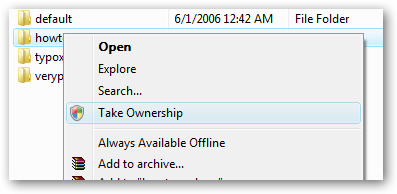
(Images courtesy howtogeek)
This should allow you to do the right click on those parts of the system that are denying you permissions and 'take ownership.'
===============================
Please try to run the additional steps in the Preliminary Virus and Malware Removal thread HERE.
NOTE: If you already have any of the scanning programs on the computer, please remove them and download the versions in these links.
When you have finished, leave the logs for review in your next reply .
NOTE: Logs must be pasted in the replies. Attached logs will not be reviewed.
Find TDSSKiller here: The default quarantine folder is in the system disk root folder, e.g.: C:\TDSSKiller_Quarantine\23.07.2010_15.31.43
===========================================
Please download randmbam.exe
It will try to create random names and shortcuts for Malwarebytes Anti Malware(MBAM) if you have it installed already.
Once done, try running a scan again
=================================
For the permissions:
Add "Take Ownership" to Explorer Right-Click Menu in Win 7 or Vista
DownloadTakeOwnership.zip and save to your desktop.
- Unzip (extract) the files contained in the zipfile.
- Double-click the InstallTakeOwnership.reg file and click through the prompts. No reboot necessary.
Here’s what the new right-click menu will look like after installing this registry hack.
(Images courtesy howtogeek)
This should allow you to do the right click on those parts of the system that are denying you permissions and 'take ownership.'
===============================
Please try to run the additional steps in the Preliminary Virus and Malware Removal thread HERE.
NOTE: If you already have any of the scanning programs on the computer, please remove them and download the versions in these links.
When you have finished, leave the logs for review in your next reply .
NOTE: Logs must be pasted in the replies. Attached logs will not be reviewed.
- Thread Starter
- #5
Next Step
Step 1: Malwarebytes unable to run
Step 2: GMER woudln't download from the link
Step 3: DDS was able to run. Here's the log:
.
DDS (Ver_2011-08-26.01) - NTFSx86 NETWORK
Internet Explorer: 9.0.8112.16421
Run by Susan at 1:06:54 on 2011-11-01
Microsoft® Windows Vista™ Home Basic 6.0.6002.2.1252.1.1033.18.1917.1419 [GMT -5:00]
.
SP: Windows Defender *Disabled/Updated* {D68DDC3A-831F-4fae-9E44-DA132C1ACF46}
.
============== Running Processes ===============
.
C:\Windows\system32\wininit.exe
C:\Windows\system32\lsm.exe
C:\Windows\system32\svchost.exe -k DcomLaunch
C:\Windows\system32\svchost.exe -k rpcss
C:\Windows\System32\svchost.exe -k LocalServiceNetworkRestricted
C:\Windows\system32\svchost.exe -k netsvcs
C:\Windows\System32\svchost.exe -k LocalSystemNetworkRestricted
C:\Windows\system32\svchost.exe -k NetworkService
C:\Windows\system32\svchost.exe -k LocalService
C:\Windows\system32\svchost.exe -k LocalServiceNoNetwork
C:\Windows\system32\svchost.exe -k NetworkServiceNetworkRestricted
C:\Program Files\Internet Explorer\iexplore.exe
C:\Program Files\Internet Explorer\iexplore.exe
C:\Program Files\Internet Explorer\iexplore.exe
C:\Windows\Explorer.exe
C:\Windows\system32\wbem\wmiprvse.exe
.
============== Pseudo HJT Report ===============
.
uStart Page = hxxp://www.aol.com/
uInternet Settings,ProxyServer = http=127.0.0.1:50364
uURLSearchHooks: AOLMAILTBSearch Class: {98572e47-b5fe-43de-9aea-492a1d3064cd} - c:\program files\aol email toolbar\aolmailtb.dll
uURLSearchHooks: IAOLTBSearch Class: {ea756889-2338-43db-8f07-d1ca6fb9c90d} - c:\program files\aol toolbar\aoltb.dll
mURLSearchHooks: AOLMAILTBSearch Class: {98572e47-b5fe-43de-9aea-492a1d3064cd} - c:\program files\aol email toolbar\aolmailtb.dll
mURLSearchHooks: IAOLTBSearch Class: {ea756889-2338-43db-8f07-d1ca6fb9c90d} - c:\program files\aol toolbar\aoltb.dll
BHO: Adobe PDF Reader Link Helper: {06849e9f-c8d7-4d59-b87d-784b7d6be0b3} - c:\program files\adobe\acrobat 7.0\activex\AcroIEHelper.dll
BHO: AOL Toolbar Loader: {7c554162-8cb7-45a4-b8f4-8ea1c75885f9} - c:\program files\aol toolbar\aoltb.dll
BHO: {7E853D72-626A-48EC-A868-BA8D5E23E045} - No File
BHO: avast! WebRep: {8e5e2654-ad2d-48bf-ac2d-d17f00898d06} - c:\program files\avast software\avast\aswWebRepIE.dll
BHO: Windows Live Sign-in Helper: {9030d464-4c02-4abf-8ecc-5164760863c6} - c:\program files\common files\microsoft shared\windows live\WindowsLiveLogin.dll
BHO: AOL Email Toolbar Loader: {fbea8524-8c72-4208-9d12-7fb73e9926eb} - c:\program files\aol email toolbar\aolmailtb.dll
TB: AOL Toolbar: {de9c389f-3316-41a7-809b-aa305ed9d922} - c:\program files\aol toolbar\aoltb.dll
TB: AOL Email Toolbar: {a3704fa3-dbf6-46b5-b95e-0677dfd39577} - c:\program files\aol email toolbar\aolmailtb.dll
TB: avast! WebRep: {8e5e2654-ad2d-48bf-ac2d-d17f00898d06} - c:\program files\avast software\avast\aswWebRepIE.dll
TB: {5BED3930-2E9E-76D8-BACC-80DF2188D455} - No File
uRunOnce: [FlashPlayerUpdate] c:\windows\system32\macromed\flash\FlashUtil10w_ActiveX.exe -update activex
mRun: [avast] "c:\program files\avast software\avast\avastUI.exe" /nogui
mRunOnce: [GrpConv] grpconv -o
mPolicies-explorer: BindDirectlyToPropertySetStorage = 0 (0x0)
mPolicies-system: EnableUIADesktopToggle = 0 (0x0)
IE: &AOL Email Toolbar Search - c:\programdata\aol email toolbar\ietoolbar\resources\en-us\local\search.html
IE: &AOL Toolbar Search - c:\programdata\aol\ietoolbar\resources\en-us\local\search.html
IE: E&xport to Microsoft Excel - c:\progra~1\micros~2\office11\EXCEL.EXE/3000
LSP: mswsock.dll
DPF: {2BC66F54-93A8-11D3-BEB6-00105AA9B6AE} - hxxp://security.symantec.com/sscv6/SharedContent/vc/bin/AvSniff.cab
DPF: {644E432F-49D3-41A1-8DD5-E099162EEEC5} - hxxp://security.symantec.com/sscv6/SharedContent/common/bin/cabsa.cab
DPF: {8FFBE65D-2C9C-4669-84BD-5829DC0B603C} - hxxp://fpdownload.macromedia.com/get/flashplayer/current/ultrashim.cab
DPF: {E2883E8F-472F-4FB0-9522-AC9BF37916A7} - hxxp://platformdl.adobe.com/NOS/getPlusPlus/1.6/gp.cab
TCP: DhcpNameServer = 192.168.0.1
TCP: Interfaces\{9F36A383-E0E8-4F5F-8A3F-591F72B2BEC9} : DhcpNameServer = 192.168.0.1
.
================= FIREFOX ===================
.
FF - ProfilePath - c:\users\susan\appdata\roaming\mozilla\firefox\profiles\zmubncvj.default\
FF - prefs.js: browser.search.defaulturl - hxxp://search.aol.com/aolcom/search?invocationType=tb50-ff-aolmailtb-chromesbox-en-us&query=
FF - prefs.js: browser.search.selectedEngine - AOL Search
FF - prefs.js: keyword.URL - hxxp://search.mywebsearch.com/mywebsearch/GGmain.jhtml?id=ZUxdm0803SUS&ptb=fkotywlEsAcvQq6RmzvVoA&psa=&ind=2010082922&ptnrS=ZUxdm0803SUS&si=&st=kwd&n=77cf6e6a&searchfor=
FF - component: c:\users\susan\appdata\roaming\mozilla\firefox\profiles\zmubncvj.default\extensions\{fa1cfe8c-66b4-4469-b360-b60c79d70c28}\components\MailUtil.dll
FF - component: c:\users\susan\appdata\roaming\mozilla\firefox\profiles\zmubncvj.default\extensions\[email protected]\components\PlaySushiFF.dll
FF - plugin: c:\program files\common files\motive\npMotive.dll
FF - plugin: c:\program files\mozilla firefox\plugins\npCouponPrinter.dll
FF - plugin: c:\program files\mozilla firefox\plugins\npMozCouponPrinter.dll
FF - Ext: Default: {972ce4c6-7e08-4474-a285-3208198ce6fd} - c:\program files\mozilla firefox\extensions\{972ce4c6-7e08-4474-a285-3208198ce6fd}
FF - Ext: Microsoft .NET Framework Assistant: {20a82645-c095-46ed-80e3-08825760534b} - c:\windows\microsoft.net\framework\v3.5\windows presentation foundation\DotNetAssistantExtension
FF - Ext: avast! WebRep: [email protected] - c:\program files\avast software\avast\webrep\FF
FF - Ext: Microsoft .NET Framework Assistant: {20a82645-c095-46ed-80e3-08825760534b} - %profile%\extensions\{20a82645-c095-46ed-80e3-08825760534b}
.
============= SERVICES / DRIVERS ===============
.
R0 Lbd;Lbd;c:\windows\system32\drivers\Lbd.sys [2011-10-26 64512]
S1 aswSnx;aswSnx;c:\windows\system32\drivers\aswSnx.sys [2011-10-31 442200]
S1 aswSP;aswSP;c:\windows\system32\drivers\aswSP.sys [2011-10-31 320856]
S2 aswFsBlk;aswFsBlk;c:\windows\system32\drivers\aswFsBlk.sys [2011-10-31 20568]
S2 aswMonFlt;aswMonFlt;c:\windows\system32\drivers\aswMonFlt.sys [2011-10-31 54616]
S2 avast! Antivirus;avast! Antivirus;c:\program files\avast software\avast\AvastSvc.exe [2011-10-31 44768]
S2 clr_optimization_v4.0.30319_32;Microsoft .NET Framework NGEN v4.0.30319_X86;c:\windows\microsoft.net\framework\v4.0.30319\mscorsvw.exe [2010-3-18 130384]
S2 FontCache;Windows Font Cache Service;c:\windows\system32\svchost.exe -k LocalServiceAndNoImpersonation [2008-6-17 21504]
S2 Lavasoft Ad-Aware Service;Lavasoft Ad-Aware Service;c:\program files\lavasoft\ad-aware\AAWService.exe [2011-8-18 2151640]
S2 tmrkb;tmrkb;c:\windows\system32\drivers\tmrkb.sys [2011-10-26 65808]
S3 F-Secure Standalone Minifilter;F-Secure Standalone Minifilter;c:\users\admini~1\appdata\local\temp\onlinescanner\anti-virus\fsgk.sys [2011-10-25 70144]
S3 Lavasoft Kernexplorer;Lavasoft helper driver;c:\program files\lavasoft\ad-aware\kernexplorer.sys [2011-8-18 15232]
S3 NETw2v32;Intel(R) PRO/Wireless 2200BG Network Connection Driver for Windows Vista;c:\windows\system32\drivers\NETw2v32.sys [2006-11-2 2589184]
S3 WPFFontCache_v0400;Windows Presentation Foundation Font Cache 4.0.0.0;c:\windows\microsoft.net\framework\v4.0.30319\wpf\WPFFontCache_v0400.exe [2010-3-18 753504]
.
=============== Created Last 30 ================
.
2011-11-01 04:13:07 442200 ----a-w- c:\windows\system32\drivers\aswSnx.sys
2011-11-01 04:13:06 54616 ----a-w- c:\windows\system32\drivers\aswMonFlt.sys
2011-11-01 04:13:01 41184 ----a-w- c:\windows\avastSS.scr
2011-10-31 05:21:53 -------- d-----w- c:\program files\Malwarebytes' Anti-Malware
2011-10-31 03:17:12 -------- d-----w- c:\program files\Boom
2011-10-31 03:04:03 -------- d-----w- C:\TDSSKiller_Quarantine
2011-10-26 05:55:57 65808 ----a-w- c:\windows\system32\drivers\tmrkb.sys
2011-10-26 05:55:57 205072 ----a-w- c:\windows\system32\drivers\tmcomm.sys
2011-10-26 05:24:50 101720 ----a-w- c:\windows\system32\drivers\SBREDrv.sys
2011-10-26 05:21:02 64512 ----a-w- c:\windows\system32\drivers\Lbd.sys
2011-10-26 05:20:42 -------- d-----w- c:\program files\Lavasoft
2011-10-26 04:46:18 -------- d-----w- c:\programdata\F-Secure
2011-10-26 02:59:03 -------- d-----w- c:\program files\Panda Security
2011-10-26 02:17:51 -------- d-----w- c:\program files\iExplre
2011-10-19 03:47:49 41272 ----a-w- c:\windows\system32\drivers\mbamswissarmy.sys
2011-10-19 03:46:03 -------- d-----w- c:\program files\BLAH
2011-10-19 03:40:11 -------- d-----w- c:\program files\ABC123
2011-10-19 03:32:00 366 ----a-w- c:\windows\system32\tmp.reg
2011-10-19 01:08:15 -------- d-----w- c:\program files\Trend Micro
2011-10-19 01:00:28 -------- d-----w- c:\program files\jkl
2011-10-18 02:55:08 -------- d-----w- c:\program files\iExpl
2011-10-18 02:49:12 -------- d-----w- c:\program files\PragmaDigm
2011-10-18 01:06:20 -------- d-----w- c:\program files\iExplore
2011-10-16 23:10:07 -------- d-----w- c:\programdata\AVAST Software
2011-10-16 23:10:06 -------- d-----w- c:\program files\AVAST Software
2011-10-15 13:26:42 2043392 ----a-w- c:\windows\system32\win32k.sys
2011-10-15 13:17:32 69632 ----a-w- c:\windows\system32\Mpeg2Data.ax
2011-10-15 13:17:32 57856 ----a-w- c:\windows\system32\MSDvbNP.ax
2011-10-15 13:17:32 293376 ----a-w- c:\windows\system32\psisdecd.dll
2011-10-15 13:17:32 217088 ----a-w- c:\windows\system32\psisrndr.ax
2011-10-15 13:17:30 2409784 ----a-w- c:\program files\windows mail\OESpamFilter.dat
2011-10-15 13:17:18 563712 ----a-w- c:\windows\system32\oleaut32.dll
2011-10-15 13:17:18 555520 ----a-w- c:\windows\system32\UIAutomationCore.dll
2011-10-15 13:17:18 4096 ----a-w- c:\windows\system32\oleaccrc.dll
2011-10-15 13:17:18 238080 ----a-w- c:\windows\system32\oleacc.dll
2011-10-15 13:17:06 7269712 ----a-w- c:\programdata\microsoft\windows defender\definition updates\{0840402e-10b0-44b9-89ff-33c8a13b97a5}\mpengine.dll
.
==================== Find3M ====================
.
2011-09-15 13:09:01 404640 ----a-w- c:\windows\system32\FlashPlayerCPLApp.cpl
2011-09-01 02:35:59 1798144 ----a-w- c:\windows\system32\jscript9.dll
2011-09-01 02:28:15 1126912 ----a-w- c:\windows\system32\wininet.dll
2011-09-01 02:22:54 2382848 ----a-w- c:\windows\system32\mshtml.tlb
.
============= FINISH: 1:08:09.33 ===============
And here's Attatch file:
.
UNLESS SPECIFICALLY INSTRUCTED, DO NOT POST THIS LOG.
IF REQUESTED, ZIP IT UP & ATTACH IT
.
DDS (Ver_2011-08-26.01)
.
Microsoft® Windows Vista™ Home Basic
Boot Device: \Device\HarddiskVolume2
Install Date: 12/16/2006 3:39:36 PM
System Uptime: 10/31/2011 11:51:30 PM (2 hours ago)
.
Motherboard: Intel Corporation | | D102GGC2
Processor: Intel(R) Pentium(R) 4 CPU 3.00GHz | LGA 775 | 3000/200mhz
.
==== Disk Partitions =========================
.
C: is FIXED (NTFS) - 141 GiB total, 108.56 GiB free.
D: is FIXED (NTFS) - 9 GiB total, 3.654 GiB free.
E: is CDROM ()
F: is Removable
G: is Removable
H: is Removable
I: is Removable
.
==== Disabled Device Manager Items =============
.
==== System Restore Points ===================
.
No restore point in system.
.
==== Installed Programs ======================
.
Update for Microsoft Office 2007 (KB2508958)
1000 Solitaire Games
Ad-Aware
Adobe Flash Player 10 ActiveX
Adobe Flash Player 10 Plugin
Adobe Photoshop 7.0
Adobe Reader 7.0.9
AOL Email Toolbar
AOL Toolbar
ATI Catalyst Control Center Ex
ATI Catalyst Install Manager
avast! Free Antivirus
CCleaner
Download Updater (AOL LLC)
eMachines Recovery Center Installer
Family Tree Maker 2006
FTMVistaUpdater
HiJackThis
Hotfix for Microsoft .NET Framework 3.5 SP1 (KB953595)
Hotfix for Microsoft .NET Framework 3.5 SP1 (KB958484)
IncrediMail Xe
Microsoft .NET Framework 3.5 SP1
Microsoft .NET Framework 4 Client Profile
Microsoft Money 2006
Microsoft Office 2007 Service Pack 2 (SP2)
Microsoft Office Access MUI (English) 2007
Microsoft Office Access Setup Metadata MUI (English) 2007
Microsoft Office Excel MUI (English) 2007
Microsoft Office File Validation Add-In
Microsoft Office Home and Student 2007
Microsoft Office InfoPath MUI (English) 2007
Microsoft Office OneNote MUI (English) 2007
Microsoft Office Outlook MUI (English) 2007
Microsoft Office PowerPoint MUI (English) 2007
Microsoft Office Professional Plus 2007
Microsoft Office Proof (English) 2007
Microsoft Office Proof (French) 2007
Microsoft Office Proof (Spanish) 2007
Microsoft Office Proofing (English) 2007
Microsoft Office Proofing Tools 2007 Service Pack 2 (SP2)
Microsoft Office Publisher MUI (English) 2007
Microsoft Office Shared MUI (English) 2007
Microsoft Office Shared Setup Metadata MUI (English) 2007
Microsoft Office Word MUI (English) 2007
Microsoft Silverlight
Microsoft Visual C++ 2005 ATL Update kb973923 - x86 8.0.50727.4053
Microsoft Visual C++ 2005 Redistributable
Microsoft Visual C++ 2008 Redistributable - x86 9.0.30729.4148
Microsoft Works
Move Networks Media Player for Internet Explorer
Mozilla Firefox (3.5.3)
MSXML 4.0 SP2 (KB927978)
MSXML 4.0 SP2 (KB936181)
MSXML 4.0 SP2 (KB941833)
MSXML 4.0 SP2 (KB954430)
MSXML 4.0 SP2 (KB973688)
OGA Notifier 2.0.0048.0
Power2Go 5.0
Pretty Good Solitaire version 13.0.0
Process Killer 2.0
Realtek 8139 and 8139C+ Ethernet Network Card Driver for Windows Vista
Realtek High Definition Audio Driver
Scrabble
Scrabble Complete
Security Update for 2007 Microsoft Office System (KB2288621)
Security Update for 2007 Microsoft Office System (KB2288931)
Security Update for 2007 Microsoft Office System (KB2345043)
Security Update for 2007 Microsoft Office System (KB2553074)
Security Update for 2007 Microsoft Office System (KB2553089)
Security Update for 2007 Microsoft Office System (KB2553090)
Security Update for 2007 Microsoft Office System (KB2584063)
Security Update for 2007 Microsoft Office System (KB969559)
Security Update for 2007 Microsoft Office System (KB976321)
Security Update for Microsoft .NET Framework 3.5 SP1 (KB2416473)
Security Update for Microsoft .NET Framework 4 Client Profile (KB2446708)
Security Update for Microsoft .NET Framework 4 Client Profile (KB2478663)
Security Update for Microsoft .NET Framework 4 Client Profile (KB2518870)
Security Update for Microsoft .NET Framework 4 Client Profile (KB2539636)
Security Update for Microsoft .NET Framework 4 Client Profile (KB2572078)
Security Update for Microsoft Office Access 2007 (KB979440)
Security Update for Microsoft Office Excel 2007 (KB2553073)
Security Update for Microsoft Office InfoPath 2007 (KB2510061)
Security Update for Microsoft Office InfoPath 2007 (KB979441)
Security Update for Microsoft Office PowerPoint 2007 (KB2535818)
Security Update for Microsoft Office PowerPoint Viewer 2007 (KB2464623)
Security Update for Microsoft Office Publisher 2007 (KB2284697)
Security Update for Microsoft Office system 2007 (972581)
Security Update for Microsoft Office system 2007 (KB974234)
Security Update for Microsoft Office Visio Viewer 2007 (KB973709)
Security Update for Microsoft Office Word 2007 (KB2344993)
Soft Data Fax Modem with SmartCP
Ultimate Mahjongg 5
Uninstall EyeMax DVR Client
Update for 2007 Microsoft Office System (KB967642)
Update for Microsoft .NET Framework 3.5 SP1 (KB963707)
Update for Microsoft .NET Framework 4 Client Profile (KB2468871)
Update for Microsoft .NET Framework 4 Client Profile (KB2533523)
Update for Microsoft Office 2007 Help for Common Features (KB963673)
Update for Microsoft Office 2007 System (KB2539530)
Update for Microsoft Office Access 2007 Help (KB963663)
Update for Microsoft Office Excel 2007 Help (KB963678)
Update for Microsoft Office Infopath 2007 Help (KB963662)
Update for Microsoft Office OneNote 2007 (KB980729)
Update for Microsoft Office OneNote 2007 Help (KB963670)
Update for Microsoft Office Outlook 2007 (KB2583910)
Update for Microsoft Office Outlook 2007 Help (KB963677)
Update for Microsoft Office Powerpoint 2007 Help (KB963669)
Update for Microsoft Office Publisher 2007 Help (KB963667)
Update for Microsoft Office Script Editor Help (KB963671)
Update for Microsoft Office Word 2007 Help (KB963665)
Update for Outlook 2007 Junk Email Filter (KB2596560)
W Photo Studio
Windows Live installer
Windows Live Messenger
Windows Live Sign-in Assistant
.
==== Event Viewer Messages From Past Week ========
.
11/1/2011 12:44:45 AM, Error: Microsoft-Windows-DistributedCOM [10005] - DCOM got error "1084" attempting to start the service WSearch with arguments "" in order to run the server: {7D096C5F-AC08-4F1F-BEB7-5C22C517CE39}
11/1/2011 12:06:13 AM, Error: Microsoft-Windows-DistributedCOM [10005] - DCOM got error "1084" attempting to start the service WSearch with arguments "" in order to run the server: {9E175B6D-F52A-11D8-B9A5-505054503030}
11/1/2011 12:06:10 AM, Error: Microsoft-Windows-DistributedCOM [10005] - DCOM got error "1084" attempting to start the service EventSystem with arguments "" in order to run the server: {1BE1F766-5536-11D1-B726-00C04FB926AF}
11/1/2011 12:06:03 AM, Error: Microsoft-Windows-DistributedCOM [10005] - DCOM got error "1084" attempting to start the service ShellHWDetection with arguments "" in order to run the server: {DD522ACC-F821-461A-A407-50B198B896DC}
11/1/2011 1:00:32 AM, Error: Microsoft-Windows-DistributedCOM [10005] - DCOM got error "1084" attempting to start the service WSearch with arguments "" in order to run the server: {9E175B68-F52A-11D8-B9A5-505054503030}
10/31/2011 11:53:31 PM, Error: Service Control Manager [7026] - The following boot-start or system-start driver(s) failed to load: aswSnx aswSP aswTdi i8042prt spldr Wanarpv6
10/31/2011 11:53:31 PM, Error: Service Control Manager [7001] - The Computer Browser service depends on the Server service which failed to start because of the following error: The dependency service or group failed to start.
10/31/2011 11:53:31 PM, Error: Service Control Manager [7000] - The Lavasoft Ad-Aware Service service failed to start due to the following error: Access is denied.
10/31/2011 11:23:24 PM, Error: Service Control Manager [7001] - The Windows Firewall service depends on the Windows Firewall Authorization Driver service which failed to start because of the following error: Cannot create a file when that file already exists.
10/31/2011 11:23:24 PM, Error: Service Control Manager [7000] - The Windows Firewall Authorization Driver service failed to start due to the following error: Cannot create a file when that file already exists.
10/31/2011 11:22:05 PM, Error: EventLog [6008] - The previous system shutdown at 11:19:33 PM on 10/31/2011 was unexpected.
10/31/2011 11:13:04 PM, Error: Microsoft-Windows-DistributedCOM [10005] - DCOM got error "1084" attempting to start the service MSIServer with arguments "" in order to run the server: {000C101C-0000-0000-C000-000000000046}
10/30/2011 10:31:28 PM, Error: Service Control Manager [7026] - The following boot-start or system-start driver(s) failed to load: i8042prt spldr Wanarpv6
10/26/2011 12:33:14 AM, Error: Service Control Manager [7034] - The Lavasoft Ad-Aware Service service terminated unexpectedly. It has done this 1 time(s).
10/26/2011 12:07:24 AM, Error: Service Control Manager [7032] - The Service Control Manager tried to take a corrective action (Restart the service) after the unexpected termination of the User Profile Service service, but this action failed with the following error: An instance of the service is already running.
10/26/2011 11:57:22 PM, Error: Service Control Manager [7032] - The Service Control Manager tried to take a corrective action (Restart the service) after the unexpected termination of the Windows Management Instrumentation service, but this action failed with the following error: An instance of the service is already running.
10/26/2011 10:27:26 PM, Error: Service Control Manager [7022] - The Windows Update service hung on starting.
10/26/2011 10:22:00 PM, Error: Service Control Manager [7026] - The following boot-start or system-start driver(s) failed to load: i8042prt
10/26/2011 10:22:00 PM, Error: Service Control Manager [7000] - The tmrkb service failed to start due to the following error: tmrkb is not a valid Win32 application.
10/26/2011 10:22:00 PM, Error: Service Control Manager [7000] - The avast! Antivirus service failed to start due to the following error: Access is denied.
10/26/2011 10:20:22 PM, Error: EventLog [6008] - The previous system shutdown at 10:18:00 PM on 10/26/2011 was unexpected.
10/26/2011 10:18:09 PM, Error: Service Control Manager [7031] - The Windows Search service terminated unexpectedly. It has done this 1 time(s). The following corrective action will be taken in 30000 milliseconds: Restart the service.
10/26/2011 10:17:43 PM, Error: Service Control Manager [7032] - The Service Control Manager tried to take a corrective action (Restart the service) after the unexpected termination of the Server service, but this action failed with the following error: An instance of the service is already running.
10/26/2011 10:16:55 PM, Error: Service Control Manager [7023] - The Server service terminated with the following error: Not enough server storage is available to process this command.
10/26/2011 1:03:02 AM, Error: EventLog [6008] - The previous system shutdown at 12:55:05 AM on 10/26/2011 was unexpected.
10/25/2011 9:29:37 PM, Error: EventLog [6008] - The previous system shutdown at 9:21:26 PM on 10/25/2011 was unexpected.
10/25/2011 9:20:48 PM, Error: Service Control Manager [7031] - The Software Licensing service terminated unexpectedly. It has done this 1 time(s). The following corrective action will be taken in 120000 milliseconds: Restart the service.
10/25/2011 8:46:57 PM, Error: EventLog [6008] - The previous system shutdown at 10:47:38 PM on 10/18/2011 was unexpected.
.
==== End Of File ===========================
Step 1: Malwarebytes unable to run
Step 2: GMER woudln't download from the link
Step 3: DDS was able to run. Here's the log:
.
DDS (Ver_2011-08-26.01) - NTFSx86 NETWORK
Internet Explorer: 9.0.8112.16421
Run by Susan at 1:06:54 on 2011-11-01
Microsoft® Windows Vista™ Home Basic 6.0.6002.2.1252.1.1033.18.1917.1419 [GMT -5:00]
.
SP: Windows Defender *Disabled/Updated* {D68DDC3A-831F-4fae-9E44-DA132C1ACF46}
.
============== Running Processes ===============
.
C:\Windows\system32\wininit.exe
C:\Windows\system32\lsm.exe
C:\Windows\system32\svchost.exe -k DcomLaunch
C:\Windows\system32\svchost.exe -k rpcss
C:\Windows\System32\svchost.exe -k LocalServiceNetworkRestricted
C:\Windows\system32\svchost.exe -k netsvcs
C:\Windows\System32\svchost.exe -k LocalSystemNetworkRestricted
C:\Windows\system32\svchost.exe -k NetworkService
C:\Windows\system32\svchost.exe -k LocalService
C:\Windows\system32\svchost.exe -k LocalServiceNoNetwork
C:\Windows\system32\svchost.exe -k NetworkServiceNetworkRestricted
C:\Program Files\Internet Explorer\iexplore.exe
C:\Program Files\Internet Explorer\iexplore.exe
C:\Program Files\Internet Explorer\iexplore.exe
C:\Windows\Explorer.exe
C:\Windows\system32\wbem\wmiprvse.exe
.
============== Pseudo HJT Report ===============
.
uStart Page = hxxp://www.aol.com/
uInternet Settings,ProxyServer = http=127.0.0.1:50364
uURLSearchHooks: AOLMAILTBSearch Class: {98572e47-b5fe-43de-9aea-492a1d3064cd} - c:\program files\aol email toolbar\aolmailtb.dll
uURLSearchHooks: IAOLTBSearch Class: {ea756889-2338-43db-8f07-d1ca6fb9c90d} - c:\program files\aol toolbar\aoltb.dll
mURLSearchHooks: AOLMAILTBSearch Class: {98572e47-b5fe-43de-9aea-492a1d3064cd} - c:\program files\aol email toolbar\aolmailtb.dll
mURLSearchHooks: IAOLTBSearch Class: {ea756889-2338-43db-8f07-d1ca6fb9c90d} - c:\program files\aol toolbar\aoltb.dll
BHO: Adobe PDF Reader Link Helper: {06849e9f-c8d7-4d59-b87d-784b7d6be0b3} - c:\program files\adobe\acrobat 7.0\activex\AcroIEHelper.dll
BHO: AOL Toolbar Loader: {7c554162-8cb7-45a4-b8f4-8ea1c75885f9} - c:\program files\aol toolbar\aoltb.dll
BHO: {7E853D72-626A-48EC-A868-BA8D5E23E045} - No File
BHO: avast! WebRep: {8e5e2654-ad2d-48bf-ac2d-d17f00898d06} - c:\program files\avast software\avast\aswWebRepIE.dll
BHO: Windows Live Sign-in Helper: {9030d464-4c02-4abf-8ecc-5164760863c6} - c:\program files\common files\microsoft shared\windows live\WindowsLiveLogin.dll
BHO: AOL Email Toolbar Loader: {fbea8524-8c72-4208-9d12-7fb73e9926eb} - c:\program files\aol email toolbar\aolmailtb.dll
TB: AOL Toolbar: {de9c389f-3316-41a7-809b-aa305ed9d922} - c:\program files\aol toolbar\aoltb.dll
TB: AOL Email Toolbar: {a3704fa3-dbf6-46b5-b95e-0677dfd39577} - c:\program files\aol email toolbar\aolmailtb.dll
TB: avast! WebRep: {8e5e2654-ad2d-48bf-ac2d-d17f00898d06} - c:\program files\avast software\avast\aswWebRepIE.dll
TB: {5BED3930-2E9E-76D8-BACC-80DF2188D455} - No File
uRunOnce: [FlashPlayerUpdate] c:\windows\system32\macromed\flash\FlashUtil10w_ActiveX.exe -update activex
mRun: [avast] "c:\program files\avast software\avast\avastUI.exe" /nogui
mRunOnce: [GrpConv] grpconv -o
mPolicies-explorer: BindDirectlyToPropertySetStorage = 0 (0x0)
mPolicies-system: EnableUIADesktopToggle = 0 (0x0)
IE: &AOL Email Toolbar Search - c:\programdata\aol email toolbar\ietoolbar\resources\en-us\local\search.html
IE: &AOL Toolbar Search - c:\programdata\aol\ietoolbar\resources\en-us\local\search.html
IE: E&xport to Microsoft Excel - c:\progra~1\micros~2\office11\EXCEL.EXE/3000
LSP: mswsock.dll
DPF: {2BC66F54-93A8-11D3-BEB6-00105AA9B6AE} - hxxp://security.symantec.com/sscv6/SharedContent/vc/bin/AvSniff.cab
DPF: {644E432F-49D3-41A1-8DD5-E099162EEEC5} - hxxp://security.symantec.com/sscv6/SharedContent/common/bin/cabsa.cab
DPF: {8FFBE65D-2C9C-4669-84BD-5829DC0B603C} - hxxp://fpdownload.macromedia.com/get/flashplayer/current/ultrashim.cab
DPF: {E2883E8F-472F-4FB0-9522-AC9BF37916A7} - hxxp://platformdl.adobe.com/NOS/getPlusPlus/1.6/gp.cab
TCP: DhcpNameServer = 192.168.0.1
TCP: Interfaces\{9F36A383-E0E8-4F5F-8A3F-591F72B2BEC9} : DhcpNameServer = 192.168.0.1
.
================= FIREFOX ===================
.
FF - ProfilePath - c:\users\susan\appdata\roaming\mozilla\firefox\profiles\zmubncvj.default\
FF - prefs.js: browser.search.defaulturl - hxxp://search.aol.com/aolcom/search?invocationType=tb50-ff-aolmailtb-chromesbox-en-us&query=
FF - prefs.js: browser.search.selectedEngine - AOL Search
FF - prefs.js: keyword.URL - hxxp://search.mywebsearch.com/mywebsearch/GGmain.jhtml?id=ZUxdm0803SUS&ptb=fkotywlEsAcvQq6RmzvVoA&psa=&ind=2010082922&ptnrS=ZUxdm0803SUS&si=&st=kwd&n=77cf6e6a&searchfor=
FF - component: c:\users\susan\appdata\roaming\mozilla\firefox\profiles\zmubncvj.default\extensions\{fa1cfe8c-66b4-4469-b360-b60c79d70c28}\components\MailUtil.dll
FF - component: c:\users\susan\appdata\roaming\mozilla\firefox\profiles\zmubncvj.default\extensions\[email protected]\components\PlaySushiFF.dll
FF - plugin: c:\program files\common files\motive\npMotive.dll
FF - plugin: c:\program files\mozilla firefox\plugins\npCouponPrinter.dll
FF - plugin: c:\program files\mozilla firefox\plugins\npMozCouponPrinter.dll
FF - Ext: Default: {972ce4c6-7e08-4474-a285-3208198ce6fd} - c:\program files\mozilla firefox\extensions\{972ce4c6-7e08-4474-a285-3208198ce6fd}
FF - Ext: Microsoft .NET Framework Assistant: {20a82645-c095-46ed-80e3-08825760534b} - c:\windows\microsoft.net\framework\v3.5\windows presentation foundation\DotNetAssistantExtension
FF - Ext: avast! WebRep: [email protected] - c:\program files\avast software\avast\webrep\FF
FF - Ext: Microsoft .NET Framework Assistant: {20a82645-c095-46ed-80e3-08825760534b} - %profile%\extensions\{20a82645-c095-46ed-80e3-08825760534b}
.
============= SERVICES / DRIVERS ===============
.
R0 Lbd;Lbd;c:\windows\system32\drivers\Lbd.sys [2011-10-26 64512]
S1 aswSnx;aswSnx;c:\windows\system32\drivers\aswSnx.sys [2011-10-31 442200]
S1 aswSP;aswSP;c:\windows\system32\drivers\aswSP.sys [2011-10-31 320856]
S2 aswFsBlk;aswFsBlk;c:\windows\system32\drivers\aswFsBlk.sys [2011-10-31 20568]
S2 aswMonFlt;aswMonFlt;c:\windows\system32\drivers\aswMonFlt.sys [2011-10-31 54616]
S2 avast! Antivirus;avast! Antivirus;c:\program files\avast software\avast\AvastSvc.exe [2011-10-31 44768]
S2 clr_optimization_v4.0.30319_32;Microsoft .NET Framework NGEN v4.0.30319_X86;c:\windows\microsoft.net\framework\v4.0.30319\mscorsvw.exe [2010-3-18 130384]
S2 FontCache;Windows Font Cache Service;c:\windows\system32\svchost.exe -k LocalServiceAndNoImpersonation [2008-6-17 21504]
S2 Lavasoft Ad-Aware Service;Lavasoft Ad-Aware Service;c:\program files\lavasoft\ad-aware\AAWService.exe [2011-8-18 2151640]
S2 tmrkb;tmrkb;c:\windows\system32\drivers\tmrkb.sys [2011-10-26 65808]
S3 F-Secure Standalone Minifilter;F-Secure Standalone Minifilter;c:\users\admini~1\appdata\local\temp\onlinescanner\anti-virus\fsgk.sys [2011-10-25 70144]
S3 Lavasoft Kernexplorer;Lavasoft helper driver;c:\program files\lavasoft\ad-aware\kernexplorer.sys [2011-8-18 15232]
S3 NETw2v32;Intel(R) PRO/Wireless 2200BG Network Connection Driver for Windows Vista;c:\windows\system32\drivers\NETw2v32.sys [2006-11-2 2589184]
S3 WPFFontCache_v0400;Windows Presentation Foundation Font Cache 4.0.0.0;c:\windows\microsoft.net\framework\v4.0.30319\wpf\WPFFontCache_v0400.exe [2010-3-18 753504]
.
=============== Created Last 30 ================
.
2011-11-01 04:13:07 442200 ----a-w- c:\windows\system32\drivers\aswSnx.sys
2011-11-01 04:13:06 54616 ----a-w- c:\windows\system32\drivers\aswMonFlt.sys
2011-11-01 04:13:01 41184 ----a-w- c:\windows\avastSS.scr
2011-10-31 05:21:53 -------- d-----w- c:\program files\Malwarebytes' Anti-Malware
2011-10-31 03:17:12 -------- d-----w- c:\program files\Boom
2011-10-31 03:04:03 -------- d-----w- C:\TDSSKiller_Quarantine
2011-10-26 05:55:57 65808 ----a-w- c:\windows\system32\drivers\tmrkb.sys
2011-10-26 05:55:57 205072 ----a-w- c:\windows\system32\drivers\tmcomm.sys
2011-10-26 05:24:50 101720 ----a-w- c:\windows\system32\drivers\SBREDrv.sys
2011-10-26 05:21:02 64512 ----a-w- c:\windows\system32\drivers\Lbd.sys
2011-10-26 05:20:42 -------- d-----w- c:\program files\Lavasoft
2011-10-26 04:46:18 -------- d-----w- c:\programdata\F-Secure
2011-10-26 02:59:03 -------- d-----w- c:\program files\Panda Security
2011-10-26 02:17:51 -------- d-----w- c:\program files\iExplre
2011-10-19 03:47:49 41272 ----a-w- c:\windows\system32\drivers\mbamswissarmy.sys
2011-10-19 03:46:03 -------- d-----w- c:\program files\BLAH
2011-10-19 03:40:11 -------- d-----w- c:\program files\ABC123
2011-10-19 03:32:00 366 ----a-w- c:\windows\system32\tmp.reg
2011-10-19 01:08:15 -------- d-----w- c:\program files\Trend Micro
2011-10-19 01:00:28 -------- d-----w- c:\program files\jkl
2011-10-18 02:55:08 -------- d-----w- c:\program files\iExpl
2011-10-18 02:49:12 -------- d-----w- c:\program files\PragmaDigm
2011-10-18 01:06:20 -------- d-----w- c:\program files\iExplore
2011-10-16 23:10:07 -------- d-----w- c:\programdata\AVAST Software
2011-10-16 23:10:06 -------- d-----w- c:\program files\AVAST Software
2011-10-15 13:26:42 2043392 ----a-w- c:\windows\system32\win32k.sys
2011-10-15 13:17:32 69632 ----a-w- c:\windows\system32\Mpeg2Data.ax
2011-10-15 13:17:32 57856 ----a-w- c:\windows\system32\MSDvbNP.ax
2011-10-15 13:17:32 293376 ----a-w- c:\windows\system32\psisdecd.dll
2011-10-15 13:17:32 217088 ----a-w- c:\windows\system32\psisrndr.ax
2011-10-15 13:17:30 2409784 ----a-w- c:\program files\windows mail\OESpamFilter.dat
2011-10-15 13:17:18 563712 ----a-w- c:\windows\system32\oleaut32.dll
2011-10-15 13:17:18 555520 ----a-w- c:\windows\system32\UIAutomationCore.dll
2011-10-15 13:17:18 4096 ----a-w- c:\windows\system32\oleaccrc.dll
2011-10-15 13:17:18 238080 ----a-w- c:\windows\system32\oleacc.dll
2011-10-15 13:17:06 7269712 ----a-w- c:\programdata\microsoft\windows defender\definition updates\{0840402e-10b0-44b9-89ff-33c8a13b97a5}\mpengine.dll
.
==================== Find3M ====================
.
2011-09-15 13:09:01 404640 ----a-w- c:\windows\system32\FlashPlayerCPLApp.cpl
2011-09-01 02:35:59 1798144 ----a-w- c:\windows\system32\jscript9.dll
2011-09-01 02:28:15 1126912 ----a-w- c:\windows\system32\wininet.dll
2011-09-01 02:22:54 2382848 ----a-w- c:\windows\system32\mshtml.tlb
.
============= FINISH: 1:08:09.33 ===============
And here's Attatch file:
.
UNLESS SPECIFICALLY INSTRUCTED, DO NOT POST THIS LOG.
IF REQUESTED, ZIP IT UP & ATTACH IT
.
DDS (Ver_2011-08-26.01)
.
Microsoft® Windows Vista™ Home Basic
Boot Device: \Device\HarddiskVolume2
Install Date: 12/16/2006 3:39:36 PM
System Uptime: 10/31/2011 11:51:30 PM (2 hours ago)
.
Motherboard: Intel Corporation | | D102GGC2
Processor: Intel(R) Pentium(R) 4 CPU 3.00GHz | LGA 775 | 3000/200mhz
.
==== Disk Partitions =========================
.
C: is FIXED (NTFS) - 141 GiB total, 108.56 GiB free.
D: is FIXED (NTFS) - 9 GiB total, 3.654 GiB free.
E: is CDROM ()
F: is Removable
G: is Removable
H: is Removable
I: is Removable
.
==== Disabled Device Manager Items =============
.
==== System Restore Points ===================
.
No restore point in system.
.
==== Installed Programs ======================
.
Update for Microsoft Office 2007 (KB2508958)
1000 Solitaire Games
Ad-Aware
Adobe Flash Player 10 ActiveX
Adobe Flash Player 10 Plugin
Adobe Photoshop 7.0
Adobe Reader 7.0.9
AOL Email Toolbar
AOL Toolbar
ATI Catalyst Control Center Ex
ATI Catalyst Install Manager
avast! Free Antivirus
CCleaner
Download Updater (AOL LLC)
eMachines Recovery Center Installer
Family Tree Maker 2006
FTMVistaUpdater
HiJackThis
Hotfix for Microsoft .NET Framework 3.5 SP1 (KB953595)
Hotfix for Microsoft .NET Framework 3.5 SP1 (KB958484)
IncrediMail Xe
Microsoft .NET Framework 3.5 SP1
Microsoft .NET Framework 4 Client Profile
Microsoft Money 2006
Microsoft Office 2007 Service Pack 2 (SP2)
Microsoft Office Access MUI (English) 2007
Microsoft Office Access Setup Metadata MUI (English) 2007
Microsoft Office Excel MUI (English) 2007
Microsoft Office File Validation Add-In
Microsoft Office Home and Student 2007
Microsoft Office InfoPath MUI (English) 2007
Microsoft Office OneNote MUI (English) 2007
Microsoft Office Outlook MUI (English) 2007
Microsoft Office PowerPoint MUI (English) 2007
Microsoft Office Professional Plus 2007
Microsoft Office Proof (English) 2007
Microsoft Office Proof (French) 2007
Microsoft Office Proof (Spanish) 2007
Microsoft Office Proofing (English) 2007
Microsoft Office Proofing Tools 2007 Service Pack 2 (SP2)
Microsoft Office Publisher MUI (English) 2007
Microsoft Office Shared MUI (English) 2007
Microsoft Office Shared Setup Metadata MUI (English) 2007
Microsoft Office Word MUI (English) 2007
Microsoft Silverlight
Microsoft Visual C++ 2005 ATL Update kb973923 - x86 8.0.50727.4053
Microsoft Visual C++ 2005 Redistributable
Microsoft Visual C++ 2008 Redistributable - x86 9.0.30729.4148
Microsoft Works
Move Networks Media Player for Internet Explorer
Mozilla Firefox (3.5.3)
MSXML 4.0 SP2 (KB927978)
MSXML 4.0 SP2 (KB936181)
MSXML 4.0 SP2 (KB941833)
MSXML 4.0 SP2 (KB954430)
MSXML 4.0 SP2 (KB973688)
OGA Notifier 2.0.0048.0
Power2Go 5.0
Pretty Good Solitaire version 13.0.0
Process Killer 2.0
Realtek 8139 and 8139C+ Ethernet Network Card Driver for Windows Vista
Realtek High Definition Audio Driver
Scrabble
Scrabble Complete
Security Update for 2007 Microsoft Office System (KB2288621)
Security Update for 2007 Microsoft Office System (KB2288931)
Security Update for 2007 Microsoft Office System (KB2345043)
Security Update for 2007 Microsoft Office System (KB2553074)
Security Update for 2007 Microsoft Office System (KB2553089)
Security Update for 2007 Microsoft Office System (KB2553090)
Security Update for 2007 Microsoft Office System (KB2584063)
Security Update for 2007 Microsoft Office System (KB969559)
Security Update for 2007 Microsoft Office System (KB976321)
Security Update for Microsoft .NET Framework 3.5 SP1 (KB2416473)
Security Update for Microsoft .NET Framework 4 Client Profile (KB2446708)
Security Update for Microsoft .NET Framework 4 Client Profile (KB2478663)
Security Update for Microsoft .NET Framework 4 Client Profile (KB2518870)
Security Update for Microsoft .NET Framework 4 Client Profile (KB2539636)
Security Update for Microsoft .NET Framework 4 Client Profile (KB2572078)
Security Update for Microsoft Office Access 2007 (KB979440)
Security Update for Microsoft Office Excel 2007 (KB2553073)
Security Update for Microsoft Office InfoPath 2007 (KB2510061)
Security Update for Microsoft Office InfoPath 2007 (KB979441)
Security Update for Microsoft Office PowerPoint 2007 (KB2535818)
Security Update for Microsoft Office PowerPoint Viewer 2007 (KB2464623)
Security Update for Microsoft Office Publisher 2007 (KB2284697)
Security Update for Microsoft Office system 2007 (972581)
Security Update for Microsoft Office system 2007 (KB974234)
Security Update for Microsoft Office Visio Viewer 2007 (KB973709)
Security Update for Microsoft Office Word 2007 (KB2344993)
Soft Data Fax Modem with SmartCP
Ultimate Mahjongg 5
Uninstall EyeMax DVR Client
Update for 2007 Microsoft Office System (KB967642)
Update for Microsoft .NET Framework 3.5 SP1 (KB963707)
Update for Microsoft .NET Framework 4 Client Profile (KB2468871)
Update for Microsoft .NET Framework 4 Client Profile (KB2533523)
Update for Microsoft Office 2007 Help for Common Features (KB963673)
Update for Microsoft Office 2007 System (KB2539530)
Update for Microsoft Office Access 2007 Help (KB963663)
Update for Microsoft Office Excel 2007 Help (KB963678)
Update for Microsoft Office Infopath 2007 Help (KB963662)
Update for Microsoft Office OneNote 2007 (KB980729)
Update for Microsoft Office OneNote 2007 Help (KB963670)
Update for Microsoft Office Outlook 2007 (KB2583910)
Update for Microsoft Office Outlook 2007 Help (KB963677)
Update for Microsoft Office Powerpoint 2007 Help (KB963669)
Update for Microsoft Office Publisher 2007 Help (KB963667)
Update for Microsoft Office Script Editor Help (KB963671)
Update for Microsoft Office Word 2007 Help (KB963665)
Update for Outlook 2007 Junk Email Filter (KB2596560)
W Photo Studio
Windows Live installer
Windows Live Messenger
Windows Live Sign-in Assistant
.
==== Event Viewer Messages From Past Week ========
.
11/1/2011 12:44:45 AM, Error: Microsoft-Windows-DistributedCOM [10005] - DCOM got error "1084" attempting to start the service WSearch with arguments "" in order to run the server: {7D096C5F-AC08-4F1F-BEB7-5C22C517CE39}
11/1/2011 12:06:13 AM, Error: Microsoft-Windows-DistributedCOM [10005] - DCOM got error "1084" attempting to start the service WSearch with arguments "" in order to run the server: {9E175B6D-F52A-11D8-B9A5-505054503030}
11/1/2011 12:06:10 AM, Error: Microsoft-Windows-DistributedCOM [10005] - DCOM got error "1084" attempting to start the service EventSystem with arguments "" in order to run the server: {1BE1F766-5536-11D1-B726-00C04FB926AF}
11/1/2011 12:06:03 AM, Error: Microsoft-Windows-DistributedCOM [10005] - DCOM got error "1084" attempting to start the service ShellHWDetection with arguments "" in order to run the server: {DD522ACC-F821-461A-A407-50B198B896DC}
11/1/2011 1:00:32 AM, Error: Microsoft-Windows-DistributedCOM [10005] - DCOM got error "1084" attempting to start the service WSearch with arguments "" in order to run the server: {9E175B68-F52A-11D8-B9A5-505054503030}
10/31/2011 11:53:31 PM, Error: Service Control Manager [7026] - The following boot-start or system-start driver(s) failed to load: aswSnx aswSP aswTdi i8042prt spldr Wanarpv6
10/31/2011 11:53:31 PM, Error: Service Control Manager [7001] - The Computer Browser service depends on the Server service which failed to start because of the following error: The dependency service or group failed to start.
10/31/2011 11:53:31 PM, Error: Service Control Manager [7000] - The Lavasoft Ad-Aware Service service failed to start due to the following error: Access is denied.
10/31/2011 11:23:24 PM, Error: Service Control Manager [7001] - The Windows Firewall service depends on the Windows Firewall Authorization Driver service which failed to start because of the following error: Cannot create a file when that file already exists.
10/31/2011 11:23:24 PM, Error: Service Control Manager [7000] - The Windows Firewall Authorization Driver service failed to start due to the following error: Cannot create a file when that file already exists.
10/31/2011 11:22:05 PM, Error: EventLog [6008] - The previous system shutdown at 11:19:33 PM on 10/31/2011 was unexpected.
10/31/2011 11:13:04 PM, Error: Microsoft-Windows-DistributedCOM [10005] - DCOM got error "1084" attempting to start the service MSIServer with arguments "" in order to run the server: {000C101C-0000-0000-C000-000000000046}
10/30/2011 10:31:28 PM, Error: Service Control Manager [7026] - The following boot-start or system-start driver(s) failed to load: i8042prt spldr Wanarpv6
10/26/2011 12:33:14 AM, Error: Service Control Manager [7034] - The Lavasoft Ad-Aware Service service terminated unexpectedly. It has done this 1 time(s).
10/26/2011 12:07:24 AM, Error: Service Control Manager [7032] - The Service Control Manager tried to take a corrective action (Restart the service) after the unexpected termination of the User Profile Service service, but this action failed with the following error: An instance of the service is already running.
10/26/2011 11:57:22 PM, Error: Service Control Manager [7032] - The Service Control Manager tried to take a corrective action (Restart the service) after the unexpected termination of the Windows Management Instrumentation service, but this action failed with the following error: An instance of the service is already running.
10/26/2011 10:27:26 PM, Error: Service Control Manager [7022] - The Windows Update service hung on starting.
10/26/2011 10:22:00 PM, Error: Service Control Manager [7026] - The following boot-start or system-start driver(s) failed to load: i8042prt
10/26/2011 10:22:00 PM, Error: Service Control Manager [7000] - The tmrkb service failed to start due to the following error: tmrkb is not a valid Win32 application.
10/26/2011 10:22:00 PM, Error: Service Control Manager [7000] - The avast! Antivirus service failed to start due to the following error: Access is denied.
10/26/2011 10:20:22 PM, Error: EventLog [6008] - The previous system shutdown at 10:18:00 PM on 10/26/2011 was unexpected.
10/26/2011 10:18:09 PM, Error: Service Control Manager [7031] - The Windows Search service terminated unexpectedly. It has done this 1 time(s). The following corrective action will be taken in 30000 milliseconds: Restart the service.
10/26/2011 10:17:43 PM, Error: Service Control Manager [7032] - The Service Control Manager tried to take a corrective action (Restart the service) after the unexpected termination of the Server service, but this action failed with the following error: An instance of the service is already running.
10/26/2011 10:16:55 PM, Error: Service Control Manager [7023] - The Server service terminated with the following error: Not enough server storage is available to process this command.
10/26/2011 1:03:02 AM, Error: EventLog [6008] - The previous system shutdown at 12:55:05 AM on 10/26/2011 was unexpected.
10/25/2011 9:29:37 PM, Error: EventLog [6008] - The previous system shutdown at 9:21:26 PM on 10/25/2011 was unexpected.
10/25/2011 9:20:48 PM, Error: Service Control Manager [7031] - The Software Licensing service terminated unexpectedly. It has done this 1 time(s). The following corrective action will be taken in 120000 milliseconds: Restart the service.
10/25/2011 8:46:57 PM, Error: EventLog [6008] - The previous system shutdown at 10:47:38 PM on 10/18/2011 was unexpected.
.
==== End Of File ===========================
Bobbye
Posts: 16,313 +36
"Step 1: Malwarebytes unable to run"> what happened when you tried?
--------------------------
Here's the log. Please find and copy/paste in:
2011-10-31 03:04:03 -------- d-----w- C:\TDSSKiller_Quarantine
-------------------------
There is no Java on the system. You will be having problems viewing many sites.
------------------------
Outdated programs:
Adobe Reader 7.0.9>> Visit this Adobe Reader site often and make sure you have the most current update- v10. Uninstall any earlier updates as they are vulnerabilities.
Mozilla Firefox (3.5.3)> update to at least v3.6.23 or higher.
--------------------------------
There are multiple antivirus programs running:
avast! Free Antivirus
F-Secure
Panda Security
Please decide on which you want to keep and remove the others.
Please reboot when finished.
-------------------------------
There is a Worm on the system> let's see if we can catch it:
NOTE: If no malware is found then no log will be produced. Let me know if this is the case.
============================
There is malware in the Firefox keyword search> (FF - prefs.js: keyword.URL - hxxp://search.mywebsearch.com)
Firefox Keyword Reset:
Please note: If you have previously run Combofix and it's still on the system, please uninstall it. Then download the current version and do the scan: Uninstall directions, if needed
Download Combofix from HERE or HEREhttp://www.forospyware.com/sUBs/ComboFix.exe and save to the desktop
Note 1:Do not mouse-click Combofix's window while it is running. That may cause it to stall.
Note 2: ComboFix may reset a number of Internet Explorer's settings, including making I-E the default browser.
Note 3: Combofix prevents autorun of ALL CD, floppy and USB devices to assist with malware removal & increase security. If this is an issue or makes it difficult for you -- please tell your helper.
Note 4: CF disconnects your machine from the internet. The connection is automatically restored before CF completes its run. If CF runs into difficulty and terminates prematurely, the connection can be manually restored by restarting your machine.
Note 5: If you receive an error "Illegal operation attempted on a registry key that has been marked for deletion", restart computer to fix the issue.
======================================
Be sure to check the line for removal of entries found in the following:

SuperAntiSpyware Home Edition Free Version
Obtain the SuperAntiSpyware log as follows:
Please leave logs in next reply.
--------------------------
Here's the log. Please find and copy/paste in:
2011-10-31 03:04:03 -------- d-----w- C:\TDSSKiller_Quarantine
-------------------------
There is no Java on the system. You will be having problems viewing many sites.
------------------------
Outdated programs:
Adobe Reader 7.0.9>> Visit this Adobe Reader site often and make sure you have the most current update- v10. Uninstall any earlier updates as they are vulnerabilities.
Mozilla Firefox (3.5.3)> update to at least v3.6.23 or higher.
--------------------------------
There are multiple antivirus programs running:
avast! Free Antivirus
F-Secure
Panda Security
Please decide on which you want to keep and remove the others.
Please reboot when finished.
-------------------------------
There is a Worm on the system> let's see if we can catch it:
- Hold down Control and click on the following link to open ESET OnlineScan in a new window.
ESETOnlineScan - For alternate browsers only: (Microsoft Internet Explorer users can skip these steps)
[o] Click on Posted Image to download the ESET Smart Installer. Save it to your desktop.
[o] Double click on theon your desktop.
- Check 'Yes I accept terms of use.'
- Click Start button
- Accept any security warnings from your browser.

- Uncheck 'Remove found threats'
- Check 'Scan archives/
- Leave remaining settings as is.
- Press the Start button.
- ESET will then download updates for itself, install itself, and begin scanning your computer. Please wait for the scan to finish.
- When the scan completes, press List of found threats
- Push Export of text file and save the file to your desktop using a unique name, such as ESETScan. Paste this log in your next reply.
- Push the Back button
- Push Finish
NOTE: If no malware is found then no log will be produced. Let me know if this is the case.
============================
There is malware in the Firefox keyword search> (FF - prefs.js: keyword.URL - hxxp://search.mywebsearch.com)
Firefox Keyword Reset:
[1]. Open FireFox and instead of a url, type about:config in the Address Bar.
[2]. Firefox will give you a warning, but go in anyway.
[3]. Locate the keyword.url line. It should look like the image below.
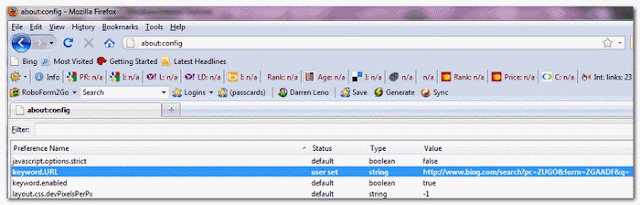
[4]. Right click on keyword.url, then select Reset
Please note: If you have previously run Combofix and it's still on the system, please uninstall it. Then download the current version and do the scan: Uninstall directions, if needed
- Click START> then RUN
- Now type Combofix /Uninstall in the runbox and click OK. Note the space between the X and the U, it needs to be there.
Download Combofix from HERE or HEREhttp://www.forospyware.com/sUBs/ComboFix.exe and save to the desktop
- Double click combofix.exe & follow the prompts.
- ComboFix will check to see if the Microsoft Windows Recovery Console is installed. It is recommended to have this pre-installed on your machine before doing any malware removal. It will allow you to boot up into a special recovery/repair mode if needed.
**Please note: If the Microsoft Windows Recovery Console is already installed, ComboFix will continue it's malware removal procedures. - Follow the prompts to allow ComboFix to download and install the Microsoft Windows Recovery Console, and when prompted, agree to the End-User License Agreement to install the Microsoft Windows Recovery Console.
- Once installed, you should see a blue screen prompt that says:
The Recovery Console was successfully installed. - .Click on Yes, to continue scanning for malware
- .If Combofix asks you to update the program, allow
- .Close/disable all anti virus and anti malware programs so they do not interfere with the running of ComboFix.
- .Close any open browsers.
- .Double click combofix.exe& follow the prompts to run.

- When the scan completes , a report will be generated-it will open a text window. Please paste the C:\ComboFix.txt in next reply..
Note 1:Do not mouse-click Combofix's window while it is running. That may cause it to stall.
Note 2: ComboFix may reset a number of Internet Explorer's settings, including making I-E the default browser.
Note 3: Combofix prevents autorun of ALL CD, floppy and USB devices to assist with malware removal & increase security. If this is an issue or makes it difficult for you -- please tell your helper.
Note 4: CF disconnects your machine from the internet. The connection is automatically restored before CF completes its run. If CF runs into difficulty and terminates prematurely, the connection can be manually restored by restarting your machine.
Note 5: If you receive an error "Illegal operation attempted on a registry key that has been marked for deletion", restart computer to fix the issue.
======================================
Be sure to check the line for removal of entries found in the following:
SuperAntiSpyware Home Edition Free Version
- Please download SuperAntiSpyware from HERE
- Launch SuperAntiSpyware and click on 'Check for updates'.
- Wait for the updates to be installed
- On the main screen click on 'Scan your computer'.
- Check: 'Perform Complete Scan then Click 'Next' to start the scan.
- Superantispyware will now scan your computer,when it's finished it will list all/any infections found.
- Make sure everything found has a checkmark next to it,then press 'Next'.
- Click on 'Finish' when you've done.
Obtain the SuperAntiSpyware log as follows:
- Click on 'Preferences'.
- Click on the 'Statistics/Logs' tab.
- Under 'Scanner Logs' double click on 'SuperAntiSpyware Scan Log'.
Please leave logs in next reply.
- Thread Starter
- #7
Next?!?
Ok. First of all, I will go through what I've gone through so far. I don't want to go any further without figuring out what you want me to do.
1. Malwarebytes did the same as before. It started running the scan then closed about 10-15 seconds after running.
2. TDDS log isnt listed as a notepad file or anything like that. I ran it again and noticed that there was a report button so here is the log for that run. It found 2 this time (both of which were on the original scan) but didn't find the rtk0000 folder/files this time.
23:48:31.0006 1696 TDSS rootkit removing tool 2.6.15.0 Nov 3 2011 17:15:49
23:48:31.0475 1696 ============================================================
23:48:31.0475 1696 Current date / time: 2011/11/04 23:48:31.0475
23:48:31.0475 1696 SystemInfo:
23:48:31.0475 1696
23:48:31.0475 1696 OS Version: 6.0.6002 ServicePack: 2.0
23:48:31.0475 1696 Product type: Workstation
23:48:31.0475 1696 ComputerName: SUSAN-PC
23:48:31.0475 1696 UserName: Susan
23:48:31.0475 1696 Windows directory: C:\Windows
23:48:31.0475 1696 System windows directory: C:\Windows
23:48:31.0475 1696 Processor architecture: Intel x86
23:48:31.0475 1696 Number of processors: 2
23:48:31.0475 1696 Page size: 0x1000
23:48:31.0475 1696 Boot type: Safe boot with network
23:48:31.0475 1696 ============================================================
23:48:32.0131 1696 Initialize success
23:48:34.0959 1564 ============================================================
23:48:34.0959 1564 Scan started
23:48:34.0959 1564 Mode: Manual;
23:48:34.0959 1564 ============================================================
23:48:35.0771 1564 8a878ddd (3f6d4cefcf143832bea93daf44d89b7a) C:\Windows\3717040010:1970827810.exe
23:48:35.0771 1564 Suspicious file (Hidden): C:\Windows\3717040010:1970827810.exe. md5: 3f6d4cefcf143832bea93daf44d89b7a
23:48:35.0787 1564 8a878ddd ( Rootkit.Win32.PMax.gen ) - infected
23:48:35.0787 1564 8a878ddd - detected Rootkit.Win32.PMax.gen (0)
23:48:35.0850 1564 ACPI (82b296ae1892fe3dbee00c9cf92f8ac7) C:\Windows\system32\drivers\acpi.sys
23:48:35.0865 1564 ACPI - ok
23:48:35.0928 1564 adp94xx (2edc5bbac6c651ece337bde8ed97c9fb) C:\Windows\system32\drivers\adp94xx.sys
23:48:35.0943 1564 adp94xx - ok
23:48:36.0006 1564 adpahci (b84088ca3cdca97da44a984c6ce1ccad) C:\Windows\system32\drivers\adpahci.sys
23:48:36.0021 1564 adpahci - ok
23:48:36.0053 1564 adpu160m (7880c67bccc27c86fd05aa2afb5ea469) C:\Windows\system32\drivers\adpu160m.sys
23:48:36.0053 1564 adpu160m - ok
23:48:36.0115 1564 adpu320 (9ae713f8e30efc2abccd84904333df4d) C:\Windows\system32\drivers\adpu320.sys
23:48:36.0115 1564 adpu320 - ok
23:48:36.0209 1564 AFD (3911b972b55fea0478476b2e777b29fa) C:\Windows\system32\drivers\afd.sys
23:48:36.0209 1564 AFD - ok
23:48:36.0303 1564 agp440 (ef23439cdd587f64c2c1b8825cead7d8) C:\Windows\system32\drivers\agp440.sys
23:48:36.0318 1564 agp440 - ok
23:48:36.0396 1564 aic78xx (ae1fdf7bf7bb6c6a70f67699d880592a) C:\Windows\system32\drivers\djsvs.sys
23:48:36.0396 1564 aic78xx - ok
23:48:36.0428 1564 aliide (90395b64600ebb4552e26e178c94b2e4) C:\Windows\system32\drivers\aliide.sys
23:48:36.0428 1564 aliide - ok
23:48:36.0490 1564 amdagp (2b13e304c9dfdfa5eb582f6a149fa2c7) C:\Windows\system32\drivers\amdagp.sys
23:48:36.0490 1564 amdagp - ok
23:48:36.0553 1564 amdide (0577df1d323fe75a739c787893d300ea) C:\Windows\system32\drivers\amdide.sys
23:48:36.0553 1564 amdide - ok
23:48:36.0600 1564 AmdK7 (dc487885bcef9f28eece6fac0e5ddfc5) C:\Windows\system32\drivers\amdk7.sys
23:48:36.0600 1564 AmdK7 - ok
23:48:36.0662 1564 AmdK8 (0ca0071da4315b00fc1328ca86b425da) C:\Windows\system32\drivers\amdk8.sys
23:48:36.0662 1564 AmdK8 - ok
23:48:36.0756 1564 arc (5f673180268bb1fdb69c99b6619fe379) C:\Windows\system32\drivers\arc.sys
23:48:36.0756 1564 arc - ok
23:48:36.0834 1564 arcsas (957f7540b5e7f602e44648c7de5a1c05) C:\Windows\system32\drivers\arcsas.sys
23:48:36.0834 1564 arcsas - ok
23:48:36.0896 1564 aswFsBlk (c47623ffd181a1e7d63574dde2a0a711) C:\Windows\system32\drivers\aswFsBlk.sys
23:48:36.0912 1564 aswFsBlk - ok
23:48:36.0975 1564 aswMonFlt (4804753a4ec7d67cc22d226bffd1c1e3) C:\Windows\system32\drivers\aswMonFlt.sys
23:48:36.0975 1564 aswMonFlt - ok
23:48:37.0053 1564 aswRdr (36239e24470a3dd81fae37510953cc6c) C:\Windows\system32\drivers\aswRdr.sys
23:48:37.0053 1564 aswRdr - ok
23:48:37.0131 1564 aswSnx (caa846e9c83836bdc3d2d700c678db65) C:\Windows\system32\drivers\aswSnx.sys
23:48:37.0146 1564 aswSnx - ok
23:48:37.0209 1564 aswSP (748ae7f2d7da33adb063fe05704a9969) C:\Windows\system32\drivers\aswSP.sys
23:48:37.0225 1564 aswSP - ok
23:48:37.0318 1564 aswTdi (ca9925ce1dbd07ffe1eb357752cf5577) C:\Windows\system32\drivers\aswTdi.sys
23:48:37.0318 1564 aswTdi - ok
23:48:37.0365 1564 AsyncMac (53b202abee6455406254444303e87be1) C:\Windows\system32\DRIVERS\asyncmac.sys
23:48:37.0381 1564 AsyncMac - ok
23:48:37.0443 1564 atapi (1f05b78ab91c9075565a9d8a4b880bc4) C:\Windows\system32\drivers\atapi.sys
23:48:37.0443 1564 atapi - ok
23:48:37.0537 1564 Beep (67e506b75bd5326a3ec7b70bd014dfb6) C:\Windows\system32\drivers\Beep.sys
23:48:37.0537 1564 Beep - ok
23:48:37.0584 1564 blbdrive - ok
23:48:37.0646 1564 bowser (35f376253f687bde63976ccb3f2108ca) C:\Windows\system32\DRIVERS\bowser.sys
23:48:37.0646 1564 bowser - ok
23:48:37.0709 1564 BrFiltLo (9f9acc7f7ccde8a15c282d3f88b43309) C:\Windows\system32\drivers\brfiltlo.sys
23:48:37.0709 1564 BrFiltLo - ok
23:48:37.0771 1564 BrFiltUp (56801ad62213a41f6497f96dee83755a) C:\Windows\system32\drivers\brfiltup.sys
23:48:37.0771 1564 BrFiltUp - ok
23:48:37.0803 1564 Brserid (b304e75cff293029eddf094246747113) C:\Windows\system32\drivers\brserid.sys
23:48:37.0803 1564 Brserid - ok
23:48:37.0881 1564 BrSerWdm (203f0b1e73adadbbb7b7b1fabd901f6b) C:\Windows\system32\drivers\brserwdm.sys
23:48:37.0881 1564 BrSerWdm - ok
23:48:37.0943 1564 BrUsbMdm (bd456606156ba17e60a04e18016ae54b) C:\Windows\system32\drivers\brusbmdm.sys
23:48:37.0943 1564 BrUsbMdm - ok
23:48:37.0990 1564 BrUsbSer (af72ed54503f717a43268b3cc5faec2e) C:\Windows\system32\drivers\brusbser.sys
23:48:37.0990 1564 BrUsbSer - ok
23:48:38.0053 1564 BTHMODEM (ad07c1ec6665b8b35741ab91200c6b68) C:\Windows\system32\drivers\bthmodem.sys
23:48:38.0053 1564 BTHMODEM - ok
23:48:38.0146 1564 cdfs (7add03e75beb9e6dd102c3081d29840a) C:\Windows\system32\DRIVERS\cdfs.sys
23:48:38.0146 1564 cdfs - ok
23:48:38.0178 1564 cdrom (6b4bffb9becd728097024276430db314) C:\Windows\system32\DRIVERS\cdrom.sys
23:48:38.0193 1564 cdrom - ok
23:48:38.0287 1564 circlass (da8e0afc7baa226c538ef53ac2f90897) C:\Windows\system32\drivers\circlass.sys
23:48:38.0303 1564 circlass - ok
23:48:38.0350 1564 CLFS (d7659d3b5b92c31e84e53c1431f35132) C:\Windows\system32\CLFS.sys
23:48:38.0350 1564 CLFS - ok
23:48:38.0475 1564 CmBatt (0fed59edb4a83ff17f1778827b88ab1a) C:\Windows\system32\DRIVERS\CmBatt.sys
23:48:38.0475 1564 CmBatt - ok
23:48:38.0521 1564 cmdide (45201046c776ffdaf3fc8a0029c581c8) C:\Windows\system32\drivers\cmdide.sys
23:48:38.0521 1564 cmdide - ok
23:48:38.0553 1564 Compbatt (6afef0b60fa25de07c0968983ee4f60a) C:\Windows\system32\DRIVERS\compbatt.sys
23:48:38.0553 1564 Compbatt - ok
23:48:38.0631 1564 crcdisk (2a213ae086bbec5e937553c7d9a2b22c) C:\Windows\system32\drivers\crcdisk.sys
23:48:38.0631 1564 crcdisk - ok
23:48:38.0678 1564 Crusoe (22a7f883508176489f559ee745b5bf5d) C:\Windows\system32\drivers\crusoe.sys
23:48:38.0678 1564 Crusoe - ok
23:48:38.0818 1564 disk (5d4aefc3386920236a548271f8f1af6a) C:\Windows\system32\drivers\disk.sys
23:48:38.0818 1564 disk - ok
23:48:38.0865 1564 drmkaud (97fef831ab90bee128c9af390e243f80) C:\Windows\system32\drivers\drmkaud.sys
23:48:38.0865 1564 drmkaud - ok
23:48:38.0943 1564 DXGKrnl (c68ac676b0ef30cfbb1080adce49eb1f) C:\Windows\System32\drivers\dxgkrnl.sys
23:48:38.0959 1564 DXGKrnl - ok
23:48:39.0053 1564 E1G60 (f88fb26547fd2ce6d0a5af2985892c48) C:\Windows\system32\DRIVERS\E1G60I32.sys
23:48:39.0053 1564 E1G60 - ok
23:48:39.0100 1564 Ecache (7f64ea048dcfac7acf8b4d7b4e6fe371) C:\Windows\system32\drivers\ecache.sys
23:48:39.0100 1564 Ecache - ok
23:48:39.0162 1564 elxstor (e8f3f21a71720c84bcf423b80028359f) C:\Windows\system32\drivers\elxstor.sys
23:48:39.0178 1564 elxstor - ok
23:48:39.0287 1564 exfat (22b408651f9123527bcee54b4f6c5cae) C:\Windows\system32\drivers\exfat.sys
23:48:39.0287 1564 exfat - ok
23:48:39.0475 1564 F-Secure Standalone Minifilter (1838a21b5abb3c76191573c06584f07e) C:\Users\ADMINI~1\AppData\Local\Temp\OnlineScanner\Anti-Virus\fsgk.sys
23:48:39.0475 1564 F-Secure Standalone Minifilter - ok
23:48:39.0553 1564 fastfat (1e9b9a70d332103c52995e957dc09ef8) C:\Windows\system32\drivers\fastfat.sys
23:48:39.0553 1564 fastfat - ok
23:48:39.0600 1564 fdc (afe1e8b9782a0dd7fb46bbd88e43f89a) C:\Windows\system32\DRIVERS\fdc.sys
23:48:39.0600 1564 fdc - ok
23:48:39.0693 1564 FileInfo (a8c0139a884861e3aae9cfe73b208a9f) C:\Windows\system32\drivers\fileinfo.sys
23:48:39.0693 1564 FileInfo - ok
23:48:39.0740 1564 Filetrace (0ae429a696aecbc5970e3cf2c62635ae) C:\Windows\system32\drivers\filetrace.sys
23:48:39.0740 1564 Filetrace - ok
23:48:39.0787 1564 flpydisk (6603957eff5ec62d25075ea8ac27de68) C:\Windows\system32\DRIVERS\flpydisk.sys
23:48:39.0787 1564 flpydisk - ok
23:48:39.0881 1564 FltMgr (01334f9ea68e6877c4ef05d3ea8abb05) C:\Windows\system32\drivers\fltmgr.sys
23:48:39.0881 1564 FltMgr - ok
23:48:39.0959 1564 Fs_Rec (65ea8b77b5851854f0c55c43fa51a198) C:\Windows\system32\drivers\Fs_Rec.sys
23:48:39.0959 1564 Fs_Rec - ok
23:48:40.0021 1564 gagp30kx (4e1cd0a45c50a8882616cae5bf82f3c5) C:\Windows\system32\drivers\gagp30kx.sys
23:48:40.0021 1564 gagp30kx - ok
23:48:40.0084 1564 HdAudAddService (cb04c744be0a61b1d648faed182c3b59) C:\Windows\system32\drivers\HdAudio.sys
23:48:40.0100 1564 HdAudAddService - ok
23:48:40.0287 1564 HDAudBus (062452b7ffd68c8c042a6261fe8dff4a) C:\Windows\system32\DRIVERS\HDAudBus.sys
23:48:40.0334 1564 HDAudBus - ok
23:48:40.0365 1564 HidBth (1338520e78d90154ed6be8f84de5fceb) C:\Windows\system32\drivers\hidbth.sys
23:48:40.0365 1564 HidBth - ok
23:48:40.0459 1564 HidIr (ff3160c3a2445128c5a6d9b076da519e) C:\Windows\system32\drivers\hidir.sys
23:48:40.0459 1564 HidIr - ok
23:48:40.0506 1564 HidUsb (cca4b519b17e23a00b826c55716809cc) C:\Windows\system32\DRIVERS\hidusb.sys
23:48:40.0506 1564 HidUsb - ok
23:48:40.0553 1564 HpCISSs (df353b401001246853763c4b7aaa6f50) C:\Windows\system32\drivers\hpcisss.sys
23:48:40.0553 1564 HpCISSs - ok
23:48:40.0646 1564 HSF_DPV (1882827f41dee51c70e24c567c35bfb5) C:\Windows\system32\DRIVERS\HSX_DPV.sys
23:48:40.0678 1564 HSF_DPV - ok
23:48:40.0725 1564 HSXHWBS2 (5f60f0ad32d43b9ab9ac9373117d8e54) C:\Windows\system32\DRIVERS\HSXHWBS2.sys
23:48:40.0740 1564 HSXHWBS2 - ok
23:48:40.0818 1564 HTTP (0eeeca26c8d4bde2a4664db058a81937) C:\Windows\system32\drivers\HTTP.sys
23:48:40.0834 1564 HTTP - ok
23:48:40.0865 1564 i2omp (324c2152ff2c61abae92d09f3cca4d63) C:\Windows\system32\drivers\i2omp.sys
23:48:40.0865 1564 i2omp - ok
23:48:40.0975 1564 i8042prt (22d56c8184586b7a1f6fa60be5f5a2bd) C:\Windows\system32\DRIVERS\i8042prt.sys
23:48:40.0975 1564 i8042prt - ok
23:48:41.0053 1564 ialm (8318e04a6455ced1020bcc5039b62cfa) C:\Windows\system32\DRIVERS\ialmnt5.sys
23:48:41.0084 1564 ialm - ok
23:48:41.0162 1564 iaStorV (c957bf4b5d80b46c5017bf0101e6c906) C:\Windows\system32\drivers\iastorv.sys
23:48:41.0162 1564 iaStorV - ok
23:48:41.0225 1564 iirsp (2d077bf86e843f901d8db709c95b49a5) C:\Windows\system32\drivers\iirsp.sys
23:48:41.0225 1564 iirsp - ok
23:48:41.0334 1564 IntcAzAudAddService (a47b2875680ad67b35c6150bd0203056) C:\Windows\system32\drivers\RTKVHDA.sys
23:48:41.0381 1564 IntcAzAudAddService - ok
23:48:41.0459 1564 intelide (97469037714070e45194ed318d636401) C:\Windows\system32\drivers\intelide.sys
23:48:41.0459 1564 intelide - ok
23:48:41.0521 1564 intelppm (224191001e78c89dfa78924c3ea595ff) C:\Windows\system32\DRIVERS\intelppm.sys
23:48:41.0521 1564 intelppm - ok
23:48:41.0600 1564 IpFilterDriver (62c265c38769b864cb25b4bcf62df6c3) C:\Windows\system32\DRIVERS\ipfltdrv.sys
23:48:41.0600 1564 IpFilterDriver - ok
23:48:41.0631 1564 IpInIp - ok
23:48:41.0678 1564 IPMIDRV (40f34f8aba2a015d780e4b09138b6c17) C:\Windows\system32\drivers\ipmidrv.sys
23:48:41.0678 1564 IPMIDRV - ok
23:48:41.0740 1564 IPNAT (8793643a67b42cec66490b2a0cf92d68) C:\Windows\system32\DRIVERS\ipnat.sys
23:48:41.0740 1564 IPNAT - ok
23:48:41.0834 1564 IRENUM (109c0dfb82c3632fbd11949b73aeeac9) C:\Windows\system32\drivers\irenum.sys
23:48:41.0834 1564 IRENUM - ok
23:48:41.0881 1564 isapnp (350fca7e73cf65bcef43fae1e4e91293) C:\Windows\system32\drivers\isapnp.sys
23:48:41.0881 1564 isapnp - ok
23:48:41.0975 1564 iScsiPrt (232fa340531d940aac623b121a595034) C:\Windows\system32\DRIVERS\msiscsi.sys
23:48:41.0990 1564 iScsiPrt - ok
23:48:42.0037 1564 iteatapi (bced60d16156e428f8df8cf27b0df150) C:\Windows\system32\drivers\iteatapi.sys
23:48:42.0037 1564 iteatapi - ok
23:48:42.0115 1564 iteraid (06fa654504a498c30adca8bec4e87e7e) C:\Windows\system32\drivers\iteraid.sys
23:48:42.0115 1564 iteraid - ok
23:48:42.0162 1564 kbdclass (37605e0a8cf00cbba538e753e4344c6e) C:\Windows\system32\DRIVERS\kbdclass.sys
23:48:42.0162 1564 kbdclass - ok
23:48:42.0225 1564 kbdhid (ede59ec70e25c24581add1fbec7325f7) C:\Windows\system32\DRIVERS\kbdhid.sys
23:48:42.0225 1564 kbdhid - ok
23:48:42.0318 1564 KSecDD (86165728af9bf72d6442a894fdfb4f8b) C:\Windows\system32\Drivers\ksecdd.sys
23:48:42.0334 1564 KSecDD - ok
23:48:42.0428 1564 Lavasoft Kernexplorer (6c4a3804510ad8e0f0c07b5be3d44ddb) C:\Program Files\Lavasoft\Ad-Aware\KernExplorer.sys
23:48:42.0428 1564 Lavasoft Kernexplorer - ok
23:48:42.0521 1564 Lbd (336abe8721cbc3110f1c6426da633417) C:\Windows\system32\DRIVERS\Lbd.sys
23:48:42.0521 1564 Lbd - ok
23:48:42.0568 1564 lltdio (d1c5883087a0c3f1344d9d55a44901f6) C:\Windows\system32\DRIVERS\lltdio.sys
23:48:42.0568 1564 lltdio - ok
23:48:42.0631 1564 LSI_FC (a2262fb9f28935e862b4db46438c80d2) C:\Windows\system32\drivers\lsi_fc.sys
23:48:42.0631 1564 LSI_FC - ok
23:48:42.0709 1564 LSI_SAS (30d73327d390f72a62f32c103daf1d6d) C:\Windows\system32\drivers\lsi_sas.sys
23:48:42.0725 1564 LSI_SAS - ok
23:48:42.0771 1564 LSI_SCSI (e1e36fefd45849a95f1ab81de0159fe3) C:\Windows\system32\drivers\lsi_scsi.sys
23:48:42.0771 1564 LSI_SCSI - ok
23:48:42.0803 1564 luafv (8f5c7426567798e62a3b3614965d62cc) C:\Windows\system32\drivers\luafv.sys
23:48:42.0803 1564 luafv - ok
23:48:42.0912 1564 mdmxsdk (0cea2d0d3fa284b85ed5b68365114f76) C:\Windows\system32\DRIVERS\mdmxsdk.sys
23:48:42.0912 1564 mdmxsdk - ok
23:48:42.0959 1564 megasas (d153b14fc6598eae8422a2037553adce) C:\Windows\system32\drivers\megasas.sys
23:48:42.0959 1564 megasas - ok
23:48:43.0021 1564 Modem (e13b5ea0f51ba5b1512ec671393d09ba) C:\Windows\system32\drivers\modem.sys
23:48:43.0021 1564 Modem - ok
23:48:43.0115 1564 monitor (0a9bb33b56e294f686abb7c1e4e2d8a8) C:\Windows\system32\DRIVERS\monitor.sys
23:48:43.0115 1564 monitor - ok
23:48:43.0146 1564 mouclass (5bf6a1326a335c5298477754a506d263) C:\Windows\system32\DRIVERS\mouclass.sys
23:48:43.0146 1564 mouclass - ok
23:48:43.0178 1564 mouhid (93b8d4869e12cfbe663915502900876f) C:\Windows\system32\DRIVERS\mouhid.sys
23:48:43.0193 1564 mouhid - ok
23:48:43.0240 1564 MountMgr (bdafc88aa6b92f7842416ea6a48e1600) C:\Windows\system32\drivers\mountmgr.sys
23:48:43.0240 1564 MountMgr - ok
23:48:43.0334 1564 mpio (583a41f26278d9e0ea548163d6139397) C:\Windows\system32\drivers\mpio.sys
23:48:43.0334 1564 mpio - ok
23:48:43.0365 1564 mpsdrv (22241feba9b2defa669c8cb0a8dd7d2e) C:\Windows\system32\drivers\mpsdrv.sys
23:48:43.0365 1564 mpsdrv - ok
23:48:43.0412 1564 Mraid35x (4fbbb70d30fd20ec51f80061703b001e) C:\Windows\system32\drivers\mraid35x.sys
23:48:43.0428 1564 Mraid35x - ok
23:48:43.0475 1564 MREMP50 (9bd4dcb5412921864a7aacdedfbd1923) C:\PROGRA~1\COMMON~1\Motive\MREMP50.SYS
23:48:43.0475 1564 MREMP50 - ok
23:48:43.0506 1564 MRESP50 (07c02c892e8e1a72d6bf35004f0e9c5e) C:\PROGRA~1\COMMON~1\Motive\MRESP50.SYS
23:48:43.0506 1564 MRESP50 - ok
23:48:43.0600 1564 MRxDAV (82cea0395524aacfeb58ba1448e8325c) C:\Windows\system32\drivers\mrxdav.sys
23:48:43.0600 1564 MRxDAV - ok
23:48:43.0646 1564 mrxsmb (1e94971c4b446ab2290deb71d01cf0c2) C:\Windows\system32\DRIVERS\mrxsmb.sys
23:48:43.0646 1564 mrxsmb - ok
23:48:43.0693 1564 mrxsmb10 (4fccb34d793b116423209c0f8b7a3b03) C:\Windows\system32\DRIVERS\mrxsmb10.sys
23:48:43.0693 1564 mrxsmb10 - ok
23:48:43.0771 1564 mrxsmb20 (c3cb1b40ad4a0124d617a1199b0b9d7c) C:\Windows\system32\DRIVERS\mrxsmb20.sys
23:48:43.0771 1564 mrxsmb20 - ok
23:48:43.0803 1564 msahci (742aed7939e734c36b7e8d6228ce26b7) C:\Windows\system32\drivers\msahci.sys
23:48:43.0803 1564 msahci - ok
23:48:43.0850 1564 msdsm (3fc82a2ae4cc149165a94699183d3028) C:\Windows\system32\drivers\msdsm.sys
23:48:43.0850 1564 msdsm - ok
23:48:43.0912 1564 Msfs (a9927f4a46b816c92f461acb90cf8515) C:\Windows\system32\drivers\Msfs.sys
23:48:43.0912 1564 Msfs - ok
23:48:43.0990 1564 msisadrv (0f400e306f385c56317357d6dea56f62) C:\Windows\system32\drivers\msisadrv.sys
23:48:43.0990 1564 msisadrv - ok
23:48:44.0068 1564 MSKSSRV (d8c63d34d9c9e56c059e24ec7185cc07) C:\Windows\system32\drivers\MSKSSRV.sys
23:48:44.0068 1564 MSKSSRV - ok
23:48:44.0115 1564 MSPCLOCK (1d373c90d62ddb641d50e55b9e78d65e) C:\Windows\system32\drivers\MSPCLOCK.sys
23:48:44.0115 1564 MSPCLOCK - ok
23:48:44.0162 1564 MSPQM (b572da05bf4e098d4bba3a4734fb505b) C:\Windows\system32\drivers\MSPQM.sys
23:48:44.0178 1564 MSPQM - ok
23:48:44.0225 1564 MsRPC (b49456d70555de905c311bcda6ec6adb) C:\Windows\system32\drivers\MsRPC.sys
23:48:44.0225 1564 MsRPC - ok
23:48:44.0287 1564 mssmbios (e384487cb84be41d09711c30ca79646c) C:\Windows\system32\DRIVERS\mssmbios.sys
23:48:44.0287 1564 mssmbios - ok
23:48:44.0334 1564 MSTEE (7199c1eec1e4993caf96b8c0a26bd58a) C:\Windows\system32\drivers\MSTEE.sys
23:48:44.0350 1564 MSTEE - ok
23:48:44.0381 1564 Mup (6a57b5733d4cb702c8ea4542e836b96c) C:\Windows\system32\Drivers\mup.sys
23:48:44.0381 1564 Mup - ok
23:48:44.0443 1564 NativeWifiP (85c44fdff9cf7e72a40dcb7ec06a4416) C:\Windows\system32\DRIVERS\nwifi.sys
23:48:44.0459 1564 NativeWifiP - ok
23:48:44.0521 1564 NDIS (1357274d1883f68300aeadd15d7bbb42) C:\Windows\system32\drivers\ndis.sys
23:48:44.0537 1564 NDIS - ok
23:48:44.0600 1564 NdisTapi (0e186e90404980569fb449ba7519ae61) C:\Windows\system32\DRIVERS\ndistapi.sys
23:48:44.0600 1564 NdisTapi - ok
23:48:44.0662 1564 Ndisuio (d6973aa34c4d5d76c0430b181c3cd389) C:\Windows\system32\DRIVERS\ndisuio.sys
23:48:44.0662 1564 Ndisuio - ok
23:48:44.0709 1564 NdisWan (818f648618ae34f729fdb47ec68345c3) C:\Windows\system32\DRIVERS\ndiswan.sys
23:48:44.0709 1564 NdisWan - ok
23:48:44.0771 1564 NDProxy (71dab552b41936358f3b541ae5997fb3) C:\Windows\system32\drivers\NDProxy.sys
23:48:44.0771 1564 NDProxy - ok
23:48:44.0834 1564 NetBIOS (bcd093a5a6777cf626434568dc7dba78) C:\Windows\system32\DRIVERS\netbios.sys
23:48:44.0834 1564 NetBIOS - ok
23:48:44.0881 1564 netbt (ecd64230a59cbd93c85f1cd1cab9f3f6) C:\Windows\system32\DRIVERS\netbt.sys
23:48:44.0881 1564 netbt - ok
23:48:45.0037 1564 NETw2v32 (6e9edc1020b319e7676387b8cdf2398c) C:\Windows\system32\DRIVERS\NETw2v32.sys
23:48:45.0084 1564 NETw2v32 - ok
23:48:45.0146 1564 nfrd960 (2e7fb731d4790a1bc6270accefacb36e) C:\Windows\system32\drivers\nfrd960.sys
23:48:45.0146 1564 nfrd960 - ok
23:48:45.0209 1564 Npfs (d36f239d7cce1931598e8fb90a0dbc26) C:\Windows\system32\drivers\Npfs.sys
23:48:45.0209 1564 Npfs - ok
23:48:45.0271 1564 nsiproxy (609773e344a97410ce4ebf74a8914fcf) C:\Windows\system32\drivers\nsiproxy.sys
23:48:45.0271 1564 nsiproxy - ok
23:48:45.0365 1564 Ntfs (6a4a98cee84cf9e99564510dda4baa47) C:\Windows\system32\drivers\Ntfs.sys
23:48:45.0396 1564 Ntfs - ok
23:48:45.0459 1564 ntrigdigi (e875c093aec0c978a90f30c9e0dfbb72) C:\Windows\system32\drivers\ntrigdigi.sys
23:48:45.0459 1564 ntrigdigi - ok
23:48:45.0521 1564 Null (c5dbbcda07d780bda9b685df333bb41e) C:\Windows\system32\drivers\Null.sys
23:48:45.0521 1564 Null - ok
23:48:45.0568 1564 nvraid (e69e946f80c1c31c53003bfbf50cbb7c) C:\Windows\system32\drivers\nvraid.sys
23:48:45.0568 1564 nvraid - ok
23:48:45.0631 1564 nvstor (9e0ba19a28c498a6d323d065db76dffc) C:\Windows\system32\drivers\nvstor.sys
23:48:45.0631 1564 nvstor - ok
23:48:45.0693 1564 nv_agp (07c186427eb8fcc3d8d7927187f260f7) C:\Windows\system32\drivers\nv_agp.sys
23:48:45.0693 1564 nv_agp - ok
23:48:45.0725 1564 NwlnkFlt - ok
23:48:45.0740 1564 NwlnkFwd - ok
23:48:45.0865 1564 ohci1394 (be32da025a0be1878f0ee8d6d9386cd5) C:\Windows\system32\DRIVERS\ohci1394.sys
23:48:45.0865 1564 ohci1394 - ok
23:48:45.0959 1564 Parport (8a79fdf04a73428597e2caf9d0d67850) C:\Windows\system32\DRIVERS\parport.sys
23:48:45.0959 1564 Parport - ok
23:48:46.0037 1564 partmgr (57389fa59a36d96b3eb09d0cb91e9cdc) C:\Windows\system32\drivers\partmgr.sys
23:48:46.0037 1564 partmgr - ok
23:48:46.0084 1564 Parvdm (6c580025c81caf3ae9e3617c22cad00e) C:\Windows\system32\DRIVERS\parvdm.sys
23:48:46.0084 1564 Parvdm - ok
23:48:46.0146 1564 pci (941dc1d19e7e8620f40bbc206981efdb) C:\Windows\system32\drivers\pci.sys
23:48:46.0146 1564 pci - ok
23:48:46.0240 1564 pciide (1636d43f10416aeb483bc6001097b26c) C:\Windows\system32\drivers\pciide.sys
23:48:46.0240 1564 pciide - ok
23:48:46.0303 1564 pcmcia (e6f3fb1b86aa519e7698ad05e58b04e5) C:\Windows\system32\DRIVERS\pcmcia.sys
23:48:46.0303 1564 pcmcia - ok
23:48:46.0396 1564 PEAUTH (6349f6ed9c623b44b52ea3c63c831a92) C:\Windows\system32\drivers\peauth.sys
23:48:46.0412 1564 PEAUTH - ok
23:48:46.0521 1564 PptpMiniport (ecfffaec0c1ecd8dbc77f39070ea1db1) C:\Windows\system32\DRIVERS\raspptp.sys
23:48:46.0521 1564 PptpMiniport - ok
23:48:46.0600 1564 Processor (0e3cef5d28b40cf273281d620c50700a) C:\Windows\system32\drivers\processr.sys
23:48:46.0600 1564 Processor - ok
23:48:46.0678 1564 PSched (99514faa8df93d34b5589187db3aa0ba) C:\Windows\system32\DRIVERS\pacer.sys
23:48:46.0678 1564 PSched - ok
23:48:46.0787 1564 ql2300 (ccdac889326317792480c0a67156a1ec) C:\Windows\system32\drivers\ql2300.sys
23:48:46.0803 1564 ql2300 - ok
23:48:46.0834 1564 ql40xx (81a7e5c076e59995d54bc1ed3a16e60b) C:\Windows\system32\drivers\ql40xx.sys
23:48:46.0834 1564 ql40xx - ok
23:48:46.0881 1564 QWAVEdrv (9f5e0e1926014d17486901c88eca2db7) C:\Windows\system32\drivers\qwavedrv.sys
23:48:46.0881 1564 QWAVEdrv - ok
23:48:47.0021 1564 R300 (554685122b4f973e21d66c2baaf29543) C:\Windows\system32\DRIVERS\atikmdag.sys
23:48:47.0053 1564 R300 - ok
23:48:47.0146 1564 RasAcd (147d7f9c556d259924351feb0de606c3) C:\Windows\system32\DRIVERS\rasacd.sys
23:48:47.0146 1564 RasAcd - ok
23:48:47.0178 1564 Rasl2tp (a214adbaf4cb47dd2728859ef31f26b0) C:\Windows\system32\DRIVERS\rasl2tp.sys
23:48:47.0193 1564 Rasl2tp - ok
23:48:47.0240 1564 RasPppoe (509a98dd18af4375e1fc40bc175f1def) C:\Windows\system32\DRIVERS\raspppoe.sys
23:48:47.0240 1564 RasPppoe - ok
23:48:47.0303 1564 RasSstp (2005f4a1e05fa09389ac85840f0a9e4d) C:\Windows\system32\DRIVERS\rassstp.sys
23:48:47.0303 1564 RasSstp - ok
23:48:47.0381 1564 rdbss (b14c9d5b9add2f84f70570bbbfaa7935) C:\Windows\system32\DRIVERS\rdbss.sys
23:48:47.0381 1564 rdbss - ok
23:48:47.0428 1564 RDPCDD (89e59be9a564262a3fb6c4f4f1cd9899) C:\Windows\system32\DRIVERS\RDPCDD.sys
23:48:47.0428 1564 RDPCDD - ok
23:48:47.0490 1564 rdpdr (e8bd98d46f2ed77132ba927fccb47d8b) C:\Windows\system32\drivers\rdpdr.sys
23:48:47.0506 1564 rdpdr - ok
23:48:47.0568 1564 RDPENCDD (9d91fe5286f748862ecffa05f8a0710c) C:\Windows\system32\drivers\rdpencdd.sys
23:48:47.0568 1564 RDPENCDD - ok
23:48:47.0631 1564 RDPWD (30bfbdfb7f95559ede971f9ddb9a00ba) C:\Windows\system32\drivers\RDPWD.sys
23:48:47.0631 1564 RDPWD - ok
23:48:47.0709 1564 rspndr (9c508f4074a39e8b4b31d27198146fad) C:\Windows\system32\DRIVERS\rspndr.sys
23:48:47.0709 1564 rspndr - ok
23:48:47.0771 1564 RTL8023xp (166911eada13cd34dd8f8c667707be94) C:\Windows\system32\DRIVERS\Rtnicxp.sys
23:48:47.0771 1564 RTL8023xp - ok
23:48:47.0818 1564 sbp2port (3ce8f073a557e172b330109436984e30) C:\Windows\system32\drivers\sbp2port.sys
23:48:47.0818 1564 sbp2port - ok
23:48:47.0881 1564 sdbus (4339a2585708c7d9b0c0ce5aad3dd6ff) C:\Windows\system32\DRIVERS\sdbus.sys
23:48:47.0881 1564 sdbus - ok
23:48:47.0975 1564 secdrv (90a3935d05b494a5a39d37e71f09a677) C:\Windows\system32\drivers\secdrv.sys
23:48:47.0975 1564 secdrv - ok
23:48:48.0053 1564 Serenum (ce9ec966638ef0b10b864ddedf62a099) C:\Windows\system32\DRIVERS\serenum.sys
23:48:48.0053 1564 Serenum - ok
23:48:48.0084 1564 Serial (6d663022db3e7058907784ae14b69898) C:\Windows\system32\DRIVERS\serial.sys
23:48:48.0084 1564 Serial - ok
23:48:48.0178 1564 sermouse (8af3d28a879bf75db53a0ee7a4289624) C:\Windows\system32\drivers\sermouse.sys
23:48:48.0178 1564 sermouse - ok
23:48:48.0256 1564 sffdisk (103b79418da647736ee95645f305f68a) C:\Windows\system32\drivers\sffdisk.sys
23:48:48.0256 1564 sffdisk - ok
23:48:48.0303 1564 sffp_mmc (8fd08a310645fe872eeec6e08c6bf3ee) C:\Windows\system32\drivers\sffp_mmc.sys
23:48:48.0303 1564 sffp_mmc - ok
23:48:48.0350 1564 sffp_sd (9cfa05fcfcb7124e69cfc812b72f9614) C:\Windows\system32\drivers\sffp_sd.sys
23:48:48.0350 1564 sffp_sd - ok
23:48:48.0396 1564 sfloppy (c33bfbd6e9e41fcd9ffef9729e9faed6) C:\Windows\system32\DRIVERS\sfloppy.sys
23:48:48.0396 1564 sfloppy - ok
23:48:48.0459 1564 sisagp (d2a595d6eebeeaf4334f8e50efbc9931) C:\Windows\system32\drivers\sisagp.sys
23:48:48.0459 1564 sisagp - ok
23:48:48.0521 1564 SiSRaid2 (cedd6f4e7d84e9f98b34b3fe988373aa) C:\Windows\system32\drivers\sisraid2.sys
23:48:48.0521 1564 SiSRaid2 - ok
23:48:48.0568 1564 SiSRaid4 (df843c528c4f69d12ce41ce462e973a7) C:\Windows\system32\drivers\sisraid4.sys
23:48:48.0568 1564 SiSRaid4 - ok
23:48:48.0631 1564 Smb (7b75299a4d201d6a6533603d6914ab04) C:\Windows\system32\DRIVERS\smb.sys
23:48:48.0631 1564 Smb - ok
23:48:48.0678 1564 spldr (7aebdeef071fe28b0eef2cdd69102bff) C:\Windows\system32\drivers\spldr.sys
23:48:48.0678 1564 spldr - ok
23:48:48.0756 1564 srv (41987f9fc0e61adf54f581e15029ad91) C:\Windows\system32\DRIVERS\srv.sys
23:48:48.0756 1564 srv - ok
23:48:48.0818 1564 srv2 (ff33aff99564b1aa534f58868cbe41ef) C:\Windows\system32\DRIVERS\srv2.sys
23:48:48.0818 1564 srv2 - ok
23:48:48.0850 1564 srvnet (7605c0e1d01a08f3ecd743f38b834a44) C:\Windows\system32\DRIVERS\srvnet.sys
23:48:48.0850 1564 srvnet - ok
23:48:48.0928 1564 swenum (7ba58ecf0c0a9a69d44b3dca62becf56) C:\Windows\system32\DRIVERS\swenum.sys
23:48:48.0928 1564 swenum - ok
23:48:48.0975 1564 Symc8xx (192aa3ac01df071b541094f251deed10) C:\Windows\system32\drivers\symc8xx.sys
23:48:48.0990 1564 Symc8xx - ok
23:48:49.0037 1564 Sym_hi (8c8eb8c76736ebaf3b13b633b2e64125) C:\Windows\system32\drivers\sym_hi.sys
23:48:49.0037 1564 Sym_hi - ok
23:48:49.0100 1564 Sym_u3 (8072af52b5fd103bbba387a1e49f62cb) C:\Windows\system32\drivers\sym_u3.sys
23:48:49.0100 1564 Sym_u3 - ok
23:48:49.0193 1564 Tcpip (2756186e287139310997090797e0182b) C:\Windows\system32\drivers\tcpip.sys
23:48:49.0225 1564 Tcpip - ok
23:48:49.0303 1564 Tcpip6 (2756186e287139310997090797e0182b) C:\Windows\system32\DRIVERS\tcpip.sys
23:48:49.0318 1564 Tcpip6 - ok
23:48:49.0365 1564 tcpipreg (608c345a255d82a6289c2d468eb41fd7) C:\Windows\system32\drivers\tcpipreg.sys
23:48:49.0365 1564 tcpipreg - ok
23:48:49.0396 1564 TDPIPE (5dcf5e267be67a1ae926f2df77fbcc56) C:\Windows\system32\drivers\tdpipe.sys
23:48:49.0396 1564 TDPIPE - ok
23:48:49.0443 1564 TDTCP (389c63e32b3cefed425b61ed92d3f021) C:\Windows\system32\drivers\tdtcp.sys
23:48:49.0443 1564 TDTCP - ok
23:48:49.0521 1564 tdx (76b06eb8a01fc8624d699e7045303e54) C:\Windows\system32\DRIVERS\tdx.sys
23:48:49.0537 1564 tdx - ok
23:48:49.0568 1564 TermDD (3cad38910468eab9a6479e2f01db43c7) C:\Windows\system32\DRIVERS\termdd.sys
23:48:49.0568 1564 TermDD - ok
23:48:49.0631 1564 tmrkb (7e2887341a3164dedc9b89082c24aeca) C:\Windows\system32\DRIVERS\tmrkb.sys
23:48:49.0631 1564 Suspicious file (Forged): C:\Windows\system32\DRIVERS\tmrkb.sys. Real md5: 7e2887341a3164dedc9b89082c24aeca, Fake md5: b44d1e95a4c70853230a2e1cd0dac0b9
23:48:49.0631 1564 tmrkb ( ForgedFile.Multi.Generic ) - warning
23:48:49.0631 1564 tmrkb - detected ForgedFile.Multi.Generic (1)
23:48:49.0740 1564 tssecsrv (dcf0f056a2e4f52287264f5ab29cf206) C:\Windows\system32\DRIVERS\tssecsrv.sys
23:48:49.0740 1564 tssecsrv - ok
23:48:49.0787 1564 tunmp (caecc0120ac49e3d2f758b9169872d38) C:\Windows\system32\DRIVERS\tunmp.sys
23:48:49.0787 1564 tunmp - ok
23:48:49.0834 1564 tunnel (300db877ac094feab0be7688c3454a9c) C:\Windows\system32\DRIVERS\tunnel.sys
23:48:49.0834 1564 tunnel - ok
23:48:49.0912 1564 uagp35 (c3ade15414120033a36c0f293d4a4121) C:\Windows\system32\drivers\uagp35.sys
23:48:49.0912 1564 uagp35 - ok
23:48:49.0959 1564 udfs (d9728af68c4c7693cb100b8441cbdec6) C:\Windows\system32\DRIVERS\udfs.sys
23:48:49.0959 1564 udfs - ok
23:48:50.0037 1564 uliagpkx (75e6890ebfce0841d3291b02e7a8bdb0) C:\Windows\system32\drivers\uliagpkx.sys
23:48:50.0053 1564 uliagpkx - ok
23:48:50.0131 1564 uliahci (3cd4ea35a6221b85dcc25daa46313f8d) C:\Windows\system32\drivers\uliahci.sys
23:48:50.0146 1564 uliahci - ok
23:48:50.0178 1564 UlSata (8514d0e5cd0534467c5fc61be94a569f) C:\Windows\system32\drivers\ulsata.sys
23:48:50.0178 1564 UlSata - ok
23:48:50.0209 1564 ulsata2 (38c3c6e62b157a6bc46594fada45c62b) C:\Windows\system32\drivers\ulsata2.sys
23:48:50.0225 1564 ulsata2 - ok
23:48:50.0271 1564 umbus (32cff9f809ae9aed85464492bf3e32d2) C:\Windows\system32\DRIVERS\umbus.sys
23:48:50.0271 1564 umbus - ok
23:48:50.0350 1564 usbccgp (caf811ae4c147ffcd5b51750c7f09142) C:\Windows\system32\DRIVERS\usbccgp.sys
23:48:50.0350 1564 usbccgp - ok
23:48:50.0396 1564 usbcir (e9476e6c486e76bc4898074768fb7131) C:\Windows\system32\drivers\usbcir.sys
23:48:50.0412 1564 usbcir - ok
23:48:50.0459 1564 usbehci (79e96c23a97ce7b8f14d310da2db0c9b) C:\Windows\system32\DRIVERS\usbehci.sys
23:48:50.0459 1564 usbehci - ok
23:48:50.0537 1564 usbhub (4673bbcb006af60e7abddbe7a130ba42) C:\Windows\system32\DRIVERS\usbhub.sys
23:48:50.0537 1564 usbhub - ok
23:48:50.0584 1564 usbohci (ce697fee0d479290d89bec80dfe793b7) C:\Windows\system32\DRIVERS\usbohci.sys
23:48:50.0584 1564 usbohci - ok
23:48:50.0631 1564 usbprint (e75c4b5269091d15a2e7dc0b6d35f2f5) C:\Windows\system32\DRIVERS\usbprint.sys
23:48:50.0631 1564 usbprint - ok
23:48:50.0709 1564 USBSTOR (be3da31c191bc222d9ad503c5224f2ad) C:\Windows\system32\DRIVERS\USBSTOR.SYS
23:48:50.0709 1564 USBSTOR - ok
23:48:50.0756 1564 usbuhci (325dbbacb8a36af9988ccf40eac228cc) C:\Windows\system32\DRIVERS\usbuhci.sys
23:48:50.0756 1564 usbuhci - ok
23:48:50.0818 1564 vga (7d92be0028ecdedec74617009084b5ef) C:\Windows\system32\DRIVERS\vgapnp.sys
23:48:50.0818 1564 vga - ok
23:48:50.0881 1564 VgaSave (2e93ac0a1d8c79d019db6c51f036636c) C:\Windows\System32\drivers\vga.sys
23:48:50.0881 1564 VgaSave - ok
23:48:50.0959 1564 viaagp (045d9961e591cf0674a920b6ba3ba5cb) C:\Windows\system32\drivers\viaagp.sys
23:48:50.0959 1564 viaagp - ok
23:48:51.0006 1564 ViaC7 (56a4de5f02f2e88182b0981119b4dd98) C:\Windows\system32\drivers\viac7.sys
23:48:51.0006 1564 ViaC7 - ok
23:48:51.0053 1564 viaide (fd2e3175fcada350c7ab4521dca187ec) C:\Windows\system32\drivers\viaide.sys
23:48:51.0053 1564 viaide - ok
23:48:51.0131 1564 volmgr (69503668ac66c77c6cd7af86fbdf8c43) C:\Windows\system32\drivers\volmgr.sys
23:48:51.0131 1564 volmgr - ok
23:48:51.0178 1564 volmgrx (23e41b834759917bfd6b9a0d625d0c28) C:\Windows\system32\drivers\volmgrx.sys
23:48:51.0193 1564 volmgrx - ok
23:48:51.0271 1564 volsnap (147281c01fcb1df9252de2a10d5e7093) C:\Windows\system32\drivers\volsnap.sys
23:48:51.0271 1564 volsnap - ok
23:48:51.0350 1564 vsmraid (d984439746d42b30fc65a4c3546c6829) C:\Windows\system32\drivers\vsmraid.sys
23:48:51.0365 1564 vsmraid - ok
23:48:51.0412 1564 WacomPen (48dfee8f1af7c8235d4e626f0c4fe031) C:\Windows\system32\drivers\wacompen.sys
23:48:51.0412 1564 WacomPen - ok
23:48:51.0475 1564 Wanarp (55201897378cca7af8b5efd874374a26) C:\Windows\system32\DRIVERS\wanarp.sys
23:48:51.0475 1564 Wanarp - ok
23:48:51.0475 1564 Wanarpv6 (55201897378cca7af8b5efd874374a26) C:\Windows\system32\DRIVERS\wanarp.sys
23:48:51.0475 1564 Wanarpv6 - ok
23:48:51.0537 1564 Wd (afc5ad65b991c1e205cf25cfdbf7a6f4) C:\Windows\system32\drivers\wd.sys
23:48:51.0537 1564 Wd - ok
23:48:51.0615 1564 Wdf01000 (b6f0a7ad6d4bd325fbcd8bac96cd8d96) C:\Windows\system32\drivers\Wdf01000.sys
23:48:51.0631 1564 Wdf01000 - ok
23:48:51.0740 1564 winachsf (e096ffb754f1e45ae1bddac1275ae2c5) C:\Windows\system32\DRIVERS\HSX_CNXT.sys
23:48:51.0756 1564 winachsf - ok
23:48:51.0865 1564 WmiAcpi (701a9f884a294327e9141d73746ee279) C:\Windows\system32\drivers\wmiacpi.sys
23:48:51.0865 1564 WmiAcpi - ok
23:48:51.0943 1564 ws2ifsl (e3a3cb253c0ec2494d4a61f5e43a389c) C:\Windows\system32\drivers\ws2ifsl.sys
23:48:51.0943 1564 ws2ifsl - ok
23:48:52.0037 1564 WUDFRd (ac13cb789d93412106b0fb6c7eb2bcb6) C:\Windows\system32\DRIVERS\WUDFRd.sys
23:48:52.0037 1564 WUDFRd - ok
23:48:52.0100 1564 XAudio (e3fcf2870b5d7979b3bf10e98a71c847) C:\Windows\system32\DRIVERS\xaudio.sys
23:48:52.0100 1564 XAudio - ok
23:48:52.0193 1564 yukonwlh (7d1f3b131d503ef43ee594b5a2b9b427) C:\Windows\system32\DRIVERS\yk60x86.sys
23:48:52.0193 1564 yukonwlh - ok
23:48:52.0225 1564 MBR (0x1B8) (943cc8d9009a7f8da0e7fc257c230977) \Device\Harddisk0\DR0
23:48:52.0240 1564 \Device\Harddisk0\DR0 - ok
23:48:52.0240 1564 Boot (0x1200) (bbf90931a3432221e158e8f6f44da305) \Device\Harddisk0\DR0\Partition0
23:48:52.0240 1564 \Device\Harddisk0\DR0\Partition0 - ok
23:48:52.0271 1564 Boot (0x1200) (025108f3986ccbd49435e7a25691a402) \Device\Harddisk0\DR0\Partition1
23:48:52.0271 1564 \Device\Harddisk0\DR0\Partition1 - ok
23:48:52.0271 1564 ============================================================
23:48:52.0271 1564 Scan finished
23:48:52.0271 1564 ============================================================
23:48:52.0287 0964 Detected object count: 2
23:48:52.0287 0964 Actual detected object count: 2
23:49:11.0490 0964 C:\Windows\3717040010:1970827810.exe - copied to quarantine
23:49:11.0490 0964 8a878ddd ( Rootkit.Win32.PMax.gen ) - User select action: Quarantine
23:49:11.0584 0964 C:\Windows\system32\DRIVERS\tmrkb.sys - copied to quarantine
23:49:11.0584 0964 tmrkb ( ForgedFile.Multi.Generic ) - User select action: Quarantine
3. There is no Java on this system because when I noticed that Java files were infected, I tried to disable the virus, but the Java files kept coming up as infected so I uninstalled it but haven't gone back to reinstall it.
4. I have uninstalled and reinstalled Adobe Reader to 10.1.1
5. Mozilla Firefox was uninstalled. It was never used anyway.
6. Avast is the only true anti-virus program that is supposedly running. Panda and F-Secure were only installed into the browser to attempt to run some online scans. I have uninstalled avast because the service woudln't stop.I will reinstall once we are finished.
7. Combofix log is as follows:
ComboFix 11-11-08.02 - Administrator 11/08/2011 21:38:15.1.2 - x86
Microsoft® Windows Vista™ Home Basic 6.0.6002.2.1252.1.1033.18.1917.1176 [GMT -6:00]
Running from: c:\users\Administrator\Desktop\ComboFix2.exe
SP: Windows Defender *Disabled/Updated* {D68DDC3A-831F-4fae-9E44-DA132C1ACF46}
* Created a new restore point
.
.
((((((((((((((((((((((((((((((((((((((( Other Deletions )))))))))))))))))))))))))))))))))))))))))))))))))
.
.
C:\Install.exe
c:\program files\iexplore
c:\program files\iexplore\iExplore.exe (3).exe
c:\program files\iexplore\iExplore.exe.exe
c:\program files\iexplore\iExplre.exe
c:\programdata\Windows
c:\users\Susan\1BD.jpg
c:\users\Susan\1BDA.jpg
c:\users\Susan\2zoo.jpg
c:\windows\system32\404Fix.exe
c:\windows\system32\Agent.OMZ.Fix.exe
c:\windows\system32\dumphive.exe
c:\windows\system32\IEDFix.C.exe
c:\windows\system32\IEDFix.exe
c:\windows\system32\o4Patch.exe
c:\windows\system32\Process.exe
c:\windows\system32\SrchSTS.exe
c:\windows\system32\tmp.reg
c:\windows\system32\VACFix.exe
c:\windows\system32\VCCLSID.exe
c:\windows\system32\WS2Fix.exe
D:\Autorun.inf
.
.
((((((((((((((((((((((((((((((((((((((( Drivers/Services )))))))))))))))))))))))))))))))))))))))))))))))))
.
.
-------\Service_8a878ddd
-------\Service_usnjsvc
.
.
((((((((((((((((((((((((( Files Created from 2011-10-09 to 2011-11-09 )))))))))))))))))))))))))))))))
.
.
2011-11-09 03:44 . 2011-11-09 03:44 -------- d-----w- c:\users\Susan\AppData\Local\temp
2011-11-09 03:44 . 2011-11-09 03:44 -------- d-----w- c:\users\Default\AppData\Local\temp
2011-11-09 03:12 . 2011-11-09 03:20 -------- d-----w- C:\ComboFix
2011-11-09 01:15 . 2011-11-09 01:15 -------- d-----w- c:\program files\ESET
2011-10-31 05:21 . 2011-11-01 04:51 -------- d-----w- c:\program files\Malwarebytes' Anti-Malware
2011-10-31 03:17 . 2011-10-31 03:28 -------- d-----w- c:\program files\Boom
2011-10-31 03:04 . 2011-11-05 04:49 -------- d-----w- C:\TDSSKiller_Quarantine
2011-10-26 05:55 . 2011-10-26 05:55 65808 ----a-w- c:\windows\system32\drivers\tmrkb.sys
2011-10-26 05:55 . 2011-10-26 05:55 205072 ----a-w- c:\windows\system32\drivers\tmcomm.sys
2011-10-26 05:24 . 2011-10-26 05:24 101720 ----a-w- c:\windows\system32\drivers\SBREDrv.sys
2011-10-26 05:21 . 2011-10-26 05:21 -------- dc----w- c:\windows\system32\DRVSTORE
2011-10-26 05:21 . 2011-08-18 20:25 64512 ----a-w- c:\windows\system32\drivers\Lbd.sys
2011-10-26 05:20 . 2011-10-26 05:20 -------- d-----w- c:\program files\Lavasoft
2011-10-26 05:20 . 2011-10-26 05:20 -------- d-----w- c:\programdata\Lavasoft
2011-10-26 04:46 . 2011-10-26 04:46 -------- d-----w- c:\programdata\F-Secure
2011-10-26 02:59 . 2011-10-26 05:09 -------- d-----w- c:\program files\Panda Security
2011-10-19 03:47 . 2011-11-01 04:04 41272 ----a-w- c:\windows\system32\drivers\mbamswissarmy.sys
2011-10-19 03:46 . 2011-10-26 02:46 -------- d-----w- c:\program files\BLAH
2011-10-19 03:40 . 2011-10-26 01:46 -------- d-----w- c:\program files\ABC123
2011-10-19 02:48 . 2011-10-19 03:22 -------- d-----w- c:\users\Administrator
2011-10-19 01:08 . 2011-10-19 01:08 -------- d-----w- c:\program files\Trend Micro
2011-10-19 01:00 . 2011-10-19 03:20 -------- d-----w- c:\program files\jkl
2011-10-18 02:55 . 2011-10-18 12:56 -------- d-----w- c:\program files\iExpl
2011-10-18 02:49 . 2011-10-18 02:49 -------- d-----w- c:\program files\PragmaDigm
2011-10-18 02:38 . 2011-10-18 02:38 -------- d-----w- c:\users\Susan\AppData\Roaming\U3
2011-10-16 23:10 . 2011-11-01 04:12 -------- d-----w- c:\programdata\AVAST Software
2011-10-16 23:10 . 2011-10-16 23:10 -------- d-----w- c:\program files\AVAST Software
2011-10-15 13:26 . 2011-09-06 13:30 2043392 ----a-w- c:\windows\system32\win32k.sys
2011-10-15 13:17 . 2011-07-29 16:01 293376 ----a-w- c:\windows\system32\psisdecd.dll
2011-10-15 13:17 . 2011-07-29 16:01 217088 ----a-w- c:\windows\system32\psisrndr.ax
2011-10-15 13:17 . 2011-07-29 16:00 57856 ----a-w- c:\windows\system32\MSDvbNP.ax
2011-10-15 13:17 . 2011-07-29 16:00 69632 ----a-w- c:\windows\system32\Mpeg2Data.ax
2011-10-15 13:17 . 2011-09-14 10:51 2409784 ----a-w- c:\program files\Windows Mail\OESpamFilter.dat
2011-10-15 13:17 . 2011-08-25 16:15 555520 ----a-w- c:\windows\system32\UIAutomationCore.dll
2011-10-15 13:17 . 2011-08-25 16:14 563712 ----a-w- c:\windows\system32\oleaut32.dll
2011-10-15 13:17 . 2011-08-25 16:14 238080 ----a-w- c:\windows\system32\oleacc.dll
2011-10-15 13:17 . 2011-08-25 13:31 4096 ----a-w- c:\windows\system32\oleaccrc.dll
2011-10-15 13:17 . 2011-09-12 23:14 7269712 ----a-w- c:\programdata\Microsoft\Windows Defender\Definition Updates\{0840402E-10B0-44B9-89FF-33C8A13B97A5}\mpengine.dll
.
.
.
(((((((((((((((((((((((((((((((((((((((( Find3M Report ))))))))))))))))))))))))))))))))))))))))))))))))))))
.
2011-11-09 01:04 . 2011-07-16 01:08 414368 ----a-w- c:\windows\system32\FlashPlayerCPLApp.cpl
.
.
((((((((((((((((((((((((((((((((((((( Reg Loading Points ))))))))))))))))))))))))))))))))))))))))))))))))))
.
.
*Note* empty entries & legit default entries are not shown
REGEDIT4
.
[HKEY_CURRENT_USER\SOFTWARE\Microsoft\Windows\CurrentVersion\Run]
"Sidebar"="c:\program files\Windows Sidebar\sidebar.exe" [2009-04-11 1233920]
"WindowsWelcomeCenter"="oobefldr.dll" [2009-04-11 2153472]
"msnmsgr"="c:\program files\Windows Live\Messenger\msnmsgr.exe" [2007-10-18 5724184]
.
[HKEY_LOCAL_MACHINE\SOFTWARE\Microsoft\Windows\CurrentVersion\Run]
"Adobe ARM"="c:\program files\Common Files\Adobe\ARM\1.0\AdobeARM.exe" [2011-06-06 937920]
.
[HKEY_LOCAL_MACHINE\software\microsoft\windows\currentversion\policies\system]
"EnableUIADesktopToggle"= 0 (0x0)
.
[HKEY_LOCAL_MACHINE\SYSTEM\CurrentControlSet\Control\SafeBoot\Minimal\Lavasoft Ad-Aware Service]
@="Service"
.
[HKEY_LOCAL_MACHINE\software\microsoft\shared tools\msconfig\startupreg\GrpConv]
grpconv -o [X]
.
[HKEY_LOCAL_MACHINE\software\microsoft\security center\Monitoring\McAfeeAntiSpyware]
"DisableMonitoring"=dword:00000001
.
[HKEY_LOCAL_MACHINE\software\microsoft\security center\Svc\S-1-5-21-3074645540-534623877-3370066440-1000]
"EnableNotificationsRef"=dword:00000002
.
[HKEY_LOCAL_MACHINE\software\microsoft\security center\Svc\S-1-5-21-3074645540-534623877-3370066440-500]
"EnableNotificationsRef"=dword:00000002
.
R2 clr_optimization_v4.0.30319_32;Microsoft .NET Framework NGEN v4.0.30319_X86;c:\windows\Microsoft.NET\Framework\v4.0.30319\mscorsvw.exe [2010-03-18 130384]
R2 Lavasoft Ad-Aware Service;Lavasoft Ad-Aware Service;c:\program files\Lavasoft\Ad-Aware\AAWService.exe [2011-10-26 2151640]
R2 tmrkb;tmrkb;c:\windows\system32\DRIVERS\tmrkb.sys [2011-10-26 65808]
R3 F-Secure Standalone Minifilter;F-Secure Standalone Minifilter;c:\users\ADMINI~1\AppData\Local\Temp\OnlineScanner\Anti-Virus\fsgk.sys [x]
R3 Lavasoft Kernexplorer;Lavasoft helper driver;c:\program files\Lavasoft\Ad-Aware\KernExplorer.sys [2011-08-18 15232]
R3 NETw2v32;Intel(R) PRO/Wireless 2200BG Network Connection Driver for Windows Vista;c:\windows\system32\DRIVERS\NETw2v32.sys [2006-11-02 2589184]
R3 WPFFontCache_v0400;Windows Presentation Foundation Font Cache 4.0.0.0;c:\windows\Microsoft.NET\Framework\v4.0.30319\WPF\WPFFontCache_v0400.exe [2010-03-18 753504]
S0 Lbd;Lbd;c:\windows\system32\DRIVERS\Lbd.sys [2011-08-18 64512]
S2 AdobeARMservice;Adobe Acrobat Update Service;c:\program files\Common Files\Adobe\ARM\1.0\armsvc.exe [2011-06-06 64952]
.
.
[HKEY_LOCAL_MACHINE\software\microsoft\windows nt\currentversion\svchost]
LocalServiceNoNetwork REG_MULTI_SZ PLA DPS BFE mpssvc
LocalServiceAndNoImpersonation REG_MULTI_SZ FontCache
.
Contents of the 'Scheduled Tasks' folder
.
2011-10-26 c:\windows\Tasks\Ad-Aware Update (Weekly).job
- c:\program files\Lavasoft\Ad-Aware\Ad-AwareAdmin.exe [2011-08-18 05:24]
.
.
------- Supplementary Scan -------
.
uInternet Settings,ProxyOverride = <local>
TCP: DhcpNameServer = 192.168.0.1
.
.
**************************************************************************
.
catchme 0.3.1398 W2K/XP/Vista - rootkit/stealth malware detector by Gmer, http://www.gmer.net
Rootkit scan 2011-11-08 21:47
Windows 6.0.6002 Service Pack 2 NTFS
.
scanning hidden processes ...
.
scanning hidden autostart entries ...
.
scanning hidden files ...
.
.
c:\windows\3717040010:1970827810.exe 784 bytes executable
.
scan completed successfully
hidden files: 1
.
**************************************************************************
.
--------------------- LOCKED REGISTRY KEYS ---------------------
.
[HKEY_USERS\S-1-5-21-3074645540-534623877-3370066440-500\Software\Microsoft\Internet Explorer\Approved Extensions]
@Denied: (2) (Administrator)
"{FF059E31-CC5A-4E2E-BF3B-96E929D65503}"=hex:51,66,7a,6c,4c,1d,3b,1b,21,83,17,
e1,69,99,45,06,a6,34,d4,a9,2c,96,14,19
"{BDEADE7F-C265-11D0-BCED-00A0C90AB50F}"=hex:51,66,7a,6c,4c,1d,3b,1b,6f,c3,f8,
a3,56,97,bb,59,a5,e2,42,e0,cc,4a,f4,15
"{06849E9F-C8D7-4D59-B87D-784B7D6BE0B3}"=hex:51,66,7a,6c,4c,1d,3b,1b,8f,83,96,
18,e4,9d,32,05,a1,72,3a,0b,78,2b,a1,a9
"{9030D464-4C02-4ABF-8ECC-5164760863C6}"=hex:51,66,7a,6c,4c,1d,3b,1b,74,c9,22,
8e,31,19,d4,02,97,c3,13,24,73,48,22,dc
"{18DF081C-E8AD-4283-A596-FA578C2EBDC3}"=hex:51,66,7a,6c,4c,1d,3b,1b,0c,15,cd,
06,9e,bd,e8,0a,bc,99,b8,17,89,6e,fc,d9
.
[HKEY_USERS\S-1-5-21-3074645540-534623877-3370066440-500\Software\Microsoft\Internet Explorer\ApprovedExtensionsMigration]
@Denied: (2) (Administrator)
"Timestamp"=hex:99,32,7e,b5,0a,8e,cc,01
.
[HKEY_USERS\S-1-5-21-3074645540-534623877-3370066440-500\Software\Microsoft\Internet Explorer\User Preferences]
@Denied: (2) (Administrator)
"88D7D0879DAB32E14DE5B3A805A34F98AFF34F5977"=hex:01,00,00,00,d0,8c,9d,df,01,15,
d1,11,8c,7a,00,c0,4f,c2,97,eb,01,00,00,00,82,bd,27,72,99,ca,69,46,82,a1,99,\
"2D53CFFC5C1A3DD2E97B7979AC2A92BD59BC839E81"=hex:01,00,00,00,d0,8c,9d,df,01,15,
d1,11,8c,7a,00,c0,4f,c2,97,eb,01,00,00,00,82,bd,27,72,99,ca,69,46,82,a1,99,\
"027C9CB72E593A8F02C55092F385DBAC99DF56D067"=hex:01,00,00,00,d0,8c,9d,df,01,15,
d1,11,8c,7a,00,c0,4f,c2,97,eb,01,00,00,00,82,bd,27,72,99,ca,69,46,82,a1,99,\
.
[HKEY_LOCAL_MACHINE\SYSTEM\ControlSet001\Control\Class\{4D36E96D-E325-11CE-BFC1-08002BE10318}\0000\AllUserSettings]
@Denied: (A) (Users)
@Denied: (A) (Everyone)
@Allowed: (B 1 2 3 4 5) (S-1-5-20)
"BlindDial"=dword:00000000
.
------------------------ Other Running Processes ------------------------
.
c:\windows\system32\Ati2evxx.exe
c:\windows\system32\Ati2evxx.exe
c:\program files\Common Files\Motive\McciCMService.exe
c:\program files\Common Files\Microsoft Shared\VS7DEBUG\MDM.EXE
c:\program files\Common Files\New Boundary\PrismXL\PRISMXL.SYS
c:\windows\system32\DRIVERS\xaudio.exe
c:\windows\system32\WUDFHost.exe
c:\\?\c:\windows\system32\wbem\WMIADAP.EXE
.
**************************************************************************
.
Completion time: 2011-11-08 21:52:38 - machine was rebooted
ComboFix-quarantined-files.txt 2011-11-09 03:52
.
Pre-Run: 114,160,132,096 bytes free
Post-Run: 114,436,988,928 bytes free
.
- - End Of File - - 3F936BE94095DD71008644932F670918
SAS file in next post.
Ok. First of all, I will go through what I've gone through so far. I don't want to go any further without figuring out what you want me to do.
1. Malwarebytes did the same as before. It started running the scan then closed about 10-15 seconds after running.
2. TDDS log isnt listed as a notepad file or anything like that. I ran it again and noticed that there was a report button so here is the log for that run. It found 2 this time (both of which were on the original scan) but didn't find the rtk0000 folder/files this time.
23:48:31.0006 1696 TDSS rootkit removing tool 2.6.15.0 Nov 3 2011 17:15:49
23:48:31.0475 1696 ============================================================
23:48:31.0475 1696 Current date / time: 2011/11/04 23:48:31.0475
23:48:31.0475 1696 SystemInfo:
23:48:31.0475 1696
23:48:31.0475 1696 OS Version: 6.0.6002 ServicePack: 2.0
23:48:31.0475 1696 Product type: Workstation
23:48:31.0475 1696 ComputerName: SUSAN-PC
23:48:31.0475 1696 UserName: Susan
23:48:31.0475 1696 Windows directory: C:\Windows
23:48:31.0475 1696 System windows directory: C:\Windows
23:48:31.0475 1696 Processor architecture: Intel x86
23:48:31.0475 1696 Number of processors: 2
23:48:31.0475 1696 Page size: 0x1000
23:48:31.0475 1696 Boot type: Safe boot with network
23:48:31.0475 1696 ============================================================
23:48:32.0131 1696 Initialize success
23:48:34.0959 1564 ============================================================
23:48:34.0959 1564 Scan started
23:48:34.0959 1564 Mode: Manual;
23:48:34.0959 1564 ============================================================
23:48:35.0771 1564 8a878ddd (3f6d4cefcf143832bea93daf44d89b7a) C:\Windows\3717040010:1970827810.exe
23:48:35.0771 1564 Suspicious file (Hidden): C:\Windows\3717040010:1970827810.exe. md5: 3f6d4cefcf143832bea93daf44d89b7a
23:48:35.0787 1564 8a878ddd ( Rootkit.Win32.PMax.gen ) - infected
23:48:35.0787 1564 8a878ddd - detected Rootkit.Win32.PMax.gen (0)
23:48:35.0850 1564 ACPI (82b296ae1892fe3dbee00c9cf92f8ac7) C:\Windows\system32\drivers\acpi.sys
23:48:35.0865 1564 ACPI - ok
23:48:35.0928 1564 adp94xx (2edc5bbac6c651ece337bde8ed97c9fb) C:\Windows\system32\drivers\adp94xx.sys
23:48:35.0943 1564 adp94xx - ok
23:48:36.0006 1564 adpahci (b84088ca3cdca97da44a984c6ce1ccad) C:\Windows\system32\drivers\adpahci.sys
23:48:36.0021 1564 adpahci - ok
23:48:36.0053 1564 adpu160m (7880c67bccc27c86fd05aa2afb5ea469) C:\Windows\system32\drivers\adpu160m.sys
23:48:36.0053 1564 adpu160m - ok
23:48:36.0115 1564 adpu320 (9ae713f8e30efc2abccd84904333df4d) C:\Windows\system32\drivers\adpu320.sys
23:48:36.0115 1564 adpu320 - ok
23:48:36.0209 1564 AFD (3911b972b55fea0478476b2e777b29fa) C:\Windows\system32\drivers\afd.sys
23:48:36.0209 1564 AFD - ok
23:48:36.0303 1564 agp440 (ef23439cdd587f64c2c1b8825cead7d8) C:\Windows\system32\drivers\agp440.sys
23:48:36.0318 1564 agp440 - ok
23:48:36.0396 1564 aic78xx (ae1fdf7bf7bb6c6a70f67699d880592a) C:\Windows\system32\drivers\djsvs.sys
23:48:36.0396 1564 aic78xx - ok
23:48:36.0428 1564 aliide (90395b64600ebb4552e26e178c94b2e4) C:\Windows\system32\drivers\aliide.sys
23:48:36.0428 1564 aliide - ok
23:48:36.0490 1564 amdagp (2b13e304c9dfdfa5eb582f6a149fa2c7) C:\Windows\system32\drivers\amdagp.sys
23:48:36.0490 1564 amdagp - ok
23:48:36.0553 1564 amdide (0577df1d323fe75a739c787893d300ea) C:\Windows\system32\drivers\amdide.sys
23:48:36.0553 1564 amdide - ok
23:48:36.0600 1564 AmdK7 (dc487885bcef9f28eece6fac0e5ddfc5) C:\Windows\system32\drivers\amdk7.sys
23:48:36.0600 1564 AmdK7 - ok
23:48:36.0662 1564 AmdK8 (0ca0071da4315b00fc1328ca86b425da) C:\Windows\system32\drivers\amdk8.sys
23:48:36.0662 1564 AmdK8 - ok
23:48:36.0756 1564 arc (5f673180268bb1fdb69c99b6619fe379) C:\Windows\system32\drivers\arc.sys
23:48:36.0756 1564 arc - ok
23:48:36.0834 1564 arcsas (957f7540b5e7f602e44648c7de5a1c05) C:\Windows\system32\drivers\arcsas.sys
23:48:36.0834 1564 arcsas - ok
23:48:36.0896 1564 aswFsBlk (c47623ffd181a1e7d63574dde2a0a711) C:\Windows\system32\drivers\aswFsBlk.sys
23:48:36.0912 1564 aswFsBlk - ok
23:48:36.0975 1564 aswMonFlt (4804753a4ec7d67cc22d226bffd1c1e3) C:\Windows\system32\drivers\aswMonFlt.sys
23:48:36.0975 1564 aswMonFlt - ok
23:48:37.0053 1564 aswRdr (36239e24470a3dd81fae37510953cc6c) C:\Windows\system32\drivers\aswRdr.sys
23:48:37.0053 1564 aswRdr - ok
23:48:37.0131 1564 aswSnx (caa846e9c83836bdc3d2d700c678db65) C:\Windows\system32\drivers\aswSnx.sys
23:48:37.0146 1564 aswSnx - ok
23:48:37.0209 1564 aswSP (748ae7f2d7da33adb063fe05704a9969) C:\Windows\system32\drivers\aswSP.sys
23:48:37.0225 1564 aswSP - ok
23:48:37.0318 1564 aswTdi (ca9925ce1dbd07ffe1eb357752cf5577) C:\Windows\system32\drivers\aswTdi.sys
23:48:37.0318 1564 aswTdi - ok
23:48:37.0365 1564 AsyncMac (53b202abee6455406254444303e87be1) C:\Windows\system32\DRIVERS\asyncmac.sys
23:48:37.0381 1564 AsyncMac - ok
23:48:37.0443 1564 atapi (1f05b78ab91c9075565a9d8a4b880bc4) C:\Windows\system32\drivers\atapi.sys
23:48:37.0443 1564 atapi - ok
23:48:37.0537 1564 Beep (67e506b75bd5326a3ec7b70bd014dfb6) C:\Windows\system32\drivers\Beep.sys
23:48:37.0537 1564 Beep - ok
23:48:37.0584 1564 blbdrive - ok
23:48:37.0646 1564 bowser (35f376253f687bde63976ccb3f2108ca) C:\Windows\system32\DRIVERS\bowser.sys
23:48:37.0646 1564 bowser - ok
23:48:37.0709 1564 BrFiltLo (9f9acc7f7ccde8a15c282d3f88b43309) C:\Windows\system32\drivers\brfiltlo.sys
23:48:37.0709 1564 BrFiltLo - ok
23:48:37.0771 1564 BrFiltUp (56801ad62213a41f6497f96dee83755a) C:\Windows\system32\drivers\brfiltup.sys
23:48:37.0771 1564 BrFiltUp - ok
23:48:37.0803 1564 Brserid (b304e75cff293029eddf094246747113) C:\Windows\system32\drivers\brserid.sys
23:48:37.0803 1564 Brserid - ok
23:48:37.0881 1564 BrSerWdm (203f0b1e73adadbbb7b7b1fabd901f6b) C:\Windows\system32\drivers\brserwdm.sys
23:48:37.0881 1564 BrSerWdm - ok
23:48:37.0943 1564 BrUsbMdm (bd456606156ba17e60a04e18016ae54b) C:\Windows\system32\drivers\brusbmdm.sys
23:48:37.0943 1564 BrUsbMdm - ok
23:48:37.0990 1564 BrUsbSer (af72ed54503f717a43268b3cc5faec2e) C:\Windows\system32\drivers\brusbser.sys
23:48:37.0990 1564 BrUsbSer - ok
23:48:38.0053 1564 BTHMODEM (ad07c1ec6665b8b35741ab91200c6b68) C:\Windows\system32\drivers\bthmodem.sys
23:48:38.0053 1564 BTHMODEM - ok
23:48:38.0146 1564 cdfs (7add03e75beb9e6dd102c3081d29840a) C:\Windows\system32\DRIVERS\cdfs.sys
23:48:38.0146 1564 cdfs - ok
23:48:38.0178 1564 cdrom (6b4bffb9becd728097024276430db314) C:\Windows\system32\DRIVERS\cdrom.sys
23:48:38.0193 1564 cdrom - ok
23:48:38.0287 1564 circlass (da8e0afc7baa226c538ef53ac2f90897) C:\Windows\system32\drivers\circlass.sys
23:48:38.0303 1564 circlass - ok
23:48:38.0350 1564 CLFS (d7659d3b5b92c31e84e53c1431f35132) C:\Windows\system32\CLFS.sys
23:48:38.0350 1564 CLFS - ok
23:48:38.0475 1564 CmBatt (0fed59edb4a83ff17f1778827b88ab1a) C:\Windows\system32\DRIVERS\CmBatt.sys
23:48:38.0475 1564 CmBatt - ok
23:48:38.0521 1564 cmdide (45201046c776ffdaf3fc8a0029c581c8) C:\Windows\system32\drivers\cmdide.sys
23:48:38.0521 1564 cmdide - ok
23:48:38.0553 1564 Compbatt (6afef0b60fa25de07c0968983ee4f60a) C:\Windows\system32\DRIVERS\compbatt.sys
23:48:38.0553 1564 Compbatt - ok
23:48:38.0631 1564 crcdisk (2a213ae086bbec5e937553c7d9a2b22c) C:\Windows\system32\drivers\crcdisk.sys
23:48:38.0631 1564 crcdisk - ok
23:48:38.0678 1564 Crusoe (22a7f883508176489f559ee745b5bf5d) C:\Windows\system32\drivers\crusoe.sys
23:48:38.0678 1564 Crusoe - ok
23:48:38.0818 1564 disk (5d4aefc3386920236a548271f8f1af6a) C:\Windows\system32\drivers\disk.sys
23:48:38.0818 1564 disk - ok
23:48:38.0865 1564 drmkaud (97fef831ab90bee128c9af390e243f80) C:\Windows\system32\drivers\drmkaud.sys
23:48:38.0865 1564 drmkaud - ok
23:48:38.0943 1564 DXGKrnl (c68ac676b0ef30cfbb1080adce49eb1f) C:\Windows\System32\drivers\dxgkrnl.sys
23:48:38.0959 1564 DXGKrnl - ok
23:48:39.0053 1564 E1G60 (f88fb26547fd2ce6d0a5af2985892c48) C:\Windows\system32\DRIVERS\E1G60I32.sys
23:48:39.0053 1564 E1G60 - ok
23:48:39.0100 1564 Ecache (7f64ea048dcfac7acf8b4d7b4e6fe371) C:\Windows\system32\drivers\ecache.sys
23:48:39.0100 1564 Ecache - ok
23:48:39.0162 1564 elxstor (e8f3f21a71720c84bcf423b80028359f) C:\Windows\system32\drivers\elxstor.sys
23:48:39.0178 1564 elxstor - ok
23:48:39.0287 1564 exfat (22b408651f9123527bcee54b4f6c5cae) C:\Windows\system32\drivers\exfat.sys
23:48:39.0287 1564 exfat - ok
23:48:39.0475 1564 F-Secure Standalone Minifilter (1838a21b5abb3c76191573c06584f07e) C:\Users\ADMINI~1\AppData\Local\Temp\OnlineScanner\Anti-Virus\fsgk.sys
23:48:39.0475 1564 F-Secure Standalone Minifilter - ok
23:48:39.0553 1564 fastfat (1e9b9a70d332103c52995e957dc09ef8) C:\Windows\system32\drivers\fastfat.sys
23:48:39.0553 1564 fastfat - ok
23:48:39.0600 1564 fdc (afe1e8b9782a0dd7fb46bbd88e43f89a) C:\Windows\system32\DRIVERS\fdc.sys
23:48:39.0600 1564 fdc - ok
23:48:39.0693 1564 FileInfo (a8c0139a884861e3aae9cfe73b208a9f) C:\Windows\system32\drivers\fileinfo.sys
23:48:39.0693 1564 FileInfo - ok
23:48:39.0740 1564 Filetrace (0ae429a696aecbc5970e3cf2c62635ae) C:\Windows\system32\drivers\filetrace.sys
23:48:39.0740 1564 Filetrace - ok
23:48:39.0787 1564 flpydisk (6603957eff5ec62d25075ea8ac27de68) C:\Windows\system32\DRIVERS\flpydisk.sys
23:48:39.0787 1564 flpydisk - ok
23:48:39.0881 1564 FltMgr (01334f9ea68e6877c4ef05d3ea8abb05) C:\Windows\system32\drivers\fltmgr.sys
23:48:39.0881 1564 FltMgr - ok
23:48:39.0959 1564 Fs_Rec (65ea8b77b5851854f0c55c43fa51a198) C:\Windows\system32\drivers\Fs_Rec.sys
23:48:39.0959 1564 Fs_Rec - ok
23:48:40.0021 1564 gagp30kx (4e1cd0a45c50a8882616cae5bf82f3c5) C:\Windows\system32\drivers\gagp30kx.sys
23:48:40.0021 1564 gagp30kx - ok
23:48:40.0084 1564 HdAudAddService (cb04c744be0a61b1d648faed182c3b59) C:\Windows\system32\drivers\HdAudio.sys
23:48:40.0100 1564 HdAudAddService - ok
23:48:40.0287 1564 HDAudBus (062452b7ffd68c8c042a6261fe8dff4a) C:\Windows\system32\DRIVERS\HDAudBus.sys
23:48:40.0334 1564 HDAudBus - ok
23:48:40.0365 1564 HidBth (1338520e78d90154ed6be8f84de5fceb) C:\Windows\system32\drivers\hidbth.sys
23:48:40.0365 1564 HidBth - ok
23:48:40.0459 1564 HidIr (ff3160c3a2445128c5a6d9b076da519e) C:\Windows\system32\drivers\hidir.sys
23:48:40.0459 1564 HidIr - ok
23:48:40.0506 1564 HidUsb (cca4b519b17e23a00b826c55716809cc) C:\Windows\system32\DRIVERS\hidusb.sys
23:48:40.0506 1564 HidUsb - ok
23:48:40.0553 1564 HpCISSs (df353b401001246853763c4b7aaa6f50) C:\Windows\system32\drivers\hpcisss.sys
23:48:40.0553 1564 HpCISSs - ok
23:48:40.0646 1564 HSF_DPV (1882827f41dee51c70e24c567c35bfb5) C:\Windows\system32\DRIVERS\HSX_DPV.sys
23:48:40.0678 1564 HSF_DPV - ok
23:48:40.0725 1564 HSXHWBS2 (5f60f0ad32d43b9ab9ac9373117d8e54) C:\Windows\system32\DRIVERS\HSXHWBS2.sys
23:48:40.0740 1564 HSXHWBS2 - ok
23:48:40.0818 1564 HTTP (0eeeca26c8d4bde2a4664db058a81937) C:\Windows\system32\drivers\HTTP.sys
23:48:40.0834 1564 HTTP - ok
23:48:40.0865 1564 i2omp (324c2152ff2c61abae92d09f3cca4d63) C:\Windows\system32\drivers\i2omp.sys
23:48:40.0865 1564 i2omp - ok
23:48:40.0975 1564 i8042prt (22d56c8184586b7a1f6fa60be5f5a2bd) C:\Windows\system32\DRIVERS\i8042prt.sys
23:48:40.0975 1564 i8042prt - ok
23:48:41.0053 1564 ialm (8318e04a6455ced1020bcc5039b62cfa) C:\Windows\system32\DRIVERS\ialmnt5.sys
23:48:41.0084 1564 ialm - ok
23:48:41.0162 1564 iaStorV (c957bf4b5d80b46c5017bf0101e6c906) C:\Windows\system32\drivers\iastorv.sys
23:48:41.0162 1564 iaStorV - ok
23:48:41.0225 1564 iirsp (2d077bf86e843f901d8db709c95b49a5) C:\Windows\system32\drivers\iirsp.sys
23:48:41.0225 1564 iirsp - ok
23:48:41.0334 1564 IntcAzAudAddService (a47b2875680ad67b35c6150bd0203056) C:\Windows\system32\drivers\RTKVHDA.sys
23:48:41.0381 1564 IntcAzAudAddService - ok
23:48:41.0459 1564 intelide (97469037714070e45194ed318d636401) C:\Windows\system32\drivers\intelide.sys
23:48:41.0459 1564 intelide - ok
23:48:41.0521 1564 intelppm (224191001e78c89dfa78924c3ea595ff) C:\Windows\system32\DRIVERS\intelppm.sys
23:48:41.0521 1564 intelppm - ok
23:48:41.0600 1564 IpFilterDriver (62c265c38769b864cb25b4bcf62df6c3) C:\Windows\system32\DRIVERS\ipfltdrv.sys
23:48:41.0600 1564 IpFilterDriver - ok
23:48:41.0631 1564 IpInIp - ok
23:48:41.0678 1564 IPMIDRV (40f34f8aba2a015d780e4b09138b6c17) C:\Windows\system32\drivers\ipmidrv.sys
23:48:41.0678 1564 IPMIDRV - ok
23:48:41.0740 1564 IPNAT (8793643a67b42cec66490b2a0cf92d68) C:\Windows\system32\DRIVERS\ipnat.sys
23:48:41.0740 1564 IPNAT - ok
23:48:41.0834 1564 IRENUM (109c0dfb82c3632fbd11949b73aeeac9) C:\Windows\system32\drivers\irenum.sys
23:48:41.0834 1564 IRENUM - ok
23:48:41.0881 1564 isapnp (350fca7e73cf65bcef43fae1e4e91293) C:\Windows\system32\drivers\isapnp.sys
23:48:41.0881 1564 isapnp - ok
23:48:41.0975 1564 iScsiPrt (232fa340531d940aac623b121a595034) C:\Windows\system32\DRIVERS\msiscsi.sys
23:48:41.0990 1564 iScsiPrt - ok
23:48:42.0037 1564 iteatapi (bced60d16156e428f8df8cf27b0df150) C:\Windows\system32\drivers\iteatapi.sys
23:48:42.0037 1564 iteatapi - ok
23:48:42.0115 1564 iteraid (06fa654504a498c30adca8bec4e87e7e) C:\Windows\system32\drivers\iteraid.sys
23:48:42.0115 1564 iteraid - ok
23:48:42.0162 1564 kbdclass (37605e0a8cf00cbba538e753e4344c6e) C:\Windows\system32\DRIVERS\kbdclass.sys
23:48:42.0162 1564 kbdclass - ok
23:48:42.0225 1564 kbdhid (ede59ec70e25c24581add1fbec7325f7) C:\Windows\system32\DRIVERS\kbdhid.sys
23:48:42.0225 1564 kbdhid - ok
23:48:42.0318 1564 KSecDD (86165728af9bf72d6442a894fdfb4f8b) C:\Windows\system32\Drivers\ksecdd.sys
23:48:42.0334 1564 KSecDD - ok
23:48:42.0428 1564 Lavasoft Kernexplorer (6c4a3804510ad8e0f0c07b5be3d44ddb) C:\Program Files\Lavasoft\Ad-Aware\KernExplorer.sys
23:48:42.0428 1564 Lavasoft Kernexplorer - ok
23:48:42.0521 1564 Lbd (336abe8721cbc3110f1c6426da633417) C:\Windows\system32\DRIVERS\Lbd.sys
23:48:42.0521 1564 Lbd - ok
23:48:42.0568 1564 lltdio (d1c5883087a0c3f1344d9d55a44901f6) C:\Windows\system32\DRIVERS\lltdio.sys
23:48:42.0568 1564 lltdio - ok
23:48:42.0631 1564 LSI_FC (a2262fb9f28935e862b4db46438c80d2) C:\Windows\system32\drivers\lsi_fc.sys
23:48:42.0631 1564 LSI_FC - ok
23:48:42.0709 1564 LSI_SAS (30d73327d390f72a62f32c103daf1d6d) C:\Windows\system32\drivers\lsi_sas.sys
23:48:42.0725 1564 LSI_SAS - ok
23:48:42.0771 1564 LSI_SCSI (e1e36fefd45849a95f1ab81de0159fe3) C:\Windows\system32\drivers\lsi_scsi.sys
23:48:42.0771 1564 LSI_SCSI - ok
23:48:42.0803 1564 luafv (8f5c7426567798e62a3b3614965d62cc) C:\Windows\system32\drivers\luafv.sys
23:48:42.0803 1564 luafv - ok
23:48:42.0912 1564 mdmxsdk (0cea2d0d3fa284b85ed5b68365114f76) C:\Windows\system32\DRIVERS\mdmxsdk.sys
23:48:42.0912 1564 mdmxsdk - ok
23:48:42.0959 1564 megasas (d153b14fc6598eae8422a2037553adce) C:\Windows\system32\drivers\megasas.sys
23:48:42.0959 1564 megasas - ok
23:48:43.0021 1564 Modem (e13b5ea0f51ba5b1512ec671393d09ba) C:\Windows\system32\drivers\modem.sys
23:48:43.0021 1564 Modem - ok
23:48:43.0115 1564 monitor (0a9bb33b56e294f686abb7c1e4e2d8a8) C:\Windows\system32\DRIVERS\monitor.sys
23:48:43.0115 1564 monitor - ok
23:48:43.0146 1564 mouclass (5bf6a1326a335c5298477754a506d263) C:\Windows\system32\DRIVERS\mouclass.sys
23:48:43.0146 1564 mouclass - ok
23:48:43.0178 1564 mouhid (93b8d4869e12cfbe663915502900876f) C:\Windows\system32\DRIVERS\mouhid.sys
23:48:43.0193 1564 mouhid - ok
23:48:43.0240 1564 MountMgr (bdafc88aa6b92f7842416ea6a48e1600) C:\Windows\system32\drivers\mountmgr.sys
23:48:43.0240 1564 MountMgr - ok
23:48:43.0334 1564 mpio (583a41f26278d9e0ea548163d6139397) C:\Windows\system32\drivers\mpio.sys
23:48:43.0334 1564 mpio - ok
23:48:43.0365 1564 mpsdrv (22241feba9b2defa669c8cb0a8dd7d2e) C:\Windows\system32\drivers\mpsdrv.sys
23:48:43.0365 1564 mpsdrv - ok
23:48:43.0412 1564 Mraid35x (4fbbb70d30fd20ec51f80061703b001e) C:\Windows\system32\drivers\mraid35x.sys
23:48:43.0428 1564 Mraid35x - ok
23:48:43.0475 1564 MREMP50 (9bd4dcb5412921864a7aacdedfbd1923) C:\PROGRA~1\COMMON~1\Motive\MREMP50.SYS
23:48:43.0475 1564 MREMP50 - ok
23:48:43.0506 1564 MRESP50 (07c02c892e8e1a72d6bf35004f0e9c5e) C:\PROGRA~1\COMMON~1\Motive\MRESP50.SYS
23:48:43.0506 1564 MRESP50 - ok
23:48:43.0600 1564 MRxDAV (82cea0395524aacfeb58ba1448e8325c) C:\Windows\system32\drivers\mrxdav.sys
23:48:43.0600 1564 MRxDAV - ok
23:48:43.0646 1564 mrxsmb (1e94971c4b446ab2290deb71d01cf0c2) C:\Windows\system32\DRIVERS\mrxsmb.sys
23:48:43.0646 1564 mrxsmb - ok
23:48:43.0693 1564 mrxsmb10 (4fccb34d793b116423209c0f8b7a3b03) C:\Windows\system32\DRIVERS\mrxsmb10.sys
23:48:43.0693 1564 mrxsmb10 - ok
23:48:43.0771 1564 mrxsmb20 (c3cb1b40ad4a0124d617a1199b0b9d7c) C:\Windows\system32\DRIVERS\mrxsmb20.sys
23:48:43.0771 1564 mrxsmb20 - ok
23:48:43.0803 1564 msahci (742aed7939e734c36b7e8d6228ce26b7) C:\Windows\system32\drivers\msahci.sys
23:48:43.0803 1564 msahci - ok
23:48:43.0850 1564 msdsm (3fc82a2ae4cc149165a94699183d3028) C:\Windows\system32\drivers\msdsm.sys
23:48:43.0850 1564 msdsm - ok
23:48:43.0912 1564 Msfs (a9927f4a46b816c92f461acb90cf8515) C:\Windows\system32\drivers\Msfs.sys
23:48:43.0912 1564 Msfs - ok
23:48:43.0990 1564 msisadrv (0f400e306f385c56317357d6dea56f62) C:\Windows\system32\drivers\msisadrv.sys
23:48:43.0990 1564 msisadrv - ok
23:48:44.0068 1564 MSKSSRV (d8c63d34d9c9e56c059e24ec7185cc07) C:\Windows\system32\drivers\MSKSSRV.sys
23:48:44.0068 1564 MSKSSRV - ok
23:48:44.0115 1564 MSPCLOCK (1d373c90d62ddb641d50e55b9e78d65e) C:\Windows\system32\drivers\MSPCLOCK.sys
23:48:44.0115 1564 MSPCLOCK - ok
23:48:44.0162 1564 MSPQM (b572da05bf4e098d4bba3a4734fb505b) C:\Windows\system32\drivers\MSPQM.sys
23:48:44.0178 1564 MSPQM - ok
23:48:44.0225 1564 MsRPC (b49456d70555de905c311bcda6ec6adb) C:\Windows\system32\drivers\MsRPC.sys
23:48:44.0225 1564 MsRPC - ok
23:48:44.0287 1564 mssmbios (e384487cb84be41d09711c30ca79646c) C:\Windows\system32\DRIVERS\mssmbios.sys
23:48:44.0287 1564 mssmbios - ok
23:48:44.0334 1564 MSTEE (7199c1eec1e4993caf96b8c0a26bd58a) C:\Windows\system32\drivers\MSTEE.sys
23:48:44.0350 1564 MSTEE - ok
23:48:44.0381 1564 Mup (6a57b5733d4cb702c8ea4542e836b96c) C:\Windows\system32\Drivers\mup.sys
23:48:44.0381 1564 Mup - ok
23:48:44.0443 1564 NativeWifiP (85c44fdff9cf7e72a40dcb7ec06a4416) C:\Windows\system32\DRIVERS\nwifi.sys
23:48:44.0459 1564 NativeWifiP - ok
23:48:44.0521 1564 NDIS (1357274d1883f68300aeadd15d7bbb42) C:\Windows\system32\drivers\ndis.sys
23:48:44.0537 1564 NDIS - ok
23:48:44.0600 1564 NdisTapi (0e186e90404980569fb449ba7519ae61) C:\Windows\system32\DRIVERS\ndistapi.sys
23:48:44.0600 1564 NdisTapi - ok
23:48:44.0662 1564 Ndisuio (d6973aa34c4d5d76c0430b181c3cd389) C:\Windows\system32\DRIVERS\ndisuio.sys
23:48:44.0662 1564 Ndisuio - ok
23:48:44.0709 1564 NdisWan (818f648618ae34f729fdb47ec68345c3) C:\Windows\system32\DRIVERS\ndiswan.sys
23:48:44.0709 1564 NdisWan - ok
23:48:44.0771 1564 NDProxy (71dab552b41936358f3b541ae5997fb3) C:\Windows\system32\drivers\NDProxy.sys
23:48:44.0771 1564 NDProxy - ok
23:48:44.0834 1564 NetBIOS (bcd093a5a6777cf626434568dc7dba78) C:\Windows\system32\DRIVERS\netbios.sys
23:48:44.0834 1564 NetBIOS - ok
23:48:44.0881 1564 netbt (ecd64230a59cbd93c85f1cd1cab9f3f6) C:\Windows\system32\DRIVERS\netbt.sys
23:48:44.0881 1564 netbt - ok
23:48:45.0037 1564 NETw2v32 (6e9edc1020b319e7676387b8cdf2398c) C:\Windows\system32\DRIVERS\NETw2v32.sys
23:48:45.0084 1564 NETw2v32 - ok
23:48:45.0146 1564 nfrd960 (2e7fb731d4790a1bc6270accefacb36e) C:\Windows\system32\drivers\nfrd960.sys
23:48:45.0146 1564 nfrd960 - ok
23:48:45.0209 1564 Npfs (d36f239d7cce1931598e8fb90a0dbc26) C:\Windows\system32\drivers\Npfs.sys
23:48:45.0209 1564 Npfs - ok
23:48:45.0271 1564 nsiproxy (609773e344a97410ce4ebf74a8914fcf) C:\Windows\system32\drivers\nsiproxy.sys
23:48:45.0271 1564 nsiproxy - ok
23:48:45.0365 1564 Ntfs (6a4a98cee84cf9e99564510dda4baa47) C:\Windows\system32\drivers\Ntfs.sys
23:48:45.0396 1564 Ntfs - ok
23:48:45.0459 1564 ntrigdigi (e875c093aec0c978a90f30c9e0dfbb72) C:\Windows\system32\drivers\ntrigdigi.sys
23:48:45.0459 1564 ntrigdigi - ok
23:48:45.0521 1564 Null (c5dbbcda07d780bda9b685df333bb41e) C:\Windows\system32\drivers\Null.sys
23:48:45.0521 1564 Null - ok
23:48:45.0568 1564 nvraid (e69e946f80c1c31c53003bfbf50cbb7c) C:\Windows\system32\drivers\nvraid.sys
23:48:45.0568 1564 nvraid - ok
23:48:45.0631 1564 nvstor (9e0ba19a28c498a6d323d065db76dffc) C:\Windows\system32\drivers\nvstor.sys
23:48:45.0631 1564 nvstor - ok
23:48:45.0693 1564 nv_agp (07c186427eb8fcc3d8d7927187f260f7) C:\Windows\system32\drivers\nv_agp.sys
23:48:45.0693 1564 nv_agp - ok
23:48:45.0725 1564 NwlnkFlt - ok
23:48:45.0740 1564 NwlnkFwd - ok
23:48:45.0865 1564 ohci1394 (be32da025a0be1878f0ee8d6d9386cd5) C:\Windows\system32\DRIVERS\ohci1394.sys
23:48:45.0865 1564 ohci1394 - ok
23:48:45.0959 1564 Parport (8a79fdf04a73428597e2caf9d0d67850) C:\Windows\system32\DRIVERS\parport.sys
23:48:45.0959 1564 Parport - ok
23:48:46.0037 1564 partmgr (57389fa59a36d96b3eb09d0cb91e9cdc) C:\Windows\system32\drivers\partmgr.sys
23:48:46.0037 1564 partmgr - ok
23:48:46.0084 1564 Parvdm (6c580025c81caf3ae9e3617c22cad00e) C:\Windows\system32\DRIVERS\parvdm.sys
23:48:46.0084 1564 Parvdm - ok
23:48:46.0146 1564 pci (941dc1d19e7e8620f40bbc206981efdb) C:\Windows\system32\drivers\pci.sys
23:48:46.0146 1564 pci - ok
23:48:46.0240 1564 pciide (1636d43f10416aeb483bc6001097b26c) C:\Windows\system32\drivers\pciide.sys
23:48:46.0240 1564 pciide - ok
23:48:46.0303 1564 pcmcia (e6f3fb1b86aa519e7698ad05e58b04e5) C:\Windows\system32\DRIVERS\pcmcia.sys
23:48:46.0303 1564 pcmcia - ok
23:48:46.0396 1564 PEAUTH (6349f6ed9c623b44b52ea3c63c831a92) C:\Windows\system32\drivers\peauth.sys
23:48:46.0412 1564 PEAUTH - ok
23:48:46.0521 1564 PptpMiniport (ecfffaec0c1ecd8dbc77f39070ea1db1) C:\Windows\system32\DRIVERS\raspptp.sys
23:48:46.0521 1564 PptpMiniport - ok
23:48:46.0600 1564 Processor (0e3cef5d28b40cf273281d620c50700a) C:\Windows\system32\drivers\processr.sys
23:48:46.0600 1564 Processor - ok
23:48:46.0678 1564 PSched (99514faa8df93d34b5589187db3aa0ba) C:\Windows\system32\DRIVERS\pacer.sys
23:48:46.0678 1564 PSched - ok
23:48:46.0787 1564 ql2300 (ccdac889326317792480c0a67156a1ec) C:\Windows\system32\drivers\ql2300.sys
23:48:46.0803 1564 ql2300 - ok
23:48:46.0834 1564 ql40xx (81a7e5c076e59995d54bc1ed3a16e60b) C:\Windows\system32\drivers\ql40xx.sys
23:48:46.0834 1564 ql40xx - ok
23:48:46.0881 1564 QWAVEdrv (9f5e0e1926014d17486901c88eca2db7) C:\Windows\system32\drivers\qwavedrv.sys
23:48:46.0881 1564 QWAVEdrv - ok
23:48:47.0021 1564 R300 (554685122b4f973e21d66c2baaf29543) C:\Windows\system32\DRIVERS\atikmdag.sys
23:48:47.0053 1564 R300 - ok
23:48:47.0146 1564 RasAcd (147d7f9c556d259924351feb0de606c3) C:\Windows\system32\DRIVERS\rasacd.sys
23:48:47.0146 1564 RasAcd - ok
23:48:47.0178 1564 Rasl2tp (a214adbaf4cb47dd2728859ef31f26b0) C:\Windows\system32\DRIVERS\rasl2tp.sys
23:48:47.0193 1564 Rasl2tp - ok
23:48:47.0240 1564 RasPppoe (509a98dd18af4375e1fc40bc175f1def) C:\Windows\system32\DRIVERS\raspppoe.sys
23:48:47.0240 1564 RasPppoe - ok
23:48:47.0303 1564 RasSstp (2005f4a1e05fa09389ac85840f0a9e4d) C:\Windows\system32\DRIVERS\rassstp.sys
23:48:47.0303 1564 RasSstp - ok
23:48:47.0381 1564 rdbss (b14c9d5b9add2f84f70570bbbfaa7935) C:\Windows\system32\DRIVERS\rdbss.sys
23:48:47.0381 1564 rdbss - ok
23:48:47.0428 1564 RDPCDD (89e59be9a564262a3fb6c4f4f1cd9899) C:\Windows\system32\DRIVERS\RDPCDD.sys
23:48:47.0428 1564 RDPCDD - ok
23:48:47.0490 1564 rdpdr (e8bd98d46f2ed77132ba927fccb47d8b) C:\Windows\system32\drivers\rdpdr.sys
23:48:47.0506 1564 rdpdr - ok
23:48:47.0568 1564 RDPENCDD (9d91fe5286f748862ecffa05f8a0710c) C:\Windows\system32\drivers\rdpencdd.sys
23:48:47.0568 1564 RDPENCDD - ok
23:48:47.0631 1564 RDPWD (30bfbdfb7f95559ede971f9ddb9a00ba) C:\Windows\system32\drivers\RDPWD.sys
23:48:47.0631 1564 RDPWD - ok
23:48:47.0709 1564 rspndr (9c508f4074a39e8b4b31d27198146fad) C:\Windows\system32\DRIVERS\rspndr.sys
23:48:47.0709 1564 rspndr - ok
23:48:47.0771 1564 RTL8023xp (166911eada13cd34dd8f8c667707be94) C:\Windows\system32\DRIVERS\Rtnicxp.sys
23:48:47.0771 1564 RTL8023xp - ok
23:48:47.0818 1564 sbp2port (3ce8f073a557e172b330109436984e30) C:\Windows\system32\drivers\sbp2port.sys
23:48:47.0818 1564 sbp2port - ok
23:48:47.0881 1564 sdbus (4339a2585708c7d9b0c0ce5aad3dd6ff) C:\Windows\system32\DRIVERS\sdbus.sys
23:48:47.0881 1564 sdbus - ok
23:48:47.0975 1564 secdrv (90a3935d05b494a5a39d37e71f09a677) C:\Windows\system32\drivers\secdrv.sys
23:48:47.0975 1564 secdrv - ok
23:48:48.0053 1564 Serenum (ce9ec966638ef0b10b864ddedf62a099) C:\Windows\system32\DRIVERS\serenum.sys
23:48:48.0053 1564 Serenum - ok
23:48:48.0084 1564 Serial (6d663022db3e7058907784ae14b69898) C:\Windows\system32\DRIVERS\serial.sys
23:48:48.0084 1564 Serial - ok
23:48:48.0178 1564 sermouse (8af3d28a879bf75db53a0ee7a4289624) C:\Windows\system32\drivers\sermouse.sys
23:48:48.0178 1564 sermouse - ok
23:48:48.0256 1564 sffdisk (103b79418da647736ee95645f305f68a) C:\Windows\system32\drivers\sffdisk.sys
23:48:48.0256 1564 sffdisk - ok
23:48:48.0303 1564 sffp_mmc (8fd08a310645fe872eeec6e08c6bf3ee) C:\Windows\system32\drivers\sffp_mmc.sys
23:48:48.0303 1564 sffp_mmc - ok
23:48:48.0350 1564 sffp_sd (9cfa05fcfcb7124e69cfc812b72f9614) C:\Windows\system32\drivers\sffp_sd.sys
23:48:48.0350 1564 sffp_sd - ok
23:48:48.0396 1564 sfloppy (c33bfbd6e9e41fcd9ffef9729e9faed6) C:\Windows\system32\DRIVERS\sfloppy.sys
23:48:48.0396 1564 sfloppy - ok
23:48:48.0459 1564 sisagp (d2a595d6eebeeaf4334f8e50efbc9931) C:\Windows\system32\drivers\sisagp.sys
23:48:48.0459 1564 sisagp - ok
23:48:48.0521 1564 SiSRaid2 (cedd6f4e7d84e9f98b34b3fe988373aa) C:\Windows\system32\drivers\sisraid2.sys
23:48:48.0521 1564 SiSRaid2 - ok
23:48:48.0568 1564 SiSRaid4 (df843c528c4f69d12ce41ce462e973a7) C:\Windows\system32\drivers\sisraid4.sys
23:48:48.0568 1564 SiSRaid4 - ok
23:48:48.0631 1564 Smb (7b75299a4d201d6a6533603d6914ab04) C:\Windows\system32\DRIVERS\smb.sys
23:48:48.0631 1564 Smb - ok
23:48:48.0678 1564 spldr (7aebdeef071fe28b0eef2cdd69102bff) C:\Windows\system32\drivers\spldr.sys
23:48:48.0678 1564 spldr - ok
23:48:48.0756 1564 srv (41987f9fc0e61adf54f581e15029ad91) C:\Windows\system32\DRIVERS\srv.sys
23:48:48.0756 1564 srv - ok
23:48:48.0818 1564 srv2 (ff33aff99564b1aa534f58868cbe41ef) C:\Windows\system32\DRIVERS\srv2.sys
23:48:48.0818 1564 srv2 - ok
23:48:48.0850 1564 srvnet (7605c0e1d01a08f3ecd743f38b834a44) C:\Windows\system32\DRIVERS\srvnet.sys
23:48:48.0850 1564 srvnet - ok
23:48:48.0928 1564 swenum (7ba58ecf0c0a9a69d44b3dca62becf56) C:\Windows\system32\DRIVERS\swenum.sys
23:48:48.0928 1564 swenum - ok
23:48:48.0975 1564 Symc8xx (192aa3ac01df071b541094f251deed10) C:\Windows\system32\drivers\symc8xx.sys
23:48:48.0990 1564 Symc8xx - ok
23:48:49.0037 1564 Sym_hi (8c8eb8c76736ebaf3b13b633b2e64125) C:\Windows\system32\drivers\sym_hi.sys
23:48:49.0037 1564 Sym_hi - ok
23:48:49.0100 1564 Sym_u3 (8072af52b5fd103bbba387a1e49f62cb) C:\Windows\system32\drivers\sym_u3.sys
23:48:49.0100 1564 Sym_u3 - ok
23:48:49.0193 1564 Tcpip (2756186e287139310997090797e0182b) C:\Windows\system32\drivers\tcpip.sys
23:48:49.0225 1564 Tcpip - ok
23:48:49.0303 1564 Tcpip6 (2756186e287139310997090797e0182b) C:\Windows\system32\DRIVERS\tcpip.sys
23:48:49.0318 1564 Tcpip6 - ok
23:48:49.0365 1564 tcpipreg (608c345a255d82a6289c2d468eb41fd7) C:\Windows\system32\drivers\tcpipreg.sys
23:48:49.0365 1564 tcpipreg - ok
23:48:49.0396 1564 TDPIPE (5dcf5e267be67a1ae926f2df77fbcc56) C:\Windows\system32\drivers\tdpipe.sys
23:48:49.0396 1564 TDPIPE - ok
23:48:49.0443 1564 TDTCP (389c63e32b3cefed425b61ed92d3f021) C:\Windows\system32\drivers\tdtcp.sys
23:48:49.0443 1564 TDTCP - ok
23:48:49.0521 1564 tdx (76b06eb8a01fc8624d699e7045303e54) C:\Windows\system32\DRIVERS\tdx.sys
23:48:49.0537 1564 tdx - ok
23:48:49.0568 1564 TermDD (3cad38910468eab9a6479e2f01db43c7) C:\Windows\system32\DRIVERS\termdd.sys
23:48:49.0568 1564 TermDD - ok
23:48:49.0631 1564 tmrkb (7e2887341a3164dedc9b89082c24aeca) C:\Windows\system32\DRIVERS\tmrkb.sys
23:48:49.0631 1564 Suspicious file (Forged): C:\Windows\system32\DRIVERS\tmrkb.sys. Real md5: 7e2887341a3164dedc9b89082c24aeca, Fake md5: b44d1e95a4c70853230a2e1cd0dac0b9
23:48:49.0631 1564 tmrkb ( ForgedFile.Multi.Generic ) - warning
23:48:49.0631 1564 tmrkb - detected ForgedFile.Multi.Generic (1)
23:48:49.0740 1564 tssecsrv (dcf0f056a2e4f52287264f5ab29cf206) C:\Windows\system32\DRIVERS\tssecsrv.sys
23:48:49.0740 1564 tssecsrv - ok
23:48:49.0787 1564 tunmp (caecc0120ac49e3d2f758b9169872d38) C:\Windows\system32\DRIVERS\tunmp.sys
23:48:49.0787 1564 tunmp - ok
23:48:49.0834 1564 tunnel (300db877ac094feab0be7688c3454a9c) C:\Windows\system32\DRIVERS\tunnel.sys
23:48:49.0834 1564 tunnel - ok
23:48:49.0912 1564 uagp35 (c3ade15414120033a36c0f293d4a4121) C:\Windows\system32\drivers\uagp35.sys
23:48:49.0912 1564 uagp35 - ok
23:48:49.0959 1564 udfs (d9728af68c4c7693cb100b8441cbdec6) C:\Windows\system32\DRIVERS\udfs.sys
23:48:49.0959 1564 udfs - ok
23:48:50.0037 1564 uliagpkx (75e6890ebfce0841d3291b02e7a8bdb0) C:\Windows\system32\drivers\uliagpkx.sys
23:48:50.0053 1564 uliagpkx - ok
23:48:50.0131 1564 uliahci (3cd4ea35a6221b85dcc25daa46313f8d) C:\Windows\system32\drivers\uliahci.sys
23:48:50.0146 1564 uliahci - ok
23:48:50.0178 1564 UlSata (8514d0e5cd0534467c5fc61be94a569f) C:\Windows\system32\drivers\ulsata.sys
23:48:50.0178 1564 UlSata - ok
23:48:50.0209 1564 ulsata2 (38c3c6e62b157a6bc46594fada45c62b) C:\Windows\system32\drivers\ulsata2.sys
23:48:50.0225 1564 ulsata2 - ok
23:48:50.0271 1564 umbus (32cff9f809ae9aed85464492bf3e32d2) C:\Windows\system32\DRIVERS\umbus.sys
23:48:50.0271 1564 umbus - ok
23:48:50.0350 1564 usbccgp (caf811ae4c147ffcd5b51750c7f09142) C:\Windows\system32\DRIVERS\usbccgp.sys
23:48:50.0350 1564 usbccgp - ok
23:48:50.0396 1564 usbcir (e9476e6c486e76bc4898074768fb7131) C:\Windows\system32\drivers\usbcir.sys
23:48:50.0412 1564 usbcir - ok
23:48:50.0459 1564 usbehci (79e96c23a97ce7b8f14d310da2db0c9b) C:\Windows\system32\DRIVERS\usbehci.sys
23:48:50.0459 1564 usbehci - ok
23:48:50.0537 1564 usbhub (4673bbcb006af60e7abddbe7a130ba42) C:\Windows\system32\DRIVERS\usbhub.sys
23:48:50.0537 1564 usbhub - ok
23:48:50.0584 1564 usbohci (ce697fee0d479290d89bec80dfe793b7) C:\Windows\system32\DRIVERS\usbohci.sys
23:48:50.0584 1564 usbohci - ok
23:48:50.0631 1564 usbprint (e75c4b5269091d15a2e7dc0b6d35f2f5) C:\Windows\system32\DRIVERS\usbprint.sys
23:48:50.0631 1564 usbprint - ok
23:48:50.0709 1564 USBSTOR (be3da31c191bc222d9ad503c5224f2ad) C:\Windows\system32\DRIVERS\USBSTOR.SYS
23:48:50.0709 1564 USBSTOR - ok
23:48:50.0756 1564 usbuhci (325dbbacb8a36af9988ccf40eac228cc) C:\Windows\system32\DRIVERS\usbuhci.sys
23:48:50.0756 1564 usbuhci - ok
23:48:50.0818 1564 vga (7d92be0028ecdedec74617009084b5ef) C:\Windows\system32\DRIVERS\vgapnp.sys
23:48:50.0818 1564 vga - ok
23:48:50.0881 1564 VgaSave (2e93ac0a1d8c79d019db6c51f036636c) C:\Windows\System32\drivers\vga.sys
23:48:50.0881 1564 VgaSave - ok
23:48:50.0959 1564 viaagp (045d9961e591cf0674a920b6ba3ba5cb) C:\Windows\system32\drivers\viaagp.sys
23:48:50.0959 1564 viaagp - ok
23:48:51.0006 1564 ViaC7 (56a4de5f02f2e88182b0981119b4dd98) C:\Windows\system32\drivers\viac7.sys
23:48:51.0006 1564 ViaC7 - ok
23:48:51.0053 1564 viaide (fd2e3175fcada350c7ab4521dca187ec) C:\Windows\system32\drivers\viaide.sys
23:48:51.0053 1564 viaide - ok
23:48:51.0131 1564 volmgr (69503668ac66c77c6cd7af86fbdf8c43) C:\Windows\system32\drivers\volmgr.sys
23:48:51.0131 1564 volmgr - ok
23:48:51.0178 1564 volmgrx (23e41b834759917bfd6b9a0d625d0c28) C:\Windows\system32\drivers\volmgrx.sys
23:48:51.0193 1564 volmgrx - ok
23:48:51.0271 1564 volsnap (147281c01fcb1df9252de2a10d5e7093) C:\Windows\system32\drivers\volsnap.sys
23:48:51.0271 1564 volsnap - ok
23:48:51.0350 1564 vsmraid (d984439746d42b30fc65a4c3546c6829) C:\Windows\system32\drivers\vsmraid.sys
23:48:51.0365 1564 vsmraid - ok
23:48:51.0412 1564 WacomPen (48dfee8f1af7c8235d4e626f0c4fe031) C:\Windows\system32\drivers\wacompen.sys
23:48:51.0412 1564 WacomPen - ok
23:48:51.0475 1564 Wanarp (55201897378cca7af8b5efd874374a26) C:\Windows\system32\DRIVERS\wanarp.sys
23:48:51.0475 1564 Wanarp - ok
23:48:51.0475 1564 Wanarpv6 (55201897378cca7af8b5efd874374a26) C:\Windows\system32\DRIVERS\wanarp.sys
23:48:51.0475 1564 Wanarpv6 - ok
23:48:51.0537 1564 Wd (afc5ad65b991c1e205cf25cfdbf7a6f4) C:\Windows\system32\drivers\wd.sys
23:48:51.0537 1564 Wd - ok
23:48:51.0615 1564 Wdf01000 (b6f0a7ad6d4bd325fbcd8bac96cd8d96) C:\Windows\system32\drivers\Wdf01000.sys
23:48:51.0631 1564 Wdf01000 - ok
23:48:51.0740 1564 winachsf (e096ffb754f1e45ae1bddac1275ae2c5) C:\Windows\system32\DRIVERS\HSX_CNXT.sys
23:48:51.0756 1564 winachsf - ok
23:48:51.0865 1564 WmiAcpi (701a9f884a294327e9141d73746ee279) C:\Windows\system32\drivers\wmiacpi.sys
23:48:51.0865 1564 WmiAcpi - ok
23:48:51.0943 1564 ws2ifsl (e3a3cb253c0ec2494d4a61f5e43a389c) C:\Windows\system32\drivers\ws2ifsl.sys
23:48:51.0943 1564 ws2ifsl - ok
23:48:52.0037 1564 WUDFRd (ac13cb789d93412106b0fb6c7eb2bcb6) C:\Windows\system32\DRIVERS\WUDFRd.sys
23:48:52.0037 1564 WUDFRd - ok
23:48:52.0100 1564 XAudio (e3fcf2870b5d7979b3bf10e98a71c847) C:\Windows\system32\DRIVERS\xaudio.sys
23:48:52.0100 1564 XAudio - ok
23:48:52.0193 1564 yukonwlh (7d1f3b131d503ef43ee594b5a2b9b427) C:\Windows\system32\DRIVERS\yk60x86.sys
23:48:52.0193 1564 yukonwlh - ok
23:48:52.0225 1564 MBR (0x1B8) (943cc8d9009a7f8da0e7fc257c230977) \Device\Harddisk0\DR0
23:48:52.0240 1564 \Device\Harddisk0\DR0 - ok
23:48:52.0240 1564 Boot (0x1200) (bbf90931a3432221e158e8f6f44da305) \Device\Harddisk0\DR0\Partition0
23:48:52.0240 1564 \Device\Harddisk0\DR0\Partition0 - ok
23:48:52.0271 1564 Boot (0x1200) (025108f3986ccbd49435e7a25691a402) \Device\Harddisk0\DR0\Partition1
23:48:52.0271 1564 \Device\Harddisk0\DR0\Partition1 - ok
23:48:52.0271 1564 ============================================================
23:48:52.0271 1564 Scan finished
23:48:52.0271 1564 ============================================================
23:48:52.0287 0964 Detected object count: 2
23:48:52.0287 0964 Actual detected object count: 2
23:49:11.0490 0964 C:\Windows\3717040010:1970827810.exe - copied to quarantine
23:49:11.0490 0964 8a878ddd ( Rootkit.Win32.PMax.gen ) - User select action: Quarantine
23:49:11.0584 0964 C:\Windows\system32\DRIVERS\tmrkb.sys - copied to quarantine
23:49:11.0584 0964 tmrkb ( ForgedFile.Multi.Generic ) - User select action: Quarantine
3. There is no Java on this system because when I noticed that Java files were infected, I tried to disable the virus, but the Java files kept coming up as infected so I uninstalled it but haven't gone back to reinstall it.
4. I have uninstalled and reinstalled Adobe Reader to 10.1.1
5. Mozilla Firefox was uninstalled. It was never used anyway.
6. Avast is the only true anti-virus program that is supposedly running. Panda and F-Secure were only installed into the browser to attempt to run some online scans. I have uninstalled avast because the service woudln't stop.I will reinstall once we are finished.
7. Combofix log is as follows:
ComboFix 11-11-08.02 - Administrator 11/08/2011 21:38:15.1.2 - x86
Microsoft® Windows Vista™ Home Basic 6.0.6002.2.1252.1.1033.18.1917.1176 [GMT -6:00]
Running from: c:\users\Administrator\Desktop\ComboFix2.exe
SP: Windows Defender *Disabled/Updated* {D68DDC3A-831F-4fae-9E44-DA132C1ACF46}
* Created a new restore point
.
.
((((((((((((((((((((((((((((((((((((((( Other Deletions )))))))))))))))))))))))))))))))))))))))))))))))))
.
.
C:\Install.exe
c:\program files\iexplore
c:\program files\iexplore\iExplore.exe (3).exe
c:\program files\iexplore\iExplore.exe.exe
c:\program files\iexplore\iExplre.exe
c:\programdata\Windows
c:\users\Susan\1BD.jpg
c:\users\Susan\1BDA.jpg
c:\users\Susan\2zoo.jpg
c:\windows\system32\404Fix.exe
c:\windows\system32\Agent.OMZ.Fix.exe
c:\windows\system32\dumphive.exe
c:\windows\system32\IEDFix.C.exe
c:\windows\system32\IEDFix.exe
c:\windows\system32\o4Patch.exe
c:\windows\system32\Process.exe
c:\windows\system32\SrchSTS.exe
c:\windows\system32\tmp.reg
c:\windows\system32\VACFix.exe
c:\windows\system32\VCCLSID.exe
c:\windows\system32\WS2Fix.exe
D:\Autorun.inf
.
.
((((((((((((((((((((((((((((((((((((((( Drivers/Services )))))))))))))))))))))))))))))))))))))))))))))))))
.
.
-------\Service_8a878ddd
-------\Service_usnjsvc
.
.
((((((((((((((((((((((((( Files Created from 2011-10-09 to 2011-11-09 )))))))))))))))))))))))))))))))
.
.
2011-11-09 03:44 . 2011-11-09 03:44 -------- d-----w- c:\users\Susan\AppData\Local\temp
2011-11-09 03:44 . 2011-11-09 03:44 -------- d-----w- c:\users\Default\AppData\Local\temp
2011-11-09 03:12 . 2011-11-09 03:20 -------- d-----w- C:\ComboFix
2011-11-09 01:15 . 2011-11-09 01:15 -------- d-----w- c:\program files\ESET
2011-10-31 05:21 . 2011-11-01 04:51 -------- d-----w- c:\program files\Malwarebytes' Anti-Malware
2011-10-31 03:17 . 2011-10-31 03:28 -------- d-----w- c:\program files\Boom
2011-10-31 03:04 . 2011-11-05 04:49 -------- d-----w- C:\TDSSKiller_Quarantine
2011-10-26 05:55 . 2011-10-26 05:55 65808 ----a-w- c:\windows\system32\drivers\tmrkb.sys
2011-10-26 05:55 . 2011-10-26 05:55 205072 ----a-w- c:\windows\system32\drivers\tmcomm.sys
2011-10-26 05:24 . 2011-10-26 05:24 101720 ----a-w- c:\windows\system32\drivers\SBREDrv.sys
2011-10-26 05:21 . 2011-10-26 05:21 -------- dc----w- c:\windows\system32\DRVSTORE
2011-10-26 05:21 . 2011-08-18 20:25 64512 ----a-w- c:\windows\system32\drivers\Lbd.sys
2011-10-26 05:20 . 2011-10-26 05:20 -------- d-----w- c:\program files\Lavasoft
2011-10-26 05:20 . 2011-10-26 05:20 -------- d-----w- c:\programdata\Lavasoft
2011-10-26 04:46 . 2011-10-26 04:46 -------- d-----w- c:\programdata\F-Secure
2011-10-26 02:59 . 2011-10-26 05:09 -------- d-----w- c:\program files\Panda Security
2011-10-19 03:47 . 2011-11-01 04:04 41272 ----a-w- c:\windows\system32\drivers\mbamswissarmy.sys
2011-10-19 03:46 . 2011-10-26 02:46 -------- d-----w- c:\program files\BLAH
2011-10-19 03:40 . 2011-10-26 01:46 -------- d-----w- c:\program files\ABC123
2011-10-19 02:48 . 2011-10-19 03:22 -------- d-----w- c:\users\Administrator
2011-10-19 01:08 . 2011-10-19 01:08 -------- d-----w- c:\program files\Trend Micro
2011-10-19 01:00 . 2011-10-19 03:20 -------- d-----w- c:\program files\jkl
2011-10-18 02:55 . 2011-10-18 12:56 -------- d-----w- c:\program files\iExpl
2011-10-18 02:49 . 2011-10-18 02:49 -------- d-----w- c:\program files\PragmaDigm
2011-10-18 02:38 . 2011-10-18 02:38 -------- d-----w- c:\users\Susan\AppData\Roaming\U3
2011-10-16 23:10 . 2011-11-01 04:12 -------- d-----w- c:\programdata\AVAST Software
2011-10-16 23:10 . 2011-10-16 23:10 -------- d-----w- c:\program files\AVAST Software
2011-10-15 13:26 . 2011-09-06 13:30 2043392 ----a-w- c:\windows\system32\win32k.sys
2011-10-15 13:17 . 2011-07-29 16:01 293376 ----a-w- c:\windows\system32\psisdecd.dll
2011-10-15 13:17 . 2011-07-29 16:01 217088 ----a-w- c:\windows\system32\psisrndr.ax
2011-10-15 13:17 . 2011-07-29 16:00 57856 ----a-w- c:\windows\system32\MSDvbNP.ax
2011-10-15 13:17 . 2011-07-29 16:00 69632 ----a-w- c:\windows\system32\Mpeg2Data.ax
2011-10-15 13:17 . 2011-09-14 10:51 2409784 ----a-w- c:\program files\Windows Mail\OESpamFilter.dat
2011-10-15 13:17 . 2011-08-25 16:15 555520 ----a-w- c:\windows\system32\UIAutomationCore.dll
2011-10-15 13:17 . 2011-08-25 16:14 563712 ----a-w- c:\windows\system32\oleaut32.dll
2011-10-15 13:17 . 2011-08-25 16:14 238080 ----a-w- c:\windows\system32\oleacc.dll
2011-10-15 13:17 . 2011-08-25 13:31 4096 ----a-w- c:\windows\system32\oleaccrc.dll
2011-10-15 13:17 . 2011-09-12 23:14 7269712 ----a-w- c:\programdata\Microsoft\Windows Defender\Definition Updates\{0840402E-10B0-44B9-89FF-33C8A13B97A5}\mpengine.dll
.
.
.
(((((((((((((((((((((((((((((((((((((((( Find3M Report ))))))))))))))))))))))))))))))))))))))))))))))))))))
.
2011-11-09 01:04 . 2011-07-16 01:08 414368 ----a-w- c:\windows\system32\FlashPlayerCPLApp.cpl
.
.
((((((((((((((((((((((((((((((((((((( Reg Loading Points ))))))))))))))))))))))))))))))))))))))))))))))))))
.
.
*Note* empty entries & legit default entries are not shown
REGEDIT4
.
[HKEY_CURRENT_USER\SOFTWARE\Microsoft\Windows\CurrentVersion\Run]
"Sidebar"="c:\program files\Windows Sidebar\sidebar.exe" [2009-04-11 1233920]
"WindowsWelcomeCenter"="oobefldr.dll" [2009-04-11 2153472]
"msnmsgr"="c:\program files\Windows Live\Messenger\msnmsgr.exe" [2007-10-18 5724184]
.
[HKEY_LOCAL_MACHINE\SOFTWARE\Microsoft\Windows\CurrentVersion\Run]
"Adobe ARM"="c:\program files\Common Files\Adobe\ARM\1.0\AdobeARM.exe" [2011-06-06 937920]
.
[HKEY_LOCAL_MACHINE\software\microsoft\windows\currentversion\policies\system]
"EnableUIADesktopToggle"= 0 (0x0)
.
[HKEY_LOCAL_MACHINE\SYSTEM\CurrentControlSet\Control\SafeBoot\Minimal\Lavasoft Ad-Aware Service]
@="Service"
.
[HKEY_LOCAL_MACHINE\software\microsoft\shared tools\msconfig\startupreg\GrpConv]
grpconv -o [X]
.
[HKEY_LOCAL_MACHINE\software\microsoft\security center\Monitoring\McAfeeAntiSpyware]
"DisableMonitoring"=dword:00000001
.
[HKEY_LOCAL_MACHINE\software\microsoft\security center\Svc\S-1-5-21-3074645540-534623877-3370066440-1000]
"EnableNotificationsRef"=dword:00000002
.
[HKEY_LOCAL_MACHINE\software\microsoft\security center\Svc\S-1-5-21-3074645540-534623877-3370066440-500]
"EnableNotificationsRef"=dword:00000002
.
R2 clr_optimization_v4.0.30319_32;Microsoft .NET Framework NGEN v4.0.30319_X86;c:\windows\Microsoft.NET\Framework\v4.0.30319\mscorsvw.exe [2010-03-18 130384]
R2 Lavasoft Ad-Aware Service;Lavasoft Ad-Aware Service;c:\program files\Lavasoft\Ad-Aware\AAWService.exe [2011-10-26 2151640]
R2 tmrkb;tmrkb;c:\windows\system32\DRIVERS\tmrkb.sys [2011-10-26 65808]
R3 F-Secure Standalone Minifilter;F-Secure Standalone Minifilter;c:\users\ADMINI~1\AppData\Local\Temp\OnlineScanner\Anti-Virus\fsgk.sys [x]
R3 Lavasoft Kernexplorer;Lavasoft helper driver;c:\program files\Lavasoft\Ad-Aware\KernExplorer.sys [2011-08-18 15232]
R3 NETw2v32;Intel(R) PRO/Wireless 2200BG Network Connection Driver for Windows Vista;c:\windows\system32\DRIVERS\NETw2v32.sys [2006-11-02 2589184]
R3 WPFFontCache_v0400;Windows Presentation Foundation Font Cache 4.0.0.0;c:\windows\Microsoft.NET\Framework\v4.0.30319\WPF\WPFFontCache_v0400.exe [2010-03-18 753504]
S0 Lbd;Lbd;c:\windows\system32\DRIVERS\Lbd.sys [2011-08-18 64512]
S2 AdobeARMservice;Adobe Acrobat Update Service;c:\program files\Common Files\Adobe\ARM\1.0\armsvc.exe [2011-06-06 64952]
.
.
[HKEY_LOCAL_MACHINE\software\microsoft\windows nt\currentversion\svchost]
LocalServiceNoNetwork REG_MULTI_SZ PLA DPS BFE mpssvc
LocalServiceAndNoImpersonation REG_MULTI_SZ FontCache
.
Contents of the 'Scheduled Tasks' folder
.
2011-10-26 c:\windows\Tasks\Ad-Aware Update (Weekly).job
- c:\program files\Lavasoft\Ad-Aware\Ad-AwareAdmin.exe [2011-08-18 05:24]
.
.
------- Supplementary Scan -------
.
uInternet Settings,ProxyOverride = <local>
TCP: DhcpNameServer = 192.168.0.1
.
.
**************************************************************************
.
catchme 0.3.1398 W2K/XP/Vista - rootkit/stealth malware detector by Gmer, http://www.gmer.net
Rootkit scan 2011-11-08 21:47
Windows 6.0.6002 Service Pack 2 NTFS
.
scanning hidden processes ...
.
scanning hidden autostart entries ...
.
scanning hidden files ...
.
.
c:\windows\3717040010:1970827810.exe 784 bytes executable
.
scan completed successfully
hidden files: 1
.
**************************************************************************
.
--------------------- LOCKED REGISTRY KEYS ---------------------
.
[HKEY_USERS\S-1-5-21-3074645540-534623877-3370066440-500\Software\Microsoft\Internet Explorer\Approved Extensions]
@Denied: (2) (Administrator)
"{FF059E31-CC5A-4E2E-BF3B-96E929D65503}"=hex:51,66,7a,6c,4c,1d,3b,1b,21,83,17,
e1,69,99,45,06,a6,34,d4,a9,2c,96,14,19
"{BDEADE7F-C265-11D0-BCED-00A0C90AB50F}"=hex:51,66,7a,6c,4c,1d,3b,1b,6f,c3,f8,
a3,56,97,bb,59,a5,e2,42,e0,cc,4a,f4,15
"{06849E9F-C8D7-4D59-B87D-784B7D6BE0B3}"=hex:51,66,7a,6c,4c,1d,3b,1b,8f,83,96,
18,e4,9d,32,05,a1,72,3a,0b,78,2b,a1,a9
"{9030D464-4C02-4ABF-8ECC-5164760863C6}"=hex:51,66,7a,6c,4c,1d,3b,1b,74,c9,22,
8e,31,19,d4,02,97,c3,13,24,73,48,22,dc
"{18DF081C-E8AD-4283-A596-FA578C2EBDC3}"=hex:51,66,7a,6c,4c,1d,3b,1b,0c,15,cd,
06,9e,bd,e8,0a,bc,99,b8,17,89,6e,fc,d9
.
[HKEY_USERS\S-1-5-21-3074645540-534623877-3370066440-500\Software\Microsoft\Internet Explorer\ApprovedExtensionsMigration]
@Denied: (2) (Administrator)
"Timestamp"=hex:99,32,7e,b5,0a,8e,cc,01
.
[HKEY_USERS\S-1-5-21-3074645540-534623877-3370066440-500\Software\Microsoft\Internet Explorer\User Preferences]
@Denied: (2) (Administrator)
"88D7D0879DAB32E14DE5B3A805A34F98AFF34F5977"=hex:01,00,00,00,d0,8c,9d,df,01,15,
d1,11,8c,7a,00,c0,4f,c2,97,eb,01,00,00,00,82,bd,27,72,99,ca,69,46,82,a1,99,\
"2D53CFFC5C1A3DD2E97B7979AC2A92BD59BC839E81"=hex:01,00,00,00,d0,8c,9d,df,01,15,
d1,11,8c,7a,00,c0,4f,c2,97,eb,01,00,00,00,82,bd,27,72,99,ca,69,46,82,a1,99,\
"027C9CB72E593A8F02C55092F385DBAC99DF56D067"=hex:01,00,00,00,d0,8c,9d,df,01,15,
d1,11,8c,7a,00,c0,4f,c2,97,eb,01,00,00,00,82,bd,27,72,99,ca,69,46,82,a1,99,\
.
[HKEY_LOCAL_MACHINE\SYSTEM\ControlSet001\Control\Class\{4D36E96D-E325-11CE-BFC1-08002BE10318}\0000\AllUserSettings]
@Denied: (A) (Users)
@Denied: (A) (Everyone)
@Allowed: (B 1 2 3 4 5) (S-1-5-20)
"BlindDial"=dword:00000000
.
------------------------ Other Running Processes ------------------------
.
c:\windows\system32\Ati2evxx.exe
c:\windows\system32\Ati2evxx.exe
c:\program files\Common Files\Motive\McciCMService.exe
c:\program files\Common Files\Microsoft Shared\VS7DEBUG\MDM.EXE
c:\program files\Common Files\New Boundary\PrismXL\PRISMXL.SYS
c:\windows\system32\DRIVERS\xaudio.exe
c:\windows\system32\WUDFHost.exe
c:\\?\c:\windows\system32\wbem\WMIADAP.EXE
.
**************************************************************************
.
Completion time: 2011-11-08 21:52:38 - machine was rebooted
ComboFix-quarantined-files.txt 2011-11-09 03:52
.
Pre-Run: 114,160,132,096 bytes free
Post-Run: 114,436,988,928 bytes free
.
- - End Of File - - 3F936BE94095DD71008644932F670918
SAS file in next post.
- Thread Starter
- #8
Continued
8. And finally the SUPERAntiSpyware log;
SUPERAntiSpyware Scan Log
http://www.superantispyware.com
Generated 11/09/2011 at 01:10 AM
Application Version : 5.0.1134
Core Rules Database Version : 7917
Trace Rules Database Version: 5729
Scan type : Complete Scan
Total Scan Time : 00:34:58
Operating System Information
Windows Vista Home Basic 32-bit, Service Pack 2 (Build 6.00.6002)
UAC Off - Administrator
Memory items scanned : 538
Memory threats detected : 0
Registry items scanned : 36073
Registry threats detected : 40
File items scanned : 45095
File threats detected : 169
Adware.MyWebSearch/FunWebProducts
HKCR\Interface\{07B18EAC-A523-4961-B6BB-170DE4475CCA}
HKCR\Interface\{07B18EAC-A523-4961-B6BB-170DE4475CCA}\ProxyStubClsid
HKCR\Interface\{07B18EAC-A523-4961-B6BB-170DE4475CCA}\ProxyStubClsid32
HKCR\Interface\{07B18EAC-A523-4961-B6BB-170DE4475CCA}\TypeLib
HKCR\Interface\{07B18EAC-A523-4961-B6BB-170DE4475CCA}\TypeLib#Version
HKCR\Interface\{2E9937FC-CF2F-4F56-AF54-5A6A3DD375CC}
HKCR\Interface\{2E9937FC-CF2F-4F56-AF54-5A6A3DD375CC}\ProxyStubClsid
HKCR\Interface\{2E9937FC-CF2F-4F56-AF54-5A6A3DD375CC}\ProxyStubClsid32
HKCR\Interface\{2E9937FC-CF2F-4F56-AF54-5A6A3DD375CC}\TypeLib
HKCR\Interface\{2E9937FC-CF2F-4F56-AF54-5A6A3DD375CC}\TypeLib#Version
HKCR\Interface\{3E720453-B472-4954-B7AA-33069EB53906}
HKCR\Interface\{3E720453-B472-4954-B7AA-33069EB53906}\ProxyStubClsid
HKCR\Interface\{3E720453-B472-4954-B7AA-33069EB53906}\ProxyStubClsid32
HKCR\Interface\{3E720453-B472-4954-B7AA-33069EB53906}\TypeLib
HKCR\Interface\{3E720453-B472-4954-B7AA-33069EB53906}\TypeLib#Version
HKCR\Interface\{63D0ED2D-B45B-4458-8B3B-60C69BBBD83C}
HKCR\Interface\{63D0ED2D-B45B-4458-8B3B-60C69BBBD83C}\ProxyStubClsid
HKCR\Interface\{63D0ED2D-B45B-4458-8B3B-60C69BBBD83C}\ProxyStubClsid32
HKCR\Interface\{63D0ED2D-B45B-4458-8B3B-60C69BBBD83C}\TypeLib
HKCR\Interface\{63D0ED2D-B45B-4458-8B3B-60C69BBBD83C}\TypeLib#Version
HKCR\Interface\{BBABDC90-F3D5-4801-863A-EE6AE529862D}
HKCR\Interface\{BBABDC90-F3D5-4801-863A-EE6AE529862D}\ProxyStubClsid
HKCR\Interface\{BBABDC90-F3D5-4801-863A-EE6AE529862D}\ProxyStubClsid32
HKCR\Interface\{BBABDC90-F3D5-4801-863A-EE6AE529862D}\TypeLib
HKCR\Interface\{BBABDC90-F3D5-4801-863A-EE6AE529862D}\TypeLib#Version
HKCR\Interface\{E342AF55-B78A-4CD0-A2BB-DA7F52D9D25F}
HKCR\Interface\{E342AF55-B78A-4CD0-A2BB-DA7F52D9D25F}\ProxyStubClsid
HKCR\Interface\{E342AF55-B78A-4CD0-A2BB-DA7F52D9D25F}\ProxyStubClsid32
HKCR\Interface\{E342AF55-B78A-4CD0-A2BB-DA7F52D9D25F}\TypeLib
HKCR\Interface\{E342AF55-B78A-4CD0-A2BB-DA7F52D9D25F}\TypeLib#Version
HKCR\Interface\{E79DFBCB-5697-4FBD-94E5-5B2A9C7C1612}
HKCR\Interface\{E79DFBCB-5697-4FBD-94E5-5B2A9C7C1612}\ProxyStubClsid
HKCR\Interface\{E79DFBCB-5697-4FBD-94E5-5B2A9C7C1612}\ProxyStubClsid32
HKCR\Interface\{E79DFBCB-5697-4FBD-94E5-5B2A9C7C1612}\TypeLib
HKCR\Interface\{E79DFBCB-5697-4FBD-94E5-5B2A9C7C1612}\TypeLib#Version
HKCR\Interface\{EB9E5C1C-B1F9-4C2B-BE8A-27D6446FDAF8}
HKCR\Interface\{EB9E5C1C-B1F9-4C2B-BE8A-27D6446FDAF8}\ProxyStubClsid
HKCR\Interface\{EB9E5C1C-B1F9-4C2B-BE8A-27D6446FDAF8}\ProxyStubClsid32
HKCR\Interface\{EB9E5C1C-B1F9-4C2B-BE8A-27D6446FDAF8}\TypeLib
HKCR\Interface\{EB9E5C1C-B1F9-4C2B-BE8A-27D6446FDAF8}\TypeLib#Version
Adware.Tracking Cookie
C:\Users\Administrator\AppData\Roaming\Microsoft\Windows\Cookies\Y97D6PT2.txt [ /atdmt.com ]
C:\Users\Administrator\AppData\Roaming\Microsoft\Windows\Cookies\W2U57HJV.txt [ /media6degrees.com ]
C:\Users\Administrator\AppData\Roaming\Microsoft\Windows\Cookies\FUMMNCNK.txt [ /c.atdmt.com ]
C:\Users\Administrator\AppData\Roaming\Microsoft\Windows\Cookies\AL0PEABO.txt [ /legolas-media.com ]
C:\Users\Administrator\AppData\Roaming\Microsoft\Windows\Cookies\NRNA5ZAD.txt [ /ru4.com ]
C:\Users\Administrator\AppData\Roaming\Microsoft\Windows\Cookies\B7K9A8WQ.txt [ /revsci.net ]
C:\Users\Administrator\AppData\Roaming\Microsoft\Windows\Cookies\A8PL70BS.txt [ /tribalfusion.com ]
C:\Users\Administrator\AppData\Roaming\Microsoft\Windows\Cookies\4BDPIVA1.txt [ /tacoda.at.atwola.com ]
C:\Users\Administrator\AppData\Roaming\Microsoft\Windows\Cookies\54VI21L5.txt [ /ad.wsod.com ]
C:\Users\Administrator\AppData\Roaming\Microsoft\Windows\Cookies\8YCCFJYI.txt [ /at.atwola.com ]
C:\Users\Administrator\AppData\Roaming\Microsoft\Windows\Cookies\31ZYBZ0X.txt [ /invitemedia.com ]
C:\Users\Administrator\AppData\Roaming\Microsoft\Windows\Cookies\EVKS9TF0.txt [ /imrworldwide.com ]
C:\Users\Administrator\AppData\Roaming\Microsoft\Windows\Cookies\H3FRDTS5.txt [ /bs.serving-sys.com ]
C:\Users\Administrator\AppData\Roaming\Microsoft\Windows\Cookies\T2YW9O4N.txt [ /atwola.com ]
C:\Users\Administrator\AppData\Roaming\Microsoft\Windows\Cookies\20ZVMRHF.txt [ /ads.bleepingcomputer.com ]
C:\Users\Administrator\AppData\Roaming\Microsoft\Windows\Cookies\YOBA3L6D.txt [ /doubleclick.net ]
C:\Users\Administrator\AppData\Roaming\Microsoft\Windows\Cookies\1DE7R7PT.txt [ /questionmarket.com ]
C:\Users\Administrator\AppData\Roaming\Microsoft\Windows\Cookies\4WPSACAJ.txt [ /serving-sys.com ]
C:\Users\Administrator\AppData\Roaming\Microsoft\Windows\Cookies\PVVY8WYT.txt [ /advertising.com ]
C:\Users\Administrator\AppData\Roaming\Microsoft\Windows\Cookies\SJWX1CPS.txt [ /mediaplex.com ]
C:\Users\Administrator\AppData\Roaming\Microsoft\Windows\Cookies\DO4KXA6F.txt [ /js.pixelrevenue.com ]
C:\Users\Administrator\AppData\Roaming\Microsoft\Windows\Cookies\M6WGLA5E.txt [ /ar.atwola.com ]
C:\Users\Administrator\AppData\Roaming\Microsoft\Windows\Cookies\W27IS11W.txt [ /ad.yieldmanager.com ]
C:\Users\Administrator\AppData\Roaming\Microsoft\Windows\Cookies\DWAK3F6A.txt [ /tacoda.net ]
C:\Users\Administrator\AppData\Roaming\Microsoft\Windows\Cookies\756JWN7B.txt [ /insightexpressai.com ]
C:\Users\Administrator\AppData\Roaming\Microsoft\Windows\Cookies\OXFFY974.txt [ /eset.122.2o7.net ]
C:\USERS\ADMINISTRATOR\Cookies\Y97D6PT2.txt [ Cookie:[email protected]/ ]
C:\USERS\ADMINISTRATOR\Cookies\W2U57HJV.txt [ Cookie:[email protected]/ ]
C:\USERS\ADMINISTRATOR\Cookies\FUMMNCNK.txt [ Cookie:[email protected]/ ]
C:\USERS\ADMINISTRATOR\Cookies\AL0PEABO.txt [ Cookie:[email protected]/ ]
C:\USERS\ADMINISTRATOR\Cookies\NRNA5ZAD.txt [ Cookie:[email protected]/ ]
C:\USERS\ADMINISTRATOR\Cookies\B7K9A8WQ.txt [ Cookie:[email protected]/ ]
C:\USERS\ADMINISTRATOR\Cookies\A8PL70BS.txt [ Cookie:[email protected]/ ]
C:\USERS\ADMINISTRATOR\Cookies\4BDPIVA1.txt [ Cookie:[email protected]/ ]
C:\USERS\ADMINISTRATOR\Cookies\8YCCFJYI.txt [ Cookie:[email protected]/ ]
C:\USERS\ADMINISTRATOR\Cookies\T2YW9O4N.txt [ Cookie:[email protected]/ ]
C:\USERS\ADMINISTRATOR\Cookies\YOBA3L6D.txt [ Cookie:[email protected]/ ]
C:\USERS\ADMINISTRATOR\Cookies\1DE7R7PT.txt [ Cookie:[email protected]/ ]
C:\USERS\ADMINISTRATOR\Cookies\4WPSACAJ.txt [ Cookie:[email protected]/ ]
C:\USERS\ADMINISTRATOR\Cookies\PVVY8WYT.txt [ Cookie:[email protected]/ ]
C:\USERS\ADMINISTRATOR\Cookies\SJWX1CPS.txt [ Cookie:[email protected]/ ]
C:\USERS\ADMINISTRATOR\Cookies\M6WGLA5E.txt [ Cookie:[email protected]/ ]
C:\USERS\ADMINISTRATOR\Cookies\W27IS11W.txt [ Cookie:[email protected]/ ]
C:\USERS\ADMINISTRATOR\Cookies\DWAK3F6A.txt [ Cookie:[email protected]/ ]
C:\USERS\ADMINISTRATOR\Cookies\756JWN7B.txt [ Cookie:[email protected]/ ]
C:\USERS\ADMINISTRATOR\Cookies\OXFFY974.txt [ Cookie:[email protected]/ ]
C:\USERS\SUSAN\AppData\Roaming\Microsoft\Windows\Cookies\N6B27YTF.txt [ Cookie:[email protected]/ ]
C:\USERS\SUSAN\AppData\Roaming\Microsoft\Windows\Cookies\YHRLKGTV.txt [ Cookie:[email protected]/ ]
C:\USERS\SUSAN\AppData\Roaming\Microsoft\Windows\Cookies\CJFFV3XC.txt [ Cookie:[email protected]/ ]
C:\USERS\SUSAN\AppData\Roaming\Microsoft\Windows\Cookies\24S77SBW.txt [ Cookie:[email protected]/ ]
C:\USERS\SUSAN\AppData\Roaming\Microsoft\Windows\Cookies\8X753U4J.txt [ Cookie:[email protected]/cgi-bin ]
C:\USERS\SUSAN\AppData\Roaming\Microsoft\Windows\Cookies\XREU4MZV.txt [ Cookie:[email protected]/ ]
C:\USERS\SUSAN\AppData\Roaming\Microsoft\Windows\Cookies\0VJD3PEQ.txt [ Cookie:[email protected]/ ]
C:\USERS\SUSAN\AppData\Roaming\Microsoft\Windows\Cookies\VEEVTD1V.txt [ Cookie:[email protected]/ ]
C:\USERS\SUSAN\AppData\Roaming\Microsoft\Windows\Cookies\G1379UJR.txt [ Cookie:[email protected]/ ]
C:\USERS\SUSAN\AppData\Roaming\Microsoft\Windows\Cookies\AUCY0K0A.txt [ Cookie:[email protected]/ ]
C:\USERS\SUSAN\AppData\Roaming\Microsoft\Windows\Cookies\22Q9VHEO.txt [ Cookie:[email protected]/ ]
C:\USERS\SUSAN\AppData\Roaming\Microsoft\Windows\Cookies\3HLE4E1M.txt [ Cookie:[email protected]/ ]
C:\USERS\SUSAN\AppData\Roaming\Microsoft\Windows\Cookies\G78DPO1Q.txt [ Cookie:[email protected]/ ]
C:\USERS\SUSAN\AppData\Roaming\Microsoft\Windows\Cookies\NVFKN3YV.txt [ Cookie:[email protected]/ ]
C:\USERS\SUSAN\AppData\Roaming\Microsoft\Windows\Cookies\NZ4B4UV8.txt [ Cookie:[email protected]/ ]
C:\USERS\SUSAN\AppData\Roaming\Microsoft\Windows\Cookies\1I5963SA.txt [ Cookie:[email protected]/ ]
C:\USERS\SUSAN\AppData\Roaming\Microsoft\Windows\Cookies\RVP0I9CG.txt [ Cookie:[email protected]/ ]
C:\USERS\SUSAN\AppData\Roaming\Microsoft\Windows\Cookies\XL0N2ZUH.txt [ Cookie:[email protected]/ ]
C:\USERS\SUSAN\AppData\Roaming\Microsoft\Windows\Cookies\YBH78D1J.txt [ Cookie:[email protected]/ ]
C:\USERS\SUSAN\AppData\Roaming\Microsoft\Windows\Cookies\18MU629O.txt [ Cookie:[email protected]/ ]
C:\USERS\SUSAN\AppData\Roaming\Microsoft\Windows\Cookies\MFRADTWN.txt [ Cookie:[email protected]/ ]
C:\USERS\SUSAN\AppData\Roaming\Microsoft\Windows\Cookies\4FG4DRKC.txt [ Cookie:[email protected]/ ]
C:\USERS\SUSAN\AppData\Roaming\Microsoft\Windows\Cookies\Y3QOYBI9.txt [ Cookie:[email protected]/ ]
C:\USERS\SUSAN\AppData\Roaming\Microsoft\Windows\Cookies\H8EF90EE.txt [ Cookie:[email protected]/ ]
C:\USERS\SUSAN\AppData\Roaming\Microsoft\Windows\Cookies\Z1LQMYZO.txt [ Cookie:[email protected]/adserving ]
C:\USERS\SUSAN\AppData\Roaming\Microsoft\Windows\Cookies\3BIFIDA9.txt [ Cookie:[email protected]/ ]
C:\USERS\SUSAN\AppData\Roaming\Microsoft\Windows\Cookies\BVSNAUP6.txt [ Cookie:[email protected]/ ]
C:\USERS\SUSAN\AppData\Roaming\Microsoft\Windows\Cookies\8MYD30Y3.txt [ Cookie:[email protected]/ ]
C:\USERS\SUSAN\AppData\Roaming\Microsoft\Windows\Cookies\OR9MZ8XI.txt [ Cookie:[email protected]/ ]
C:\USERS\SUSAN\AppData\Roaming\Microsoft\Windows\Cookies\IIG3MCGJ.txt [ Cookie:[email protected]/ ]
C:\USERS\SUSAN\AppData\Roaming\Microsoft\Windows\Cookies\5KZUKHK1.txt [ Cookie:[email protected]/ ]
C:\USERS\SUSAN\AppData\Roaming\Microsoft\Windows\Cookies\4YSUHE05.txt [ Cookie:[email protected]/ ]
C:\USERS\SUSAN\AppData\Roaming\Microsoft\Windows\Cookies\9DZTYW6C.txt [ Cookie:[email protected]/ ]
C:\USERS\SUSAN\AppData\Roaming\Microsoft\Windows\Cookies\DE0KYF4U.txt [ Cookie:[email protected]/ ]
C:\USERS\SUSAN\AppData\Roaming\Microsoft\Windows\Cookies\FZ44P02F.txt [ Cookie:[email protected]/ ]
C:\USERS\SUSAN\AppData\Roaming\Microsoft\Windows\Cookies\NS8KST8W.txt [ Cookie:[email protected]/ ]
C:\USERS\SUSAN\AppData\Roaming\Microsoft\Windows\Cookies\5MN0A7XZ.txt [ Cookie:[email protected]/ ]
C:\USERS\SUSAN\AppData\Roaming\Microsoft\Windows\Cookies\Z627KV94.txt [ Cookie:[email protected]/ ]
C:\USERS\SUSAN\Cookies\N6B27YTF.txt [ Cookie:[email protected]/ ]
C:\USERS\SUSAN\Cookies\YHRLKGTV.txt [ Cookie:[email protected]/ ]
C:\USERS\SUSAN\Cookies\CJFFV3XC.txt [ Cookie:[email protected]/ ]
C:\USERS\SUSAN\Cookies\24S77SBW.txt [ Cookie:[email protected]/ ]
C:\USERS\SUSAN\Cookies\8X753U4J.txt [ Cookie:[email protected]/cgi-bin ]
C:\USERS\SUSAN\Cookies\XREU4MZV.txt [ Cookie:[email protected]/ ]
C:\USERS\SUSAN\Cookies\0VJD3PEQ.txt [ Cookie:[email protected]/ ]
C:\USERS\SUSAN\Cookies\VEEVTD1V.txt [ Cookie:[email protected]/ ]
C:\USERS\SUSAN\Cookies\G1379UJR.txt [ Cookie:[email protected]/ ]
C:\USERS\SUSAN\Cookies\AUCY0K0A.txt [ Cookie:[email protected]/ ]
C:\USERS\SUSAN\Cookies\22Q9VHEO.txt [ Cookie:[email protected]/ ]
C:\USERS\SUSAN\Cookies\3HLE4E1M.txt [ Cookie:[email protected]/ ]
C:\USERS\SUSAN\Cookies\G78DPO1Q.txt [ Cookie:[email protected]/ ]
C:\USERS\SUSAN\Cookies\NVFKN3YV.txt [ Cookie:[email protected]/ ]
C:\USERS\SUSAN\Cookies\NZ4B4UV8.txt [ Cookie:[email protected]/ ]
C:\USERS\SUSAN\Cookies\1I5963SA.txt [ Cookie:[email protected]/ ]
C:\USERS\SUSAN\Cookies\RVP0I9CG.txt [ Cookie:[email protected]/ ]
C:\USERS\SUSAN\Cookies\XL0N2ZUH.txt [ Cookie:[email protected]/ ]
C:\USERS\SUSAN\Cookies\YBH78D1J.txt [ Cookie:[email protected]/ ]
C:\USERS\SUSAN\Cookies\18MU629O.txt [ Cookie:[email protected]/ ]
C:\USERS\SUSAN\Cookies\MFRADTWN.txt [ Cookie:[email protected]/ ]
C:\USERS\SUSAN\Cookies\4FG4DRKC.txt [ Cookie:[email protected]/ ]
C:\USERS\SUSAN\Cookies\Y3QOYBI9.txt [ Cookie:[email protected]/ ]
C:\USERS\SUSAN\Cookies\H8EF90EE.txt [ Cookie:[email protected]/ ]
C:\USERS\SUSAN\Cookies\Z1LQMYZO.txt [ Cookie:[email protected]/adserving ]
C:\USERS\SUSAN\Cookies\3BIFIDA9.txt [ Cookie:[email protected]/ ]
C:\USERS\SUSAN\Cookies\BVSNAUP6.txt [ Cookie:[email protected]/ ]
C:\USERS\SUSAN\Cookies\8MYD30Y3.txt [ Cookie:[email protected]/ ]
C:\USERS\SUSAN\Cookies\OR9MZ8XI.txt [ Cookie:[email protected]/ ]
C:\USERS\SUSAN\Cookies\IIG3MCGJ.txt [ Cookie:[email protected]/ ]
C:\USERS\SUSAN\Cookies\5KZUKHK1.txt [ Cookie:[email protected]/ ]
C:\USERS\SUSAN\Cookies\4YSUHE05.txt [ Cookie:[email protected]/ ]
C:\USERS\SUSAN\Cookies\9DZTYW6C.txt [ Cookie:[email protected]/ ]
C:\USERS\SUSAN\Cookies\DE0KYF4U.txt [ Cookie:[email protected]/ ]
C:\USERS\SUSAN\Cookies\FZ44P02F.txt [ Cookie:[email protected]/ ]
C:\USERS\SUSAN\Cookies\NS8KST8W.txt [ Cookie:[email protected]/ ]
C:\USERS\SUSAN\Cookies\5MN0A7XZ.txt [ Cookie:[email protected]/ ]
C:\USERS\SUSAN\Cookies\Z627KV94.txt [ Cookie:[email protected]/ ]
msnbcmedia.msn.com [ C:\USERS\SUSAN\APPDATA\ROAMING\MACROMEDIA\FLASH PLAYER\#SHAREDOBJECTS\JFYP43KH ]
.goclicker.com [ C:\USERS\SUSAN\APPDATA\ROAMING\MOZILLA\FIREFOX\PROFILES\ZMUBNCVJ.DEFAULT\COOKIES.SQLITE ]
.goclicker.com [ C:\USERS\SUSAN\APPDATA\ROAMING\MOZILLA\FIREFOX\PROFILES\ZMUBNCVJ.DEFAULT\COOKIES.SQLITE ]
.atdmt.com [ C:\USERS\SUSAN\APPDATA\ROAMING\MOZILLA\FIREFOX\PROFILES\ZMUBNCVJ.DEFAULT\COOKIES.SQLITE ]
.imrworldwide.com [ C:\USERS\SUSAN\APPDATA\ROAMING\MOZILLA\FIREFOX\PROFILES\ZMUBNCVJ.DEFAULT\COOKIES.SQLITE ]
.imrworldwide.com [ C:\USERS\SUSAN\APPDATA\ROAMING\MOZILLA\FIREFOX\PROFILES\ZMUBNCVJ.DEFAULT\COOKIES.SQLITE ]
.atdmt.com [ C:\USERS\SUSAN\APPDATA\ROAMING\MOZILLA\FIREFOX\PROFILES\ZMUBNCVJ.DEFAULT\COOKIES.SQLITE ]
.2o7.net [ C:\USERS\SUSAN\APPDATA\ROAMING\MOZILLA\FIREFOX\PROFILES\ZMUBNCVJ.DEFAULT\COOKIES.SQLITE ]
.advertising.com [ C:\USERS\SUSAN\APPDATA\ROAMING\MOZILLA\FIREFOX\PROFILES\ZMUBNCVJ.DEFAULT\COOKIES.SQLITE ]
.advertising.com [ C:\USERS\SUSAN\APPDATA\ROAMING\MOZILLA\FIREFOX\PROFILES\ZMUBNCVJ.DEFAULT\COOKIES.SQLITE ]
bridge1.admarketplace.net [ C:\USERS\SUSAN\APPDATA\ROAMING\MOZILLA\FIREFOX\PROFILES\ZMUBNCVJ.DEFAULT\COOKIES.SQLITE ]
.admarketplace.net [ C:\USERS\SUSAN\APPDATA\ROAMING\MOZILLA\FIREFOX\PROFILES\ZMUBNCVJ.DEFAULT\COOKIES.SQLITE ]
.stopzilla.com [ C:\USERS\SUSAN\APPDATA\ROAMING\MOZILLA\FIREFOX\PROFILES\ZMUBNCVJ.DEFAULT\COOKIES.SQLITE ]
.stopzilla.com [ C:\USERS\SUSAN\APPDATA\ROAMING\MOZILLA\FIREFOX\PROFILES\ZMUBNCVJ.DEFAULT\COOKIES.SQLITE ]
.stopzilla.com [ C:\USERS\SUSAN\APPDATA\ROAMING\MOZILLA\FIREFOX\PROFILES\ZMUBNCVJ.DEFAULT\COOKIES.SQLITE ]
www.stopzilla.com [ C:\USERS\SUSAN\APPDATA\ROAMING\MOZILLA\FIREFOX\PROFILES\ZMUBNCVJ.DEFAULT\COOKIES.SQLITE ]
sdesapio-conversiontracker.appspot.com [ C:\USERS\SUSAN\APPDATA\ROAMING\MOZILLA\FIREFOX\PROFILES\ZMUBNCVJ.DEFAULT\COOKIES.SQLITE ]
sdesapio-conversiontracker.appspot.com [ C:\USERS\SUSAN\APPDATA\ROAMING\MOZILLA\FIREFOX\PROFILES\ZMUBNCVJ.DEFAULT\COOKIES.SQLITE ]
sdesapio-conversiontracker.appspot.com [ C:\USERS\SUSAN\APPDATA\ROAMING\MOZILLA\FIREFOX\PROFILES\ZMUBNCVJ.DEFAULT\COOKIES.SQLITE ]
sdesapio-conversiontracker.appspot.com [ C:\USERS\SUSAN\APPDATA\ROAMING\MOZILLA\FIREFOX\PROFILES\ZMUBNCVJ.DEFAULT\COOKIES.SQLITE ]
.advertise.com [ C:\USERS\SUSAN\APPDATA\ROAMING\MOZILLA\FIREFOX\PROFILES\ZMUBNCVJ.DEFAULT\COOKIES.SQLITE ]
counter.surfcounters.com [ C:\USERS\SUSAN\APPDATA\ROAMING\MOZILLA\FIREFOX\PROFILES\ZMUBNCVJ.DEFAULT\COOKIES.SQLITE ]
.toseeka.com [ C:\USERS\SUSAN\APPDATA\ROAMING\MOZILLA\FIREFOX\PROFILES\ZMUBNCVJ.DEFAULT\COOKIES.SQLITE ]
.doubleclick.net [ C:\USERS\SUSAN\APPDATA\ROAMING\MOZILLA\FIREFOX\PROFILES\ZMUBNCVJ.DEFAULT\COOKIES.SQLITE ]
.questionmarket.com [ C:\USERS\SUSAN\APPDATA\ROAMING\MOZILLA\FIREFOX\PROFILES\ZMUBNCVJ.DEFAULT\COOKIES.SQLITE ]
.questionmarket.com [ C:\USERS\SUSAN\APPDATA\ROAMING\MOZILLA\FIREFOX\PROFILES\ZMUBNCVJ.DEFAULT\COOKIES.SQLITE ]
.revsci.net [ C:\USERS\SUSAN\APPDATA\ROAMING\MOZILLA\FIREFOX\PROFILES\ZMUBNCVJ.DEFAULT\COOKIES.SQLITE ]
ad.yieldmanager.com [ C:\USERS\SUSAN\APPDATA\ROAMING\MOZILLA\FIREFOX\PROFILES\ZMUBNCVJ.DEFAULT\COOKIES.SQLITE ]
ad.yieldmanager.com [ C:\USERS\SUSAN\APPDATA\ROAMING\MOZILLA\FIREFOX\PROFILES\ZMUBNCVJ.DEFAULT\COOKIES.SQLITE ]
.revsci.net [ C:\USERS\SUSAN\APPDATA\ROAMING\MOZILLA\FIREFOX\PROFILES\ZMUBNCVJ.DEFAULT\COOKIES.SQLITE ]
.apmebf.com [ C:\USERS\SUSAN\APPDATA\ROAMING\MOZILLA\FIREFOX\PROFILES\ZMUBNCVJ.DEFAULT\COOKIES.SQLITE ]
.mediaplex.com [ C:\USERS\SUSAN\APPDATA\ROAMING\MOZILLA\FIREFOX\PROFILES\ZMUBNCVJ.DEFAULT\COOKIES.SQLITE ]
.mediaplex.com [ C:\USERS\SUSAN\APPDATA\ROAMING\MOZILLA\FIREFOX\PROFILES\ZMUBNCVJ.DEFAULT\COOKIES.SQLITE ]
.revsci.net [ C:\USERS\SUSAN\APPDATA\ROAMING\MOZILLA\FIREFOX\PROFILES\ZMUBNCVJ.DEFAULT\COOKIES.SQLITE ]
.revsci.net [ C:\USERS\SUSAN\APPDATA\ROAMING\MOZILLA\FIREFOX\PROFILES\ZMUBNCVJ.DEFAULT\COOKIES.SQLITE ]
.revsci.net [ C:\USERS\SUSAN\APPDATA\ROAMING\MOZILLA\FIREFOX\PROFILES\ZMUBNCVJ.DEFAULT\COOKIES.SQLITE ]
.revsci.net [ C:\USERS\SUSAN\APPDATA\ROAMING\MOZILLA\FIREFOX\PROFILES\ZMUBNCVJ.DEFAULT\COOKIES.SQLITE ]
ad.insightexpressai.com [ C:\WINDOWS\SYSTEM32\CONFIG\SYSTEMPROFILE\APPDATA\ROAMING\MACROMEDIA\FLASH PLAYER\#SHAREDOBJECTS\6T33C7SZ ]
cdn.tremormedia.com [ C:\WINDOWS\SYSTEM32\CONFIG\SYSTEMPROFILE\APPDATA\ROAMING\MACROMEDIA\FLASH PLAYER\#SHAREDOBJECTS\6T33C7SZ ]
media.scanscout.com [ C:\WINDOWS\SYSTEM32\CONFIG\SYSTEMPROFILE\APPDATA\ROAMING\MACROMEDIA\FLASH PLAYER\#SHAREDOBJECTS\6T33C7SZ ]
mediacast.realgravity.com [ C:\WINDOWS\SYSTEM32\CONFIG\SYSTEMPROFILE\APPDATA\ROAMING\MACROMEDIA\FLASH PLAYER\#SHAREDOBJECTS\6T33C7SZ ]
objects.tremormedia.com [ C:\WINDOWS\SYSTEM32\CONFIG\SYSTEMPROFILE\APPDATA\ROAMING\MACROMEDIA\FLASH PLAYER\#SHAREDOBJECTS\6T33C7SZ ]
s0.2mdn.net [ C:\WINDOWS\SYSTEM32\CONFIG\SYSTEMPROFILE\APPDATA\ROAMING\MACROMEDIA\FLASH PLAYER\#SHAREDOBJECTS\6T33C7SZ ]
secure-uk.imrworldwide.com [ C:\WINDOWS\SYSTEM32\CONFIG\SYSTEMPROFILE\APPDATA\ROAMING\MACROMEDIA\FLASH PLAYER\#SHAREDOBJECTS\6T33C7SZ ]
secure-us.imrworldwide.com [ C:\WINDOWS\SYSTEM32\CONFIG\SYSTEMPROFILE\APPDATA\ROAMING\MACROMEDIA\FLASH PLAYER\#SHAREDOBJECTS\6T33C7SZ ]
stat.easydate.biz [ C:\WINDOWS\SYSTEM32\CONFIG\SYSTEMPROFILE\APPDATA\ROAMING\MACROMEDIA\FLASH PLAYER\#SHAREDOBJECTS\6T33C7SZ ]
static.discoverymedia.com [ C:\WINDOWS\SYSTEM32\CONFIG\SYSTEMPROFILE\APPDATA\ROAMING\MACROMEDIA\FLASH PLAYER\#SHAREDOBJECTS\6T33C7SZ ]
It also seems that I forgot to post the ESet log file. I'm not home at the moment, but when I do get home I will post that file. Sorry about that.
8. And finally the SUPERAntiSpyware log;
SUPERAntiSpyware Scan Log
http://www.superantispyware.com
Generated 11/09/2011 at 01:10 AM
Application Version : 5.0.1134
Core Rules Database Version : 7917
Trace Rules Database Version: 5729
Scan type : Complete Scan
Total Scan Time : 00:34:58
Operating System Information
Windows Vista Home Basic 32-bit, Service Pack 2 (Build 6.00.6002)
UAC Off - Administrator
Memory items scanned : 538
Memory threats detected : 0
Registry items scanned : 36073
Registry threats detected : 40
File items scanned : 45095
File threats detected : 169
Adware.MyWebSearch/FunWebProducts
HKCR\Interface\{07B18EAC-A523-4961-B6BB-170DE4475CCA}
HKCR\Interface\{07B18EAC-A523-4961-B6BB-170DE4475CCA}\ProxyStubClsid
HKCR\Interface\{07B18EAC-A523-4961-B6BB-170DE4475CCA}\ProxyStubClsid32
HKCR\Interface\{07B18EAC-A523-4961-B6BB-170DE4475CCA}\TypeLib
HKCR\Interface\{07B18EAC-A523-4961-B6BB-170DE4475CCA}\TypeLib#Version
HKCR\Interface\{2E9937FC-CF2F-4F56-AF54-5A6A3DD375CC}
HKCR\Interface\{2E9937FC-CF2F-4F56-AF54-5A6A3DD375CC}\ProxyStubClsid
HKCR\Interface\{2E9937FC-CF2F-4F56-AF54-5A6A3DD375CC}\ProxyStubClsid32
HKCR\Interface\{2E9937FC-CF2F-4F56-AF54-5A6A3DD375CC}\TypeLib
HKCR\Interface\{2E9937FC-CF2F-4F56-AF54-5A6A3DD375CC}\TypeLib#Version
HKCR\Interface\{3E720453-B472-4954-B7AA-33069EB53906}
HKCR\Interface\{3E720453-B472-4954-B7AA-33069EB53906}\ProxyStubClsid
HKCR\Interface\{3E720453-B472-4954-B7AA-33069EB53906}\ProxyStubClsid32
HKCR\Interface\{3E720453-B472-4954-B7AA-33069EB53906}\TypeLib
HKCR\Interface\{3E720453-B472-4954-B7AA-33069EB53906}\TypeLib#Version
HKCR\Interface\{63D0ED2D-B45B-4458-8B3B-60C69BBBD83C}
HKCR\Interface\{63D0ED2D-B45B-4458-8B3B-60C69BBBD83C}\ProxyStubClsid
HKCR\Interface\{63D0ED2D-B45B-4458-8B3B-60C69BBBD83C}\ProxyStubClsid32
HKCR\Interface\{63D0ED2D-B45B-4458-8B3B-60C69BBBD83C}\TypeLib
HKCR\Interface\{63D0ED2D-B45B-4458-8B3B-60C69BBBD83C}\TypeLib#Version
HKCR\Interface\{BBABDC90-F3D5-4801-863A-EE6AE529862D}
HKCR\Interface\{BBABDC90-F3D5-4801-863A-EE6AE529862D}\ProxyStubClsid
HKCR\Interface\{BBABDC90-F3D5-4801-863A-EE6AE529862D}\ProxyStubClsid32
HKCR\Interface\{BBABDC90-F3D5-4801-863A-EE6AE529862D}\TypeLib
HKCR\Interface\{BBABDC90-F3D5-4801-863A-EE6AE529862D}\TypeLib#Version
HKCR\Interface\{E342AF55-B78A-4CD0-A2BB-DA7F52D9D25F}
HKCR\Interface\{E342AF55-B78A-4CD0-A2BB-DA7F52D9D25F}\ProxyStubClsid
HKCR\Interface\{E342AF55-B78A-4CD0-A2BB-DA7F52D9D25F}\ProxyStubClsid32
HKCR\Interface\{E342AF55-B78A-4CD0-A2BB-DA7F52D9D25F}\TypeLib
HKCR\Interface\{E342AF55-B78A-4CD0-A2BB-DA7F52D9D25F}\TypeLib#Version
HKCR\Interface\{E79DFBCB-5697-4FBD-94E5-5B2A9C7C1612}
HKCR\Interface\{E79DFBCB-5697-4FBD-94E5-5B2A9C7C1612}\ProxyStubClsid
HKCR\Interface\{E79DFBCB-5697-4FBD-94E5-5B2A9C7C1612}\ProxyStubClsid32
HKCR\Interface\{E79DFBCB-5697-4FBD-94E5-5B2A9C7C1612}\TypeLib
HKCR\Interface\{E79DFBCB-5697-4FBD-94E5-5B2A9C7C1612}\TypeLib#Version
HKCR\Interface\{EB9E5C1C-B1F9-4C2B-BE8A-27D6446FDAF8}
HKCR\Interface\{EB9E5C1C-B1F9-4C2B-BE8A-27D6446FDAF8}\ProxyStubClsid
HKCR\Interface\{EB9E5C1C-B1F9-4C2B-BE8A-27D6446FDAF8}\ProxyStubClsid32
HKCR\Interface\{EB9E5C1C-B1F9-4C2B-BE8A-27D6446FDAF8}\TypeLib
HKCR\Interface\{EB9E5C1C-B1F9-4C2B-BE8A-27D6446FDAF8}\TypeLib#Version
Adware.Tracking Cookie
C:\Users\Administrator\AppData\Roaming\Microsoft\Windows\Cookies\Y97D6PT2.txt [ /atdmt.com ]
C:\Users\Administrator\AppData\Roaming\Microsoft\Windows\Cookies\W2U57HJV.txt [ /media6degrees.com ]
C:\Users\Administrator\AppData\Roaming\Microsoft\Windows\Cookies\FUMMNCNK.txt [ /c.atdmt.com ]
C:\Users\Administrator\AppData\Roaming\Microsoft\Windows\Cookies\AL0PEABO.txt [ /legolas-media.com ]
C:\Users\Administrator\AppData\Roaming\Microsoft\Windows\Cookies\NRNA5ZAD.txt [ /ru4.com ]
C:\Users\Administrator\AppData\Roaming\Microsoft\Windows\Cookies\B7K9A8WQ.txt [ /revsci.net ]
C:\Users\Administrator\AppData\Roaming\Microsoft\Windows\Cookies\A8PL70BS.txt [ /tribalfusion.com ]
C:\Users\Administrator\AppData\Roaming\Microsoft\Windows\Cookies\4BDPIVA1.txt [ /tacoda.at.atwola.com ]
C:\Users\Administrator\AppData\Roaming\Microsoft\Windows\Cookies\54VI21L5.txt [ /ad.wsod.com ]
C:\Users\Administrator\AppData\Roaming\Microsoft\Windows\Cookies\8YCCFJYI.txt [ /at.atwola.com ]
C:\Users\Administrator\AppData\Roaming\Microsoft\Windows\Cookies\31ZYBZ0X.txt [ /invitemedia.com ]
C:\Users\Administrator\AppData\Roaming\Microsoft\Windows\Cookies\EVKS9TF0.txt [ /imrworldwide.com ]
C:\Users\Administrator\AppData\Roaming\Microsoft\Windows\Cookies\H3FRDTS5.txt [ /bs.serving-sys.com ]
C:\Users\Administrator\AppData\Roaming\Microsoft\Windows\Cookies\T2YW9O4N.txt [ /atwola.com ]
C:\Users\Administrator\AppData\Roaming\Microsoft\Windows\Cookies\20ZVMRHF.txt [ /ads.bleepingcomputer.com ]
C:\Users\Administrator\AppData\Roaming\Microsoft\Windows\Cookies\YOBA3L6D.txt [ /doubleclick.net ]
C:\Users\Administrator\AppData\Roaming\Microsoft\Windows\Cookies\1DE7R7PT.txt [ /questionmarket.com ]
C:\Users\Administrator\AppData\Roaming\Microsoft\Windows\Cookies\4WPSACAJ.txt [ /serving-sys.com ]
C:\Users\Administrator\AppData\Roaming\Microsoft\Windows\Cookies\PVVY8WYT.txt [ /advertising.com ]
C:\Users\Administrator\AppData\Roaming\Microsoft\Windows\Cookies\SJWX1CPS.txt [ /mediaplex.com ]
C:\Users\Administrator\AppData\Roaming\Microsoft\Windows\Cookies\DO4KXA6F.txt [ /js.pixelrevenue.com ]
C:\Users\Administrator\AppData\Roaming\Microsoft\Windows\Cookies\M6WGLA5E.txt [ /ar.atwola.com ]
C:\Users\Administrator\AppData\Roaming\Microsoft\Windows\Cookies\W27IS11W.txt [ /ad.yieldmanager.com ]
C:\Users\Administrator\AppData\Roaming\Microsoft\Windows\Cookies\DWAK3F6A.txt [ /tacoda.net ]
C:\Users\Administrator\AppData\Roaming\Microsoft\Windows\Cookies\756JWN7B.txt [ /insightexpressai.com ]
C:\Users\Administrator\AppData\Roaming\Microsoft\Windows\Cookies\OXFFY974.txt [ /eset.122.2o7.net ]
C:\USERS\ADMINISTRATOR\Cookies\Y97D6PT2.txt [ Cookie:[email protected]/ ]
C:\USERS\ADMINISTRATOR\Cookies\W2U57HJV.txt [ Cookie:[email protected]/ ]
C:\USERS\ADMINISTRATOR\Cookies\FUMMNCNK.txt [ Cookie:[email protected]/ ]
C:\USERS\ADMINISTRATOR\Cookies\AL0PEABO.txt [ Cookie:[email protected]/ ]
C:\USERS\ADMINISTRATOR\Cookies\NRNA5ZAD.txt [ Cookie:[email protected]/ ]
C:\USERS\ADMINISTRATOR\Cookies\B7K9A8WQ.txt [ Cookie:[email protected]/ ]
C:\USERS\ADMINISTRATOR\Cookies\A8PL70BS.txt [ Cookie:[email protected]/ ]
C:\USERS\ADMINISTRATOR\Cookies\4BDPIVA1.txt [ Cookie:[email protected]/ ]
C:\USERS\ADMINISTRATOR\Cookies\8YCCFJYI.txt [ Cookie:[email protected]/ ]
C:\USERS\ADMINISTRATOR\Cookies\T2YW9O4N.txt [ Cookie:[email protected]/ ]
C:\USERS\ADMINISTRATOR\Cookies\YOBA3L6D.txt [ Cookie:[email protected]/ ]
C:\USERS\ADMINISTRATOR\Cookies\1DE7R7PT.txt [ Cookie:[email protected]/ ]
C:\USERS\ADMINISTRATOR\Cookies\4WPSACAJ.txt [ Cookie:[email protected]/ ]
C:\USERS\ADMINISTRATOR\Cookies\PVVY8WYT.txt [ Cookie:[email protected]/ ]
C:\USERS\ADMINISTRATOR\Cookies\SJWX1CPS.txt [ Cookie:[email protected]/ ]
C:\USERS\ADMINISTRATOR\Cookies\M6WGLA5E.txt [ Cookie:[email protected]/ ]
C:\USERS\ADMINISTRATOR\Cookies\W27IS11W.txt [ Cookie:[email protected]/ ]
C:\USERS\ADMINISTRATOR\Cookies\DWAK3F6A.txt [ Cookie:[email protected]/ ]
C:\USERS\ADMINISTRATOR\Cookies\756JWN7B.txt [ Cookie:[email protected]/ ]
C:\USERS\ADMINISTRATOR\Cookies\OXFFY974.txt [ Cookie:[email protected]/ ]
C:\USERS\SUSAN\AppData\Roaming\Microsoft\Windows\Cookies\N6B27YTF.txt [ Cookie:[email protected]/ ]
C:\USERS\SUSAN\AppData\Roaming\Microsoft\Windows\Cookies\YHRLKGTV.txt [ Cookie:[email protected]/ ]
C:\USERS\SUSAN\AppData\Roaming\Microsoft\Windows\Cookies\CJFFV3XC.txt [ Cookie:[email protected]/ ]
C:\USERS\SUSAN\AppData\Roaming\Microsoft\Windows\Cookies\24S77SBW.txt [ Cookie:[email protected]/ ]
C:\USERS\SUSAN\AppData\Roaming\Microsoft\Windows\Cookies\8X753U4J.txt [ Cookie:[email protected]/cgi-bin ]
C:\USERS\SUSAN\AppData\Roaming\Microsoft\Windows\Cookies\XREU4MZV.txt [ Cookie:[email protected]/ ]
C:\USERS\SUSAN\AppData\Roaming\Microsoft\Windows\Cookies\0VJD3PEQ.txt [ Cookie:[email protected]/ ]
C:\USERS\SUSAN\AppData\Roaming\Microsoft\Windows\Cookies\VEEVTD1V.txt [ Cookie:[email protected]/ ]
C:\USERS\SUSAN\AppData\Roaming\Microsoft\Windows\Cookies\G1379UJR.txt [ Cookie:[email protected]/ ]
C:\USERS\SUSAN\AppData\Roaming\Microsoft\Windows\Cookies\AUCY0K0A.txt [ Cookie:[email protected]/ ]
C:\USERS\SUSAN\AppData\Roaming\Microsoft\Windows\Cookies\22Q9VHEO.txt [ Cookie:[email protected]/ ]
C:\USERS\SUSAN\AppData\Roaming\Microsoft\Windows\Cookies\3HLE4E1M.txt [ Cookie:[email protected]/ ]
C:\USERS\SUSAN\AppData\Roaming\Microsoft\Windows\Cookies\G78DPO1Q.txt [ Cookie:[email protected]/ ]
C:\USERS\SUSAN\AppData\Roaming\Microsoft\Windows\Cookies\NVFKN3YV.txt [ Cookie:[email protected]/ ]
C:\USERS\SUSAN\AppData\Roaming\Microsoft\Windows\Cookies\NZ4B4UV8.txt [ Cookie:[email protected]/ ]
C:\USERS\SUSAN\AppData\Roaming\Microsoft\Windows\Cookies\1I5963SA.txt [ Cookie:[email protected]/ ]
C:\USERS\SUSAN\AppData\Roaming\Microsoft\Windows\Cookies\RVP0I9CG.txt [ Cookie:[email protected]/ ]
C:\USERS\SUSAN\AppData\Roaming\Microsoft\Windows\Cookies\XL0N2ZUH.txt [ Cookie:[email protected]/ ]
C:\USERS\SUSAN\AppData\Roaming\Microsoft\Windows\Cookies\YBH78D1J.txt [ Cookie:[email protected]/ ]
C:\USERS\SUSAN\AppData\Roaming\Microsoft\Windows\Cookies\18MU629O.txt [ Cookie:[email protected]/ ]
C:\USERS\SUSAN\AppData\Roaming\Microsoft\Windows\Cookies\MFRADTWN.txt [ Cookie:[email protected]/ ]
C:\USERS\SUSAN\AppData\Roaming\Microsoft\Windows\Cookies\4FG4DRKC.txt [ Cookie:[email protected]/ ]
C:\USERS\SUSAN\AppData\Roaming\Microsoft\Windows\Cookies\Y3QOYBI9.txt [ Cookie:[email protected]/ ]
C:\USERS\SUSAN\AppData\Roaming\Microsoft\Windows\Cookies\H8EF90EE.txt [ Cookie:[email protected]/ ]
C:\USERS\SUSAN\AppData\Roaming\Microsoft\Windows\Cookies\Z1LQMYZO.txt [ Cookie:[email protected]/adserving ]
C:\USERS\SUSAN\AppData\Roaming\Microsoft\Windows\Cookies\3BIFIDA9.txt [ Cookie:[email protected]/ ]
C:\USERS\SUSAN\AppData\Roaming\Microsoft\Windows\Cookies\BVSNAUP6.txt [ Cookie:[email protected]/ ]
C:\USERS\SUSAN\AppData\Roaming\Microsoft\Windows\Cookies\8MYD30Y3.txt [ Cookie:[email protected]/ ]
C:\USERS\SUSAN\AppData\Roaming\Microsoft\Windows\Cookies\OR9MZ8XI.txt [ Cookie:[email protected]/ ]
C:\USERS\SUSAN\AppData\Roaming\Microsoft\Windows\Cookies\IIG3MCGJ.txt [ Cookie:[email protected]/ ]
C:\USERS\SUSAN\AppData\Roaming\Microsoft\Windows\Cookies\5KZUKHK1.txt [ Cookie:[email protected]/ ]
C:\USERS\SUSAN\AppData\Roaming\Microsoft\Windows\Cookies\4YSUHE05.txt [ Cookie:[email protected]/ ]
C:\USERS\SUSAN\AppData\Roaming\Microsoft\Windows\Cookies\9DZTYW6C.txt [ Cookie:[email protected]/ ]
C:\USERS\SUSAN\AppData\Roaming\Microsoft\Windows\Cookies\DE0KYF4U.txt [ Cookie:[email protected]/ ]
C:\USERS\SUSAN\AppData\Roaming\Microsoft\Windows\Cookies\FZ44P02F.txt [ Cookie:[email protected]/ ]
C:\USERS\SUSAN\AppData\Roaming\Microsoft\Windows\Cookies\NS8KST8W.txt [ Cookie:[email protected]/ ]
C:\USERS\SUSAN\AppData\Roaming\Microsoft\Windows\Cookies\5MN0A7XZ.txt [ Cookie:[email protected]/ ]
C:\USERS\SUSAN\AppData\Roaming\Microsoft\Windows\Cookies\Z627KV94.txt [ Cookie:[email protected]/ ]
C:\USERS\SUSAN\Cookies\N6B27YTF.txt [ Cookie:[email protected]/ ]
C:\USERS\SUSAN\Cookies\YHRLKGTV.txt [ Cookie:[email protected]/ ]
C:\USERS\SUSAN\Cookies\CJFFV3XC.txt [ Cookie:[email protected]/ ]
C:\USERS\SUSAN\Cookies\24S77SBW.txt [ Cookie:[email protected]/ ]
C:\USERS\SUSAN\Cookies\8X753U4J.txt [ Cookie:[email protected]/cgi-bin ]
C:\USERS\SUSAN\Cookies\XREU4MZV.txt [ Cookie:[email protected]/ ]
C:\USERS\SUSAN\Cookies\0VJD3PEQ.txt [ Cookie:[email protected]/ ]
C:\USERS\SUSAN\Cookies\VEEVTD1V.txt [ Cookie:[email protected]/ ]
C:\USERS\SUSAN\Cookies\G1379UJR.txt [ Cookie:[email protected]/ ]
C:\USERS\SUSAN\Cookies\AUCY0K0A.txt [ Cookie:[email protected]/ ]
C:\USERS\SUSAN\Cookies\22Q9VHEO.txt [ Cookie:[email protected]/ ]
C:\USERS\SUSAN\Cookies\3HLE4E1M.txt [ Cookie:[email protected]/ ]
C:\USERS\SUSAN\Cookies\G78DPO1Q.txt [ Cookie:[email protected]/ ]
C:\USERS\SUSAN\Cookies\NVFKN3YV.txt [ Cookie:[email protected]/ ]
C:\USERS\SUSAN\Cookies\NZ4B4UV8.txt [ Cookie:[email protected]/ ]
C:\USERS\SUSAN\Cookies\1I5963SA.txt [ Cookie:[email protected]/ ]
C:\USERS\SUSAN\Cookies\RVP0I9CG.txt [ Cookie:[email protected]/ ]
C:\USERS\SUSAN\Cookies\XL0N2ZUH.txt [ Cookie:[email protected]/ ]
C:\USERS\SUSAN\Cookies\YBH78D1J.txt [ Cookie:[email protected]/ ]
C:\USERS\SUSAN\Cookies\18MU629O.txt [ Cookie:[email protected]/ ]
C:\USERS\SUSAN\Cookies\MFRADTWN.txt [ Cookie:[email protected]/ ]
C:\USERS\SUSAN\Cookies\4FG4DRKC.txt [ Cookie:[email protected]/ ]
C:\USERS\SUSAN\Cookies\Y3QOYBI9.txt [ Cookie:[email protected]/ ]
C:\USERS\SUSAN\Cookies\H8EF90EE.txt [ Cookie:[email protected]/ ]
C:\USERS\SUSAN\Cookies\Z1LQMYZO.txt [ Cookie:[email protected]/adserving ]
C:\USERS\SUSAN\Cookies\3BIFIDA9.txt [ Cookie:[email protected]/ ]
C:\USERS\SUSAN\Cookies\BVSNAUP6.txt [ Cookie:[email protected]/ ]
C:\USERS\SUSAN\Cookies\8MYD30Y3.txt [ Cookie:[email protected]/ ]
C:\USERS\SUSAN\Cookies\OR9MZ8XI.txt [ Cookie:[email protected]/ ]
C:\USERS\SUSAN\Cookies\IIG3MCGJ.txt [ Cookie:[email protected]/ ]
C:\USERS\SUSAN\Cookies\5KZUKHK1.txt [ Cookie:[email protected]/ ]
C:\USERS\SUSAN\Cookies\4YSUHE05.txt [ Cookie:[email protected]/ ]
C:\USERS\SUSAN\Cookies\9DZTYW6C.txt [ Cookie:[email protected]/ ]
C:\USERS\SUSAN\Cookies\DE0KYF4U.txt [ Cookie:[email protected]/ ]
C:\USERS\SUSAN\Cookies\FZ44P02F.txt [ Cookie:[email protected]/ ]
C:\USERS\SUSAN\Cookies\NS8KST8W.txt [ Cookie:[email protected]/ ]
C:\USERS\SUSAN\Cookies\5MN0A7XZ.txt [ Cookie:[email protected]/ ]
C:\USERS\SUSAN\Cookies\Z627KV94.txt [ Cookie:[email protected]/ ]
msnbcmedia.msn.com [ C:\USERS\SUSAN\APPDATA\ROAMING\MACROMEDIA\FLASH PLAYER\#SHAREDOBJECTS\JFYP43KH ]
.goclicker.com [ C:\USERS\SUSAN\APPDATA\ROAMING\MOZILLA\FIREFOX\PROFILES\ZMUBNCVJ.DEFAULT\COOKIES.SQLITE ]
.goclicker.com [ C:\USERS\SUSAN\APPDATA\ROAMING\MOZILLA\FIREFOX\PROFILES\ZMUBNCVJ.DEFAULT\COOKIES.SQLITE ]
.atdmt.com [ C:\USERS\SUSAN\APPDATA\ROAMING\MOZILLA\FIREFOX\PROFILES\ZMUBNCVJ.DEFAULT\COOKIES.SQLITE ]
.imrworldwide.com [ C:\USERS\SUSAN\APPDATA\ROAMING\MOZILLA\FIREFOX\PROFILES\ZMUBNCVJ.DEFAULT\COOKIES.SQLITE ]
.imrworldwide.com [ C:\USERS\SUSAN\APPDATA\ROAMING\MOZILLA\FIREFOX\PROFILES\ZMUBNCVJ.DEFAULT\COOKIES.SQLITE ]
.atdmt.com [ C:\USERS\SUSAN\APPDATA\ROAMING\MOZILLA\FIREFOX\PROFILES\ZMUBNCVJ.DEFAULT\COOKIES.SQLITE ]
.2o7.net [ C:\USERS\SUSAN\APPDATA\ROAMING\MOZILLA\FIREFOX\PROFILES\ZMUBNCVJ.DEFAULT\COOKIES.SQLITE ]
.advertising.com [ C:\USERS\SUSAN\APPDATA\ROAMING\MOZILLA\FIREFOX\PROFILES\ZMUBNCVJ.DEFAULT\COOKIES.SQLITE ]
.advertising.com [ C:\USERS\SUSAN\APPDATA\ROAMING\MOZILLA\FIREFOX\PROFILES\ZMUBNCVJ.DEFAULT\COOKIES.SQLITE ]
bridge1.admarketplace.net [ C:\USERS\SUSAN\APPDATA\ROAMING\MOZILLA\FIREFOX\PROFILES\ZMUBNCVJ.DEFAULT\COOKIES.SQLITE ]
.admarketplace.net [ C:\USERS\SUSAN\APPDATA\ROAMING\MOZILLA\FIREFOX\PROFILES\ZMUBNCVJ.DEFAULT\COOKIES.SQLITE ]
.stopzilla.com [ C:\USERS\SUSAN\APPDATA\ROAMING\MOZILLA\FIREFOX\PROFILES\ZMUBNCVJ.DEFAULT\COOKIES.SQLITE ]
.stopzilla.com [ C:\USERS\SUSAN\APPDATA\ROAMING\MOZILLA\FIREFOX\PROFILES\ZMUBNCVJ.DEFAULT\COOKIES.SQLITE ]
.stopzilla.com [ C:\USERS\SUSAN\APPDATA\ROAMING\MOZILLA\FIREFOX\PROFILES\ZMUBNCVJ.DEFAULT\COOKIES.SQLITE ]
www.stopzilla.com [ C:\USERS\SUSAN\APPDATA\ROAMING\MOZILLA\FIREFOX\PROFILES\ZMUBNCVJ.DEFAULT\COOKIES.SQLITE ]
sdesapio-conversiontracker.appspot.com [ C:\USERS\SUSAN\APPDATA\ROAMING\MOZILLA\FIREFOX\PROFILES\ZMUBNCVJ.DEFAULT\COOKIES.SQLITE ]
sdesapio-conversiontracker.appspot.com [ C:\USERS\SUSAN\APPDATA\ROAMING\MOZILLA\FIREFOX\PROFILES\ZMUBNCVJ.DEFAULT\COOKIES.SQLITE ]
sdesapio-conversiontracker.appspot.com [ C:\USERS\SUSAN\APPDATA\ROAMING\MOZILLA\FIREFOX\PROFILES\ZMUBNCVJ.DEFAULT\COOKIES.SQLITE ]
sdesapio-conversiontracker.appspot.com [ C:\USERS\SUSAN\APPDATA\ROAMING\MOZILLA\FIREFOX\PROFILES\ZMUBNCVJ.DEFAULT\COOKIES.SQLITE ]
.advertise.com [ C:\USERS\SUSAN\APPDATA\ROAMING\MOZILLA\FIREFOX\PROFILES\ZMUBNCVJ.DEFAULT\COOKIES.SQLITE ]
counter.surfcounters.com [ C:\USERS\SUSAN\APPDATA\ROAMING\MOZILLA\FIREFOX\PROFILES\ZMUBNCVJ.DEFAULT\COOKIES.SQLITE ]
.toseeka.com [ C:\USERS\SUSAN\APPDATA\ROAMING\MOZILLA\FIREFOX\PROFILES\ZMUBNCVJ.DEFAULT\COOKIES.SQLITE ]
.doubleclick.net [ C:\USERS\SUSAN\APPDATA\ROAMING\MOZILLA\FIREFOX\PROFILES\ZMUBNCVJ.DEFAULT\COOKIES.SQLITE ]
.questionmarket.com [ C:\USERS\SUSAN\APPDATA\ROAMING\MOZILLA\FIREFOX\PROFILES\ZMUBNCVJ.DEFAULT\COOKIES.SQLITE ]
.questionmarket.com [ C:\USERS\SUSAN\APPDATA\ROAMING\MOZILLA\FIREFOX\PROFILES\ZMUBNCVJ.DEFAULT\COOKIES.SQLITE ]
.revsci.net [ C:\USERS\SUSAN\APPDATA\ROAMING\MOZILLA\FIREFOX\PROFILES\ZMUBNCVJ.DEFAULT\COOKIES.SQLITE ]
ad.yieldmanager.com [ C:\USERS\SUSAN\APPDATA\ROAMING\MOZILLA\FIREFOX\PROFILES\ZMUBNCVJ.DEFAULT\COOKIES.SQLITE ]
ad.yieldmanager.com [ C:\USERS\SUSAN\APPDATA\ROAMING\MOZILLA\FIREFOX\PROFILES\ZMUBNCVJ.DEFAULT\COOKIES.SQLITE ]
.revsci.net [ C:\USERS\SUSAN\APPDATA\ROAMING\MOZILLA\FIREFOX\PROFILES\ZMUBNCVJ.DEFAULT\COOKIES.SQLITE ]
.apmebf.com [ C:\USERS\SUSAN\APPDATA\ROAMING\MOZILLA\FIREFOX\PROFILES\ZMUBNCVJ.DEFAULT\COOKIES.SQLITE ]
.mediaplex.com [ C:\USERS\SUSAN\APPDATA\ROAMING\MOZILLA\FIREFOX\PROFILES\ZMUBNCVJ.DEFAULT\COOKIES.SQLITE ]
.mediaplex.com [ C:\USERS\SUSAN\APPDATA\ROAMING\MOZILLA\FIREFOX\PROFILES\ZMUBNCVJ.DEFAULT\COOKIES.SQLITE ]
.revsci.net [ C:\USERS\SUSAN\APPDATA\ROAMING\MOZILLA\FIREFOX\PROFILES\ZMUBNCVJ.DEFAULT\COOKIES.SQLITE ]
.revsci.net [ C:\USERS\SUSAN\APPDATA\ROAMING\MOZILLA\FIREFOX\PROFILES\ZMUBNCVJ.DEFAULT\COOKIES.SQLITE ]
.revsci.net [ C:\USERS\SUSAN\APPDATA\ROAMING\MOZILLA\FIREFOX\PROFILES\ZMUBNCVJ.DEFAULT\COOKIES.SQLITE ]
.revsci.net [ C:\USERS\SUSAN\APPDATA\ROAMING\MOZILLA\FIREFOX\PROFILES\ZMUBNCVJ.DEFAULT\COOKIES.SQLITE ]
ad.insightexpressai.com [ C:\WINDOWS\SYSTEM32\CONFIG\SYSTEMPROFILE\APPDATA\ROAMING\MACROMEDIA\FLASH PLAYER\#SHAREDOBJECTS\6T33C7SZ ]
cdn.tremormedia.com [ C:\WINDOWS\SYSTEM32\CONFIG\SYSTEMPROFILE\APPDATA\ROAMING\MACROMEDIA\FLASH PLAYER\#SHAREDOBJECTS\6T33C7SZ ]
media.scanscout.com [ C:\WINDOWS\SYSTEM32\CONFIG\SYSTEMPROFILE\APPDATA\ROAMING\MACROMEDIA\FLASH PLAYER\#SHAREDOBJECTS\6T33C7SZ ]
mediacast.realgravity.com [ C:\WINDOWS\SYSTEM32\CONFIG\SYSTEMPROFILE\APPDATA\ROAMING\MACROMEDIA\FLASH PLAYER\#SHAREDOBJECTS\6T33C7SZ ]
objects.tremormedia.com [ C:\WINDOWS\SYSTEM32\CONFIG\SYSTEMPROFILE\APPDATA\ROAMING\MACROMEDIA\FLASH PLAYER\#SHAREDOBJECTS\6T33C7SZ ]
s0.2mdn.net [ C:\WINDOWS\SYSTEM32\CONFIG\SYSTEMPROFILE\APPDATA\ROAMING\MACROMEDIA\FLASH PLAYER\#SHAREDOBJECTS\6T33C7SZ ]
secure-uk.imrworldwide.com [ C:\WINDOWS\SYSTEM32\CONFIG\SYSTEMPROFILE\APPDATA\ROAMING\MACROMEDIA\FLASH PLAYER\#SHAREDOBJECTS\6T33C7SZ ]
secure-us.imrworldwide.com [ C:\WINDOWS\SYSTEM32\CONFIG\SYSTEMPROFILE\APPDATA\ROAMING\MACROMEDIA\FLASH PLAYER\#SHAREDOBJECTS\6T33C7SZ ]
stat.easydate.biz [ C:\WINDOWS\SYSTEM32\CONFIG\SYSTEMPROFILE\APPDATA\ROAMING\MACROMEDIA\FLASH PLAYER\#SHAREDOBJECTS\6T33C7SZ ]
static.discoverymedia.com [ C:\WINDOWS\SYSTEM32\CONFIG\SYSTEMPROFILE\APPDATA\ROAMING\MACROMEDIA\FLASH PLAYER\#SHAREDOBJECTS\6T33C7SZ ]
It also seems that I forgot to post the ESet log file. I'm not home at the moment, but when I do get home I will post that file. Sorry about that.
- Thread Starter
- #9
ESet log
This is the ESet log from ear4lier
C:\TDSSKiller_Quarantine\04.11.2011_23.48.31\pmax0000\svc0000\tsk0000.dta a variant of Win32/Sirefef.CR trojan
C:\TDSSKiller_Quarantine\30.10.2011_22.02.50\pmax0000\svc0000\tsk0000.dta a variant of Win32/Sirefef.CR trojan
C:\TDSSKiller_Quarantine\30.10.2011_22.02.50\rtkt0000\svc0000\tsk0000.dta Win32/Sirefef.DA trojan
C:\Users\Susan\AppData\Local\Temp\ICReinstall\cnet_active-process-killer_zip.exe a variant of Win32/InstallCore.D application
C:\Windows\3717040010:1970827810.exe a variant of Win32/Sirefef.CR trojan
C:\Windows\winsxs\x86_microsoft-windows-dfsclient_31bf3856ad364e35_6.0.6002.18451_none_894b9dbde369cb1f\dfsc.sys Win32/Sirefef.DA trojan
This is the ESet log from ear4lier
C:\TDSSKiller_Quarantine\04.11.2011_23.48.31\pmax0000\svc0000\tsk0000.dta a variant of Win32/Sirefef.CR trojan
C:\TDSSKiller_Quarantine\30.10.2011_22.02.50\pmax0000\svc0000\tsk0000.dta a variant of Win32/Sirefef.CR trojan
C:\TDSSKiller_Quarantine\30.10.2011_22.02.50\rtkt0000\svc0000\tsk0000.dta Win32/Sirefef.DA trojan
C:\Users\Susan\AppData\Local\Temp\ICReinstall\cnet_active-process-killer_zip.exe a variant of Win32/InstallCore.D application
C:\Windows\3717040010:1970827810.exe a variant of Win32/Sirefef.CR trojan
C:\Windows\winsxs\x86_microsoft-windows-dfsclient_31bf3856ad364e35_6.0.6002.18451_none_894b9dbde369cb1f\dfsc.sys Win32/Sirefef.DA trojan
Bobbye
Posts: 16,313 +36
The system is infected with the Win32/Sirefef trojan. A name that may sound more familiar is the Zero Access Rootkit While some entries have removed, the system still has the infection. Since you have already run, TDSS Killer, please do the following:
Download maxhandle.exe by noahdfear to your desktop.
Please post log if there is one. Let me know if there isn't.
========================================
For Eset: Please download OTMovit by Old Timer and save to your desktop.
=========================================
You have a download from CNet called Active Process Killer[/u.] Please do not use this while I am helping you. Do not male any changes unless I instruct you to. If you have a problem with a scan, let me know- don't try to 'make something work.'
============================================
About Java:After the system is clean, we'll try to repair the damage you did by removing Java. Since you mistakenly removed the program all together, you may have to reinstall the JRE (Java Runtime Environment) and then get the update.
The problem with Java that you described most likely occurred because you had an outdated of Java on the system. That would have made the system vulnerable and most likely caused malware in the Java cache. The fix for this is to update first, uninstall outdated versions and then clear the Java cache.
==============================================
Stay away from FunWebProducts> those icons, Smileys, wallpaper, cursors all bring malware with them. MyWebSearch has also infected the system.
If you follow the instruction to check for SAS to remove the entries, okay. If you did not, please run the scan again, checking that line. Then go on as follows:
Reset Cookies (do this on each account- it will help prevent Tracking Cookies.
For Internet Explorer: Internet Options (through Tools or Control Panel) Privacy tab> Advanced button> CHECK 'override automatic Cookie handling'> CHECK 'accept first party Cookies'> CHECK 'Block third party Cookies'> CHECK 'allow per session Cookies'> Apply> OK.
For Firefox: Tools> Options> Privacy> Cookies> CHECK ‘accept Cookies from Sites’> UNCHECK 'accept third party Cookies'> Set Keep until 'they expire'. This will allow you to keep Cookies for registered sites and prevent or remove others. (Note: for Firefox v3.5, after Privacy click on 'use custom settings for History.')
I suggest using the following two add-on for Firefox. They will prevent the Tracking Cookies that come from ads and banners and other sources:
AdBlock Plus
Easy List
For Chrome: Tools> Options> Under The Hood> Privacy Section> CHECK 'Restrict how third party Cookies can be used'> Close.
(First-party and third-party cookies can be set by the website you're visiting and websites that have items embedded in the website you're visiting. But when you next visit the website, only first-party cookie information is sent to the website. Third-party cookie information isn't sent back to the websites that originally set the third-party cookies.)
Download maxhandle.exe by noahdfear to your desktop.
- Double click maxhandle.exeand run the application
- An active internet connection is required so that maxhandle.exe may download a tool from SysInternals
- If Max++ is present the log will open automatically.
- If Max++ is not found Nothing found! is echoed to the screen - no log is produced.
- Log is saved to c:\maxhandle.txt
Please post log if there is one. Let me know if there isn't.
========================================
For Eset: Please download OTMovit by Old Timer and save to your desktop.
- Double-click OTMoveIt3.exe to run it. (Vista users, please right click on OTMoveit3.exe and select "Run as an Administrator")
- Copy the file paths below to the clipboard by highlighting ALL of them and pressing CTRL + C (or, after highlighting, right-click and choose Copy):
Code::Files C:\TDSSKiller_Quarantine\04.11.2011_23.48.31\pmax0000\svc0000\tsk0000.dta C:\TDSSKiller_Quarantine\30.10.2011_22.02.50\pmax0000\svc0000\tsk0000.dta C:\TDSSKiller_Quarantine\30.10.2011_22.02.50\rtkt0000\svc0000\tsk0000.dta C:\Users\Susan\AppData\Local\Temp\ICReinstall\cnet_active-process-killer_zip.exe C:\Windows\3717040010:1970827810.exe C:\Windows\winsxs\x86_microsoft-windows-dfsclient_31bf3856ad364e35_6.0.6002.18451_none_894b9dbde369cb1f\dfsc.sys :Commands [purity] [emptytemp] [start explorer] [Reboot] - Return to OTMoveIt3, right click in the "Paste Instructions for Items to be Moved" window and choose Paste.
- Click the red Moveit! button.
- A log of files and folders moved will be created in the c:\_OTMoveIt\MovedFiles folder in the form of Date and Time (mmddyyyy_hhmmss.log). Please open this log in Notepad and post its contents in your next reply.
- Close OTMoveIt3
=========================================
You have a download from CNet called Active Process Killer[/u.] Please do not use this while I am helping you. Do not male any changes unless I instruct you to. If you have a problem with a scan, let me know- don't try to 'make something work.'
============================================
About Java:After the system is clean, we'll try to repair the damage you did by removing Java. Since you mistakenly removed the program all together, you may have to reinstall the JRE (Java Runtime Environment) and then get the update.
The problem with Java that you described most likely occurred because you had an outdated of Java on the system. That would have made the system vulnerable and most likely caused malware in the Java cache. The fix for this is to update first, uninstall outdated versions and then clear the Java cache.
==============================================
Stay away from FunWebProducts> those icons, Smileys, wallpaper, cursors all bring malware with them. MyWebSearch has also infected the system.
If you follow the instruction to check for SAS to remove the entries, okay. If you did not, please run the scan again, checking that line. Then go on as follows:
Reset Cookies (do this on each account- it will help prevent Tracking Cookies.
For Internet Explorer: Internet Options (through Tools or Control Panel) Privacy tab> Advanced button> CHECK 'override automatic Cookie handling'> CHECK 'accept first party Cookies'> CHECK 'Block third party Cookies'> CHECK 'allow per session Cookies'> Apply> OK.
For Firefox: Tools> Options> Privacy> Cookies> CHECK ‘accept Cookies from Sites’> UNCHECK 'accept third party Cookies'> Set Keep until 'they expire'. This will allow you to keep Cookies for registered sites and prevent or remove others. (Note: for Firefox v3.5, after Privacy click on 'use custom settings for History.')
I suggest using the following two add-on for Firefox. They will prevent the Tracking Cookies that come from ads and banners and other sources:
AdBlock Plus
Easy List
For Chrome: Tools> Options> Under The Hood> Privacy Section> CHECK 'Restrict how third party Cookies can be used'> Close.
(First-party and third-party cookies can be set by the website you're visiting and websites that have items embedded in the website you're visiting. But when you next visit the website, only first-party cookie information is sent to the website. Third-party cookie information isn't sent back to the websites that originally set the third-party cookies.)
Bobbye
Posts: 16,313 +36
You need to get control of the Tracking Cookies:
Reset Cookies
For Internet Explorer: Internet Options (through Tools or Control Panel) Privacy tab> Advanced button> CHECK 'override automatic Cookie handling'> CHECK 'accept first party Cookies'> CHECK 'Block third party Cookies'> CHECK 'allow per session Cookies'> Apply> OK.
For Firefox: Tools> Options> Privacy> Cookies> CHECK ‘accept Cookies from Sites’> UNCHECK 'accept third party Cookies'> Set Keep until 'they expire'. This will allow you to keep Cookies for registered sites and prevent or remove others. (Note: for Firefox v3.5, after Privacy click on 'use custom settings for History.')
I suggest using the following two add-on for Firefox. They will prevent the Tracking Cookies that come from ads and banners and other sources:
AdBlock Plus
Easy List
For Chrome: Tools> Options> Under The Hood> Privacy Section> CHECK 'Restrict how third party Cookies can be used'> Close.
(First-party and third-party cookies can be set by the website you're visiting and websites that have items embedded in the website you're visiting. But when you next visit the website, only first-party cookie information is sent to the website. Third-party cookie information isn't sent back to the websites that originally set the third-party cookies.)
====================================
Please give me an update on how the system is running.
Reset Cookies
For Internet Explorer: Internet Options (through Tools or Control Panel) Privacy tab> Advanced button> CHECK 'override automatic Cookie handling'> CHECK 'accept first party Cookies'> CHECK 'Block third party Cookies'> CHECK 'allow per session Cookies'> Apply> OK.
For Firefox: Tools> Options> Privacy> Cookies> CHECK ‘accept Cookies from Sites’> UNCHECK 'accept third party Cookies'> Set Keep until 'they expire'. This will allow you to keep Cookies for registered sites and prevent or remove others. (Note: for Firefox v3.5, after Privacy click on 'use custom settings for History.')
I suggest using the following two add-on for Firefox. They will prevent the Tracking Cookies that come from ads and banners and other sources:
AdBlock Plus
Easy List
For Chrome: Tools> Options> Under The Hood> Privacy Section> CHECK 'Restrict how third party Cookies can be used'> Close.
(First-party and third-party cookies can be set by the website you're visiting and websites that have items embedded in the website you're visiting. But when you next visit the website, only first-party cookie information is sent to the website. Third-party cookie information isn't sent back to the websites that originally set the third-party cookies.)
====================================
Please give me an update on how the system is running.
Bobbye
Posts: 16,313 +36
Where is the logs generated by running removals in OTM?
If I ask you to run a scan and it produces a log, please leave it for me unless I tell you otherwise.
From SAS:> which shows aware in addition to the Tracking Cookies"
You're going to have to check Add/Remove Programs to make sure this is uninstalled:
Adware.MyWebSearch/FunWebProducts
If either FunWebProducts or MyWebSearh are there, uninstall each.
Then use Windows Explorer to go to My Computer> Double click on Local Drive(C)> Programs> do a right click> delete on each of their program folders,
If you see any of these related sites, do the same as above:
Do I have this timeline right> you started thread 2 weeks ago and said you had been working on the malware for 2 weeks. That puts the timeline for when the AV Guard was first noticed on or about 10/14> is that about right? Avast was installed 2011-10-16 23 so you may not have had an AV program on the system before that?
==================================
D:\Autorun.inf (shows as deletion in Combofix)
You may have a flash drive infection. These worms travel through your portable drives. If they have been connected to other machines, they may now be infected.
Please disinfect all movable drives
Note: Flash_Disinfector will create a hidden folder named autorun.inf in each partition and every USB drive plugged in when you ran it. Don't delete this folder. It will help protect your drives from future infection.
=================
Can you help me out with the following please: verify the descreption I left or tell me it's something else- or tell me you didn't install it:
--------------------------------
1. 2011-10-19> c:\program files\BLAH>> BLAH is a virtual world where you can meet and make friends.
-------------------------------
2. 2011-10-19 c:\program files\ABC123
ABC 123 Learning Center> site not rated
ABC123 Golf Academy> site not rated
ABC 123 After School Program, Harrodsburg, KY
--------------------------------
3. 2011-10-19 > c:\program files\jkl> possibly stock related?
---------------------------------
4. 2011-10-18 > c:\program files\iExpl> authenation related?
--------------------------------
5. 2011-10-18 > c:\program files\PragmaDigm> professional text and document indexing and retrieval ?
-------------------------------
6. 2011-10-18 > c:\program files\iExplore> online resource for Adventure Travel & World Travel.?
None of the above were clear cut for identification. 3 of these have questionable spelling between i or l.
============================================
Please run this Custom CFScript:
Save this as CFScript.txt, in the same location as ComboFix.exe

Referring to the picture above, drag CFScript into ComboFix.exe
When finished, it will produce a log for you at C:\ComboFix.txt . Please paste in your next reply.
If I ask you to run a scan and it produces a log, please leave it for me unless I tell you otherwise.
From SAS:> which shows aware in addition to the Tracking Cookies"
You're going to have to check Add/Remove Programs to make sure this is uninstalled:
Adware.MyWebSearch/FunWebProducts
If either FunWebProducts or MyWebSearh are there, uninstall each.
Then use Windows Explorer to go to My Computer> Double click on Local Drive(C)> Programs> do a right click> delete on each of their program folders,
If you see any of these related sites, do the same as above:
=====================================* SmileyCentral
* PopSwatter
* HistorySwatter
* Incredimail free version
* Popular Screen Savers
* Cursor Mania
* FunBuddyIcons
* MyFunCards
* MyMailStationary
* MyMailSignature
* MyMailStamps
* MySpeedBar
* MyWay Search Assistant
Do I have this timeline right> you started thread 2 weeks ago and said you had been working on the malware for 2 weeks. That puts the timeline for when the AV Guard was first noticed on or about 10/14> is that about right? Avast was installed 2011-10-16 23 so you may not have had an AV program on the system before that?
==================================
D:\Autorun.inf (shows as deletion in Combofix)
You may have a flash drive infection. These worms travel through your portable drives. If they have been connected to other machines, they may now be infected.
Please disinfect all movable drives
- Please download Flash_Disinfector.exe by sUBs and save it to your desktop.
- Double-click Flash_Disinfector.exe to run it and follow any prompts that may appear.
Note: Some security programs will flag Flash_Disinfector as being some sort of malware, you can safely ignore these warnings - The utility may ask you to insert your flash drive and/or other removable drives including your mobile phone. Please do so and allow the utility to clean up those drives as well.
- Wait until it has finished scanning and then exit the program.
- Reboot your computer when done.
Note: Flash_Disinfector will create a hidden folder named autorun.inf in each partition and every USB drive plugged in when you ran it. Don't delete this folder. It will help protect your drives from future infection.
=================
Can you help me out with the following please: verify the descreption I left or tell me it's something else- or tell me you didn't install it:
--------------------------------
1. 2011-10-19> c:\program files\BLAH>> BLAH is a virtual world where you can meet and make friends.
-------------------------------
2. 2011-10-19 c:\program files\ABC123
ABC 123 Learning Center> site not rated
ABC123 Golf Academy> site not rated
ABC 123 After School Program, Harrodsburg, KY
--------------------------------
3. 2011-10-19 > c:\program files\jkl> possibly stock related?
---------------------------------
4. 2011-10-18 > c:\program files\iExpl> authenation related?
--------------------------------
5. 2011-10-18 > c:\program files\PragmaDigm> professional text and document indexing and retrieval ?
-------------------------------
6. 2011-10-18 > c:\program files\iExplore> online resource for Adventure Travel & World Travel.?
None of the above were clear cut for identification. 3 of these have questionable spelling between i or l.
============================================
Please run this Custom CFScript:
[1]. Close any open browsers.
[2]. Close/disable all anti virus and anti malware programs so they do not interfere with the running of ComboFix.
[3]. Open notepad> click on Format> Uncheck 'Word Wrap'> and copy/paste the text in the code below into it:Be sure to scroll down to include ALL lines.
Code:
File::
c:\windows\system32\tmp.reg
c:\windows\system32\drivers\tmrkb.sys
c:\users\admini~1\appdata\local\temp\onlinescanner\anti-virus\fsgk.sys
Folder::
c:\programdata\F-Secure
c:\program files\Panda Security
C:\TDSSKiller_Quarantine
DirLook::
c:\program files\iExplre
program files\iExplore
ClearJavaCache::
Driver::
tmrkb
F-Secure Standalone Minifilter
Reboot::Referring to the picture above, drag CFScript into ComboFix.exe
When finished, it will produce a log for you at C:\ComboFix.txt . Please paste in your next reply.
- Thread Starter
- #14
Sorry!
1. Sorry. I ddin't realize it created a log. Here is the log;
All processes killed
========== FILES ==========
C:\TDSSKiller_Quarantine\04.11.2011_23.48.31\pmax0000\svc0000\tsk0000.dta moved successfully.
C:\TDSSKiller_Quarantine\30.10.2011_22.02.50\pmax0000\svc0000\tsk0000.dta moved successfully.
C:\TDSSKiller_Quarantine\30.10.2011_22.02.50\rtkt0000\svc0000\tsk0000.dta moved successfully.
File/Folder C:\Users\Susan\AppData\Local\Temp\ICReinstall\cnet_active-process-killer_zip.exe not found.
File/Folder C:\Windows\3717040010:1970827810.exe not found.
C:\Windows\winsxs\x86_microsoft-windows-dfsclient_31bf3856ad364e35_6.0.6002.18451_none_894b9dbde369cb1f\dfsc.sys moved successfully.
========== COMMANDS ==========
[EMPTYTEMP]
User: Administrator
->Temp folder emptied: 144532 bytes
->Temporary Internet Files folder emptied: 13372314 bytes
->Java cache emptied: 29462 bytes
->FireFox cache emptied: 30919065 bytes
->Flash cache emptied: 991 bytes
User: All Users
User: Default
->Temp folder emptied: 0 bytes
->Temporary Internet Files folder emptied: 67 bytes
User: Default User
->Temp folder emptied: 0 bytes
->Temporary Internet Files folder emptied: 0 bytes
User: Public
->Temp folder emptied: 0 bytes
User: Susan
->Temp folder emptied: 0 bytes
->Temporary Internet Files folder emptied: 328057 bytes
->Java cache emptied: 363254128 bytes
->FireFox cache emptied: 38193521 bytes
->Flash cache emptied: 2055 bytes
%systemdrive% .tmp files removed: 0 bytes
%systemroot% .tmp files removed: 0 bytes
%systemroot%\System32 .tmp files removed: 0 bytes
%systemroot%\System32\drivers .tmp files removed: 0 bytes
Windows Temp folder emptied: 2508 bytes
%systemroot%\system32\config\systemprofile\AppData\Local\Microsoft\Windows\Temporary Internet Files folder emptied: 170889810 bytes
%systemroot%\system32\config\systemprofile\AppData\LocalLow\Sun\Java\Deployment folder emptied: 555 bytes
RecycleBin emptied: 0 bytes
Total Files Cleaned = 589.00 mb
OTM by OldTimer - Version 3.1.19.0 log created on 11102011_224917
2. There aren't any FunWebProducts/MyWebSearch files in the Add/Remove programs folder. Also, the only thing in the list of folders was Incredimal, but it didn't mention if it was free or not so deleted it anyway.
3. There didn't seem to have any AV software installed prior to my help. I don't think there were any AntiSpyware/AntiMalware software either. (Please note that this isn't my personal system. It is for the mother of a co-worker who isn't very tech saavy)
4. The flash-disinfector program hasn't popped up with anything prompting me to do anything. It doesn't seem to be running even if I right click it and run it as administrator.
5. Folders labeled BLAH, ABC123, jkl, iExpl, and iExplore are folders that I was using to install Malwarebytes to try to trick the virus. Neither of them seemed to work, but also woudn't allow me to delete the folders. PramaDigm is the folder containing the Process Killer program I tried installing to kill the process associated with the virus.
6. Script was copied and dragged over to ComboFix and here is the log
ComboFix 11-11-11.06 - Administrator 11/11/2011 22:11:31.1.2 - x86
Microsoft® Windows Vista™ Home Basic 6.0.6002.2.1252.1.1033.18.1917.1218 [GMT -6:00]
Running from: c:\users\Administrator\Desktop\ComboFix2.exe
Command switches used :: c:\users\Administrator\Desktop\CFScript.txt
SP: Windows Defender *Disabled/Updated* {D68DDC3A-831F-4fae-9E44-DA132C1ACF46}
* Created a new restore point
.
FILE ::
"c:\users\admini~1\appdata\local\temp\onlinescanner\anti-virus\fsgk.sys"
"c:\windows\system32\drivers\tmrkb.sys"
"c:\windows\system32\tmp.reg"
.
.
((((((((((((((((((((((((((((((((((((((( Other Deletions )))))))))))))))))))))))))))))))))))))))))))))))))
.
.
c:\program files\Panda Security
c:\programdata\F-Secure
c:\programdata\F-Secure\Daas2\cert\fsc (revoke hq).crl
C:\TDSSKiller_Quarantine
c:\tdsskiller_quarantine\04.11.2011_23.48.31\pmax0000\object.ini
c:\tdsskiller_quarantine\04.11.2011_23.48.31\pmax0000\svc0000\object.ini
c:\tdsskiller_quarantine\04.11.2011_23.48.31\pmax0000\svc0000\tsk0000.ini
c:\tdsskiller_quarantine\04.11.2011_23.48.31\susp0000\object.ini
c:\tdsskiller_quarantine\04.11.2011_23.48.31\susp0000\svc0000\object.ini
c:\tdsskiller_quarantine\04.11.2011_23.48.31\susp0000\svc0000\tsk0000.dta
c:\tdsskiller_quarantine\04.11.2011_23.48.31\susp0000\svc0000\tsk0000.ini
c:\tdsskiller_quarantine\04.11.2011_23.48.31\susp0000\svc0000\tsk0001.dta
c:\tdsskiller_quarantine\04.11.2011_23.48.31\susp0000\svc0000\tsk0001.ini
c:\tdsskiller_quarantine\30.10.2011_22.02.50\pmax0000\object.ini
c:\tdsskiller_quarantine\30.10.2011_22.02.50\pmax0000\svc0000\object.ini
c:\tdsskiller_quarantine\30.10.2011_22.02.50\pmax0000\svc0000\tsk0000.ini
c:\tdsskiller_quarantine\30.10.2011_22.02.50\rtkt0000\object.ini
c:\tdsskiller_quarantine\30.10.2011_22.02.50\rtkt0000\svc0000\object.ini
c:\tdsskiller_quarantine\30.10.2011_22.02.50\rtkt0000\svc0000\tsk0000.ini
c:\tdsskiller_quarantine\30.10.2011_22.02.50\rtkt0000\svc0000\tsk0001.dta
c:\tdsskiller_quarantine\30.10.2011_22.02.50\rtkt0000\svc0000\tsk0001.ini
c:\tdsskiller_quarantine\30.10.2011_22.02.50\susp0000\object.ini
c:\tdsskiller_quarantine\30.10.2011_22.02.50\susp0000\svc0000\object.ini
c:\tdsskiller_quarantine\30.10.2011_22.02.50\susp0000\svc0000\tsk0000.dta
c:\tdsskiller_quarantine\30.10.2011_22.02.50\susp0000\svc0000\tsk0000.ini
c:\tdsskiller_quarantine\30.10.2011_22.02.50\susp0000\svc0000\tsk0001.dta
c:\tdsskiller_quarantine\30.10.2011_22.02.50\susp0000\svc0000\tsk0001.ini
c:\windows\system32\drivers\tmrkb.sys
.
.
((((((((((((((((((((((((((((((((((((((( Drivers/Services )))))))))))))))))))))))))))))))))))))))))))))))))
.
.
-------\Legacy_F-SECURE_STANDALONE_MINIFILTER
-------\Service_F-Secure Standalone Minifilter
-------\Service_tmrkb
.
.
((((((((((((((((((((((((( Files Created from 2011-10-12 to 2011-11-12 )))))))))))))))))))))))))))))))
.
.
2011-11-12 04:18 . 2011-11-12 04:18 -------- d-----w- c:\users\Susan\AppData\Local\temp
2011-11-12 04:18 . 2011-11-12 04:18 -------- d-----w- c:\users\Default\AppData\Local\temp
2011-11-11 04:49 . 2011-11-11 04:49 -------- d-----w- C:\_OTM
2011-11-11 04:47 . 2011-07-07 18:28 520496 ----a-w- c:\windows\Listdlls.exe
2011-11-11 04:47 . 2011-05-17 17:48 423288 ----a-w- c:\windows\handle.exe
2011-11-09 06:19 . 2011-11-12 03:23 -------- d-----w- c:\program files\SUPERAntiSpyware
2011-11-09 06:19 . 2011-11-09 06:19 -------- d-----w- c:\programdata\SUPERAntiSpyware.com
2011-11-09 03:12 . 2011-11-09 03:20 -------- d-----w- C:\ComboFix
2011-11-09 01:15 . 2011-11-09 01:15 -------- d-----w- c:\program files\ESET
2011-11-09 01:11 . 2011-10-17 11:41 2409784 ----a-w- c:\program files\Windows Mail\OESpamFilter.dat
2011-11-09 01:11 . 2011-09-20 21:02 905088 ----a-w- c:\windows\system32\drivers\tcpip.sys
2011-11-09 01:11 . 2011-09-30 15:57 707584 ----a-w- c:\program files\Common Files\System\wab32.dll
2011-10-31 05:21 . 2011-11-01 04:51 -------- d-----w- c:\program files\Malwarebytes' Anti-Malware
2011-10-31 03:17 . 2011-10-31 03:28 -------- d-----w- c:\program files\Boom
2011-10-26 05:55 . 2011-10-26 05:55 205072 ----a-w- c:\windows\system32\drivers\tmcomm.sys
2011-10-26 05:24 . 2011-10-26 05:24 101720 ----a-w- c:\windows\system32\drivers\SBREDrv.sys
2011-10-26 05:21 . 2011-10-26 05:21 -------- dc----w- c:\windows\system32\DRVSTORE
2011-10-26 05:21 . 2011-08-18 20:25 64512 ----a-w- c:\windows\system32\drivers\Lbd.sys
2011-10-26 05:20 . 2011-10-26 05:20 -------- d-----w- c:\program files\Lavasoft
2011-10-26 05:20 . 2011-10-26 05:20 -------- d-----w- c:\programdata\Lavasoft
2011-10-19 03:47 . 2011-11-01 04:04 41272 ----a-w- c:\windows\system32\drivers\mbamswissarmy.sys
2011-10-19 03:46 . 2011-10-26 02:46 -------- d-----w- c:\program files\BLAH
2011-10-19 03:40 . 2011-10-26 01:46 -------- d-----w- c:\program files\ABC123
2011-10-19 02:48 . 2011-10-19 03:22 -------- d-----w- c:\users\Administrator
2011-10-19 01:08 . 2011-10-19 01:08 -------- d-----w- c:\program files\Trend Micro
2011-10-19 01:00 . 2011-10-19 03:20 -------- d-----w- c:\program files\jkl
2011-10-18 02:55 . 2011-10-18 12:56 -------- d-----w- c:\program files\iExpl
2011-10-18 02:49 . 2011-10-18 02:49 -------- d-----w- c:\program files\PragmaDigm
2011-10-18 02:38 . 2011-10-18 02:38 -------- d-----w- c:\users\Susan\AppData\Roaming\U3
2011-10-16 23:10 . 2011-11-01 04:12 -------- d-----w- c:\programdata\AVAST Software
2011-10-16 23:10 . 2011-10-16 23:10 -------- d-----w- c:\program files\AVAST Software
2011-10-15 13:26 . 2011-09-06 13:30 2043392 ----a-w- c:\windows\system32\win32k.sys
2011-10-15 13:17 . 2011-07-29 16:01 293376 ----a-w- c:\windows\system32\psisdecd.dll
2011-10-15 13:17 . 2011-07-29 16:01 217088 ----a-w- c:\windows\system32\psisrndr.ax
2011-10-15 13:17 . 2011-07-29 16:00 57856 ----a-w- c:\windows\system32\MSDvbNP.ax
2011-10-15 13:17 . 2011-07-29 16:00 69632 ----a-w- c:\windows\system32\Mpeg2Data.ax
2011-10-15 13:17 . 2011-08-25 16:15 555520 ----a-w- c:\windows\system32\UIAutomationCore.dll
2011-10-15 13:17 . 2011-08-25 16:14 563712 ----a-w- c:\windows\system32\oleaut32.dll
2011-10-15 13:17 . 2011-08-25 16:14 238080 ----a-w- c:\windows\system32\oleacc.dll
2011-10-15 13:17 . 2011-08-25 13:31 4096 ----a-w- c:\windows\system32\oleaccrc.dll
2011-10-15 13:17 . 2011-09-12 23:14 7269712 ----a-w- c:\programdata\Microsoft\Windows Defender\Definition Updates\{0840402E-10B0-44B9-89FF-33C8A13B97A5}\mpengine.dll
.
.
.
(((((((((((((((((((((((((((((((((((((((( Find3M Report ))))))))))))))))))))))))))))))))))))))))))))))))))))
.
2011-11-09 01:04 . 2011-07-16 01:08 414368 ----a-w- c:\windows\system32\FlashPlayerCPLApp.cpl
.
.
(((((((((((((((((((((((((((((((((((((((((((( Look )))))))))))))))))))))))))))))))))))))))))))))))))))))))))
.
---- Directory of c:\program files\iExplre ----
.
2011-10-26 02:17 . 2011-08-31 22:00 1047208 ----a-w- c:\program files\iExplre\iExplre.exe.exe
.
.
((((((((((((((((((((((((((((((((((((( Reg Loading Points ))))))))))))))))))))))))))))))))))))))))))))))))))
.
.
*Note* empty entries & legit default entries are not shown
REGEDIT4
.
[HKEY_CURRENT_USER\SOFTWARE\Microsoft\Windows\CurrentVersion\Run]
"Sidebar"="c:\program files\Windows Sidebar\sidebar.exe" [2009-04-11 1233920]
"WindowsWelcomeCenter"="oobefldr.dll" [2009-04-11 2153472]
"msnmsgr"="c:\program files\Windows Live\Messenger\msnmsgr.exe" [2007-10-18 5724184]
"SUPERAntiSpyware"="c:\program files\SUPERAntiSpyware\SUPERAntiSpyware.exe" [2011-11-12 4617600]
.
[HKEY_LOCAL_MACHINE\SOFTWARE\Microsoft\Windows\CurrentVersion\Run]
"Adobe ARM"="c:\program files\Common Files\Adobe\ARM\1.0\AdobeARM.exe" [2011-06-06 937920]
.
[HKEY_LOCAL_MACHINE\software\microsoft\windows\currentversion\policies\system]
"EnableUIADesktopToggle"= 0 (0x0)
.
[hkey_local_machine\software\microsoft\windows\currentversion\explorer\ShellExecuteHooks]
"{5AE067D3-9AFB-48E0-853A-EBB7F4A000DA}"= "c:\program files\SUPERAntiSpyware\SASSEH.DLL" [2011-07-19 113024]
.
[HKEY_LOCAL_MACHINE\software\microsoft\windows nt\currentversion\winlogon\notify\!SASWinLogon]
2011-05-04 17:54 551296 ----a-w- c:\program files\SUPERAntiSpyware\SASWINLO.DLL
.
[HKEY_LOCAL_MACHINE\SYSTEM\CurrentControlSet\Control\SafeBoot\Minimal\!SASCORE]
@=""
.
[HKEY_LOCAL_MACHINE\SYSTEM\CurrentControlSet\Control\SafeBoot\Minimal\Lavasoft Ad-Aware Service]
@="Service"
.
[HKEY_LOCAL_MACHINE\software\microsoft\shared tools\msconfig\startupreg\GrpConv]
grpconv -o [X]
.
[HKEY_LOCAL_MACHINE\software\microsoft\security center\Monitoring\McAfeeAntiSpyware]
"DisableMonitoring"=dword:00000001
.
[HKEY_LOCAL_MACHINE\software\microsoft\security center\Svc\S-1-5-21-3074645540-534623877-3370066440-1000]
"EnableNotificationsRef"=dword:00000002
.
[HKEY_LOCAL_MACHINE\software\microsoft\security center\Svc\S-1-5-21-3074645540-534623877-3370066440-500]
"EnableNotificationsRef"=dword:00000002
.
R2 clr_optimization_v4.0.30319_32;Microsoft .NET Framework NGEN v4.0.30319_X86;c:\windows\Microsoft.NET\Framework\v4.0.30319\mscorsvw.exe [2010-03-18 130384]
R2 Lavasoft Ad-Aware Service;Lavasoft Ad-Aware Service;c:\program files\Lavasoft\Ad-Aware\AAWService.exe [2011-10-26 2151640]
R3 Lavasoft Kernexplorer;Lavasoft helper driver;c:\program files\Lavasoft\Ad-Aware\KernExplorer.sys [2011-08-18 15232]
R3 NETw2v32;Intel(R) PRO/Wireless 2200BG Network Connection Driver for Windows Vista;c:\windows\system32\DRIVERS\NETw2v32.sys [2006-11-02 2589184]
R3 WPFFontCache_v0400;Windows Presentation Foundation Font Cache 4.0.0.0;c:\windows\Microsoft.NET\Framework\v4.0.30319\WPF\WPFFontCache_v0400.exe [2010-03-18 753504]
S0 Lbd;Lbd;c:\windows\system32\DRIVERS\Lbd.sys [2011-08-18 64512]
S1 SASDIFSV;SASDIFSV;c:\program files\SUPERAntiSpyware\SASDIFSV.SYS [2011-07-22 12880]
S1 SASKUTIL;SASKUTIL;c:\program files\SUPERAntiSpyware\SASKUTIL.SYS [2011-07-12 67664]
S2 !SASCORE;SAS Core Service;c:\program files\SUPERAntiSpyware\SASCORE.EXE [2011-08-11 116608]
S2 AdobeARMservice;Adobe Acrobat Update Service;c:\program files\Common Files\Adobe\ARM\1.0\armsvc.exe [2011-06-06 64952]
.
.
[HKEY_LOCAL_MACHINE\software\microsoft\windows nt\currentversion\svchost]
LocalServiceNoNetwork REG_MULTI_SZ PLA DPS BFE mpssvc
LocalServiceAndNoImpersonation REG_MULTI_SZ FontCache
.
Contents of the 'Scheduled Tasks' folder
.
2011-11-09 c:\windows\Tasks\Ad-Aware Update (Weekly).job
- c:\program files\Lavasoft\Ad-Aware\Ad-AwareAdmin.exe [2011-08-18 06:43]
.
.
------- Supplementary Scan -------
.
uInternet Settings,ProxyOverride = <local>
TCP: DhcpNameServer = 192.168.0.1
.
- - - - ORPHANS REMOVED - - - -
.
AddRemove-IncrediMail - c:\progra~1\INCRED~1\bin\imsetup.exe
.
.
.
**************************************************************************
.
catchme 0.3.1398 W2K/XP/Vista - rootkit/stealth malware detector by Gmer, http://www.gmer.net
Rootkit scan 2011-11-11 23:28
Windows 6.0.6002 Service Pack 2 NTFS
.
scanning hidden processes ...
.
scanning hidden autostart entries ...
.
scanning hidden files ...
.
.
c:\windows\3717040010:1970827810.exe 784 bytes executable
c:\users\ADMINI~1\AppData\Local\Temp\catchme.dll 53248 bytes executable
.
scan completed successfully
hidden files: 2
.
**************************************************************************
.
--------------------- LOCKED REGISTRY KEYS ---------------------
.
[HKEY_USERS\S-1-5-21-3074645540-534623877-3370066440-500\Software\Microsoft\Internet Explorer\Approved Extensions]
@Denied: (2) (Administrator)
"{FF059E31-CC5A-4E2E-BF3B-96E929D65503}"=hex:51,66,7a,6c,4c,1d,3b,1b,21,83,17,
e1,69,99,45,06,a6,34,d4,a9,2c,96,14,19
"{BDEADE7F-C265-11D0-BCED-00A0C90AB50F}"=hex:51,66,7a,6c,4c,1d,3b,1b,6f,c3,f8,
a3,56,97,bb,59,a5,e2,42,e0,cc,4a,f4,15
"{06849E9F-C8D7-4D59-B87D-784B7D6BE0B3}"=hex:51,66,7a,6c,4c,1d,3b,1b,8f,83,96,
18,e4,9d,32,05,a1,72,3a,0b,78,2b,a1,a9
"{18DF081C-E8AD-4283-A596-FA578C2EBDC3}"=hex:51,66,7a,6c,4c,1d,3b,1b,0c,15,cd,
06,9e,bd,e8,0a,bc,99,b8,17,89,6e,fc,d9
.
[HKEY_USERS\S-1-5-21-3074645540-534623877-3370066440-500\Software\Microsoft\Internet Explorer\ApprovedExtensionsMigration]
@Denied: (2) (Administrator)
"Timestamp"=hex:99,32,7e,b5,0a,8e,cc,01
.
[HKEY_USERS\S-1-5-21-3074645540-534623877-3370066440-500\Software\Microsoft\Internet Explorer\User Preferences]
@Denied: (2) (Administrator)
"88D7D0879DAB32E14DE5B3A805A34F98AFF34F5977"=hex:01,00,00,00,d0,8c,9d,df,01,15,
d1,11,8c,7a,00,c0,4f,c2,97,eb,01,00,00,00,82,bd,27,72,99,ca,69,46,82,a1,99,\
"2D53CFFC5C1A3DD2E97B7979AC2A92BD59BC839E81"=hex:01,00,00,00,d0,8c,9d,df,01,15,
d1,11,8c,7a,00,c0,4f,c2,97,eb,01,00,00,00,82,bd,27,72,99,ca,69,46,82,a1,99,\
"027C9CB72E593A8F02C55092F385DBAC99DF56D067"=hex:01,00,00,00,d0,8c,9d,df,01,15,
d1,11,8c,7a,00,c0,4f,c2,97,eb,01,00,00,00,82,bd,27,72,99,ca,69,46,82,a1,99,\
.
[HKEY_USERS\S-1-5-21-3074645540-534623877-3370066440-500\Software\Microsoft\Windows\CurrentVersion\Explorer\FileExts\.htm\UserChoice]
@Denied: (2) (Administrator)
"Progid"="IE.AssocFile.HTM"
.
[HKEY_USERS\S-1-5-21-3074645540-534623877-3370066440-500\Software\Microsoft\Windows\CurrentVersion\Explorer\FileExts\.html\UserChoice]
@Denied: (2) (Administrator)
"Progid"="IE.AssocFile.HTM"
.
[HKEY_USERS\S-1-5-21-3074645540-534623877-3370066440-500\Software\Microsoft\Windows\CurrentVersion\Explorer\FileExts\.mht\UserChoice]
@Denied: (2) (Administrator)
"Progid"="IE.AssocFile.MHT"
.
[HKEY_USERS\S-1-5-21-3074645540-534623877-3370066440-500\Software\Microsoft\Windows\CurrentVersion\Explorer\FileExts\.mhtml\UserChoice]
@Denied: (2) (Administrator)
"Progid"="IE.AssocFile.MHT"
.
[HKEY_USERS\S-1-5-21-3074645540-534623877-3370066440-500\Software\Microsoft\Windows\CurrentVersion\Explorer\FileExts\.partial\UserChoice]
@Denied: (2) (Administrator)
"Progid"="IE.AssocFile.PARTIAL"
.
[HKEY_USERS\S-1-5-21-3074645540-534623877-3370066440-500\Software\Microsoft\Windows\CurrentVersion\Explorer\FileExts\.svg\UserChoice]
@Denied: (2) (Administrator)
"Progid"="IE.AssocFile.SVG"
.
[HKEY_USERS\S-1-5-21-3074645540-534623877-3370066440-500\Software\Microsoft\Windows\CurrentVersion\Explorer\FileExts\.url\UserChoice]
@Denied: (2) (Administrator)
"Progid"="IE.AssocFile.URL"
.
[HKEY_USERS\S-1-5-21-3074645540-534623877-3370066440-500\Software\Microsoft\Windows\CurrentVersion\Explorer\FileExts\.website\UserChoice]
@Denied: (2) (Administrator)
"Progid"="IE.AssocFile.WEBSITE"
.
[HKEY_USERS\S-1-5-21-3074645540-534623877-3370066440-500\Software\Microsoft\Windows\CurrentVersion\Explorer\FileExts\.xht\UserChoice]
@Denied: (2) (Administrator)
"Progid"="IE.AssocFile.XHT"
.
[HKEY_USERS\S-1-5-21-3074645540-534623877-3370066440-500\Software\Microsoft\Windows\CurrentVersion\Explorer\FileExts\.xhtml\UserChoice]
@Denied: (2) (Administrator)
"Progid"="IE.AssocFile.XHT"
.
[HKEY_LOCAL_MACHINE\SYSTEM\ControlSet001\Control\Class\{4D36E96D-E325-11CE-BFC1-08002BE10318}\0000\AllUserSettings]
@Denied: (A) (Users)
@Denied: (A) (Everyone)
@Allowed: (B 1 2 3 4 5) (S-1-5-20)
"BlindDial"=dword:00000000
.
------------------------ Other Running Processes ------------------------
.
c:\windows\system32\Ati2evxx.exe
c:\windows\system32\Ati2evxx.exe
c:\program files\Common Files\Motive\McciCMService.exe
c:\program files\Common Files\Microsoft Shared\VS7DEBUG\MDM.EXE
c:\program files\Common Files\New Boundary\PrismXL\PRISMXL.SYS
c:\windows\system32\DRIVERS\xaudio.exe
c:\windows\system32\WUDFHost.exe
.
**************************************************************************
.
Completion time: 2011-11-11 23:31:58 - machine was rebooted
ComboFix-quarantined-files.txt 2011-11-12 05:31
ComboFix2.txt 2011-11-09 03:52
.
Pre-Run: 114,887,045,120 bytes free
Post-Run: 114,877,407,232 bytes free
.
- - End Of File - - 3DE6C5F598BE8283B94D7820CBB585E2
1. Sorry. I ddin't realize it created a log. Here is the log;
All processes killed
========== FILES ==========
C:\TDSSKiller_Quarantine\04.11.2011_23.48.31\pmax0000\svc0000\tsk0000.dta moved successfully.
C:\TDSSKiller_Quarantine\30.10.2011_22.02.50\pmax0000\svc0000\tsk0000.dta moved successfully.
C:\TDSSKiller_Quarantine\30.10.2011_22.02.50\rtkt0000\svc0000\tsk0000.dta moved successfully.
File/Folder C:\Users\Susan\AppData\Local\Temp\ICReinstall\cnet_active-process-killer_zip.exe not found.
File/Folder C:\Windows\3717040010:1970827810.exe not found.
C:\Windows\winsxs\x86_microsoft-windows-dfsclient_31bf3856ad364e35_6.0.6002.18451_none_894b9dbde369cb1f\dfsc.sys moved successfully.
========== COMMANDS ==========
[EMPTYTEMP]
User: Administrator
->Temp folder emptied: 144532 bytes
->Temporary Internet Files folder emptied: 13372314 bytes
->Java cache emptied: 29462 bytes
->FireFox cache emptied: 30919065 bytes
->Flash cache emptied: 991 bytes
User: All Users
User: Default
->Temp folder emptied: 0 bytes
->Temporary Internet Files folder emptied: 67 bytes
User: Default User
->Temp folder emptied: 0 bytes
->Temporary Internet Files folder emptied: 0 bytes
User: Public
->Temp folder emptied: 0 bytes
User: Susan
->Temp folder emptied: 0 bytes
->Temporary Internet Files folder emptied: 328057 bytes
->Java cache emptied: 363254128 bytes
->FireFox cache emptied: 38193521 bytes
->Flash cache emptied: 2055 bytes
%systemdrive% .tmp files removed: 0 bytes
%systemroot% .tmp files removed: 0 bytes
%systemroot%\System32 .tmp files removed: 0 bytes
%systemroot%\System32\drivers .tmp files removed: 0 bytes
Windows Temp folder emptied: 2508 bytes
%systemroot%\system32\config\systemprofile\AppData\Local\Microsoft\Windows\Temporary Internet Files folder emptied: 170889810 bytes
%systemroot%\system32\config\systemprofile\AppData\LocalLow\Sun\Java\Deployment folder emptied: 555 bytes
RecycleBin emptied: 0 bytes
Total Files Cleaned = 589.00 mb
OTM by OldTimer - Version 3.1.19.0 log created on 11102011_224917
2. There aren't any FunWebProducts/MyWebSearch files in the Add/Remove programs folder. Also, the only thing in the list of folders was Incredimal, but it didn't mention if it was free or not so deleted it anyway.
3. There didn't seem to have any AV software installed prior to my help. I don't think there were any AntiSpyware/AntiMalware software either. (Please note that this isn't my personal system. It is for the mother of a co-worker who isn't very tech saavy)
4. The flash-disinfector program hasn't popped up with anything prompting me to do anything. It doesn't seem to be running even if I right click it and run it as administrator.
5. Folders labeled BLAH, ABC123, jkl, iExpl, and iExplore are folders that I was using to install Malwarebytes to try to trick the virus. Neither of them seemed to work, but also woudn't allow me to delete the folders. PramaDigm is the folder containing the Process Killer program I tried installing to kill the process associated with the virus.
6. Script was copied and dragged over to ComboFix and here is the log
ComboFix 11-11-11.06 - Administrator 11/11/2011 22:11:31.1.2 - x86
Microsoft® Windows Vista™ Home Basic 6.0.6002.2.1252.1.1033.18.1917.1218 [GMT -6:00]
Running from: c:\users\Administrator\Desktop\ComboFix2.exe
Command switches used :: c:\users\Administrator\Desktop\CFScript.txt
SP: Windows Defender *Disabled/Updated* {D68DDC3A-831F-4fae-9E44-DA132C1ACF46}
* Created a new restore point
.
FILE ::
"c:\users\admini~1\appdata\local\temp\onlinescanner\anti-virus\fsgk.sys"
"c:\windows\system32\drivers\tmrkb.sys"
"c:\windows\system32\tmp.reg"
.
.
((((((((((((((((((((((((((((((((((((((( Other Deletions )))))))))))))))))))))))))))))))))))))))))))))))))
.
.
c:\program files\Panda Security
c:\programdata\F-Secure
c:\programdata\F-Secure\Daas2\cert\fsc (revoke hq).crl
C:\TDSSKiller_Quarantine
c:\tdsskiller_quarantine\04.11.2011_23.48.31\pmax0000\object.ini
c:\tdsskiller_quarantine\04.11.2011_23.48.31\pmax0000\svc0000\object.ini
c:\tdsskiller_quarantine\04.11.2011_23.48.31\pmax0000\svc0000\tsk0000.ini
c:\tdsskiller_quarantine\04.11.2011_23.48.31\susp0000\object.ini
c:\tdsskiller_quarantine\04.11.2011_23.48.31\susp0000\svc0000\object.ini
c:\tdsskiller_quarantine\04.11.2011_23.48.31\susp0000\svc0000\tsk0000.dta
c:\tdsskiller_quarantine\04.11.2011_23.48.31\susp0000\svc0000\tsk0000.ini
c:\tdsskiller_quarantine\04.11.2011_23.48.31\susp0000\svc0000\tsk0001.dta
c:\tdsskiller_quarantine\04.11.2011_23.48.31\susp0000\svc0000\tsk0001.ini
c:\tdsskiller_quarantine\30.10.2011_22.02.50\pmax0000\object.ini
c:\tdsskiller_quarantine\30.10.2011_22.02.50\pmax0000\svc0000\object.ini
c:\tdsskiller_quarantine\30.10.2011_22.02.50\pmax0000\svc0000\tsk0000.ini
c:\tdsskiller_quarantine\30.10.2011_22.02.50\rtkt0000\object.ini
c:\tdsskiller_quarantine\30.10.2011_22.02.50\rtkt0000\svc0000\object.ini
c:\tdsskiller_quarantine\30.10.2011_22.02.50\rtkt0000\svc0000\tsk0000.ini
c:\tdsskiller_quarantine\30.10.2011_22.02.50\rtkt0000\svc0000\tsk0001.dta
c:\tdsskiller_quarantine\30.10.2011_22.02.50\rtkt0000\svc0000\tsk0001.ini
c:\tdsskiller_quarantine\30.10.2011_22.02.50\susp0000\object.ini
c:\tdsskiller_quarantine\30.10.2011_22.02.50\susp0000\svc0000\object.ini
c:\tdsskiller_quarantine\30.10.2011_22.02.50\susp0000\svc0000\tsk0000.dta
c:\tdsskiller_quarantine\30.10.2011_22.02.50\susp0000\svc0000\tsk0000.ini
c:\tdsskiller_quarantine\30.10.2011_22.02.50\susp0000\svc0000\tsk0001.dta
c:\tdsskiller_quarantine\30.10.2011_22.02.50\susp0000\svc0000\tsk0001.ini
c:\windows\system32\drivers\tmrkb.sys
.
.
((((((((((((((((((((((((((((((((((((((( Drivers/Services )))))))))))))))))))))))))))))))))))))))))))))))))
.
.
-------\Legacy_F-SECURE_STANDALONE_MINIFILTER
-------\Service_F-Secure Standalone Minifilter
-------\Service_tmrkb
.
.
((((((((((((((((((((((((( Files Created from 2011-10-12 to 2011-11-12 )))))))))))))))))))))))))))))))
.
.
2011-11-12 04:18 . 2011-11-12 04:18 -------- d-----w- c:\users\Susan\AppData\Local\temp
2011-11-12 04:18 . 2011-11-12 04:18 -------- d-----w- c:\users\Default\AppData\Local\temp
2011-11-11 04:49 . 2011-11-11 04:49 -------- d-----w- C:\_OTM
2011-11-11 04:47 . 2011-07-07 18:28 520496 ----a-w- c:\windows\Listdlls.exe
2011-11-11 04:47 . 2011-05-17 17:48 423288 ----a-w- c:\windows\handle.exe
2011-11-09 06:19 . 2011-11-12 03:23 -------- d-----w- c:\program files\SUPERAntiSpyware
2011-11-09 06:19 . 2011-11-09 06:19 -------- d-----w- c:\programdata\SUPERAntiSpyware.com
2011-11-09 03:12 . 2011-11-09 03:20 -------- d-----w- C:\ComboFix
2011-11-09 01:15 . 2011-11-09 01:15 -------- d-----w- c:\program files\ESET
2011-11-09 01:11 . 2011-10-17 11:41 2409784 ----a-w- c:\program files\Windows Mail\OESpamFilter.dat
2011-11-09 01:11 . 2011-09-20 21:02 905088 ----a-w- c:\windows\system32\drivers\tcpip.sys
2011-11-09 01:11 . 2011-09-30 15:57 707584 ----a-w- c:\program files\Common Files\System\wab32.dll
2011-10-31 05:21 . 2011-11-01 04:51 -------- d-----w- c:\program files\Malwarebytes' Anti-Malware
2011-10-31 03:17 . 2011-10-31 03:28 -------- d-----w- c:\program files\Boom
2011-10-26 05:55 . 2011-10-26 05:55 205072 ----a-w- c:\windows\system32\drivers\tmcomm.sys
2011-10-26 05:24 . 2011-10-26 05:24 101720 ----a-w- c:\windows\system32\drivers\SBREDrv.sys
2011-10-26 05:21 . 2011-10-26 05:21 -------- dc----w- c:\windows\system32\DRVSTORE
2011-10-26 05:21 . 2011-08-18 20:25 64512 ----a-w- c:\windows\system32\drivers\Lbd.sys
2011-10-26 05:20 . 2011-10-26 05:20 -------- d-----w- c:\program files\Lavasoft
2011-10-26 05:20 . 2011-10-26 05:20 -------- d-----w- c:\programdata\Lavasoft
2011-10-19 03:47 . 2011-11-01 04:04 41272 ----a-w- c:\windows\system32\drivers\mbamswissarmy.sys
2011-10-19 03:46 . 2011-10-26 02:46 -------- d-----w- c:\program files\BLAH
2011-10-19 03:40 . 2011-10-26 01:46 -------- d-----w- c:\program files\ABC123
2011-10-19 02:48 . 2011-10-19 03:22 -------- d-----w- c:\users\Administrator
2011-10-19 01:08 . 2011-10-19 01:08 -------- d-----w- c:\program files\Trend Micro
2011-10-19 01:00 . 2011-10-19 03:20 -------- d-----w- c:\program files\jkl
2011-10-18 02:55 . 2011-10-18 12:56 -------- d-----w- c:\program files\iExpl
2011-10-18 02:49 . 2011-10-18 02:49 -------- d-----w- c:\program files\PragmaDigm
2011-10-18 02:38 . 2011-10-18 02:38 -------- d-----w- c:\users\Susan\AppData\Roaming\U3
2011-10-16 23:10 . 2011-11-01 04:12 -------- d-----w- c:\programdata\AVAST Software
2011-10-16 23:10 . 2011-10-16 23:10 -------- d-----w- c:\program files\AVAST Software
2011-10-15 13:26 . 2011-09-06 13:30 2043392 ----a-w- c:\windows\system32\win32k.sys
2011-10-15 13:17 . 2011-07-29 16:01 293376 ----a-w- c:\windows\system32\psisdecd.dll
2011-10-15 13:17 . 2011-07-29 16:01 217088 ----a-w- c:\windows\system32\psisrndr.ax
2011-10-15 13:17 . 2011-07-29 16:00 57856 ----a-w- c:\windows\system32\MSDvbNP.ax
2011-10-15 13:17 . 2011-07-29 16:00 69632 ----a-w- c:\windows\system32\Mpeg2Data.ax
2011-10-15 13:17 . 2011-08-25 16:15 555520 ----a-w- c:\windows\system32\UIAutomationCore.dll
2011-10-15 13:17 . 2011-08-25 16:14 563712 ----a-w- c:\windows\system32\oleaut32.dll
2011-10-15 13:17 . 2011-08-25 16:14 238080 ----a-w- c:\windows\system32\oleacc.dll
2011-10-15 13:17 . 2011-08-25 13:31 4096 ----a-w- c:\windows\system32\oleaccrc.dll
2011-10-15 13:17 . 2011-09-12 23:14 7269712 ----a-w- c:\programdata\Microsoft\Windows Defender\Definition Updates\{0840402E-10B0-44B9-89FF-33C8A13B97A5}\mpengine.dll
.
.
.
(((((((((((((((((((((((((((((((((((((((( Find3M Report ))))))))))))))))))))))))))))))))))))))))))))))))))))
.
2011-11-09 01:04 . 2011-07-16 01:08 414368 ----a-w- c:\windows\system32\FlashPlayerCPLApp.cpl
.
.
(((((((((((((((((((((((((((((((((((((((((((( Look )))))))))))))))))))))))))))))))))))))))))))))))))))))))))
.
---- Directory of c:\program files\iExplre ----
.
2011-10-26 02:17 . 2011-08-31 22:00 1047208 ----a-w- c:\program files\iExplre\iExplre.exe.exe
.
.
((((((((((((((((((((((((((((((((((((( Reg Loading Points ))))))))))))))))))))))))))))))))))))))))))))))))))
.
.
*Note* empty entries & legit default entries are not shown
REGEDIT4
.
[HKEY_CURRENT_USER\SOFTWARE\Microsoft\Windows\CurrentVersion\Run]
"Sidebar"="c:\program files\Windows Sidebar\sidebar.exe" [2009-04-11 1233920]
"WindowsWelcomeCenter"="oobefldr.dll" [2009-04-11 2153472]
"msnmsgr"="c:\program files\Windows Live\Messenger\msnmsgr.exe" [2007-10-18 5724184]
"SUPERAntiSpyware"="c:\program files\SUPERAntiSpyware\SUPERAntiSpyware.exe" [2011-11-12 4617600]
.
[HKEY_LOCAL_MACHINE\SOFTWARE\Microsoft\Windows\CurrentVersion\Run]
"Adobe ARM"="c:\program files\Common Files\Adobe\ARM\1.0\AdobeARM.exe" [2011-06-06 937920]
.
[HKEY_LOCAL_MACHINE\software\microsoft\windows\currentversion\policies\system]
"EnableUIADesktopToggle"= 0 (0x0)
.
[hkey_local_machine\software\microsoft\windows\currentversion\explorer\ShellExecuteHooks]
"{5AE067D3-9AFB-48E0-853A-EBB7F4A000DA}"= "c:\program files\SUPERAntiSpyware\SASSEH.DLL" [2011-07-19 113024]
.
[HKEY_LOCAL_MACHINE\software\microsoft\windows nt\currentversion\winlogon\notify\!SASWinLogon]
2011-05-04 17:54 551296 ----a-w- c:\program files\SUPERAntiSpyware\SASWINLO.DLL
.
[HKEY_LOCAL_MACHINE\SYSTEM\CurrentControlSet\Control\SafeBoot\Minimal\!SASCORE]
@=""
.
[HKEY_LOCAL_MACHINE\SYSTEM\CurrentControlSet\Control\SafeBoot\Minimal\Lavasoft Ad-Aware Service]
@="Service"
.
[HKEY_LOCAL_MACHINE\software\microsoft\shared tools\msconfig\startupreg\GrpConv]
grpconv -o [X]
.
[HKEY_LOCAL_MACHINE\software\microsoft\security center\Monitoring\McAfeeAntiSpyware]
"DisableMonitoring"=dword:00000001
.
[HKEY_LOCAL_MACHINE\software\microsoft\security center\Svc\S-1-5-21-3074645540-534623877-3370066440-1000]
"EnableNotificationsRef"=dword:00000002
.
[HKEY_LOCAL_MACHINE\software\microsoft\security center\Svc\S-1-5-21-3074645540-534623877-3370066440-500]
"EnableNotificationsRef"=dword:00000002
.
R2 clr_optimization_v4.0.30319_32;Microsoft .NET Framework NGEN v4.0.30319_X86;c:\windows\Microsoft.NET\Framework\v4.0.30319\mscorsvw.exe [2010-03-18 130384]
R2 Lavasoft Ad-Aware Service;Lavasoft Ad-Aware Service;c:\program files\Lavasoft\Ad-Aware\AAWService.exe [2011-10-26 2151640]
R3 Lavasoft Kernexplorer;Lavasoft helper driver;c:\program files\Lavasoft\Ad-Aware\KernExplorer.sys [2011-08-18 15232]
R3 NETw2v32;Intel(R) PRO/Wireless 2200BG Network Connection Driver for Windows Vista;c:\windows\system32\DRIVERS\NETw2v32.sys [2006-11-02 2589184]
R3 WPFFontCache_v0400;Windows Presentation Foundation Font Cache 4.0.0.0;c:\windows\Microsoft.NET\Framework\v4.0.30319\WPF\WPFFontCache_v0400.exe [2010-03-18 753504]
S0 Lbd;Lbd;c:\windows\system32\DRIVERS\Lbd.sys [2011-08-18 64512]
S1 SASDIFSV;SASDIFSV;c:\program files\SUPERAntiSpyware\SASDIFSV.SYS [2011-07-22 12880]
S1 SASKUTIL;SASKUTIL;c:\program files\SUPERAntiSpyware\SASKUTIL.SYS [2011-07-12 67664]
S2 !SASCORE;SAS Core Service;c:\program files\SUPERAntiSpyware\SASCORE.EXE [2011-08-11 116608]
S2 AdobeARMservice;Adobe Acrobat Update Service;c:\program files\Common Files\Adobe\ARM\1.0\armsvc.exe [2011-06-06 64952]
.
.
[HKEY_LOCAL_MACHINE\software\microsoft\windows nt\currentversion\svchost]
LocalServiceNoNetwork REG_MULTI_SZ PLA DPS BFE mpssvc
LocalServiceAndNoImpersonation REG_MULTI_SZ FontCache
.
Contents of the 'Scheduled Tasks' folder
.
2011-11-09 c:\windows\Tasks\Ad-Aware Update (Weekly).job
- c:\program files\Lavasoft\Ad-Aware\Ad-AwareAdmin.exe [2011-08-18 06:43]
.
.
------- Supplementary Scan -------
.
uInternet Settings,ProxyOverride = <local>
TCP: DhcpNameServer = 192.168.0.1
.
- - - - ORPHANS REMOVED - - - -
.
AddRemove-IncrediMail - c:\progra~1\INCRED~1\bin\imsetup.exe
.
.
.
**************************************************************************
.
catchme 0.3.1398 W2K/XP/Vista - rootkit/stealth malware detector by Gmer, http://www.gmer.net
Rootkit scan 2011-11-11 23:28
Windows 6.0.6002 Service Pack 2 NTFS
.
scanning hidden processes ...
.
scanning hidden autostart entries ...
.
scanning hidden files ...
.
.
c:\windows\3717040010:1970827810.exe 784 bytes executable
c:\users\ADMINI~1\AppData\Local\Temp\catchme.dll 53248 bytes executable
.
scan completed successfully
hidden files: 2
.
**************************************************************************
.
--------------------- LOCKED REGISTRY KEYS ---------------------
.
[HKEY_USERS\S-1-5-21-3074645540-534623877-3370066440-500\Software\Microsoft\Internet Explorer\Approved Extensions]
@Denied: (2) (Administrator)
"{FF059E31-CC5A-4E2E-BF3B-96E929D65503}"=hex:51,66,7a,6c,4c,1d,3b,1b,21,83,17,
e1,69,99,45,06,a6,34,d4,a9,2c,96,14,19
"{BDEADE7F-C265-11D0-BCED-00A0C90AB50F}"=hex:51,66,7a,6c,4c,1d,3b,1b,6f,c3,f8,
a3,56,97,bb,59,a5,e2,42,e0,cc,4a,f4,15
"{06849E9F-C8D7-4D59-B87D-784B7D6BE0B3}"=hex:51,66,7a,6c,4c,1d,3b,1b,8f,83,96,
18,e4,9d,32,05,a1,72,3a,0b,78,2b,a1,a9
"{18DF081C-E8AD-4283-A596-FA578C2EBDC3}"=hex:51,66,7a,6c,4c,1d,3b,1b,0c,15,cd,
06,9e,bd,e8,0a,bc,99,b8,17,89,6e,fc,d9
.
[HKEY_USERS\S-1-5-21-3074645540-534623877-3370066440-500\Software\Microsoft\Internet Explorer\ApprovedExtensionsMigration]
@Denied: (2) (Administrator)
"Timestamp"=hex:99,32,7e,b5,0a,8e,cc,01
.
[HKEY_USERS\S-1-5-21-3074645540-534623877-3370066440-500\Software\Microsoft\Internet Explorer\User Preferences]
@Denied: (2) (Administrator)
"88D7D0879DAB32E14DE5B3A805A34F98AFF34F5977"=hex:01,00,00,00,d0,8c,9d,df,01,15,
d1,11,8c,7a,00,c0,4f,c2,97,eb,01,00,00,00,82,bd,27,72,99,ca,69,46,82,a1,99,\
"2D53CFFC5C1A3DD2E97B7979AC2A92BD59BC839E81"=hex:01,00,00,00,d0,8c,9d,df,01,15,
d1,11,8c,7a,00,c0,4f,c2,97,eb,01,00,00,00,82,bd,27,72,99,ca,69,46,82,a1,99,\
"027C9CB72E593A8F02C55092F385DBAC99DF56D067"=hex:01,00,00,00,d0,8c,9d,df,01,15,
d1,11,8c,7a,00,c0,4f,c2,97,eb,01,00,00,00,82,bd,27,72,99,ca,69,46,82,a1,99,\
.
[HKEY_USERS\S-1-5-21-3074645540-534623877-3370066440-500\Software\Microsoft\Windows\CurrentVersion\Explorer\FileExts\.htm\UserChoice]
@Denied: (2) (Administrator)
"Progid"="IE.AssocFile.HTM"
.
[HKEY_USERS\S-1-5-21-3074645540-534623877-3370066440-500\Software\Microsoft\Windows\CurrentVersion\Explorer\FileExts\.html\UserChoice]
@Denied: (2) (Administrator)
"Progid"="IE.AssocFile.HTM"
.
[HKEY_USERS\S-1-5-21-3074645540-534623877-3370066440-500\Software\Microsoft\Windows\CurrentVersion\Explorer\FileExts\.mht\UserChoice]
@Denied: (2) (Administrator)
"Progid"="IE.AssocFile.MHT"
.
[HKEY_USERS\S-1-5-21-3074645540-534623877-3370066440-500\Software\Microsoft\Windows\CurrentVersion\Explorer\FileExts\.mhtml\UserChoice]
@Denied: (2) (Administrator)
"Progid"="IE.AssocFile.MHT"
.
[HKEY_USERS\S-1-5-21-3074645540-534623877-3370066440-500\Software\Microsoft\Windows\CurrentVersion\Explorer\FileExts\.partial\UserChoice]
@Denied: (2) (Administrator)
"Progid"="IE.AssocFile.PARTIAL"
.
[HKEY_USERS\S-1-5-21-3074645540-534623877-3370066440-500\Software\Microsoft\Windows\CurrentVersion\Explorer\FileExts\.svg\UserChoice]
@Denied: (2) (Administrator)
"Progid"="IE.AssocFile.SVG"
.
[HKEY_USERS\S-1-5-21-3074645540-534623877-3370066440-500\Software\Microsoft\Windows\CurrentVersion\Explorer\FileExts\.url\UserChoice]
@Denied: (2) (Administrator)
"Progid"="IE.AssocFile.URL"
.
[HKEY_USERS\S-1-5-21-3074645540-534623877-3370066440-500\Software\Microsoft\Windows\CurrentVersion\Explorer\FileExts\.website\UserChoice]
@Denied: (2) (Administrator)
"Progid"="IE.AssocFile.WEBSITE"
.
[HKEY_USERS\S-1-5-21-3074645540-534623877-3370066440-500\Software\Microsoft\Windows\CurrentVersion\Explorer\FileExts\.xht\UserChoice]
@Denied: (2) (Administrator)
"Progid"="IE.AssocFile.XHT"
.
[HKEY_USERS\S-1-5-21-3074645540-534623877-3370066440-500\Software\Microsoft\Windows\CurrentVersion\Explorer\FileExts\.xhtml\UserChoice]
@Denied: (2) (Administrator)
"Progid"="IE.AssocFile.XHT"
.
[HKEY_LOCAL_MACHINE\SYSTEM\ControlSet001\Control\Class\{4D36E96D-E325-11CE-BFC1-08002BE10318}\0000\AllUserSettings]
@Denied: (A) (Users)
@Denied: (A) (Everyone)
@Allowed: (B 1 2 3 4 5) (S-1-5-20)
"BlindDial"=dword:00000000
.
------------------------ Other Running Processes ------------------------
.
c:\windows\system32\Ati2evxx.exe
c:\windows\system32\Ati2evxx.exe
c:\program files\Common Files\Motive\McciCMService.exe
c:\program files\Common Files\Microsoft Shared\VS7DEBUG\MDM.EXE
c:\program files\Common Files\New Boundary\PrismXL\PRISMXL.SYS
c:\windows\system32\DRIVERS\xaudio.exe
c:\windows\system32\WUDFHost.exe
.
**************************************************************************
.
Completion time: 2011-11-11 23:31:58 - machine was rebooted
ComboFix-quarantined-files.txt 2011-11-12 05:31
ComboFix2.txt 2011-11-09 03:52
.
Pre-Run: 114,887,045,120 bytes free
Post-Run: 114,877,407,232 bytes free
.
- - End Of File - - 3DE6C5F598BE8283B94D7820CBB585E2
Bobbye
Posts: 16,313 +36
Thanks for the info. Most members don't tell us when they're helping work on someone else's system. I wish they would up front. Sometimes it delays what we want to do because I have to do the "3rd party dance">>'ask him', ask her'!
----------------------------------
1. OTM okay. The followup logs lets me know if everything was removed.
2. Good to delete any Incredimail. Unfortunately, the people who use it along with those 'cute' cursors, icons, wallpaper, etc. will likely go right back out and do it again.
3. The mother needs an AV program that is being updated, a firewall and 2 or more antimalware programs for basic security. Not being 'tech savy' does not exclude anyone from the responsibility of having this.
4. Run the flash disinfector instead:
=============================================
Please run this Custom CFScript:
Save this as CFScript.txt, in the same location as ComboFix.exe
Referring to the picture above, drag CFScript into ComboFix.exe
When finished, it will produce a log for you at C:\ComboFix.txt . Please paste in your next reply.
====================
Please try to run Malwarebytes once more.
======================
Let me know how the system is doing.
----------------------------------
1. OTM okay. The followup logs lets me know if everything was removed.
2. Good to delete any Incredimail. Unfortunately, the people who use it along with those 'cute' cursors, icons, wallpaper, etc. will likely go right back out and do it again.
3. The mother needs an AV program that is being updated, a firewall and 2 or more antimalware programs for basic security. Not being 'tech savy' does not exclude anyone from the responsibility of having this.
4. Run the flash disinfector instead:
- Please download Panda USB Vaccine(you must provide valid e-mail and they will send you download link to this e-mail address) to your desktop.
- Install and run it.
- Plug in USB drive and click on Vaccinate USB and Vaccinate computer.
=============================================
Please run this Custom CFScript:
[1]. Close any open browsers.
[2]. Close/disable all anti virus and anti malware programs so they do not interfere with the running of ComboFix.
[3]. Open notepad> click on Format> Uncheck 'Word Wrap'> and copy/paste the text in the code below into it:Be sure to scroll down to include ALL lines.
Code:
File::
c:\program files\Common Files\System\wab32.dll
Folder::
c:\program files\BLAH
c:\program files\ABC123
c:\users\Administrator
c:\program files\jkl
c:\program files\iExpl
c:\program files\PragmaDigm
c\users\Susan\AppData\Roaming\U3
c:\windows\system32\DRVSTORE
ClearJavaCache::
Registry::
[HKEY_LOCAL_MACHINE\software\microsoft\shared tools\msconfig\startupreg\GrpConv]
grpconv -o
RegLock::
[HKEY_USERS\S-1-5-21-3074645540-534623877-3370066440-500\Software\Microsoft\Internet Explorer\User Preferences]
[HKEY_USERS\S-1-5-21-3074645540-534623877-3370066440-500\Software\Microsoft\Windows\CurrentVersion\Explorer\FileExts\.website\Us erChoice]
[HKEY_LOCAL_MACHINE\SYSTEM\ControlSet001\Control\Class\{4D36E96D-E325-11CE-BFC1-08002BE10318}\0000\AllUserSettings]
Reboot::Referring to the picture above, drag CFScript into ComboFix.exe
When finished, it will produce a log for you at C:\ComboFix.txt . Please paste in your next reply.
====================
Please try to run Malwarebytes once more.
======================
Let me know how the system is doing.
- Thread Starter
- #16
Update
I'm sorry I didn't mention that this is not my personal system. I should have mentioned that earlier.
The USB disinfector worked this time. It has been run and vaccinated on both the machine and USB Flash drive.
Here is the ComboFix log file;
ComboFix 11-11-12.04 - Administrator 11/12/2011 23:05:12.1.2 - x86
Microsoft® Windows Vista™ Home Basic 6.0.6002.2.1252.1.1033.18.1917.1275 [GMT -6:00]
Running from: c:\users\Administrator\Desktop\ComboFix2.exe
Command switches used :: c:\users\Administrator\Desktop\CFScript.txt
SP: Windows Defender *Disabled/Updated* {D68DDC3A-831F-4fae-9E44-DA132C1ACF46}
* Created a new restore point
.
FILE ::
"c:\program files\Common Files\System\wab32.dll"
.
.
((((((((((((((((((((((((((((((((((((((( Other Deletions )))))))))))))))))))))))))))))))))))))))))))))))))
.
.
c:\program files\ABC123
c:\program files\ABC123\ABC123.EXE.exe
c:\program files\BLAH
c:\program files\BLAH\BLAH.EXE.exe
c:\program files\iExpl
c:\program files\iExpl\iExpl.exe
c:\program files\jkl
c:\program files\jkl\jkl.exe.exe
c:\program files\PragmaDigm
c:\program files\PragmaDigm\ProcessKiller\addbk.url
c:\program files\PragmaDigm\ProcessKiller\prckiller.chm
c:\program files\PragmaDigm\ProcessKiller\prckiller.exe
c:\program files\PragmaDigm\ProcessKiller\unins000.dat
c:\program files\PragmaDigm\ProcessKiller\unins000.exe
c:\windows\system32\DRVSTORE
c:\windows\system32\DRVSTORE\lbd_69523D0F7F903BDB477CD80CFD35086362532B23\Lbd.cat
c:\windows\system32\DRVSTORE\lbd_69523D0F7F903BDB477CD80CFD35086362532B23\lbd.inf
c:\windows\system32\DRVSTORE\lbd_69523D0F7F903BDB477CD80CFD35086362532B23\Lbd.sys
.
.
((((((((((((((((((((((((( Files Created from 2011-10-13 to 2011-11-13 )))))))))))))))))))))))))))))))
.
.
2011-11-13 05:11 . 2011-11-13 05:11 -------- d-----w- c:\users\Susan\AppData\Local\temp
2011-11-13 05:11 . 2011-11-13 05:11 -------- d-----w- c:\users\Default\AppData\Local\temp
2011-11-13 04:58 . 2011-11-13 04:58 -------- d-----w- c:\programdata\Panda Security
2011-11-13 04:58 . 2011-11-13 04:58 -------- d-----w- c:\program files\Panda USB Vaccine
2011-11-11 04:49 . 2011-11-11 04:49 -------- d-----w- C:\_OTM
2011-11-11 04:47 . 2011-07-07 18:28 520496 ----a-w- c:\windows\Listdlls.exe
2011-11-11 04:47 . 2011-05-17 17:48 423288 ----a-w- c:\windows\handle.exe
2011-11-09 06:19 . 2011-11-12 03:23 -------- d-----w- c:\program files\SUPERAntiSpyware
2011-11-09 06:19 . 2011-11-09 06:19 -------- d-----w- c:\programdata\SUPERAntiSpyware.com
2011-11-09 03:12 . 2011-11-09 03:20 -------- d-----w- C:\ComboFix
2011-11-09 01:15 . 2011-11-09 01:15 -------- d-----w- c:\program files\ESET
2011-11-09 01:11 . 2011-10-17 11:41 2409784 ----a-w- c:\program files\Windows Mail\OESpamFilter.dat
2011-11-09 01:11 . 2011-09-20 21:02 905088 ----a-w- c:\windows\system32\drivers\tcpip.sys
2011-11-09 01:11 . 2011-09-30 15:57 707584 ----a-w- c:\program files\Common Files\System\wab32.dll
2011-10-31 05:21 . 2011-11-01 04:51 -------- d-----w- c:\program files\Malwarebytes' Anti-Malware
2011-10-31 03:17 . 2011-10-31 03:28 -------- d-----w- c:\program files\Boom
2011-10-26 05:55 . 2011-10-26 05:55 205072 ----a-w- c:\windows\system32\drivers\tmcomm.sys
2011-10-26 05:24 . 2011-10-26 05:24 101720 ----a-w- c:\windows\system32\drivers\SBREDrv.sys
2011-10-26 05:21 . 2011-08-18 20:25 64512 ----a-w- c:\windows\system32\drivers\Lbd.sys
2011-10-26 05:20 . 2011-10-26 05:20 -------- d-----w- c:\program files\Lavasoft
2011-10-26 05:20 . 2011-10-26 05:20 -------- d-----w- c:\programdata\Lavasoft
2011-10-26 02:17 . 2011-10-26 02:47 -------- d-----w- c:\program files\iExplre
2011-10-19 03:47 . 2011-11-01 04:04 41272 ----a-w- c:\windows\system32\drivers\mbamswissarmy.sys
2011-10-19 02:48 . 2011-10-19 03:22 -------- d-----w- c:\users\Administrator
2011-10-19 01:08 . 2011-10-19 01:08 -------- d-----w- c:\program files\Trend Micro
2011-10-18 02:38 . 2011-10-18 02:38 -------- d-----w- c:\users\Susan\AppData\Roaming\U3
2011-10-16 23:10 . 2011-11-01 04:12 -------- d-----w- c:\programdata\AVAST Software
2011-10-16 23:10 . 2011-10-16 23:10 -------- d-----w- c:\program files\AVAST Software
2011-10-15 13:26 . 2011-09-06 13:30 2043392 ----a-w- c:\windows\system32\win32k.sys
2011-10-15 13:17 . 2011-07-29 16:01 293376 ----a-w- c:\windows\system32\psisdecd.dll
2011-10-15 13:17 . 2011-07-29 16:01 217088 ----a-w- c:\windows\system32\psisrndr.ax
2011-10-15 13:17 . 2011-07-29 16:00 57856 ----a-w- c:\windows\system32\MSDvbNP.ax
2011-10-15 13:17 . 2011-07-29 16:00 69632 ----a-w- c:\windows\system32\Mpeg2Data.ax
2011-10-15 13:17 . 2011-08-25 16:15 555520 ----a-w- c:\windows\system32\UIAutomationCore.dll
2011-10-15 13:17 . 2011-08-25 16:14 563712 ----a-w- c:\windows\system32\oleaut32.dll
2011-10-15 13:17 . 2011-08-25 16:14 238080 ----a-w- c:\windows\system32\oleacc.dll
2011-10-15 13:17 . 2011-08-25 13:31 4096 ----a-w- c:\windows\system32\oleaccrc.dll
2011-10-15 13:17 . 2011-09-12 23:14 7269712 ----a-w- c:\programdata\Microsoft\Windows Defender\Definition Updates\{0840402E-10B0-44B9-89FF-33C8A13B97A5}\mpengine.dll
.
.
.
(((((((((((((((((((((((((((((((((((((((( Find3M Report ))))))))))))))))))))))))))))))))))))))))))))))))))))
.
2011-11-09 01:04 . 2011-07-16 01:08 414368 ----a-w- c:\windows\system32\FlashPlayerCPLApp.cpl
.
.
((((((((((((((((((((((((((((((((((((( Reg Loading Points ))))))))))))))))))))))))))))))))))))))))))))))))))
.
.
*Note* empty entries & legit default entries are not shown
REGEDIT4
.
[HKEY_CURRENT_USER\SOFTWARE\Microsoft\Windows\CurrentVersion\Run]
"Sidebar"="c:\program files\Windows Sidebar\sidebar.exe" [2009-04-11 1233920]
"WindowsWelcomeCenter"="oobefldr.dll" [2009-04-11 2153472]
"msnmsgr"="c:\program files\Windows Live\Messenger\msnmsgr.exe" [2007-10-18 5724184]
"SUPERAntiSpyware"="c:\program files\SUPERAntiSpyware\SUPERAntiSpyware.exe" [2011-11-12 4617600]
.
[HKEY_LOCAL_MACHINE\SOFTWARE\Microsoft\Windows\CurrentVersion\Run]
"Adobe ARM"="c:\program files\Common Files\Adobe\ARM\1.0\AdobeARM.exe" [2011-06-06 937920]
.
[HKEY_LOCAL_MACHINE\software\microsoft\windows\currentversion\policies\system]
"EnableUIADesktopToggle"= 0 (0x0)
.
[hkey_local_machine\software\microsoft\windows\currentversion\explorer\ShellExecuteHooks]
"{5AE067D3-9AFB-48E0-853A-EBB7F4A000DA}"= "c:\program files\SUPERAntiSpyware\SASSEH.DLL" [2011-07-19 113024]
.
[HKEY_LOCAL_MACHINE\software\microsoft\windows nt\currentversion\winlogon\notify\!SASWinLogon]
2011-05-04 17:54 551296 ----a-w- c:\program files\SUPERAntiSpyware\SASWINLO.DLL
.
[HKEY_LOCAL_MACHINE\SYSTEM\CurrentControlSet\Control\SafeBoot\Minimal\!SASCORE]
@=""
.
[HKEY_LOCAL_MACHINE\SYSTEM\CurrentControlSet\Control\SafeBoot\Minimal\Lavasoft Ad-Aware Service]
@="Service"
.
[HKEY_LOCAL_MACHINE\software\microsoft\shared tools\msconfig\startupreg\GrpConv]
grpconv -o [X]
.
[HKEY_LOCAL_MACHINE\software\microsoft\security center\Monitoring\McAfeeAntiSpyware]
"DisableMonitoring"=dword:00000001
.
[HKEY_LOCAL_MACHINE\software\microsoft\security center\Svc\S-1-5-21-3074645540-534623877-3370066440-1000]
"EnableNotificationsRef"=dword:00000002
.
[HKEY_LOCAL_MACHINE\software\microsoft\security center\Svc\S-1-5-21-3074645540-534623877-3370066440-500]
"EnableNotificationsRef"=dword:00000002
.
R2 clr_optimization_v4.0.30319_32;Microsoft .NET Framework NGEN v4.0.30319_X86;c:\windows\Microsoft.NET\Framework\v4.0.30319\mscorsvw.exe [2010-03-18 130384]
R2 Lavasoft Ad-Aware Service;Lavasoft Ad-Aware Service;c:\program files\Lavasoft\Ad-Aware\AAWService.exe [2011-10-26 2151640]
R3 Lavasoft Kernexplorer;Lavasoft helper driver;c:\program files\Lavasoft\Ad-Aware\KernExplorer.sys [2011-08-18 15232]
R3 NETw2v32;Intel(R) PRO/Wireless 2200BG Network Connection Driver for Windows Vista;c:\windows\system32\DRIVERS\NETw2v32.sys [2006-11-02 2589184]
R3 WPFFontCache_v0400;Windows Presentation Foundation Font Cache 4.0.0.0;c:\windows\Microsoft.NET\Framework\v4.0.30319\WPF\WPFFontCache_v0400.exe [2010-03-18 753504]
S0 Lbd;Lbd;c:\windows\system32\DRIVERS\Lbd.sys [2011-08-18 64512]
S1 SASDIFSV;SASDIFSV;c:\program files\SUPERAntiSpyware\SASDIFSV.SYS [2011-07-22 12880]
S1 SASKUTIL;SASKUTIL;c:\program files\SUPERAntiSpyware\SASKUTIL.SYS [2011-07-12 67664]
S2 !SASCORE;SAS Core Service;c:\program files\SUPERAntiSpyware\SASCORE.EXE [2011-08-11 116608]
S2 AdobeARMservice;Adobe Acrobat Update Service;c:\program files\Common Files\Adobe\ARM\1.0\armsvc.exe [2011-06-06 64952]
.
.
[HKEY_LOCAL_MACHINE\software\microsoft\windows nt\currentversion\svchost]
LocalServiceNoNetwork REG_MULTI_SZ PLA DPS BFE mpssvc
LocalServiceAndNoImpersonation REG_MULTI_SZ FontCache
.
Contents of the 'Scheduled Tasks' folder
.
2011-11-12 c:\windows\Tasks\Ad-Aware Update (Weekly).job
- c:\program files\Lavasoft\Ad-Aware\Ad-AwareAdmin.exe [2011-08-18 06:43]
.
.
------- Supplementary Scan -------
.
uInternet Settings,ProxyOverride = <local>
TCP: DhcpNameServer = 192.168.0.1
.
- - - - ORPHANS REMOVED - - - -
.
AddRemove-Process Killer_is1 - c:\program files\PragmaDigm\ProcessKiller\unins000.exe
.
.
.
**************************************************************************
.
catchme 0.3.1398 W2K/XP/Vista - rootkit/stealth malware detector by Gmer, http://www.gmer.net
Rootkit scan 2011-11-12 23:15
Windows 6.0.6002 Service Pack 2 NTFS
.
scanning hidden processes ...
.
scanning hidden autostart entries ...
.
scanning hidden files ...
.
.
c:\windows\3717040010:1970827810.exe 784 bytes executable
.
scan completed successfully
hidden files: 1
.
**************************************************************************
.
--------------------- LOCKED REGISTRY KEYS ---------------------
.
[HKEY_USERS\S-1-5-21-3074645540-534623877-3370066440-500\Software\Microsoft\Internet Explorer\Approved Extensions]
@Denied: (2) (Administrator)
"{FF059E31-CC5A-4E2E-BF3B-96E929D65503}"=hex:51,66,7a,6c,4c,1d,3b,1b,21,83,17,
e1,69,99,45,06,a6,34,d4,a9,2c,96,14,19
"{BDEADE7F-C265-11D0-BCED-00A0C90AB50F}"=hex:51,66,7a,6c,4c,1d,3b,1b,6f,c3,f8,
a3,56,97,bb,59,a5,e2,42,e0,cc,4a,f4,15
"{06849E9F-C8D7-4D59-B87D-784B7D6BE0B3}"=hex:51,66,7a,6c,4c,1d,3b,1b,8f,83,96,
18,e4,9d,32,05,a1,72,3a,0b,78,2b,a1,a9
"{18DF081C-E8AD-4283-A596-FA578C2EBDC3}"=hex:51,66,7a,6c,4c,1d,3b,1b,0c,15,cd,
06,9e,bd,e8,0a,bc,99,b8,17,89,6e,fc,d9
.
[HKEY_USERS\S-1-5-21-3074645540-534623877-3370066440-500\Software\Microsoft\Internet Explorer\ApprovedExtensionsMigration]
@Denied: (2) (Administrator)
"Timestamp"=hex:99,32,7e,b5,0a,8e,cc,01
.
[HKEY_USERS\S-1-5-21-3074645540-534623877-3370066440-500\Software\Microsoft\Windows\CurrentVersion\Explorer\FileExts\.htm\UserChoice]
@Denied: (2) (Administrator)
"Progid"="IE.AssocFile.HTM"
.
[HKEY_USERS\S-1-5-21-3074645540-534623877-3370066440-500\Software\Microsoft\Windows\CurrentVersion\Explorer\FileExts\.html\UserChoice]
@Denied: (2) (Administrator)
"Progid"="IE.AssocFile.HTM"
.
[HKEY_USERS\S-1-5-21-3074645540-534623877-3370066440-500\Software\Microsoft\Windows\CurrentVersion\Explorer\FileExts\.mht\UserChoice]
@Denied: (2) (Administrator)
"Progid"="IE.AssocFile.MHT"
.
[HKEY_USERS\S-1-5-21-3074645540-534623877-3370066440-500\Software\Microsoft\Windows\CurrentVersion\Explorer\FileExts\.mhtml\UserChoice]
@Denied: (2) (Administrator)
"Progid"="IE.AssocFile.MHT"
.
[HKEY_USERS\S-1-5-21-3074645540-534623877-3370066440-500\Software\Microsoft\Windows\CurrentVersion\Explorer\FileExts\.partial\UserChoice]
@Denied: (2) (Administrator)
"Progid"="IE.AssocFile.PARTIAL"
.
[HKEY_USERS\S-1-5-21-3074645540-534623877-3370066440-500\Software\Microsoft\Windows\CurrentVersion\Explorer\FileExts\.svg\UserChoice]
@Denied: (2) (Administrator)
"Progid"="IE.AssocFile.SVG"
.
[HKEY_USERS\S-1-5-21-3074645540-534623877-3370066440-500\Software\Microsoft\Windows\CurrentVersion\Explorer\FileExts\.url\UserChoice]
@Denied: (2) (Administrator)
"Progid"="IE.AssocFile.URL"
.
[HKEY_USERS\S-1-5-21-3074645540-534623877-3370066440-500\Software\Microsoft\Windows\CurrentVersion\Explorer\FileExts\.website\UserChoice]
@Denied: (2) (Administrator)
"Progid"="IE.AssocFile.WEBSITE"
.
[HKEY_USERS\S-1-5-21-3074645540-534623877-3370066440-500\Software\Microsoft\Windows\CurrentVersion\Explorer\FileExts\.xht\UserChoice]
@Denied: (2) (Administrator)
"Progid"="IE.AssocFile.XHT"
.
[HKEY_USERS\S-1-5-21-3074645540-534623877-3370066440-500\Software\Microsoft\Windows\CurrentVersion\Explorer\FileExts\.xhtml\UserChoice]
@Denied: (2) (Administrator)
"Progid"="IE.AssocFile.XHT"
.
------------------------ Other Running Processes ------------------------
.
c:\windows\system32\Ati2evxx.exe
c:\windows\system32\Ati2evxx.exe
c:\program files\Common Files\Motive\McciCMService.exe
c:\program files\Common Files\Microsoft Shared\VS7DEBUG\MDM.EXE
c:\program files\Common Files\New Boundary\PrismXL\PRISMXL.SYS
c:\windows\system32\DRIVERS\xaudio.exe
c:\windows\system32\WUDFHost.exe
c:\program files\Panda USB Vaccine\USBVaccine.exe
c:\\?\c:\windows\system32\wbem\WMIADAP.EXE
.
**************************************************************************
.
Completion time: 2011-11-12 23:20:42 - machine was rebooted
ComboFix-quarantined-files.txt 2011-11-13 05:20
ComboFix2.txt 2011-11-12 05:31
ComboFix3.txt 2011-11-09 03:52
.
Pre-Run: 114,868,842,496 bytes free
Post-Run: 114,842,435,584 bytes free
.
- - End Of File - - 1D59DF7399D3A8F8917C3D9D6F5BFE21
Malwarebytes did run this time. Here is the log file;
Malwarebytes' Anti-Malware 1.51.2.1300
www.malwarebytes.org
Database version: 8151
Windows 6.0.6002 Service Pack 2
Internet Explorer 9.0.8112.16421
11/13/2011 00:06:52
mbam-log-2011-11-13 (00-06-52).txt
Scan type: Full scan (C:\|D:\|)
Objects scanned: 302984
Time elapsed: 39 minute(s), 20 second(s)
Memory Processes Infected: 0
Memory Modules Infected: 0
Registry Keys Infected: 0
Registry Values Infected: 0
Registry Data Items Infected: 0
Folders Infected: 1
Files Infected: 0
Memory Processes Infected:
(No malicious items detected)
Memory Modules Infected:
(No malicious items detected)
Registry Keys Infected:
(No malicious items detected)
Registry Values Infected:
(No malicious items detected)
Registry Data Items Infected:
(No malicious items detected)
Folders Infected:
c:\Users\Susan\AppData\Roaming\Mozilla\extensions\{ec8030f7-c20a-464f-9b0e-13a3a9e97384}\[email protected] (PUP.PlaySushi) -> Quarantined and deleted successfully.
Files Infected:
(No malicious items detected)
As far as sytem performance goes, things seem to be running a bit smoother now and doesn't look like any programs are blocked anymore.
I'm sorry I didn't mention that this is not my personal system. I should have mentioned that earlier.
The USB disinfector worked this time. It has been run and vaccinated on both the machine and USB Flash drive.
Here is the ComboFix log file;
ComboFix 11-11-12.04 - Administrator 11/12/2011 23:05:12.1.2 - x86
Microsoft® Windows Vista™ Home Basic 6.0.6002.2.1252.1.1033.18.1917.1275 [GMT -6:00]
Running from: c:\users\Administrator\Desktop\ComboFix2.exe
Command switches used :: c:\users\Administrator\Desktop\CFScript.txt
SP: Windows Defender *Disabled/Updated* {D68DDC3A-831F-4fae-9E44-DA132C1ACF46}
* Created a new restore point
.
FILE ::
"c:\program files\Common Files\System\wab32.dll"
.
.
((((((((((((((((((((((((((((((((((((((( Other Deletions )))))))))))))))))))))))))))))))))))))))))))))))))
.
.
c:\program files\ABC123
c:\program files\ABC123\ABC123.EXE.exe
c:\program files\BLAH
c:\program files\BLAH\BLAH.EXE.exe
c:\program files\iExpl
c:\program files\iExpl\iExpl.exe
c:\program files\jkl
c:\program files\jkl\jkl.exe.exe
c:\program files\PragmaDigm
c:\program files\PragmaDigm\ProcessKiller\addbk.url
c:\program files\PragmaDigm\ProcessKiller\prckiller.chm
c:\program files\PragmaDigm\ProcessKiller\prckiller.exe
c:\program files\PragmaDigm\ProcessKiller\unins000.dat
c:\program files\PragmaDigm\ProcessKiller\unins000.exe
c:\windows\system32\DRVSTORE
c:\windows\system32\DRVSTORE\lbd_69523D0F7F903BDB477CD80CFD35086362532B23\Lbd.cat
c:\windows\system32\DRVSTORE\lbd_69523D0F7F903BDB477CD80CFD35086362532B23\lbd.inf
c:\windows\system32\DRVSTORE\lbd_69523D0F7F903BDB477CD80CFD35086362532B23\Lbd.sys
.
.
((((((((((((((((((((((((( Files Created from 2011-10-13 to 2011-11-13 )))))))))))))))))))))))))))))))
.
.
2011-11-13 05:11 . 2011-11-13 05:11 -------- d-----w- c:\users\Susan\AppData\Local\temp
2011-11-13 05:11 . 2011-11-13 05:11 -------- d-----w- c:\users\Default\AppData\Local\temp
2011-11-13 04:58 . 2011-11-13 04:58 -------- d-----w- c:\programdata\Panda Security
2011-11-13 04:58 . 2011-11-13 04:58 -------- d-----w- c:\program files\Panda USB Vaccine
2011-11-11 04:49 . 2011-11-11 04:49 -------- d-----w- C:\_OTM
2011-11-11 04:47 . 2011-07-07 18:28 520496 ----a-w- c:\windows\Listdlls.exe
2011-11-11 04:47 . 2011-05-17 17:48 423288 ----a-w- c:\windows\handle.exe
2011-11-09 06:19 . 2011-11-12 03:23 -------- d-----w- c:\program files\SUPERAntiSpyware
2011-11-09 06:19 . 2011-11-09 06:19 -------- d-----w- c:\programdata\SUPERAntiSpyware.com
2011-11-09 03:12 . 2011-11-09 03:20 -------- d-----w- C:\ComboFix
2011-11-09 01:15 . 2011-11-09 01:15 -------- d-----w- c:\program files\ESET
2011-11-09 01:11 . 2011-10-17 11:41 2409784 ----a-w- c:\program files\Windows Mail\OESpamFilter.dat
2011-11-09 01:11 . 2011-09-20 21:02 905088 ----a-w- c:\windows\system32\drivers\tcpip.sys
2011-11-09 01:11 . 2011-09-30 15:57 707584 ----a-w- c:\program files\Common Files\System\wab32.dll
2011-10-31 05:21 . 2011-11-01 04:51 -------- d-----w- c:\program files\Malwarebytes' Anti-Malware
2011-10-31 03:17 . 2011-10-31 03:28 -------- d-----w- c:\program files\Boom
2011-10-26 05:55 . 2011-10-26 05:55 205072 ----a-w- c:\windows\system32\drivers\tmcomm.sys
2011-10-26 05:24 . 2011-10-26 05:24 101720 ----a-w- c:\windows\system32\drivers\SBREDrv.sys
2011-10-26 05:21 . 2011-08-18 20:25 64512 ----a-w- c:\windows\system32\drivers\Lbd.sys
2011-10-26 05:20 . 2011-10-26 05:20 -------- d-----w- c:\program files\Lavasoft
2011-10-26 05:20 . 2011-10-26 05:20 -------- d-----w- c:\programdata\Lavasoft
2011-10-26 02:17 . 2011-10-26 02:47 -------- d-----w- c:\program files\iExplre
2011-10-19 03:47 . 2011-11-01 04:04 41272 ----a-w- c:\windows\system32\drivers\mbamswissarmy.sys
2011-10-19 02:48 . 2011-10-19 03:22 -------- d-----w- c:\users\Administrator
2011-10-19 01:08 . 2011-10-19 01:08 -------- d-----w- c:\program files\Trend Micro
2011-10-18 02:38 . 2011-10-18 02:38 -------- d-----w- c:\users\Susan\AppData\Roaming\U3
2011-10-16 23:10 . 2011-11-01 04:12 -------- d-----w- c:\programdata\AVAST Software
2011-10-16 23:10 . 2011-10-16 23:10 -------- d-----w- c:\program files\AVAST Software
2011-10-15 13:26 . 2011-09-06 13:30 2043392 ----a-w- c:\windows\system32\win32k.sys
2011-10-15 13:17 . 2011-07-29 16:01 293376 ----a-w- c:\windows\system32\psisdecd.dll
2011-10-15 13:17 . 2011-07-29 16:01 217088 ----a-w- c:\windows\system32\psisrndr.ax
2011-10-15 13:17 . 2011-07-29 16:00 57856 ----a-w- c:\windows\system32\MSDvbNP.ax
2011-10-15 13:17 . 2011-07-29 16:00 69632 ----a-w- c:\windows\system32\Mpeg2Data.ax
2011-10-15 13:17 . 2011-08-25 16:15 555520 ----a-w- c:\windows\system32\UIAutomationCore.dll
2011-10-15 13:17 . 2011-08-25 16:14 563712 ----a-w- c:\windows\system32\oleaut32.dll
2011-10-15 13:17 . 2011-08-25 16:14 238080 ----a-w- c:\windows\system32\oleacc.dll
2011-10-15 13:17 . 2011-08-25 13:31 4096 ----a-w- c:\windows\system32\oleaccrc.dll
2011-10-15 13:17 . 2011-09-12 23:14 7269712 ----a-w- c:\programdata\Microsoft\Windows Defender\Definition Updates\{0840402E-10B0-44B9-89FF-33C8A13B97A5}\mpengine.dll
.
.
.
(((((((((((((((((((((((((((((((((((((((( Find3M Report ))))))))))))))))))))))))))))))))))))))))))))))))))))
.
2011-11-09 01:04 . 2011-07-16 01:08 414368 ----a-w- c:\windows\system32\FlashPlayerCPLApp.cpl
.
.
((((((((((((((((((((((((((((((((((((( Reg Loading Points ))))))))))))))))))))))))))))))))))))))))))))))))))
.
.
*Note* empty entries & legit default entries are not shown
REGEDIT4
.
[HKEY_CURRENT_USER\SOFTWARE\Microsoft\Windows\CurrentVersion\Run]
"Sidebar"="c:\program files\Windows Sidebar\sidebar.exe" [2009-04-11 1233920]
"WindowsWelcomeCenter"="oobefldr.dll" [2009-04-11 2153472]
"msnmsgr"="c:\program files\Windows Live\Messenger\msnmsgr.exe" [2007-10-18 5724184]
"SUPERAntiSpyware"="c:\program files\SUPERAntiSpyware\SUPERAntiSpyware.exe" [2011-11-12 4617600]
.
[HKEY_LOCAL_MACHINE\SOFTWARE\Microsoft\Windows\CurrentVersion\Run]
"Adobe ARM"="c:\program files\Common Files\Adobe\ARM\1.0\AdobeARM.exe" [2011-06-06 937920]
.
[HKEY_LOCAL_MACHINE\software\microsoft\windows\currentversion\policies\system]
"EnableUIADesktopToggle"= 0 (0x0)
.
[hkey_local_machine\software\microsoft\windows\currentversion\explorer\ShellExecuteHooks]
"{5AE067D3-9AFB-48E0-853A-EBB7F4A000DA}"= "c:\program files\SUPERAntiSpyware\SASSEH.DLL" [2011-07-19 113024]
.
[HKEY_LOCAL_MACHINE\software\microsoft\windows nt\currentversion\winlogon\notify\!SASWinLogon]
2011-05-04 17:54 551296 ----a-w- c:\program files\SUPERAntiSpyware\SASWINLO.DLL
.
[HKEY_LOCAL_MACHINE\SYSTEM\CurrentControlSet\Control\SafeBoot\Minimal\!SASCORE]
@=""
.
[HKEY_LOCAL_MACHINE\SYSTEM\CurrentControlSet\Control\SafeBoot\Minimal\Lavasoft Ad-Aware Service]
@="Service"
.
[HKEY_LOCAL_MACHINE\software\microsoft\shared tools\msconfig\startupreg\GrpConv]
grpconv -o [X]
.
[HKEY_LOCAL_MACHINE\software\microsoft\security center\Monitoring\McAfeeAntiSpyware]
"DisableMonitoring"=dword:00000001
.
[HKEY_LOCAL_MACHINE\software\microsoft\security center\Svc\S-1-5-21-3074645540-534623877-3370066440-1000]
"EnableNotificationsRef"=dword:00000002
.
[HKEY_LOCAL_MACHINE\software\microsoft\security center\Svc\S-1-5-21-3074645540-534623877-3370066440-500]
"EnableNotificationsRef"=dword:00000002
.
R2 clr_optimization_v4.0.30319_32;Microsoft .NET Framework NGEN v4.0.30319_X86;c:\windows\Microsoft.NET\Framework\v4.0.30319\mscorsvw.exe [2010-03-18 130384]
R2 Lavasoft Ad-Aware Service;Lavasoft Ad-Aware Service;c:\program files\Lavasoft\Ad-Aware\AAWService.exe [2011-10-26 2151640]
R3 Lavasoft Kernexplorer;Lavasoft helper driver;c:\program files\Lavasoft\Ad-Aware\KernExplorer.sys [2011-08-18 15232]
R3 NETw2v32;Intel(R) PRO/Wireless 2200BG Network Connection Driver for Windows Vista;c:\windows\system32\DRIVERS\NETw2v32.sys [2006-11-02 2589184]
R3 WPFFontCache_v0400;Windows Presentation Foundation Font Cache 4.0.0.0;c:\windows\Microsoft.NET\Framework\v4.0.30319\WPF\WPFFontCache_v0400.exe [2010-03-18 753504]
S0 Lbd;Lbd;c:\windows\system32\DRIVERS\Lbd.sys [2011-08-18 64512]
S1 SASDIFSV;SASDIFSV;c:\program files\SUPERAntiSpyware\SASDIFSV.SYS [2011-07-22 12880]
S1 SASKUTIL;SASKUTIL;c:\program files\SUPERAntiSpyware\SASKUTIL.SYS [2011-07-12 67664]
S2 !SASCORE;SAS Core Service;c:\program files\SUPERAntiSpyware\SASCORE.EXE [2011-08-11 116608]
S2 AdobeARMservice;Adobe Acrobat Update Service;c:\program files\Common Files\Adobe\ARM\1.0\armsvc.exe [2011-06-06 64952]
.
.
[HKEY_LOCAL_MACHINE\software\microsoft\windows nt\currentversion\svchost]
LocalServiceNoNetwork REG_MULTI_SZ PLA DPS BFE mpssvc
LocalServiceAndNoImpersonation REG_MULTI_SZ FontCache
.
Contents of the 'Scheduled Tasks' folder
.
2011-11-12 c:\windows\Tasks\Ad-Aware Update (Weekly).job
- c:\program files\Lavasoft\Ad-Aware\Ad-AwareAdmin.exe [2011-08-18 06:43]
.
.
------- Supplementary Scan -------
.
uInternet Settings,ProxyOverride = <local>
TCP: DhcpNameServer = 192.168.0.1
.
- - - - ORPHANS REMOVED - - - -
.
AddRemove-Process Killer_is1 - c:\program files\PragmaDigm\ProcessKiller\unins000.exe
.
.
.
**************************************************************************
.
catchme 0.3.1398 W2K/XP/Vista - rootkit/stealth malware detector by Gmer, http://www.gmer.net
Rootkit scan 2011-11-12 23:15
Windows 6.0.6002 Service Pack 2 NTFS
.
scanning hidden processes ...
.
scanning hidden autostart entries ...
.
scanning hidden files ...
.
.
c:\windows\3717040010:1970827810.exe 784 bytes executable
.
scan completed successfully
hidden files: 1
.
**************************************************************************
.
--------------------- LOCKED REGISTRY KEYS ---------------------
.
[HKEY_USERS\S-1-5-21-3074645540-534623877-3370066440-500\Software\Microsoft\Internet Explorer\Approved Extensions]
@Denied: (2) (Administrator)
"{FF059E31-CC5A-4E2E-BF3B-96E929D65503}"=hex:51,66,7a,6c,4c,1d,3b,1b,21,83,17,
e1,69,99,45,06,a6,34,d4,a9,2c,96,14,19
"{BDEADE7F-C265-11D0-BCED-00A0C90AB50F}"=hex:51,66,7a,6c,4c,1d,3b,1b,6f,c3,f8,
a3,56,97,bb,59,a5,e2,42,e0,cc,4a,f4,15
"{06849E9F-C8D7-4D59-B87D-784B7D6BE0B3}"=hex:51,66,7a,6c,4c,1d,3b,1b,8f,83,96,
18,e4,9d,32,05,a1,72,3a,0b,78,2b,a1,a9
"{18DF081C-E8AD-4283-A596-FA578C2EBDC3}"=hex:51,66,7a,6c,4c,1d,3b,1b,0c,15,cd,
06,9e,bd,e8,0a,bc,99,b8,17,89,6e,fc,d9
.
[HKEY_USERS\S-1-5-21-3074645540-534623877-3370066440-500\Software\Microsoft\Internet Explorer\ApprovedExtensionsMigration]
@Denied: (2) (Administrator)
"Timestamp"=hex:99,32,7e,b5,0a,8e,cc,01
.
[HKEY_USERS\S-1-5-21-3074645540-534623877-3370066440-500\Software\Microsoft\Windows\CurrentVersion\Explorer\FileExts\.htm\UserChoice]
@Denied: (2) (Administrator)
"Progid"="IE.AssocFile.HTM"
.
[HKEY_USERS\S-1-5-21-3074645540-534623877-3370066440-500\Software\Microsoft\Windows\CurrentVersion\Explorer\FileExts\.html\UserChoice]
@Denied: (2) (Administrator)
"Progid"="IE.AssocFile.HTM"
.
[HKEY_USERS\S-1-5-21-3074645540-534623877-3370066440-500\Software\Microsoft\Windows\CurrentVersion\Explorer\FileExts\.mht\UserChoice]
@Denied: (2) (Administrator)
"Progid"="IE.AssocFile.MHT"
.
[HKEY_USERS\S-1-5-21-3074645540-534623877-3370066440-500\Software\Microsoft\Windows\CurrentVersion\Explorer\FileExts\.mhtml\UserChoice]
@Denied: (2) (Administrator)
"Progid"="IE.AssocFile.MHT"
.
[HKEY_USERS\S-1-5-21-3074645540-534623877-3370066440-500\Software\Microsoft\Windows\CurrentVersion\Explorer\FileExts\.partial\UserChoice]
@Denied: (2) (Administrator)
"Progid"="IE.AssocFile.PARTIAL"
.
[HKEY_USERS\S-1-5-21-3074645540-534623877-3370066440-500\Software\Microsoft\Windows\CurrentVersion\Explorer\FileExts\.svg\UserChoice]
@Denied: (2) (Administrator)
"Progid"="IE.AssocFile.SVG"
.
[HKEY_USERS\S-1-5-21-3074645540-534623877-3370066440-500\Software\Microsoft\Windows\CurrentVersion\Explorer\FileExts\.url\UserChoice]
@Denied: (2) (Administrator)
"Progid"="IE.AssocFile.URL"
.
[HKEY_USERS\S-1-5-21-3074645540-534623877-3370066440-500\Software\Microsoft\Windows\CurrentVersion\Explorer\FileExts\.website\UserChoice]
@Denied: (2) (Administrator)
"Progid"="IE.AssocFile.WEBSITE"
.
[HKEY_USERS\S-1-5-21-3074645540-534623877-3370066440-500\Software\Microsoft\Windows\CurrentVersion\Explorer\FileExts\.xht\UserChoice]
@Denied: (2) (Administrator)
"Progid"="IE.AssocFile.XHT"
.
[HKEY_USERS\S-1-5-21-3074645540-534623877-3370066440-500\Software\Microsoft\Windows\CurrentVersion\Explorer\FileExts\.xhtml\UserChoice]
@Denied: (2) (Administrator)
"Progid"="IE.AssocFile.XHT"
.
------------------------ Other Running Processes ------------------------
.
c:\windows\system32\Ati2evxx.exe
c:\windows\system32\Ati2evxx.exe
c:\program files\Common Files\Motive\McciCMService.exe
c:\program files\Common Files\Microsoft Shared\VS7DEBUG\MDM.EXE
c:\program files\Common Files\New Boundary\PrismXL\PRISMXL.SYS
c:\windows\system32\DRIVERS\xaudio.exe
c:\windows\system32\WUDFHost.exe
c:\program files\Panda USB Vaccine\USBVaccine.exe
c:\\?\c:\windows\system32\wbem\WMIADAP.EXE
.
**************************************************************************
.
Completion time: 2011-11-12 23:20:42 - machine was rebooted
ComboFix-quarantined-files.txt 2011-11-13 05:20
ComboFix2.txt 2011-11-12 05:31
ComboFix3.txt 2011-11-09 03:52
.
Pre-Run: 114,868,842,496 bytes free
Post-Run: 114,842,435,584 bytes free
.
- - End Of File - - 1D59DF7399D3A8F8917C3D9D6F5BFE21
Malwarebytes did run this time. Here is the log file;
Malwarebytes' Anti-Malware 1.51.2.1300
www.malwarebytes.org
Database version: 8151
Windows 6.0.6002 Service Pack 2
Internet Explorer 9.0.8112.16421
11/13/2011 00:06:52
mbam-log-2011-11-13 (00-06-52).txt
Scan type: Full scan (C:\|D:\|)
Objects scanned: 302984
Time elapsed: 39 minute(s), 20 second(s)
Memory Processes Infected: 0
Memory Modules Infected: 0
Registry Keys Infected: 0
Registry Values Infected: 0
Registry Data Items Infected: 0
Folders Infected: 1
Files Infected: 0
Memory Processes Infected:
(No malicious items detected)
Memory Modules Infected:
(No malicious items detected)
Registry Keys Infected:
(No malicious items detected)
Registry Values Infected:
(No malicious items detected)
Registry Data Items Infected:
(No malicious items detected)
Folders Infected:
c:\Users\Susan\AppData\Roaming\Mozilla\extensions\{ec8030f7-c20a-464f-9b0e-13a3a9e97384}\[email protected] (PUP.PlaySushi) -> Quarantined and deleted successfully.
Files Infected:
(No malicious items detected)
As far as sytem performance goes, things seem to be running a bit smoother now and doesn't look like any programs are blocked anymore.
Bobbye
Posts: 16,313 +36
Okay, we need to show hidden files and remove some entries:
Boot into Safe Mode
Click on the Control Panel> Add/Remove Programs
Right click on Start> Explore to open Windows Explorer.
Show Hidden Folders/Files
Navigate to the Local Drive (C) and double click to open
Boot into Safe Mode
- Restart your computer and start pressing the F8 key on your keyboard.
- Select the Safe Mode option when the Windows Advanced Options menu appears, and then press ENTER.
Click on the Control Panel> Add/Remove Programs
- Find each of the following> highlight> Uninstall (if present):
[o] iExplre
[o] "GameVance.PlaySushi"
Right click on Start> Explore to open Windows Explorer.
Show Hidden Folders/Files
- Go to Tools > Folder Options.
- Select the View tab.
- Scroll down to Hidden files and folders.
- Select Show hidden files and folders.
- Uncheck Hide extensions of known file types.
- Uncheck Hide protected operating system files (Recommended).
- Click Yes when prompted.
- Click OK.
Navigate to the Local Drive (C) and double click to open
- Click on Programs to open
- Find each of the following program folders: Right click> Delete on each:
[o] iExplre
[o] PlaySushi"
[o] if Gamevance is shown as a separate program folder or as Gamevance laySushi, delete that also
[o]C:\\ PROGRAMFILES>\PlaySushi\PSText.dll".
Once done, please go back to Folder Options> View tab>- Recheck 'do not show hidden files and folder(s)[/B]
- Recheck show hidden file extensions
- Recheck Hide protected system folders (Recommended)
- Click on Apply when through> OK.
=====================================
Please run HijackThis: Be sure to set up the Directory on tho C Drive as instructed.
Download HijackThis http://download.bleepingcomputer.com/hijackthis/HijackThis.zipand save to your desktop.- Extract it to a directory on your hard drive called c:\HijackThis.
- Then navigate to that directory and double-click on the hijackthis.exe file.
- When started click on the Scan button and then the Save Log button to create a log of your information.
- The log file and then the log will open in notepad. Be sure to click on Format> Uncheck Word Wrap when you open Notepad
- Click on "Edit > Select All" then click on "Edit > Copy" to copy the entire contents of the log.
- Come back here to this thread and paste (Ctrl+V) the log in your next reply.
NOTE: Do NOT have HijackThis fix anything yet! Most of what it finds will be harmless or even required.
- Thread Starter
- #18
Ready for next step
1. Neither of the items you asked me to uninstall were in the add/remove program list.
2. iExplre wouldn't delete until I right clicked on the folder and clicked "take ownership". Playsushi/gamevance was removed successfully without any trouble.
3. here is the HijackThis log;
]Logfile of Trend Micro HijackThis v2.0.4
Scan saved at 22:26:39, on 11/15/2011
Platform: Windows Vista SP2 (WinNT 6.00.1906)
MSIE: Internet Explorer v9.00 (9.00.8112.16421)
Boot mode: Safe mode with network support
Running processes:
C:\Windows\Explorer.EXE
C:\Program Files\Internet Explorer\iexplore.exe
C:\Program Files\Internet Explorer\iexplore.exe
C:\Program Files\Internet Explorer\iexplore.exe
C:\Users\Administrator\AppData\Local\temp\Temp1_HijackThis.zip\HijackThis.exe
R1 - HKLM\Software\Microsoft\Internet Explorer\Main,Default_Page_URL = http://go.microsoft.com/fwlink/?LinkId=69157
R1 - HKLM\Software\Microsoft\Internet Explorer\Main,Default_Search_URL = http://go.microsoft.com/fwlink/?LinkId=54896
R1 - HKLM\Software\Microsoft\Internet Explorer\Main,Search Page = http://go.microsoft.com/fwlink/?LinkId=54896
R0 - HKCU\Software\Microsoft\Internet Explorer\Toolbar,LinksFolderName =
O2 - BHO: AcroIEHelperStub - {18DF081C-E8AD-4283-A596-FA578C2EBDC3} - C:\Program Files\Common Files\Adobe\Acrobat\ActiveX\AcroIEHelperShim.dll
O2 - BHO: AOL Toolbar Loader - {7C554162-8CB7-45A4-B8F4-8EA1C75885F9} - C:\Program Files\AOL Toolbar\aoltb.dll
O2 - BHO: (no name) - {7E853D72-626A-48EC-A868-BA8D5E23E045} - (no file)
O2 - BHO: Windows Live Sign-in Helper - {9030D464-4C02-4ABF-8ECC-5164760863C6} - C:\Program Files\Common Files\Microsoft Shared\Windows Live\WindowsLiveLogin.dll
O2 - BHO: AOL Email Toolbar Loader - {fbea8524-8c72-4208-9d12-7fb73e9926eb} - C:\Program Files\AOL Email Toolbar\aolmailtb.dll
O3 - Toolbar: AOL Toolbar - {DE9C389F-3316-41A7-809B-AA305ED9D922} - C:\Program Files\AOL Toolbar\aoltb.dll
O3 - Toolbar: AOL Email Toolbar - {a3704fa3-dbf6-46b5-b95e-0677dfd39577} - C:\Program Files\AOL Email Toolbar\aolmailtb.dll
O4 - HKLM\..\Run: [Adobe ARM] "C:\Program Files\Common Files\Adobe\ARM\1.0\AdobeARM.exe"
O4 - HKLM\..\RunOnce: [Malwarebytes' Anti-Malware] C:\Program Files\Malwarebytes' Anti-Malware\mbamgui.exe /install /silent
O4 - HKCU\..\Run: [Sidebar] C:\Program Files\Windows Sidebar\sidebar.exe /autoRun
O4 - HKCU\..\Run: [WindowsWelcomeCenter] rundll32.exe oobefldr.dll,ShowWelcomeCenter
O4 - HKCU\..\Run: [msnmsgr] "C:\Program Files\Windows Live\Messenger\msnmsgr.exe" /background
O4 - HKCU\..\Run: [SUPERAntiSpyware] C:\Program Files\SUPERAntiSpyware\SUPERAntiSpyware.exe
O11 - Options group: [ACCELERATED_GRAPHICS] Accelerated graphics
O16 - DPF: {2BC66F54-93A8-11D3-BEB6-00105AA9B6AE} (Symantec AntiVirus scanner) - http://security.symantec.com/sscv6/SharedContent/vc/bin/AvSniff.cab
O16 - DPF: {644E432F-49D3-41A1-8DD5-E099162EEEC5} (Symantec RuFSI Utility Class) - http://security.symantec.com/sscv6/SharedContent/common/bin/cabsa.cab
O16 - DPF: {7530BFB8-7293-4D34-9923-61A11451AFC5} (OnlineScanner Control) - http://download.eset.com/special/eos/OnlineScanner.cab
O16 - DPF: {E2883E8F-472F-4FB0-9522-AC9BF37916A7} - http://platformdl.adobe.com/NOS/getPlusPlus/1.6/gp.cab
O20 - Winlogon Notify: !SASWinLogon - C:\Program Files\SUPERAntiSpyware\SASWINLO.DLL
O22 - SharedTaskScheduler: Component Categories cache daemon - {8C7461EF-2B13-11d2-BE35-3078302C2030} - C:\Windows\system32\browseui.dll
O23 - Service: SAS Core Service (!SASCORE) - SUPERAntiSpyware.com - C:\Program Files\SUPERAntiSpyware\SASCORE.EXE
O23 - Service: Adobe Acrobat Update Service (AdobeARMservice) - Adobe Systems Incorporated - C:\Program Files\Common Files\Adobe\ARM\1.0\armsvc.exe
O23 - Service: Ati External Event Utility - ATI Technologies Inc. - C:\Windows\system32\Ati2evxx.exe
O23 - Service: Lavasoft Ad-Aware Service - Unknown owner - C:\Program Files\Lavasoft\Ad-Aware\AAWService.exe
O23 - Service: McciCMService - Alcatel-Lucent - C:\Program Files\Common Files\Motive\McciCMService.exe
O23 - Service: PrismXL - New Boundary Technologies, Inc. - C:\Program Files\Common Files\New Boundary\PrismXL\PRISMXL.SYS
O23 - Service: XAudioService - Conexant Systems, Inc. - C:\Windows\system32\DRIVERS\xaudio.exe
--
End of file - 4009 bytes
1. Neither of the items you asked me to uninstall were in the add/remove program list.
2. iExplre wouldn't delete until I right clicked on the folder and clicked "take ownership". Playsushi/gamevance was removed successfully without any trouble.
3. here is the HijackThis log;
]Logfile of Trend Micro HijackThis v2.0.4
Scan saved at 22:26:39, on 11/15/2011
Platform: Windows Vista SP2 (WinNT 6.00.1906)
MSIE: Internet Explorer v9.00 (9.00.8112.16421)
Boot mode: Safe mode with network support
Running processes:
C:\Windows\Explorer.EXE
C:\Program Files\Internet Explorer\iexplore.exe
C:\Program Files\Internet Explorer\iexplore.exe
C:\Program Files\Internet Explorer\iexplore.exe
C:\Users\Administrator\AppData\Local\temp\Temp1_HijackThis.zip\HijackThis.exe
R1 - HKLM\Software\Microsoft\Internet Explorer\Main,Default_Page_URL = http://go.microsoft.com/fwlink/?LinkId=69157
R1 - HKLM\Software\Microsoft\Internet Explorer\Main,Default_Search_URL = http://go.microsoft.com/fwlink/?LinkId=54896
R1 - HKLM\Software\Microsoft\Internet Explorer\Main,Search Page = http://go.microsoft.com/fwlink/?LinkId=54896
R0 - HKCU\Software\Microsoft\Internet Explorer\Toolbar,LinksFolderName =
O2 - BHO: AcroIEHelperStub - {18DF081C-E8AD-4283-A596-FA578C2EBDC3} - C:\Program Files\Common Files\Adobe\Acrobat\ActiveX\AcroIEHelperShim.dll
O2 - BHO: AOL Toolbar Loader - {7C554162-8CB7-45A4-B8F4-8EA1C75885F9} - C:\Program Files\AOL Toolbar\aoltb.dll
O2 - BHO: (no name) - {7E853D72-626A-48EC-A868-BA8D5E23E045} - (no file)
O2 - BHO: Windows Live Sign-in Helper - {9030D464-4C02-4ABF-8ECC-5164760863C6} - C:\Program Files\Common Files\Microsoft Shared\Windows Live\WindowsLiveLogin.dll
O2 - BHO: AOL Email Toolbar Loader - {fbea8524-8c72-4208-9d12-7fb73e9926eb} - C:\Program Files\AOL Email Toolbar\aolmailtb.dll
O3 - Toolbar: AOL Toolbar - {DE9C389F-3316-41A7-809B-AA305ED9D922} - C:\Program Files\AOL Toolbar\aoltb.dll
O3 - Toolbar: AOL Email Toolbar - {a3704fa3-dbf6-46b5-b95e-0677dfd39577} - C:\Program Files\AOL Email Toolbar\aolmailtb.dll
O4 - HKLM\..\Run: [Adobe ARM] "C:\Program Files\Common Files\Adobe\ARM\1.0\AdobeARM.exe"
O4 - HKLM\..\RunOnce: [Malwarebytes' Anti-Malware] C:\Program Files\Malwarebytes' Anti-Malware\mbamgui.exe /install /silent
O4 - HKCU\..\Run: [Sidebar] C:\Program Files\Windows Sidebar\sidebar.exe /autoRun
O4 - HKCU\..\Run: [WindowsWelcomeCenter] rundll32.exe oobefldr.dll,ShowWelcomeCenter
O4 - HKCU\..\Run: [msnmsgr] "C:\Program Files\Windows Live\Messenger\msnmsgr.exe" /background
O4 - HKCU\..\Run: [SUPERAntiSpyware] C:\Program Files\SUPERAntiSpyware\SUPERAntiSpyware.exe
O11 - Options group: [ACCELERATED_GRAPHICS] Accelerated graphics
O16 - DPF: {2BC66F54-93A8-11D3-BEB6-00105AA9B6AE} (Symantec AntiVirus scanner) - http://security.symantec.com/sscv6/SharedContent/vc/bin/AvSniff.cab
O16 - DPF: {644E432F-49D3-41A1-8DD5-E099162EEEC5} (Symantec RuFSI Utility Class) - http://security.symantec.com/sscv6/SharedContent/common/bin/cabsa.cab
O16 - DPF: {7530BFB8-7293-4D34-9923-61A11451AFC5} (OnlineScanner Control) - http://download.eset.com/special/eos/OnlineScanner.cab
O16 - DPF: {E2883E8F-472F-4FB0-9522-AC9BF37916A7} - http://platformdl.adobe.com/NOS/getPlusPlus/1.6/gp.cab
O20 - Winlogon Notify: !SASWinLogon - C:\Program Files\SUPERAntiSpyware\SASWINLO.DLL
O22 - SharedTaskScheduler: Component Categories cache daemon - {8C7461EF-2B13-11d2-BE35-3078302C2030} - C:\Windows\system32\browseui.dll
O23 - Service: SAS Core Service (!SASCORE) - SUPERAntiSpyware.com - C:\Program Files\SUPERAntiSpyware\SASCORE.EXE
O23 - Service: Adobe Acrobat Update Service (AdobeARMservice) - Adobe Systems Incorporated - C:\Program Files\Common Files\Adobe\ARM\1.0\armsvc.exe
O23 - Service: Ati External Event Utility - ATI Technologies Inc. - C:\Windows\system32\Ati2evxx.exe
O23 - Service: Lavasoft Ad-Aware Service - Unknown owner - C:\Program Files\Lavasoft\Ad-Aware\AAWService.exe
O23 - Service: McciCMService - Alcatel-Lucent - C:\Program Files\Common Files\Motive\McciCMService.exe
O23 - Service: PrismXL - New Boundary Technologies, Inc. - C:\Program Files\Common Files\New Boundary\PrismXL\PRISMXL.SYS
O23 - Service: XAudioService - Conexant Systems, Inc. - C:\Windows\system32\DRIVERS\xaudio.exe
--
End of file - 4009 bytes
Bobbye
Posts: 16,313 +36
Boot mode: Safe mode with network support
Is there some reason you ran Hijackthis in Safe Mode? If there is, I need to know about it.
You will also need to set up the Directory correctly for HJT. It is in the temp files now. HJT makes a backup that can be used if necessary. It would not be available in a temp file:
Please delete this HJT and run it again in Normal Mode, following the directions to set up the directory first.
To set up the Directory for HijackThis:
- Right click Taskbar> Explore> My Computer> Local Drive (C)
- Now go up and click on File> New> Folder>
- Name folder HijackThis
Now you have set up a Directory for just HJT. Sound like a lot f work, but isn't can be done in 1 step but I thought this would be easier.
Download HijackThis http://download.bleepingcomputer.com/hijackthis/HijackThis.zipand save to your desktop.
- Extract it to a directory on your hard drive called C:\HijackThis.
- Then navigate to that directory and double-click on the hijackthis.exe file.
- When started click on the Scan button and then the Save Log button to create a log of your information.
- The log file and then the log will open in notepad. Be sure to click on Format> Uncheck Word Wrap when you open Notepad
- Click on "Edit > Select All" then click on "Edit > Copy" to copy the entire contents of the log.
- Come back here to this thread and paste (Ctrl+V) the log in your next reply.
NOTE: Do NOT have HijackThis fix anything yet! Most of what it finds will be harmless or even required.
========================================
Let's go ahead with Security Check by screen317 from one of these links:
Link1
Link 2
- Save it to your Desktop.
- Double click SecurityCheck.exe and follow the onscreen instructions inside of the black box.
- A Notepad document should open automatically called checkup.txt; please post the contents of that document.
I will leave you with some tips for security that you can either do yourself or pass on. Please remind me.
- Thread Starter
- #20
1. I ran it in safe mode because you started the last reply by telling me to go to safe mode and you never said to go back to normal mode.
2. Here's the HJT log;
Logfile of Trend Micro HijackThis v2.0.4
Scan saved at 22:14:04, on 11/16/2011
Platform: Windows Vista SP2 (WinNT 6.00.1906)
MSIE: Internet Explorer v9.00 (9.00.8112.16421)
Boot mode: Normal
Running processes:
C:\Windows\system32\Dwm.exe
C:\Windows\system32\taskeng.exe
C:\Windows\Explorer.EXE
C:\Program Files\Windows Sidebar\sidebar.exe
C:\Program Files\Windows Live\Messenger\msnmsgr.exe
C:\Program Files\SUPERAntiSpyware\SUPERANTISPYWARE.EXE
C:\Program Files\Internet Explorer\iexplore.exe
C:\Program Files\Internet Explorer\iexplore.exe
C:\Windows\system32\SearchFilterHost.exe
C:\HijackThis\HijackThis.exe
R1 - HKLM\Software\Microsoft\Internet Explorer\Main,Default_Page_URL = http://go.microsoft.com/fwlink/?LinkId=69157
R1 - HKLM\Software\Microsoft\Internet Explorer\Main,Default_Search_URL = http://go.microsoft.com/fwlink/?LinkId=54896
R1 - HKLM\Software\Microsoft\Internet Explorer\Main,Search Page = http://go.microsoft.com/fwlink/?LinkId=54896
R0 - HKCU\Software\Microsoft\Internet Explorer\Toolbar,LinksFolderName =
O2 - BHO: AcroIEHelperStub - {18DF081C-E8AD-4283-A596-FA578C2EBDC3} - C:\Program Files\Common Files\Adobe\Acrobat\ActiveX\AcroIEHelperShim.dll
O2 - BHO: AOL Toolbar Loader - {7C554162-8CB7-45A4-B8F4-8EA1C75885F9} - C:\Program Files\AOL Toolbar\aoltb.dll
O2 - BHO: (no name) - {7E853D72-626A-48EC-A868-BA8D5E23E045} - (no file)
O2 - BHO: Windows Live Sign-in Helper - {9030D464-4C02-4ABF-8ECC-5164760863C6} - C:\Program Files\Common Files\Microsoft Shared\Windows Live\WindowsLiveLogin.dll
O2 - BHO: AOL Email Toolbar Loader - {fbea8524-8c72-4208-9d12-7fb73e9926eb} - C:\Program Files\AOL Email Toolbar\aolmailtb.dll
O3 - Toolbar: AOL Toolbar - {DE9C389F-3316-41A7-809B-AA305ED9D922} - C:\Program Files\AOL Toolbar\aoltb.dll
O3 - Toolbar: AOL Email Toolbar - {a3704fa3-dbf6-46b5-b95e-0677dfd39577} - C:\Program Files\AOL Email Toolbar\aolmailtb.dll
O4 - HKLM\..\Run: [Adobe ARM] "C:\Program Files\Common Files\Adobe\ARM\1.0\AdobeARM.exe"
O4 - HKCU\..\Run: [Sidebar] C:\Program Files\Windows Sidebar\sidebar.exe /autoRun
O4 - HKCU\..\Run: [WindowsWelcomeCenter] rundll32.exe oobefldr.dll,ShowWelcomeCenter
O4 - HKCU\..\Run: [msnmsgr] "C:\Program Files\Windows Live\Messenger\msnmsgr.exe" /background
O4 - HKCU\..\Run: [SUPERAntiSpyware] C:\Program Files\SUPERAntiSpyware\SUPERAntiSpyware.exe
O11 - Options group: [ACCELERATED_GRAPHICS] Accelerated graphics
O16 - DPF: {2BC66F54-93A8-11D3-BEB6-00105AA9B6AE} (Symantec AntiVirus scanner) - http://security.symantec.com/sscv6/SharedContent/vc/bin/AvSniff.cab
O16 - DPF: {644E432F-49D3-41A1-8DD5-E099162EEEC5} (Symantec RuFSI Utility Class) - http://security.symantec.com/sscv6/SharedContent/common/bin/cabsa.cab
O16 - DPF: {7530BFB8-7293-4D34-9923-61A11451AFC5} (OnlineScanner Control) - http://download.eset.com/special/eos/OnlineScanner.cab
O16 - DPF: {E2883E8F-472F-4FB0-9522-AC9BF37916A7} - http://platformdl.adobe.com/NOS/getPlusPlus/1.6/gp.cab
O20 - Winlogon Notify: !SASWinLogon - C:\Program Files\SUPERAntiSpyware\SASWINLO.DLL
O22 - SharedTaskScheduler: Component Categories cache daemon - {8C7461EF-2B13-11d2-BE35-3078302C2030} - C:\Windows\system32\browseui.dll
O23 - Service: SAS Core Service (!SASCORE) - SUPERAntiSpyware.com - C:\Program Files\SUPERAntiSpyware\SASCORE.EXE
O23 - Service: Adobe Acrobat Update Service (AdobeARMservice) - Adobe Systems Incorporated - C:\Program Files\Common Files\Adobe\ARM\1.0\armsvc.exe
O23 - Service: Ati External Event Utility - ATI Technologies Inc. - C:\Windows\system32\Ati2evxx.exe
O23 - Service: Lavasoft Ad-Aware Service - Unknown owner - C:\Program Files\Lavasoft\Ad-Aware\AAWService.exe
O23 - Service: McciCMService - Alcatel-Lucent - C:\Program Files\Common Files\Motive\McciCMService.exe
O23 - Service: PrismXL - New Boundary Technologies, Inc. - C:\Program Files\Common Files\New Boundary\PrismXL\PRISMXL.SYS
O23 - Service: XAudioService - Conexant Systems, Inc. - C:\Windows\system32\DRIVERS\xaudio.exe
--
End of file - 4021 bytes
3. Here is the Security Check log file. I ran the update for flash player to version 11.1.102.55 when i noticed it was saying it was out of date. I even restarted the system. I really have no idea why it keeps running and saying that the version is out of date, but here it is anyway;
Results of screen317's Security Check version 0.99.27
Windows Vista Service Pack 2 x86 (UAC is enabled)
Internet Explorer 9
``````````````````````````````
Antivirus/Firewall Check:
Windows Firewall Enabled!
ESET Online Scanner v3
WMI entry may not exist for antivirus; attempting automatic update.
```````````````````````````````
Anti-malware/Other Utilities Check:
Ad-Aware
Malwarebytes' Anti-Malware
CCleaner
Adobe Flash Player ( 10.0.32.18) Flash Player Out of Date!
Adobe Reader X (10.1.1)
````````````````````````````````
Process Check:
objlist.exe by Laurent
Ad-Aware AAWService.exe is disabled!
Ad-Aware AAWTray.exe is disabled!
``````````End of Log````````````
2. Here's the HJT log;
Logfile of Trend Micro HijackThis v2.0.4
Scan saved at 22:14:04, on 11/16/2011
Platform: Windows Vista SP2 (WinNT 6.00.1906)
MSIE: Internet Explorer v9.00 (9.00.8112.16421)
Boot mode: Normal
Running processes:
C:\Windows\system32\Dwm.exe
C:\Windows\system32\taskeng.exe
C:\Windows\Explorer.EXE
C:\Program Files\Windows Sidebar\sidebar.exe
C:\Program Files\Windows Live\Messenger\msnmsgr.exe
C:\Program Files\SUPERAntiSpyware\SUPERANTISPYWARE.EXE
C:\Program Files\Internet Explorer\iexplore.exe
C:\Program Files\Internet Explorer\iexplore.exe
C:\Windows\system32\SearchFilterHost.exe
C:\HijackThis\HijackThis.exe
R1 - HKLM\Software\Microsoft\Internet Explorer\Main,Default_Page_URL = http://go.microsoft.com/fwlink/?LinkId=69157
R1 - HKLM\Software\Microsoft\Internet Explorer\Main,Default_Search_URL = http://go.microsoft.com/fwlink/?LinkId=54896
R1 - HKLM\Software\Microsoft\Internet Explorer\Main,Search Page = http://go.microsoft.com/fwlink/?LinkId=54896
R0 - HKCU\Software\Microsoft\Internet Explorer\Toolbar,LinksFolderName =
O2 - BHO: AcroIEHelperStub - {18DF081C-E8AD-4283-A596-FA578C2EBDC3} - C:\Program Files\Common Files\Adobe\Acrobat\ActiveX\AcroIEHelperShim.dll
O2 - BHO: AOL Toolbar Loader - {7C554162-8CB7-45A4-B8F4-8EA1C75885F9} - C:\Program Files\AOL Toolbar\aoltb.dll
O2 - BHO: (no name) - {7E853D72-626A-48EC-A868-BA8D5E23E045} - (no file)
O2 - BHO: Windows Live Sign-in Helper - {9030D464-4C02-4ABF-8ECC-5164760863C6} - C:\Program Files\Common Files\Microsoft Shared\Windows Live\WindowsLiveLogin.dll
O2 - BHO: AOL Email Toolbar Loader - {fbea8524-8c72-4208-9d12-7fb73e9926eb} - C:\Program Files\AOL Email Toolbar\aolmailtb.dll
O3 - Toolbar: AOL Toolbar - {DE9C389F-3316-41A7-809B-AA305ED9D922} - C:\Program Files\AOL Toolbar\aoltb.dll
O3 - Toolbar: AOL Email Toolbar - {a3704fa3-dbf6-46b5-b95e-0677dfd39577} - C:\Program Files\AOL Email Toolbar\aolmailtb.dll
O4 - HKLM\..\Run: [Adobe ARM] "C:\Program Files\Common Files\Adobe\ARM\1.0\AdobeARM.exe"
O4 - HKCU\..\Run: [Sidebar] C:\Program Files\Windows Sidebar\sidebar.exe /autoRun
O4 - HKCU\..\Run: [WindowsWelcomeCenter] rundll32.exe oobefldr.dll,ShowWelcomeCenter
O4 - HKCU\..\Run: [msnmsgr] "C:\Program Files\Windows Live\Messenger\msnmsgr.exe" /background
O4 - HKCU\..\Run: [SUPERAntiSpyware] C:\Program Files\SUPERAntiSpyware\SUPERAntiSpyware.exe
O11 - Options group: [ACCELERATED_GRAPHICS] Accelerated graphics
O16 - DPF: {2BC66F54-93A8-11D3-BEB6-00105AA9B6AE} (Symantec AntiVirus scanner) - http://security.symantec.com/sscv6/SharedContent/vc/bin/AvSniff.cab
O16 - DPF: {644E432F-49D3-41A1-8DD5-E099162EEEC5} (Symantec RuFSI Utility Class) - http://security.symantec.com/sscv6/SharedContent/common/bin/cabsa.cab
O16 - DPF: {7530BFB8-7293-4D34-9923-61A11451AFC5} (OnlineScanner Control) - http://download.eset.com/special/eos/OnlineScanner.cab
O16 - DPF: {E2883E8F-472F-4FB0-9522-AC9BF37916A7} - http://platformdl.adobe.com/NOS/getPlusPlus/1.6/gp.cab
O20 - Winlogon Notify: !SASWinLogon - C:\Program Files\SUPERAntiSpyware\SASWINLO.DLL
O22 - SharedTaskScheduler: Component Categories cache daemon - {8C7461EF-2B13-11d2-BE35-3078302C2030} - C:\Windows\system32\browseui.dll
O23 - Service: SAS Core Service (!SASCORE) - SUPERAntiSpyware.com - C:\Program Files\SUPERAntiSpyware\SASCORE.EXE
O23 - Service: Adobe Acrobat Update Service (AdobeARMservice) - Adobe Systems Incorporated - C:\Program Files\Common Files\Adobe\ARM\1.0\armsvc.exe
O23 - Service: Ati External Event Utility - ATI Technologies Inc. - C:\Windows\system32\Ati2evxx.exe
O23 - Service: Lavasoft Ad-Aware Service - Unknown owner - C:\Program Files\Lavasoft\Ad-Aware\AAWService.exe
O23 - Service: McciCMService - Alcatel-Lucent - C:\Program Files\Common Files\Motive\McciCMService.exe
O23 - Service: PrismXL - New Boundary Technologies, Inc. - C:\Program Files\Common Files\New Boundary\PrismXL\PRISMXL.SYS
O23 - Service: XAudioService - Conexant Systems, Inc. - C:\Windows\system32\DRIVERS\xaudio.exe
--
End of file - 4021 bytes
3. Here is the Security Check log file. I ran the update for flash player to version 11.1.102.55 when i noticed it was saying it was out of date. I even restarted the system. I really have no idea why it keeps running and saying that the version is out of date, but here it is anyway;
Results of screen317's Security Check version 0.99.27
Windows Vista Service Pack 2 x86 (UAC is enabled)
Internet Explorer 9
``````````````````````````````
Antivirus/Firewall Check:
Windows Firewall Enabled!
ESET Online Scanner v3
WMI entry may not exist for antivirus; attempting automatic update.
```````````````````````````````
Anti-malware/Other Utilities Check:
Ad-Aware
Malwarebytes' Anti-Malware
CCleaner
Adobe Flash Player ( 10.0.32.18) Flash Player Out of Date!
Adobe Reader X (10.1.1)
````````````````````````````````
Process Check:
objlist.exe by Laurent
Ad-Aware AAWService.exe is disabled!
Ad-Aware AAWTray.exe is disabled!
``````````End of Log````````````
Bobbye
Posts: 16,313 +36
Sorry- that was only to show the hidden files and remove the malware file. That usually can't be done in Normal Mode because the process will be running and won't allow the delete.
===================================
Current Flash Player versions are:
Flash Player 10.3
Flash Player 11.1 (debugger)
http://www.adobe.com/support/flashplayer/downloads.html
The version you have is v10.0.32.18
=================================================
I am more concerned by the fact that there is no antivirus program on the system. Eset is only an online, on demand scanner. Avast does not appear to be running. The only entry I see is 10/16 when it was installed and a few days later for update. No processes, no Services or drivers and although security was to be disabled for Combofix and Eset scans, instructions say to enable after scan.
Please check on the AV status- there is no Avast in the HJT log..
===================================
Current Flash Player versions are:
Flash Player 10.3
Flash Player 11.1 (debugger)
http://www.adobe.com/support/flashplayer/downloads.html
The version you have is v10.0.32.18
=================================================
I am more concerned by the fact that there is no antivirus program on the system. Eset is only an online, on demand scanner. Avast does not appear to be running. The only entry I see is 10/16 when it was installed and a few days later for update. No processes, no Services or drivers and although security was to be disabled for Combofix and Eset scans, instructions say to enable after scan.
Please check on the AV status- there is no Avast in the HJT log..
Bobbye
Posts: 16,313 +36
Even if these were not in Add/Remove Programs, you still need to show hidden files and folders as instructed, then go through the following: Program folders and Add/Remove Program in the Control Panel are two different sections.
====================================
Regarding security, there is almost none. Choose from the following suggestions: use all, use some or use none- your choice: The Eset is only an on demand scanner, Malwarebytes, if you used our free scan, does not have real time protection- the full version has to be purchased to have that.
Tips for added security and safer browsing: (Links are in Bold Blue)
=========================================
Please reopen HijackThis to 'do system scan only.' Check each of the following, if present:
O2 - BHO: (no name) - {7E853D72-626A-48EC-A868-BA8D5E23E045} - (no file)
O16 - DPF: {2BC66F54-93A8-11D3-BEB6-00105AA9B6AE} (Symantec AntiVirus scanner) - http://security.symantec.com/sscv6/S...in/AvSniff.cab
O16 - DPF: {644E432F-49D3-41A1-8DD5-E099162EEEC5} (Symantec RuFSI Utility Class) - http://security.symantec.com/sscv6/S.../bin/cabsa.cab
Close all Windows except HijackThis and click on "Fix Checked"
===================================
Open Internet Explorer: Tools> Manage Addons> look in both sections> 'addons currently running' and 'addons previously running'> find the entries:
AvSniff.cab
cabsa.cab
Highlight each> uninstall.
Note If you do not see the above entries, look in the processes below and see if there are any other recognizable 'words':
(Symantec AntiVirus scanner) - http://security.symantec.com/sscv6/S...in/AvSniff.cab
(Symantec RuFSI Utility Class) - http://security.symantec.com/sscv6/S.../bin/cabsa.cab
Security companies have found a vulnerabllity on this 'once a week virus scan.'
Perhaps you could explain to the owner that a system need a antivirus program that runs in Real Time, updates regularly. Online scans do not protect a system in Real Time.
=================================
From the Security Check: Windows Vista Service Pack 2 x86 (UAC is enabled)
You might also want to bring this to the users attention:
User Account Control Step-by-Step Guide:
http://technet.microsoft.com/en-us/library/cc709691(WS.10).aspx
================================
Since the problems have been resolved and the system is clean, go on to this:
Removing all of the tools we used and the files and folders they created
Note: If you receive a warning from your firewall or other security programs regarding OTC attempting to contact the internet, please allow it to do so.
Note: If any tool, file or folder (belonging to the program we have used) hasn't been deleted, please delete it manually.
------------------------------------------
Empty the Recycle Bin
Rehide the files and folders when finished.Navigate to the Local Drive (C) and double click to open
- Click on Programs to open
- Find each of the following program folders: Right click> Delete on each:
[o] iExplre
[o] PlaySushi"
[o] if Gamevance is shown as a separate program folder or as Gamevance
[o]C:\\ PROGRAMFILES>\PlaySushi\PSText.dll".
====================================
Regarding security, there is almost none. Choose from the following suggestions: use all, use some or use none- your choice: The Eset is only an on demand scanner, Malwarebytes, if you used our free scan, does not have real time protection- the full version has to be purchased to have that.
Tips for added security and safer browsing: (Links are in Bold Blue)
- Browser Security
[o] Safe Settings (Please ignore the suggestion to use the Registry Editor in this section "Creating a Custom Security Zone")
[o] ZonedOut. This manages the Zones in Internet Explorer. (For IE7 and IE8, Windows 2000 thru Vista. No Windows 7)
[o] Replace the Host Files
[o] Google Toolbar Pop Up Blocker
[o]Web of Trust (WOT) Site Advisor. Traffic-light rating symbols show which rate the site for Trustworthiness, Vendor Reliability, Privacy, Child Safety.
- Have layered Security:
[o]Antivirus :(only one):Both of the following programs are free and known to be good:
[o]Avira-AntiVir-Personal-Free-Antivirus
[o]Avast-Free Antivirus
[o]Firewall (only one): Use bi-directional firewall. Both of the following programs are free and known to be good:
[o]Comodo
[o]Zone Alarm
- Antimalware: I recommend all of the following:
[o]Spywareblaster: SpywareBlaster protects against bad ActiveX.
[o]Spybot Search & Destroy
- Updates: Stay current:
[o] the Microsoft Download Sitefrequently. All updates marked Critical and the current SP updates.
[o]Adobe Reader Install current, uninstall old.
[o]Java Updates Install current, uninstall old.
- Tracking Cookies
Information previously given. - Do regular Maintenance
Clean the temporary internet files often:
[o] Temporary File Cleaner]
or
[o] ATF Cleaner by Atribune - Restore Points:
[o]See System Restore Guide - Safe Email Handling
[o] Don't open email from anyone you don't know.
[o] Don't open Attachments in the email. Safe to your desktop and scan for viruses using a right click
[o] Don't leave your personal email address on the internet. Have a separate email account at one of the free web-based emails like Yahoo.
=========================================
Please reopen HijackThis to 'do system scan only.' Check each of the following, if present:
O2 - BHO: (no name) - {7E853D72-626A-48EC-A868-BA8D5E23E045} - (no file)
O16 - DPF: {2BC66F54-93A8-11D3-BEB6-00105AA9B6AE} (Symantec AntiVirus scanner) - http://security.symantec.com/sscv6/S...in/AvSniff.cab
O16 - DPF: {644E432F-49D3-41A1-8DD5-E099162EEEC5} (Symantec RuFSI Utility Class) - http://security.symantec.com/sscv6/S.../bin/cabsa.cab
Close all Windows except HijackThis and click on "Fix Checked"
===================================
Open Internet Explorer: Tools> Manage Addons> look in both sections> 'addons currently running' and 'addons previously running'> find the entries:
AvSniff.cab
cabsa.cab
Highlight each> uninstall.
Note If you do not see the above entries, look in the processes below and see if there are any other recognizable 'words':
(Symantec AntiVirus scanner) - http://security.symantec.com/sscv6/S...in/AvSniff.cab
(Symantec RuFSI Utility Class) - http://security.symantec.com/sscv6/S.../bin/cabsa.cab
Security companies have found a vulnerabllity on this 'once a week virus scan.'
Perhaps you could explain to the owner that a system need a antivirus program that runs in Real Time, updates regularly. Online scans do not protect a system in Real Time.
=================================
From the Security Check: Windows Vista Service Pack 2 x86 (UAC is enabled)
You might also want to bring this to the users attention:
User Account Control Step-by-Step Guide:
http://technet.microsoft.com/en-us/library/cc709691(WS.10).aspx
================================
Since the problems have been resolved and the system is clean, go on to this:
Removing all of the tools we used and the files and folders they created
- Uninstall ComboFix and all Backups of the files it deleted
- Click START> then RUN
- Now type Combofix /Uninstall in the runbox and click OK. Note the space between the X and the U, it needs to be there.

- Download OTCleanIt by OldTimer and save it to your Desktop.
- Double click OTCleanIt.exe.
- Click the CleanUp! button.
- Select Yes when the "Begin cleanup Process?" prompt appears.
- If you are prompted to Reboot during the cleanup, select Yes.
- The tool will delete itself once it finishes.
Note: If you receive a warning from your firewall or other security programs regarding OTC attempting to contact the internet, please allow it to do so.
Note: If any tool, file or folder (belonging to the program we have used) hasn't been deleted, please delete it manually.
------------------------------------------
- You should now set a new Restore Point and remove the old restore points to prevent infection from any previous Restore Points.
- Go to Start > All Programs > Accessories > System Tools
- Click "System Restore".
- Choose "Create a Restore Point" on the first screen then click "Next".
- Give the Restore Point a name> click "Create".
- Go back and follow the path to > System Tools.
[*]Choose Disc Cleanup
[*]Click "OK" to select the partition or drive you want.
[*]Click the "More Options" Tab.
[*]Click "Clean Up" in the System Restore section to remove all previous Restore Points except the newly created one.
Empty the Recycle Bin
Similar threads
- Replies
- 1
- Views
- 142


Latest posts
-
 Philips Evnia 27M2N5500XD 1000Hz Monitor Review
- godrilla replied


-
TechSpot is dedicated to computer enthusiasts and power users.
Ask a question and give support.
Join the community here, it only takes a minute.