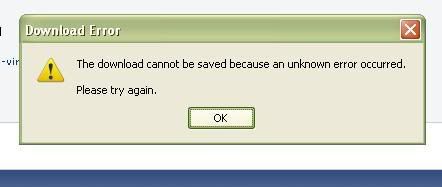
Hey there, last time I was here it was April, and I had a PC-Antispyware problem, and it seems I now have a new one.
I am having a really hard time trying to get HijackThis to open at all, so I can't even post a log for you. And I ran Malwarebytes and can't find the log for that either (And I know where I have to look, but I can't seem to get to the right folder?)
As far as what I'm experiencing, my Spybot S&D was giving me a lot of "Allow this?" suddenly when I was trying to find a new episode of a show I watch, and I kept denying, but they kept popping up. Suddenly my computer kept warning me about how my computer is not protected, etc. It just suddenly shut off on me with a blue screen explaining that if it were the first time I saw that warning, to try and reboot and look for the problem, and then it said "beep.sys" as the problem? I'm not too sure.
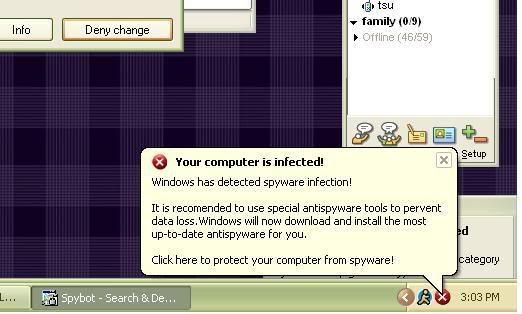
Needless to say, it took me a long time to get myself rebooted, because it kept freezing or not loading properly. I got into Safe Mode and performed a scan through Malwarebytes. It found 28 problems, and I deleted/quarantined it all. Then I rebooted normally, and now I have this pop up which I know is not a good sign:
So, how can I get HJT to work to show you whats going on? :[
EDIT
I think I have this Brastk problem as I've read a few others, and I do remember spybot trying to have me allow that and I kept saying no, and now none of my anti spyware stuff is working. I am going to attempt to get SAS and will update soon.
so I went into safe mode and deleted the karna and brastk files from inside c\windows and c\windows\system32. I couldn't find an antivirus 2009 file anywhere, so I am going to assume that I didn't get that.
but im stuck now, seeing as HJT and antimalware bytes is not opening, and I cant download SAS! what do I do??
ok, was able to locate the MBAM log! I hope this will reveal something.
tricked my computer into letting me download and open SAS! will post log as soon as I can get it. Hope someone reads this soon :[
so I did a quick scan with SAS, because the full scans were not working for me (the computer kept freezing after an hour, both times that I tried), so attached is the log. I rebooted, but the weird notice is still popping up from my tray.
I hope someone will look at this :[
will anyone look and help, please?
I am having a really hard time trying to get HijackThis to open at all, so I can't even post a log for you. And I ran Malwarebytes and can't find the log for that either (And I know where I have to look, but I can't seem to get to the right folder?)
As far as what I'm experiencing, my Spybot S&D was giving me a lot of "Allow this?" suddenly when I was trying to find a new episode of a show I watch, and I kept denying, but they kept popping up. Suddenly my computer kept warning me about how my computer is not protected, etc. It just suddenly shut off on me with a blue screen explaining that if it were the first time I saw that warning, to try and reboot and look for the problem, and then it said "beep.sys" as the problem? I'm not too sure.
Needless to say, it took me a long time to get myself rebooted, because it kept freezing or not loading properly. I got into Safe Mode and performed a scan through Malwarebytes. It found 28 problems, and I deleted/quarantined it all. Then I rebooted normally, and now I have this pop up which I know is not a good sign:
So, how can I get HJT to work to show you whats going on? :[
EDIT
I think I have this Brastk problem as I've read a few others, and I do remember spybot trying to have me allow that and I kept saying no, and now none of my anti spyware stuff is working. I am going to attempt to get SAS and will update soon.
so I went into safe mode and deleted the karna and brastk files from inside c\windows and c\windows\system32. I couldn't find an antivirus 2009 file anywhere, so I am going to assume that I didn't get that.
but im stuck now, seeing as HJT and antimalware bytes is not opening, and I cant download SAS! what do I do??
ok, was able to locate the MBAM log! I hope this will reveal something.
tricked my computer into letting me download and open SAS! will post log as soon as I can get it. Hope someone reads this soon :[
so I did a quick scan with SAS, because the full scans were not working for me (the computer kept freezing after an hour, both times that I tried), so attached is the log. I rebooted, but the weird notice is still popping up from my tray.
I hope someone will look at this :[
will anyone look and help, please?