|
#41
|
|||
|
|||
|
9 time out of 10 the antenna wires are extremely obvious when you open the bay that holds the mini-pci slot. typically a black wire and a white wire with little snap-on connectors that attach to the wirless card. if they are not obviously visible then they are most likely not installed.
|
|
#42
|
|||
|
|||
|
2435-S255/2915ABG Problem
I have a Toshiba Satellite 2435-S255. I got a 2915ABG mini PCI card for it and installed it, hooked up the antenna wires and installed the software from the CD that came with it but it didn’t work. I took the card out, covered pins #11 and 13 with a tiny piece of tape, but it still won’t work! I keep getting an error message that says: “The Intel/PRO Wireless Network Connection is still disabled. Use your hardware switch to enable it” But the antenna switch on the side of the computer is already “on”!! (Even though I don’t think it works, because the LED next to it is not working.) My card looks a little different from the picture of the card previously posted. Mine says “Made in China” instead of “Made in Malaysia”. Any suggestions?
|
|
|
|
#43
|
|||
|
|||
|
It Works!!!
Great!! I updated my BIOS, downloaded the latest driver from Intel, re-taped pins number 11 and 13 and BINGO! I'm up and running!! Thanks to you guys for coming up with this fix! Well done!!
|
|
#44
|
|||
|
|||
|
Does Bluetooth work when mini pci wireless network installed?
Just wondering... I have a Toshiba 5205-S503 and I have orderd a mini pci wireless network card. The Toshiba spces say Bluetooth only works with the wireless network card installed. It would be nice to have my computer talk to my cellphone via Blutooth. Does anyone know if Bluetooth works once you put in the wireless network card? Thanks!
Quote:
Last edited by sunherb; 01-10-2006 at 12:13 PM.. Reason: Correct typo |
|
#45
|
|||
|
|||
|
Wlan Switch stopped working after replacing acer MoBo
Hi everyone
Previous posts put me on the right track after my switch turning on my intel 2200BG card in my Acer Travelmate 290 / 292 (TM44) stopped working after I had to replace the mainboard. I even tried flashing the new Mobo even despite it had the latest FW, the only thing that got it going was scotch taping the pin 11 & 13 designated (6&7 just counting along edge). Thanks everyone contributing above you saved alot of headache, sending back Mobo thinking it was "flawed", which in someway it might be. I just wanted a qiuck fix and it sure turned out to be. KISS - Keep it simple stupid (as Chief eng, at Lookheed left us with) |
|
#46
|
|||
|
|||
|
make sure your wireless card is bluetooth and not wireless ethernet if you wish to use bluetooth devices
Quote:
|
|
#47
|
|||
|
|||
|
I just joined this forum to say "Thanks!" The tape the pins on the 2200BG card worked great on this 1135. I have bought no less than three cards for the laptop in an attempt to prepare it for sale. I am sure who ever buys it won't care that the light for the wireless doesn't work if the laptop is being sold with an upgraded BG card instead of the factory B. I bought this laptop stripped of parts and fixed it up. It is now complete thanks to this forum!
I buy, sell and repair laptops in my spare time and was feeling kind of silly that I couldn't get a wireless card to work in it. Now I feel MUCH better. Thanks folks! From Canada! |
|
#48
|
|||
|
|||
|
Only Pin 13 required
Thanks for this thread for reconfirming this information about masking pins on the card. However I believe you only need to mask PIN 13 as stated on this site:
http://madwifi.org/wiki/UserDocs/MiniPCI I tried both masking Pin11 and Pin13 together and just Pin13 and both seem to work. This was for a working Atheros 802.1B/G card taken from a Satellite A50, moved into a Satellite 2430. Worked perfectly fine in the A50, installed and Windows reported as fine in the Satellite 2430 but could not browse to find any wireless networks and wifi indicator light on the laptop remained off. |
|
#49
|
|||
|
|||
|
hello, i have a toshiba l25-s1196. i dont know anything about "pins" where do i find these ppins, and what do i do? email me at [COLOR="Red"]email removed[/COLOR]
Last edited by kimsland; 11-24-2008 at 08:31 PM.. |
|
|
|
#50
|
|||
|
|||
|
This fix not just for Toshiba's
Hi,
I happened to Google my problem & came across this site. I changed the Wifi card in my Panasonic Toughbook CF-48 (Centrino 1.4GHZ) with the Intel 2200 & had the same issue. I did all kinds of stuff & nothing worked. Strange thing is I put the old Intel 2100 back in & that wouldn't work either. I read about the fix on this forum & found it insane. Like my lieutenant used to say in Iraq when I used hairball means of fixing Humvees: "What the **** kina hillibilly **** is that!!!??? I taped the 11 & 13 pins. Put it carefully back in as to not tear off the the tape. Connected the antennas & booted up. It went momentarily to looking for the network & instantly logged on. There is peace in the valley tonite. Thanks for the great fix. Ralph KB3JQJ |
|
#51
|
|||
|
|||
|
worked here as well... gigabyte WI01GS on a Toshiba SA30-213...
u saved my day... ![]() |
|
#52
|
||||
|
||||
|
Quote:
fn+f8 is wireless ![]() |
|
#53
|
|||
|
|||
|
Omg It Worked !!!
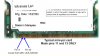
I have Toshiba Satellite A30-514 and I bought a Intel 2200BG Chipset mini-PCI WLAN card from ebay. Everything was installed fine except I was getting the same no signal so I googled and read this thread on the forum and its amazing what a bit of sellotape can do. How you do it is you put some sellotape on pins 11 and 13. As sellotape normally doesn't come that small what you do is put the wide sellotape covering many pins then just use a cutter (not scissors) to cut around the 2 pins. Then just peel the sellotape covering the other pins and voila. BTW, the pins 11 and 13 are on the top of the card (where you put the antenna wires on) and you count them like this.
The key the the cut between the pins, so the 11th and the 13th pin would be the 6th and 7th (or 5th and 6th if you count after the key). 1 Key 3 5 7 9 11 13 2 Key 4 6 8 10 12 14 A more accurate description can be found on this web page about which pin to cover but note that this webpage only tells you to cover pin 13 but you need to cover pins 11 and 13 with the Intel 2200BG Chipset. madwifi.org/wiki/UserDocs/MiniPCI Also Note on the 2 Antenna Wires and the LED light on the side for WLAN: I also wondered which wire goes in which socket but then I noticed that the white wire is a bit shorter than the brown/black wire. So what I did was connected the white wire to the little socket labelled "main" and the black/brown wire to the socket names "aux" (which was further away so I used longer wire). It works with those so I'm guessing I chose the right ones. As for the LED on the left side of the laptop, I have updated to the latest bios and still it doesn't seem to light up although wireless is working absolutely fine and I get full signal. Last edited by toxxic; 04-16-2008 at 09:23 PM.. |
|
#54
|
|||
|
|||
|
Hi there!
I tried the 11-13 selotaping procedure with the Intel 2200 BG wireless card in my Toshiba A30-303, and it worked! However, now I have 2 problems: 1. Battery - The full charge is now drained in less than 30 minutes (previously I had more than 1 hour) 2. Speed - I can only get 11 mbps, instead of the expected 54 mbps Anyone with the same problems? Can I solve this? Thank you all! |
|
#55
|
|||
|
|||
|
A possible solution for the switch and led
Looks like I can't post a link as of yet so here goes: (By the way lots of disclaimers were posted with this as people may do it wrong and fry something.)
Problem with WiFi LED After getting an unauthorized card to work, you may notice that the WiFi LED found on the ThinkPad is not working. This doesn't happen with all unauthorized cards. The general cause for this is the fact that the MiniPCI standard leaves the implementation of the LED signals available on the MiniPCI connector to the card vendors. Therefore some newer WiFi cards use one of the signals originally meant for LEDs to implement the "radio kill" switch input. As a result, the LED doesn't get proper signals and fails. Details The WiFi LED found in ThinkPads is connected to following pins on the MiniPCI connector. Pin Signal Description 11 LED1_GRNP WiFi active LED + 13 LED1_GRNN WiFi active LED - (older cards) / RF Silent input (newer cards) Note: The descriptions are specific to this article. If your LED is not working, the problem could be the pin 13. Newer cards may no longer provide the necessary negative signal there to drive the LED. Before you apply any fixes, be sure to check the voltage between pin 11 and ground (can be found for example on the MiniPCI latch arms) - it should give you about 3.3V while the WiFi is active and 0V otherwise. The voltage between pin 13 and ground should measure about 2.5V. The notebook has to be running while you perform the tests so be extremely careful. All the mentioned pins are on the upper side so it's quite easy to get to them with a multimeter. If all the voltages match, your LED is fixable. Reference: MiniPCI Specification (PDF, 724KB) MiniPCI Pinout Solution The solution is to connect the ground (GND) to the pin 13. However, since the new RF Silent input signal is active low, grounding the card side will tell it to turn itself off. Therefore, we have to separate pin 13 of the card from the system board and connect ground to the system board side only. There are many ways to accomplish this. One which doesn't require any soldering is to mask pin 13 on the card with a cellophane tape and use about 3cm of thin wire to connect pin 13 of the connector to the ground. Place one end of the wire on the masked pad and insert the card into the slot. Check if the wire is centered on the pad and try pulling it (but not too hard) to see if it holds. If it comes out easily, pull the card out and repeat. If you successfully attach it, you have to connect the other end to the ground. The best place is the left MiniPCI latch arm. Bend it outside and insert the wire into the small gap between the two pieces of metal the arm is made from. Finally, make sure that the wire doesn't touch anything else and doesn't stand out too much, it must not touch the touchpad electronics when you put the palmrest back on. If in doubt, cover the wire with some insulator. |
|
#56
|
|||
|
|||
|
Thank you thank you thank you
I Have a toshiba s2430 that did not come with a wifi card installed. I tried fitting a broadcom bcm4306 and could not get it to work. Have been searching the internet for nearly a week trying to find a solution with no luck and then I found a link to this site. followed the instructions and it works perfectly.
dont know how people find out this information but I am very glad they do. Thank you. Paul ![]() |
|
#57
|
|||
|
|||
|
Toshiba Sp10-304 Pin 11+13 Worked!
Eventually!!!!!
Covered The 2 Pins with Sellotape.....Quite Fiddly..Those Pins Are Very Small And My Eyesight Is Not What It Used To Be!!! Didnt work the 1st time so i took the card out and put another layer of tape on....Bingo. Thankyou to everyone that has posted...I like most people dont care that the lights or switch doesnt work...i now dont have to drag a cat5 from my wireless router!!! Using A broadcom bcm94309mp Out of a dead Dell Inspiron 510m.... On another topic the ram from the dead dell revived my Toshiba P10....It kept blue screening....a new bank of Ram sorted the problem. Keep posting your successes people...it makes the solution easier to find when googled! |
|
#58
|
|||
|
|||
|
It works!
Whoever found a fix for this problem I would like to buy a beer
It really works! Thank you |
|
#59
|
|||
|
|||
|
And another big thank you for this great tip. I managed to tape pin 11 and 13 and it works now on my sons Satellite A30.
Respect! Edward :-D |
![]() |
| Thread Tools | |
|
|
| Similar Topics | ||||
| Topic | Category | Replies | Last Post | |
| toshiba satellite cpu | Processors, Chipsets and Motherboards | 7 | 02-05-2007 01:37 PM | |
| Nvidia Nforce networking card driver problem......PLZ help!!! | Device Drivers | 1 | 12-11-2004 10:58 PM | |
| Linking Toshiba Satellite to eMac | Storage & Networking | 2 | 08-03-2004 02:35 AM | |
| Networking card problem | General Hardware | 3 | 01-07-2004 11:48 AM | |
| Networking problem with TCP/IP | Storage & Networking | 6 | 10-28-2003 12:10 AM | |
All times are GMT -4. The time now is 03:26 PM.


KISS - Keep it simple stupid (as Chief eng, at Lookheed left us with)