also @ TechSpot: iTunes 11.0.3 delivers revamped MiniPlayer, security fixes

Cannot find Realtek in my Device Manager

Discussion in 'Device Drivers' started by cjgeons, Dec 30, 2012.

Post New Reply
  1. cjgeons Newcomer, in training

    Hi
    System Info: Asus P5G41T-M LX
    Win7 64bit

    Problem started when a red cross mark appeared on my sound icon.I installed,reinstalled Realtek driver several times.But nothing happened.
    I googled the problem.Some said about enabling onboard radio.But cannot find that option in Bios.
    When I installed Realtek ,I checked C drive for installed files.But Realtek Folder does not contain any files(just 3.7 MB).

    Thank You for your Help.
  2. learninmypc TechSpot Guru Posts: 2,996   +97

    Go into your Control panel & see what it shows in there.
  3. JC713 TechSpot Guru Posts: 2,631   +193

    If you install the official realtek audio driver does it say nothing was detected?
  4. cjgeons Newcomer, in training

    yes.I installed and uninstalled Different versions of Realtek(win 7 64 bit) from different sites including official realtek site and Asus site.

    First of all Thank You for replying.Actually after installing Realtek it is not appeared in control panel-->Hardware and sound.The problem is it is not getting installed.When I check the installed files in program files.it is only around 4 Mb in size.How could that happen?

    I used msinfo32 command in "run" and found the sound device.It displayed as follows

    Name:High definition audio device
    Manufacturer:Microsoft
    Status: OK

    Also in Device manager-->sund and game controllers,it shows "High definition audio device".I tried the update option too and it says its already up to date.
    Still there is no sound.
  5. LookinAround TechSpot Chancellor Posts: 7,677   +39

    List any Problem devices
    • Make sure devices are connected and powered on
    • Click Start->Run, enter: msinfo32. Click the + sign next to Components to expand it
    • Click Problem Devices. Anything appear?
    • If yes, click on it, Ctrl-A to select all, Ctrl-C to copy it, Ctrl-V to paste into next post
    • On the other hand, if no devices are listed, tell me so
    Generate and attach a DirectX report
    • Click Start->Run, enter dxdiag and click OK
      ===> If you’re running 32 bit Windows, dxdiag will launch on its own
      ===> If you’re running 64 bit Windows, you’ll see 64-bit DxDiag. Click it to launch the 64-bit version of dxdiag
    • Notice progress in lower left window corner
    • When done, click Save Information button and save as a text file to your Desktop
    • Attach it to your next post by clicking the Upload a File button
  6. cjgeons Newcomer, in training

    T
    Thank You or replying.I did each step as u asked me to do.There was no problem devices.And I did dxdiag and information is uploaded.

    Attached Files:

     
  7. LookinAround TechSpot Chancellor Posts: 7,677   +39

    High Definition Audio connects like this
    Windows <====> Hi Def Audio Controller <==> Hi Def Audio Devices

    Your DxDiag show the controller is detected and working (which also means your onboard audio is already enabled). Problem seems to be with the HD Audio Devices.

    Try this first: Open DevMgr. Look under System Devices and right click the High Def Audio Controller select Uninstall. Now reboot your computer. Windows will reinstall the controller driver and the controller will try to detect all HD audio devices again (just in case all the audio devices weren't detected before)

    If you still have no luck installing Realtek drivers from the ASUS website, See How To Report Your Computer's Device Manager Data

    Be sure to Save As Tabular Text.txt file when saving the report on your computer. Upload the data to your next post
  8. misor TechSpot Booster Posts: 340   +43

    How to install realtek hd audio driver:
    1. download latest realtek driver from http://www.realtek.com/downloads/do...=24&Level=4&Conn=3&DownTypeID=3&GetDown=false
    or from motherboard manufacturer's website http://www.asus.com/Motherboards/Intel_Socket_775/P5G41TM_LX/#download
    2. uninstall current realtek hd audio driver and reboot.
    3. install latest realtek hd audio driver and reboot.

    at first, please select only the asus source of hd audio codec driver as the generic driver from realtek may not work on some motherboards.
    (my laptop's realtek audio would not be enabled by installing drivers from realtek but would immediately work by installing realtek audio codec driver from intel; yours could be different though)
  9. cjgeons Newcomer, in training

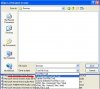
    When I looked under System Devices I found two "High Def Audio Controller" (I have attached a screen shot).I uninstalled both of them and restarted the System.But it didn't sort out the problem.
    I have attached Device manager Data too.

    Attached Files:

  10. cjgeons Newcomer, in training

    I did that several times.I installed and uninstalled Realtek from different sources(Asus and realtek websites).But nothing happened.
    I don't know what is the problem.
  11. misor TechSpot Booster Posts: 340   +43

    Try to reinstall original realtek hd audio codec driver from the driver installer cd/dvd that came with your motherboard.

    if you are successful in restoring the realtek driver to a working state and willing to update the driver to a newer version, download a version you like from http://filehippo.com/download_realtek_high_definition_audio_vista_64/
    (version 2.65 to 2.67, then 2.70)
  12. cjgeons Newcomer, in training

    I installed realtek from mother board DVD too,but didn't worked.And I already tried version 2.70 of Realtek
  13. LookinAround TechSpot Chancellor Posts: 7,677   +39

    I should have caught that! The System Device section of your dxdiag report also shows two Hi Def Audio Controllers:
    > You have both onboard audio plus an addon graphics card ATI HD Radeo 5450 which also provides HD Audio. They each have their own HD Controller and HD devices that connect to them.

    Let's this time go look for HD audio drivers for your ATI Radeon 5450. Go HERE and click on the Automatic Detect and Install link on the page. Does the HDMI port on the grahics card work now? Run a new dxdiag. Does DxDiag show the Radeon 5450 as a working sound card?
  14. cjgeons Newcomer, in training

    I
    I did as u said.I have attached new dxdiag info below.I dont use hdmi port of the graphics card.

    Attached Files:

  15. cjgeons Newcomer, in training

    Now ,in dev manager-> sound and game controllers ,it shows AMD High Def Audio Device
  16. LookinAround TechSpot Chancellor Posts: 7,677   +39

    OK. So that must be the audio device on your graphics card now with its driver installed....

    Next step: I apologize but please give me another Device Manager data report (as you did in post #9 above) BUT this time please Save As Tab Delimited Text. (My error, but I now realize I need the report saved as tab delimited text as otherwise some information I need gets lost)
    DevManView Save.jpg
  17. cjgeons Newcomer, in training

    I have attached DevManReport

    Attached Files:

  18. LookinAround TechSpot Chancellor Posts: 7,677   +39

    I'm just going to focus on your onboard audio..... After reviewing your data, I'll explain
    a) What I see as the problem with your onboard HD audio device
    b) How you can visualize the problem for yourself
    c) What you can try next

    As I see it, the onboard HD audio controller isn't detecting the onboard HD audio device. This can happen if a) the audio device failed or b) the controller, itself, isn't working correctly. Windows won't install Realtek because it doesn't see the device the Realtek driver is supposed to be for.

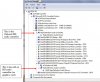
    I believe you should be able to see this problem yourself, if you tell Device Manager to View Devices by Connection. DevMgr will then show you how your devices connect to each other instead of by category. I provide a Win 7 device manager snapshot of my own computer below. (Coincidentally, my computer uses the same addon ATI Radeon 5450 as you do)

    Open Device Manager. Click View->Devices by Connection. To see how devices connect to the computer PCI bus, expand ACPI->Microsoft ACPI->PCI bus. You should now be able to distinguish between the two audio controllers.
    => The onboard controller connects directly to the PCI bus
    => The contoller on the ATI card connects through PCI Express chipset

    Note that each audio controller should have at least one audio device connected to it. My guess is on your computer you won't see ANY audio devices connected to your onboard audio controller. (see my example from my computer below)
    HD Audio Controllers.jpg

    If the onboard controller can't detect the onboard audio device, Realtek will never install for that device.

    Things to try:
    1) Look through all BIOS setup menu pages again. (Be sure to look through all setup menu pages) Look for an option name such as onboard audio or integrated audio. Disable it and boot up. The onboard controller should disappear from DevMgr. Then reboot with onboard audio enabled. The onboard controller will reappear. See if an audio device is now detected.

    2) After step 1) if still a problem, try uninstalling the onboard audio controller driver again. Tip: Instead of rebooting at this point you can also click Action->Scan for Hardware changes. Windows should reinstall the driver and the controller try and detect the audio device again.
  19. cjgeons Newcomer, in training

    I checked as you said.You are right ,there was no audio device connected to my onboard audio controller.In BIOS I didn't find any option to enable/disable Onboard audio.I was searching for it for about 2 weeks.I have checked every option in BIOS.But couldn't find onboard audio setting.
  20. cjgeons Newcomer, in training

    I think the problem is that Win 7 is not detecting onboard sound device.I m using Win 7 Ultimate.