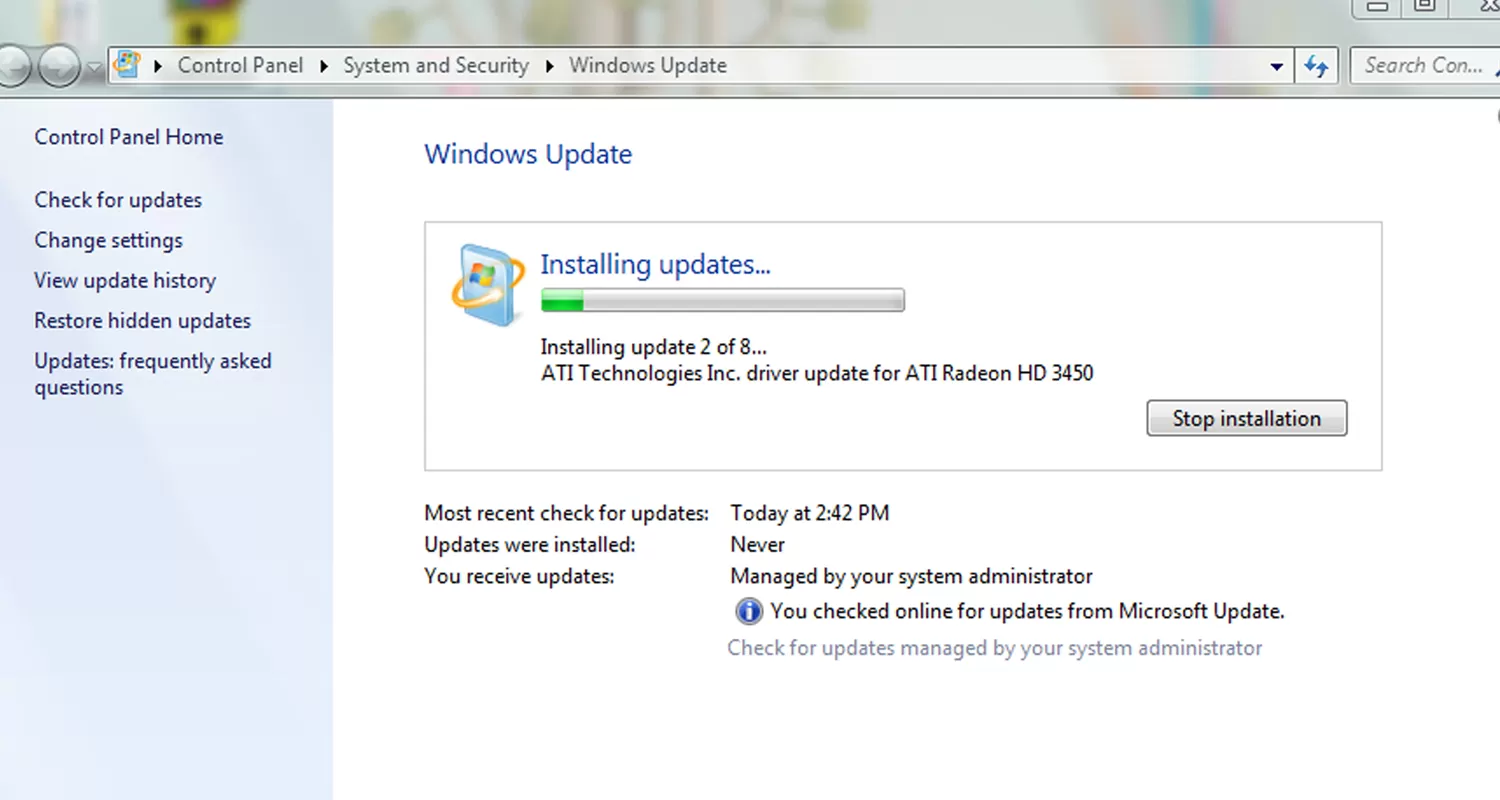
Windows Update's automatic reboot can be one of the most annoying "features" in Microsoft operating systems. While it's a bit less pushy with Windows Vista and 7, allowing users to postpone the restart for up to four hours, you may not be at the computer to intercept the first or subsequent notifications.
In many cases this isn't a major deal. However, it can be frustrating if you step away from a work session and come back to a freshly rebooted system. You might also be downloading a large file or letting a lengthy operation run while away from your PC, expecting it to be finished upon return.

Fortunately there are various workarounds available. Today we will mention a few that have been tested to work in XP, Vista and Windows 7 systems.
Temporary Workarounds
The methods below will disable the nagging reminders after Windows Update runs by stopping the associated service. They are only temporary solutions because Windows will automatically start the service again when you reboot, which means you might be faced with the same problem the next time Windows updates are installed. In other words, this is your one-time off solution.

Windows XP: Open Start > Run and enter the following command: net stop "automatic updates" OR sc stop wuauserv. You can also suspend the process with PsSuspend and the command pssuspend wuauclt.
Windows Vista/7: Open Start and search for cmd. Right click on the found program and click Run as administrator. Enter the command net stop "windows update" and you're good to go. Likewise, you can suspend the process with PsSuspend and the command pssuspend wuauclt.
Permanent Fix
Unfortunately most of the everlasting system tweaks out there are unavailable to "Home" users – that includes even Home Premium versions as these lack the group policy editor and a few other "advanced" Windows features. However, the third party application Shutdown Guard works well, and even prevents other applications from rebooting your PC.
For users of Professional, Ultimate and other upper-tier versions of Windows, you can adjust a few things in your group policy settings or system registry:

Windows XP: Start > Run > enter gpedit.msc. Navigate to Local Computer Policy > Computer Configuration > Administrative Templates > Windows Components > Windows Update. Double click "No auto-restart for scheduled Automatic Updates installation," then choose Enabled and click OK.
Windows Vista/7: Start > search for gpedit.msc. Navigate to Computer Configuration > Administrative Templates > Windows Components > Windows Update and enable "No auto-restart for scheduled Automatic Updates installations".

All non-Home users can apply the same policy change by adding a new key to the registry. Go to Start > Run/Search for regedit. Navigate to HKEY_LOCAL_MACHINE SOFTWARE Policies Microsoft Windows WindowsUpdate AU. Create a new 32-bit DWORD value named NoAutoRebootWithLoggedOnUsers and give it a value of 1. You can also download and double click on this registry key to add the key automatically.
Did you know?
Keeping your operating system up to date is vital to having a malware-free computer. But even with Windows fully patched, any of your installed applications can be a potential point of entry for attackers should you forget to grab the latest version available. Utilities such as Secunia's PSI can provide an extra layer of protection by scanning your computer for installed software, and then warning you of potentially unsafe applications that have available updates.
Previous Tech Tips
- How to Bring a Lost Window Back to your Desktop
- How to Change the Logon Screen on Windows 7
- Unearth Region-Specific Windows 7 Themes
- Install Over 50 Freeware Apps Hands-Free with Ninite
- Turn Off your Display Using a Windows Shortcut and More
- Disabling Avira Antivir's Pop-up Advertisements
- Access and Customize Windows 7's Extended Context Menu