Software Guides and How-Tos
Latest Articles in Software
-
![Replace These 11 Default Apps in Windows 11]()
Replace These 11 Default Apps in Windows 11
-
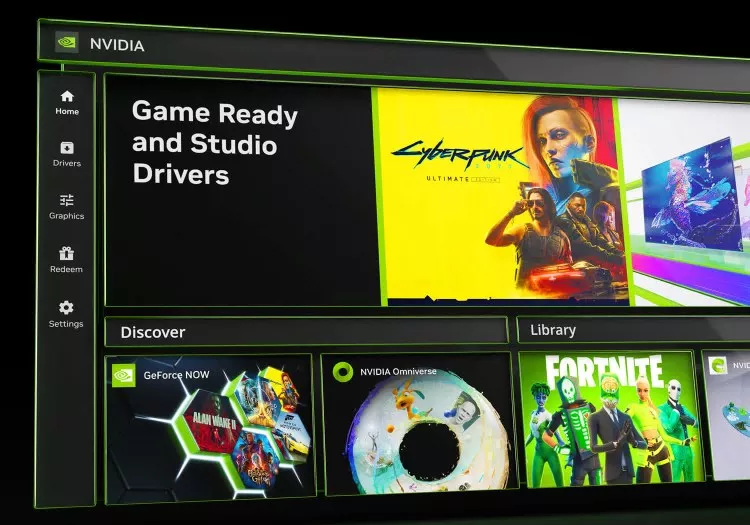
![The Nvidia App Settings You Should Actually Be Using]()
The Nvidia App Settings You Should Actually Be Using
-
![The Handheld Gaming "Holy Grail": FSR 4 INT8, XeFG, and XeLL]()
The Handheld Gaming "Holy Grail": FSR 4 INT8, XeFG, and XeLL
-
![What Ever Happened to Napster?]()
What Ever Happened to Napster?
-
![Stop the Slop: 8 Tools That Clean Up Windows 11]()
Stop the Slop: 8 Tools That Clean Up Windows 11
-
![11 Need-To-Know Tools in Microsoft PowerToys]()
11 Need-To-Know Tools in Microsoft PowerToys
-
![Essential Apps to Install on Windows and macOS]()
Essential Apps to Install on Windows and macOS
-
![How JPEG Image Compression Works]()
How JPEG Image Compression Works
-
![The Complete List of Alternatives to Every Google Product]()
The Complete List of Alternatives to Every Google Product
-
![Nvidia DLSS 4 at 4K, 1440p, and 1080p: Which Preset is Right for You?]()
Nvidia DLSS 4 at 4K, 1440p, and 1080p: Which Preset is Right for You?
-
![The Machines Calling Balls and Strikes - Baseball Joins the Tech Takeover]()
The Machines Calling Balls and Strikes - Baseball Joins the Tech Takeover
-
![Are Passwords Dead? What Are Passkeys, and Why Everyone's Talking About Them]()
Are Passwords Dead? What Are Passkeys, and Why Everyone's Talking About Them
-
![A Review of Nvidia's DLSS 4 Multi Frame Generation]()
A Review of Nvidia's DLSS 4 Multi Frame Generation
-
![Understanding Machine Code vs. Bytecode]()
Understanding Machine Code vs. Bytecode
-
![What Ever Happened to Netscape?]()
What Ever Happened to Netscape?
-
![Firmware vs. Software: What's the Difference?]()
Firmware vs. Software: What's the Difference?
-
![Understanding Relational vs. Non-relational Databases]()
Understanding Relational vs. Non-relational Databases
-
![Which is Faster for Gaming, Windows 10 or Windows 11?]()
Which is Faster for Gaming, Windows 10 or Windows 11?
-
![What Ever Happened to Winamp?]()
What Ever Happened to Winamp?
-
![What Ever Happened to ICQ?]()
What Ever Happened to ICQ?
-
![What Ever Happened to MapQuest?]()
What Ever Happened to MapQuest?
-
![Is Upscaling Useful at Lower Resolutions? Nvidia DLSS vs Native at 1080p]()
Is Upscaling Useful at Lower Resolutions? Nvidia DLSS vs Native at 1080p
-
![Top 10 Tech Pranks]()
Top 10 Tech Pranks
-
![Top 10 Private and Secure Email Services]()
Top 10 Private and Secure Email Services
-
![3D Game Rendering 101]()
3D Game Rendering 101
-
![How to Block Incoming and Outgoing Network Connections Using the Windows Firewall]()
How to Block Incoming and Outgoing Network Connections Using the Windows Firewall
-
![Ever Wonder How the Shazam Algorithm Works?]()
Ever Wonder How the Shazam Algorithm Works?
-
![The Complete List of Alternatives to All Google Products]()
The Complete List of Alternatives to All Google Products
-
![How to Download Videos From YouTube, TikTok and Instagram]()
How to Download Videos From YouTube, TikTok and Instagram
-
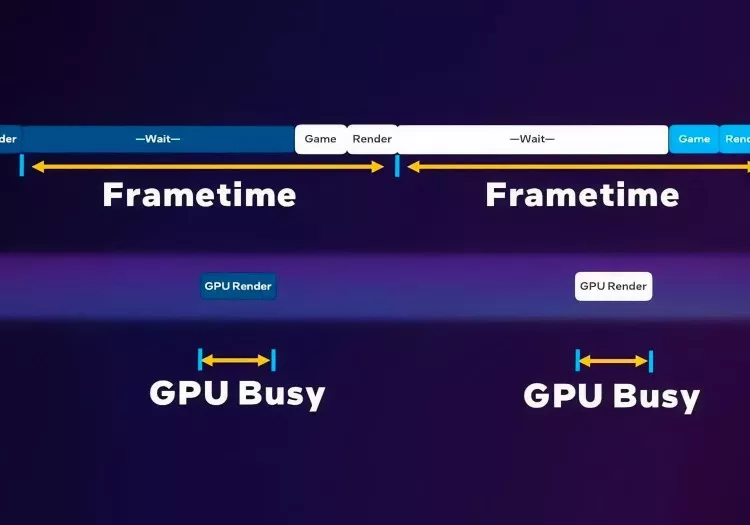
![How to Use Intel PresentMon for Benchmarking and Testing]()
How to Use Intel PresentMon for Benchmarking and Testing