
PowerToys is a useful suite of tools that enhance the Windows user experience. But with over 30 of them now, it can be a bit bewildering to sort through. Here are the ones we recommend checking out, including those added to the latest PowerToys release – and a few that may be outdated now, so you can pass on them.
Grab the latest PowerToys from TechSpot Downloads.
Note: These enhancements below require that PowerToys is running in the background. If the PowerToys icon doesn't appear on your Windows system tray, then you need to launch it.
Command Palette
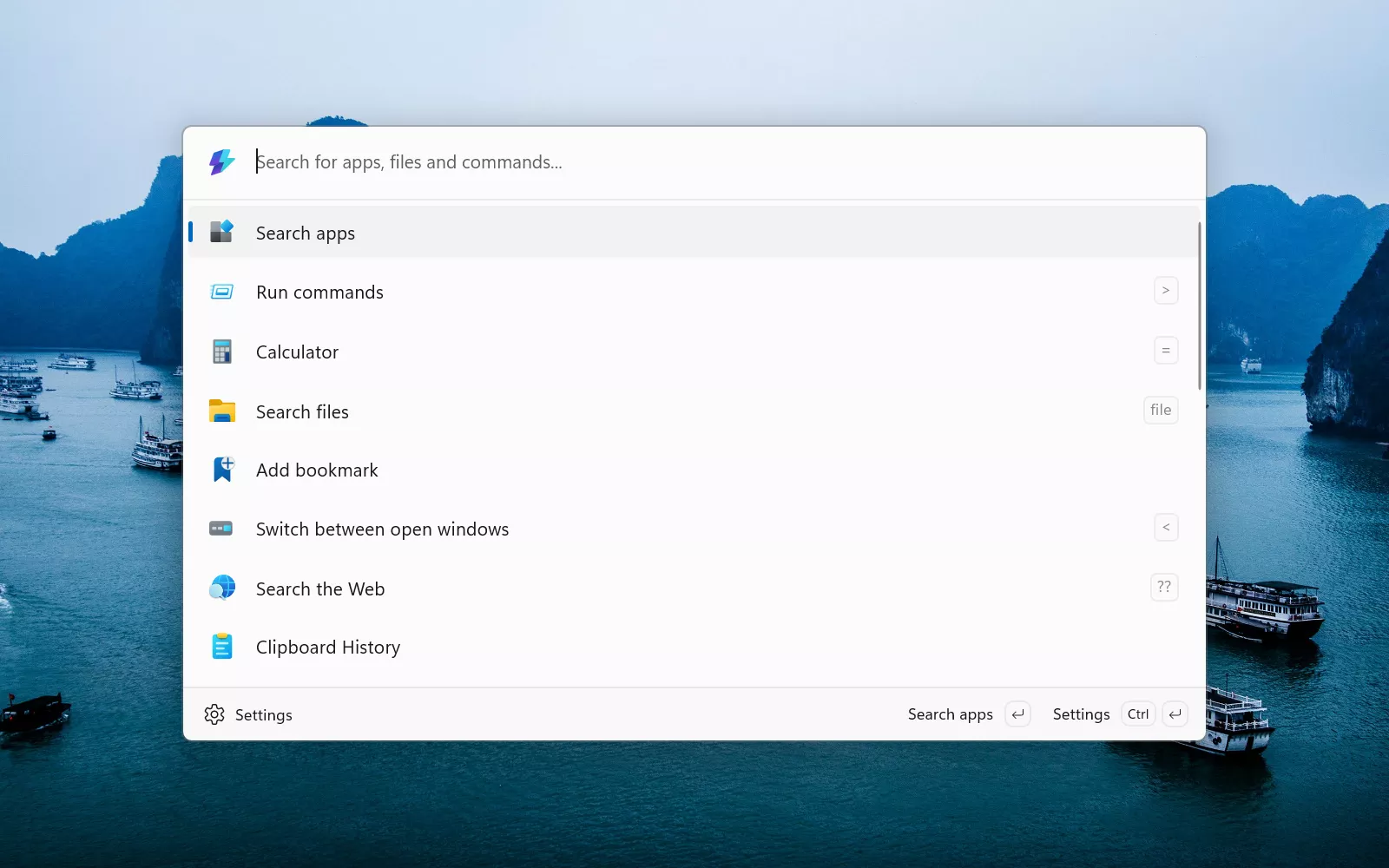
Type into this floating toolbar to quickly find and launch apps, files, and processes on your PC. It delivers results faster than the default Windows taskbar search (which, frankly, is very poor) and File Explorer search (side note: Everything is a good alternative for this functionality, too).
You can also use the Command Palette to control other PowerToys. Our favorites to use:
- Calculations: Type a mathematical expression (such as 72/12) to get an immediate result.
- File search: Type file followed by a space and keywords to find a file on your PC.
- Run commands: Type > followed by a space and a command. Typing > cmd will launch the Windows Command Prompt.
- Control other PowerToys: For example, type fancyzones (we'll describe this PowerToy below) to pull up a list of commands for this tool that you can select.
Command Palette also includes mini-tools shown below the text entry box. You can click one to launch it, use the arrow keys to scroll through the list and press Enter, or press the shortcut key shown to the right of a tool to launch it.
CursorWrap
This utility debuts in the latest PowerToys version, and it'll save you from wrist strain: It helps you navigate the cursor across a wide monitor, or if you use multiple monitors.
This utility debuts in the latest PowerToys version, and it'll save you from wrist strain.

When you move the cursor off one side of the screen, it'll "wrap" back, re-entering the screen from the opposite side. So it's great if you need to move an app window or other item located along the right edge of the screen to the left (or something that's on a right monitor in a multi-monitor setup): You can just drag it off the right edge of the screen until it reappears entering from the left edge (or left-most monitor).
FancyZones

Windows 11 already includes Snap Layouts, which let you snap app windows into predefined zones. FancyZones takes this further by allowing you to customize those zones – either by using templates or designing your own layouts.
This is especially useful on large, high-resolution displays or multi-monitor setups, where you have plenty of screen real estate to manage multiple windows.
How to use FancyZones: If you're creating a new layout (rather than using a template), you have two options:
- Grid: You use a divider tool to split and resize regions of the desktop into zones that are defined by horizontal and vertical boundaries.
- Canvas: You can add and resize zones by dragging their boundaries. These zones can overlap another.
After selecting a template or creating your own layout, hold down the Shift key, click an app's title bar, and drag the window. Your zones will appear behind it. Move the app into a zone, and release it – the app's window will resize to fit inside this zone.
Tip: You should override the Windows Snap feature so that you can use its Win + arrow keys shortcut for FancyZones instead. This way, you can use these keys to cycle an app window through your customized zones. Go to the settings for FancyZones, and toggle on Override Windows Snap.
Keyboard Manager

Use this tool to remap keys or create shortcuts, for example, turning the Caps Lock key into an Enter key. Remapped keys and shortcuts work system-wide, including inside apps and games. You can also create shortcuts to launch frequently used applications.
If there's something quirky about your keyboard layout that annoys you, Keyboard Manager can help. For instance, if Backspace and Delete are too close together, you can disable one to avoid accidental presses. Or, if an important key is physically broken (such as the Space bar), you can temporarily remap its function to another working key.
Note: For security reasons, some key combinations cannot be remapped, such as Ctrl + Alt + Del and Win + L.
New+

The standard Windows New context menu only lets you create blank files or folders. New+ expands this by letting you use custom files or folders as templates.
A template can be a folder with pre-made subfolders for new projects, a Word document, or even a code boilerplate.
How to use New+: Right-click anywhere on the desktop. On the context menu, select New+ and Open templates. File Explorer will take you to the default folder where you can put in the documents, folders or other files that you want to use as templates.
Once your templates are set up, right-click inside any folder or on the desktop, select New+, and choose a template. PowerToys will create a copy of it in the current location.
Workspaces

If you like opening apps and positioning their windows in specific ways, Workspaces is a classic PowerToy worth using. It lets you save a "snapshot" of your desktop layout as a shortcut. Clicking that shortcut relaunches your apps and restores their size and position.
This classic PowerToy saves a "snapshot" of your layout as a desktop shortcut.
You can also configure a workspace to open specific content. For example, it can launch your browser and load a particular website, or open a word processor with a specific document. To do this, open the Workspaces manager and look for the CLI Arguments field beneath the app entry. Paste in a URL or a file path from File Explorer.
Note that launching a workspace can feel sluggish on underpowered PCs, as it's opening multiple apps and arranging their windows as quickly as possible.
More "Quick & Easy" PowerToys

These tools are easy to use, and quickly improve your overall Windows experience.
- Always On Top (AKA "Pin a window"): You can pin any app window so that it stays on top, which prevents it from being overlapped by other apps or windows. Select the app and press Win + Ctrl + T to pin it.
- Awake: This lets you conveniently override your Windows system power settings, so it doesn't go to sleep automatically. Right-click the coffee cup icon in the system tray, and select Keep awake on interval or Keep awake indefinitely.
- Find My Mouse: If you lose track where your cursor is on your monitor or multi-monitor setup, this helps you find it. Tap twice the Left Ctrl key. The screen of your monitor will dim and put a "spotlight" on your cursor.
- Image Resizer: In File Explorer, you can right-click an image file (or select multiple image files and right-click the group of them) and select Resize with Image Resizer from the context menu.
- Peek (AKA "Preview file"): See a preview of most file types (document, image, PDF, etc.) in File Explorer without needing to open its corresponding application. Select the file and press Ctrl + Space.
PowerToys To Pass On
These tools may be considered least useful nowadays.
- Light Switch: This automatically changes your Windows desktop theme between dark and light modes to correspond with the time of day. Windows 11 has its own theme scheduling feature in its Settings app.
- PowerToys Run: Command Palette is seen as more powerful and versatile compared to this older run tool that's been in PowerToys since its earliest releases. So you're better off using Command Palette regularly.
- Text Extractor: This feature has become redundant since the Windows Snipping tool also lets you select and copy text from images and PDFs.
Do you agree with our suggested PowerToys? What are your favorites that you think we missed? Comment below.