TechSpot Features
Original features exploring tech culture, computing history, how-to guides, explainers, and tech trends.
-
Tech Culture
Decompilation on Steroids: Why AI Is Suddenly Cracking Open Old Software
-
Legends of Tech
Nokia 3310 & 5110: The Indestructible Phones Before the Internet
-
Gaming
Testing DLSS 5's Real Performance (No 6X Frame Gen)
-
Gaming
I Vibecoded to Run Morrowind, Duke Nukem, and Serious Sam in My iPhone
-
Explainers
QR Codes Explained
Latest Features
-
![DLSS 5 Just Got a Lot Faster, but Is It Worth Using?]()
DLSS 5 Just Got a Lot Faster, but Is It Worth Using?
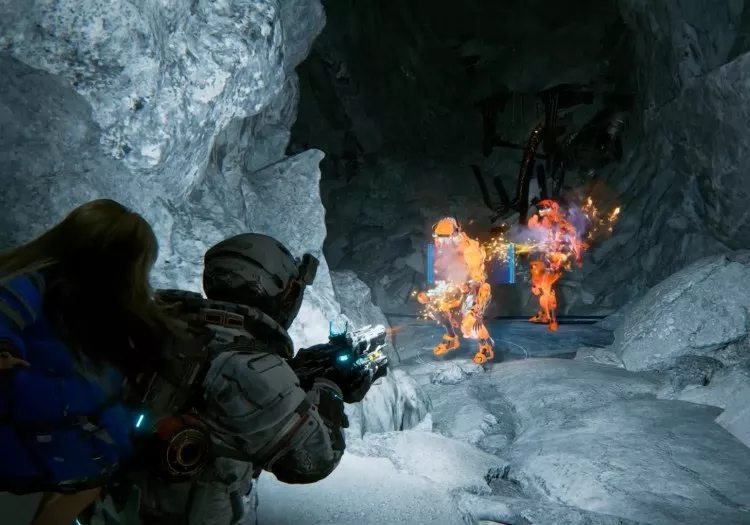
Nvidia's new DLSS 5 model nearly doubles neural rendering speed across the RTX 50 series. We put it to the test to see if the performance gains outweigh the heavy FPS penalty and lingering visual issues. -
![Decompilation on Steroids: Why AI Is Suddenly Cracking Open Old Software]()
Decompilation on Steroids: Why AI Is Suddenly Cracking Open Old Software
Everything is being decompiled. GoldenEye, Halo, Photoshop, even bank mainframes: AI is prying open old code at record speed. The secret isn't just AI, it's an answer key to check its work. -
![The OLED Burn-In Test: 30-Month Update]()
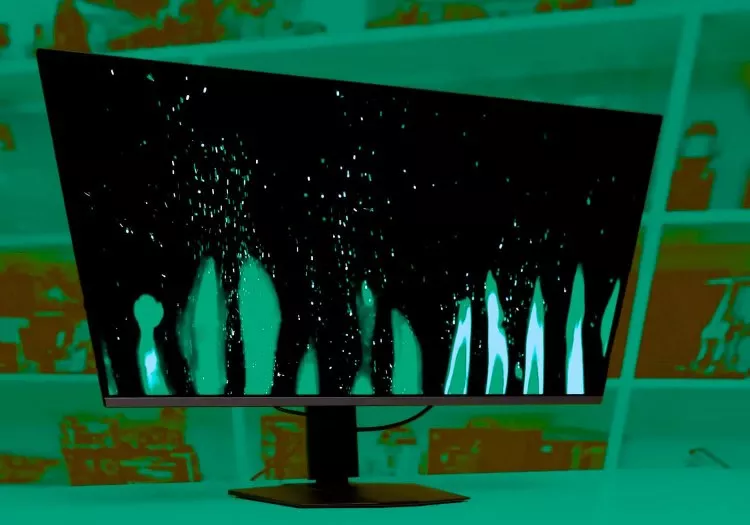
The OLED Burn-In Test: 30-Month Update
After 30 months and 8,000 hours of deliberate abuse, our 4K QD-OLED monitor has measurable burn-in, lower peak brightness, and visible wear. Here's how bad it looks in daily use. -
![QR Codes Explained]()
QR Codes Explained
QR codes were built to track car parts, written off as a gimmick, then rescued by phone cameras. Now they're everywhere. Here's how they work, what's changed, and what to watch out for. -
![Meet Jev: A New Kind of AI Model From One of ChatGPT's Co-Creators]()
Meet Jev: A New Kind of AI Model From One of ChatGPT's Co-Creators
Jev doesn't chat, write code, or explain itself. It just makes decisions, fast and cheap. Here's why a ChatGPT co-inventor thinks that's the next big step for AI. -
![Nokia 3310 & 5110: The Indestructible Phones Before the Internet]()
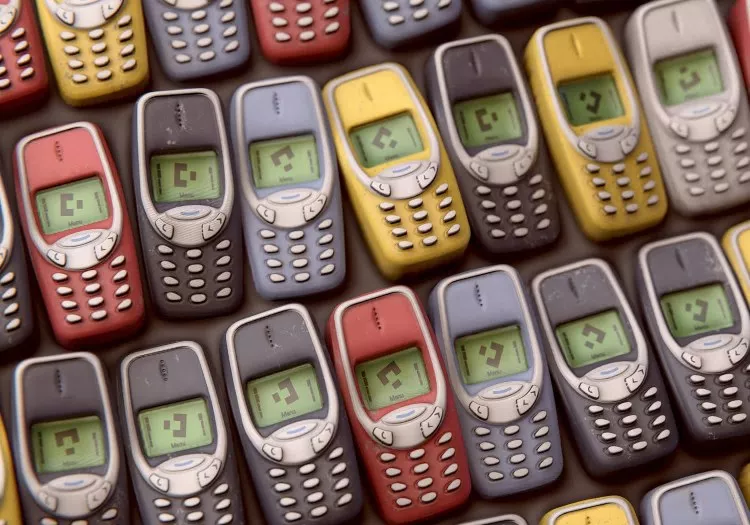
Nokia 3310 & 5110: The Indestructible Phones Before the Internet
Before phones went online, Nokia made two that didn't need to. The 5110 and 3310 gave us Snake, swappable covers, and a durability myth that outlived the company that built them. -
![Cost Per Frame: Nvidia Stops Offering Good Value GPUs to Gamers]()
Cost Per Frame: Nvidia Stops Offering Good Value GPUs to Gamers
GPU prices are climbing again, but not equally. Across ten countries, Radeon now delivers far better value than GeForce in most price tiers, while Nvidia's lineup struggles to stay competitive. -
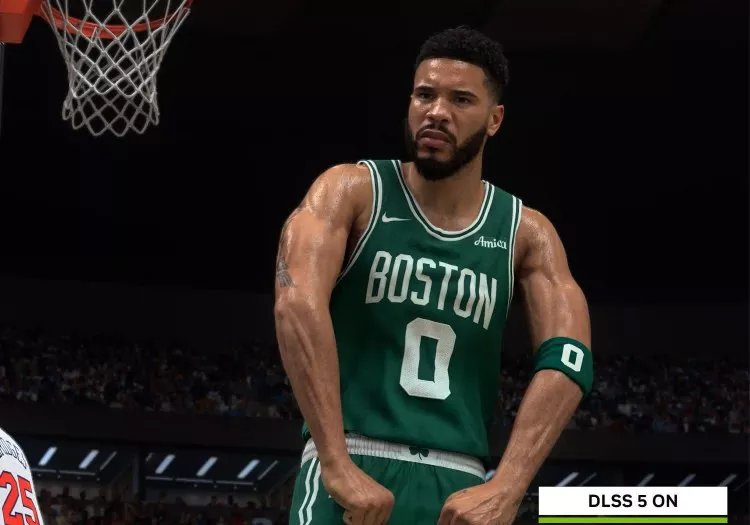
![Testing DLSS 5's Real Performance (No 6X Frame Gen)]()
Testing DLSS 5's Real Performance (No 6X Frame Gen)
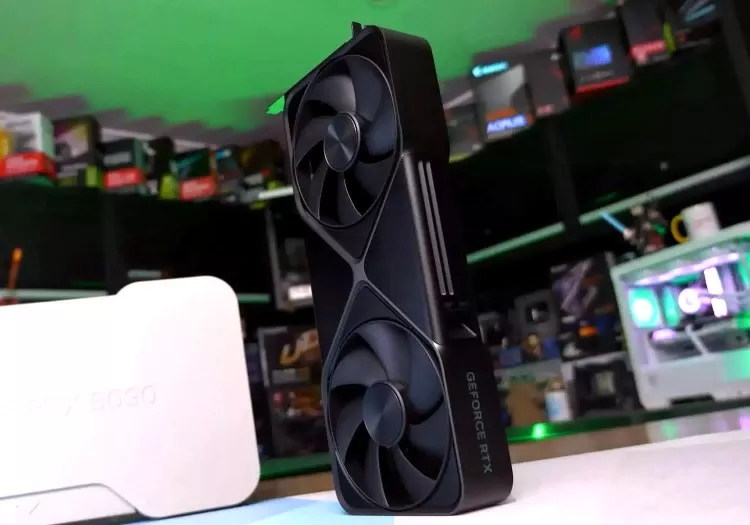
We benchmark DLSS 5 in NBA 2K27 across the full RTX 50 series, with no 6X Frame Gen to hide the cost. The results show just how demanding Nvidia's new neural rendering tech really is. -
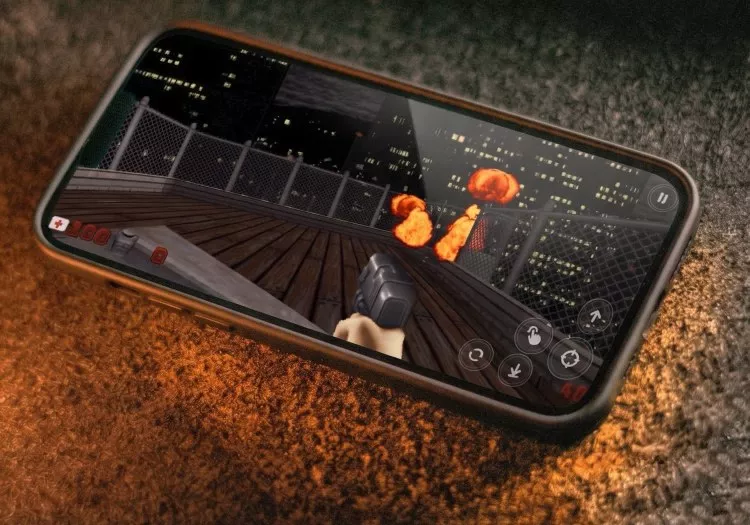
![I Vibecoded to Run Morrowind, Duke Nukem, and Serious Sam in My iPhone]()
I Vibecoded to Run Morrowind, Duke Nukem, and Serious Sam in My iPhone
I can't code, but with AI agents I built native iPhone ports of Duke Nukem, Serious Sam, and Morrowind, learning where vibecoding works, where it fails, and why human direction still matters. -
![This Is How DLSS 5 Performs (According to Nvidia)]()
This Is How DLSS 5 Performs (According to Nvidia)
Nvidia's first official DLSS 5 benchmarks promise enormous frame rates, but the underlying render performance tells a very different story, with Neural Rendering looking exceptionally demanding. -
![Graphics Card Prices Are Rising Fast (Again), and GeForce Is Taking the Biggest Hit]()
Graphics Card Prices Are Rising Fast (Again), and GeForce Is Taking the Biggest Hit
GPU prices are rising sharply again, with GeForce cards taking the biggest hit. We tracked prices across 10 countries to see which GPUs are getting more expensive and where value remains, if any. -
![The Best Windows Uninstaller Tools for Wiping Out Stubborn Software]()
The Best Windows Uninstaller Tools for Wiping Out Stubborn Software
The Windows built-in uninstaller handles the basics, but these tools go much further with batch removal, leftover cleanup, installation tracking, and options for stubborn or broken apps. -
![The Best DLSS 4.5 Update Yet: Ray Reconstruction]()
The Best DLSS 4.5 Update Yet: Ray Reconstruction
DLSS 4.5 Ray Reconstruction delivers sharper upscaling, cleaner ray-traced effects, and far fewer artifacts, all while maintaining virtually the same performance across every RTX generation. -
![The RTX 5090 Is No Longer Fast Enough]()
The RTX 5090 Is No Longer Fast Enough
Samsung's first 6K gaming monitor pushes even the RTX 5090 beyond its comfort zone. We test Nvidia's uber expensive flagship to see what gaming above 4K really costs in performance and image quality. -
![I Gamed on a 4GB GPU in 2026: AMD Is Repeating its Worst Radeon Mistake]()
I Gamed on a 4GB GPU in 2026: AMD Is Repeating its Worst Radeon Mistake
AMD is bringing 4GB graphics cards back in 2026. We tested the Radeon RX 6500 XT across 12 modern games to see what that means for buyers, and the results are every bit as bad as we feared all along. -
![Essential Apps to Install on Windows and macOS]()
Essential Apps to Install on Windows and macOS
Just unboxed a new computer? Here's our curated list of essential Windows and macOS apps for productivity, security, entertainment, and everything you need to get up and running. -
![Absurd GPU Pricing Update: Mid-2026 Edition]()
Absurd GPU Pricing Update: Mid-2026 Edition
Eight months into the memory crisis, GPU prices remain inflated but surprisingly stable. We compare Nvidia, AMD, and Intel graphics card pricing across 10 countries to find the best and worst deals. -
![The AMD Radeon Settings You Should Actually Be Using]()
The AMD Radeon Settings You Should Actually Be Using
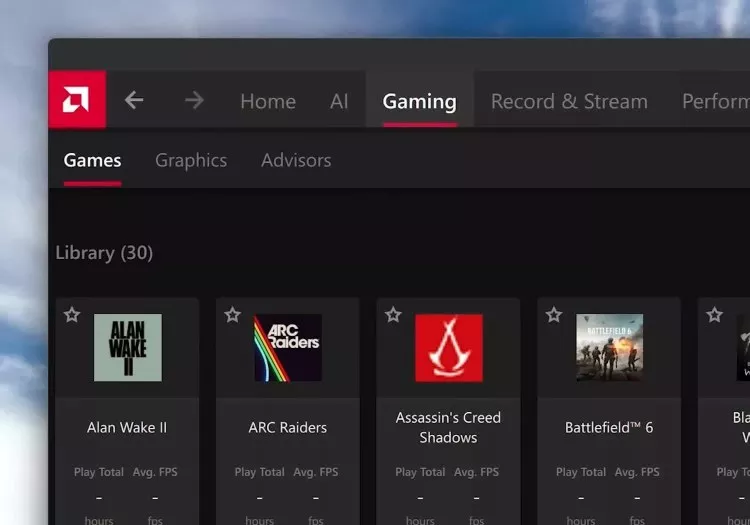
AMD Software is packed with gaming features, but not all are worth using. Here are the Radeon settings we recommend for better image quality, smoother gameplay, and cleaner recordings. -
![Indie Gaming's Next Big Wave Is Coming From Outside the West]()
Indie Gaming's Next Big Wave Is Coming From Outside the West
The next great game could come from anywhere. Developers across Asia, Eastern Europe, and Oceania are turning local stories and fresh ideas into global hits that are reshaping the industry. -
![Testing AMD's EXPO Ultra Low Latency Memory]()
Testing AMD's EXPO Ultra Low Latency Memory
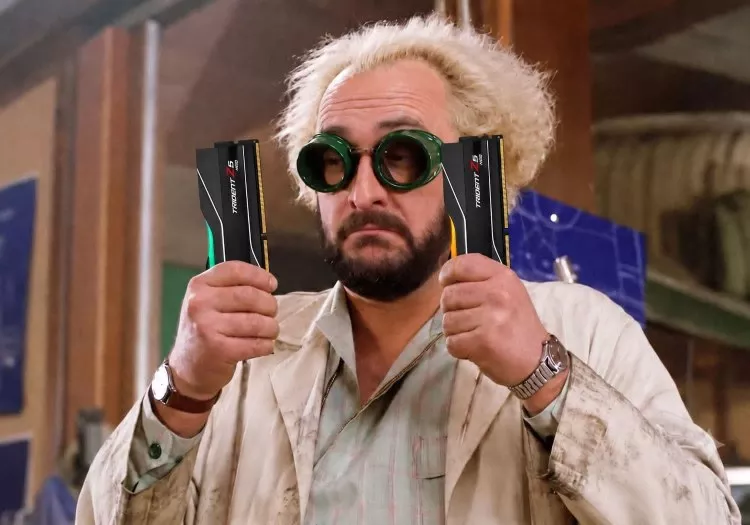
AMD's new EXPO Ultra Low Latency memory promises tighter timings without manual tuning. We tested G.Skill's latest DDR5 kits to see how much faster they make Ryzen gaming. -
![Testing AMD Radeon's Biggest-Ever Software Upgrade: FSR 4.1 on RDNA 3]()
Testing AMD Radeon's Biggest-Ever Software Upgrade: FSR 4.1 on RDNA 3
AMD's new FSR 4.1 INT8 upscaler gives RDNA 3 GPUs a massive image quality upgrade. We examine visual quality, performance, and how closely it matches the RDNA 4 version. -
![TechSpot PC Buying Guide]()
TechSpot PC Buying Guide
Building a PC in 2026 means navigating inflated RAM, storage, and GPU prices. We assembled four balanced systems that prioritize performance, value, and sensible upgrade paths. -
![The Real Reason Nvidia Has Abandoned PC Gamers]()
The Real Reason Nvidia Has Abandoned PC Gamers
Nvidia's shift away from PC gaming wasn't driven by AI alone. Slowing GPU gains, rising manufacturing costs, and longer upgrade cycles made gamers a far less attractive business. -
![Replace These 11 Default Apps in Windows 11]()
Replace These 11 Default Apps in Windows 11
Windows comes with a set of default apps that cover the basics – but for most of them, that's exactly their ceiling. Here are 11 better alternatives worth switching to. -
![In Hindsight: Tech Quotes That Got the Future Right and Wrong]()
In Hindsight: Tech Quotes That Got the Future Right and Wrong
Tech leaders love predicting the future. Sometimes they nail it, sometimes they miss spectacularly, and sometimes they leave behind quotes that only get better with age. -
![DisplayPort 2.1 Has a Cable Problem]()
DisplayPort 2.1 Has a Cable Problem
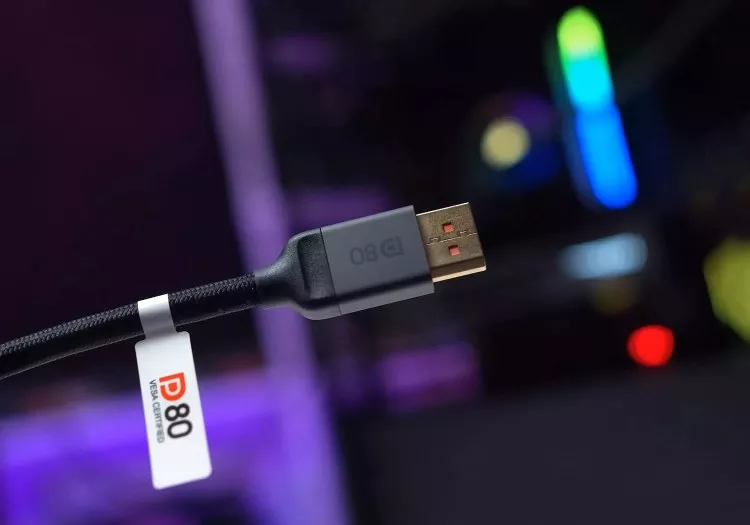
Your DisplayPort 2.1 monitor and graphics card may support UHBR20, but that doesn't mean you're getting it. Here's how a seemingly harmless cable choice can change everything. -
![The Nvidia App Settings You Should Actually Be Using]()
The Nvidia App Settings You Should Actually Be Using
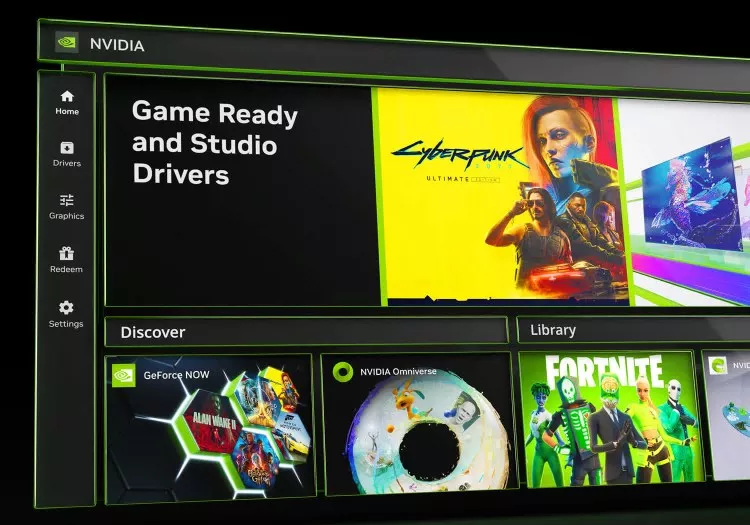
The Nvidia App has evolved far beyond basic driver updates. From monitor tweaks, to DLSS overrides and recording tools, these are the settings PC gamers should actually be using. -
![Was Ray Tracing a Scam?]()
Was Ray Tracing a Scam?
Eight years after Nvidia promised ray tracing would revolutionize gaming, most gamers still disable it. So what happened, and did RTX buyers get sold a fantasy instead of the future? -
![Forza Horizon 6 Optimization Guide]()
Forza Horizon 6 Optimization Guide
Forza Horizon 6 looks stunning on PC, but some settings deliver huge FPS gains with little visual loss. We benchmark every major option to find the best optimized settings for every GPU tier. -
![Forza Horizon 6 Benchmark: 47 GPUs Tested]()
Forza Horizon 6 Benchmark: 47 GPUs Tested
Forza Horizon 6 is one of the best-looking racing games yet, but max settings and RT can crush modern GPUs. We tested 47 graphics cards to see what it really takes to run well.










No products matched your criteria.
Try refining your search or go back to the popular listing.