If you bought a DisplayPort 2.1 monitor and hooked it up to a DisplayPort 2.1 graphics card, you'd think the setup would actually use DisplayPort 2.1, right? After all, both devices support the specification, so surely they would use it. Well, as it turns out, your DisplayPort 2.1 configuration might not actually be running at full DisplayPort 2.1 speeds, potentially defeating the purpose of buying that expensive monitor with the latest spec. So what on earth is going on here?
First, we hear from a lot of readers who are specifically interested in buying DisplayPort 2.1 monitors to take advantage of the spec's higher bandwidth. Not everyone cares about this, of course, but we regularly see comments from people who won't consider a DisplayPort 1.4 monitor simply because it lacks DisplayPort 2.1. This is especially common with high-end displays that require significant bandwidth, such as 4K 240Hz and 1440p 500Hz models.

The reasoning is that by buying a monitor with DisplayPort 2.1, users won't need to rely on Display Stream Compression (DSC) and can enjoy a fully uncompressed signal. Compression is often viewed as a negative, and some people simply don't want to use it. The issue has been further complicated by Nvidia GPU feature limitations that are frequently blamed on DSC, despite not actually being caused by it.
We've previously explained why DSC isn't a bad technology and why DisplayPort 2.1 is often unnecessary. However, we'll set that argument aside for now because some buyers are specifically seeking out DisplayPort 2.1 monitors, and those users would reasonably expect to get the feature they've paid for.

And when we say "paid for," we're referring to the fact that DisplayPort 2.1 monitors are typically more expensive than otherwise similar models that use DisplayPort 1.4 with DSC to deliver the same signal.
For example, if you're shopping for a 32-inch 4K QD-OLED from MSI, the DisplayPort 2.1 model, the MPG 322URX, costs around $1,000, occasionally dropping to $900 on sale. The very similar MAG 321UPX, which uses DisplayPort 1.4, costs around $800 and can sometimes be found for $700. In this case, the difference is about $200. While not all of that premium is attributable to DisplayPort 2.1, the feature is typically associated with a higher price tag.
Why your DisplayPort 2.1 monitor may not be running at full speed
Long story short, if you're not using the right DisplayPort cable, it's very unlikely you'll get the full DisplayPort 2.1 UHBR20 specification.
Long story short, if you're not using the right DisplayPort cable, it's very unlikely you'll get the full DisplayPort 2.1 UHBR20 specification. That's true even if the monitor supports DP2.1 UHBR20 and the graphics card also supports DP2.1 UHBR20, as is the case with Nvidia's RTX 50 series GPUs. What's more, you'll probably never notice. The monitor will continue to function normally, while a silent configuration change takes place in the background to keep the connection stable.

To demonstrate this, we've used the Asus ROG Swift PG32UCDM3, a 32-inch 4K 240Hz QD-OLED monitor that supports DisplayPort 2.1 UHBR20. Driving a 10-bit 4K 240Hz signal without compression requires 68.6 Gbps of bandwidth, something only DP2.1 UHBR20 can provide. We've paired it with an Nvidia GeForce RTX 5090, which also supports DisplayPort 2.1 UHBR20.
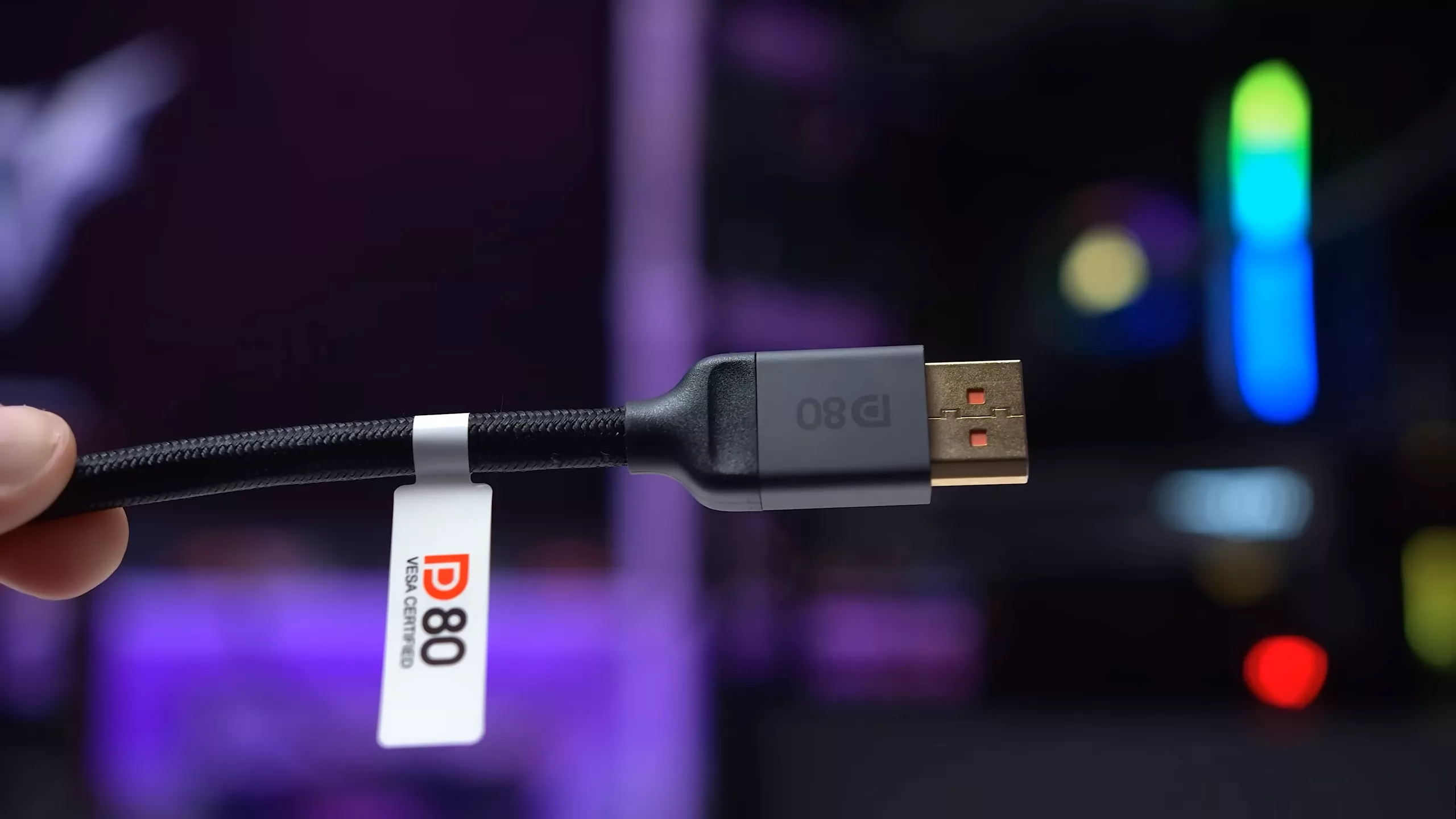
For the initial test, we're using the correct cable: the short DP80 cable included with most DP2.1 UHBR20 monitors. The cable is annoyingly short, but when it's connected and the monitor is configured for its maximum specification, GPU-Z reports a link rate of 20 Gbps across four lanes.

That's exactly how UHBR20 is designed to operate: four lanes running at 20 Gbps each, for a total bandwidth of 80 Gbps. This confirms that the connection is operating in full DisplayPort 2.1 UHBR20 mode without DSC.

The cable test: DP80 vs random DisplayPort cables
But what happens if you use a longer cable you already had lying around because the included cable is too short? Or if you simply grab a random cable from that box of assorted cables everyone seems to have? This is where you might discover that you're not actually using the DisplayPort 2.1 configuration you paid for.
Here's what happened when we connected a random DisplayPort cable from our collection. As you can see, there is no obvious functional difference when using this lower-quality cable. The monitor still works, it still allows us to select a 10-bit 4K 240Hz mode, and everything appears to be functioning normally. If you didn't know any better, you'd assume that connecting a DisplayPort 2.1 UHBR20 monitor to a DisplayPort 2.1 UHBR20 GPU means you're running a full UHBR20 connection without DSC. But that's not what's actually happening.

Looking at the configuration in GPU-Z reveals that the lower-quality cable has reduced the link speed from 20 Gbps to 10 Gbps. It's still using four lanes, but this is no longer a UHBR20 connection. Instead, it's running in UHBR10 mode with a maximum bandwidth of 40 Gbps. That's not enough to carry the uncompressed 68.6 Gbps signal, which means DSC must be enabled. In this configuration, there was little point in specifically buying a DP2.1 UHBR20 product because the feature isn't actually being used.
Why Nvidia silently switches to a lower-bandwidth mode
Here's another example using a longer DP54 cable. DP54 is the tier below DP80. It's not capable of UHBR20, but it is certified for up to 54 Gbps of bandwidth. Once again, the monitor works flawlessly, but GPU-Z reports that the active connection is still UHBR10 at 40 Gbps. It also shows that the maximum supported link rate has increased to 13.5 Gbps per lane, meaning the system recognizes the cable's higher capabilities. However, the active configuration remains UHBR10, and DSC is still being used.

Essentially, Nvidia's RTX 50 series GPUs test the cable and automatically select a configuration designed to maximize reliability. If the GPU detects a lower-spec cable, it limits the DisplayPort link speed even if the monitor supports a higher rate. This forces the display into a compatibility mode of sorts, operating at UHBR10 with DSC rather than UHBR20 without DSC.

Monitors like this support a wide range of link configurations to ensure compatibility with older hardware. You wouldn't want a situation where someone buys a DP2.1 monitor and discovers it won't work with a DP1.4 device, so older transmission modes remain supported
While you might expect the system to use the highest-performance mode available, this automatic process can choose a different configuration instead.
We suspect Nvidia does this to avoid situations where users connect a display with an inadequate cable and then encounter reliability issues. Trying to push an 80 Gbps signal through a cable designed for 40 Gbps or 32 Gbps can lead to all sorts of problems. The display may fail to initialize, flicker, show visual corruption, or repeatedly disconnect and reconnect. Rather than risk those issues and deal with support requests from users blaming the GPU, Nvidia appears to test the cable behind the scenes and select a configuration that minimizes potential problems.

When DSC is enabled, this process is essentially invisible. Whether you're using a DisplayPort 1.4-class cable, a DP54 cable, or a DP80 cable, you'll still get support for a 10-bit 4K 240Hz RGB signal. The lower-quality cables achieve this through DSC, while a DP80 cable allows the system to disable DSC and transmit the signal uncompressed.
However, if you disable DSC in the monitor's OSD, the impact of cable quality becomes much easier to see. Connected with a DP80 cable, there are still no issues. A full 10-bit 4K 240Hz RGB signal works perfectly despite DSC being disabled. But when using the lower-quality cables, the GPU drops back to a 40 Gbps link speed, and 10-bit 4K 240Hz RGB is no longer possible.

Instead, the display switches to 4:2:2 chroma subsampling at 240Hz because there simply isn't enough bandwidth available. With a 40 Gbps connection, true RGB output is only possible at 144Hz or below.

And this isn't some special mode of operation unique to this Asus monitor. It's something we've observed across every DisplayPort 2.1 monitor we've tested to date. They all work perfectly well on an Nvidia RTX 50 series GPU when connected with lower-quality cables, but you only get a true UHBR20 connection when using a certified DP80 cable.
The reality about DSC and DisplayPort 2.1
If you're absolutely set on using DisplayPort 2.1 UHBR20, and you've specifically bought a monitor because you want that capability and want to run it without DSC for whatever reason, you must connect it using a properly certified DP80 cable. If you don't, it's highly unlikely the display will operate in UHBR20 mode. Consider this a public service announcement for DisplayPort 2.1 enthusiasts who want to ensure they're getting the experience they paid for.
The easiest way to identify a DP80 cable is by checking the branding on the cable itself. Every certified DP80 cable we own, whether purchased separately or included with a monitor, carries a DP80 logo, typically in the form of a sticker. VESA does not allow manufacturers to use this branding unless the cable has passed certification. If the cable doesn't feature DP80 branding, it's probably not a DP80 cable and likely isn't delivering the full DisplayPort 2.1 experience.

The best way to verify a cable before buying is to check the product listing and confirm that it appears in the official DisplayPort certified cable database. This database is available through DisplayPort.org and can be filtered to show only DP80-certified products. It's not the most user-friendly website, but it's currently the most reliable way to verify cable certifications, especially since some manufacturers are less than honest when claiming their products are certified or capable of full 80 Gbps transmission.

This article is not sponsored by VESA or any cable manufacturer, but we've tested DP80-certified cables from Silkland and found them to work perfectly, delivering proper UHBR20 link speeds even at a length of two meters. Another option worth considering is Cable Matters' range of certified cables. As far as we're aware, two meters remains the practical maximum length for a passive DP80 cable, so anything longer will likely require active circuitry to achieve DP80 certification.
Now comes the part where we remind you that, in practice, it really doesn't matter whether your monitor is connected using DisplayPort 1.4 with DSC or DisplayPort 2.1 without DSC. Display Stream Compression is a visually lossless technology, and studies have shown that compressed and uncompressed signals are virtually indistinguishable in real-world use. We've never been able to spot a difference between DSC enabled and disabled, even when comparing them side by side.

It's also worth noting that you don't need a DisplayPort 2.1 monitor to avoid DSC-related feature limitations in Nvidia's driver stack. Features like DLDSR were never restricted because of DSC itself. Instead, the limitation stemmed from Nvidia's pixel throughput budget for a single display head.
High pixel-rate displays such as 4K 240Hz monitors could exceed the capabilities of a single display head, forcing the GPU to use two display heads instead. Certain features were unavailable in this mode. As it happened, the single-head throughput limit closely aligned with the bandwidth ceiling of DisplayPort 1.4 without DSC. As a result, most monitors that required DSC also exceeded the single-head limit, leading many users to incorrectly associate DSC with those feature restrictions.

With RTX 50 series GPUs, which are Nvidia's first generation to support DisplayPort 2.1, the display engine received a major upgrade and the single-head throughput limit was effectively doubled. This allows full feature support on a much wider range of high pixel-rate displays.
More importantly, you get those benefits regardless of whether the monitor is connected through DisplayPort 2.1 or DisplayPort 1.4 with DSC. You don't need a DisplayPort 2.1 monitor to take advantage of the improvement.