

Based on Modular Design, Opera One transforms the way you interact with your browser, delivering a liquid navigation experience which is more intuitive to the user. With today's release, Opera One also becomes the first major Chromium-based browser with a multithreaded compositor that brings the UI to life like never before.
Opera One also introduces Tab Islands, a new, more intuitive way of interacting with and managing multiple tabs. This news from the company comes just weeks after announcing its first generative AI features, including AI Prompts, as well as access to ChatGPT and ChatSonic in the sidebar.
Features
Introducing the first implementation of Modular Design
Opera has a history of reinventing itself to address the changing needs of its users as well as the evolving nature of the web. With Opera One, the browser has been redesigned according to Modular Design. The new design philosophy, which is being presented today for the first time, will allow Opera to over time build a more powerful and feature-rich browser that is ready for a generative AI-based future. The Opera browser is thus beginning its metamorphosis into a browser that will dynamically adapt to the user's needs by bringing only the key features to the foreground: the relevant modules within Opera One will adjust automatically based on context, providing the user with a more liquid and effortless browsing experience.
As opposed to adding more and more features and highlighting them, every element in Opera One has been closely evaluated for relevance. As a result, the browser has a cleaner, decluttered look with plenty of space for future AI-based features and extensions in both the browser sidebar and address bar. With Opera One, ChatGPT, ChatSonic and the new AI Prompts feature are switched on by default.
Beyond creating space for existing generative AI services, the new design is also laying the groundwork for the AI services Opera is planning to unveil in the near future.
First major browser with Multithreaded Compositor for super smooth UI experience
The power of the web has been continuously growing, enabling high performance graphics operations on websites without interruptions by other processes. With Opera One, Opera is introducing a similar approach to the browser user interface, implementing a new multithreaded compositor to deliver a faster and smoother user interface layer. With the Multithreaded Compositor, Opera One is the first major Chromium-based browser that brings its UI to life like never before. Combined with the new Modular Design Principles, this new architecture enables the implementation of new features and allows Opera to continue its differentiation from other Chromium-based browsers. One of the new features made possible by the improved browser architecture is Tab Islands.
Tab Islands: a new, intuitive way of interacting with tabs
Tab Islands is a new feature that delivers a smooth and intuitive experience built for users that interact with many tabs.
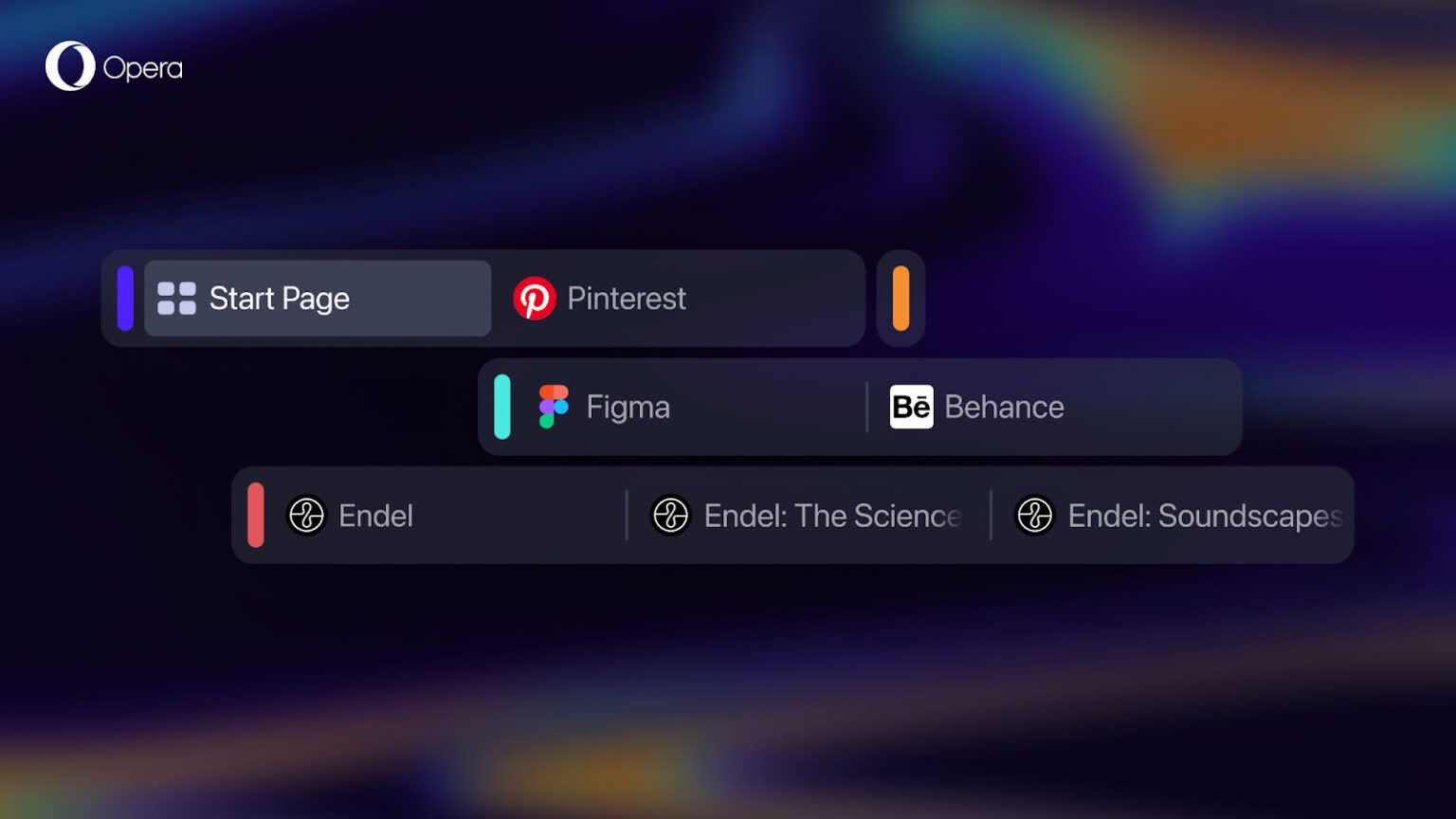
Researchers have found that the existing tab design in browsers makes it difficult to jump between sets of tasks. Moreover, according to Opera's research, the majority of people feel overwhelmed by how messy their tabs get and wish web browsers would do more to help them manage their tabs.
Opera One's new Tab Islands address this challenge. Tab Islands are a new way of keeping tabs that are related to each other together in an intuitive way – without forcing users to change their habits. Are you looking for the best lunch restaurant? The tabs with the menus, locations, and restaurant details will open in a dedicated tab island. Do you have a bunch of Google Docs you use for work? They, too, can get a tab island of their own. As you browse and more tab islands are created, you can easily distinguish the topics you were focusing on and switch between them. In the new, reinvented version of Opera, Tab Islands are the first manifestation of its Modular Design: they are clearly distinguishable in the browser UI, marked by separate colors and clear island borders.
"Tab Islands are a natural way of arranging your tabs into contextual groups without disturbing your flow. They make it easy to keep tabs that relate to each other in groups that you can open and collapse as needed. This makes browsing with many tabs more efficient, allowing for a more pleasant, liquid browsing experience," said Joanna Czajka, product director at Opera.
Tab islands are automatically created to keep the tabs together within the same browsing context. Open websites can also be gathered into a tab island by pressing the CTRL/Command button and clicking on the ones you want to group and then right clicking to create a tab island. They can also be moved by dragging and dropping between islands. You can also add to an existing tab island by drag and drop or by pressing the small plus button on the side of the island.
Popular AI features in the sidebar
Opera's updates included the addition of generative AI features into the browser have paved the way for this new, redesigned browser. In the future, Opera will morph to become fully modular, making the browser UI more intuitive and functional.
"Opera One is the first instance of our smart, modular design within Opera. It marks the beginning of a chain of innovation, including Opera's own AI engine to be shipped in the coming months. The web just got smarter and faster with generative AI. With Opera One, we are ready to embrace and lead that change," added Czajka.
What's New
- DNA-91899 [WIN] Installer: adapt subfolder naming
- DNA-102936 [News Categories] Categories become invisible after minimizing browser window
- DNA-103000 [News Categories] Selected categories not saved after restarting browser
- DNA-103001 [News Categories] 'x' button invisible in 'Choose language and country' on light theme
- DNA-103002 [News Categories] Changes in 'Choose language and country' modal not saved on esc or clicking outside of modal
- DNA-103110 Strange animation when dragging tiles
- DNA-103137 Fix positioning in Web UI component
- DNA-103338 Update browser shortcut
- DNA-103369 Crash at opera::BrowserSidebarContainer::UpdateVisibleItems()
- DNA-103593 [Navigation] Change which elements on start page are possible to navigate through with keyboard shortcuts
- DNA-103624 Create JS API to open Search tabs feature
- DNA-103643 Prepare for showing Lucid Mode button without text
- DNA-103706 Unable to roll up advanced settings
- DNA-103811 Entering full URL results with a search instead of navigation when all categories are disabled in dropdown
- DNA-103836 Translations for O94
- DNA-103923 [win installer] silent installation should not add consent to installer prefs
- DNA-103932 [SD][Add to Opera] Remove https://www and / from tile title when adding SD
- DNA-103933 [SD][Add to Opera] Do not return focus to the end of the URL after pressing backspace when editing it
- DNA-103949 Lucid Mode doesn't work in a private window
- DNA-103957 [Win] Small gap between the open panel and sidebar.
- DNA-103967 Opera internal pages have chrome:// prefix in address dropdown
- DNA-103974 Reorder and update look of toolbar in snapshot editor
- DNA-103975 Zoom tool should work in 10% increments
- DNA-104004 Improve welcome pop-up
- DNA-104005 Change activation pop-up
- DNA-104011 Turn on Lucid Mode on all streams
- DNA-104035 [SD] Browser crashes when dragging tiles with fresh profile
- DNA-104037 OpAuto tests failing due to wrong version comparison check
- DNA-104040 Can not drag tile to open folder
- DNA-104052 Hide Lucid Mode video button on Google Meet
- DNA-104053 Right mouse click open speed dial instead of context menu
- DNA-104055 News article opens in active tab
- DNA-104071 Enable #gx-evergreen-theme flag for all channels in GX
- DNA-104078 Expired strict-security-mode flag causes test failures
- DNA-104080 Tab not activated after opening speed dial folder in new tabs
- DNA-104088 Create new welcome pop-up for Rich Hints
- DNA-104089 No crashes reported in soccoro for Linux
- DNA-104105 Avoid crash on closing browser when search tabs feature is open
- DNA-104180 Promote O95 to beta
- DNA-104234 Opera update resets all consents to False value
- DNA-104278 Don't show Lucid Mode button on videos when hardware acceleration is off
