TechSpot Reviews
Comprehensive tech reviews: From CPUs and graphics cards, to laptops and smartphones.
-
Gaming Benchmarks
Can a Simple App Really Fix PC Game Stutters?
-
Gaming
Gears of War: E-Day GPU Benchmark: 44 GPUs Tested
-
Graphics Cards
GeForce RTX 5070 vs. Radeon RX 9070 XT: 2026 Update
-
Graphics Cards
The GPU Madness Has Come to This: 9070 XT vs. 5060 Ti 16GB
-
Gaming Benchmarks
The Witcher 3 Remastered GPU Benchmark
Latest Reviews
-
![Can a Simple App Really Fix PC Game Stutters?]()
Can a Simple App Really Fix PC Game Stutters?
Shader compilation stutter has plagued PC gaming for years, causing frustrating hitches even on powerful hardware. The SCSKiller app promises to do something about it, but does it work? -
![Alienware AW3226Q Tandem WOLED 32-Inch Review]()
Alienware AW3226Q Tandem WOLED 32-Inch Review
Alienware's $700 AW3226Q makes RGB stripe Tandem WOLED more affordable, with superb text clarity and deep blacks. But its 165Hz refresh rate faces tough competition from similarly priced 240Hz OLEDs. -
![Is the Radeon RX 9070 XT Really Faster Than the RTX 5090?]()
Is the Radeon RX 9070 XT Really Faster Than the RTX 5090?
Can a Radeon RX 9070 XT really beat Nvidia's flagship RTX 5090? We tested 11 games at 1440p and 4K to see when driver overhead matters, and when an ordinary CPU bottleneck is actually to blame. -
![Gears of War: E-Day GPU Benchmark: 44 GPUs Tested]()
Gears of War: E-Day GPU Benchmark: 44 GPUs Tested
We tested 44 GPUs in Gears of War: E-Day at 1080p, 1440p, and 4K to see what it takes to run the game well, how 8GB cards hold up, and whether upscaling makes Ultra settings practical. -
![The Best 1440p OLED Gaming Monitors Under $500]()
The Best 1440p OLED Gaming Monitors Under $500
We tested 11 budget 1440p QD-OLED gaming monitors to find the best buys, comparing full- and limited-brightness panels, features, design, and pricing to see which models are actually worth it. -
![The Witcher 3 Remastered GPU Benchmark]()
The Witcher 3 Remastered GPU Benchmark
The Witcher 3 Remastered overhauls CDPR's classic with improved visuals, ray tracing, and path tracing. We benchmark 13 modern GPUs to see how this ambitious free update performs. -
![The GPU Madness Has Come to This: 9070 XT vs. 5060 Ti 16GB]()
The GPU Madness Has Come to This: 9070 XT vs. 5060 Ti 16GB
GPU pricing has become so absurd that the RTX 5060 Ti 16GB now costs as much as the RX 9070 XT. We benchmarked both across 52 games to see just how ridiculous the gap has become. -
![AMD Radeon RX 9050 4GB: It's a Scam]()
AMD Radeon RX 9050 4GB: It's a Scam
AMD's Radeon RX 9050 4GB shares a name with the faster 8GB model, but half the VRAM and memory bandwidth make this OEM-only GPU a far worse deal than buyers may realize. -
![Lenovo Legion 9i Gen 10 18" Laptop Review: A True Desktop Replacement]()
Lenovo Legion 9i Gen 10 18" Laptop Review: A True Desktop Replacement
Lenovo's Legion 9i Gen 10 is a monster 18-inch laptop with desktop-class performance, a superb 240Hz display, and premium build quality. It's also one of the most expensive laptops we've tested. -
![Dell Alienware AW3926QW Review: The 39-Inch OLED to Buy]()
Dell Alienware AW3926QW Review: The 39-Inch OLED to Buy
The Alienware AW3926QW pairs a 39-inch 5K2K OLED with RGB stripe clarity, strong HDR, and a price that makes LG's rival look far less appealing. -
![GeForce RTX 5070 vs. Radeon RX 9070 XT: 2026 Update]()
GeForce RTX 5070 vs. Radeon RX 9070 XT: 2026 Update
Across 52 games at 1440p and 4K, the Radeon RX 9070 XT is roughly 25% faster than the RTX 5070, while also costing less and offering 16GB of VRAM. -
![AMD Radeon RX 9070 vs. 9070 XT: Which Should You Buy?]()
AMD Radeon RX 9070 vs. 9070 XT: Which Should You Buy?
We compare the Radeon RX 9070 and 9070 XT across 52 games at 1440p and 4K, test how each responds to undervolting, and determine whether the XT model is worth its price premium. -
![AMD Radeon RX 9050 8GB Review: Budget GPU, Zero Budget Value]()
AMD Radeon RX 9050 8GB Review: Budget GPU, Zero Budget Value
AMD's Radeon RX 9050 8GB promises current-generation graphics for budget gamers, but poor performance and even worse value make this GPU nearly impossible to justify. -
![4GB vs. 8GB VRAM: The 1080p Benchmark]()
4GB vs. 8GB VRAM: The 1080p Benchmark
AMD is launching a 4GB GPU in 2026, so we revisited the Radeon RX 6500 XT to see how 4GB and 8GB versions compare in modern games. The results are predictably ugly. -
![Samsung Odyssey G80HS 32" Review: Going 6K]()
Samsung Odyssey G80HS 32" Review: Going 6K
Samsung's Odyssey G80HS combines a razor-sharp 6K 165Hz display with a 3K 330Hz dual mode, promising the best of productivity and gaming, but its hefty sticker price comes with compromises. -
![AMD Ryzen 7 7700X3D Review]()
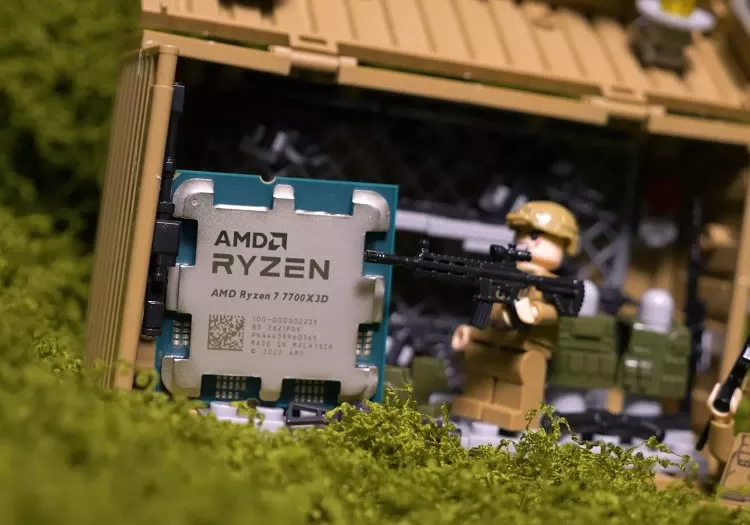
AMD Ryzen 7 7700X3D Review
AMD's Ryzen 7 7700X3D revives Zen 4 with a lower-clocked take on the 7800X3D. We benchmark 13 games to see how much performance it gives up and whether it still belongs in a modern gaming PC. -
![AMD Ryzen 7 5800X3D 10th Anniversary Edition Review]()
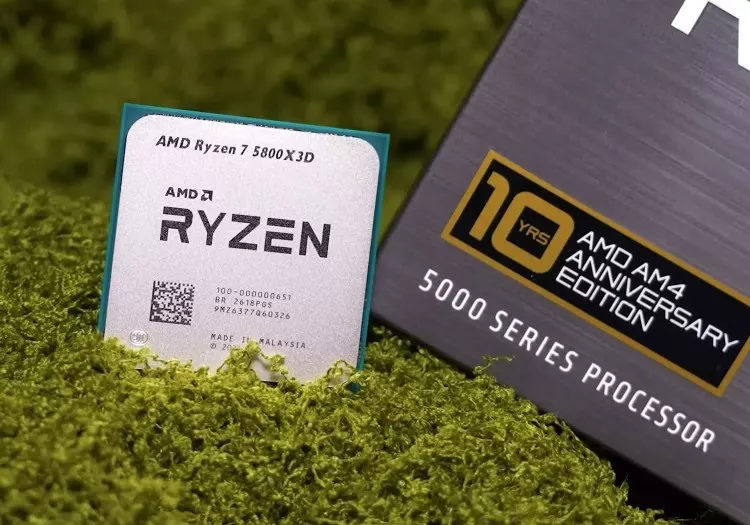
AMD Ryzen 7 5800X3D 10th Anniversary Edition Review
AMD's Ryzen 7 5800X3D is back at $350. It looks overpriced, but for AM4 owners facing costly DDR5 upgrades, this four-year-old CPU may still be the smartest path to modern gaming performance today. -
![Dell Alienware AW3426DW Review: The New Ultrawide OLED to Beat]()
Dell Alienware AW3426DW Review: The New Ultrawide OLED to Beat
Dell's Alienware AW3426DW combines a refined 34-inch 280Hz QD-OLED panel with better text clarity, brighter HDR, and a lower price, making it the new ultrawide OLED to beat. -
![Assassin's Creed Black Flag Resynced: 50 GPU Benchmark]()
Assassin's Creed Black Flag Resynced: 50 GPU Benchmark
How demanding is Assassin's Creed Black Flag Resynced? We benchmarked 50 graphics cards across multiple settings, resolutions, ray tracing modes, and upscaling presets. -
![Philips Evnia 27M2N5500XD 1000Hz Review]()
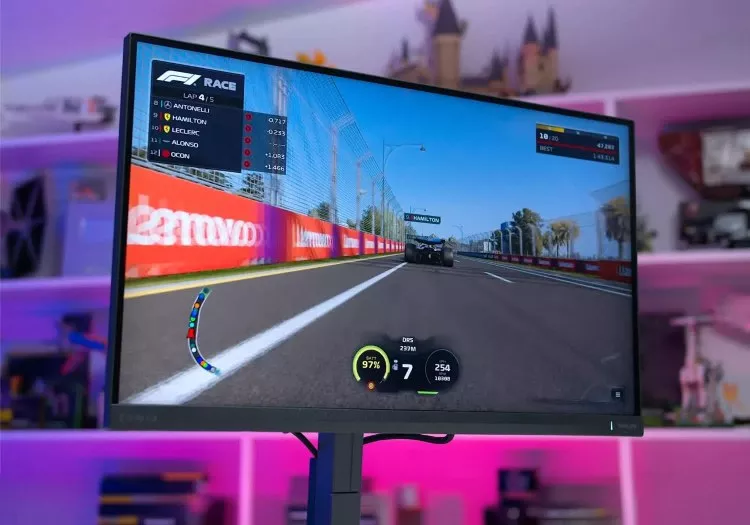
Philips Evnia 27M2N5500XD 1000Hz Review
The Philips Evnia 27M2N5500XD promises 1440p at 540Hz and a 1,000Hz Dual Mode, but slow IPS response times leave this LCD monitor well short of its headline specs. -
![AMD X870 Motherboard Roundup: 53 Motherboards Tested]()
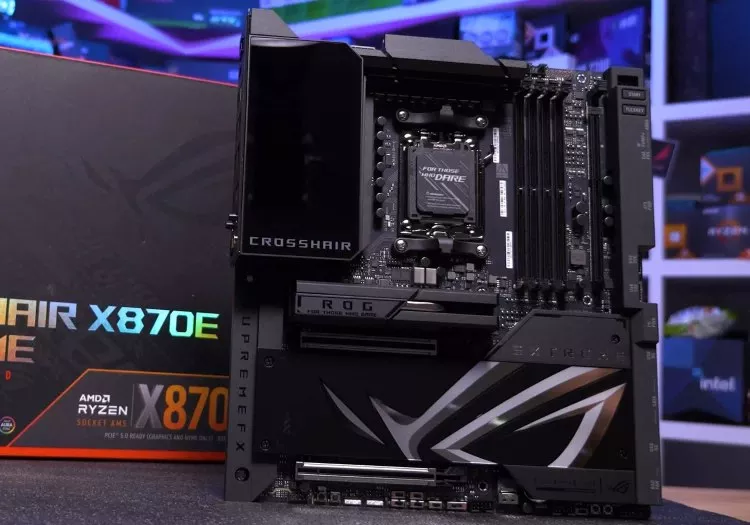
AMD X870 Motherboard Roundup: 53 Motherboards Tested
After six months of testing, we compare 53 AMD X870 and X870E motherboards across VRM thermals, USB performance, PCIe lane sharing, features, and value. -
![Intel Arc Pro B70 Tested: The Gaming GPU Intel Never Released]()
Intel Arc Pro B70 Tested: The Gaming GPU Intel Never Released
Intel never released the Arc B770, but the Arc Pro B70 may show us exactly what it would have looked like. We test Intel's workstation Battlemage GPU in 12 modern games. -
![Does the Nvidia App Hurt Performance? We Benchmarked It.]()
Does the Nvidia App Hurt Performance? We Benchmarked It.
Does the Nvidia App really hurt gaming performance? We benchmarked its background app, overlay, recording, and filters to see what affects frame rates and whether it is worth keeping installed. -
![AMD Radeon RX 9070 GRE Review: An Awkward Addition to the Lineup]()
AMD Radeon RX 9070 GRE Review: An Awkward Addition to the Lineup
The Radeon RX 9070 GRE arrives outside China, but a year-old GPU with 12GB of VRAM and a $550 price tag struggles to justify its place in AMD's increasingly crowded lineup. -
![Dell Alienware AW2726DM Review]()
Dell Alienware AW2726DM Review
The Dell Alienware AW2726DM makes OLED gaming more accessible than ever with its aggressive $350 price point, while still delivering excellent motion clarity, deep contrast, and 240Hz refresh rates. -
![Nvidia RTX 5070 Ti vs AMD Radeon 9070 XT: Massive 52 Game Benchmark]()
Nvidia RTX 5070 Ti vs AMD Radeon 9070 XT: Massive 52 Game Benchmark
We benchmark the Radeon RX 9070 XT and GeForce RTX 5070 Ti across 52 games, testing rasterization and ray tracing performance at 1440p and 4K. -
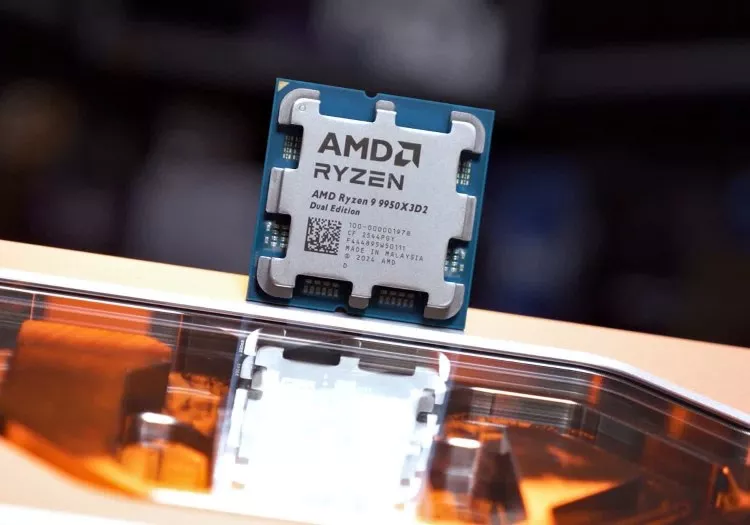
![AMD Ryzen 9 9950X3D2 Review: Twice the 3D V-Cache]()
AMD Ryzen 9 9950X3D2 Review: Twice the 3D V-Cache
AMD finally delivers dual 3D V-Cache on Zen 5 with the 9950X3D2, but does twice the cache translate into real gains? We test performance, power, and value to see if this flagship makes sense. -
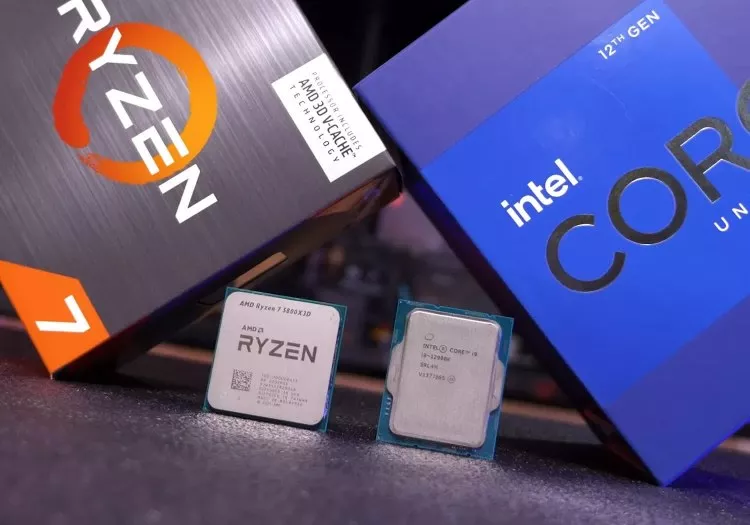
![Flagship Rematch: Ryzen 7 5800X3D vs. Core i9-12900K]()
Flagship Rematch: Ryzen 7 5800X3D vs. Core i9-12900K
Four years on, we revisit the Ryzen 7 5800X3D vs Core i9-12900K with modern games and DDR4 vs DDR5 configs. The result: still neck and neck, but memory choice now makes a real difference. -
![We Tested Every Ryzen 5 and 7 X3D CPU: From 5800X3D to 9800X3D]()
We Tested Every Ryzen 5 and 7 X3D CPU: From 5800X3D to 9800X3D
Nine X3D CPUs, two platforms, and 14 games tested. We compare every Ryzen 5 and 7 X3D processor to find out how much performance has improved since the 5800X3D and where it actually matters. -
![AMD Ryzen 5 5500X3D Review: AM4 Keeps on Giving]()
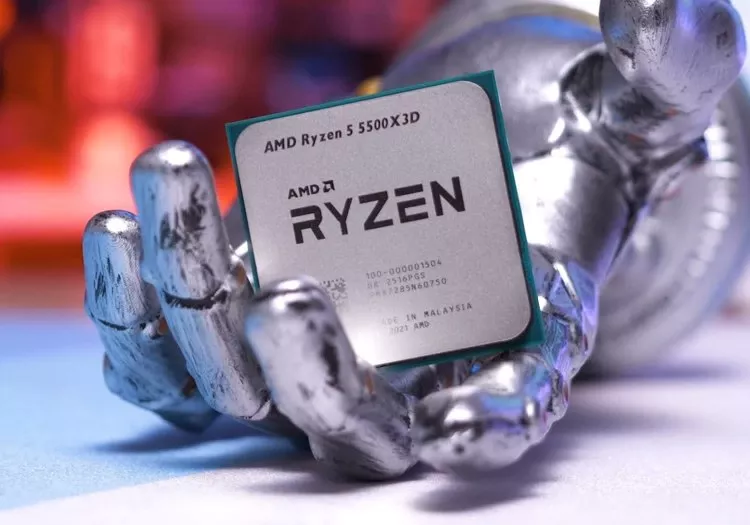
AMD Ryzen 5 5500X3D Review: AM4 Keeps on Giving
AMD's Ryzen 5 5500X3D extends AM4's life once again, but is it worth it? We tested 14 games to see how this cut-down 3D V-Cache chip stacks up against Zen 3, older Ryzen parts, and newer CPUs.





No products matched your criteria.
Try refining your search or go back to the popular listing.