

YUMI is a lightweight, easy-to-use tool for creating a Multiboot USB Flash Drive that can contain multiple operating systems, antivirus tools, disk cloning utilities, backup software, diagnostic programs, and more, all on a single drive.
With YUMI, you can quickly build a multi-purpose bootable USB loaded with your favorite Live Linux distributions, Windows and Linux installers, recovery utilities, and system repair tools. Simply add ISO files and boot from your USB to launch the tool or OS you need.
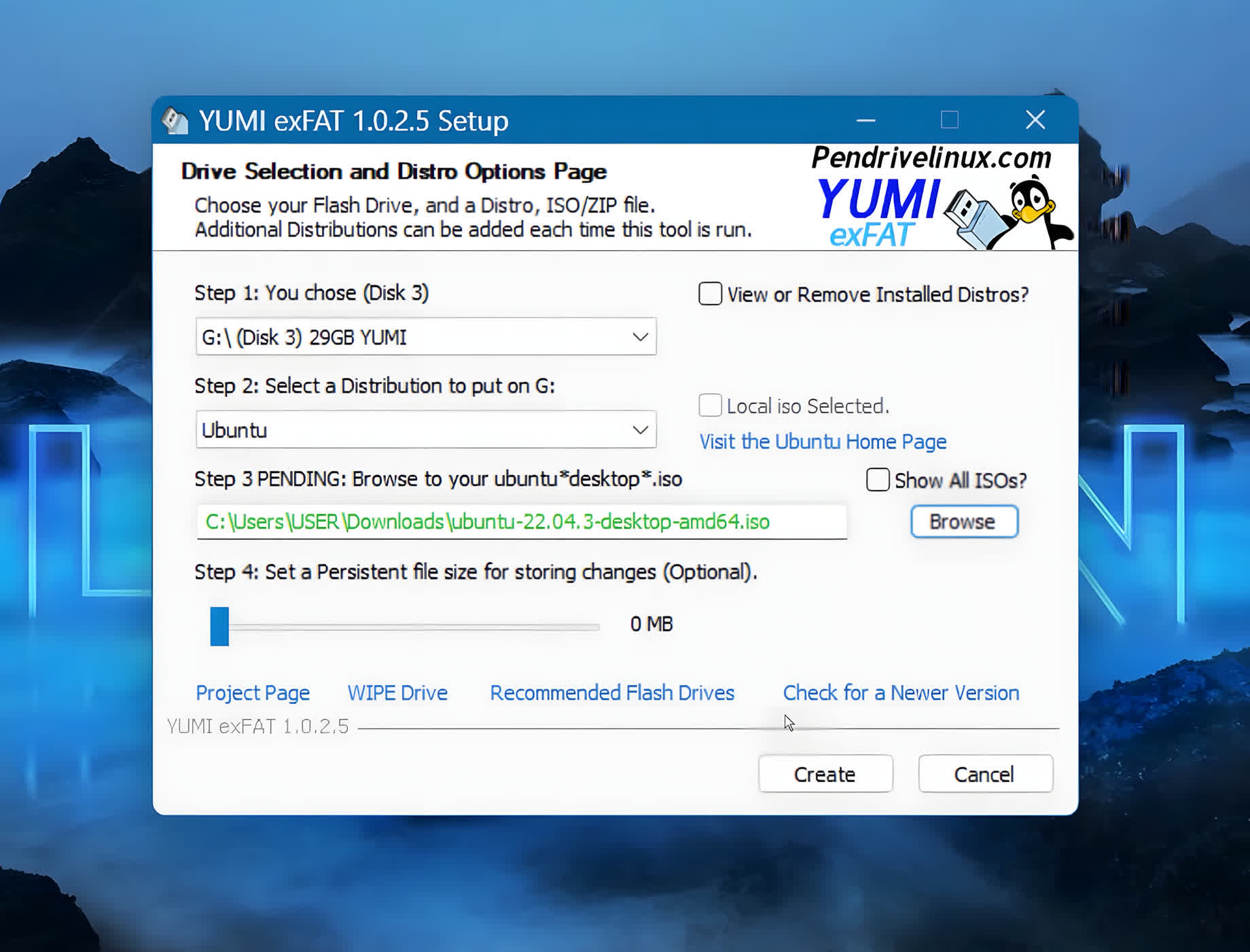
Designed as the successor to Universal USB Installer and the original MultiBoot ISOs, YUMI offers a more efficient and organized approach to portable boot media. All files are neatly stored within a dedicated "Multiboot" folder, keeping your USB drive clean and usable for regular storage at the same time.
Why won't my USB drive boot after creating a multiboot with YUMI?
It could be that the drive wasn't formatted with a proper partition table or marked active. Some USBs ship without a partition structure, which YUMI requires to install a bootloader. Reformatting the drive with MBR (or GPT when appropriate) and marking the primary partition active usually restores bootability.
My ISO file is over 4 GB (for example Windows installer) – how does YUMI handle that since FAT32 has a 4 GB file size limit?
YUMI extracts the contents of the ISO rather than copying the full ISO file unmodified. This means none of the individual files typically exceed the 4 GB threshold, so it works around the FAT32 file-size restriction.
I cloned my YUMI multiboot USB to another drive (copying all files), but the clone won't boot – what went wrong?
Simply copying files doesn't reliably duplicate the bootloader, partition table, or MBR/BCD entries. The solution is to clone the entire drive structure (for example, using dd or a disk-level imaging tool) so that the boot metadata is preserved.
YUMI USB doesn't appear in BIOS or UEFI boot menus – what's wrong?
This might happen if the motherboard is set to UEFI-only or Secure Boot is enabled, or if YUMI was built in legacy/Bios mode. Some systems only detect EFI-bootable media. Disabling Secure Boot or using a YUMI variant that supports GRUB2 and EFI booting helps.
Which version should you use?
YUMI Py is the current recommended build - it runs on both Windows and Linux from the same Python codebase and is where active development is focused. YUMI exFAT remains a fully supported, Windows native alternative if you'd rather run a standalone .exe with no Python involved. Older Legacy and UEFI-only builds are archived and kept online for compatibility with older systems only.
YUMI Py is a standalone Python build of YUMI that runs natively on both Windows and Linux from the same underlying codebase. It supports exFAT formatting, files larger than 4GB, multiboot menu generation, ISO/IMG/WIM/EFI/VHD(x) drag-and-drop support, and persistence for compatible Arch, Debian, Fedora, and Ubuntu based live systems - everything YUMI exFAT does, with one platform-specific exception: on Linux, YUMI Py can't run the guided Windows-On-VHD install (that needs diskpart/DISM, which are Windows-only tools). You can still drag and drop an existing VHD/VHDX file onto a Linux-prepared drive and boot it - you just can't build a brand new one from Linux. See the FAQ below for more detail.
Beyond matching YUMI exFAT's core feature set, it adds several capabilities of its own - built-in Test Boot and Install to VM, Auto Download, and Backup/Restore/Clone.
UMI Multiboot Bootable USB Flash Drive Creation
This tool works much like Universal USB Installer, except it can be used to run more than one distribution from your Thumb Drive. Distributions can also be uninstalled using the same tool!
- YUMI exFAT supports exFAT format & 4GB+ files. BIOS and UEFI USB boot.
- YUMI Legacy supports either NTFS or Fat32 format. BIOS USB boot only.
- YUMI UEFI supports Fat32 only. BIOS and UEFI USB booting (Distro dependent).
You can use this version if your computer supports BIOS booting, and if you do not plan to run your Windows installers from YUMI in UEFI mode. Most modern motherboards still have Legacy BIOS firmware support though CMS Legacy mode.
- Install ISO Files to USB from the Setup Screen
- Run ISOs from the Multiboot USB Boot Menu
You must Backup any data you wish to keep before using the "Format" options. When choosing the "Wipe Entire Disk" option, all partitions sharing that disk number will be wiped clean.
How to Create a MultiBoot USB Flash Drive
- Run the YUMI .exe file following the onscreen instructions
- Run the tool again to Add More ISOs/Distributions to your Drive
- Restart your PC setting it to boot from the USB device
- Select a distribution to Boot from the Menu and enjoy.
That's all there is to it. You should now be booting your favorite distributions from your custom Multi-Boot USB device.
How It Works:
YUMI (Your Universal Multiboot Installer) enables each user to create their own custom Multiboot UFD containing only the distributions they want, in the order by which they are installed. A new distribution can be added to the UFD each time the tool is run.
If you run YUMI from the same location you store ISO files, they should be auto-detected (*See Known Issues Below), eliminating the need to browse for each ISO.
YUMI UEFI (BIOS and UEFI USB Boot)
The YUMI UEFI variant utilizes GRUB2 for both UEFI and BIOS booting. Note that this UEFI version is not compatible with the legacy variant. In addition, your USB drive must be Fat32 formatted to support booting in UEFI mode. It utilizes the fat32format utility to format drives larger than 32GB as Fat32.
YUMI exFAT (BIOS and UEFI USB Boot)
Use this version if you want to keep using an exFAT format on your USB drive and also plan to store files larger than 4GB. It supports both modern UEFI and Legacy BIOS boot modes. Included is a separate USB Boot creation tool that was derived from Ventoy/Ventoy2Disk. This variant is also backwards compatible with Ventoy. If you'd like, you can even copy YUMI-exFAT-1.0.0.2.exe to the same location as a Ventoy2Disk.exe and use the YUMI-exFAT-1.0.0.2.exe frontend with Ventoy. Enabling you to create and manage for example; Ubuntu distributions with persistent images.
How the exFAT UEFI/BIOS version works
Once the drive has been prepared, you can use the front end Installer to learn more about, find, or download distributions and tools to put on a select drive. The front end will create an organized folder structure and copy each ISO to the drive for you (recommended if you want to the tool to keep track of your installations for removal). It can also create persistent storage files for you and the related .json entry. For example, each Ubuntu based distribution can have its own persistent storage up to 10GB. ;)
What's New
YUMI Py
- yumi_py-1.0.4: If a drive letter change is detected after preparation, hold the new drive letter so it doesn't need to be reselected. Make drive polling quicker and more efficient. Update to use ventoy 1.1.17 bootloader.
YUMI exFAT
- YUMI-exFAT-1.0.4.2.exe: Updated to use Ventoy version 1.1.17 bootloader.
- YUMI-exFAT-1.0.4.0.exe: Expanded: the distro and tools list with additional popular Linux ISO entries.
Updated: several distro homepage and download links, including Ubuntu Unity, Garuda Linux, Arch Linux, Fedora, Manjaro, and SystemRescue.
Fixed: ISOs added via drag and drop (or manually copied to the drive) are now listed in the removal dropdown alongside normally installed distros.
Improved: Stale entries in Installed.txt (where the file was deleted manually) are now pruned automatically when the removal list is built, preventing ghost entries from appearing. - YUMI-exFAT-1.0.3.9.exe: Fixed volume label never being set to YUMI after disk preparation. Fixed selected disk not being restored when returning to the drive selection page after preparation. Brought back built-in Wipe Drive feature.
- YUMI-exFAT-1.0.3.8.exe: Update to use Ventoy 1.1.12 bootloader addressing the following upstream issues:
Ubuntu 24.04.4 install failure. VirtualBox UEFI display issue when booting Windows.UEFI boot Windows/WinPE resolution issue. Oracle Linux 6.9 install issue. - YUMI-exFAT-1.0.3.5.exe: Added preparation menu with options for reserving unformatted space and selecting the storage filesystem.
- YUMI-exFAT-1.0.3.1: Update to use the Ventoy 1.1.07 bootloader, add TrueNAS, update links.
- YUMI-exFAT-1.0.3.0: Update to use the Ventoy 1.1.05 bootloader to address resolution issue when booting Windows, WinPE ISO in UEFI mode.
- YUMI-exFAT-1.0.2.9: Created Penetration Testing and Tiny Linux Distros Directories. Added Void Linux, updated broken links.
- YUMI-exFAT-1.0.2.8: Allow for Unlisted .ISO or .IMG file detection under option "Try Unlisted ISO/IMG". Improve method for detecting remaining space on drive. Return to menu instead of abort if not enough space remains on drive for the selected distro.
- YUMI-exFAT-1.0.2.7: Update to use the Ventoy 1.0.99 bootloader. Included the ability to exclude drives from being selected by adding a blank text file named "excludedrive.txt" to the root of the drive to be excluded.
- Update to use the Ventoy 1.0.98 bootloader which provides upstream support for newer KAOS and Arch Linux releases.
- Updated to use Ventoy 1.0.97 bootloader files to provide support for Proxmox 8.1 and FreeBSD 14.0. Removed www from Pendrivelinux site links.
- Updated to 1.0.96 bootloader. Implemented conditional detection features to allow prepared drives to be displayed while running from WINE in Linux.
- Updated to 1.0.95 bootloader. Corrected Windows X-Lite ISO masking. Addressed several bugs in the handing of message boxes and menu selections. Added feature that automatically checks for version updates at runtime.
- Updated to use the new Lubuntu home and download pages. Added a WIPE Drive link. Fixed to show selected drive during subsequent installs when show all drives was ticked.
- YUMI now autodetects and fetches the latest upstream version of the Ventoy Bootloader from GitHub during install or update.
YUMI Legacy
- Fixed a bug where distributions were not being removed from the boot menu when using the remove installed distros option.
YUMI UEFI
- Detect if Windows install.swm file exists before using DSIM. Don't display Unlisted ISO menu entries if no files exist in the directory.
- Added support for newer versions of Redo Rescue Backup and Recovery.
- Updated to support newer Archlinux and Archbang.
