

WhatsApp Beta for Android lets you enjoy the latest additions to the messaging service before they hit the final release on the Google Play Store. The latest Beta adds the long awaited Dark Theme feature. More instructions on how to enable it are in the description below.
WhatsApp is available for Android, iPhone / iOS and Windows & Mac. WhatsApp is a cross-platform messaging service, so those devices can all message each other. Because WhatsApp Messenger uses the same internet data plan that you use for email and web browsing, there is no cost to message and stay in touch with your friends.
In addition to basic messaging WhatsApp users can create groups, send each other unlimited images, video and audio media messages.
Can WhatsApp read my messages?
No, WhatsApp cannot read your messages because it uses end-to-end encryption, meaning only you and the recipient can access the content of your chats. However, WhatsApp does collect metadata such as your phone number, device info, and usage patterns.
Is WhatsApp free?
Yes, WhatsApp is free to use. There are no subscription fees for messaging, voice calls, or video calls. You only need an internet connection (Wi-Fi or mobile data) to use the app. Your mobile carrier may charge for data usage if you're not on Wi-Fi.
Can I use WhatsApp on a PC without my phone?
WhatsApp Web and the desktop app require an initial connection to your phone for setup. After linking, they can function independently for a limited time. However, for full functionality and to maintain end-to-end encryption, periodic reconnection with your phone is necessary.
How can I format text in WhatsApp messages?
WhatsApp supports text formatting using specific characters:
- Bold: Wrap text with asterisks (*).
- Italic: Wrap text with underscores (_).
- Strikethrough: Wrap text with tildes (~).
- Monospace: Wrap text with backticks (').
Features
- No hidden costs: Once you and your friends download the application, you can use it to chat as much as you want. Send a million messages a day to your friends for free! WhatsApp uses your Internet connection: Edge/3G/4G or Wi-Fi when available.
- Multimedia: Send Video, Images, and Voice notes to your friends and contacts.
- Group Chat: Enjoy group conversations with your contacts. Add or Remove group participants, change group subject and set a group icon.
- Personal: Set a profile photo which will be shown to all your contacts
- No international charges: Just like there is no added cost to send an international email, there is no cost to send WhatsApp messages internationally. Chat with your friends all over the world as long as they have WhatsApp Messenger installed and avoid those pesky international SMS costs.
- Say no to pins and usernames: Why even bother having to remember yet another PIN or username? WhatsApp works with your phone number, just like SMS would, and integrates flawlessly with your existing phone address book.
- No need to log in/out: No more confusion about getting logged off from another computer or device. With push notifications WhatsApp is always on and always connected.
- No need to add buddies: Your Address Book is used to automatically connect you with your contacts. Your contacts who already have WhatsApp Messenger will be automatically displayed under Favorites, similar to a buddy list.
- Offline Messages: Even if you miss your push notifications or turn off your iPhone, WhatsApp will save your messages offline until you retrieve them during the next application use.
- And much more: Share location and places, Exchange contacts, Custom wallpaper, Custom notification sounds, Landscape mode, Message timestamps, Email chat history, Broadcast messages and media to many contacts at once, and much much more.
What's New
It's time to reserve your WhatsApp username
When someone new walks into your life – a classmate, a neighbor, someone you meet at an event – sharing a phone number can feel like a big step. That's because a phone number is personal and it's tied to so many parts of your life. Sometimes you just want to chat without handing over your digits.
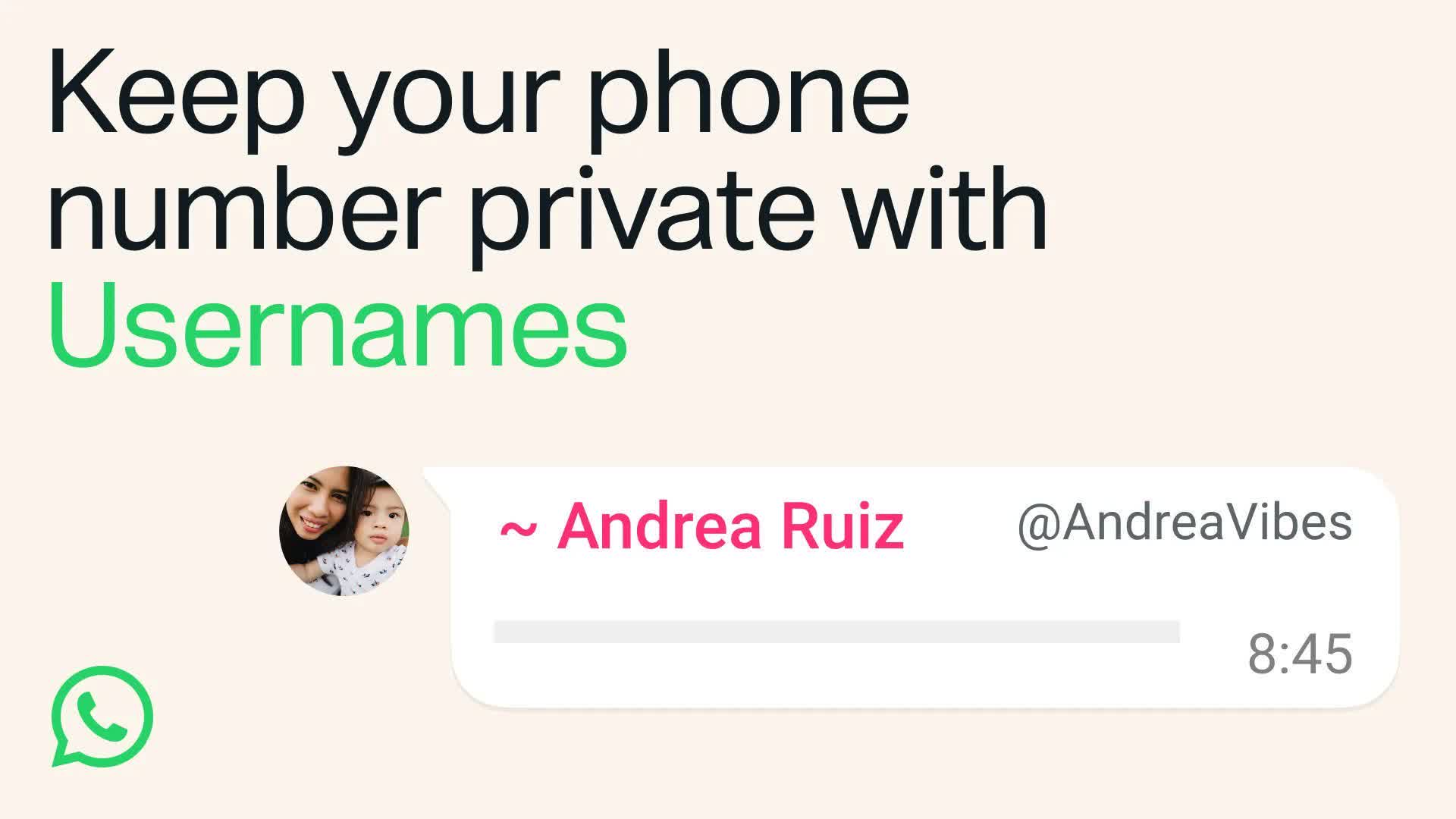
This is also true for group conversations. You want to join the parent chat for the soccer team but you're not ready to give your phone number to people you've never met.
That's why we're introducing usernames for WhatsApp. Starting this week, you can reserve a username to use later this year when we launch this feature. With over three billion people on WhatsApp a lot of names overlap, which is why we're opening reservations early so everyone has the opportunity to select the username that matters to them.
For most people, choosing a WhatsApp username should be something unique that only people you want to contact you will know. If you need help picking one, we have a username generator to make one work just for you.
We also know that some people like creators, small businesses, and organizations may want to maintain a consistent presence online. For them, we reserved an option to claim their existing Instagram or Facebook username on WhatsApp.
Usernames are our latest step to make WhatsApp even more private. There's no directory to browse and no suggestions – people will need to know your exact username to contact you for the first time. To help control who can reach you on WhatsApp with your username, we've built an optional username key that others will need to know to message you.
Once we launch usernames, when you message a person or business for the first time they will no longer see your phone number, if you enabled your username.
Reserving your optional username takes just a few seconds on the latest version of WhatsApp – go to Settings > Account > Username.
We'll be rolling out usernames gradually over the coming months and will notify you in WhatsApp when they're available in your country.
Introducing Incognito Chat with Meta AI: A completely private way to chat with AI
Chatting with AI has quickly become a critical part of how people get information and ask important questions. And many of these questions can be deeply sensitive, or include situations where people are including private financial, personal, health or work data with their questions.
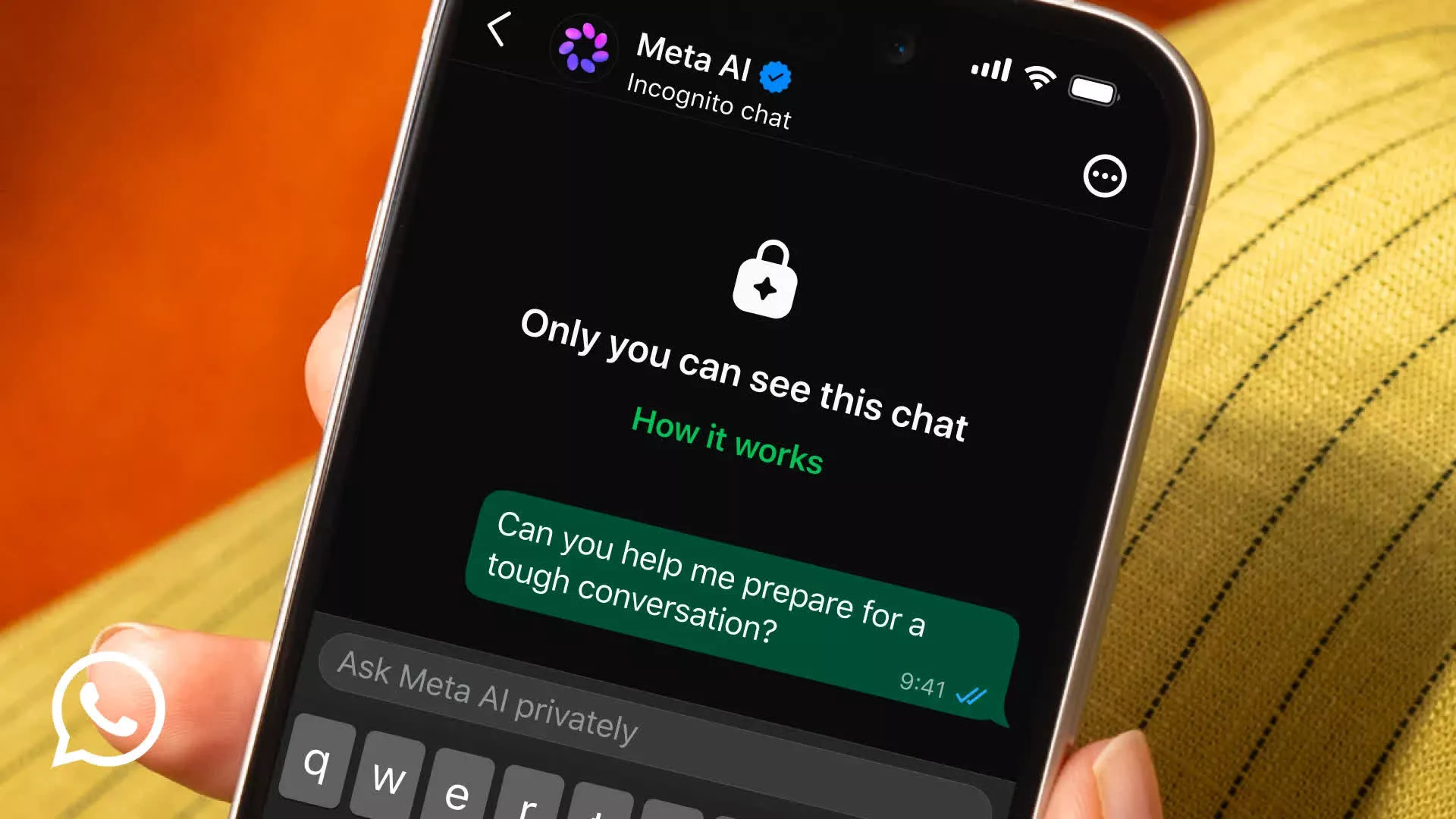
Ten years ago we brought the world end-to-end encryption and now we are extending this privacy to chats with Meta AI.
Today we're launching Incognito Chat with Meta AI, a new way to have completely private conversations with AI. Built on top of our Private Processing technology, Incognito Chat lets you talk to Meta AI in a way that is invisible to anyone else.
Other apps have introduced incognito-style modes, but they can still see the questions coming in and the answers going out. Incognito Chat with Meta AI is truly private – no one can read your conversation, not even us.
Since we started exploring bringing AI to WhatsApp, we've been focused on how to deliver this power privately, at a global scale.
When you start an Incognito Chat with Meta AI, you're creating a private, temporary conversation that only you can see. Your messages are processed in a secure environment that even Meta cannot access. Your conversations are not saved and by default, your messages disappear – giving you a space to think and explore ideas without anyone watching.
We believe this private way of chatting has potential to be part of several ways people chat with AI on WhatsApp. In the coming months, we'll also introduce Side Chat protected by Private Processing. Side Chat with Meta AI will give you private help with any chat, with context of what's being discussed, without disrupting the main conversation.
We remain committed to delivering privacy for the world. Incognito Chat with Meta AI is rolling out on WhatsApp and the Meta AI app over the coming months. You can learn more about how Incognito Chat with Meta AI works here.
New Feature Roundup: Free up space, multiple accounts, cross-platform transfer and more
Over time, our chats become a record of the moments that matter: conversations with family, laughs with friends, the photos and videos we couldn't stop sharing. To help you make the most of all of it, we're rolling out new ways to make WhatsApp even easier to use – whether you're staying organized, juggling work and personal, or getting more out of every chat.
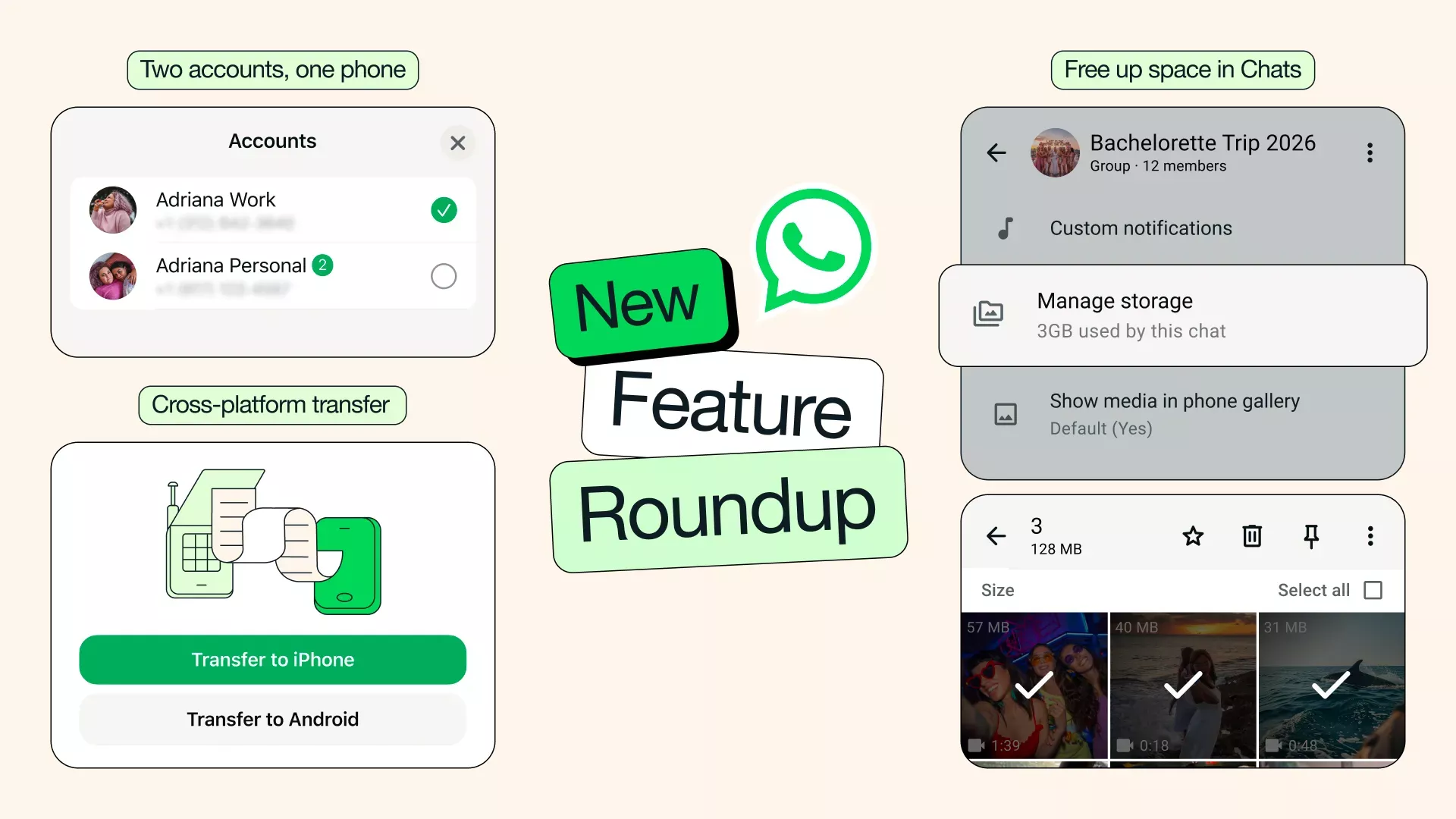
Free up space, keep what matters: As your chats fill up, so can the clutter. Now you can find and delete large files directly within any chat, so you can clear what you don't need without wiping your entire conversation. Simply tap the chat name and select Manage Storage. You can also choose to clear just media files when clearing a chat – keeping your chat history intact.
Cross-platform chat transfer made easy: Our chat transfer feature now supports moving your chat history from iOS to Android, in addition to within the same platform. Changing phones shouldn't be complicated. Now, with just a couple taps, your conversations, photos, and videos easily come with you.
Two accounts, one phone – now on iOS: You can now have two WhatsApp accounts logged in at the same time on iOS – just like on Android. No more carrying two phones to keep work and personal separate. You'll always know which account you're in because your profile picture will now be visible in the bottom tab.
Stickers that match your mood: Stickers can bring bigger, bolder expressions to your chats – and now WhatsApp will make it easier to use them by suggesting them as you type emojis. With just a tap, you can swap an emoji for a sticker that captures exactly how you're feeling.
Photo touch-ups with Meta AI: You can now use Meta AI to touch up photos directly in your chat before sending, making it easy to remove something distracting, swap in a new background, or apply a fun style. Meta AI features may not be available to all users.
AI Writing Help is even more useful: Writing Help can now draft a suggested response based on your conversation, so you can get your message just right – all while keeping your chats completely private.
Introducing parent-managed accounts on WhatsApp
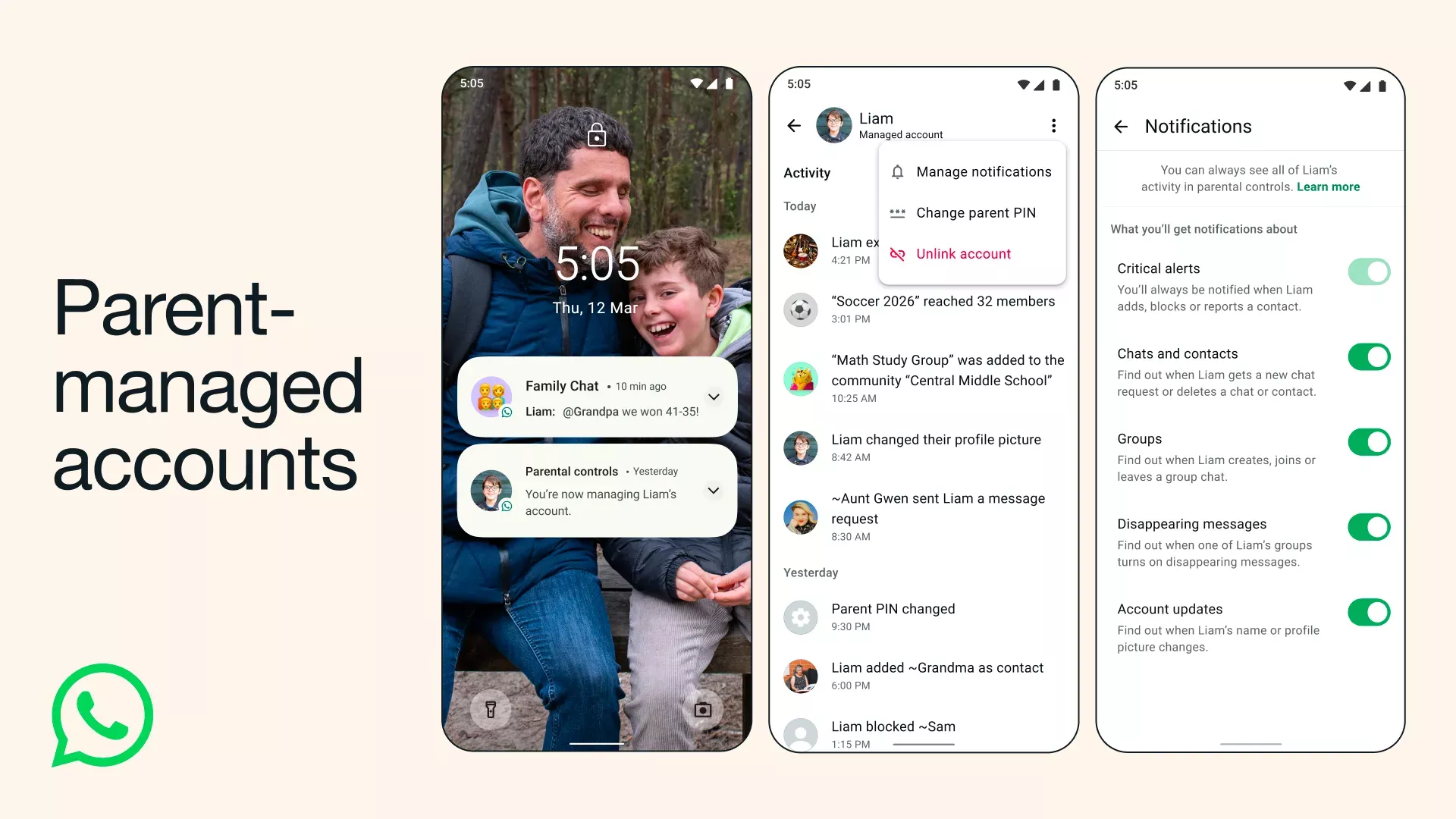
WhatsApp is the trusted way families communicate because it's simple, private, and reliable. With input from families and experts, we're rolling out new parent-managed accounts that allow parents or guardians to set up WhatsApp for pre-teens, with new controls to limit their WhatsApp experience to messaging and calling.
To begin, parents will need the phone they have bought for their family member and their own device, side by side to link their accounts. Once set up, these accounts are controlled by the parent or guardian who will be able to decide who can contact the account and which groups they can join. In addition, parents can review message requests from unknown contacts and manage the account's privacy settings.
The new parental controls and settings are gated by a parent PIN on the managed device. Only parents can access and change privacy settings, ensuring they are empowered to tailor their family's experience.
All personal conversations remain private and protected with end-to-end encryption, meaning no one – not even WhatsApp – can see or hear them. We're providing more tools and insights for parents, particularly around groups, which you can learn more about here.
WhatsApp is already an important part of family life - whether updating extended family on big milestones, keeping up with after school plans or just letting loved ones know you're home safe. As we gradually roll out parent-managed accounts over the coming months, we look forward to getting your feedback so we can continue building WhatsApp to provide the safest and most private way for families to connect.
WhatsApp's Latest Privacy Protection: Strict Account Settings
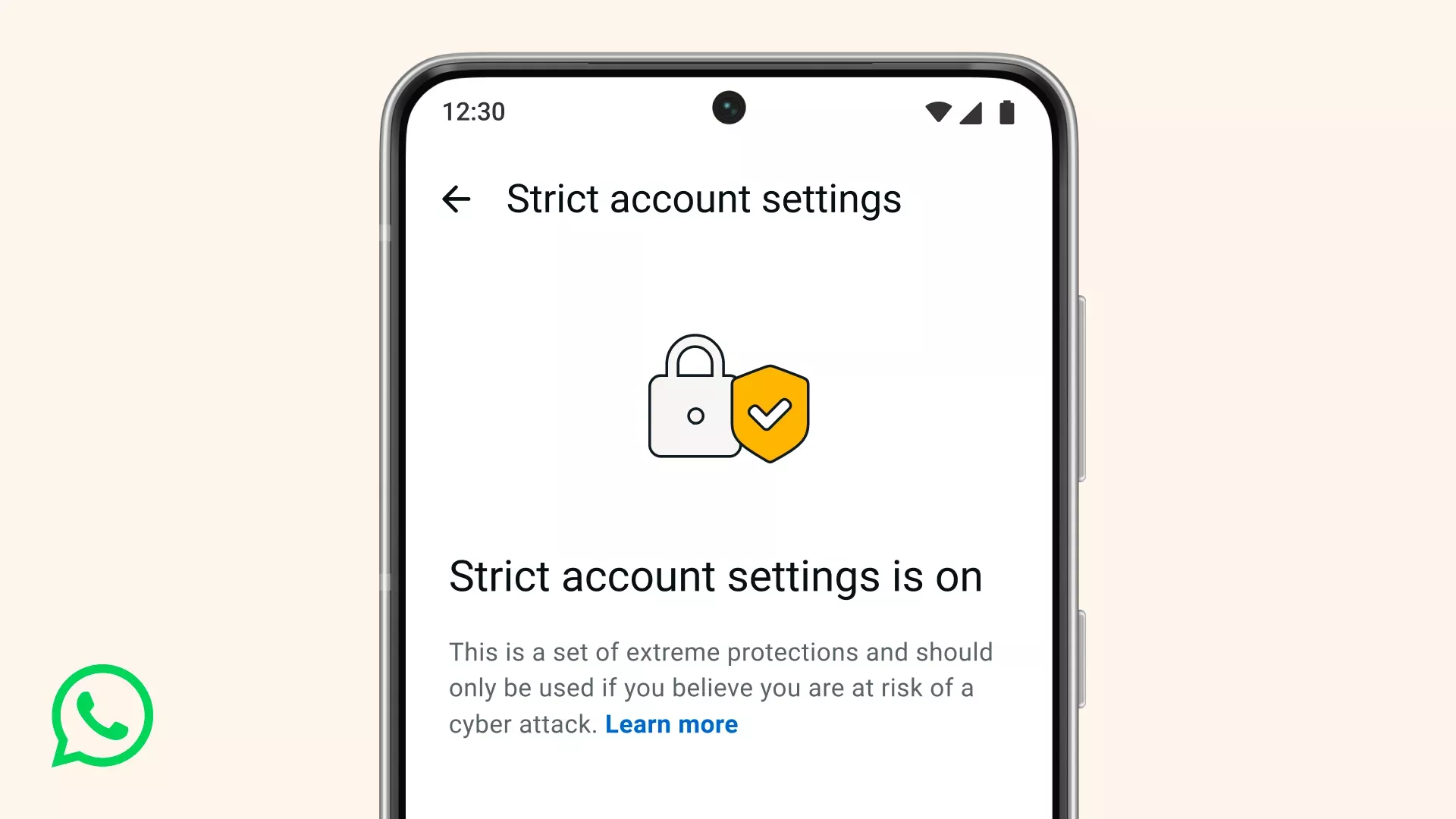
At WhatsApp, we think you should be able to have a private conversation online, just like you would in-person. We will always defend that right to privacy for everyone, starting with default end-to-end encryption. But we also know that a few of our users – like journalists or public-facing figures – may need extreme safeguards against rare and highly-sophisticated cyber attacks.
That's why today we're announcing a new, lockdown-style feature called Strict Account Settings.
If you turn this on, certain account settings will lock to the most restrictive settings, and it will limit how your WhatsApp works in some ways, like blocking attachments and media from people not in your contacts. You can enable Strict Account Settings – which is rolling out gradually over the coming weeks – by going to Settings > Privacy > Advanced.
Strict Account Settings is one of many ways we're working to protect you from the most sophisticated of cyber threats. We've also rolled out a programming language called Rust behind the scenes to help keep your photos, videos, and messages safe from things like spyware, so you can share and chat with confidence. To go deeper in the tech, click here.
Level Up Your WhatsApp Group Chats With New Member Tags, Text Stickers, and More
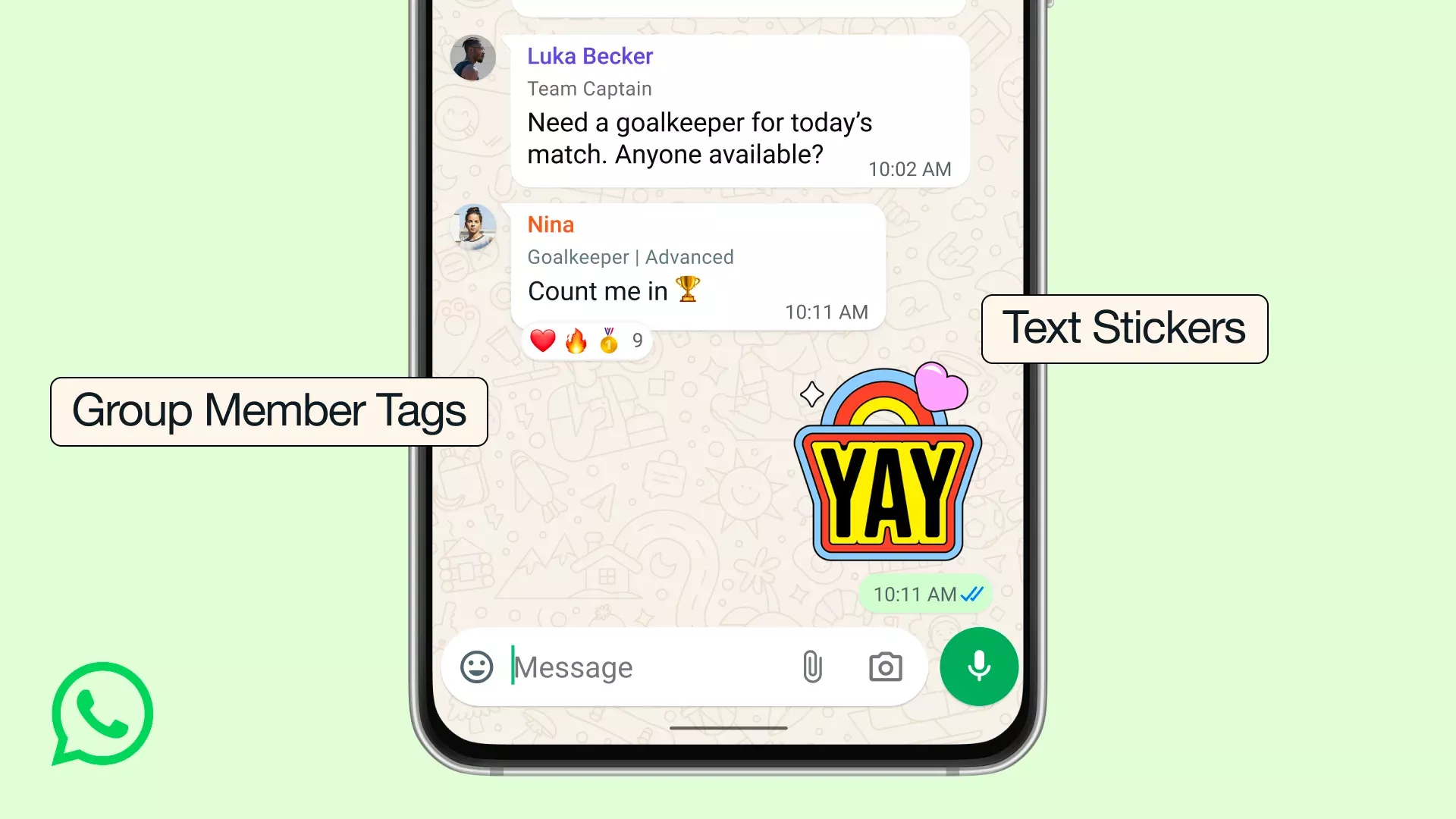
It's a new year and a great time for some upgrades to your group chats. Group chats on WhatsApp make it easier to stay connected with the people in your life no matter what device they own – whether it's sharing New Year's resolutions, preparing for that special celebration you have coming up, or planning to win your football league.
Today, we're introducing new features that make staying connected and expressing yourself in group chats even better.
Member tags: We all wear different hats and sometimes you want to give that more context in a group chat. Now you can give yourself a tag that tells the group what your role is, and can be customized for each group you're in. So you can be "Anna's Dad" in one group, and "Goalkeeper" in another.
Text stickers: For the messages you want to really stand out, you can now turn any word into a sticker by typing your text into Sticker Search. You can also add newly created stickers directly to your sticker packs instead of having to send them in a chat first.
Event reminders: Now when you create and send an event in your group chat you can set custom early reminders for your invitees. This helps everyone remember to commute to the party you're hosting or hop on the call at the right time, depending on the event type.
These new updates join a bunch of great features we've launched over the years to bring groups closer together – like sharing large files up to 2GB, HD media, screen sharing, voice chats, and more. We believe WhatsApp offers the best group chat experience, and we're committed to making it even better.
Get the Tone of Your Message Right with Private Writing Help
Sometimes you know what you want to say, but just need a little help with how to say it.
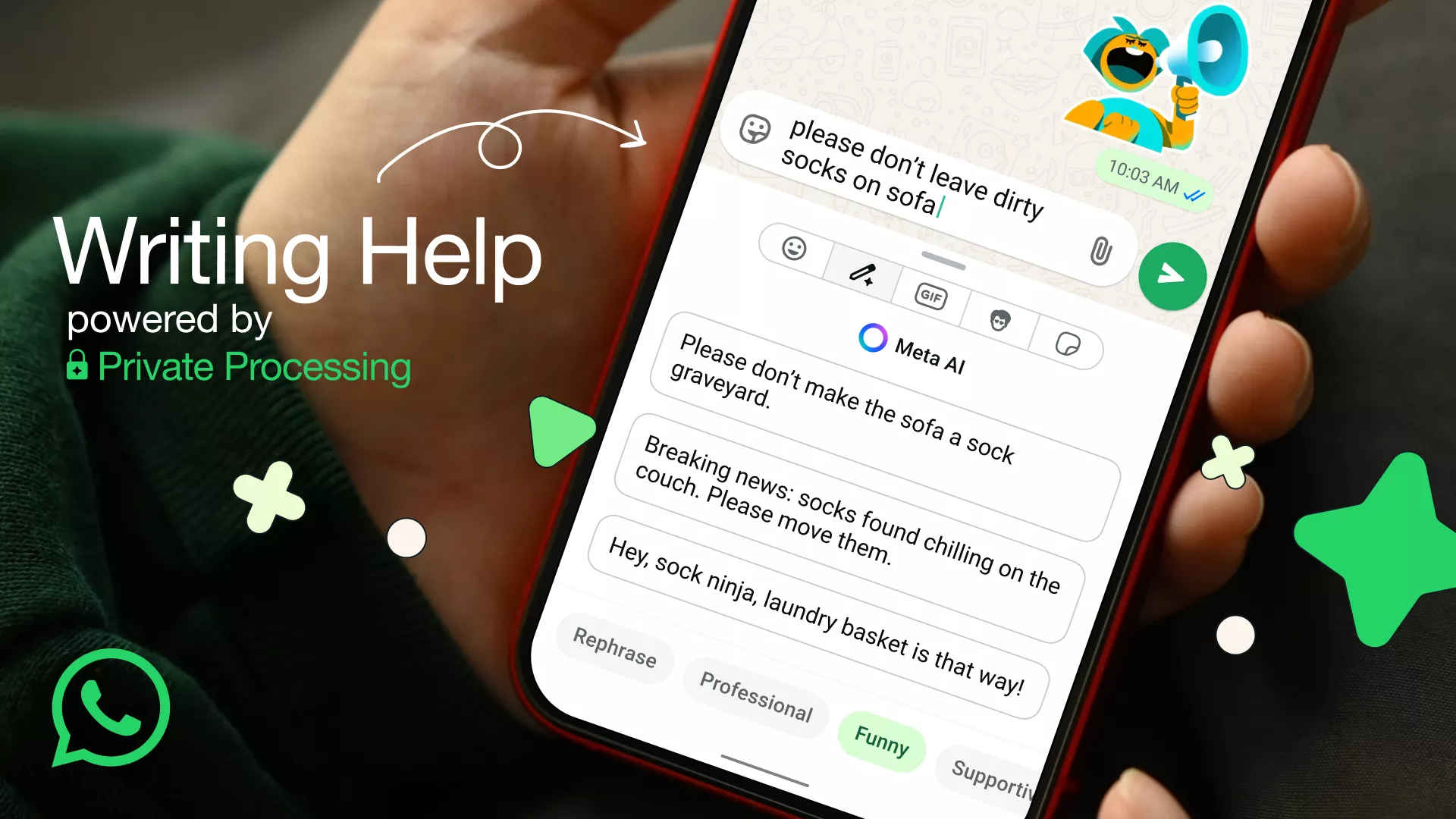
That's why today we're introducing Writing Help. It's our latest AI feature powered by Private Processing that keeps your messages completely private. You can review the suggestions from AI in various styles such as professional, funny, or supportive that you can select or continue editing to deliver that perfect message.
To use Writing Help, just start drafting your message in a 1:1 or group chat, and tap the new pencil icon.
Is this really private?
Yes. Writing Help is built on top of Private Processing technology, which allows you to leverage Meta AI to generate a response without Meta or WhatsApp ever reading your message or the suggested re-writes.
For those interested in learning more about the technical details behind Private Processing, we invite you to read our engineering blog and technical white paper that explains how this and other features we're building work. From the start, we worked with our peers in the security community to stress-test and validate the architecture of Private Processing to help us continue to harden it. Today, independent researchers at NCC Group and Trail of Bits published their audit reports on the steps we've taken to evolve this privacy-preserving technology.
As always, we believe that you should be in control of your experience on WhatsApp. That's why using Private Processing features like Writing Help and Message Summaries are optional and are off by default.
Writing Help is rolling out in the English language, starting with the United States and several other countries. We hope to bring it to other languages and countries later this year.
New Feature Roundup: Missed call messages, new Status stickers and more
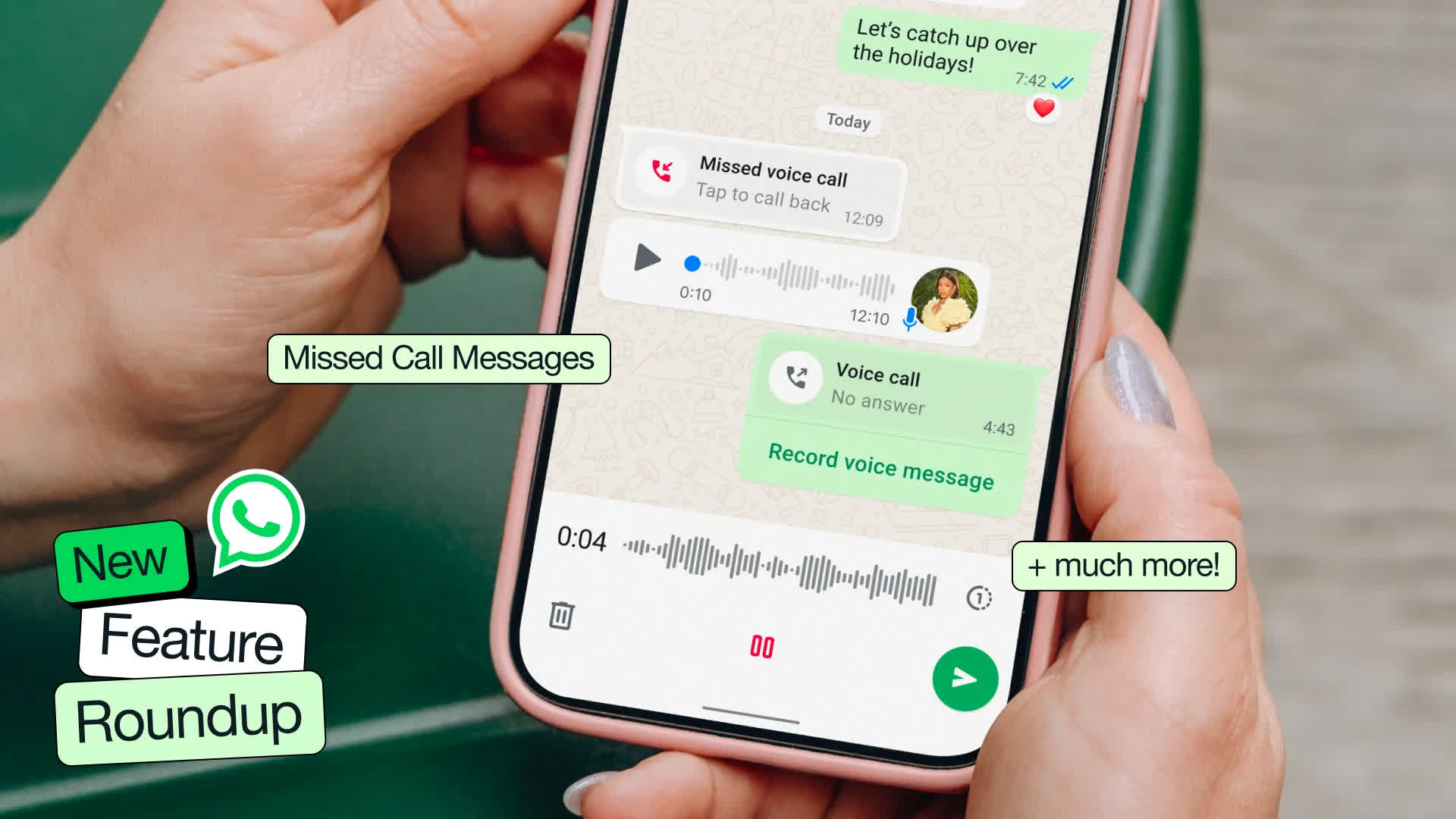
We're introducing another bundle of features just in time for the holidays. This edition is packed with exciting new updates including missed call messages, fun Status stickers, improved Meta AI image generation, and more - making it easier than ever to connect with those who matter most.
Calls
Missed call messages: The holidays are a busy time packed with catching up with loved ones and sometimes you may not catch someone right away. If they don't answer, you can now record a voice or video note, depending on the call type, in one tap for them to listen to later. This new approach will make voicemails a thing of the past.
Reactions in voice chats: Voice chats help you quickly shift between messaging and talking live without ringing the whole group. Now you can react during a voice chat, so you can share a quick 'cheers!' without interrupting the conversation.
Group call speaker spotlight: On video calls, the speaker is automatically prioritized to help you easily follow along.
Chats
Meta AI image creation improvements: Meta AI has delivered new image generation model capabilities from Midjourney and Flux on WhatsApp so you'll notice huge improvements when creating annual holiday greetings to share in your chats or status.
Animate your images with Meta AI: You can now animate any photo into a short video to add more fun and festivity in chats or to your status.
New media tab on desktop: Search for your documents, links, and media across chats all in one organized place – so it's easier to find files and get more done faster on Mac, Windows and Web.
Cleaner link previews: We've improved the look of link previews, streamlining long URL links to avoid disrupting the chat and keep the conversation flowing.
Updates
New stickers on Status: We've added more ways to express yourself on Status including adding music lyrics, questions to which others can respond and interactive stickers you can tap to engage with.
