

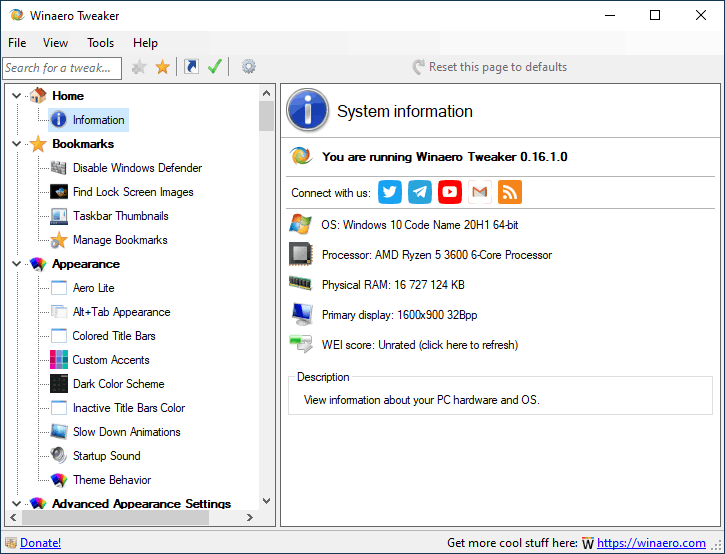
Winaero Tweaker is a free utility developed by Sergey Tkachenko that consolidates dozens of Windows customization options into a single app. It offers fine-grained control over system settings, appearance, and built-in features, giving users an easy way to apply a wide range of tweaks from one interface.
Features
Shortcut tools that you can use
- To launch an app as Administrator without a UAC confirmation.
- To directly open any Control Panel applet or system folder.
- To directly open any Settings page.
- To create shortcuts to the classic Shut Down Windows dialog (Alt+F4), and Safe Mode.
- To remove or customize the shortcut arrow overlay icon.
- To remove the " - shortcut" suffix.
- To remove blue arrows from compressed files.
Manage Windows apps and features.
- Restore classic Windows Photos Viewer to use it instead of Photos.
- Restore the classic sound volume pop-up slider.
- Permanently disable Windows Telemetry and Data Collection.
- Permanently disable Windows Defender.
- Permanently disable Windows Update.
- Disable ads and unwanted app installation (Candy Crush Soda Saga, etc).
- Enable the built-in Administrator account.
- Enable automatic Registry backup.
- Change drag-n-drop sensitivity.
- Disable Action Center and notifications.
Reset icon cache.
- Reset all Group Policy options at once.
Networking options
- Change the RDP port.
- Make mapped drives accessible for elevated apps.
Tune up Windows appearance
- Customize folders in This PC.
- Customize entries in Navigation Pane in File Explorer (in the left pane).
- Rename and change the icon for the Quick Access entry.
- Increase the taskbar transparency level.
- Show time seconds in the taskbar clock.
- Disable blur for the sign-in screen.
- Customize fonts, and the Alt+Tab dialog appearance.
- Change the title bar color for inactive windows.
Context menus
- Add handy context menus using a huge set of presets, e.g. to switch a Power Plan with one click, open a Command Prompt, add a Settings cascading menu - plenty of them.
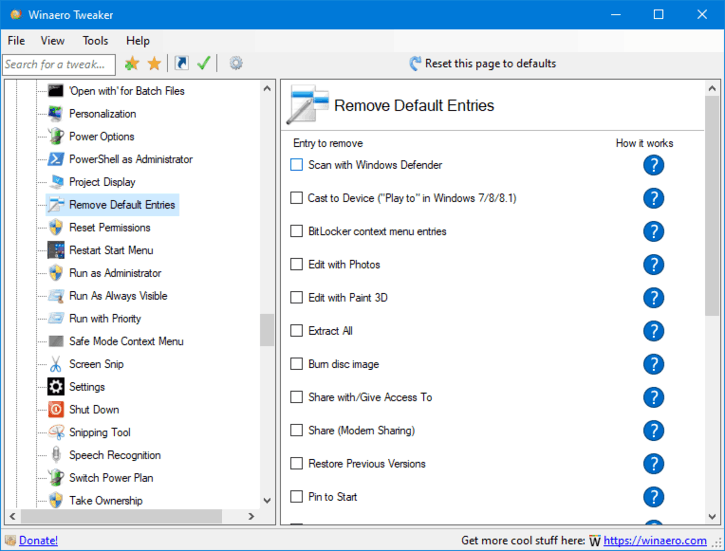
- Hide default entries from the context menu, e.g. Edit with Photos, Edit with Paint 3D, etc.
- Add 'Run as Administrator' to VBS, MSI, CMD and BAT files.
- Change the default app for the Edit context menu entry for images.
What's New
New features
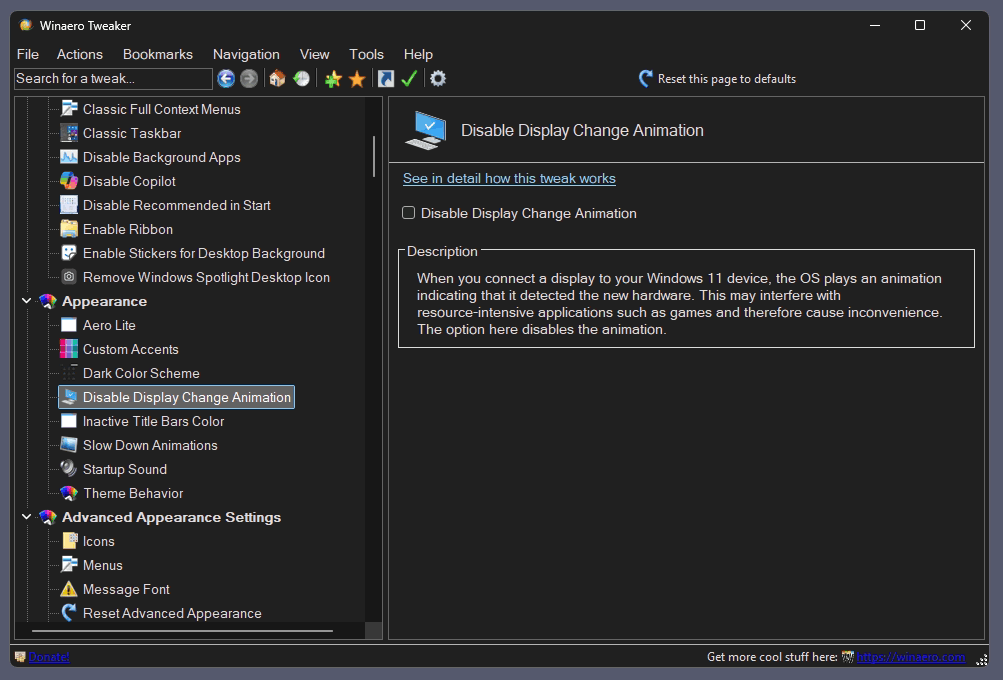
- Added the ability to disable display animation when you connect a new display to your Windows 11 device. Starting in Windows 22H2, it can be disabled in the Registry, so the app now offers a GUI for that. You will find the checkbox under Appearance > Disable Display Change Animation. I say thanks to "Aerath Xlythe" for this.
Changes
Dark Mode
- Now all the dialog boxes use the proper color mode. Those include, but not limited to, the About dialog, Reset all tweaks, Import/Export tweaks, Visible Tweaks, and so on.
- All disabled controls where displayed with the black font color on the dark background. While I have fixed most of them (see known issues below), I already regret that I added the dark theme support to the app.
- The search pane now respects the dark theme.
Other
- Most of the taskbar options are now hidden in Windows 11, as they do nothing. I kept them for users who combine my app with the excellent ExplorerPatcher app. However, the latter is broken on 25H2, and I have been told that Microsoft has removed the classic taskbar bits from the OS.
- If you need the classic taskbar experience, go with the StartAllBack app. It is a paid but not expensive software that re-adds the lost flexibility to Windows 11. In my opinion, it is a must-have addition to the OS.
Bug fixes
Xmouse
- I was so happy to make the Xmouse options working again in version 1.64, so I accidentally removed the code that disables it! Once you enable Xmouse in 1.64, you cannot disable it. I have fixed this in 1.64.1.
Advanced Appearance
- The font values in the options listed under the "Advanced Appearance" section were using a hardcoded value designed for Windows 7. It was a legacy code that was working fine for its time. However, if you reset these options on anything newer, you would receive the outdated Registry value for the appropriate font options, including statusbar, desktop icons, menus, and even system font. It is not the most popular Tweaker option, so the issue remained not noticeable for several years. Ironically, I also stopped using it, as I am perfectly fine with the default fonts and their scaling Microsoft made in Windows 10 and above.
- So, I have re-created the Advanced Appearance section's logic from scratch. Now the tweaks operate with the values set in the Registry, create a backup copy of the font binary data, and restore them when you choose to reset the tweak to defaults. There is no hardcoded font value anymore. There are no visual changes.
- The issue has been first discovered by the Reddit user "RemarkableOil451". You can read the linked story. While I am thankful to them for letting me know about the bug, there is an issue. Mate, if you read this: There is a big difference between a bug report, criticism, and insult. In my opinion, what you did is the latter. That's it.
- Also, pretending that I am intentionally damage user systems is far from reality. It is just yet another bug in my app, not the first one, and surely not the last one (see the change log above). Without bad faith attached.
- Also, claims that the app corrupts users' profiles are false accusations. It was easy to rollback the change. There was no need to run into System Restore, or anything like that. One of the methods is mentioned in the linked Reddit.
- Finally, you didn't ask me to contact you but claim on Reddit that I didn't contact you via email. From your wall of text, it feels completely opposite, like you are not interested. Since it is "PSA" now, here's the original bug report that I refused to approve here:
- I would like to remind the following to everyone:
- Winaero Tweaker is a pet project. It is not a product.
- Nobody forces or even asks you to use it. It is up to you. I use it myself and it does its work for me, for some of my friends, and for some other people around the community here. This doesn't guarantee that it will work for you.
- Undocumented things can stop working at any moment and even cause harm. That's obvious, right?
- The app comes "as is". You see this at least twice when installing it.
- Any software may come with poorly coded parts, bugs, and issues. Look at Windows itself.
Well, enough on this.
Known issues
- The OneDrive icon in the Navigation pane re-appears once you disable it. It is restored by the OneDrive client app, and needs a workaround. I have some ideas, which I am going to test soon.
- Some disabled "tables" appear white. A good example is the Terminal context menu tweak. The lower table is a disabled one, and it appears white. I didn't find a working solution yet for this issue.
- Finally, a few issues remain from the previous release:
- The toolbar icons still appear blurry.
- The icons in the "Information" page still appear blurry
- The "Disable Windows Update" page is supposed to allow you to choose the method to use.
- I will close all of them in the next release of the app.
