First look: Microsoft is testing a version of Excel that allows users to put more than one value inside a cell, a break from the spreadsheet program's longstanding one-cell, one-value model. The new capability includes lists, arrays in cells and nested arrays. It is available on an opt-in basis to Microsoft 365 Insiders in the Excel Beta Channel for Windows and Mac.
Lists are the most straightforward part of the rollout. A user can create one through Insert > List or by pressing Ctrl+J, then add items separated by commas or semicolons, based on regional settings. The values remain grouped in one cell, but Excel can treat them as separate items rather than one string of text.
That could help with spreadsheets that track projects, people or other records with a varying number of related entries. A project row, for instance, could contain a list of owners without requiring separate columns or a helper table. Users can open the list from the cell icon, or edit it by double-clicking the cell or pressing F2.
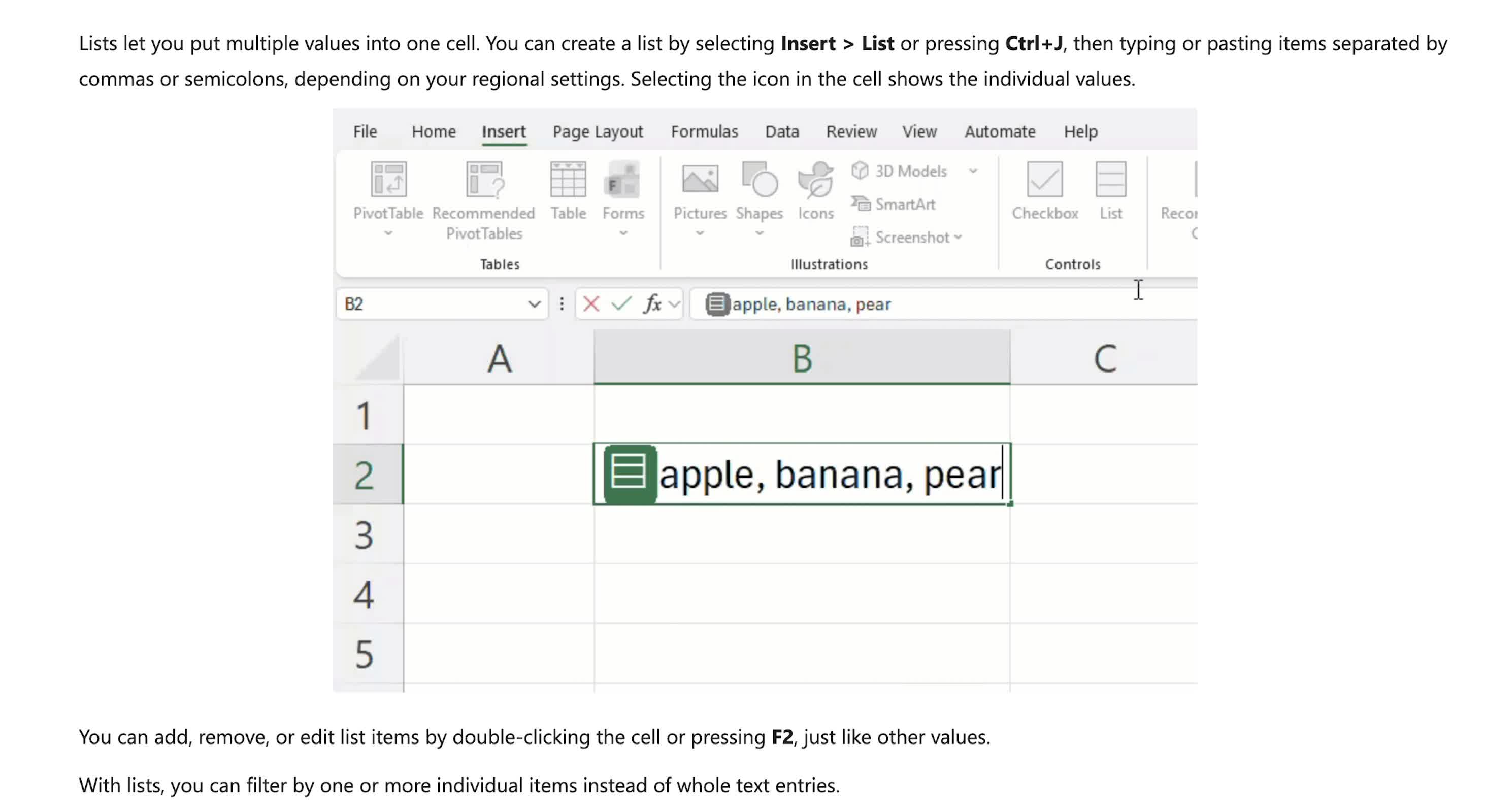
Excel can also use the individual entries in filtering and calculations. Referencing a list with a formula such as =B2 can spill its items into separate cells.
"Traditionally, you'd need separate columns, helper tables, or text like 'Carlos, Henrietta, Jacob' packed into a single cell," Jake Armstrong, senior product manager for Excel, wrote in a Microsoft blog post. "With lists, you can keep those values together in one cell while still working with each item individually."
The broader change involves arrays. Excel can now store an array inside one cell, whether it is entered as a value or produced by a formula. Arrays can have different dimensions and can themselves contain other arrays.
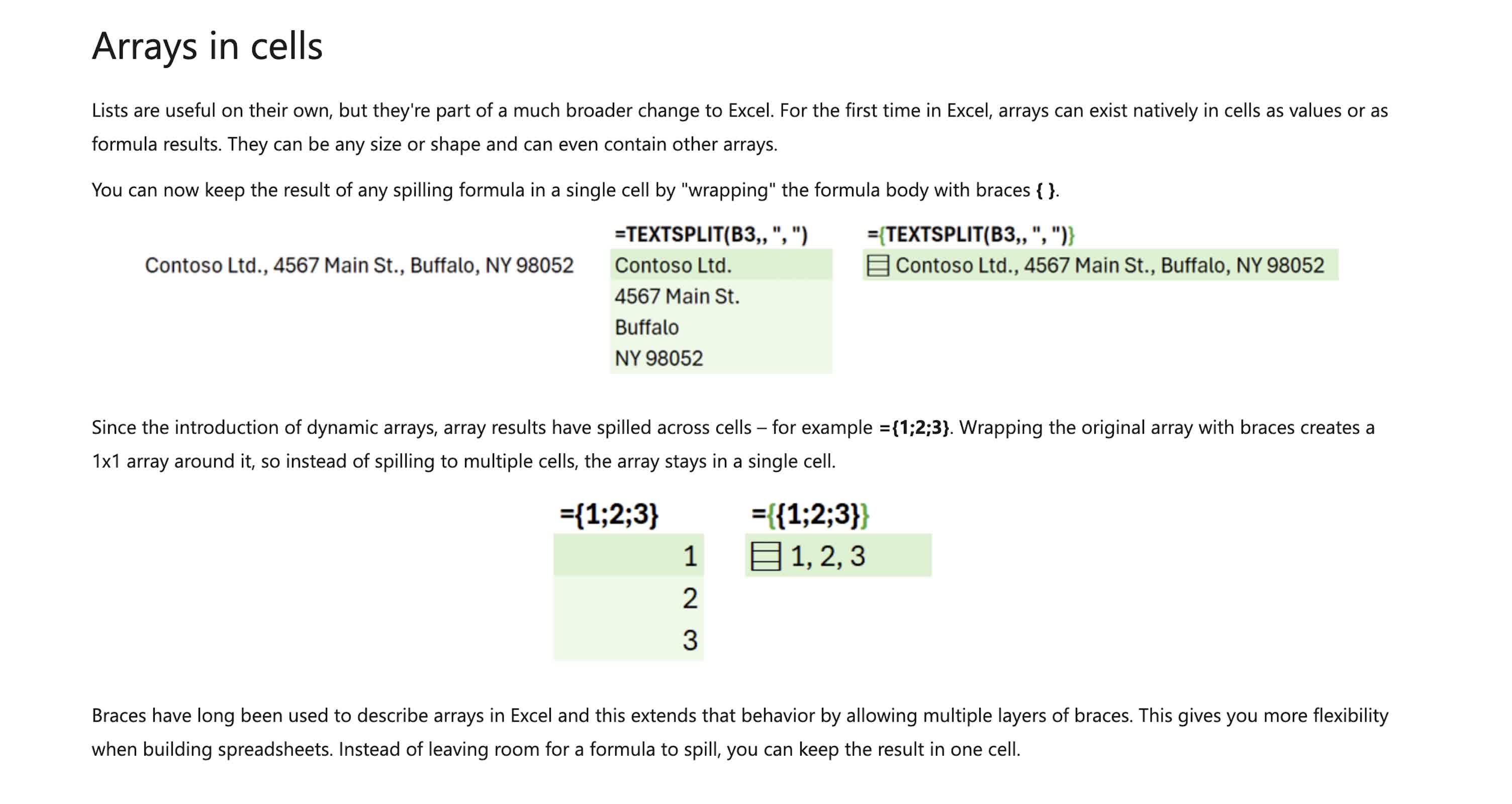
Normally, a formula such as ={1;2;3} spills results into several worksheet cells. Under the new feature, users can keep the output contained in one cell by wrapping the formula body with braces. This lets a worksheet preserve variable-length data inside a structured record instead of forcing it into fixed columns.
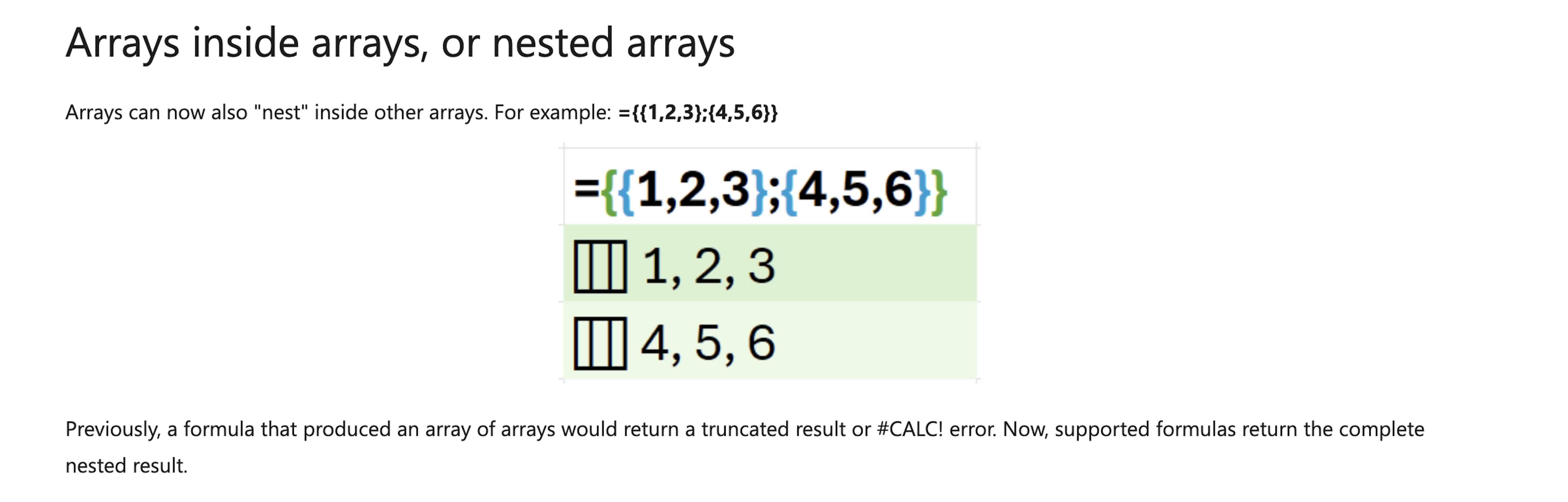
Nested arrays build on that capability. Previously, formulas that tried to return arrays containing other arrays could produce a shortened result or a #CALC! error. Microsoft says supported formulas can now return the full nested result, which remains available for later calculations.
Microsoft used a running log as an example. Each row could represent a run and store an array of split times. Runs with different numbers of splits could remain in the same table, while Excel still calculates total time, average split, average speed and fastest kilometer.
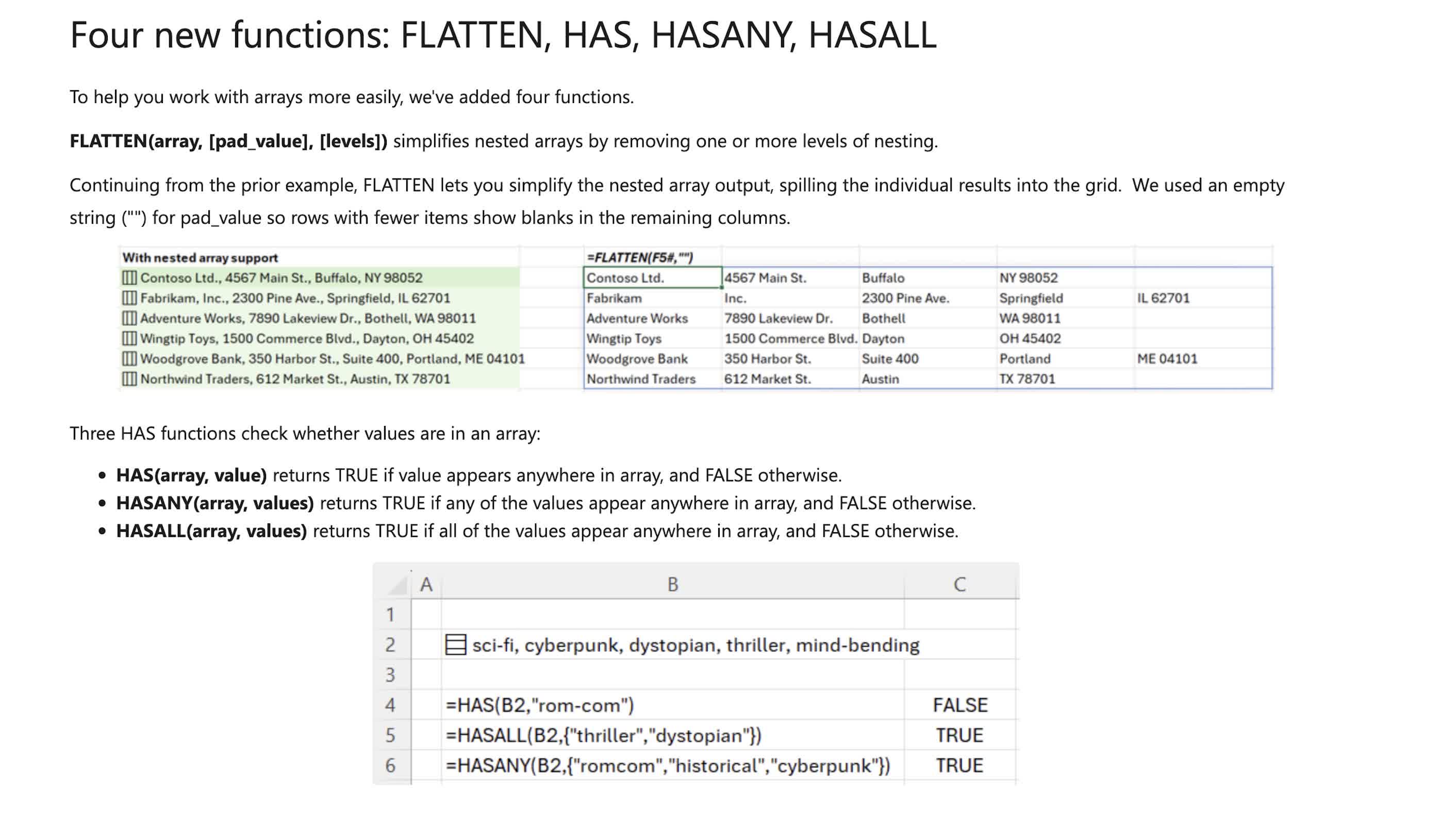
Four new functions are being added to work with the new structures. FLATTEN removes levels of nesting from an array. HAS checks whether an array contains a specified value. HASANY looks for any of several supplied values, and HASALL checks whether all supplied values are present.
The changes could complicate existing spreadsheet workflows. Many applications and libraries that read Excel files expect a cell to hold a string, number, date or Boolean value. Microsoft has not yet explained how lists, arrays in cells and nested arrays will be represented in .xlsx XML files. That could require updates to software libraries and applications that import Excel data.
Several Excel features also do not yet support the new cell types. PivotTables cannot use array values as source data, Power Query cannot load or emit array-valued columns, and charts do not turn array entries into individual data points. Data validation cannot use lists or arrays as dropdown values, and Find & Replace cannot alter a single item inside a list or array.
Most calculations involving nested arrays require a new workbook setting, Compatibility Version 3. Microsoft said that setting can change results in some existing formulas. Users can keep a workbook on Compatibility Version 1 or 2 if Version 3 causes problems.
"One of the oldest rules of spreadsheets: one cell, one value," Armstrong said. "No longer!"
The preview requires Excel for Windows Version 2610, Build 20520.20000 or later, or Excel for Mac Version 16.114, Build 26092111 or later. Microsoft said the rollout is gradual and that the features may change, be paused or be removed during testing. It also says users should avoid relying on it in important workbooks until the feature reaches general availability.