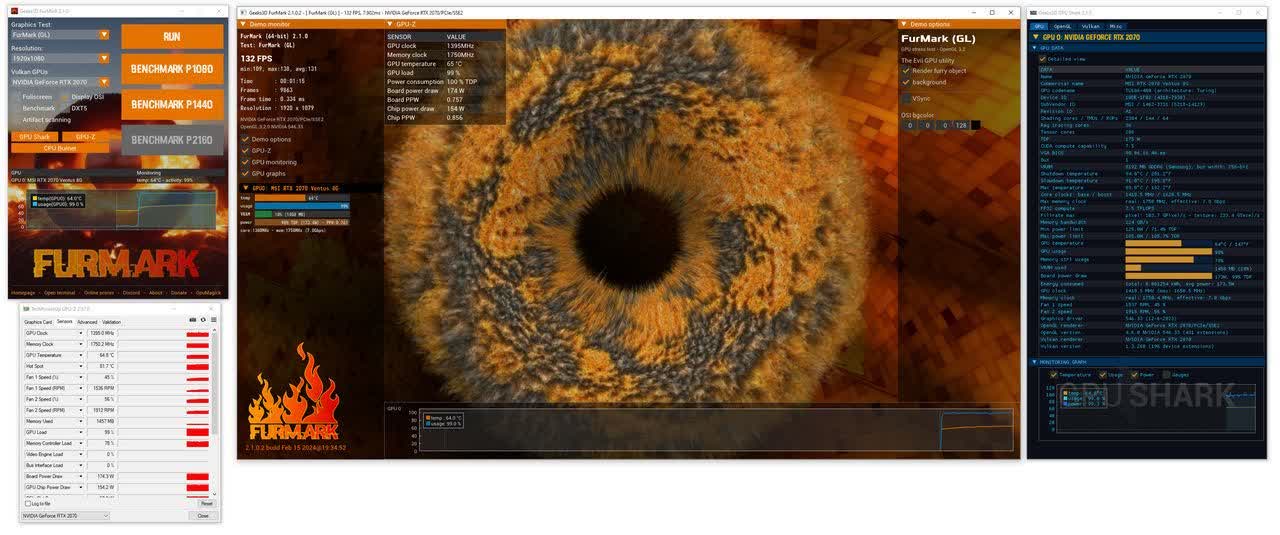
FurMark is a widely trusted GPU stress test built for enthusiasts, overclockers, and system tuners. It delivers a brutal, sustained load to expose thermal and stability limits, giving you a clear picture of your cooling performance and long-term reliability. Despite its intensity, it stays simple to run and produces repeatable, no-nonsense results.
Is FurMark safe to use on modern GPUs?
Generally speaking, FurMark is safe for modern GPUs equipped with adequate cooling and power delivery systems. However, it imposes an exceptionally heavy load, earning it the nickname "power virus."
Why doesn't my GPU reach maximum clock speeds during FurMark tests?
FurMark's intense workload can cause GPUs to hit power and thermal limits quickly, leading to throttling that prevents the GPU from reaching its maximum clock speeds. This behavior is by design to protect the hardware from damage. Therefore, FurMark may not reflect the GPU's performance under typical gaming scenarios, where such limits are less likely to be reached.
What are other software alternatives for hardware stress testing?
Many users recommend using benchmarking tools that simulate real-world gaming workloads for stress testing, too. Popular alternatives include:
- 3DMark (Time Spy, Fire Strike): Provides comprehensive performance metrics and stress tests.
- Unigine Heaven and Superposition: Offer real-time rendering tests that closely mimic gaming scenarios.
- OCCT: Includes various stress tests with error detection capabilities.
- Actual gameplay: Testing stability during extended gaming sessions can reveal issues that synthetic benchmarks might miss.
How long should I run FurMark for stress testing?
Opinions vary, but many users suggest that running FurMark for extended periods isn't necessary and could be detrimental. Short durations, such as 5 to 10 minutes, are often sufficient to assess thermal performance and identify immediate stability issues.
Features
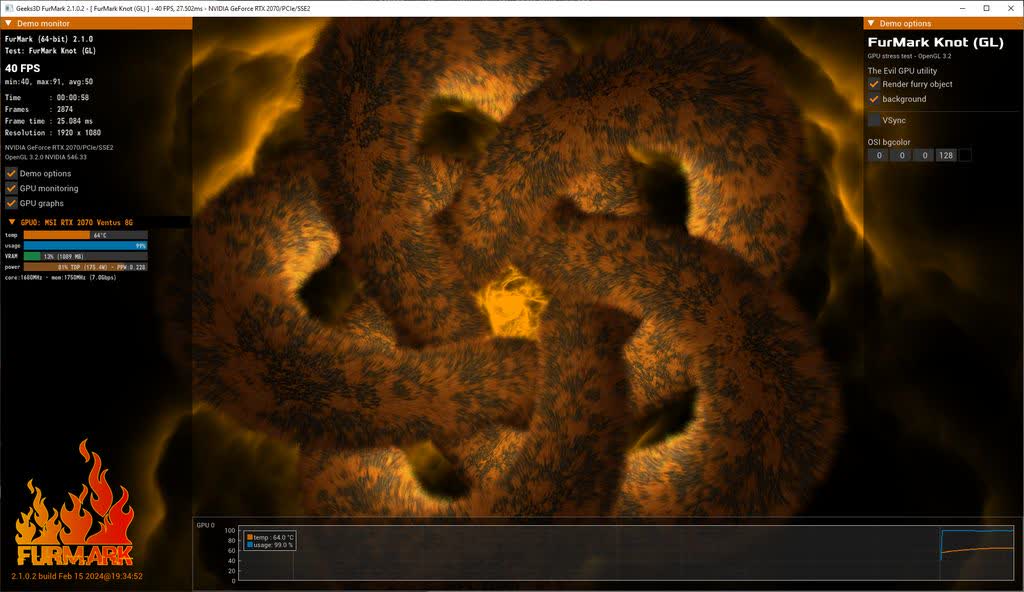
FurMark is an intensive OpenGL benchmark that uses fur rendering algorithms to measure the performance of graphics cards. Fur rendering is especially adapted to overheat the GPU and that's why FurMark is also a stability and stress test tool (also called GPU burner) for the graphics card.
The startup interface allows you to tweak the benchmark features such as:
- Benchmark mode or stability / burn-in test mode (for overclockers)
- GPU temperature monitoring and recording in a file
- Fullscreen or windowed for each type of run mode
- Window size selection (standard or custom)
- MSAA samples selection
What's New
- Added support of NVIDIA RTX Spark N1X (6144-core and 5120-core) Blackwell RTX GPUs.
- Elapsed time in rendering (left side) is now displayed as DAYS HH:MM:SS format (useful for long stress test sessions).
- Time management is now based on 64-bit variables (elapsed time, max time, etc.).
- (Windows) improved GPU usage reading for Intel Arc GPUs.
- (Windows) added GPU core hotspot and memory temperature in GPU-Z output window.
- (Linux) GUI: Open folder link: replaced caja by xdg-open.
- (Linux) fixed a crash in the fetching of current DPI scaling value. Now it should work correctly with Wayland compositors.
- Removed VRAM size in graphics card model names of AIB patners.
- Extended version: any benchmark can be submitted.
- Extended version: added duration for custom benchmark setting in the GUI.
- (Windows) added --allow-screen-saver, --allow-power-monitor and --allow-sleep-mode command line parameters.
- GUI: added 1920x720 resolution
- GUI: AntiAliasing: added demo-controlled option.
- Fixed a bug in the OpenGL renderer when creating a fullscreen + MSAA OpenGL window on systems with several screens connected to the same graphics card. On such systems, the inputs (mouse and keyboard) were not processed. No bug on systems with a single monitor only.
- Added AIB partner models names:
- GIGABYTE RTX 5090 INFINITY
- SAPPHIRE RX 9070 GRE Pulse
- ASRock RX 9070 GRE Steel Legend
- PNY RTX 5080 Slim OC
- ASRock RX 9070 XT Taichi White OC