

Media Player Classic - Home Cinema (MPC-HC) is a free and open-source video and audio player for Windows. MPC-HC is based on the original Guliverkli project and contains many additional features and bug fixes.
The player supports all common video and audio file formats available for playback. It has a built in DVD player with real-time zoom, support for AVI subtitles, built-in MPEG2/SVCD/DVD codec. Media Player Classic was created and is currently maintained by a programmer named "Gabest". This is a mod of Media Player Classic design for home cinema usage.
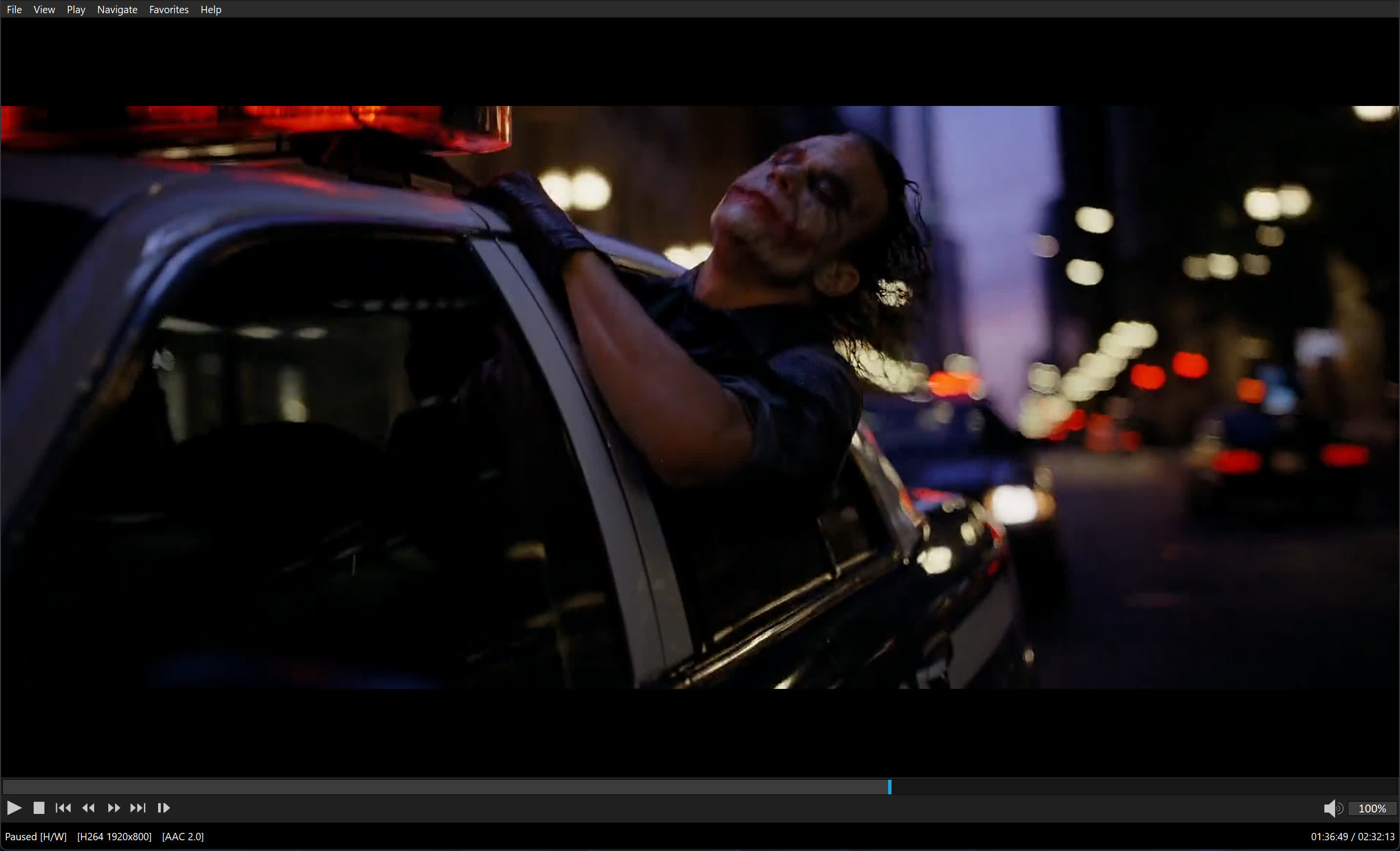
Is MPC-HC still being developed?
The original MPC-HC project ended in July 2017 with version 1.7.13. However, a community fork maintained by "clsid2" on GitHub has continued development and is actively releasing new builds.
What is the difference between the original MPC-HC and the clsid2 fork?
The original team stopped due to a lack of developers. The clsid2 fork picked up the codebase and continues to maintain it. It focuses on bug fixes, updating internal libraries like LAV Filters and MediaInfo, and keeping compatibility with modern Windows versions.
How often is MPC-HC updated now?
The clsid2 fork is updated regularly with development builds and stable releases. These include codec updates (e.g., AV1, HEVC improvements), bug fixes, and minor feature improvements. Updates are less frequent than flashy media players, but they still occur several times a year.
Does MPC-HC support modern video formats?
Yes, MPC-HC comes bundled with LAV Filters, which allow playback of most modern formats, including H.264, HEVC, VP9, AV1, and high-resolution audio and video files without the need for additional codec packs.
Does MPC-HC support hardware acceleration?
Yes, MPC-HC supports GPU-accelerated decoding through DXVA2, D3D11, Intel QuickSync, and other APIs, helping reduce CPU usage during playback of high-definition or 4K video.
What are the main differences between MPC-BE and MPC-HC?
While both come from the same Media Player Classic codebase, MPC-BE features a modernized interface, more customization options, built-in dark themes, and broader codec support. MPC-HC is lighter and closer to the original classic design, while MPC-BE focuses on usability and new features, it can use a bit more resources due to extra features and UI elements.
Features
Play HDR video
- This requires using either MPC Video Renderer (MPCVR) or madVR.
- These renderers can be selected here:
- Options > Playback > Output
- With other video renderers, the colors will be wrong!
- MPCVR is now included and is the recommended renderer for modern systems. MadVR needs to be installed separately. MPCVR also supports Dolby Vision. MadVR does not.
- For optimal performance you should change the hardware decoder to D3D11 in LAV Video Decoder settings when using MPCVR on Windows 10/11, because this renderer uses DirectX11.
The installer of MPC-HC is very basic (and that will not change).
- I therefore recommend using K-Lite Codec Pack. That includes MPC-HC and other essential components. It has a very advanced installation that can automatically create file associations, and helps you with easy configuration of important MPC-HC settings.
- The Standard version should be sufficient for most people. Use Full version of you like to use MadVR.
Modern GUI Theme (Dark or Light)
- Options > Player > User Interface
- It is also possible to change the height of the seekbar and size of the toolbar buttons.
Video preview on the seekbar
- Options > Player > User Interface > Hover type
Ability to search for subtitles
- Press D for manual search.
- Or enable automatic search in: Options > Subtitles > Misc
Adjust playback speed
- Menu > Play > Playback rate
- The buttons in the player that control playback rate take a 2x step by default. This can be customized to smaller values (like 10%):
- Options > Playback > Speed step
- Adjusting playback speed works best with the internal audio renderer. This also has automatic pitch correction.
- Options > Playback > Output > Audio Renderer
MPC-HC can remember playback position, so you can resume from that point later
Options > Player > History
You can quickly seek through a video with Ctrl + Mouse Scrollwheel.
You can jump to next/previous file in a folder by pressing PageUp/PageDown.
You can perform automatic actions at end of file. For example to go to next file or close player.
Options > Playback > After Playback (permanent setting)
Menu > Play > After Playback (for current file only)
A-B repeat
- You can loop a segment of a video. Press [ and ] to set start and stop markers.
You can rotate/flip/mirror/stretch/zoom the video
- Menu > View > Pan&Scan
- This is also easily done with hotkeys (see below).
There are lots of keyboard hotkeys and mouse actions to control the player. They can be customized as well.
- Options > Player > Keys
- Tip: there is a search box above the table.
You can stream videos directly from Youtube and many other video websites
- Put yt-dlp.exe in the MPC-HC installation folder.
- Then you can open website URLs in the player: Menu > File > Open File/URL
- You can even download those videos: Menu > File > Save a copy
- Tip: to be able to download in best quality with yt-dlp, it is recommended to also put ffmpeg.exe in the MPC-HC folder.
Several YDL configuration options are found here: Options > Advanced
This includes an option to specify the location of yt-dlp.exe in case you don't want to put it in MPC-HC folder.
- Note 1: You also need to install Microsoft Visual C++ 2010 SP1 Redistributable Package (x86)
- Note 2: yt-dlp nightly build (very latest version made daily)
- Note 3: yt-dlp win7 compatible build
Besides all these (new) features, there have also been many bugfixes and internal improvements in the player in the past years that give better performance and stability. It also has updated internal codecs. Support was added for CUE sheets, WebVTT subtitles, etc.
What's New
Changes from 2.8.1 to 2.8.2:
Updates:
- Updated LAV Filters to version 0.83-5-gd65a9
- Updated MPC Video Renderer to version 0.10.8.2587
Changes/additions:
- Added ReplayGain support. Options can be found in audio switcher.
- Improvements for exclusive mode seekbar when using MPCVR.
- Improvements for opening a selection of files from Explorer. Now supports DropTarget interface.
- Playback rate can now be shown in statusbar for audio files.
- Keyboard shortcuts can now be edited without a mouse. Press Space or Enter to start editing a selected command. Press Enter or Tab to apply a pressed key combination. Enter/Tab can only be set as hotkey when combined with Alt/Ctrl/Shift.
- Improvements for ATSC/DVB channel scanning.
Fixes:
- Lots of small fixes and improvements.
Full changelog
- Full list of all changes since start of this project.
Previous Release Notes:
Updates:
- Updated LAV Filters to version 0.83-1-g63d24
- Updated MPC Video Renderer to version 0.10.8.2572
Changes/additions:
- Added ability to load a secondary subtitle track from the subtitle menu. This supports only external text-based formats (SRT) and excludes formats that may contain explicit positioning (SSA/PGS/VobSub). The secondary subtitle is rendered at the top of the window. There are some known limitations. For example adjustments such as delay will apply to both tracks. Secondary is also not included in screenshots. Do NOT open issues/requests about this!
- Added ability to auto-copy all rendered subtitle text to the clipboard in real-time. Toggling this on/off can be assigned to a hotkey or one of the custom toolbar buttons.
- New "remote" page in web interface, providing a modern interface for remote control of MPC-HC from any phone (or web browser) in your local network.
- Expanded the API for remote control through window messages from a master process. See MpcApi.h header file.
Fixes:
- A few bug fixes in web interface.
- A few other fixes and small improvements.
Changes from 2.7.3 to 2.7.4:
Updates:
- Updated LAV Filters to version 0.82-4-gab7ca
- Updated MPC Video Renderer to version 0.10.6.2555
Changes/additions:
- MPC Video Renderer is now the by default renderer on the majority of systems. Previously EVR-CP was the default. MPCVR is a more advanced modern renderer with support for HDR video.
- MPC-HC will detect your GPU(s) (once) after updating to this new version and will adjust the video renderer and hardware decoding settings when it makes sense.
- Added an option to show the playback timer next to the seekbar instead of inside the statusbar. By default it is placed at the right side. There is an advanced option to place it at the left side. Tip: seekbar height can be adjusted in the options. Timer text size is scaled accordingly.
- Added a new customizable viewing preset (hotkey 4). By default this hides the menu and statusbar compared to the normal viewing preset (hotkey 3).
- Added an advanced option to specify the default viewing preset when starting the player. By default it remembers to last used
- viewing mode.
- Added a submenu to playlist context menu for adjusting the playlist location.
Fixes:
- A few crash fixes, bug fixes and small improvements.
OpenSubtitles download error 406
Subtitle downloads from OpenSubtitles may fail depending on time of day. This is due to our daily download quota being exceeded. Current amount of donations is barely enough to pay for the existing quota. So it is unlikely that quota can be increased and situation will get worse over time.
If you create an OpenSubtitles account and configure it in MPC-HC settings then you may be able to bypass the quota.
Options > Subtitles > Misc > Right-click on OpenSubtitles.com > Setup > Fill in username/password
Overview of features
A lot of people seem to be unaware of some of the awesome features that have been added to MPC-HC in the past years. Here is a list of useful options and features that everyone should know about:
- Play HDR video
- This requires using either MPC Video Renderer (MPCVR) or madVR.
- These renderers can be selected here:
- Options > Playback > Output
- With other video renderers, the colors will be wrong!
- MPCVR is now included and is the recommended renderer for modern systems. MadVR needs to be installed separately. MPCVR also supports Dolby Vision. MadVR does not.
- For optimal performance you should change the hardware decoder to D3D11 in LAV Video Decoder settings when using MPCVR on Windows 10/11, because this renderer uses DirectX11.
- (Automatic detection of GPU and configuration of the above settings is high on my ToDo list, so MPC-HC will have better default out-of-the-box settings on modern systems in the future.)
- The installer of MPC-HC is very basic (and that will not change).
- I therefore recommend using K-Lite Codec Pack. That includes MPC-HC and other essential components. It has a very advanced installation that can automatically create file associations, and helps you with easy configuration of important MPC-HC settings, such as preferred subtitle language. It also does automatic configuration of renderer and hardware decoding, for best performance and HDR support.
- The Standard version should be sufficient for most people. Use Full version of you like to use MadVR.
- Modern GUI Theme (Dark or Light) or the old classic theme
- Options > Player > User Interface
- It is also possible to change the height of the seekbar and size of the toolbar buttons.
- Plus there are options to show audio/video details in the statusbar, such as codec and resolution.
Customizable toolbar buttons
- You can add/remove/re-order the player buttons.
- There are also several different toolbar designs to choose from.
- Video preview on the seekbar
- Options > Player > User Interface > Hover type
- Ability to search for subtitles
- Press D for manual search.
- Or enable automatic search in: Options > Subtitles > Misc
- Adjust playback speed
- Menu > Play > Playback rate
- The buttons in the player that control playback rate take a 2x step by default. This can be customized to smaller values (like 10%):
- Options > Playback > Speed step
- Adjusting playback speed works best with the internal audio renderer. This also has automatic pitch correction.
- Options > Playback > Output > Audio Renderer
MPC-HC can remember recently played files and also their playback position, so you can resume playback from when you left
Options > Player > History
- You can quickly seek through a video with Ctrl + Mouse Scrollwheel.
- You can jump to next/previous file in a folder by pressing PageUp/PageDown.
- You can right-click on the framestep button to step backwards. Some other buttons also have right-click actions, such as closing file by right-clicking stop.
- You can perform automatic actions at end of file. For example to go to next file or close player.
- Options > Playback > After Playback (permanent setting)
- Menu > Play > After Playback (for current file only)
A-B repeat
- You can loop a segment of a video. Press [ and ] to set start and stop markers.
- You can rotate/flip/mirror/stretch/zoom the video
- Menu > View > Pan&Scan
- This is also easily done with hotkeys (see below).
There are lots of keyboard hotkeys and mouse actions to control the player. They can be customized as well.
- Options > Player > Keys
- Tip: there is a search box above the table.
- You can hide GUI elements even in windowed mode
- Options > User Interface > Hide Windowed Controls
- That hides most GUI elements during playback. To show them simply move your mouse to bottom of window.
- You can even hide everything except the video by pressing 1 (restore normal view with 3).
You can seek inside the playlist by simply typing text (when playlist window has the mouse focus).
- MPC-HC also supports Blu-ray playback.
- Only limitation is that you need to use a decrypting tool.
- And it also does not support Blu-ray menus, but you can use the navigate menu in the player to select the content to play.
- You can stream videos directly from Youtube and many other video websites
- Put yt-dlp.exe in the MPC-HC installation folder.
- Then you can open website URLs in the player: Menu > File > Open File/URL
- You can even download those videos: Menu > File > Save a copy
- Tip: to be able to download in best quality with yt-dlp, it is recommended to also put ffmpeg.exe in the MPC-HC folder.
- Several YDL configuration options are found here: Options > Advanced
- This includes an option to specify the location of yt-dlp.exe in case you don't want to put it in MPC-HC folder.
- Note 1: You also need to install Microsoft Visual C++ 2010 SP1 Redistributable Package (x86)
- Note 2: For optimal Youtube support you may also need to put deno.exe in same folder as yt-dlp.
- Note 3: yt-dlp nightly build (very latest version made daily)
- Note 4: yt-dlp windows7 compatible build
Besides all these (new) features, there have also been many bugfixes and internal improvements in the player in the past years that give better performance and stability. It also has updated internal codecs. Support was added for CUE sheets, WebVTT subtitles, etc.
You should really take a few minutes to look through all the options pages if you are a new user or if you are upgrading from a very old version. Don't forget the advanced options page.
