

ShareX is a free and open source program that lets you capture or record any area of your screen and share it with a single press of a key. ShareX also allows uploading images, text or other types of files to many supported destinations you can choose from.
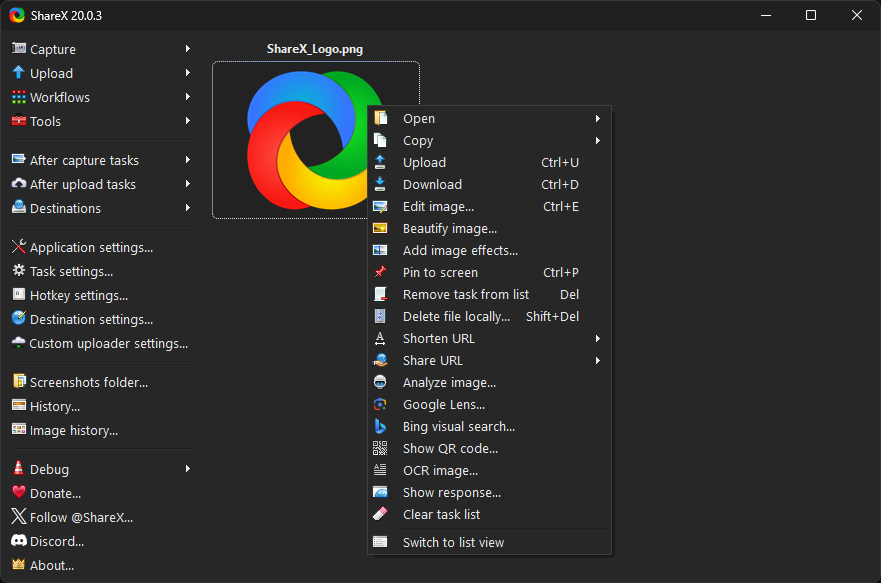
How can I prevent ShareX from saving screenshots to a folder after uploading?
To stop ShareX from saving screenshots locally after uploading, navigate to the "After capture tasks" menu and uncheck the "Save image to file" option. This adjustment ensures that screenshots are uploaded without being stored on your device.
How do I perform a scrolling screenshot in ShareX?
To take a scrolling screenshot in ShareX, open the app and select "Scrolling capture" from the Capture menu. You'll then define the capture area, after which ShareX will scroll through the content automatically and stitch the screenshots together into a single image. This is useful for capturing long web pages, chat logs, or documents that don't fit on a single screen.
Why does my screen recording in ShareX have no audio?
Audio issues in ShareX recordings are often due to incorrect input settings or interference from antivirus software. First, make sure the correct audio device (like your microphone or system audio) is selected in the screen recording settings. Also, check if your antivirus is blocking FFmpeg, which is the tool ShareX uses to handle recordings. Adding an exception for FFmpeg can usually resolve this issue.
What is the difference between the Steam version and the standalone version of ShareX?
The primary distinction lies in the update mechanism. The Steam version utilizes Steam's auto-update feature, while the standalone version manages updates independently. Functionally, both versions offer the same features and capabilities.
What are some good alternatives to ShareX?
Monosnap is a popular alternative that works on both Windows and macOS, it also offers screenshot and screen recording features, with cloud storage options. ScreenshotX is a lightweight Windows tool known for its simplicity and fast performance. LightShot is a user-friendly option available on Windows and macOS, ideal for quick captures and easy sharing. Awesome Screenshot is also available as a browser extension and desktop app.
Can I upload screenshots directly to my Imgur account using ShareX?
Yes, to do this open the app, go to "Destination settings," choose Imgur under the image uploaders section, and authorize your account.
Features
- Completely free
- Open source
- No advertisements
- Lightweight
- Over 17 years of active development
- Trusted by big companies
- Designed for power users
- Quick screen capture sharing
- Easy GIF recording
- Supports over 80 destinations
- Advanced custom uploader support
- Customizable workflow system
Capture methods:
- Fullscreen
- Active window
- Active monitor
- Window menu
- Monitor menu
- Region
- Region (Light)
- Region (Transparent)
- Last region
- Custom region
- Screen recording
- Screen recording (GIF)
- Scrolling capture
- Auto capture
After capture tasks:
- Show quick task menu
- Show "After capture" window
- Beautify image
- Add image effects
- Open in image editor
- Copy image to clipboard
- Pin to screen
- Print image
- Save image to file
- Save image to file as...
- Save thumbnail image to file
- Perform actions
- Copy file to clipboard
- Copy file path to clipboard
- Show file in explorer
- Scan QR code
- Recognize text (OCR)
- Show "Before upload" window
- Upload image to host
- Delete file locally
Region capture types:
- Rectangle
- Ellipse
- Freehand
Annotation tools:
- Rectangle
- Ellipse
- Freehand
- Freehand arrow
- Line
- Arrow
- Text (Outline)
- Text (Background)
- Speech balloon
- Step
- Magnify
- Image (File)
- Image (Screen)
- Sticker
- Cursor
- Smart eraser
- Blur
- Pixelate
- Highlight
- Crop image
- Cut out
What's New
- Image editor improvements:
- Added an "Image Editor Selector" dialog that appears the first time the user uses the editor. It lets users choose their preferred editor and makes it clear they can change it anytime. ShareX
- Improved high DPI support.
- Added support for Ctrl + Enter keybind to insert new lines in text and speech balloon tools.
- Added "Font family" option to text and speech balloon tools.
- Added "Arrow style" option to the arrow tool. ShareX
- Classic: Similar style to the Legacy arrow tool; allows curving the arrow using the middle node.
- Modern: Bigger, modern-looking arrow but does not allow curving.
- Also added curving support to the line tool.
- Added "Insert image" dialog for when the user pastes or drags and drops an image; allows these actions:
- Insert image in the center.
- Insert image below.
- Insert image on the right side.
- Added "Quick crop" option; it lets the user crop quickly similar to the Legacy Image Editor. This option is enabled by default.
- Swapped Ctrl + Shift + C keybind with Ctrl + C. Pressing Ctrl + C now copies the image instead of copying the shape.
- Freehand tool no longer allows selection, letting the user draw easily without selecting previous drawings. The Select tool still allows selecting.
- "Save image" button is now usable even when the image file has not been saved previously.
- Notification click action "Open link" now also opens files as a fallback.
- Recent links now also support opening files.
