

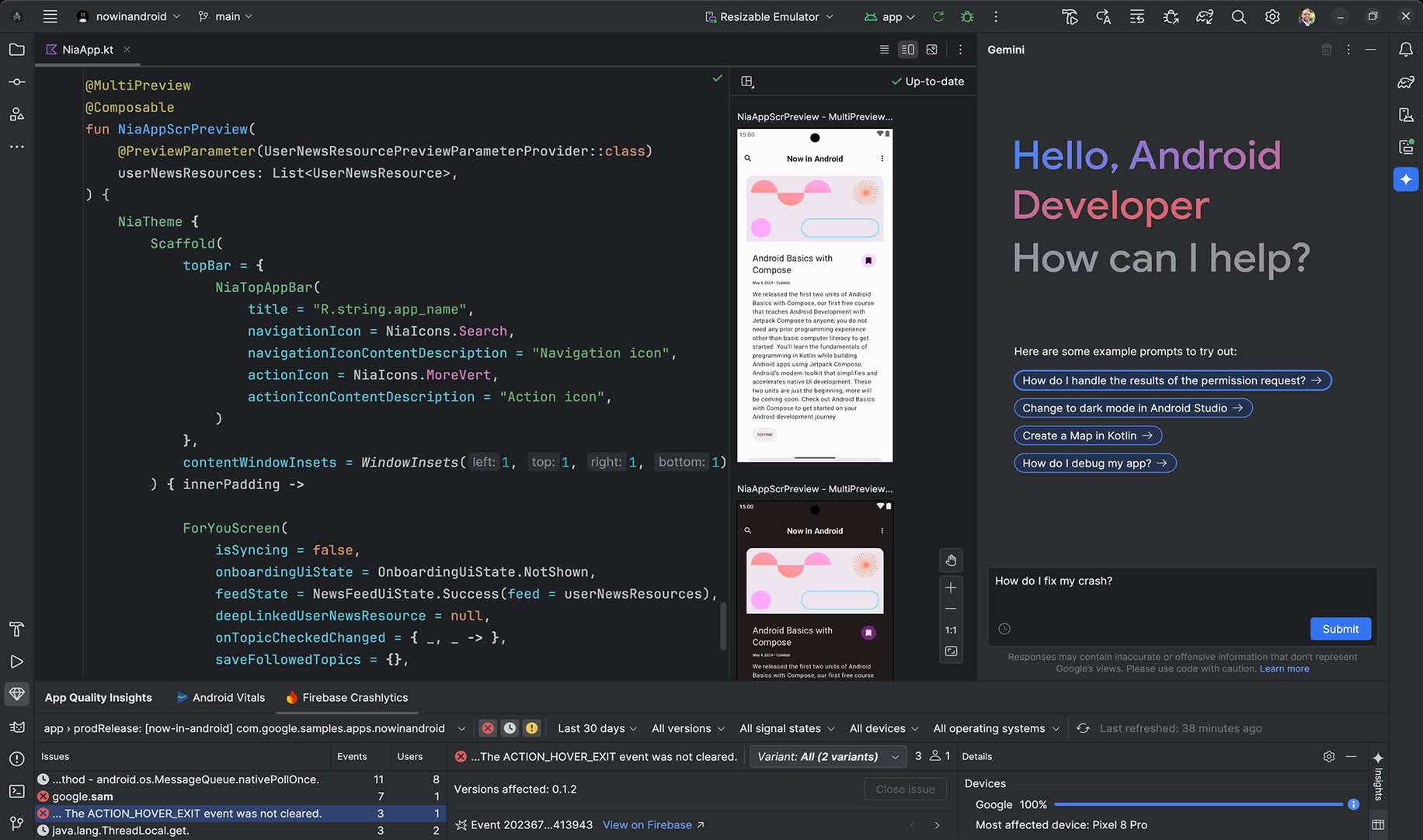
The official IDE for Android app development now accelerates your productivity with Gemini in Android Studio, your AI-powered coding companion.
What programming languages does Android Studio support?
It supports Kotlin, Java, and C++ natively, with additional support for other languages via plugins.
Do I need to pay in order to use Gemini AI assistant in Android Studio?
No, you don't need to pay to use the Gemini AI assistant in Android Studio-for individual developers, it's available for free. This free tier includes features like code completion, generation, and conversational assistance within the IDE.
What is Android Studio Cloud and how I access it?
Android Studio Cloud is a new browser-based version of Android Studio, accessible through Firebase Studio. It streams a Linux VM running Android Studio directly in your browser, allowing you to develop Android apps without installing anything locally. It's ideal for coding on the go or using lower-end devices.
Features
Compose design tools
Create dynamic layouts with Jetpack Compose. Then preview your layouts on any screen size and inspect Compose animations using the built-in inspection tools.
Intelligent code editor
Write better code, work faster, and be more productive with an intelligent code editor that provides code completion for Kotlin, Java, and C/C++ programing languages. Moreover, when editing Jetpack Compose you can see your code changes reflected immediately with Live Edit.
Android App Bundle
Find opportunities to optimize your Android app size before publishing by inspecting the contents of your app APK file or Android App Bundle. Inspect the manifest file, resources, and DEX files. Compare two APKs or Android App Bundles to see how your app size changed between app versions.
Instant Run
Push code and resource changes to your app running on a device or emulator and see the changes instantly come to life. Instant Run dramatically speeds up your edit, build, and run cycles, keeping you "in the flow."
Fast emulator
The Android Emulator lets you to test your application on a variety of Android devices. Unlock the full potential of your apps by using responsive layouts that adapt to fit phones, tablets, foldables, Wear OS, TV and ChromeOS devices.
Flexible build system
Powered by Gradle, Android Studio's build system allows you to customize your build to generate multiple build variants for different devices from a single project.
Realtime profilers
The built-in profiling tools provide realtime statistics for your app's CPU, memory, and network activity. Identify performance bottlenecks by recording method traces, inspecting the heap and allocations, and see incoming and outgoing network payloads.
Gemini in Android Studio
Gemini in Android Studio is an AI assistant that helps you generate code, fix code, and answer questions about Android app development. Available in Android Studio Jellyfish.
Code Anywhere with Android Studio Cloud
Try Android Studio Cloud directly in your browser, accessed through Firebase Studio. Streamline your workflow and skip local installations. Try the Early Access Preview.
Note: The newest versions of Android Studio do not offer a Window 32-bit version. Android Studio 3.6.3 was the last to offer a Windows 32-bit version. You can download it here.
What's New
Android Studio Quail 3
Complete release notes can be found here.
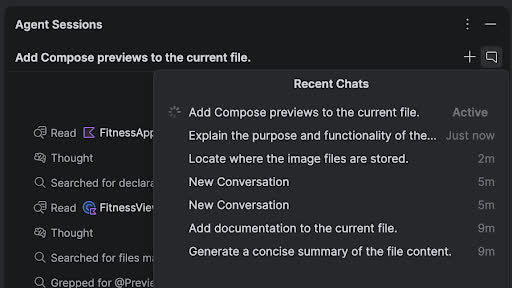
Parallel conversations
You can run multiple conversations in Agent Mode in parallel, enabling you to multitask more effectively inside the IDE. For example, you can kick off a long-running task like generating tests in one conversation, use a second conversation to plan a new feature, and use a third conversation to draft documentation – all at the same time.
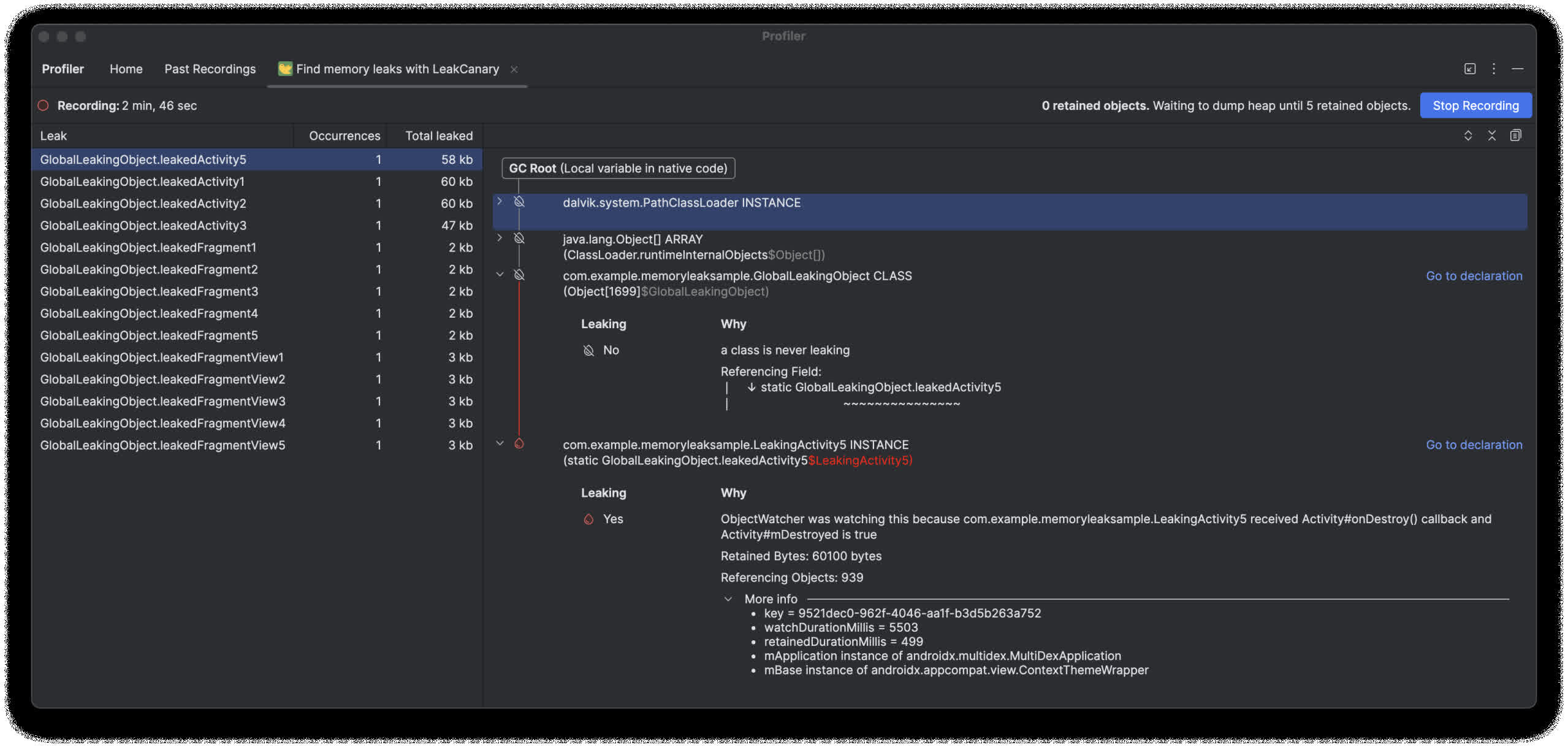
LeakCanary in Android Studio Profiler
The LeakCanary profiler task in Android Studio actively moves the memory leak analysis from your device to your development machine, resulting in a significant performance boost during the leak analysis phase as compared to on-device leak analysis.
Additionally, the leak analysis is now contextualized within the IDE and fully integrated with your source code, providing features like Jump to Source and other helpful code connections that drastically reduce the friction and time required to investigate and fix memory leaks. You can also copy the entire leak analysis for further processing with Gemini. This can dramatically increase your productivity and improve your workflow during the development phase.
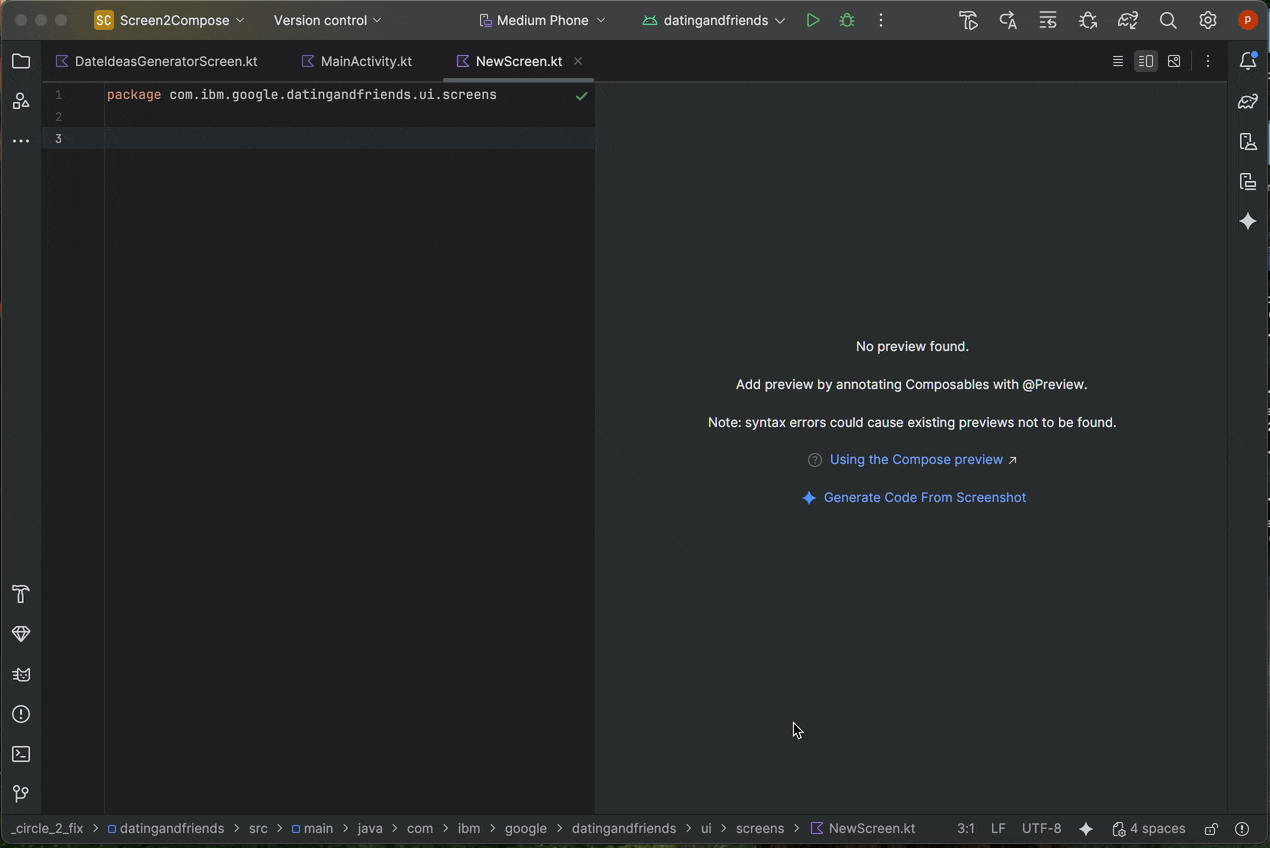
Create new UI from a design mock
To accelerate the start of your UI development process, you can now generate Compose code directly from a design mock. In a file without an existing preview, click Generate Code From Screenshot in the Preview panel. Gemini will use the provided image to generate a starting implementation, saving you from writing boilerplate code from scratch.
Match your UI with a target image
Once you have an initial implementation, you can iteratively refine it to be pixel-perfect. Right-click on your Compose Preview and select AI Actions > Match UI to Target Image. This lets you upload a reference design, and the agent will suggest code changes to make your UI match the design as closely as possible.
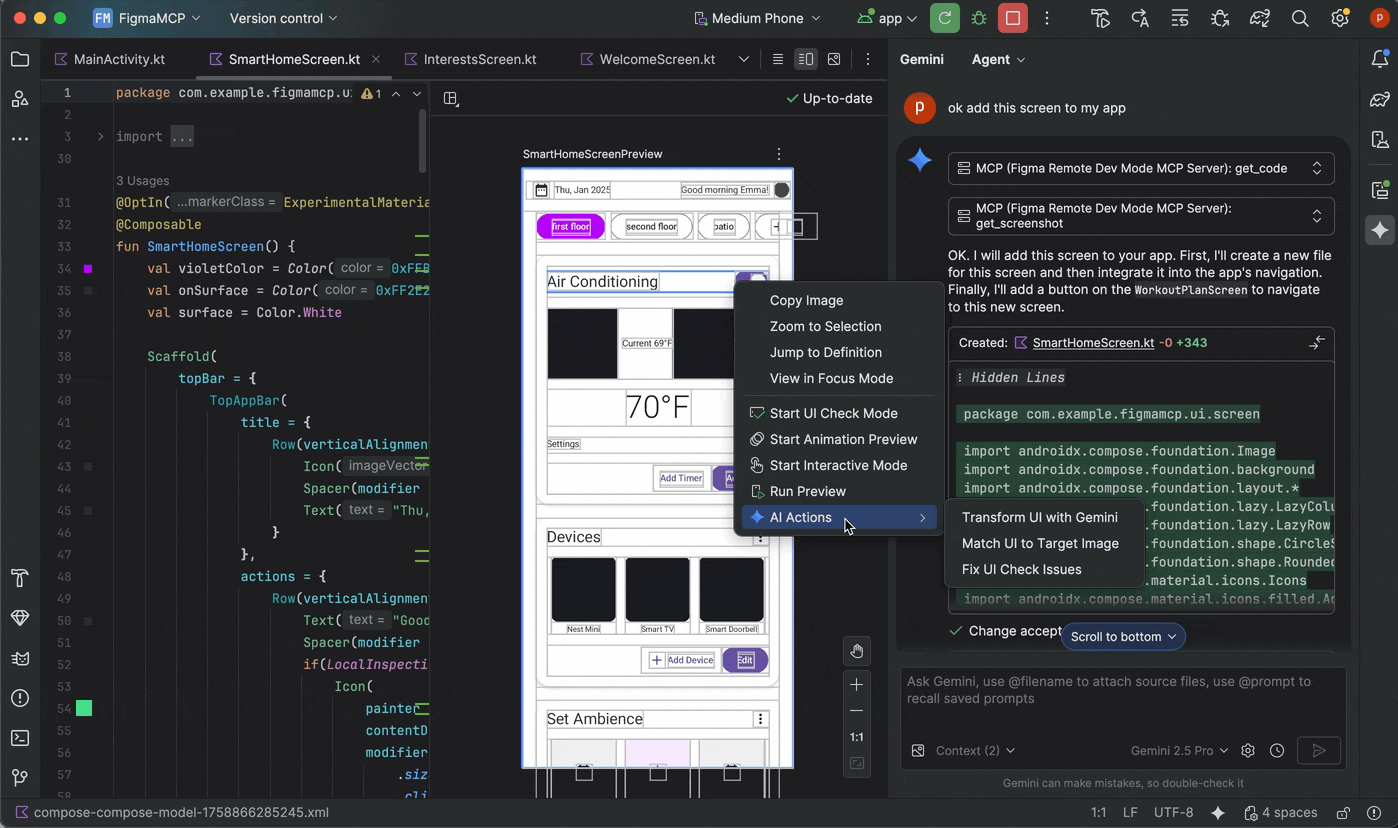
Iterate on your UI with natural language
For more specific or creative changes, right-click on your preview and use the AI Actions > Transform UI. This capability now leverages agent mode, making it more powerful and accurate. This upgrade lets you to modify your UI using natural language prompts, such as "change the button color to blue" or "add padding around this text," and Gemini will apply the corresponding code modifications.
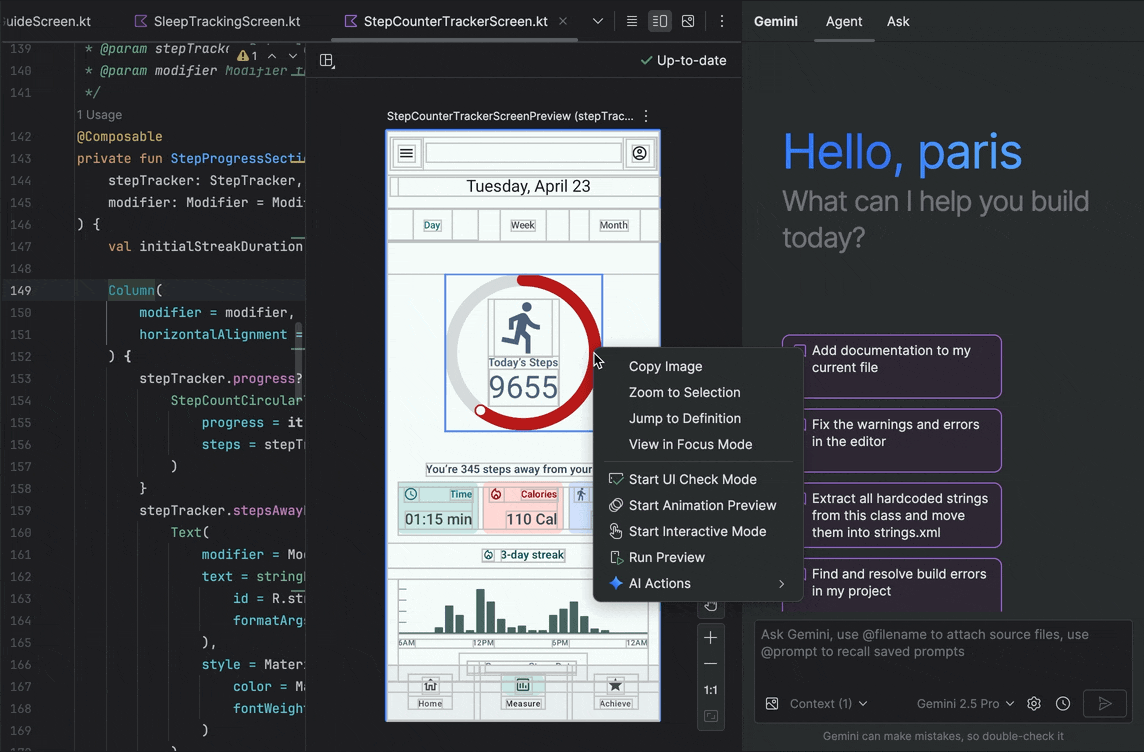
Find and fix UI quality issues
Verifying your UI is high-quality and more accessible is a critical final step. The AI Actions > Fix all UI check issues audits your UI for common problems, such as accessibility issues. The agent will then propose and apply fixes to resolve the detected issues.
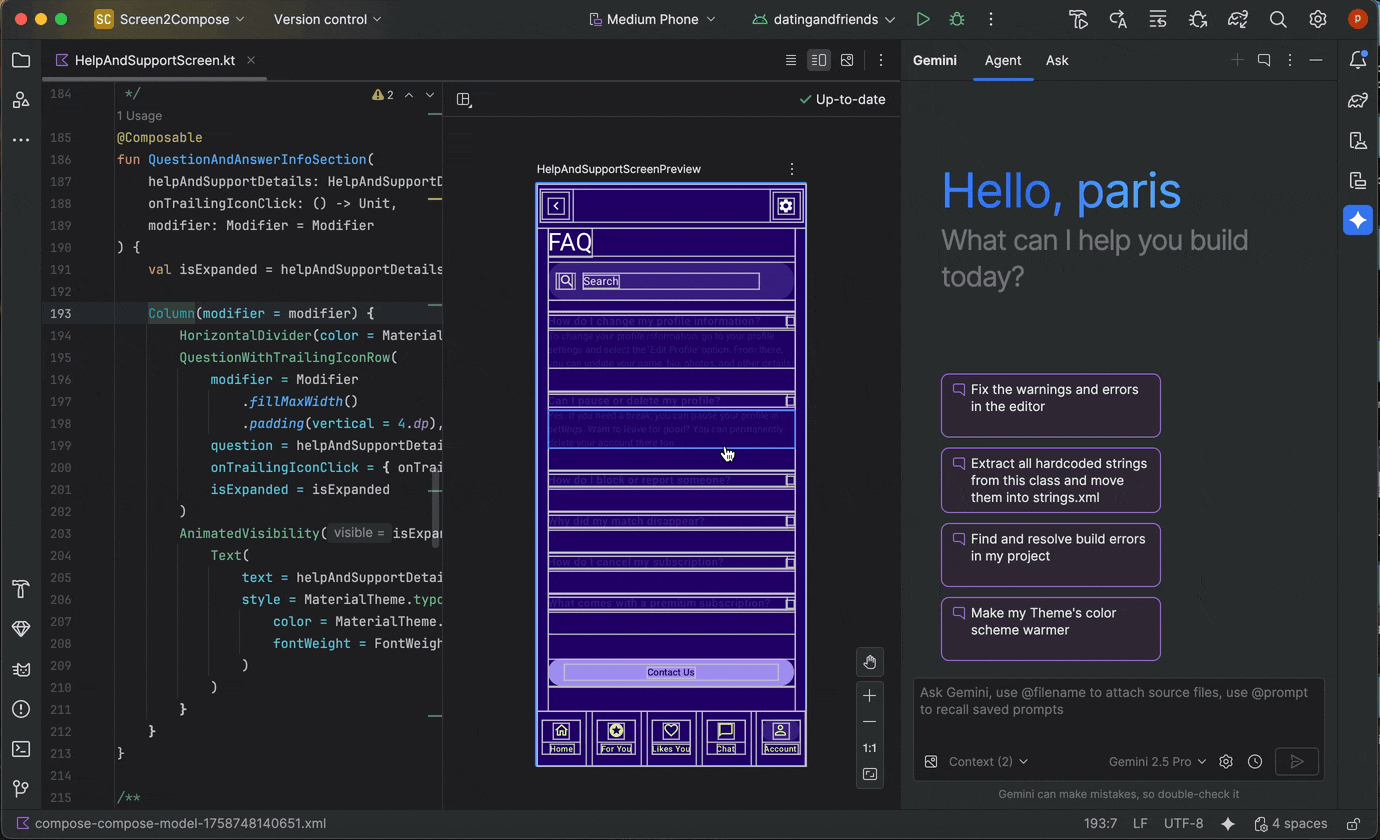
Manage multiple conversation threads with Gemini
You can now organize your conversation with Gemini in Android Studio into multiple threads. This lets you switch between multiple ongoing tasks and search through your conversation history. Using separate threads for each task also improves response quality by limiting the scope of the AI's context to only the topic at hand.
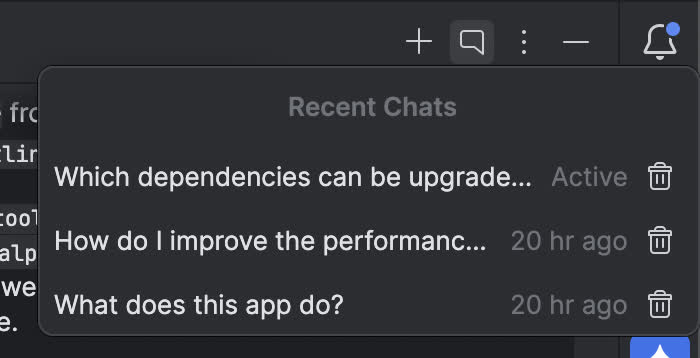
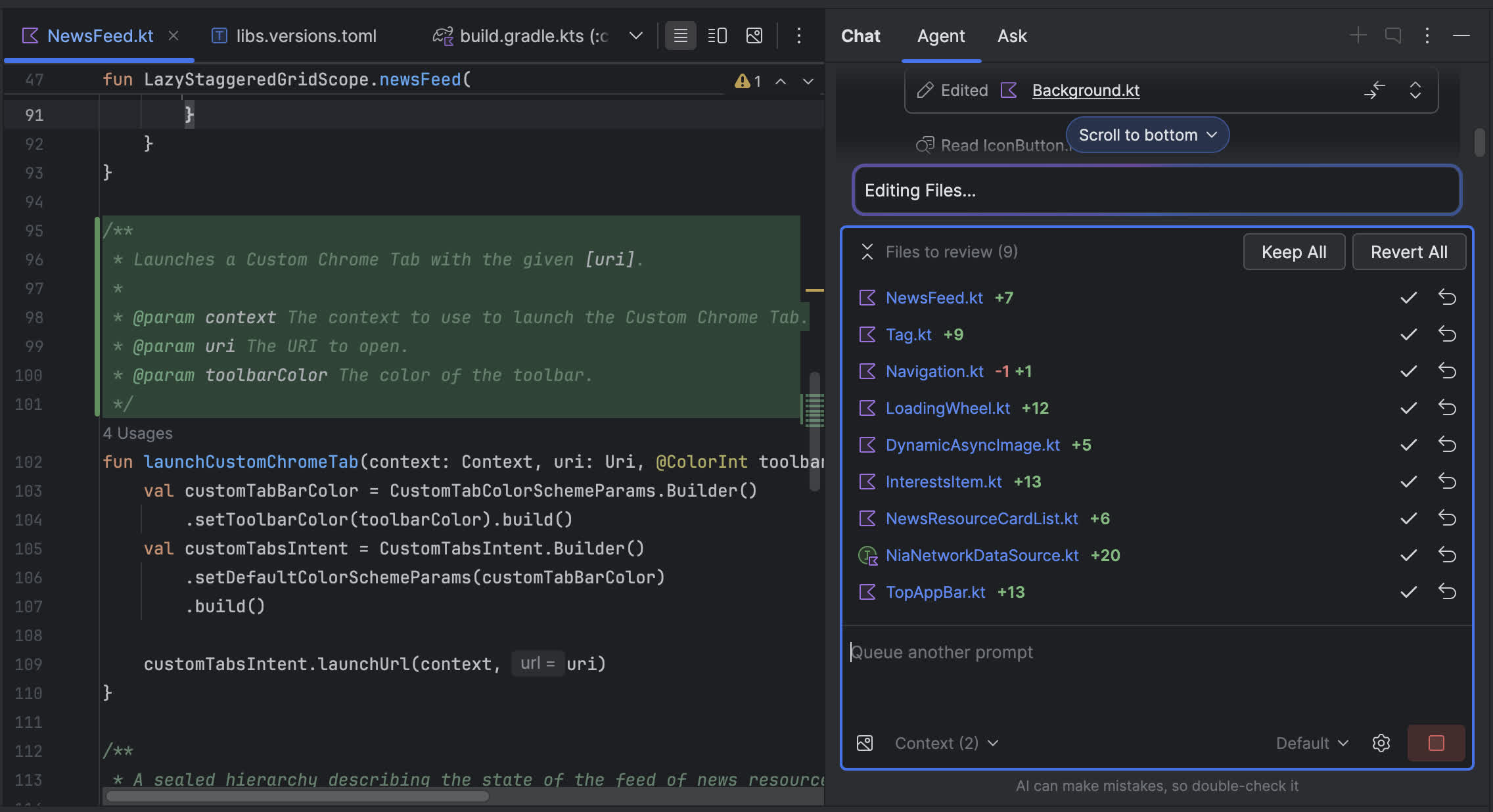
Find and review changes using the changes drawer
You can now see and manage changes made by the AI agent using the changes drawer. When the agent makes changes to your codebase, see the files that were edited in Files to review. From there, you can keep or revert the changes individually or all together. Click an individual file in the drawer to see the code diff in the editor and make refinements if needed. With the changes drawer, you can keep track of edits made by the agent during your chat and revisit specific changes without scrolling back through your conversation history.
Android Studio Otter 2 Feature Drop | 2025.2.2
Android Studio is the official IDE for Android development, and includes everything you need to build Android apps.
This page lists new features and improvements in the latest version in the stable channel, Android Studio Ladybug.
- To see what's been fixed in this version of Android Studio, see the closed issues.
- To view the release notes for older versions of Android Studio, see Past releases.
- For early access to upcoming features and improvements, see the Preview builds of Android Studio.
If you encounter problems in Android Studio, check the Known issues or Troubleshoot page.
Android Gradle plugin and Android Studio compatibility
The Android Studio build system is based on Gradle, and the Android Gradle plugin (AGP) adds several features that are specific to building Android apps. The following table lists which version of AGP is required for each version of Android Studio.
Introducing Gemini in Android Studio
Gemini in Android Studio is your coding companion for Android development. It's an AI-powered conversational experience in Android Studio that helps you be more productive by answering Android development queries. To learn more, see Meet Gemini in Android Studio.
New sign-in flow
When you sign in to Android Studio with your Developer account, you benefit from Google developer services – such as viewing Firebase Crashlytics and Android Vitals reports in App Quality Insights, accessing real remote devices with Device Streaming in Android Studio, and writing higher-quality code with Gemini in Android Studio – directly from the IDE.
Android Studio Jellyfish makes it easier to add and manage accounts, and provide the IDE with only the permissions required for each feature. To get started do one of the following:
Navigate to one of the features mentioned previously and follow the prompts to sign in and provide necessary permissions
If you're already signed in, you can manage your accounts and permissions by navigating to File (Android Studio on macOS) > Settings > Tools > Google Accounts.
Access real devices with Device Streaming in Android Studio
Device Streaming in Android Studio lets you securely connect to remote physical Android devices hosted in Google's secure data centers. Powered by Firebase, it's the fastest and easiest way to test your app against real devices, including the Google Pixel 8 Pro, Pixel Fold, select Samsung devices, and more.
After connecting to a device, you can deploy your app, view the display, interact with the device (including rotating or unfolding the device), and anything else you might do with a device over a direct ADB over SSL connection – all without leaving Android Studio. When you're done using the device, Google wipes all your data and factory resets the device before making it available to another developer.
During the current beta period, you can use device streaming at no cost with Firebase projects on either a Spark or Blaze plan. To get started sign into your Developer account from Android Studio and select a Firebase project. If you don't already have a Firebase project, it's easy to create one. To learn more, go to Device Streaming in Android Studio.
App Quality Insights support for ANRs, custom data, and multi-events
Dive deeper into App Quality Insights (AQI) crash reports in Android Studio Jellyfish with support for ANR reports, custom data, and multi-events:
- Iterate through events: Now explore multiple events within a Crashlytics report in reverse chronological order, revealing patterns for faster debugging.
- Explore custom data: View custom key/values and logs for each crash report (find them in the Keys and Logs tabs after selecting a report).
- Analyze ANRs: Access and investigate ANRs directly within both the Android Vitals and Crashlytics tabs.
Embedded Layout Inspector
The Layout Inspector is now embedded by default in the Running Devices tool window. This integration saves screen real-estate, centralizes your workflow in a single tool window, and delivers significant performance gains – with a 50% improvement in rendering speeds. You can effortlessly toggle between deeply inspecting and interacting with your app, and use snapshots for 3D visualizations of your UI. Discover the full range of features at Debug your layout with Layout Inspector.
App Links Assistant supports web associations file validation
The App Links Assistant now supports validation of the Digital Asset Links JSON file that should be published on your website.
This feature extends the existing validation capabilities for the intent filters that you declare in the app's manifest file. For each domain that's declared in the manifest file, the Assistant parses the file on your website, performs seven validation checks, and provides a detailed explanation on how to fix any errors.
To get started:
- In Android Studio click Tools > App Links Assistant.
- Double-click Links to get a detailed view of the checks the Assistant performed and understand how to fix the misconfigurations.
Ensure a seamless user experience by validating that your JSON file is correctly formatted for upload to your domain.
Baseline Profile installation
Android Studio Jellyfish automatically compiles Baseline Profiles after installation on device for projects that use AGP 8.4 or higher. This covers Baseline Profiles that have been generated through a Baseline Profile Generator module or from libraries like Compose. The automatic installation lets you experience the performance benefits of Baseline Profiles when installing your release app locally, and when using low-overhead profiling.
New colorblind checks in Compose UI Check
Compose UI Check includes new colorblind simulations and checks, empowering you to craft visually accessible experiences for all users. Simply enter UI Check mode from Compose Preview to view your Compose UI in different types of color vision deficiencies to ensure your designs remain clear and usable.
Redirect audio using device mirroring
Starting with Android Studio Jellyfish Canary 5, you can redirect audio from connected physical devices to your computer speakers or headphones. With audio redirection, keep your headphones connected to your computer and listen to both the computer and connected phone without having to manually reconnect to one device and then another. To enable audio redirection, go to Android Studio > Settings > Tools > Device Mirroring and select Redirect audio from local devices. Note that audio is always redirected, regardless of the settings, for Firebase Test Lab devices running Android 12 or higher.
