DaVinci Resolve is the world's only solution that combines professional 8K editing, color correction, visual effects and audio post production all in one software tool! You can instantly move between editing, color, effects, and audio with a single click.
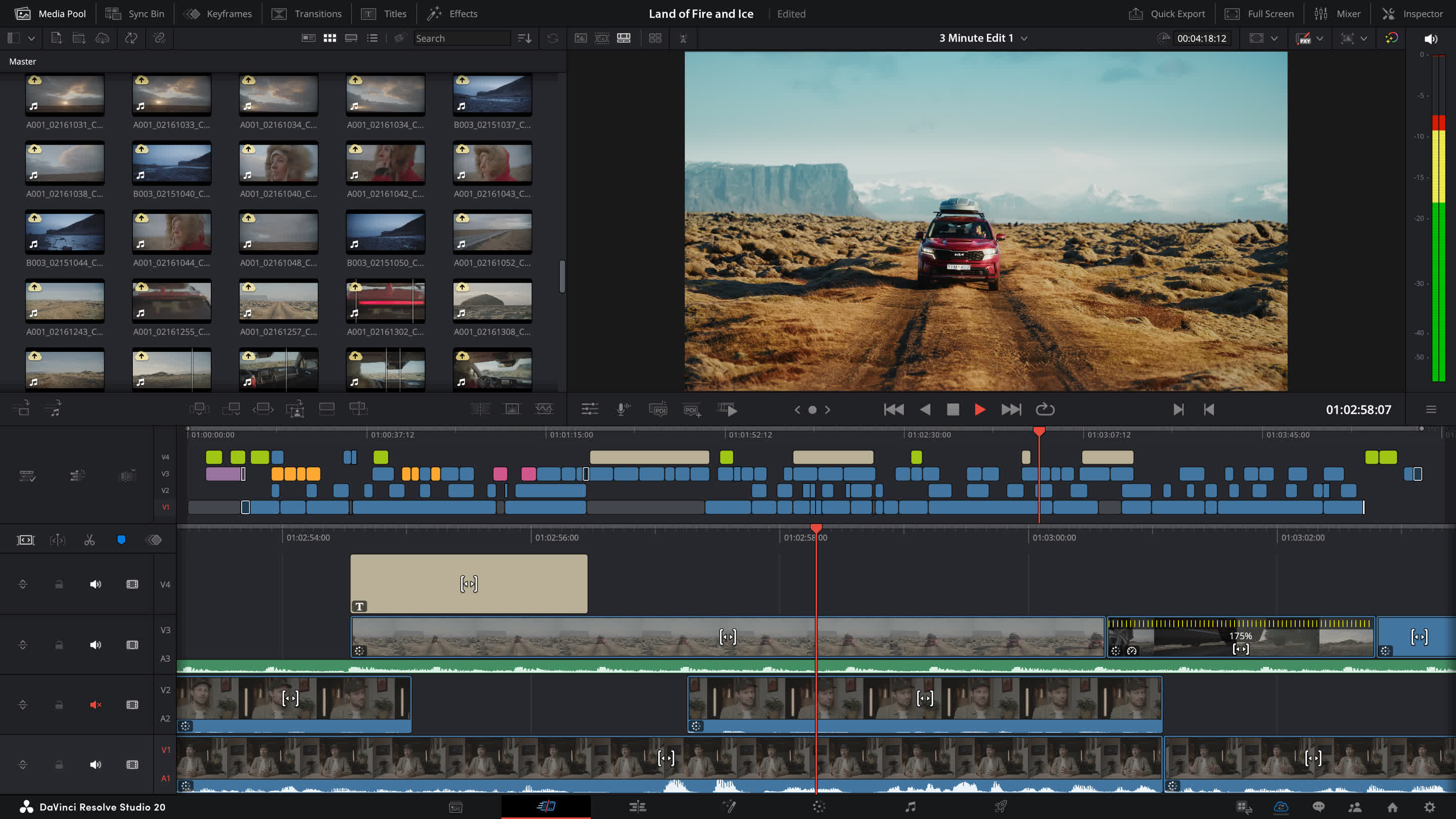
DaVinci Resolve 20 introduces more than 100 new features including powerful AI tools designed to assist you with all stages of your workflow. Use AI IntelliScript to create timelines based on a text script, AI Animated Subtitles to animate words as they are spoken, and AI Multicam SmartSwitch to assemble a timeline with camera angles based on speaker detection.
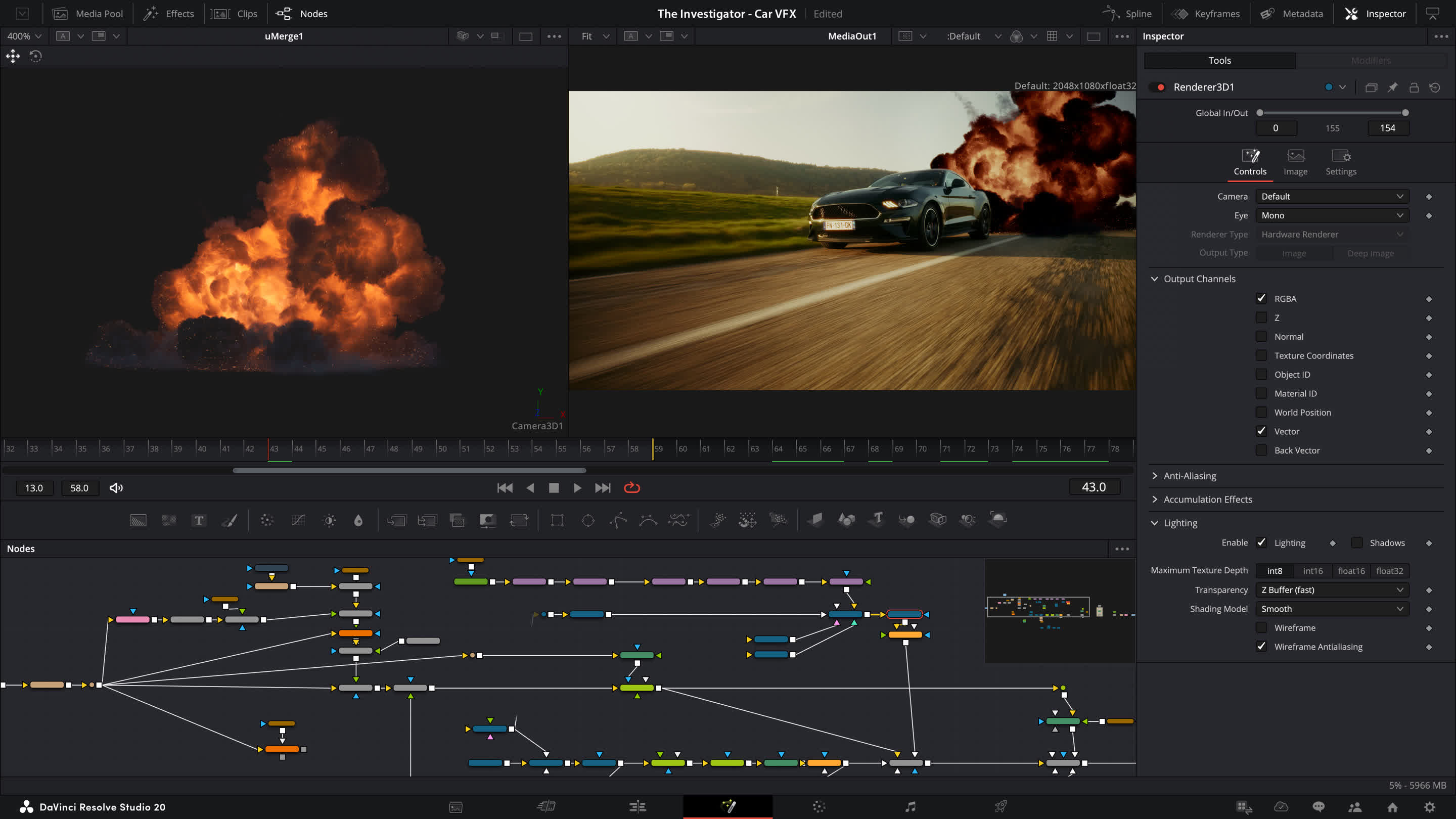
The cut and edit pages introduce a dedicated keyframe editor and voiceover palettes, and AI Audio Assistant analyzes your audio and intelligently creates a professional audio mix. In Fusion, explore advanced multi layer compositing workflows. The Color Warper now includes Chroma Warp, plus Magic Mask and Depth Map have huge updates.
Can you use DaVinci Resolve on a budget PC?
Yes, you can use DaVinci Resolve on a budget PC, but with limitations. The free version works well for basic editing if your system meets the minimum specs: a decent multi-core CPU, at least 16GB of RAM (32GB preferred), and a dedicated GPU with at least 2 – 4GB of VRAM. Intel integrated graphics may run it, but performance will be poor, especially during rendering or color grading.
How can I improve playback performance on the timeline?
Optimizing media, using proxy files, lowering the timeline resolution, and enabling Render Cache can help. You can also adjust the playback settings to "Half" or "Quarter" resolution for smoother performance during editing.
Is DaVinci Resolve 20 worth upgrading from version 18 or 19?
Yes, DaVinci Resolve 20 introduces several workflow enhancements and AI-powered tools that significantly improve editing, color grading, and audio post-production. If you're using Resolve professionally or frequently, the upgrade is worthwhile for the efficiency and creative options it adds.
Why is my render output losing quality or showing color shifts?
Common causes include incorrect export settings, mismatched timeline and export resolutions, or improper color management. Ensure you're using the right codec, resolution, and color space settings in the Deliver tab, and check that color management is set appropriately for your workflow.
Is DaVinci Resolve good for beginners or is it too complex?
While the interface can seem overwhelming at first, Resolve is quite beginner-friendly once you understand the layout. The Cut and Edit pages are simplified for newcomers, and there are many tutorials available that make learning the basics approachable.
Is DaVinci better than Adobe Premiere?
DaVinci Resolve is widely praised for its color grading tools, built-in Fusion for motion graphics, and Fairlight for audio – all in one app. It's particularly strong for filmmakers and editors who want advanced features without needing multiple programs. The free version is powerful and covers most needs.
Adobe Premiere Pro is better integrated with the Adobe Creative Cloud suite, which is a major plus if you rely on After Effects, Photoshop, or Illustrator. It's often preferred in broadcast and commercial environments due to its long-standing industry presence and collaborative tools.
What are other free Premiere alternatives?
In addition to DaVinci Resolve there are plenty of free solid video editors to choose from. Some of which are VSDC Free Video Editor, Shotcut and Movavi Video Editor Plus. Here is a longer list of Adobe Premiere alternatives.
Features
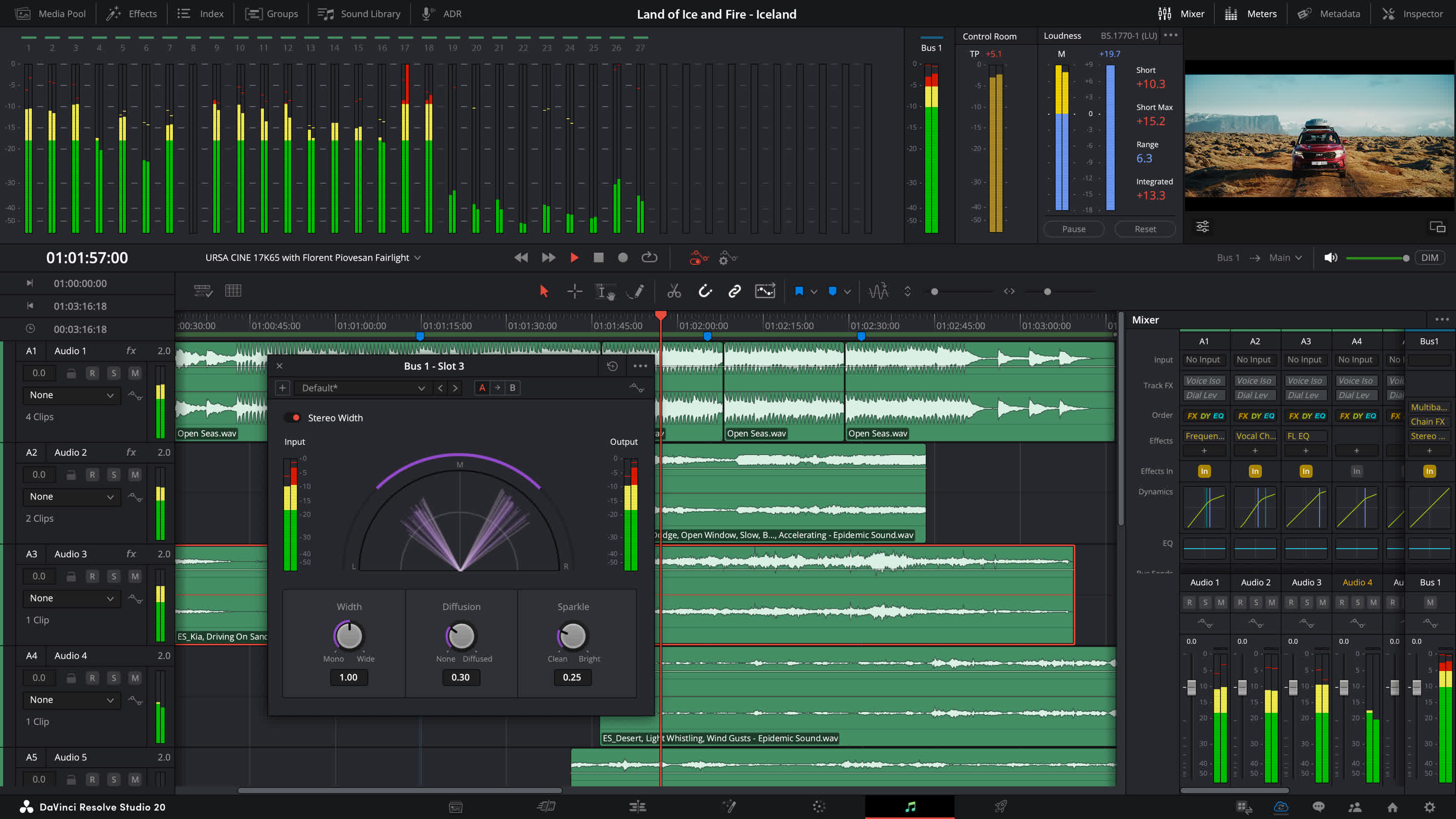
DaVinci Resolve Studio is also the only solution designed for multi user collaboration so editors, assistants, colorists, VFX artists and sound designers can all work live on the same project at the same time! Whether you're an individual artist, or part of a large collaborative team, it's easy to see why DaVinci Resolve is the standard for high end post production and finishing on more Hollywood feature films, television shows and commercials than any other software.
You get unlimited creative flexibility because DaVinci Resolve makes it easy for individual artists to explore different toolsets. It also lets you collaborate and bring people with different creative talents together. With a single click, you can instantly move between editing, color, effects, and audio. Plus, you never have to export or translate files between separate software tools because, with DaVinci Resolve, everything is in the same software application.
DaVinci Resolve is the only post production software designed for true collaboration. Multiple editors, assistants, colorists, VFX artists and sound designers can all work on the same project at the same time! Whether you're an individual artist, or part of a larger collaborative team, it's easy to see why DaVinci Resolve is the standard for high end post production and is used for finishing more Hollywood feature films, episodic television programing and TV commercials than any other software.
DaVinci Resolve features a revolutionary new cut page specifically designed for editors that need to work quickly and on tight deadlines! The new DaVinci Neural Engine uses machine learning to enable powerful new features such as facial recognition, speed warp and more. Adjustment clips let you apply effects and grades to clips on the timeline below, quick export can be used to upload projects to YouTube and Vimeo from anywhere in the application, and new GPU accelerated scopes provide more technical monitoring options than before. Plus, Fusion is dramatically faster and Fairlight adds immersive 3D audio.
- Support for additional audio track formats for IMF and DCP renders
- Improved decode and encode performance for Kakadu DCP and IMF formats
- Support for CUDA based R3D with the latest RED SDK on Windows and Linux
- Adds Blackmagic RAW support for latest Blackmagic URSA Broadcast update
- Support for new audio only and video only editing modes on the cut page
- Added in and out buttons in the user interface on the cut page
- Support for audio playback when trimming on the cut and edit pages
- Improved zoom buttons for the timeline on the edit page
- Improved smart indicator in the cut page for when using in and out points
- Viewer resize icon on the cut page now correctly resizes the whole viewer
- Cut page divider between timeline and viewer can now be moved via the divider
- Close up edits in the cut page now vary the close up from 20% to 40% randomly
- Search dial is more responsive when using the DaVinci Resolve Editor Keyboard
- Removed auto jog mode on scroll with the DaVinci Resolve Editor Keyboard
- Better responsiveness using shuttle with the DaVinci Resolve Editor Keyboard
- Double press to clear in and out on the DaVinci Resolve Editor Keyboard
- Improved performance in collaborative projects with multiple DaVinci systems
- Support for monitor name in the workspace menu display options
- Support for copy/paste in Dolby Vision mid tone offset values between clips
- New scripting APIs to move media items, LUTs, markers, copy grades and more
- Now uses 2 up view in sync bin when using live overwrite editing
- Fixes a bug that caused the clip dividers in the source tape to scroll with audio
- Opening the media folder in the cut page will re-sync to that folder contents
- Multiple performance and stability improvements
Installing DaVinci Resolve Software on MacOS
- Double-click the DaVinci Resolve Installer icon and follow the onscreen instructions. To remove DaVinci Resolve from your system, double-click the Uninstall Resolve icon.
Installing DaVinci Resolve Software on Windows
- Double-click the DaVinci Resolve Installer icon and follow the onscreen instructions. To remove DaVinci Resolve from your system, go to the Programs and Features control panel, select DaVinci Resolve, click on Uninstall and follow the onscreen prompts.
Installing DaVinci Resolve Software on Linux
- Double-click the DaVinci Resolve installer and follow the onscreen instructions. To remove DaVinci Resolve from your system, select the uninstall option after running the installer.
What's New
The following features have been added or updated in DaVinci Resolve 20.3.2.
- Preferences option to enable dynamic trim for trim editor in edit.
- More consistent kerning for subtitles.
- Magic mask cache is now retained when pasting node attributes.**
- Improved render speeds for side-by-side stereoscopic 3D renders.**
- Up to 2.5x faster SuperScale Enhanced with Apple Neural Engine.**
- Progressive renders for interlaced timelines with same frame rate.
- Addressed issue with lens correction of vertical clips.
- Addressed incorrect ILPD used with disabled clip on higher tracks.
- Addressed incorrect aivu when rendering marked timeline ranges.
- Addressed incorrect ImmersivePatcher behavior with proxy media.
- Addressed timecode issue for proxies from stereoscopic 3D EXRs.**
- Addressed issue localizing media pool column headers.
- Addressed slow media management start up for larger projects.
- Addressed ProRes RAW decode issue when using ACES.
- Addressed issue with editing effects on a locked node stack layer.
- Analog Damage disabling CRT scan no longer disables restless foot.
- Addressed potential flicker in Face Refinement eyebag removal.
- Addressed retention of MaxCLL from XML when exporting IMF.**
- Addressed issues with Dolby Atmos external renderers.**
- Addressed ADC reverb delay compensation issue in some projects.
- Addressed incorrect pass through behavior for Sony XAVC renders.
- Addressed issue decoding some Sony ARW clips.
- Addressed incorrect render size estimates for some MXF clips.
- Support for Fujifilm F-Gamut C colorspace and F-Log2 C gamma.
- Support for Dolby headphone personalization of binaural monitoring.
- General performance and stability improvements.
The following features have been added or updated.
- Addressed a crash in the metadata view with some custom fields.
- Addressed an issue with stereoscopic 3D video monitoring output.
- Addressed an issue with embedding HDR10 metadata.
- Addressed client preview with viewer overlays on remote monitor.
- Addressed effects search issue for Chinese, Japanese and Korean.
- Addressed issue using embedded Dolby Vision metadata in IMF.
- Addressed incorrect Fusion viewer overlay positions after transforms.
- Addressed MultiMerge masking issue with concatenated transforms.
- General performance and stability improvements.
For DaVinci Resolve 20.3, we have taken efforts to keep the project libraries compatible with DaVinci Resolve 19.1.4. While this allows you to access the project library with 19.1.4, individual projects created or opened in 20.3 will no longer be accessible in 19.1.4. We recommend a full project library backup as well as individual project backups before opening projects in 20.3.
What's new in DaVinci Resolve 20.3
- Up to 32K resolution support with Apple M5 processors.
- Improved performance for Resolve FX Noise Reduction.
- Timeline backups now allow named snapshots for versioning.
- Support for adding metadata fields as media pool bin columns.
- Media Pool metadata ALE import and export support.
- Option to create custom metadata for unknown fields on import.
- Exported metadata files now include custom metadata fields.
- Media pool views and state are now retained for each project.
- Edit menu action to insert gap at playhead.
- New assignable key shortcut in media pool to start a search.
- Assignable key shortcut for open in timeline with source viewer.
- Speed change and duration change actions now follow sync lock.
- Added 2.39 and 2.40 broadcast safe aspect ratios.
- Alpha support for film look creator, film damage and analog damage.
- Support for IMF workflow for HDR Vivid and Audio Vivid.
- Ability to embed HDR10+ metadata in QuickTime and MP4 encodes.
- Ability to set stereoscopic mode in clip attributes for MXF clips.
- Improved match frame behavior for clips with negative speeds.
- Addressed missing clip actions in subtitle caption context menu.
- Addressed intermittent lag when using stacked timelines.
- Addressed source timeline not restored when switching back to edit.
- Addressed issue tracking with high-quality deinterlace in Fusion.
- Addressed issue with immersive world pose if using Fusion tools.
- Addressed issue loading some deep OpenEXR files.
- Addressed decode issues with compressed ARW clips.
- Addressed AI Music Remixer muting audio on macOS 26.1.
- Addressed possible QuickTime decode hang on Windows.
- Addressed Remote Monitor start up issue on Windows.
- General performance and stability improvements.
Note: Starting from DaVinci Resolve 20.3, OpenCL mode for GPU processing is no longer supported on macOS.
Minimum system requirements for Mac OS
- macOS 14 Sonoma or later.
- 8 GB of system memory or 16 GB when using Fusion.
- For monitoring, Blackmagic Design Desktop Video 12.9 or later.
- Apple Silicon based computer or GPU which supports Metal.
Minimum system requirements for Windows
- Windows 10 Creators Update.
- 16 GB of system memory or 32 GB when using Fusion.
- For monitoring, Blackmagic Design Desktop Video 12.9 or later.
- Integrated GPU or discrete GPU with at least 4 GB of VRAM.
- GPU which supports OpenCL 1.2 or CUDA 12.8.
- AMD/Intel official drivers from your GPU manufacturer.
- NVIDIA Studio driver 570.65 or newer.
Minimum system requirements for Windows for Arm
- Windows 11 for ARM.
- Qualcomm Snapdragon X Elite series processor.
- 16 GB of system memory or 32 GB for 4K or when using Fusion.
Minimum system requirements for Linux
- Rocky Linux 8.6.
- 32 GB of system memory.
- For monitoring, Blackmagic Design Desktop Video 12.9 or later.
- Discrete GPU with at least 4 GB of VRAM.
- GPU which supports OpenCL 1.2 or CUDA 12.8.
- AMD official drivers from your GPU manufacturer.
- NVIDIA Studio driver 570.26 or newer.
DaVinci Resolve 19 Release Notes
DaVinci Resolve 19 introduces powerful new DaVinci Neural Engine AI tools and over 100 feature upgrades! Editors can work directly with transcribed audio to find speakers and edit timeline clips. Colorists can produce rich film like tones with the ColorSlice six vector palette and produce cinematic images using the new film look creator effect which emulates photometric film processes. In Fairlight, the IntelliTrack AI can be used to track motion and automatically pan audio. VFX artists in Fusion have an expanded set of USD tools plus a new multipoly rotoscoping tool. The cut page has new broadcast replay tools for live multi camera broadcast editing, playout and replay with speed control.
Blackmagic Cloud
DaVinci Resolve 19 supports Blackmagic Cloud, so you can host your project libraries on the DaVinci Resolve Project Server in the cloud. Share projects and work collaboratively with editors, colorists, VFX artists and audio engineers on the same project at the same time, anywhere in the world.
Blackmagic Cloud for Organizations
The Organizations app lets larger companies define a single organization or company within Blackmagic Cloud. Now you can create groups or teams and quickly share projects to an entire group rather than one by one. You can also manage storage access, share Presentations, and create a single sign on.
DaVinci Resolve Studio Licenses
The Organizations app also lets you buy or rent DaVinci Resolve Studio licenses. This makes it easier for companies to assign and manage the allocation of licenses within large groups. Licenses can be costed against specific projects and then removed when it's complete.
Blackmagic Proxy Generator
The new Blackmagic Proxy Generator App automatically creates and manages proxies from camera originals. Create a watch folder and new media is automatically converted into H.264, H.265 or ProRes proxies to accelerate editing workflows. You can extract proxies into a separate folder for offline work.
Multi Source
Multi Source lets you see all your live cameras, or even just clips in a bin with a common timecode, in a multiview screen to look for any point of interest. You can scrub, play and select shots to add to the timeline or simply play to air. You can even switch live from any of the available angles.
Point of Interest
When watching live cameras or a multiview of clips and a signifiant event occurs, capture the moment with a POI marker. The POI is placed on all the clips at that same time so you can quickly find the event on every camera angle, play them to air and even automatically build a highlights timeline.
UltraNR Noise Reduction
UltraNR is a new DaVinci Neural Engine driven denoise mode in the Color page's spatial noise reduction palette. Use it to dramatically reduce digital noise from a frame while maintaining image clarity. Combine with temporal noise reduction for even more effective denoising in images with motion.
Film Look Creator
The new Film Look Creator lets you add cinematic looks that replicate film properties like halation, bloom, grain, flicker, gate weave and vignetting. Adjust exposure in stops and use subtractive saturation, richness and split tone controls to achieve looks usually found on the big screen.
Advanced Volumetric Rendering
uVolume lets you directly import volumetric VDB files into Fusion eliminating time consuming conversions. It also adds creative control of imported effects such as smoke, fire, clouds and explosions. You get complete control over density, temperature and color parameters of the VDB file in DaVinci.
MultiPoly Tool
The new MultiPoly tool displays all of your masks in a single list eliminating switching between nodes for faster, more accurate rotoscoping! Perfect for complex projects, you can view, select, add to and modify specific shapes, toggle their visibility and adjust parameters all from one location.
DaVinci Resolve 18.6.6:
- Ability to encode Panasonic AVC 100 and 50 in MXF Op Atom formats.
- Option to encode big endian LPCM audio in QuickTime.
- Addressed default alpha mode interpretation for some QuickTime media.
- Addressed incorrect path separators in some project settings on Windows.
- Addressed some Sony XAVC H clips being shown as offline.
- Addressed a media management issue trimming Sony 8K X-OCN clips.
- General performance and stability improvements.