
Display Driver Uninstaller (DDU) is a driver removal utility that can help you completely uninstall AMD, Nvidia and Intel graphics card drivers and packages from your system, without leaving leftovers behind including registry keys, folders and files, driver store.
The AMD/Nvidia/Intel video drivers can normally be uninstalled from the Windows Control panel, this driver uninstaller program was designed to be used in cases where the standard driver uninstall fails, or whenever you need to thoroughly delete Intel, Nvidia or ATI/AMD video card drivers.
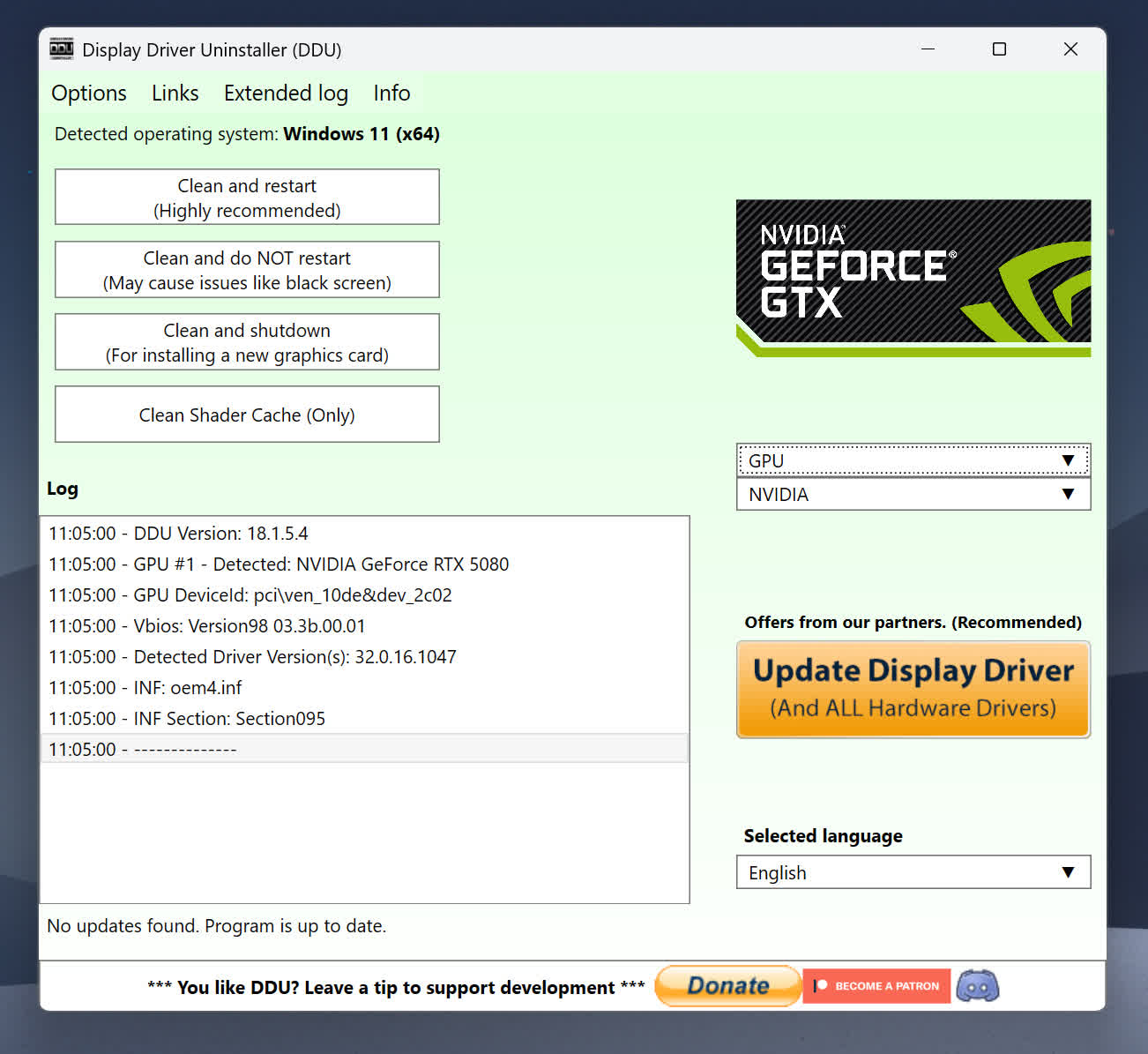
What is Display Driver Uninstaller and when should I use it?
Display Driver Uninstaller is a tool designed to completely remove GPU drivers and related registry entries from your system. It's often used when upgrading graphics cards, switching between Nvidia and AMD drivers, or troubleshooting driver-related issues that standard uninstallers fail to resolve.
Can DDU fix issues like black screens, crashes, or poor performance?
It can help in cases where those issues are caused by corrupted or conflicting drivers. While not a guaranteed fix for every problem, many users have resolved persistent graphical glitches, crashes, or performance drops by using DDU to perform a clean reinstall of their GPU drivers.
Do I need to reinstall drivers manually after using DDU?
Yes, after running DDU and restarting your computer, you'll need to install your GPU drivers manually. It's recommended to download the latest drivers from the manufacturer's website beforehand so you can install them immediately after rebooting.
Why should I run DDU in Safe Mode and not normal mode?
Running DDU in Safe Mode ensures that Windows doesn't interfere with the uninstallation process by loading GPU drivers in the background. This allows for a cleaner and more complete removal, minimizing the chance of driver remnants causing issues later.
What's New
Windows on Arm
- NVIDIA RTX Spark ready, with a few more of its driver files and a service removed.
AMD
- More leftover driver files, folders and registry entries are removed, and the renamed AMD User Experience Program is detected again.
Monitors
- Removing the monitors now also resets each screen's saved display scale and, on laptops, the built-in screen's cached details. This fixes text and icons that stay too large or too small even after a clean driver reinstall.
Other
- The launch window grows with its text, so longer translations are no longer cut off.
Languages
- Hungarian updated.
-
- February 18, 2026
- Linux AMD64
- 2.2 MB
-
- February 7, 2007
- Windows Vista
- 9.3 MB
-
- November 28, 2007
- Windows XP/Vista
- 6.7 MB
-
- January 6, 2010
- Windows XP/Vista
- 15.2 MB
-
- September 19, 2016
- Windows 7/8/10
- 15.5 MB
-
- September 19, 2016
- Windows 7/8/10
- 22.8 MB
-
- August 29, 2016
- Windows (all)
- 42.2 MB
-
- August 17, 2016
- Linux
- 40.2 MB
-
- July 29, 2015
- Windows (all)
- 206 MB
-
- July 29, 2015
- Windows 10
- 170 MB