Mellel is a powerful and reliable word processor for people who are serious about writing. Mellel was designed to allow you to create long and sophisticated documents - from a book to a dissertation... or just a letter to your aunt (she's on Facebook, though).
Do not let Mellel's speedy launch, nimble performance, or humble footprint mislead you - there are no bells and whistles, but there is power. In fact, we'll openly claim: Mellel is the most powerful word processor for the Mac OS.
Looks matter, and Mellel has no competitors when it comes to controlling the way your document looks and creating consistent, predictable, and beautiful looking results.Consistency and predictability are the most important things when dealing with text and images.
In Mellel, flexibility when setting columns or text does not come at the expense of of getting the results you want to get: Images with text flowing around them stay where you set them to stay, columns stay balanced, and headings don't go strolling down the page just for fun. Looks matter, consistency matters even more.
As your document gets longer, it gets harder to keep all things in it in order. Mellel's superb Outline feature is just the tool to achieve that. The outline pane gives you a bird's eye view of your entire document, and lets you, tells you where you are, and lets you move things around easily.
To streamline your document's content, you can view elements such as captions for figures, tables, charts, and so on separately - and review them one by one.
Another excellent streamlining tool is Mellel's find: It allows you to create GREP-like searches, save them and create sets of Find Actions - allowing you to perform dozens of searches all at once.
Headings are easy, right? You just click the right style (in Mellel, the right auto-title) and there you have it.
But with Mellel you can achieve so much more: you can set your title to look differently than its numbering, set which headings will be numbered and if they'll reset the numbering, set headings to always appear at the top of the page, add a running header that changes dynamically, insert tabs and line breaks in a heading (but not in the ToC), set the content of the outline (to include just the title, for example), force appending body text to headings, and so on.
With most of those, Mellel is the only word processor that allows you to do this automatically and reliably. You control how your document headings look, how the outline will look, how your Table of Contents will look, and so on. Once you've tried this with Mellel, it would be tough imagining how you could do without those up until now.
Mellel offers you an easy way to handle citations and bibliographies, keeping them always in check, and preventing this delicate task from becoming tangled and annoying.
The Bibliography palette in Mellel allows you to view all the citations in the document, navigate to them, switch to a bibliography manager, scan, unscan, rescan, etc. Scanned and Unscanned citations in the text are highlighted, and you can open them and easily set special options (e.g., page numbers, omitting author or year).
Finally, there's the bibliography: You can use the preferences to set how it will appear in the document, move it around in the document, and otherwise manipulate it.
What's New
Mellel 6.7 introduces the Mellel Color Picker, image replacement via drag and drop and improved UI layout.
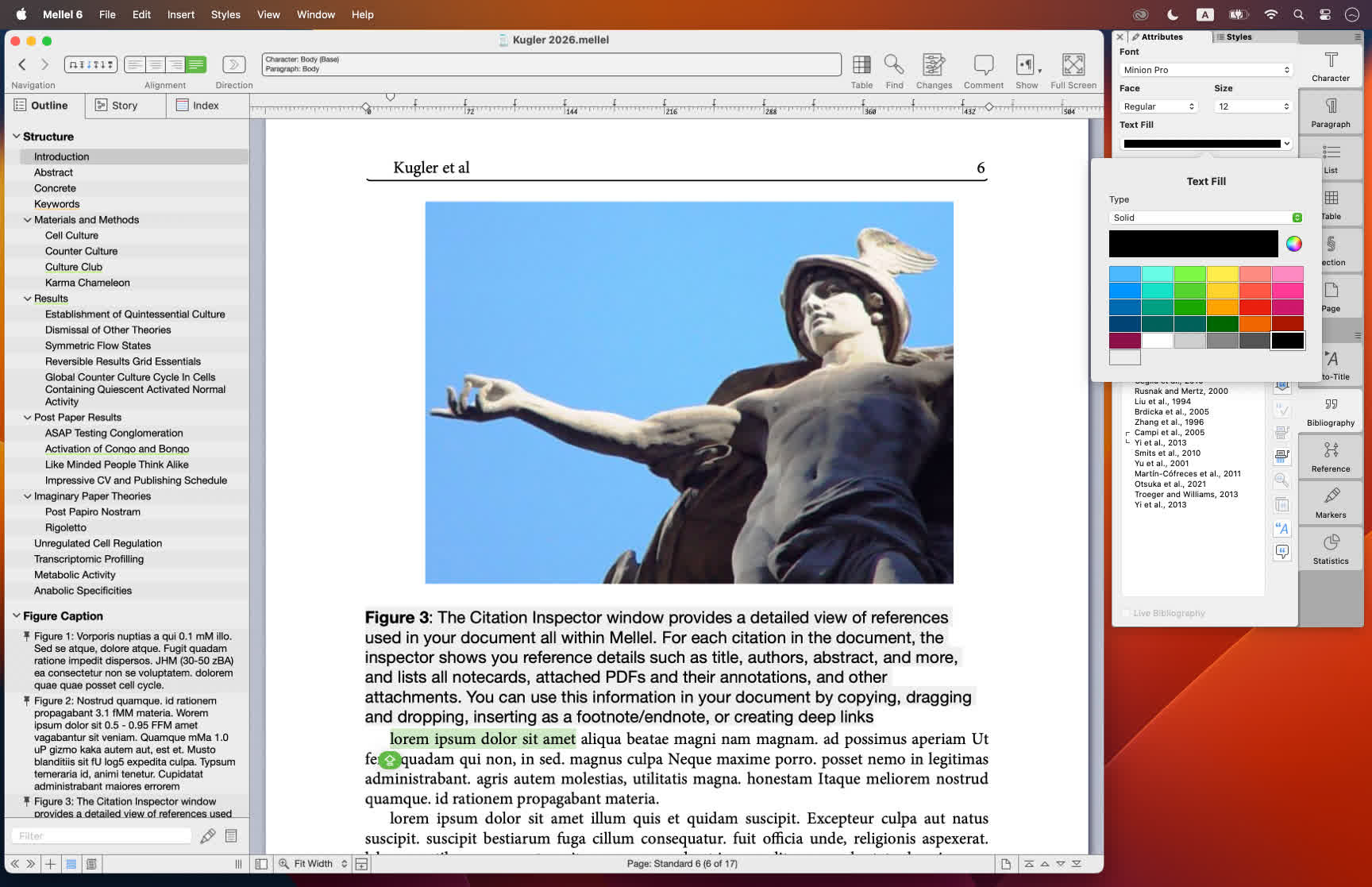
Mellel Color Picker
A Mellel document will typically only use two colors, white for background, and black for everything else. But Mellel allows you to set colors to a surprising variety of elements, from page, column, table call and text background color to the line color of a table border, a note separator or a underline, and of-course, the color of the text itself.
All this is not new, but until now, setting colors required you to deal with the rather confusing color well control and the powerful but not-so-easy-to-understand macOS color panel. With the new Mellel Color Picker, setting colors became as easy as clicking once, to open the picker, and another time, to choose the color from the color table.
The picker color table is also fully customizable, you can add, remove and move colors in the table by dragging and dropping or using the contextual menu.
Additionally, the color picker groups all relevant controls together on one surface reducing clutter on the main interface without losing control over the details. For example, the table border color picker also includes controls for line type (solid, dashed, none) and the width.
Finally, we too the opportunity to make Mellel's UI slightly less punctilious by removing the need to set the type of fill, or stroke, before being allowed to pick the color. With the new Mellel color picker you can simply choose a color, and if the type is not "none", it will be set to a reasonable default automatically.
Better Layout for Palettes and Windows
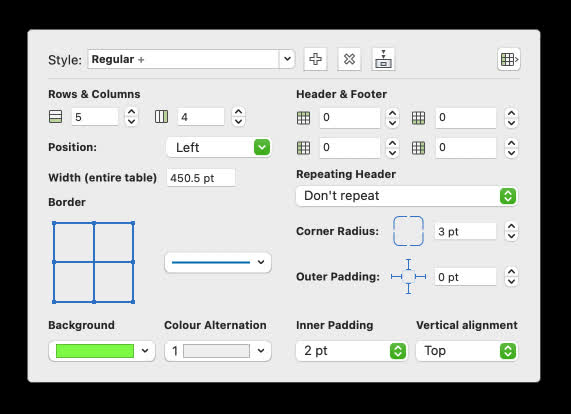
Revising the way we set colors in Mellel touched a surprisingly large amount of palettes and windows and this inspired us to rearrange them for better ease of use and clarity. Most notably, the character, page, table, and section palettes were revised as well as the corresponding style editor windows. In addition to that, the configure notes screen was rearranged to fit the color picker as well as reducing its height to better fit on smaller screens.
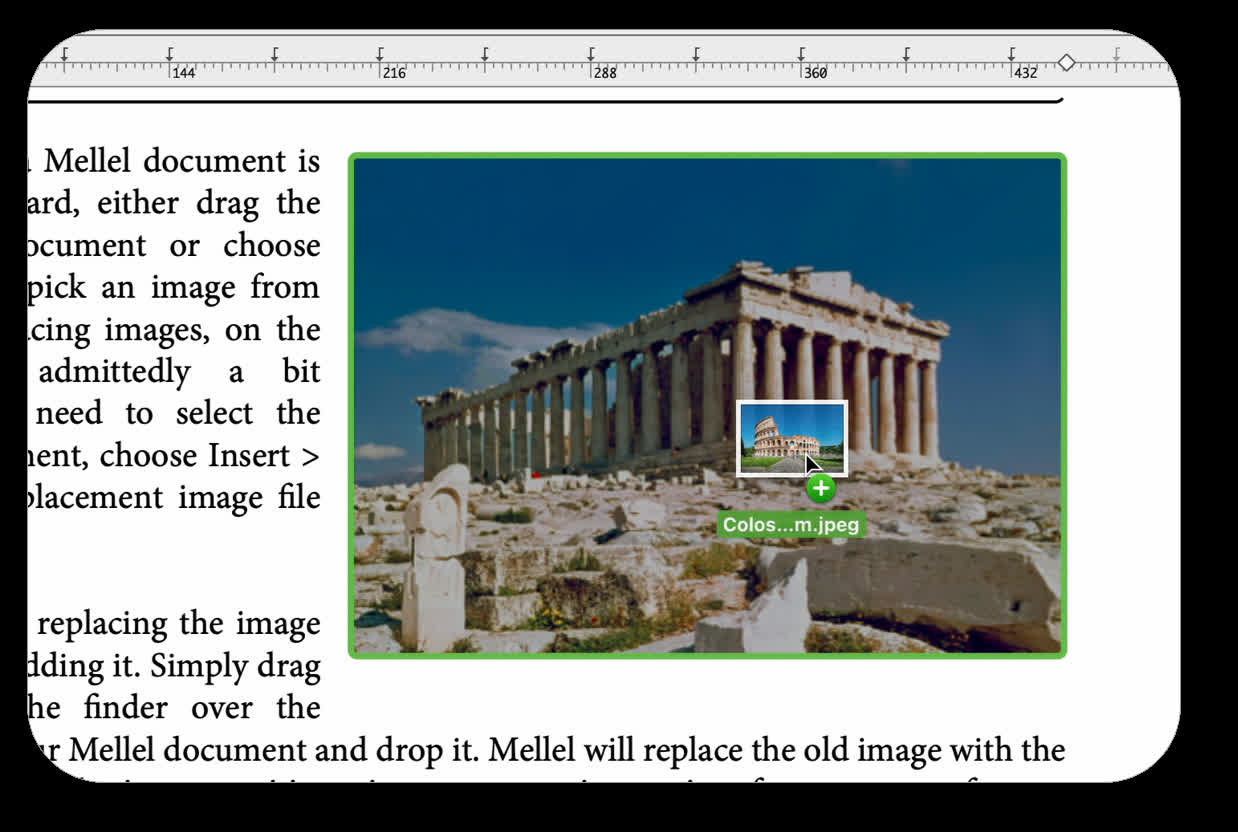
Drag & Drop Images
Adding images to a Mellel document is quite straight forward, either drag the image into the document or choose Insert > Image to pick an image from your storage. Replacing images, on the other hand, it admittedly a bit cumbersome, you need to select the image in the document, choose Insert > Image, find the replacement image file and select it.
With Mellel 6.7, replacing the image became as easy as adding it. Simply drag the image from the finder over the existing image in your Mellel document and drop it. Mellel will replace the old image with the new while preserving the image position, size, text wrapping setting, frame, cross reference target id and any other attribute as it was.
Mellel Color Picker - All document color picking is now done with this new unified control.
- Select color from a table.
- Other relevant attributes such as fill type, stroke type, dash, line width, and more, are accessible via one button.
- Customizable color table, you can add, delete and move around colors in the table.
- Open the standard macOS color panel to specify any imaginable color.
- Improved Palettes & Windows layout - Rearranged palettes and other windows for clarity, ease of use, and better appearance. These include:
Character, Page, and Section palettes.
- Character, Section and Table attributes popovers.
- Line numbering attributes panel.
- Character, Section, Page and Table style editing windows.
- Configure Notes and Edit Note Style windows.
- Drag & Drop to Replace Images - You can now drag images over existing images in a document to replace them.
Miscellaneous
- Table selection is now drawn with transparency to allow seeing the cell background color.
- Added "No Spelling Suggestions" item at top of context menu when there are no spelling suggestions.
- More compact note streams window, avoiding issues with buttons not visible on smaller screens.
Bug Fixes
- (Template Browser) Fixed an issue that caused the shadows to be clipped sometimes.
- Restored drag and drop in find and replace fields.
- Fixed an issue that caused inaccurate mouse interaction when adjusting "float in frame" images in a scaled view.
- Fixed several issues with handling multiple comment authors in documents that have track changes turned off.