
Expandable storage via microSD cards has largely fallen out of favor on mainstream phones and tablets, but it remains one of the easiest – and often only – ways to add storage on more specialized hardware. Handheld gaming devices are a prime example, where removable storage is still expected, and on the Nintendo Switch, it's your only option.
Removable flash cards are also firmly entrenched in the world of dedicated cameras. From drones capturing aerial footage to high-resolution professional rigs, as well as the always-on demands of dash cams and surveillance systems, SD cards have become the default solution for a wide range of recording needs.
On compact, pocketable devices, microSD cards are the norm. When space constraints ease up, full-size SD cards tend to be favored, largely because they're easier to swap out in the field. It's also possible to run a microSD card inside a full-size adapter – which can be cheaply replaced if it breaks – but that extra layer introduces another potential point of failure.

At a glance, an SD card's label can look like alphabet soup. But those letters and numbers are doing real work, signaling everything from interface and capacity to random access speeds and sustained write performance. Once you know how to read them, the chaos starts to resolve into something that almost makes sense.
This guide breaks down the various card classes and specifications, explaining what they actually mean in practice – and which ones matter for your use case. Whether you're a professional photographer, a gamer looking to expand your console's storage, or a tinkerer gearing up for a new Raspberry Pi project, we'll help you choose the right card with confidence.
TL;DR: The Highlights
These are our quick picks based on performance, price, and real-world use. If you don't see exactly what you're looking for, see our full "what to buy" section which breaks down more alternatives – and explains which specs actually matter for your setup.
- Best microSD for Gaming
(handheld consoles) - Best microSD for Switch 2
- Best SD for HD Video
- Best microSD for 24/7 Recording
- Best microSD for Photography
- Best SD for Photography
Size and Capacity
All SD cards (short for Secure Digital), share the same basic blueprint, regardless of their physical size. Inside, you'll find at least one NAND flash memory chip, the same underlying technology used in USB flash drives and SSDs, paired with a tiny processor to manage the flow of data and instructions.
If you've ever seen a microSD or a full-size SD card, you won't mistake one for the other.
A microSD card measures just 15mm by 11mm. A full-size SD card is noticeably larger at 32mm by 24mm, with a small locking tab on the side. Even if you've never handled one before, microSD cards make their identity obvious: the word "micro" is printed directly above the SD logo.
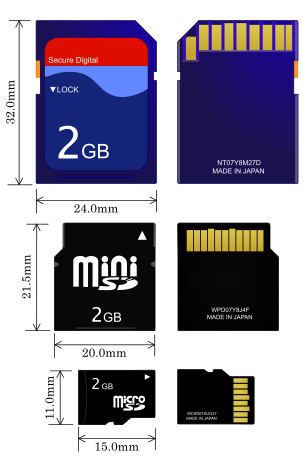
Under the SD logo you will usually find letters like HC or XC. These indicate the card's capacity class: standard capacity (up to 2GB), high capacity (HC, up to 32GB), extended capacity (XC, up to 2TB) or ultra capacity (UC, up to 128TB). The reason that capacities are classified is that higher capacities require a more advanced file allocation table (FAT), which the card's containing device needs to support.
Standard-capacity cards are limited to older file systems like FAT12, FAT16, and FAT16B. High-capacity cards almost universally use FAT32, while XC and UC cards rely on exFAT. Ultra-capacity cards add yet another requirement: a GUID Partition Table (the other GPT), a term that may ring a bell if you've ever hit a roadblock while trying to upgrade a PC to Windows 11.
exFAT was designed specifically with NAND flash storage in mind, and it's likely to remain the default choice for large-capacity removable media for years to come. UC, by contrast, is still very new. It will take time before support becomes widespread, but with a ceiling of 128TB, it's safe to say most users won't feel constrained anytime soon.

The table above from the SD Association charts how Secure Digital technology has evolved over the past two decades, and just how aggressively storage capacities have scaled along the way
You may also notice that capacity is only part of the story. Once that's settled, it's time to talk about performance.
Performance: All Kinds of Speed
To the right of the letters HC or XC, you will usually see the number I or II. This number refers to the drive's interface, which determines its maximum transfer speed.
All SD cards use the little brass contacts at the end of the package to receive and send data. The interface between the card and the reading device has evolved with each specification revision – in some cases, the updated system just runs faster, but in others, the SD card has extra contacts to provide more channels for the data.

A microSD card sporting an extra row of contacts... for more performance
Early SD cards topped out at 12.5MB/s. A subsequent "high-speed" mode doubled that to 25MB/s, but the real leap came with the introduction of Ultra High Speed, now known as UHS-I. Depending on the implementation, UHS-I supports maximum transfer rates of either 50MB/s or 104MB/s. UHS-II pushed that much further, up to 312MB/s, and introduced the ability to read and write simultaneously at roughly half that speed.
UHS-III followed on paper, offering a shared read/write bandwidth of 624MB/s, but it never achieved widespread adoption. The latest evolution is SD Express, identifiable by the letters "EX" printed near the SD logo. These cards tap directly into PCI Express, supporting up to two PCIe lanes running at either PCIe 3.0 or PCIe 4.0 speeds.
SD Express cards gained early visibility thanks to the Nintendo Switch 2. A single PCIe 3.0 lane delivers up to 985MB/s, while PCIe 4.0 doubles that throughput. Despite the leap in performance, most SD Express cards remain backward-compatible with UHS-I devices.
| Bus system | Peak throughput (MB/s) | PCI Express type | SD card supported | |
| Default speed (DS) | 12.5 | Not used | All | |
| High Speed (HS) | 25 | Not used | All | |
| Ultra High Speed I (UHS-I) | 50 | 104 | Not used | SDHC, SDXC, SDUC |
| Ultra High Speed II (UHS-II) | 156 | 312 | Not used | SDHC, SDXC, SDUC |
| Ultra High Speed III (UHS-III) | 312 | 624 | Not used | SDHC, SDXC, SDUC |
| SD Express | 985 | PCIe 3 (x1 lane) | SDHC, SDXC, SDUC | |
| SD Express | 1970 | PCIe 4.0 (x1 lane) PCIe 3 (x2 lanes) |
SDHC, SDXC, SDUC | |
| SD Express | 3940 | PCIe 4.0 (x2 lanes) | SDHC, SDXC, SDUC | |
Maximum speeds are nice, but for continuous video recording or a full backup of the data on the card, what you should really care about is the minimum speed. Early on, SD cards were grouped into four speed classes, indicated by a number inside a "C": C2, C4, C6, and C10, each representing the minimum write speed in megabytes per second.
When the UHS interface came out, cards indicated their minimum speed in tens of MB/s inside the letter U: U1 or U3. As high-definition video recording became commonplace, the industry shifted again, introducing the Video Speed Class system. These ratings appear as a "V" followed by a number: V6, V10, V30, V60, or V90.
Yes, it's confusing – and yes, some of these overlap. C10, U1, and V10 all indicate the same minimum sustained write speed. You'll still see C10 printed alongside higher ratings on some cards. For SD Express media, minimum sustained speeds are marked with an "E," such as E150, E300, E450, or E600.

Some cards are also marketed for high write endurance, aimed at use cases like continuous 24/7 recording. This isn't an official SD specification, so if endurance matters, it's worth checking the manufacturer's stated guarantees.
One final question remains: what if you are planning to do anything that's more complex than recording or transferring files one by one, such as playing games? The ability to handle lots of random data instructions (measured in IOPS, input/output operations per second) is key to ensuring consistent system performance, and in 2015 the SD Association created two further standards: Application Class A1 and A2.
A1-rated cards guarantee at least 1,500 random read IOPS and 500 random write IOPS. A2 raises those figures substantially, targeting more demanding workloads. Both A1 and A2 cards also guarantee a minimum sequential write speed equivalent to V10.
| Class | Min. Seq. Writes | Min. Random Read | Min. Random Write | Ideal Workload |
| A1 | 10 MB/s | 1500 IOPS | 500 IOPS | Editing and updating application data, not just storage |
| A2 | 10 MB/s | 4000 IOPS | 2000 IOPS | Specialized uses of the above |
What to Buy?

The "best" SD card is entirely context-dependent. The right choice hinges first on the device you're planning to use it with, followed closely by what you expect that device to do. Prices also tend to fluctuate, sometimes dramatically, but at the time of writing, this is what we would buy:
Best microSD cards for the Nintendo Switch 2:
- Lexar Play Pro 1TB - $220 on Amazon
- Just as good up to 512GB:
- Sandisk microSD Express - $100 on Amazon
- Samsung P9 - $100 on Amazon
Best microSD cards for other handheld consoles:
- Samsung Pro Plus 1TB - $95 on Amazon
- If you need 2TB:
- Sandisk Extreme - $270 on Amazon
- or the slightly slower Lexar Blue - $230 on Amazon
Best full-size SD cards for high-resolution video cameras:
- Sandisk Extreme Pro (V90) 256GB - $194 on Amazon
- Lexar Professional 2000x 256GB - $180 on Amazon
- Good enough up to 4K:
- Lexar Professional 1667x 256GB - $65 on Amazon
- Sandisk Extreme Pro (V60) 512GB - $150 on Amazon
Best microSD cards for 24/7 recording:
- Samsung Pro Endurance 256GB - $30 on Amazon
- If you need 512GB:
- PNY Pro Elite - $63 on Amazon
Best microSD cards for photos and light video:
- Samsung Evo Select 512GB - $35 on Amazon
- Almost as good:
- Sandisk Ultra 512GB - $40 on Amazon
- Amazon Basics 512GB - $38 on Amazon
Best full-size SD cards for photos and light video:
- Samsung Pro Ultimate 512GB - $63 on Amazon
- Almost as good:
- Samsung Pro Plus 512GB - $55 on Amazon