
ExplorerPatcher is a free, open-source utility for Windows that restores proven, ergonomic shell behavior – classic taskbar with labels, full context menus, and File Explorer refinements – so you work faster without risky registry hacks.
Features
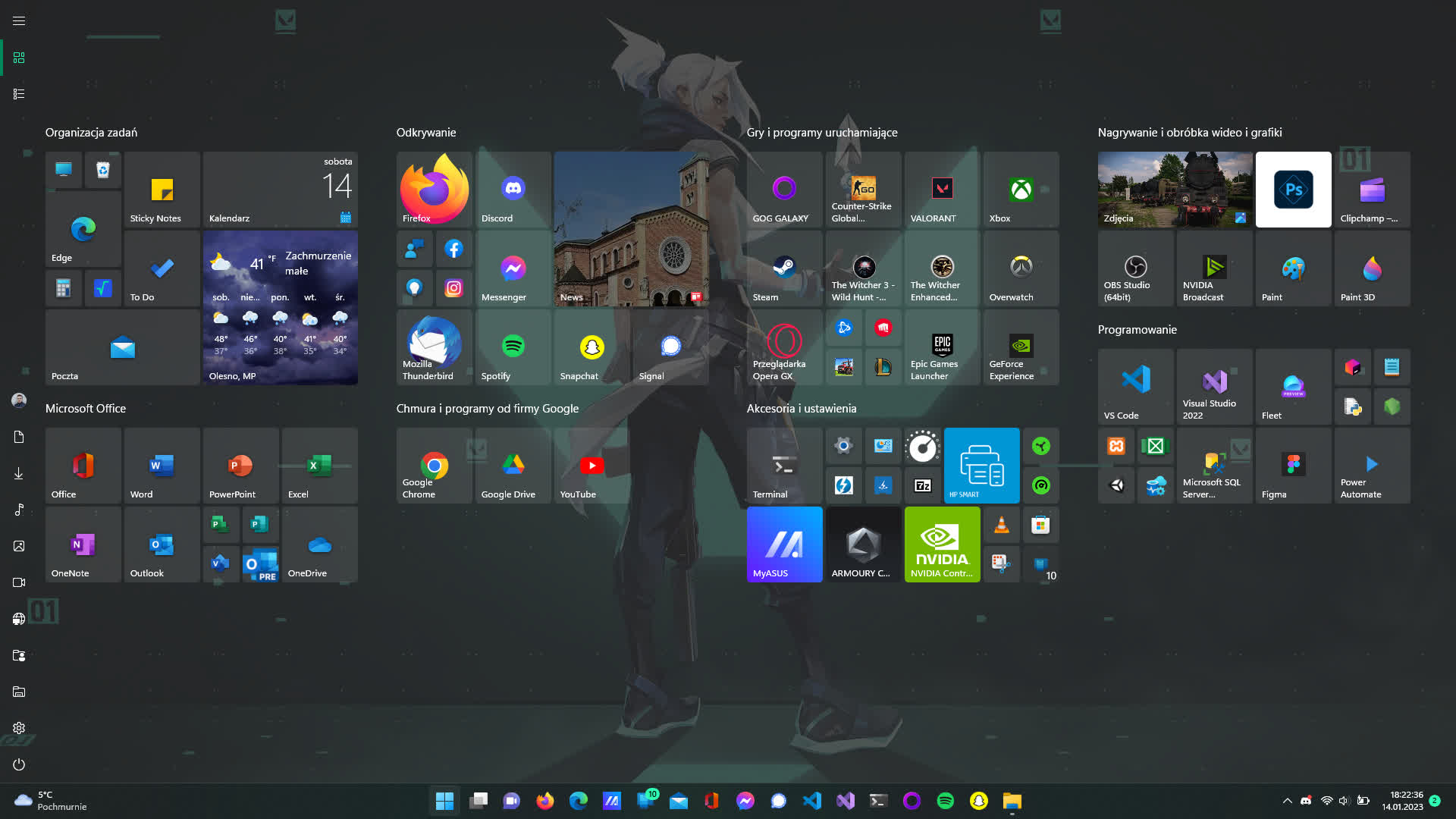
Classic Taskbar & Labels (Never Combine)
- Bring back the proven Windows 10 taskbar with visible text labels and predictable button behavior so multitasking is calmer and faster. If you prefer the Windows 11 look, you can keep it – and still gain ExplorerPatcher's stability and context-menu improvements.
- Combine behavior: Never combine, Combine when full, or Always combine.
- Toggle Search, Task View, and Show Desktop; choose small/large icon density.
- Dock bottom/top/left/right (supported builds) with reliable hit-targets.
- Classic ergonomics: labels visible, a calm tray area, and preserved muscle memory.
Taskbar Context Menu, Properly Restored
- Right-click the taskbar to access useful options immediately – no extra "more" clicks and no stripped-down menus. Core tools like Task Manager and window actions live exactly where experienced users expect them.
- Classic entries returned in place, on primary and secondary taskbars.
- Improved behavior with auto-hide and multi-monitor setups.
- Restore speed: Task Manager and essentials are one click away.
Aligned Tray Menus & Flyouts; Clock Controls
- Align tray menus to their icons, choose whether flyouts toggle on click or right-click, and decide which corner items appear. Prefer precise time? Show seconds when using the classic taskbar mode for fast, glanceable accuracy.
- Skin menus to match system style; center/align pop-ups to their trigger.
- Hide Control Center if unused; surface the touch keyboard on demand.
- Seconds on the clock with classic taskbar for time-critical work.
- Predictable tray behavior reduces pointer travel and errors.
Start Position & "Most-Used" Tuning
- Put Start where your hand expects it – left or centered – and tune how many Most used apps surface. The goal is instant access to daily tools without crowding or detours.
- Left/center alignment preserves navigation habits and muscle memory.
- Control the visible count of frequent apps for a focused grid.
- Position and frequency tuning make Start feel instant again.
Full Context Menus, Stable Panes, Legible Views
- Restore complete right-click menus, steady the navigation panes, and favor readable folder views over ornamental layouts. Explorer becomes a fast, precise file manager designed around real work.
- Complete menus for files, folders, and desktop – no hidden extra click.
- Sane default views and pane behavior reduce misclicks and backtracking.
- All changes are reversible – experiment safely and roll back anytime.
Classic Ribbon & Legacy Context Menu
- Prefer the Windows 10 ribbon? Hide the Windows 11 command bar and bring back the full legacy menu. You get the tools you rely on – directly – without the "Show more options" friction.
- Disable Win11 command bar; enable the classic ribbon layout.
- Replace trimmed Win11 context menu with the complete legacy version.
- Direct access to full commands speeds up everyday file operations.
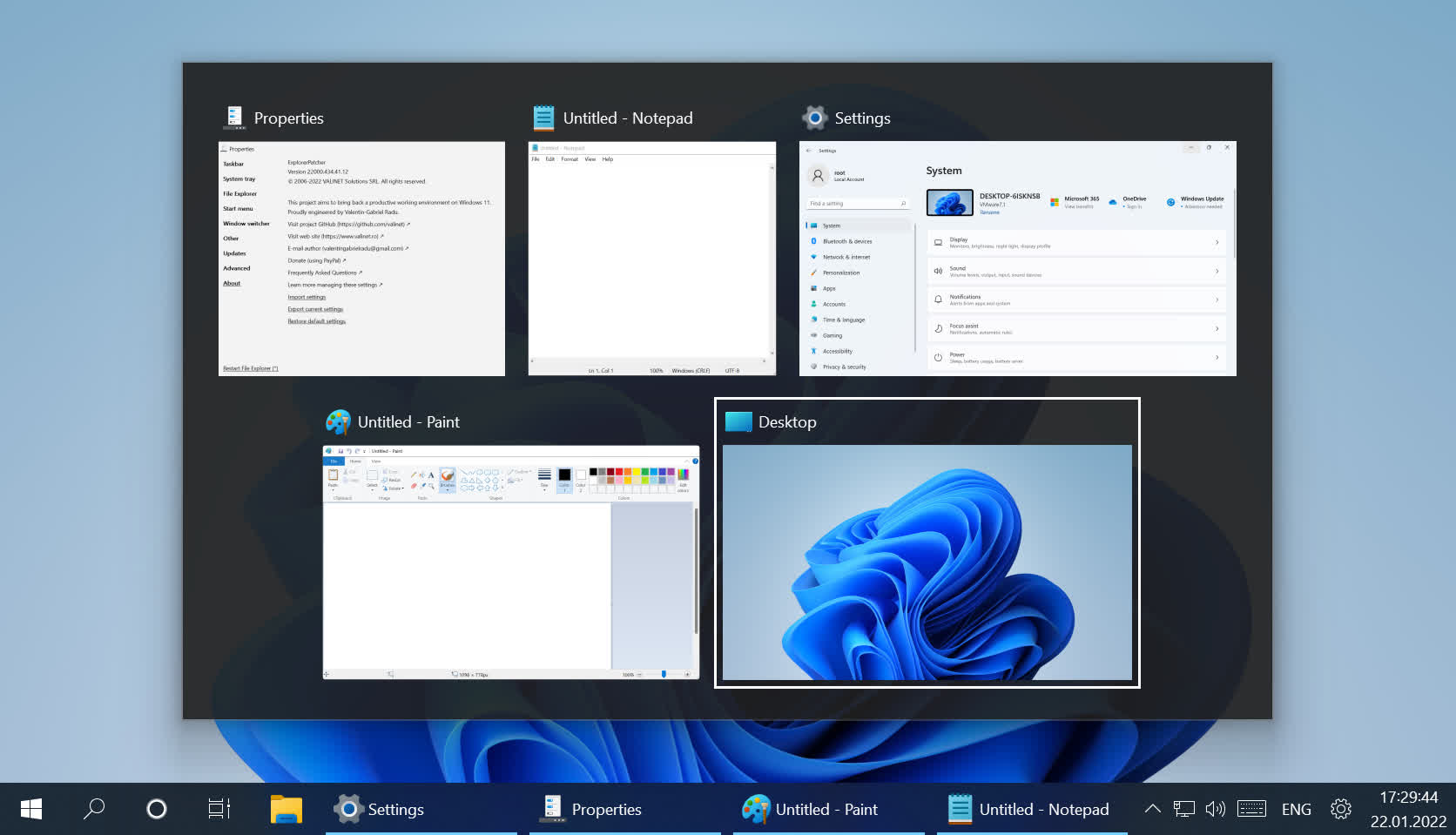
Simple Window Switcher (Calm Multitasking)
- Switch tasks without stress. The Simple Window Switcher emphasizes legibility and consistent navigation, so moving between apps becomes a smaller cognitive load and you stay in flow longer.
- Large previews and stable selection for confident switching.
- Configurable interactions for keyboard-first or mouse-first users.
- Visibility first – so attention stays on your work, not the UI.
Consistent Taskbars & Controls Across Displays
- Multi-display workflows demand coherence. ExplorerPatcher extends taskbars and menus logically across screens, keeping icons, clocks, and context menus in sync, so moving between displays never breaks your rhythm.
- Taskbars on every monitor with functional parity.
- Mirrored or independent clocks and tray items – your choice.
- Preserved alignment and auto-hide rules everywhere.
Advanced Options (Recents, Density, Animations)
- Tune Start into a truly functional hub: highlight or hide recent items, control visual density and expansion behavior, and trim distractions that slow you down. The result is a launcher that feels immediate and intentional.
- Toggle recent documents to reduce clutter or resurface context.
- Adjust list density and expansion speed for faster scanning.
- Remove non-essential sections to keep focus on work.
Shell Refinements that Add Up
- Small options compound into real speed: remember the last used Properties tab so you land exactly where you left off; add or remove entries in Win+X; draw subtle separators between toolbars; map Win+C to the clock flyout for faster time and calendar access.
- Persist last Properties section; streamline Win+X for your routine.
- Optional clock seconds and toolbar separators for at-a-glance clarity.
- Micro-optimizations that reduce clicks and context switching.
Backup & Restore Your Configurations
- Lock in your hard-won setup. Export your ExplorerPatcher configuration to a file, restore it after OS updates, and maintain variants for work, gaming, or minimal modes – all without re-tuning from scratch.
- One-file export for safe backup and sharing.
- Instant restore to recover after Windows changes.
- Multiple profiles for different contexts or users.
- Profiles preserve your ideal desktop – repeatable and portable.
Recommended Presets for Fast Setup
- Not sure where to start? Apply a preset matched to your style: Classic Windows 10, Minimal Productivity, or Power User. You can customize further anytime – presets just get you to a solid baseline in a click.
- Classic Windows 10 – restore familiar ergonomics end-to-end.
- Minimal – only essential elements for deep focus.
- Power User – advanced controls and shortcuts surfaced by default.
Taskbar Buttons & Density Controls
- Tune how compact or expressive the taskbar feels. ExplorerPatcher lets you adjust icon size, button spacing, and label behavior so your docked windows remain visible at a glance without wasting horizontal space. The goal is a readable strip that scales from ultrawide workstations to small laptops with equal clarity.
- Small vs Large icon density to suit your display and eyesight.
- Show labels for quick identification, or hide them for a minimal look.
- Keep "Show Desktop", Search, and Task View only if they earn their real estate.
Explorer Navigation Pane & View Discipline
- Navigation should be stable and predictable. Refine the behavior of the left navigation pane and default folder views so folders open where you expect them and visual noise stays low. Reduced reflows and consistent ordering mean fewer misclicks and faster retrieval of frequently visited locations.
- Keep navigation pane state steady when opening in new windows or switching views.
- Favor legible list/details views where throughput matters over ornamentation.
- Reversible tweaks let you experiment without risk.
File Dialogs & Cross-App Consistency
- Open/Save dialogs should behave the same way regardless of app. By restoring classic context behaviors and aligning Explorer defaults, ExplorerPatcher reduces the mental overhead of switching between different software with different file pickers.
- Predictable right-click actions across dialogs and Explorer proper.
- Cleaner directory traversal and fewer "lost in UI" moments.
- Settings that prioritize speed in professional workflows.
Win+X Menu Curation (Power User Menu)
- The Win+X menu is a high-value surface. Curate it to foreground the tools you actually use – Properties, Device Manager, Terminal, Network, or Disk tools – so you jump to system tasks in a single chord without rummaging through Settings layers.
- Add or remove entries to match your routine and team conventions.
- Keep the list short, purposeful, and muscle-memory friendly.
- Pairs well with Start tuning for a cohesive launcher experience.
Keyboard Shortcuts & Win+C Remap
- Keyboard-first users move faster with consistent chords. Remap Win+C to the clock flyout instead of Teams so time and calendar are always one tap away. Combined with never-combine labels, this turns the shell into a reliable, low-latency interface.
- Direct access to clock/date flyout with Win+C for quick scheduling checks.
- Keep other Windows key mappings intact to avoid breaking habits.
- Use in tandem with Start alignment for fewer cursor miles.
Performance & Footprint
- ExplorerPatcher is built to be lightweight and predictable. The objective is fast startup, low memory overhead, and minimal interference with shell timings. You get practical features without bloat, telemetry, or surprise background tasks.
- Compact code paths geared for everyday responsiveness.
- No added telemetry; no adware or nags – keep the system quiet.
- Changes target shell ergonomics, not gratuitous visuals.
Update Resilience (OS Changes & Recovery)
- Windows updates can alter shell behavior. ExplorerPatcher emphasizes recoverability: keep backup profiles, restore in one step, and quickly re-assert your preferences after major OS revisions so you're never stuck with defaults.
- Export/import complete configurations before large updates.
- Rapid restore to working state after feature updates.
- Non-destructive tweaks that respect system integrity.
Localization & Regional Behavior
- Whether you run English, Hindi, or any other locale, consistency matters. ExplorerPatcher aims to keep controls, labels, and placements stable across languages so instructions and team habits transfer cleanly in international setups.
- Stable control placement regardless of language pack.
- Predictable menus support cross-team documentation and training.
- Pairs with profiles to share configurations across regions.
Safety, Rollback & Support
- Customization should be safe. ExplorerPatcher focuses on reversible options, explicit backups, and community-audited code. If something doesn't fit your workflow, revert in seconds – no registry spelunking or risky scripts required.
- Reversible settings with clear defaults.
- Backup/restore protects against accidental changes.
- Open-source development for transparency and trust.