The Nvidia PAIR connects AI app and agent workflows to a single local endpoint for routing inference across Nvidia DGX Spark, Windows systems with RTX, and macOS devices. This helps you maximize local compute while keeping prompts, files, and agent context private.
Nvidia PAIR discovers participating nodes, manages supported inference engines, and presents Ollama-compatible and OpenAI-compatible proxy endpoints to applications and agents. Independent requests can be routed to eligible nodes according to engine availability, model availability, and current workload.
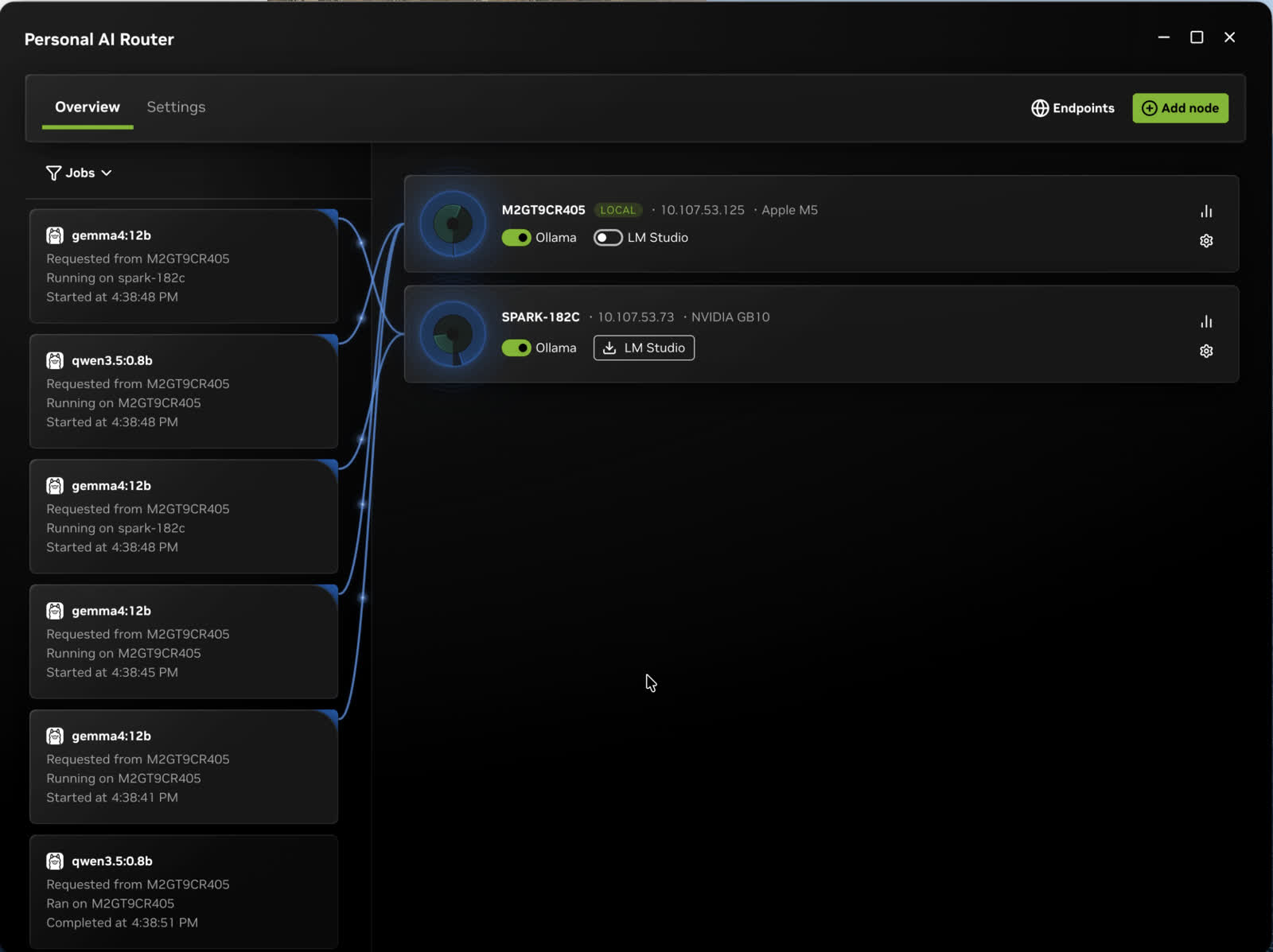
PAIR is useful for concurrent local workloads such as multi-agent applications. Prompts and responses are intended to remain on the local network when every configured client, model source, engine, and node is local.
PAIR routes each independent request to one node. It does not pool GPU memory, combine GPUs into a larger logical GPU, shard one model across machines, or split an in-flight inference request between nodes.
What is a personal home AI cluster?
A personal home AI cluster connects multiple compatible devices on the same local network, allowing them to share available computing resources for local AI inference. PAIR enables Macs, Nvidia RTX systems, and DGX Spark systems to provide more capacity for local AI applications and agents. The devices remain separate systems that handle parallel tasks; PAIR doesn't combine them into one virtual GPU.
Does Nvidia PAIR keep AI data private?
PAIR is designed for private local inference. Prompts, files, and agent context remain on the user's local network instead of being sent to a cloud inference service.
What Can Nvidia PAIR Do?
Personal AI Cluster
Bring together the RTX, DGX, and Mac systems already on your network in minutes. Nvidia PAIR discovers compatible local machines and helps them work as one personal AI inference cluster with no special cables, racks, or complex cluster setup required.
Agent Workload Routing
Keep local AI workflows moving when tasks stack up. Nvidia PAIR routes AI inference requests across available local nodes, helping busy AI workflows tap into idle compute regardless of the node's operating system.
Ollama and LM Studio Support
Run Nvidia PAIR alongside familiar local inference backends on Windows, Linux, and macOS. At launch, Nvidia PAIR supports Ollama and LM Studio, giving apps a consistent, single endpoint while intelligently proxying requests to available local compute.
Private Local Inference
Run AI workflows at home with data that stays on your network. Nvidia PAIR is built for private local inference, helping you use prompts, files, and agent context without sending them to the cloud.
What is supported
- Operating systems: Windows 11, Linux, macOS
- Architectures: x64 and arm64 on all three. Windows on Arm is experimental.
- Installers: Windows .exe; Linux .deb; macOS .dmg. On other Linux distributions, build from source.
- Mixing nodes: Windows, Linux, and macOS nodes can all be paired with each other
- Inference engines: Ollama and LM Studio
PAIR running on a machine does not mean an engine will. PAIR itself runs on any supported Windows, Linux, or macOS machine. Each engine sets its own requirements for the operating system, GPU, and drivers, and each model needs enough memory to load. Whether a particular engine and model work on a particular machine is between that engine and that machine, so check the engine's own documentation before assuming a node can serve a model. A node only becomes a candidate for a request once it is actually running a compatible engine, and PAIR prefers the nodes it already knows hold the model.
Run it
- Open PAIR the way you would any application - the Start menu on Windows, Launchpad or the Applications folder on macOS, your applications list on Linux. On a machine with no desktop environment, drive it from the terminal interface instead, which starts the same background services and gives you a full-screen view in the terminal.
- Let it finish starting. Overview shows this machine once the services are up. If it stays on Loading..., open Settings → Service and read the status there.
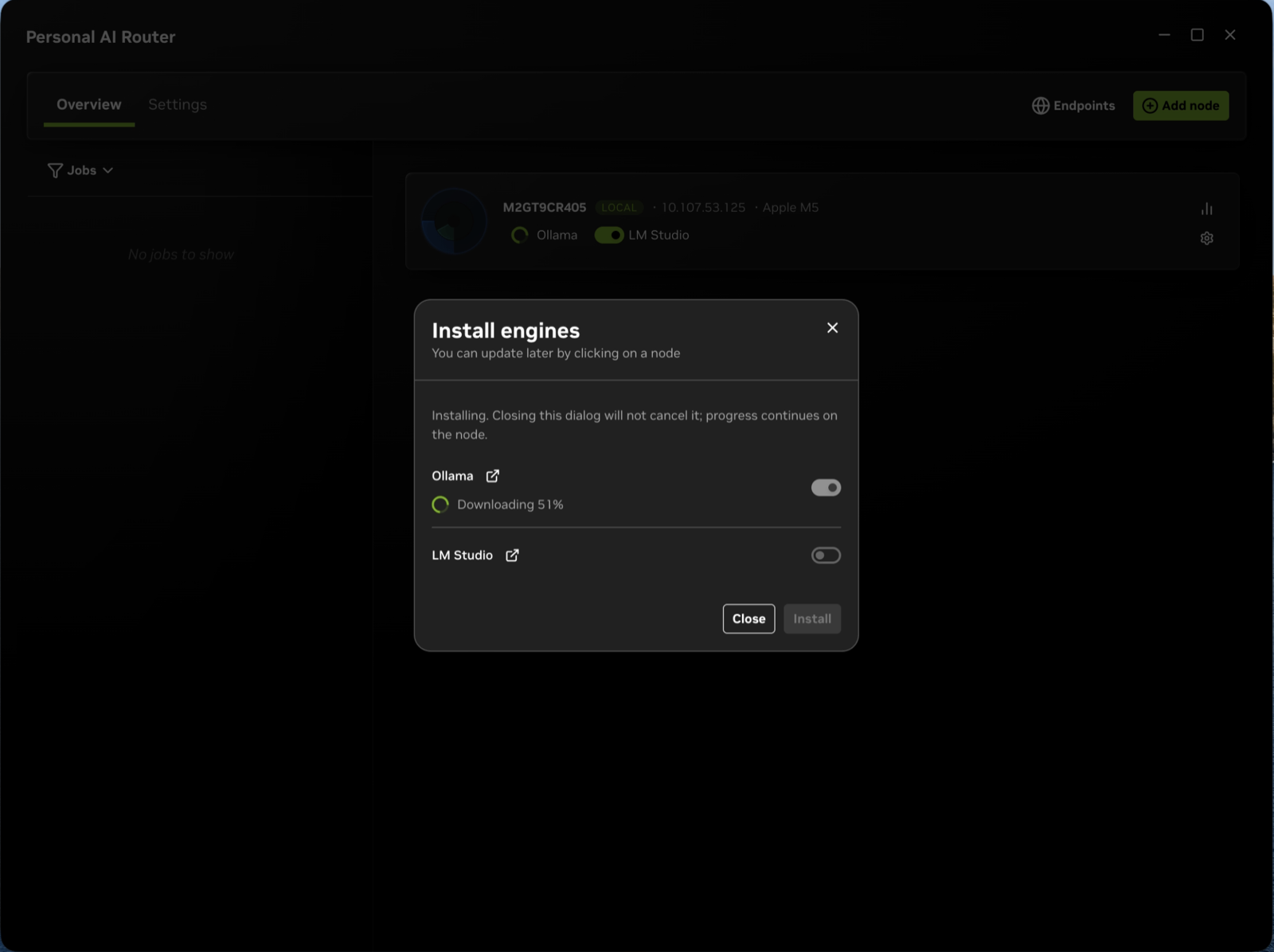
- Get an engine running. On the node's card, open Engine settings and select Install next to Ollama or LM Studio. PAIR downloads and sets the engine up for you, so nothing needs to be in place beforehand. If PAIR already found an engine you installed yourself, start that one instead.
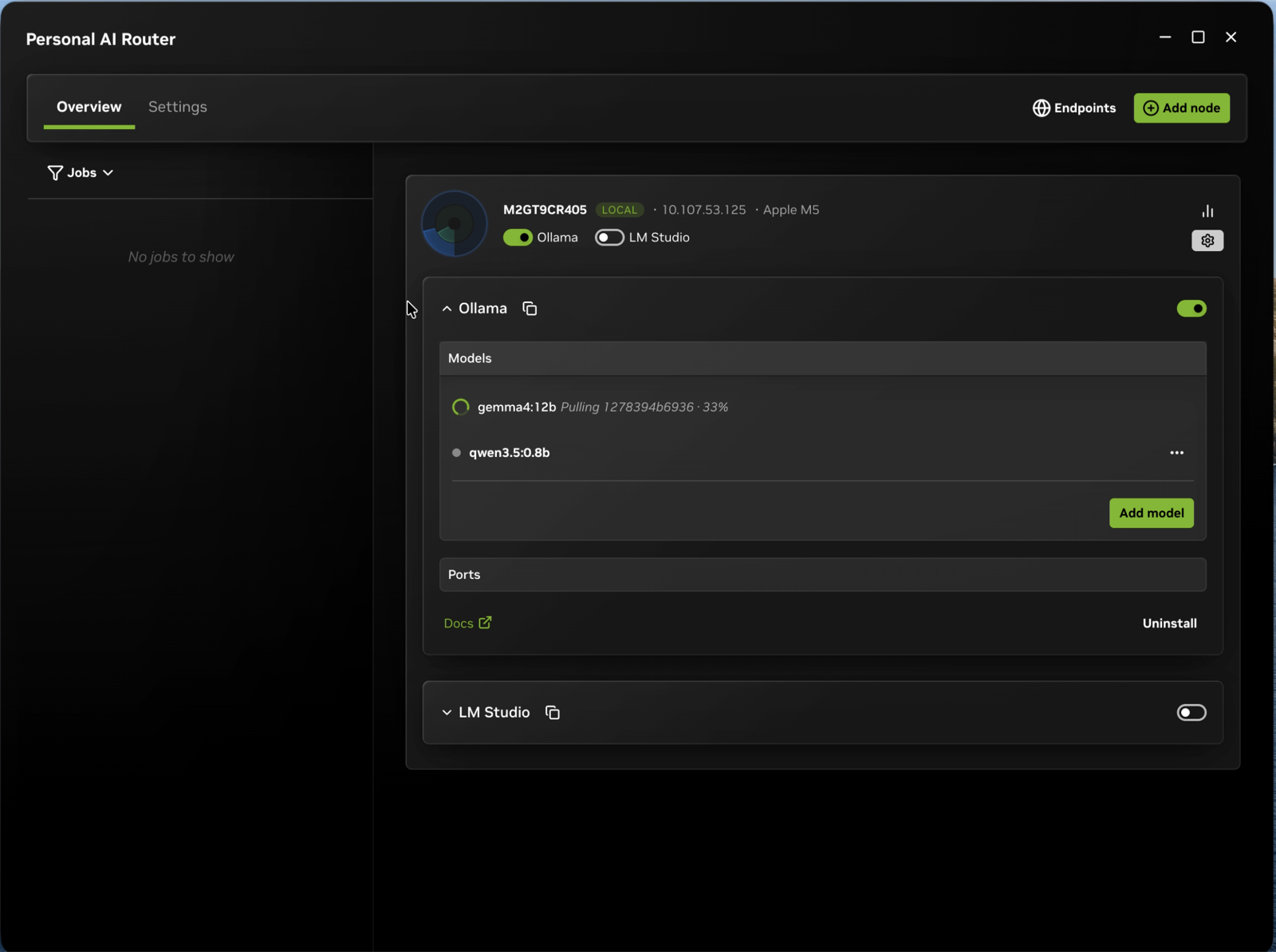
- Add a model. Select Add model on the same card and download one. qwen4:12b is used for this example; it can be replaced with a model of your choice.
- Send a request. Two equally good options:
- Let PAIR generate the traffic. Select Test on Settings → Service and PAIR sends a minute of inference through the same path, so you can watch the jobs appear without writing anything.
- Send one yourself. The job then appears under Jobs, naming the node that served it.
The Getting Started Guide covers the same ground in detail, plus pairing, ports, and connecting your own applications.