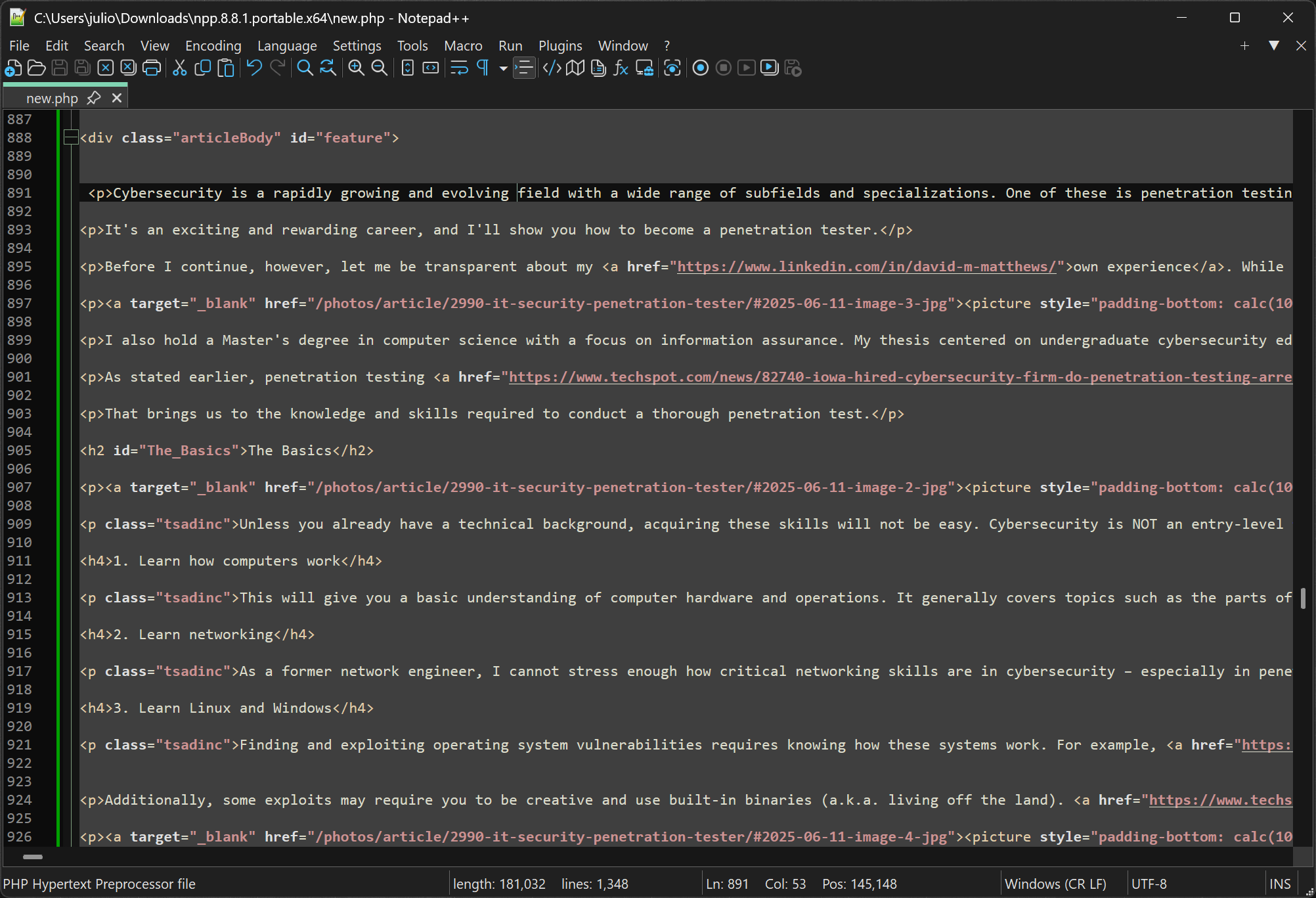
Notepad++ is widely used by developers, programmers, and other professionals who need a powerful yet lightweight tool for editing plain text and source code. Notepad++ is written in C++ and uses pure Win32 API and STL, based on the powerful editing component Scintilla, which ensures a higher execution speed and smaller program size.
By optimizing as many routines as possible without losing user friendliness, Notepad++ is trying to reduce the world's carbon dioxide emissions. When using less CPU power, the PC can throttle down and reduce power consumption, resulting in a greener environment.
How can I open two files side by side in split view?
You can drag a tab away from the main window to open it in a new pane. Once it's in its own tab group, you can adjust the split view layout. This makes comparing or editing two files simultaneously much easier.
How do I disable automatic highlighting of all matching text?
Notepad++ highlights all occurrences of selected text by default. To disable this, go to Settings → Preferences → Search and turn off the option labeled "Highlight all occurrences."
Why can't I set up syntax highlighting or my text remains completely black?
If all text appears in one color even after selecting a language, it's likely due to improper file extension association or syntax mapping. Ensure your file extension matches a supported language and that the correct lexer is selected under Language in the menu.
What is the difference between Notepad and Notepad++?
Notepad is a basic text editor for plain text files, while Notepad++ is a more advanced editor with features like syntax highlighting, tabs, plugins, and tools for coding and scripting.
Is Notepad++ better than Sublime Text?
Both applications are powerful text editors. Notepad++ is free, open-source, lightweight, and great for quick edits, scripting, and basic coding. It's Windows-only and has a strong plugin ecosystem. Sublime Text is cross-platform, faster with large files, and has a more polished UI, and better performance for heavy development tasks. However, it's only free to try – continued use requires a paid license.
Can Notepad++ run code directly, and how do I fix compilation errors?
Notepad++ supports running scripts via plugins like NppExec, but you need to configure the correct compiler commands and ensure paths without spaces are quoted properly. A common mistake is using curly quotes (" ") instead of straight quotes (" "), which causes "file not found" errors.
Why does the editor flicker or redraw strangely when I type or paste?
Flickering can result from a corrupted installation, outdated settings, or plugin conflicts. A clean reinstall – including removing configuration folders – often resolves it, and disabling unnecessary plugins can also stabilize the interface.
Features
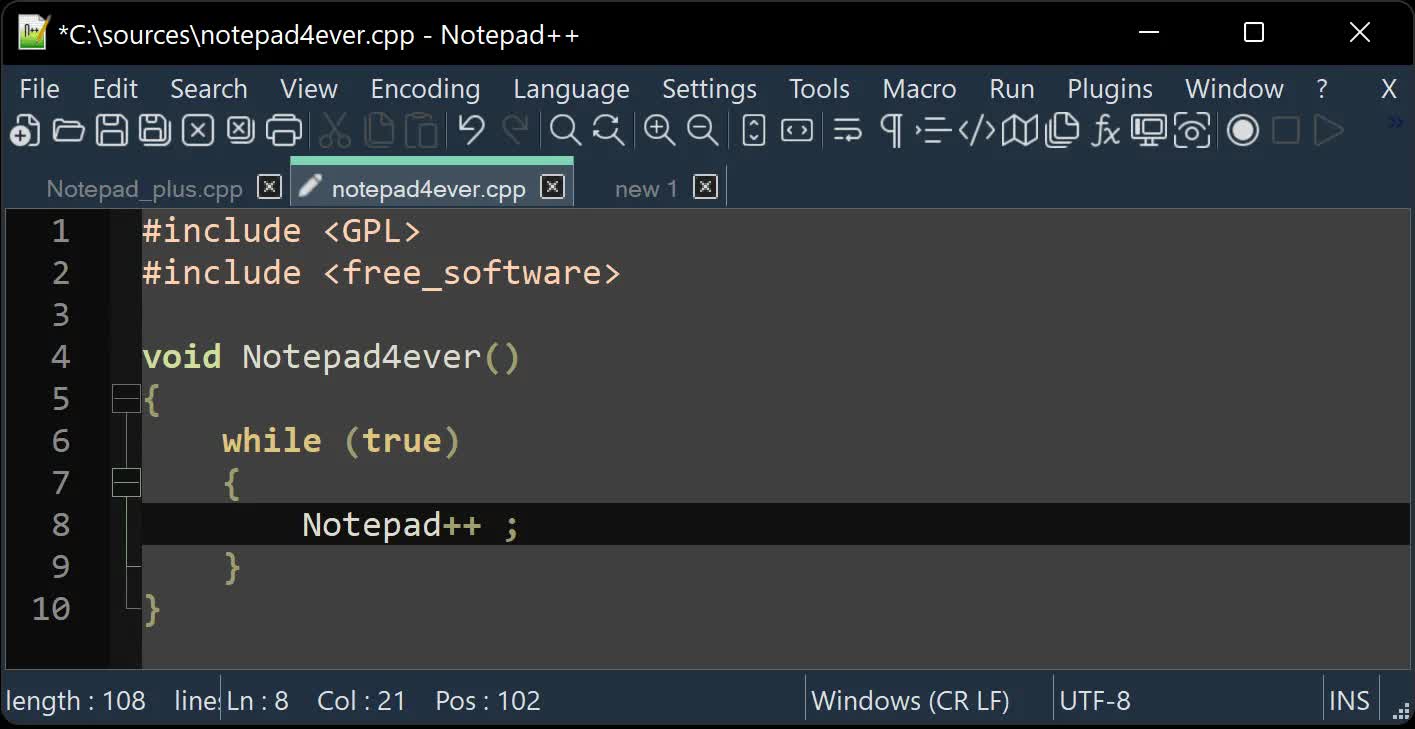
Notepad++ is a free (as in "free speech" and also as in "free beer") source code editor and Notepad replacement that supports several languages. Running in the MS Windows environment, its use is governed by GPL License.
You're encouraged to translate Notepad++ into your native tongue if there's not already a translation present in the Binary Translations page. And if you want, help translating Notepad++ official site into your native tongue would be greatly appreciated.
- Syntax Highlighting and Syntax Folding
- WYSIWYG
- User Defined Syntax Highlighting
- Auto-completion
- Multi-Document
- Multi-View
- Regular Expression Search/Replace supported
- Full Drag 'N' Drop supported
- Dynamic position of Views
- File Status Auto-detection
- Zoom in and zoom out
- Multi-Language environment supported
- Bookmark
- Brace and Indent guideline Highlighting
- Macro recording and playback
What's New
Notepad++ v8.9.8.1 vulnerability fixes, regression-fix, bug-fixes & new features:
- Vulnerability: Fix crash caused by "Open file" & "Search on Internet" commands. CVE ID not assigned yet
- Vulnerability: Fix Function List array out-of-bounds risks when parsing functions. CVE ID not assigned yet
- Vulnerability: Fix UAC operations performed without verifying the caller. CVE ID not assigned yet
- Vulnerability: Fix incomplete UNC detection allowing NTLM leak bypass. CVE ID not assigned yet
- Vulnerability: Fix crash of NPPM API when invalid value passed as argument. CVE ID not assigned yet
- Regression: Fix failure to open files via Notepad++ symlink paths. (Fix #18314)
- Fix a crash after canceling UAC saving operation. (Fix commit)
- Fix Network Path Warning dialog usability problem. (Fix #18319 (comment))
- Fix symlinks setting for Folder as Workspace not remembered across sessions. (Fix #18367)
- Fix continous validation of the same server when loading network path files. (Fix #18319)
- Fix UDL line comments not being correctely detected. (Fix #9193, #18141)
- Fix Unicode text alternation in clipboard by Notepad++ encoding conversion. (Fix #18356)
- Fix incorrect paste behaviour in column mode. (Fix #18355)
- Fix visual glitch in the UDL dialog when main window uses vertical tabs. (Fix #18335)
- Fix GDI leaks of tab context menu. (Fix #18297)
- Fix inaccurate display information in PluginAdmin "Updates" tab. (Fix #18312)
Notepad++ 8.9.8 Changelog
- Vulnerabilty: Fix an eventual crash while loading UDL. CVE ID not assigned yet
- Vulnerabilty: Fix an eventual crash when loading a UTF-16 file. CVE ID not assigned yet
- Vulnerabilty: Fix out-of-bounds array write. CVE ID not assigned yet
- Vulnerabilty: Fix authenticode verification bypass. CVE ID not assigned yet
- Vulnerabilty: Fix a TOCTOU issue in the Notepad++ Updater (WinGUp). CVE ID not assigned yet
- Vulnerabilty: Fix session backup path-traversal allowing deletiion outside backup directory. CVE ID not assigned yet
- Vulnerabilty: Fix potential exposure of Windows login info (SMB/NTLM) via UNC path. CVE ID not assigned yet 1, CVE ID not assigned yet 2, CVE ID not assigned yet 3, CVE ID not assigned yet 4
- Vulnerabilty: Fix shortcuts.xml HMAC bypass via the "Run a Macro Multiple Times". CVE ID not assigned yet
- Vulnerabilty: Fix Null pointer in NPPM_SAVESESSION handler causing crash. CVE ID not assigned yet
- Vulnerabilty: Fix stack buffer overflow caused by overlong session paths. CVE ID not assigned yet
- Vulnerabilty: Fix Folder as Workspace "Run by system" target hijacking issue. CVE ID not assigned yet
- Vulnerabilty: Fix install-path injection possibility with PowerShell. CVE ID not assigned yet
- Vulnerabilty: Fix lower IL (Integrity Level) process sends WM_COMMAND to higher IL Notepad++. CVE ID not assigned yet
- Vulnerabilty: Fix Notepad++ UIPI Bypass via WM_COPYDATA. CVE ID not assigned yet
- Fix crash in WM_COPYDATA COPYDATA_PARAMS for invalid payload. (Fix #18207)
- Fix crash in API NPPM_ALLOCATE* calls. (Fix #18222)
- Add an option to allow loading symlinks in Folder as Workspace. (Fix #18226)
- Regression: Fix loading session for alone subview and doc/tab with untitle name. (Fix #18294)
- Fix CJK IME issues in Save As dialog. (Fix #11582, #15431, #16772, #12225, #12366)
- Update to Scintilla 5.6.6 & Lexilla 5.5.3. (Implement #18290)
- Add plugin deactivation capability. (Fix #18206)
- Add "-monitoringMode" command line argument to open files with monitoring enabled. (Fix #18188)
- Fix Proxy Settings issue in portable mode. (Fix #13382)
- Fix langs.xml model update not not applying file extension fields. (Fix #18220)
- Fix luminosity slider in ChooseColor not visible in dark mode. (Fix #12451)
- Fix empty sub-menus in compact language menu. (Fix #18202)
- Fix Search Results vertical scrolling not matching with OS mouse settings. (Implement #18194)
- Use modern question mark icon in dark message box. (Fix Repported in comment)
- Format count numbers using current locale separators when needed. (Fix #18190)