

Developed for the conceptual stages of design, SketchUp is a powerful yet easy-to-learn 3D modeling software tool that combines a simple, yet robust tool-set with an intelligent drawing system that streamlines and simplifies 3D design.

Can SketchUp run fully offline?
Yes, Once activated, SketchUp for Desktop works offline, letting you model without an internet connection. However, after the initial activation, you'll need to sign in again within 28 days or you'll temporarily lose access to the desktop app.
What are the differences between the free and paid versions?
- SketchUp Free (web-based): Runs in the browser, but does not support extensions, significantly limiting customization and advanced functionality.
- SketchUp Go (formerly Shop): Offers advanced web and iPad features, broader import/export formats, 10 GB of Trimble Connect storage (unlimited for business), and limited collaboration tools.
- SketchUp Pro: Includes the desktop modeler (for offline use), a full range of import/export formats, access to 3D Warehouse and Extension Warehouse, plus LayOut and custom style tools.
Is the free version enough for modeling?
SketchUp Free is a solid starting point for personal projects, learning, or casual 3D modeling. It runs directly in your browser and includes cloud storage, access to a large model library, and mobile viewing. However, if you need advanced features-such as full import/export options, extensions, or commercial use-you'll want to upgrade to SketchUp Go or Pro.
Does SketchUp have backward file compatibility?
No, SketchUp no longer supports saving models to older versions. Files are now "versionless," meaning newer versions can open older files, but older versions of SketchUp cannot open files created with newer releases.
Features
Edges and Faces: That's all there is to it
Every SketchUp model is made up of just two things: edges and faces. Edges are straight lines, and faces are the 2D shapes that are created when several edges form a flat loop. For example, a rectangular face is bound by four edges that are connected together at right angles. To build models in SketchUp, you draw edges and faces using a few simple tools that you can learn in a small amount of time. It's as simple as that.
Push/Pull: Quickly go from 2D to 3D
Extrude any flat surface into a three-dimensional form with SketchUp's patented Push/Pull tool. Just click to start extruding, move your mouse, and click again to stop. You can Push/Pull a rectangle into a box. Or draw the outline of a staircase and Push/Pull it into 3D. Want to make a window? Push/Pull a hole through your wall. SketchUp is known for being easy to use, and Push/Pull is the reason why.
Accurate measurements: Work with precision
SketchUp is great for working fast and loose in 3D, but it's more than just a fancy electronic pencil. Because you're working on a computer, everything you create in SketchUp has a precise dimension. When you're ready, you can build models that are as accurate as you need them to be. If you want, you can print scaled views of your model, and if you have SketchUp Pro, you can even export your geometry into other programs like AutoCAD and 3ds MAX.
Follow Me: Create complex extrusions and lathed forms
You use SketchUp's innovative, do-everything Follow Me tool to create 3D forms by extruding 2D surfaces along predetermined paths. Model a bent pipe by extruding a circle along an L-shaped line. Create a bottle by drawing half of its outline, then using Follow Me to sweep it around a circle. You can even use Follow Me to round off (fillet) edges on things like handrails, furniture and electronic gadgets.
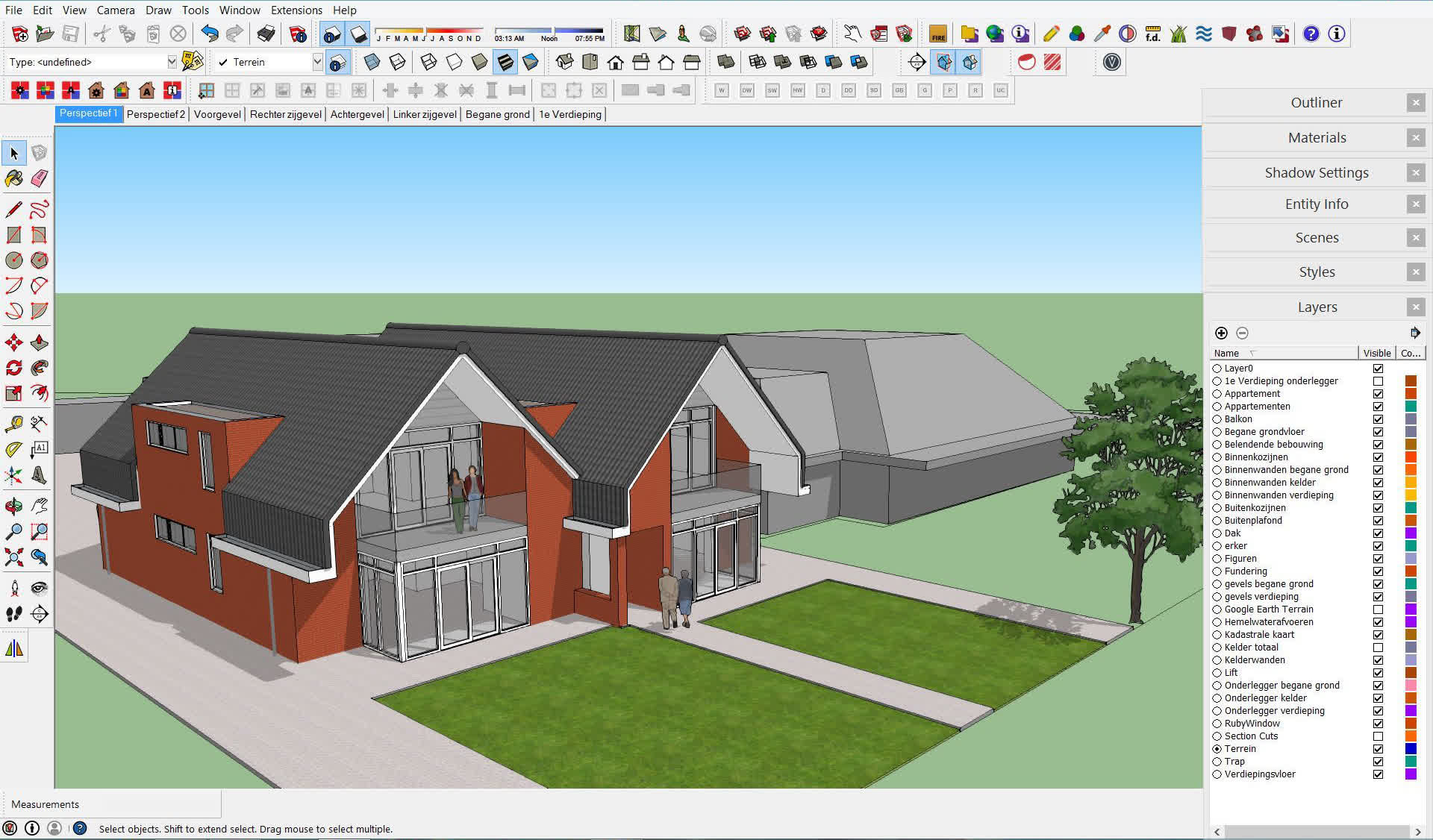
Paint Bucket: Apply colors and textures
You can use SketchUp's Paint Bucket tool to paint your model with materials like colors and textures.
Groups and Components: Build smarter models
By "sticking together" parts of the geometry in your model to make Groups, you can create sub-objects that are easier to move, copy and hide. Components are a lot like Groups, but with a handy twist: copies of Components are related together, so changes you make to one are automatically reflected in all the others. Windows, doors, trees, chairs and millions of other things benefit from this behavior.
Shadows: Perform shade studies and add realism
SketchUp's powerful, real-time Shadow Engine lets you perform accurate shade studies on your models.
Sections: See inside your models
You can use SketchUp's interactive Sections feature to temporarily cut away parts of your design, enabling you to look inside. You can use Sections to create orthographic views (like floorplans), to export geometry to CAD programs using SketchUp Pro, or just to get a better view of your model while you're working on it. Section Planes can be moved, rotated and even animated using SketchUp's Scenes feature.
Scenes: Save views and create animations
We created Scenes to enable you to easily save precise views of your model so you can come back to them later. Need to create an animation? Just create a few Scenes and click a button.
Look Around and Walk: Explore your creations firsthand
SketchUp lets you get inside your model with a set of simple navigation tools designed to give you a first-person view. Click with Position Camera to "be standing" anywhere in your model. Use Look Around to turn your virtual head. Finally, switch to Walk to explore your creation on foot; you can even climb and descend stairs and ramps, just like you're playing a video game.
Dimensions and Labels: Add information to your designs
You can use the super-intuitive Dimension and Label tools to add dimensions, annotations and other glorious detail to your work.
The Instructor: Catch on quickly
SketchUp's Instructor dialog box, which you can choose to activate at any time, provides context-sensitive help.
Layers and the Outliner: Stay organized
When you're building a big, complicated model, things can get messy very quickly. SketchUp provides two useful ways to keep your geometry manageable:
Google Earth: See your models in context
SketchUp and Google Earth are part of the same product family, meaning you can exchange information between them easily. Need a building site for your project? Import a scaled aerial photograph, including topography, directly from Google Earth to SketchUp by clicking one button. Want to see your SketchUp model in context in Google Earth? Click another button, and you can. Anyone can use SketchUp to build models which can be seen by anyone in Google Earth.
Sandbox tools: Work on terrain
SketchUp's Sandbox tools let you create, optimize and alter 3D terrain. You can generate a smooth landscape from a set of imported contour lines, add berms and valleys for runoff, and create a building pad and driveway.
3D Warehouse: Find models of almost anything you need
The Trimble 3D Warehouse is a huge, online repository of 3D models which you can search through when you need something. Why build something when you can download it for free?
Import 3DS: Get a head start on your modeling
You can import 3DS files directly into your SketchUp models. Have a piece of furniture in 3DS format that you'd like to use? Import it in, then keep on truckin'.
Import images: Paint walls with photos
With SketchUp, you can import image files like JPGs, TIFFs, PNGs and PDFs. You can use them by themselves (kind of like posters), but you can also stick them to surfaces to create photo-realistic models of buildings, package designs, and more.
Export TIFF, JPEG and PNG
SketchUp lets you export raster images up to 10,000 pixels square, so generating an image which you can send in an email, publish in a document, or project on a wall is as easy as choosing a few options and clicking Export.
What's New
Contextual Notifications & Messages
SketchUp now displays contextual notifications. These notifications can help you discover and operate new features relevant to what you are working on. You may now receive notifications in the following situations:
- Onboarding – Notifications intended for new SketchUp users that include guided workflows for features they may not be familiar with.
- Feature Updates – Announcements regarding updates and new capabilities.
- Urgent Alerts – Critical notifications with time-sensitive or essential information.
You can control which notifications will appear in SketchUp in the General section of Preferences by selecting Show urgent messages only.
Crash Fixes
- Fixed a crash that occurred when copying and pasting a Live Component while the Scale tool was still active after resizing it. Also fixed an issue where undoing the scale operations left the Live Component in a state where it could no longer be resized or reconfigured through the Component Properties View.
- (Windows) Fixed a crash related to DX12 rendering triggered by orbiting or zooming while using a 3Dconnexion SpaceMouse, notably after using extensions such as Medeek Wall.
- (MacOS) Resolved a crash that occurred when creating and moving a section cut while SketchUp was running in Multiple Document Interface (MDI) mode.
- Fixed a crash where users would receive duplicate error messages after editing a material with a texture and clicking Generate Textures.
Bug Fixes
- Inputting a specific length during uniform scale now scales along the selected axis grip instead of only along the red axis.
- Dragging a side handle during uniform scale no longer causes the handle to move further than the cursor position, breaking the alignment.
- URLs for buyers and resellers in commercial and educational sales now route to the intended webpages.
- (Windows) Fixed an issue where the "Show New Tags" context menu toggle could not be turned off.
- (Windows) Using Ctrl+ or Ctrl- to adjust the default number of segments no longer displays random symbols in the VCB.
LayOut
Bug Fixes
- Files with invalid embedded or external table references will now successfully load into LayOut. The invalid table references will be removed from the file reference manager and table entities referencing them.
- (Windows) Fixed a crash that could occur when resizing a text box.
- (Windows) Addressed a crash that could occur when reloading a SketchUp model.
- (Windows) Fixed a crash when setting a line Dash.
- (Windows) Fixed a crash in the Color Panel.
- (Windows) Resolved a crash that could occur when closing a document.
- (Windows) Addressed an issue which would cause noisy edges to text when editing lightly colored text entities against a darker background.
- (MacOS) Fixed a crash that would occur when a font name contained over 32 characters.
Interoperability
Bug Fixes
Fixed MText colors not retained when importing DWG/DXF files. Resolved a regression where MText entities with multiple colors lost their individual color formatting when imported into LayOut, rendering all text in a single color instead of preserving the per-segment coloring from the original AutoCAD drawing.
Security Updates
- Security updates for Dynamic Components
Ruby API Additions and Improvements
- UI.messagebox and UI.inputbox have been fixed to not unintentionally support HTML content.
SketchUp AI – SketchUp's new AI services are designed to complement, enhance, or optimize what you already do in SketchUp. SketchUp 2026.1 introduces the following new features:
- AI Render – Generate photoreal images from your model viewport with either your own custom prompt or using one of SketchUp's presets. You can then refine your results using powerful in-painting tools.
- AI Assistant – A new entry point for AI-powered workflows in SketchUp. AI Assistant contains Help Assistant, a tool providing in-app guidance to your questions, and Generate Object, a way to create 3D objects with PBR textures from your text prompts and images.
- AI Credits – SketchUp AI features are powered by AI Credits. All paid subscriptions include a set amount of credits. If you need more, the new SketchUp AI add-on subscription offers a substantial boost to your available credits.
Migrate Preferences – The new Migrate Preferences feature helps you transfer all of the customizations you've made in the Preferences dialog when updating to a new version of SketchUp.
Tape Measure Guide Points – New modes added to the Tape Measure tool to help you define guide points at a specific distance from another reference point in your model, similar to creating guide lines.
PDF Import for Windows – SketchUp can now import PDFs into SketchUp with no need to convert those files to another supported file type.
SketchUp AI
What We Did
SketchUp's new AI services, AI Render and AI Assistant, are designed to compliment, enhance, or optimize what you already do in SketchUp. Along with these new features, we are also introducing the SketchUp AI subscription to offer even more opportunities to use these features and achieve your design goals.
The Details
Generative AI is transforming the way Design, Engineering, and Construction professionals get things done. SketchUp's AI tools integrate this technology into the SketchUp you know and love to help accelerate your workflows.
AI Render
Whether you are suffering from a block in your creative process, need some extra visuals to help support the narrative you've established in your project, or just want to fully express your unique creative vision, AI Render can help.
Bug Fixes, Changes, and Improvements
SketchUp
- Fixed an issue where the "Show Welcome Window checkbox" preference would be inactive when logged in with a Studio or NFR account.
- Fixed a security vulnerability where malicious code could write out-of-bounds data.
- Changed the contextual menu when right-clicking in an empty area of the model. Previously, it said Invert Selection, now it says Select All.
- Fixed an issue where OBJ export units were incorrectly fixed to inches, despite user selection in the Options dialog. The selected unit (unless "Model units" or "Inches") reverted back to inches upon re-opening the dialog. The fix ensures selected units are retained and conversion works correctly upon export.
- Fixed an issue where user-defined file locations could fail to transfer between versions during the upgrade process.
- Fixed an issue where a user is asked to purge assets twice when uploading to 3DW if 'Ask to purge on save' is enabled
- Adjusted the sizing behavior for Live Components (LC) to be more predictable. Size handles now enforce positive values, fixing an issue where scaling an LC "through itself" resulted in unexpected or broken geometry.
- (Mac) Fixed an issue where certain extensions would result in the extension toolbar becoming uneditable and, in some cases, cause a crash.
- (Mac) Fixed an intermittent crash that could occur when opening a model from Trimble Connect when no other models are open.
- (Win) Fixed an issue where SketchUp would crash when closing if the PaintTool is active.
- (Win) Fixed a crash that can happen when a user closes SketchUp while pasting an asset.
- (Win) Fixed an issue where, in some instances, SketchUp would not display '2026' in the title bar.
- (Win) Fixed an issue where the Trial expiring notification would read as clipped text.
- (Win) Fixed an issue where users could unintentionally remove a tool from their toolbar while dragging it to a new toolbar. Users now need to deliberately r-click and delete a toolbar button while in the Toolbars menu to remove it from a toolbar.
LayOut
- You can now sort items in the References section of Document Setup.
- Fixed an issue where Dashes did not display in Vector or Hybrid rendering but did in Raster rendered viewports.
- Fixed a bug in the Experimental Graphics Engine which would dim entities outside of the group being edited.
- Fixed an issue where the auto-text update causes z-order changes in Groups.
- Fixed the behavior of the Update Table Reference function to include "All" by default.
- Fixed an issue where empty cells would not display fill color.
- Fixed an issue where the wrong scale handles remain visible when zoomed out of the page.
- Fixed a crash that could occur when rendering a viewport.
- Tables no longer support clipping masks. This was never an intentional feature of tables, so we've decided to clean this up in advance of clipping mask improvements.
- (Win) In the SketchUp Model Inspector, the Styles panel UI has been updated.
- (Win) The Commands tab within the Configure Toolbar dialog has been reintroduced, allowing for more robust custom toolbar configurations.
- (Win) Fixed an issue that occurred when using activating the Pan tool with the middle mouse wheel with highlighted text selected.
- (Win) Changed the Paper Size drop-down to be a smaller but scrollable list in Document Set-up.
- (Win) Fixed an issue where the color swatches border was too thick.
- (Win) Fixed an issue where the color well selection highlight was too light.
- (Win) Fixed an issue where the SketchUp Model inspector > Camera/Effects always expanded on launch.
- (Win) Fixed an issue where the text Style didn't allow for font search.
- (Win) Fixed an issue where the locked layer name can be edited, but didn't take the edit.
- (Win) Fixed an issue where attempting to rebind a built-in shortcut made LayOut unresponsive.
- (Win) The SketchUp Model Inspector, Tag section is now resizable.
- (Win) Fixed a crash that could happen when updating all references.
- (Win) Fixed an issue where context menu > Relink File Reference did not allow images to be selected.
- (Win) Fixed an issue where image and PDF export page range validation was not functioning correctly.
- (Win) Fixed a bug where some pages in Document Setup would not display for languages other than English.
- (Win) Font sizes will no longer apply to other selected text entities.
- (Win) Fixed the sizing of Styles folders to match Styles thumbnails in the SketchUp Model inspector.
- (Win) Fixed a bug in Pages and Layers to allow multi-select reordering.
Revit Importer (v1.2026.1.0)
- Added support for .rvt files from versions 2015 to 2026.
- Updated the plugin with a new UI for filtering by Phases and Categories, which can be manually selected or deselected.
- Revit Rooms and Spaces can now be imported as unique components, complete with their own tags and materials.
- Added a logging feature that creates a log file in the Windows Temp folder to assist support teams with troubleshooting.
- Enhanced metadata support so Revit Families Type and Instance parameters are imported as separate attributes in the Component Options dialog.
Ruby API Additions and Improvements
- Added UI.show_extension_warehouse which opens the Extension Warehouse home when called without arguments, or navigates directly to a specific extension when given its extension identifier (UUID).
- Modified Sketchup::ShadowInfo#[]= to be stricter and provide better error feedback. It will now raise a KeyError for invalid or read-only keys, and a TypeError for values of an incorrect type.
- Added built-in JavaScript callbacks sketchup.launchEW(id) and sketchup.installRBZ(url) for HtmlDialog. launchEW with a UUID string opens that extension's page. installRBZ downloads and installs the .rbz at the given URL.
- Added UI::HtmlDialog#hide to hide dialogs without closing them, preserving their state.
- In the SketchUp Ruby API, setting the field of view (fov) outside 1.0 - 120.0 using fov= triggers a warning and clamps the value, but using the Camera constructor or set method with 5 arguments previously allowed any fov value, including negatives. This inconsistency has been fixed, and a warning is now raised for invalid fov values.
Ruby API bug Fixes
- Fixed a regression in Sketchup::Tool#onKeyDown introduced in SketchUp 2026.0 (Windows) where the event didn't trigger when Return/Enter was pressed.
- Fixed a few documentation issues
- Fixed silent failures when passing non-invertible transformations (e.g. zero-scale transforms). Methods like ComponentInstance#transform!, Group#transform!,Image#transform!,Image#transformation=, Entities#transform_entities and Entities#add_instance now correctly raise an ArgumentError.
SketchUp 2026.0
- Collaboration in SketchUp – You can now share SketchUp models through a private invite or by creating and sharing a public link. Those you share your model with can navigate your model, take measurements, leave comments, and even see updates in real-time.
- Visualization – SketchUp 26.0 introduces a Distance Multiplier and color controls for Ambient Occlusion, the ability to invert a material's roughness map, and the much-requested ability to choose the thumbnail you prefer when viewing your materials.
- Performance – Sketchup 2026.0 improves both memory and working efficiency, making Sketchup more efficient, faster, and reliable. These performance updates are especially noticeable when working with large models.
- Live Components – SketchUp 2026.0 adds functionality to the Scale tool (), adding grips allowing you to place and size Live Components by inference. Since you can now use the Paint Tool () to apply materials outside of a component's predefined options, we've added several quality-of-life improvements to painting Live Components.
- Modeling Workflows and Interface Updates – SketchUp 2026.0 includes several notable improvements across scaling, rotating, scenes, and inferencing.
- Managing Activations – You can now reset all activations and authorize your current device without leaving SketchUp for Desktop.
- Interoperability – SketchUp 2026.0 now offers several fidelity and efficiency improvements for importing and exporting DWG files. This includes hatch support and preserving section planes. The IFC export workflow has also been enhanced, consolidating IFC 2x3 and IFC 4 into a single file type with expanded Export Options.
- Scan Essentials – Scan Essentials includes two new point cloud modeling workflows, the Texture Projection and Mesh Generation tools. The new Scene Manager better controls the visibility of point clouds in both SketchUp and Layout. With this update, you can also easily revert to the original georeferenced coordinate system when exporting.
LayOut
- LayOut Interface and Performance Updates – The LayOut interface on Windows looks and operates more like SketchUp with updated iconography, tray and panel configurations, and toolbar customization.
- LayOut Drafting Tools – Four new drafting tools, Trim, Extend, Fillet, and Chamfer, are now available. These tools provide a more intuitive and effective way to create and manipulate 2D vectors.
- Scrapbook Improvements – LayOut's default Scrapbooks now include 2D Windows, Doors, Furniture, Kitchen, Bath under the Architecture category and additional plan view People libraries.
- Importing and Exporting Improvements – LayOut 2026.0 brings multiple updates to DWG functionality, improving efficiency in how LayOut imports and exports your document using that file format including retaining SketchUp Tags and passing them as DWG layers.
Bug Fixes and Other Improvements
Collaborating in SketchUp
What We Did
- You can now share SketchUp models through a private invite or by creating and sharing a public link. Those you share your model with can navigate your model, take measurements, leave comments, and even see updates in real-time.
The Details
- SketchUp 2026.0 introduces several new features to help you share your models and collaborate with your peers and stakeholders. These features, found in the new Collaboration Bar, can help you share a model, control the level of access of those you've shared it with, and invite feedback from others.
Sharing with the Collaboration Bar
- The Collaboration Bar () is available in SketchUp's default toolbars as well as in the Large Toolset. You can also click Window > Collaboration Bar.
- In the Collaboration Bar, click Share to invite others to view your model. If you haven't already saved your model to Trimble Connect, a prompt appears asking you to save your model there.
- To send private invitations, enter the email addresses and designate their access. An email will be sent containing a private link the viewer can use to access your model. If you set your model to General Access, clicking Copy Link generates a public link that allows anyone with the link to view your model.
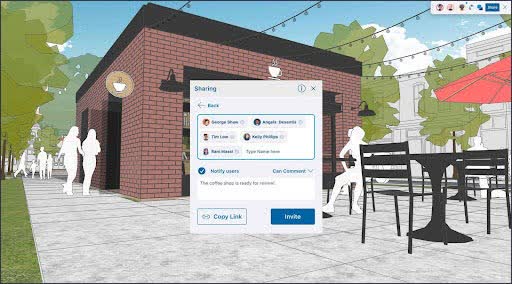
The links you share with others open your model in their web browser. Your viewers will have access to basic information, and a few other options depending on the access levels you have designated. You can set or alter viewers' access at any time. Viewers who received a private invite have the following permissions:
- Owner – The model's owner always has full access to all viewing features.
- View Scenes – Can view scenes in a model, but cannot navigate the model or leave comments.
- Comment – Can leave comments, use all the available camera tools, and access all viewer utilities.
General Access permissions define what happens when someone using your public link, or accessing without a private invite, attempts to view your model. General Access does not include the ability to comment on a model. A model's General Access can be set to:
- No Access – When others attempt to access the model a prompt asks them to request access from you. You can then grant or deny the request, or even ignore it!
- View Scenes – Viewers accessing through your public link can only view scenes.
- View Model – Viewers accessing through your public link can navigate and take measurements.
All viewers can see the cursors of other viewers. Each viewer can hide those cursors using Hide Cursor () in the Collaboration Bar.
Complete release notes can be found here.
