

ForkLift combines the power of a robust file manager with versatile file transfer capabilities, seamlessly bridging the gap between your local and remote files. Whether you're dealing with cloud services or more traditional FTP and SFTP servers, ForkLift streamlines your file management and transfers, making them smoother than ever.
ForkLift 4 is your all-in-one solution for efficient file management and seamless file transfers, across multiple platforms and services.
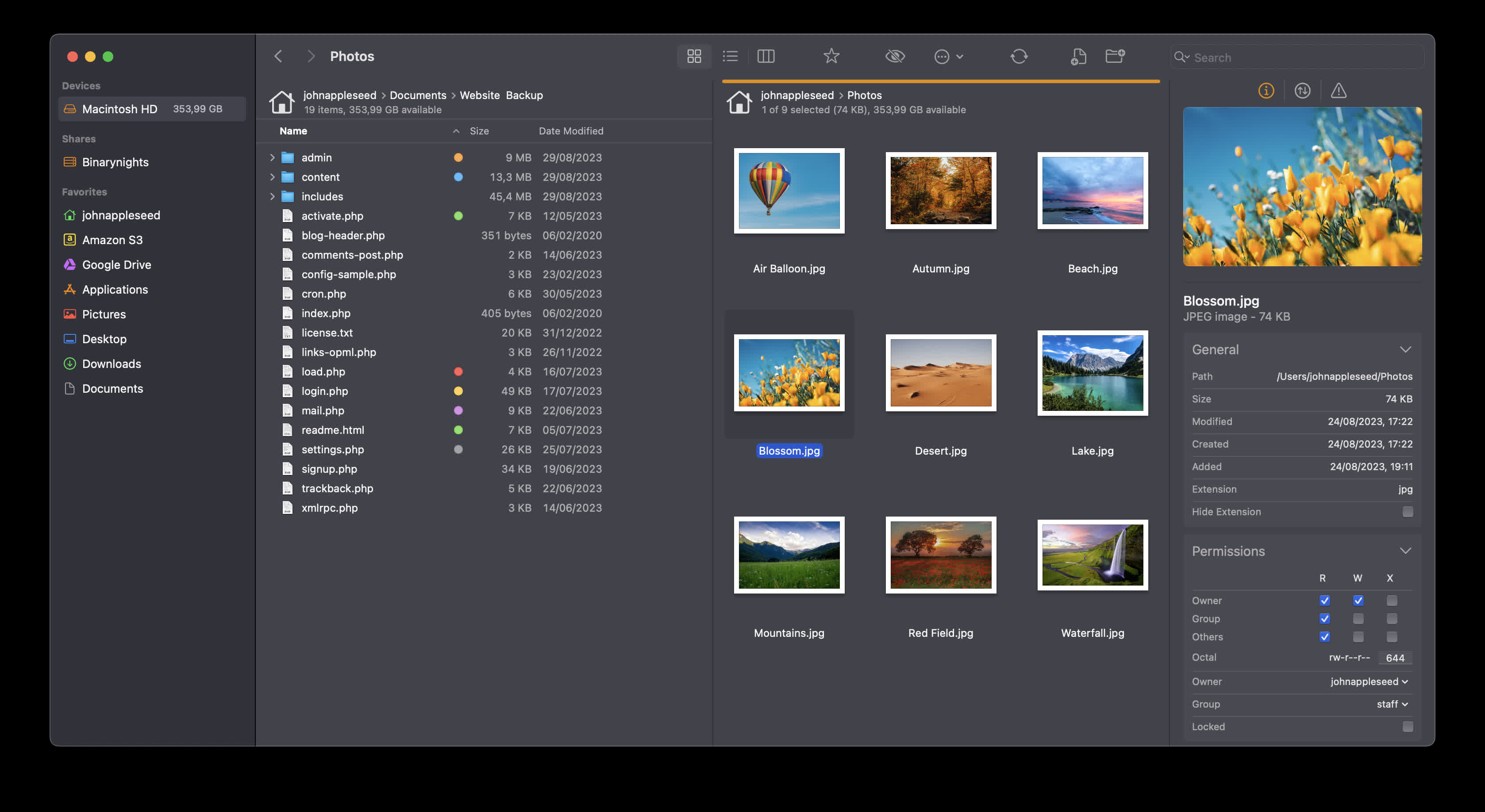
We understand that accessing, organizing, synchronizing, and sharing your files should be hassle-free, especially as the landscape of file sharing evolves with the increasing importance of cloud service providers such as Dropbox, Amazon S3, Google Drive, and OneDrive.
Is ForkLift worth it compared to alternatives like Finder or Nimble Commander?
Many users appreciate its dual-pane layout, batch operations, archives support, and advanced sync features. Compared to rivals, ForkLift offers better transfer management and preview behavior. Still, some feel the interface isn't as lightweight or intuitive as others.
Is it easy to switch from Finder to ForkLift as the default file manager?
Yes. By running a simple defaults write -g NSFileViewer -string com.binarynights.ForkLift command in Terminal, you can set ForkLift as the system default for opening folders.
Which protocols can I connect to ForkLift?
ForkLift will connect to any remote server such as SFTP, FTP, WebDav, Amazon S3, Backblaze B2, Google Drive, OneDrive, Dropbox, Rackspace Cloudfiles, SMB, AFP, and NFS remote volumes. You can manage your files and connect to multiple servers at a time and even copy between them with drag and drop.
Is ForkLift free?
You can download a time limited trial of ForkLift, but you will need to buy a license in order to keep using it.
Features
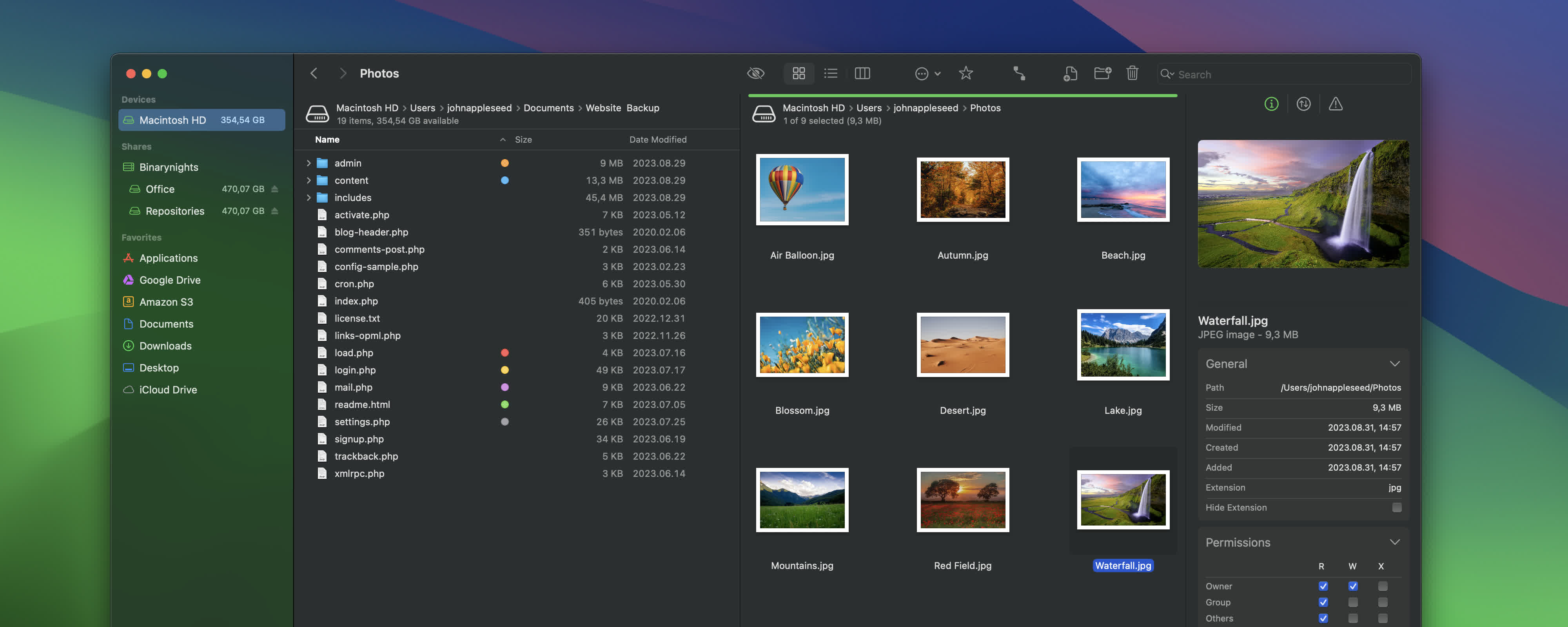
Remote Connections
Connect to SFTP, FTP, WebDav, Amazon S3, Backblaze B2, Google Drive, OneDrive, Dropbox, Rackspace Cloudfiles, SMB, AFP, and NFS remote volumes. Manage your files efficiently across networks: connect to multiple servers simultaneously and even copy between them with drag and drop.
Sync
Compare local or remote source and target folders identifying matching, modified, new and deleted files. Synchronize them one or two-way with a single mouseclick, or save it as a favorite.
Up to 20x faster analyzation than ForkLift 3.
Favorite Paths
Experience enhanced efficiency for remote destinations. Think of it like having favorites within favorites – an organized way to keep track of paths you frequently use and want quick access to.
Preview
The preview panel shows you useful information about the selected file. Playback audio and video files, inspect images, PDFs and other popular document types. Quick edit text files in place, both on local drives and remote servers.
Activity View
Whether you're copying, renaming, deleting, compressing, or handling other tasks, this feature lets you see exactly what's going on. No more guesswork – watch your tasks progress in real-time and stay in control of your file management action.
Quick Open
Easily access your favorites, devices, menu commands, open a selected file with a preferred application, or apply a previously saved Multi Rename preset on selected files or folders.
Log View
Get valuable insights into your file management activities and their results, all in one easy-to-access place.
Favorite Sync
ForkLift will keep all your favorites synchronized across multiple computers via iCloud.
Dropbox Support
Copying Dropbox links to files located in your Dropbox directory is just a right-click away.
Transfers
Reorder transfers, set conflict management rules, error handling, limit download and upload bandwidth.
Tags
Organize your documents and files with tags: add, edit, remove, search, or filter them within ForkLift.
Sync Browsing
Given two identical folder structures. Browse in one pane and let ForkLift do the job for you in the other pane.
Tabs
Open different folders in the same pane, instead of separate windows.
Search
Search and filter by name, extension, kind, tags or content, even on remote servers.
Quick Select
Select files by typing a filename, an extension, or a tag and add them or exclude them from the selection.
Remote Editing
Set your preferred editor in ForkLift to edit remote files and we take care of uploading your changes as you save.
Command Line Tools
Extend ForkLift's capabilities to the max by invoking command line tools and apply them by using shortcuts.
Themes
A seamless way to personalize your interface. Choose from predefined themes that suit your taste, or let your creativity shine by crafting your very own themes.
App Deleter
ForkLift comes with an application deleter to remove the last morsels of an application you want to uninstall.
iCloud Support
Seamlessly access and manage your iCloud files through ForkLift.
Archive Management
Browse local and remote archives as if they were ordinary folders. You can even Quick Look, search and filter.
Keyboard Control
Control every operation straight from the keyboard and customize it to your preferences.
Multilingual
ForkLift speaks English, German and Hungarian. More languages are coming soon!
Workspaces
Save different layouts with opened tabs and locations and load what you need at the moment.
Git Support
ForkLift knows git and will show you the status of individual files. You can add, commit, push, and pull.
Open in Terminal
An absolute must for powerusers. Open a Terminal, iTerm, Hyper, Kitty or Warp window at your current local path.
Hidden Files
Make hidden files and folders visible easily by using a shortcut or pressing a button in the toolbar.
Share
Share gives you an easy way to share all kinds of documents and other files instantly.
Default File Viewer
Set ForkLift as the default file viewer and almost every app will point to ForkLift instead of Finder.
File Compare
Compare two text or images files with Xcode's FileMerge, Kaleiodoscope, Beyond Compare, or Araxis Merge.
What's New
ForkLift 4.7.5 is available – Improved Sync and Safer File Transfers
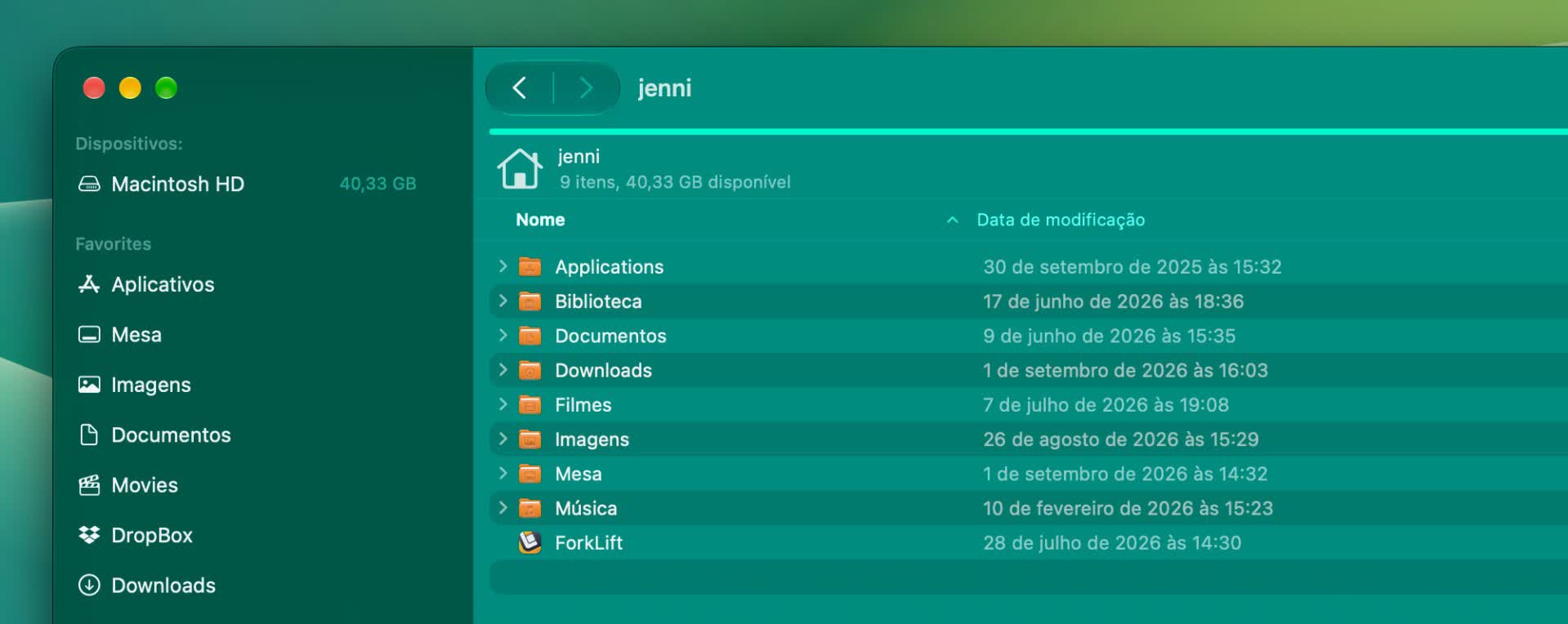
Brazilian Portuguese Localization
ForkLift is now available in Brazilian Portuguese, making the app more accessible to users in Brazil.
Safer Handling of Conflicting Files
In the previous version (ForkLift 4.7.4), we tried to address a potential data loss issue that can occur in two edge cases when transferring items with the same names. Normally, this situation can't occur because only one item with a given name can exist in a single location. However, if you expand multiple folders or search for a term and select items with conflicting names, ForkLift can end up with two or more source items with the same name that are being transferred to the same destination.
In the previous version, we changed the behavior so that a conflict window was displayed in these cases, asking the user to decide how ForkLift should handle the conflict. However, this type of conflict is different from a normal source-versus-target conflict. The conflicting items are all source files, and they may be transferred in an order that can't be determined in advance. As a result, it isn't necessarily clear from the conflict window which file would ultimately overwrite which other file. A user could easily select Replace without realizing which file would be kept and which file would be overwritten. Once this happens, the overwritten file can't be recovered through ForkLift, which could result in unintended data loss.
Although this is a very uncommon use case, we believe it is safer to prevent the transfer from starting rather than asking the user to make a decision that can't be made reliably from the conflict window. Since the previous fix still had some issues and we had to revisit this behavior, we decided that when source items with conflicting names are selected for transfer to the same destination, ForkLift stops the transfer before it starts and warns the user about the conflict. ForkLift won't display a conflict window in this situation.
It is unlikely that a user intentionally wants to copy or move several files with the same name, such as five index.html files, to the same location at once. If this happens accidentally, the user should review the files they are trying to transfer and determine which one they actually want to copy or move. They can then transfer the desired file separately.
We also checked how other file managers handle this situation. They generally transfer only one of the conflicting files without notifying the user that a conflict exists. We believe it is safer to explicitly draw attention to the conflict and require the user to resolve it themselves, with a clear understanding of which file contains which content. This prevents the user from making an irreversible choice in the conflict window without being able to clearly determine which file will ultimately be kept.
Sync and Column View Improvements
At the bottom of the Sync Window, ForkLift displays how many files will be synced and how many of those files will be added, updated, or deleted. We have made these buttons clickable, so you can now use them to filter the view by All, Added, Updated, and Deleted files. This can provide a better overview of what is going to happen during synchronization.
We have also added the option to increase or decrease the text size in Column View using the same keyboard shortcuts that were already available in the other views (Command – + and Command – -).
Hopefully, column widths in Column View will now be calculated correctly when the Resize columns to fit option is enabled. We have tried to take every factor into account that can affect the amount of space required by the contents of each column.
When an external drive was open in a pane of ForkLift and the drive was disconnected without ejecting it first, the file list remained visible in ForkLift, giving the impression that the drive was still connected. We have fixed this issue as well.
We have also fixed an issue (introduced in the previous version) where, when transferring items from search results to a remote location, transfers remained in the queue after the maximum number of simultaneous transfers configured in the settings had been completed.
Full List of changes
New
- Brazilian Portuguese localization
Improvements
- The buttons at the bottom of the Sync Window are now clickable and filter the view by All, Added, Updated, and Deleted files
- When Resize columns to fit is enabled, column widths now take the Bold Folder Names setting into account
- Adds the option to use the Command-+ keyboard shortcut to increase the font size in Column View
- Adds the option to use the Command – keyboard shortcut to decrease the font size in Column View
- Changes the behavior of file transfers when the source contains items with conflicting names. The transfer now does not start to prevent files from being unintentionally overwritten
Fixes
- Fixes an issue with column widths in Column View when the Resize columns to fit setting is enabled and the scroll bar is visible
- Fixes an issue where, after deselecting all items from synchronization, it was possible to click the Synchronize button
- Fixes an issue in the Logs where the number of synchronized items was displayed as the total number of analyzed items during synchronization instead of the number of synchronized items
- Fixes an issue introduced in version 4.7.4 where transfers from search results to remote connections remained in the queue after the maximum number of simultaneous transfers configured in the settings had been completed
- Fixes a possible hang when the remote server is not responding
- Fixes an issue where the file view did not update when an external drive was disconnected without ejecting the disk first
- Fixes small localization issues
ForkLift 4.7.3 is available – Smoother Navigation and Selection in Icon View
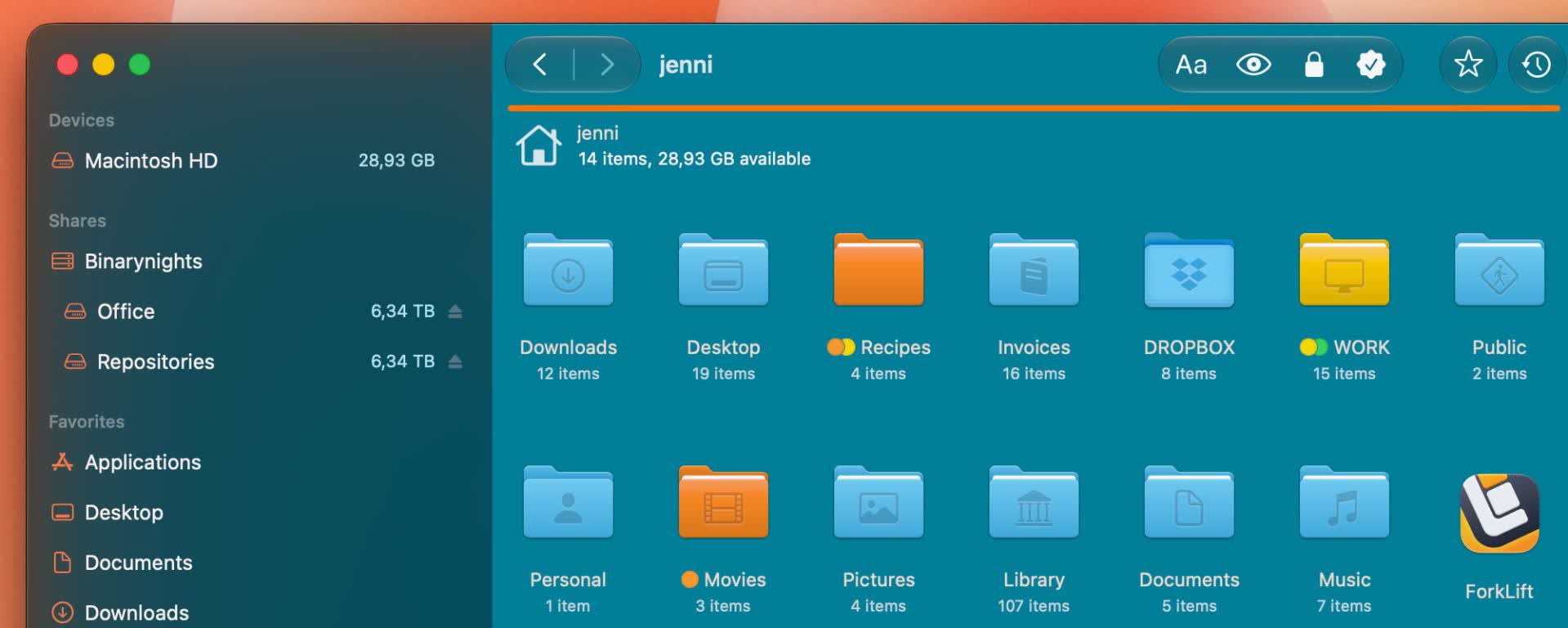
In ForkLift 4.7.3, our main focus was on Icon View. We brought back some of the behavior from earlier native macOS versions that had disappeared over the years and was not included in ForkLift 4.
You can now navigate across rows with the arrow keys, so navigation no longer stops at the end of a row. It is also possible to select a range of items, even across multiple rows, by holding down the Shift key and clicking the first and last item in the selection. You can extend the selection further with either Shift-click or Command-click.
We also improved drag selection in Icon View. Previously, selecting multiple items with the mouse could sometimes be difficult because dragging would start instead of creating a selection. The dimensions of items are now better defined, making the behavior of dragging and drag-selecting much closer to what you see in Finder.
We believe these improvements make working in Icon View much smoother and more intuitive.
Full List of changes
New
- In Icon View, you can navigate to the next row by pressing the Right Arrow key at the end of a row
- In Icon View, you can navigate to the previous row by pressing the Left Arrow key at the beginning of a row
- Range selection with Shift-click in Icon View
- Open in New Window context menu item for tabs
- Home and End keys in Icon View to jump to the beginning or end of the file view
Improvements
- Improved drag selection in Icon View
- Improved stability and performance to help prevent possible crashes and hangs
Smarter File Naming with Built-in Metadata Support
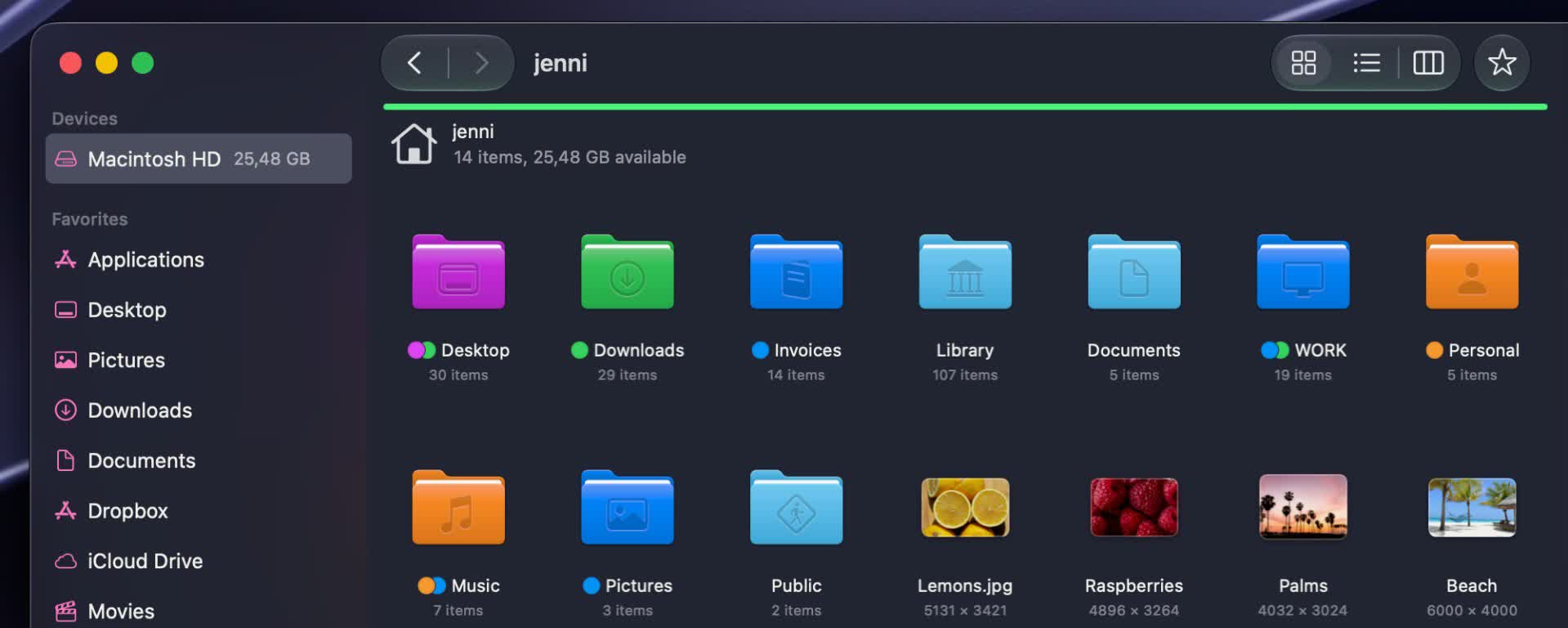
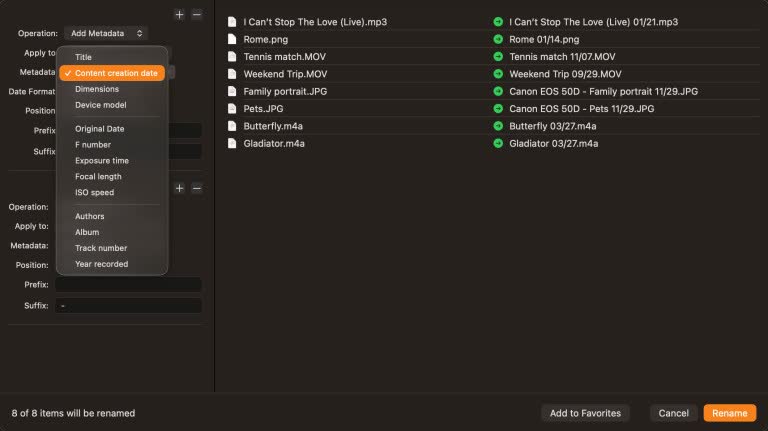
In ForkLift version 4.7.1, we have added a major new feature: the ability to include metadata in multi-renaming operations. This means ForkLift can now read and use the information stored inside files, such as photos, videos, documents and audio files, when renaming them.
Metadata is information attached to a file that describes it. For example:
- For photos: when the picture was taken, camera model, exposure time, ISO value
- For audio files: artist, album, track number, year, or title
- For documents: author, creation date
In ForkLift, you can use the following metadata fields when renaming files:
- Title
- Content creation date,
- Dimensions
- Device model
- Original date
- F number
- Exposure time
- Focal length
- ISO speed
- Authors
- Album
- Track number
- Year recorded
Using metadata allows you to turn automatically generated or meaningless filenames into structured and meaningful ones.
For example, instead of:
- IMG_2481.JPG
you can rename files to something like:
- 2025-06-28_Budapest.JPG
This makes your photo library immediately more readable and easier to navigate without opening files. For large photo collections, this is especially useful because it automatically organizes images chronologically and keeps naming consistent across thousands of files.
The same applies to audio files. For example:
- track01.mp3
can become:
- Madonna – Like a Prayer.mp3
This helps fix messy downloads and creates consistent music libraries where every file follows the same structure, making albums easier to browse and keep in order outside of music apps.
Besides the new metadata support for batch renaming, power users will also appreciate that the $PATH environment variable can now be used when creating tools in ForkLift.
Smoother SMB Integration, Richer Media Previews, and Enhanced Stability
We have also improved SMB share handling: share names are now displayed in the same way as in Finder, ensuring consistent behavior between the two apps.
In addition, ForkLift now supports previewing certain video and audio files (for example: .mka, .mkv, .webm, .wma, .wmv,. avi, .mov, .flv, .f4v) when using the third-party QuickLook Video app. Previously, these previews were only available in Finder, but ForkLift can now display the same previews when the QuickLook Video app is installed correctly.
ForkLift version 4.7.1 also fixes several minor issues in the Go to Folder window. The update resolves a crash during sync operations when excluding items based on file size, and fixes a significant issue on the upcoming macOS 27 "Golden Gate," where dragging items in column view was not possible. We are not currently aware of other issues on this new macOS version.
The update also includes additional fixes and improvements. Please see the full changelog below.
Full List of changes:
New
- Option to use metadata when renaming files in the Multi-Rename window
- Tools can inherit the $PATH environment variable from the shell
Improvements
- New metadata added to the Info Window
- Aligns SMB share names with Finder for consistent display
- Updates the divider color between preview and info sections in the Preview Pane for better visibility in dark themes
- Adds support for previewing media files in ForkLift when the QuickLook Video app is installed
- Improves undo logging behavior for Multi-Rename operations
Fixes
- After changing the default application for a file type, the change is now saved correctly
- Fixes an issue where the entire path in the Go to Folder window was selected after choosing a path from the dropdown using Tab or Right Arrow
- Fixes an issue where duplicate paths could appear in the Go to Folder history
- Fixes an issue where selecting a path from the Go to Folder dropdown opened the item instead of revealing it in the file view
- Fixes an issue in the Go to Folder window where pressing Tab or Right Arrow after entering / inserted a second slash
- Fixes a possible crash when entering a path starting with ~ in the Go to Folder window on Amazon S3 connections
- Fixes a possible crash when selecting Size as an exclusion filter in the Sync Window or when opening the Sync Window with a previously saved file size filter
- Fixes an issue where the location of a pinned tab could change to a subfolder after switching between column view and other views
- Fixes an issue where reordering remote favorites in the sidebar was not always possible
- Fixes an issue where rotated video dimensions were displayed as negative values