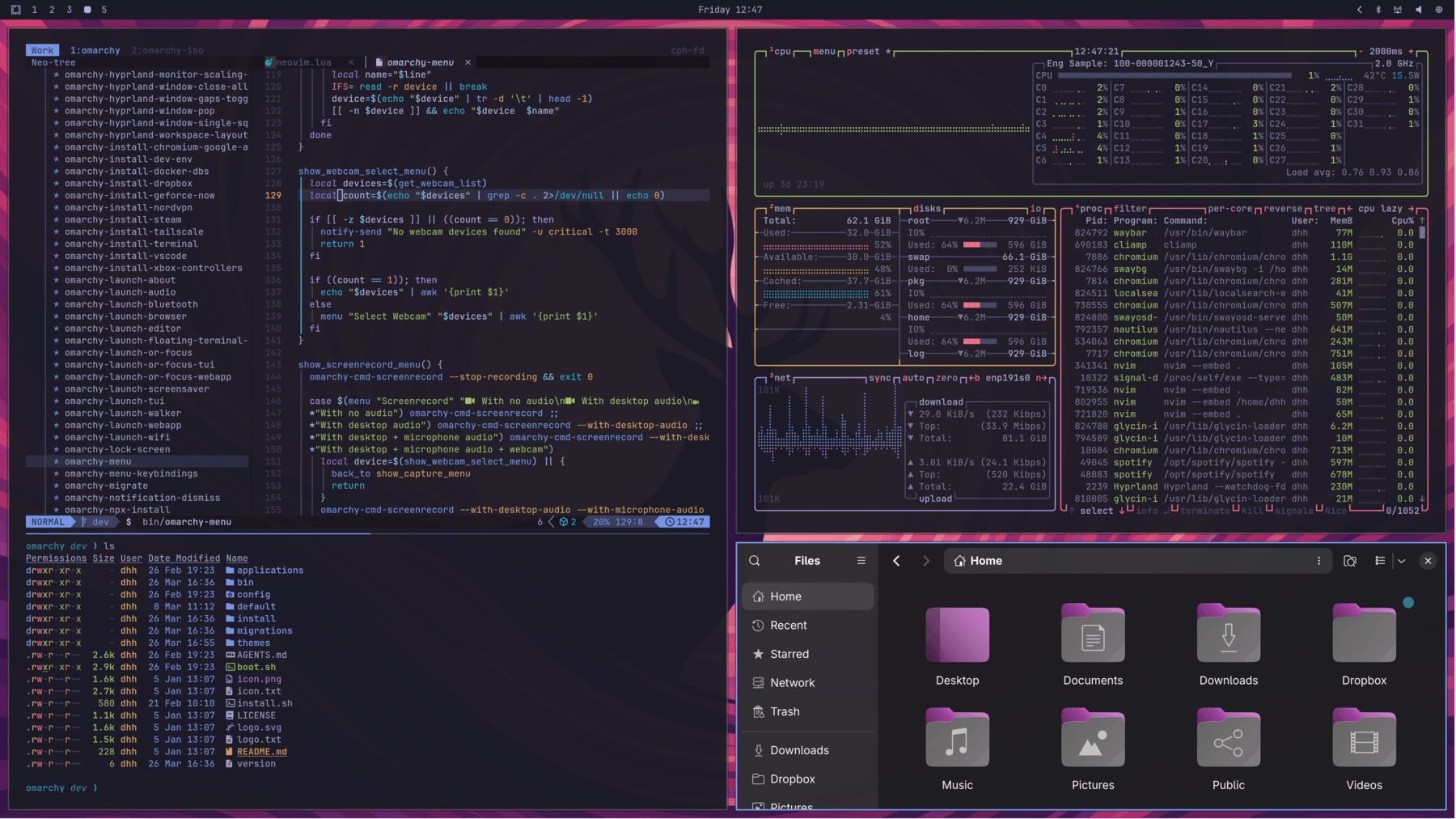
Linux used to be a chore to setup, difficult to debug, and full of confusing upfront choices. Omarchy solves all of it with a lightning fast installation, agents that debug all issues, and fantastic defaults that give you a fully functioning system that looks amazing out of the box.
Oma is for omakase, chef's choice: the chef picks the courses, but you are always free to send anything back. Omarchy lets you take an exquisite baseline and then make it your own.
It's not perfect... yet. But we can fix everything now.
Which AI agents does Omarchy support?
Omarchy supports several AI coding agents, including Claude Code, OpenAI Codex, OpenCode, GitHub Copilot CLI, Google Antigravity CLI, Grok CLI, Crush, Pi, Oh My Pi, and OpenRouter's Ori. Users can select a default agent and use it to troubleshoot crashes, modify system settings, and create apps, plugins, and themes.
Can Omarchy run AI models locally?
Yes, Omarchy supports local AI models through LM Studio and Ollama, both of which can be installed from its AI menu.
Who is Omarchy for?
Omarchy is designed primarily for developers, with development tools and utilities included out of the box. It removes much of the initial setup associated with Arch Linux, making it more approachable, though its keyboard-driven interface and Arch foundation may still require some Linux familiarity.
Can Omarchy run on any PC?
Omarchy targets modern x86-64 PCs, but hardware compatibility can vary depending on the system and its components.
Features
It runs on almost anything
You don't need a new machine to try Omarchy. But if you get one, today's laptops are amazing.
The latest laptops
Ready for something new? Laptops like the latest Dell XPS make amazing Omarchy machines, with our core team helping the newest hardware work properly.
Vintage Macs
Give that old Intel Mac a second life. Omarchy brings a fresh desktop to the hardware you already love.
Potato PCs
Even a 2011 ThinkPad X220 with 2GB of RAM can run Omarchy, with room to spare. Your old PC might have plenty left to give.
A plugin for every dream, every desire
Thousands of community plugins are available for Omarchy. Don't find what you need? Just put your agent on the job, then share when done.
The agentic OS for the age of agents
Your agent should feel at home on your computer. Omarchy gives it the tools and skills to help you understand, fix, and shape the whole system.
Choose your agent
On first boot, Omarchy invites you to set up a default agent. Pick your favorite, sign in, and put it to work on your computer.
Make sense of a crash
When an app crashes, click the notification to send your agent on the case. It can examine the crash dump, diagnose what went wrong, and help report the bug.
Make it your own
Omarchy ships with skills to help your agent make apps, plugins, and themes. Describe what you want, try what it builds, and share it with everyone.
Installation
Full-disk or dual-boot installation
Write the ISO to a USB stick and answer five questions. It hands back a finished desktop.
Getting Started
Omarchy is installed using an ISO. You can choose between a full-disk install, which takes over the entire drive, or a free-space install, which puts Omarchy in the unallocated space on a drive - that's how you dual boot alongside Windows or another OS (see dual-boot install - note that you'll need to turn off BitLocker in Windows first). Either way, the installation defaults to full encryption, and the full-disk option will wipe the selected drive, so be sure to take a backup before using an existing one!
Download the Omarchy ISO first, put it on a USB stick (use balenaEtcher on Mac/Windows or caligula on Linux), and boot off the stick.
You must turn off Secure Boot and/or TPM in the BIOS. You have to turn these off to be able to install Omarchy. They're Microsoft security schemes meant for Windows and Microsoft-affiliated Linux distributions.
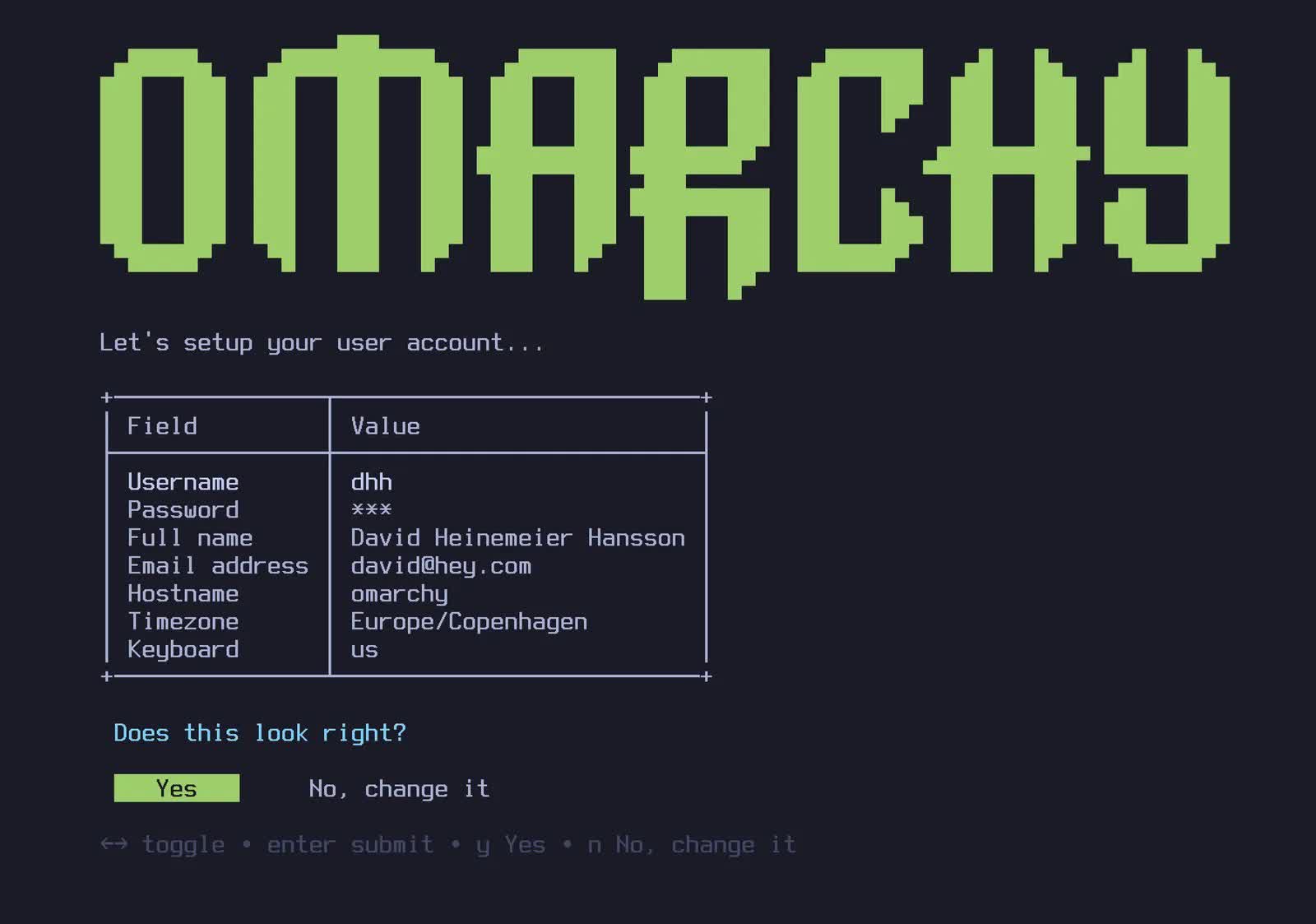
Then answer the configuration questions, and confirm them like this:
Then select a drive for your installation, and sit back and watch the installation show go. It can be done in under a minute on the fastest modern machines, but it shouldn't take more than 5 minutes even on an older computer.
Use a wired or 2.4ghz keyboard
The full-disk encryption won't allow you to enter the password from a Bluetooth keyboard at startup. Just like you can't use a Bluetooth keyboard to enter the BIOS on a PC. You'll need a keyboard that either uses a 2.4ghz dongle or a cable (which is much nicer for latency anyway!). I personally love the Lofree Flow84.