

Through the Win11Debloat interface, you can disable telemetry and many other processes that collect data, along with removing preinstalled bloatware. There are also options to modify the Windows 11 interface, including restoring the classic right-click context menu from older versions of Windows.
Win11Debloat can disable resource-heavy features such as the Bing integration in the Start menu. This will speed things up when all you want to do is enter keywords to search for a local file on your computer, and not bog this process down searching the internet at the same time.
Win11Debloat and WinUtil are similar in that both rely on PowerShell. One major difference is that WinUtil also includes an ISO customizer. So the choice between them mostly comes down to personal preference and whichever works best with your Windows 11 setup.
Installation
- First download the win11debloat-master zip file.
- After that, open File Explorer & quickly tap on Extract all to extract the files from its zip.
- Now, among all the files, find the Run.bat file(the 5th last file) & run it.
- When you double-click on it, a pop-up will appear saying the Publisher couldn't be verified, and you have to click on Run, and then on Yes.
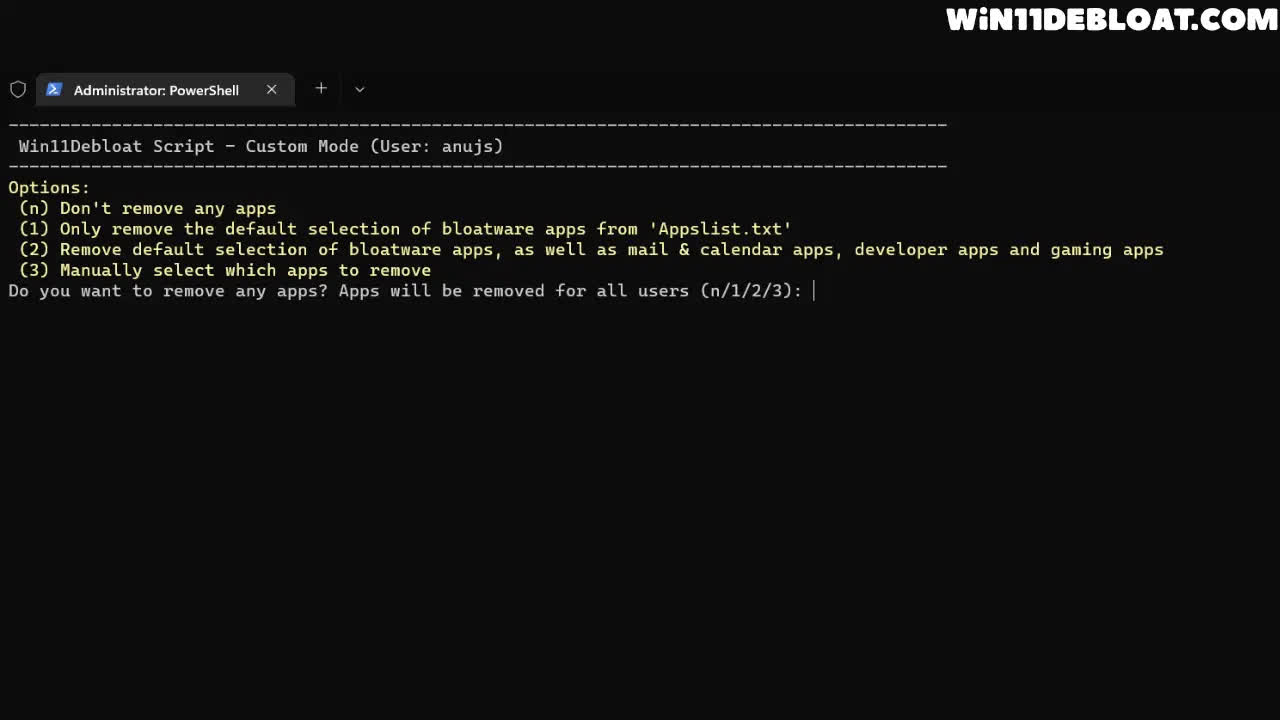
After that, it will automatically open PowerShell in Administrator mode, and you will get 3 modes, namely Default Mode, Custom Mode and App Removal Mode.
What's New
- Fix: Increase System Restore point creation timeout to 90 seconds by @ahmadsh2007 in #586
- Limit backup restore files to .json only by @Raphire
- Add Registry write fall-back in case applying registry file fails by @Raphire in #592
- Continue on registry failures and show details after execution by @Raphire in #592
- Remove DisableSearchHighlights and DisableSearchHistory settings by @Raphire in #592
- Remove widget-related registry changes as they're no longer required for disabling widgets by @Raphire in #592
- Update tooltip for DisableTelemetry feature to clarify impact on Windows Insider updates by @Raphire in #592
- Fix force remove edge prompt by @Raphire in #483
- Update winget check by @Raphire in #484
