

Visual Studio 2026 builds on its legacy as the world's most popular IDE, offering side-by-side installation with VS 2022 and full compatibility with existing workloads for a seamless transition.
Designed for .NET 10 and modern development, it introduces a more context-aware Copilot that understands your entire project - from solution and repository to tools - helping developers move faster, plan smarter, and code with greater confidence.
What are the new features in Visual Studio 2026?
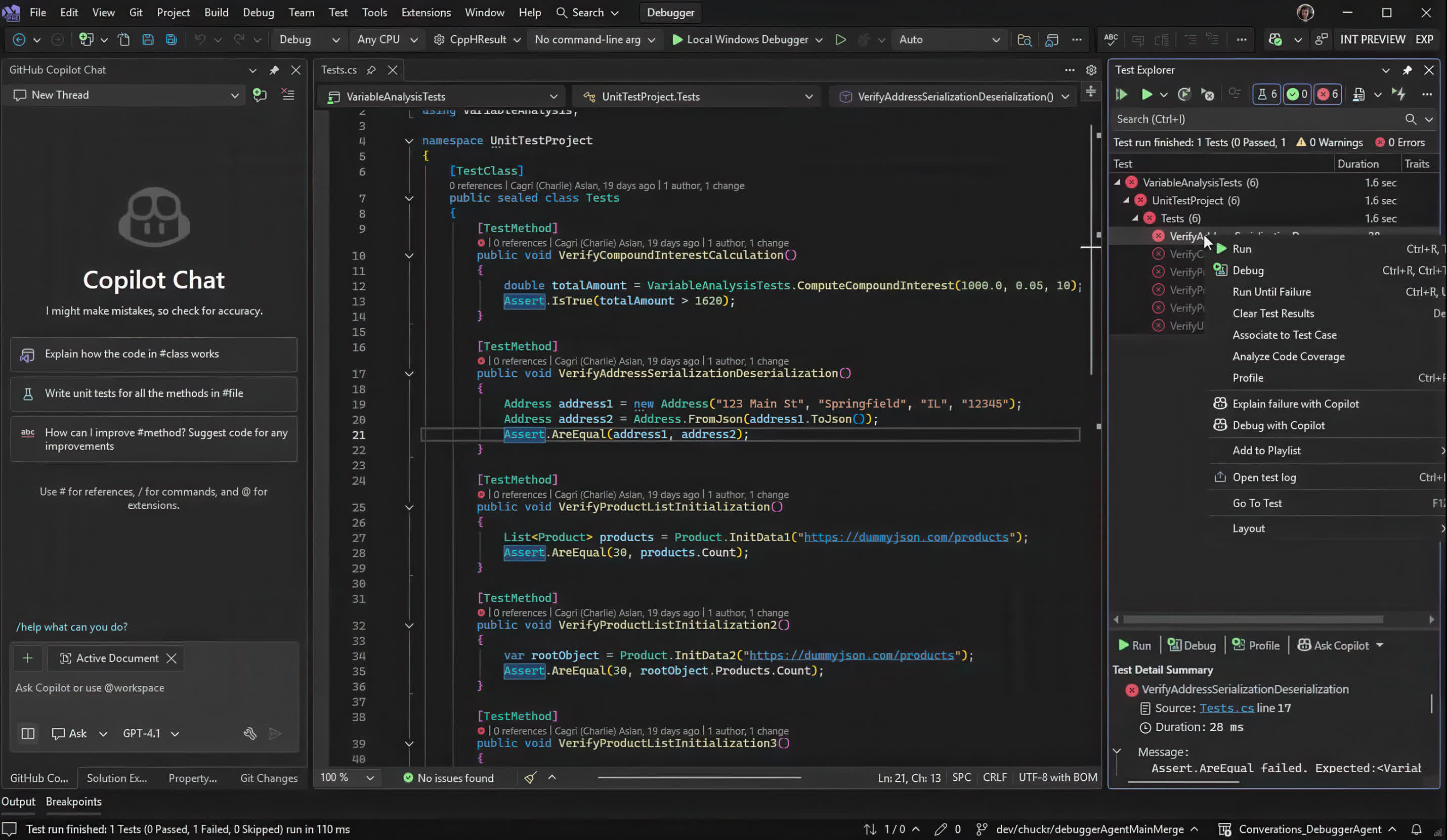
The 2026 release modernizes the IDE with a redesigned Fluent UI, faster performance, and built-in GitHub Copilot that provides contextual code suggestions, refactoring help, and test generation. It adds support for .NET 10, C# 14, and C++ 23/26 through the MSVC v14.50 toolchain, introduces a new Profiler Agent for detailed memory and CPU analysis, and simplifies upgrades with side-by-side installation and automatic settings migration.
Can I install Visual Studio 2026 alongside Visual Studio 2022?
Yes, you can install VS 2026 alongside 2022 without disrupting your existing setup. Your settings and extensions can be imported easily, and most projects run without modification. Developers ready to adopt .NET 10 or modern C++ standards can switch smoothly, though some older extensions may need updates for full compatibility.
How does Visual Studio 2026 use AI?
AI now plays a central role, with GitHub Copilot built directly into the IDE. It suggests code, generates tests, explains functions, and helps refactor intelligently based on project context. VS 2026 also expands AI-driven debugging and code-quality analysis tools, improving productivity without leaving the editor.
What are the most similar IDEs to Visual Studio 2026?
Developers comparing alternatives often look at JetBrains Rider for cross-platform .NET and C# work, Eclipse IDE and IntelliJ Idea for Java and multi-language development, Visual Studio Code for lightweight cross-platform coding, and Xcode for macOS and iOS projects. Each offers different ecosystems and strengths, but none match Visual Studio's deep integration with Microsoft's developer stack.
Features
Start coding
IntelliSense predicts your next move, delivering precise, context-aware suggestions to streamline your coding flow.
Enhance with AI
Build momentum as Copilot delivers seamless assistance to tackle complex tasks and refine your project with ease.
Debug confidently
A best-in-class debugger helps you identify and fix issues early, keeping your code solid before it hits production.
Test seamlessly
Validate your code with integrated testing for fast iterations and higher quality as you approach the finish line.
Deploy with CI/CD
Finish your path to production smoothly with Git and CI/CD managing repositories and automating deployments.
Modern development, simplified
Built-in full-stack support ready for your next endeavor
.NET 10
Take full advantage of the latest version of .NET with first-class support across web, cloud, desktop, and AI workloads.
C# 14
All the newest features in C# 14 are ready for you, so you can write clearer, faster, more expressive code with less effort.
Aspire
Get first-class support for Aspire. It's now easier than ever to build cloud-native .NET apps with a great local dev experience.
Intelligent C# Apps
Build smarter C# apps with GitHub Copilot and Azure AI, fully integrated into your workflow in Visual Studio.
Gaming
Build immersive games with modern tools for Unity, Unreal, and C++, all backed by the power of Visual Studio.
Modern C++
Get the latest C++23 language features, STL updates, and cross-platform support, plus deep tooling integration.
Git and CI/CD
Streamline your entire pipeline with smarter Git tooling, GitHub Actions integration, and simplified DevOps workflows.
What's New
We're excited to announce the availability of Visual Studio 2026. This release marks the beginning of a new era for Visual Studio with deep platform integration of AI, stronger fundamentals, and improved performance.
Visual Studio 2026 is AI-native, making it the world's first Intelligent Developer Environment (IDE). That doesn't mean changing how you work. It means giving you intelligence when it matters most. If you're debugging a tricky issue, profiling performance, or modernizing an application, AI steps in to remove friction and surface insights that help you move faster without disrupting your flow. It's there to elevate the practices you already trust, not replace them.
New Features:
Did you mean?
Never lose track of files again! Copilot intelligently detects your intent and suggests better matches when you search in Visual Studio.
Ever forget the name of a file while coding? The new Did You Mean feature in Visual Studio is here to help! When you search using All-In-One Search and Copilot detects a better match than the top result - perhaps because of a typo or a fuzzy memory - it will suggest what you might have meant.
Did You Mean works seamlessly with All-In-One Search, which you can access by pressing Ctrl+Shift+P. When you type a search term, Copilot analyzes your input and suggests a more relevant term if it finds one that more closely matches your intent. This feature helps whether the search results are empty or when the top result isn't what you intended.
Did You Mean speeds up your search experience by reducing the time spent correcting typos or trying to remember the correct name - making your search experience easier and more intuitive!
Did You Mean (preview) is now available in Visual Studio and automatically enabled for all applicable users. Currently, this feature works with public GitHub repositories, and we're actively working to expand its reach in future updates. Give it a try today and let us know what you think! You can also change the option in Tools → Options → GitHub → Copilot → Search → Enable 'Did You Mean' code search support in All-In-One Search (preview).
Code coverage
Code coverage is now available in Visual Studio Community and Professional editions for the first time - ensuring your code is well-tested has never been easier!
You can now analyze which parts of your code are exercised by tests directly from within the IDE! This feature was previously only available in the Enterprise edition, but is now available in Community and Professional editions, making it easier than ever to ensure your code is well-tested.
Built-in code coverage tools help you understand test effectiveness by showing how much of your code is covered by unit tests and other coded tests.
CI/CD integration allows automated coverage tracking as part of your continuous integration workflows.
From the Test menu, select Analyze Code Coverage for All Tests to run coverage on your test suite.
You can also right-click within the Test Explorer to run code coverage for selected tests.
Results will appear in the Code Coverage Results window, showing percentages for each assembly, class, and method.
Visual Studio highlights tested lines directly in the editor, so you can quickly spot what's covered and what's not.
This feature brings a crucial tool to more developers, helping you ship with greater confidence.
New look and feel
Visual Studio now features a refreshed interface aligned with the Fluent UI design system. This update introduces a modern, cohesive aesthetic across the IDE, improving usability, accessibility, and visual clarity.
The Visual Studio IDE has been updated to align with the Fluent UI design system, delivering a more modern and cohesive look and feel. These changes enhance usability and accessibility while preserving familiar workflows.
In addition to the updated design language, we've introduced 11 new tinted themes to give users more control over the appearance of their development environment.
We're also introducing a new Editor Appearance setting that focuses specifically on the editor's look and feel. This setting can be used to match the overall IDE theme, but it also works independently, allowing users to customize their coding environment without needing to align with the broader IDE.
Finally, we've redesigned the iconography to be more visually appealing and easier to recognize, improving navigation and overall user experience.
Modern settings experience
The new settings experience brings a streamlined, user-friendly interface to Visual Studio, replacing Tools > Options with a modern design, smarter organization, and enhanced reliability.
The modern settings experience is now the default, replacing the legacy Tools → Options dialog. This updated platform gives you a Fluent-aligned UI, centralized registration, and improved persistence, bringing clarity, consistency, and extensibility to your configuration workflow.
Your settings will carry forward from older Visual Studio versions with roaming support. However, settings will no longer sync back to older products - this ensures forward compatibility and a cleaner migration path.
Most commonly used settings have already moved to the new platform. You can still access remaining settings through legacy links, ensuring continuity while you transition to the new experience.
M365 Agents Toolkit updates
You can now use GitHub Copilot and the Microsoft 365 Agents Toolkit to build, personalize, and debug your M365 apps and agents faster.
1. You can now use GitHub Copilot to elevate your Microsoft 365 app and Copilot agent development!
GitHub Copilot Extension for Microsoft 365 Agents Toolkit: Get natural language prompts, recommended templates, intelligent guidance, and instant troubleshooting. Just @mention the extension in Copilot Ask Mode. For more details, check out the blog: Preview the GitHub Copilot extension for Teams Toolkit.
MCP Server for Microsoft 365 Agents Toolkit: Unlock advanced AI-driven workflows in Copilot Agent Mode. Add new AI-powered features to your Microsoft 365 app and Copilot agent using the Teams AI library and Agents SDK. Learn more in the blog: Build Smarter with the Microsoft 365 Agents Toolkit MCP Server.
You can quickly build, personalize, and debug your M365 apps and agents with Copilot by your side.
2. Teams agents and app templates upgraded to Teams AI Library V2
All Teams agents and Teams app project templates now use the new Teams AI Library V2.
These updated templates let you:
Connect to Large Language Models (LLMs) like OpenAI or Azure OpenAI without changing your core bot logic.
Connect to external data sources so your apps stay current and responsive.
Use adaptive cards, expressive emojis, and rich interactive elements that feel native in Teams.
You can now create fully functional Teams agents faster, enjoy a smoother development experience, and deliver user experiences that feel truly native.
3. This release added the .NET 10 support for M365 agents templates.
4. Important notes on Bot registration updates
This release contains changes switching from multi-tenant to single-tenant bot registrations to align with Azure Bot Service (ABS) security requirements. Microsoft is retiring support for multi-tenant bot registrations. All new bot registrations must now use single-tenant configuration. This change enhances security and compliance across Microsoft 365 services. Multi-tenant registration will be fully blocked. Existing multi-tenant bots will continue to function correctly but eventually migrate to single-tenant registration follow the migration guide to switch your Azure Bot Service registration to single-tenant.
Setup Assistant
Easily resolve missing dependencies and get to build faster with Setup Assistant.
Setup Assistant helps you get building faster after upgrading Visual Studio. It finds missing toolsets and SDKs, then lets you install or retarget them right from the IDE.
For C++ developers: Setup Assistant shows missing MSVC toolsets and Windows SDKs. You can install them with one click in the Visual Studio Installer.
For .NET developers: If your project uses a pinned global.json, Setup Assistant links you to the matching .NET SDK for quick installation in your browser.
You can read about the entire release notes here.
From our entire team, thank you for choosing Visual Studio! For the latest updates, resources, and news, check out the Visual Studio Hub and stay in touch.
Happy coding!
The Visual Studio team
