Shotcut supports a wide range of formats and codecs thanks to FFmpeg. There's no import required meaning native timeline editing, Blackmagic Design support for input and preview monitoring, and resolution support up to 4k.
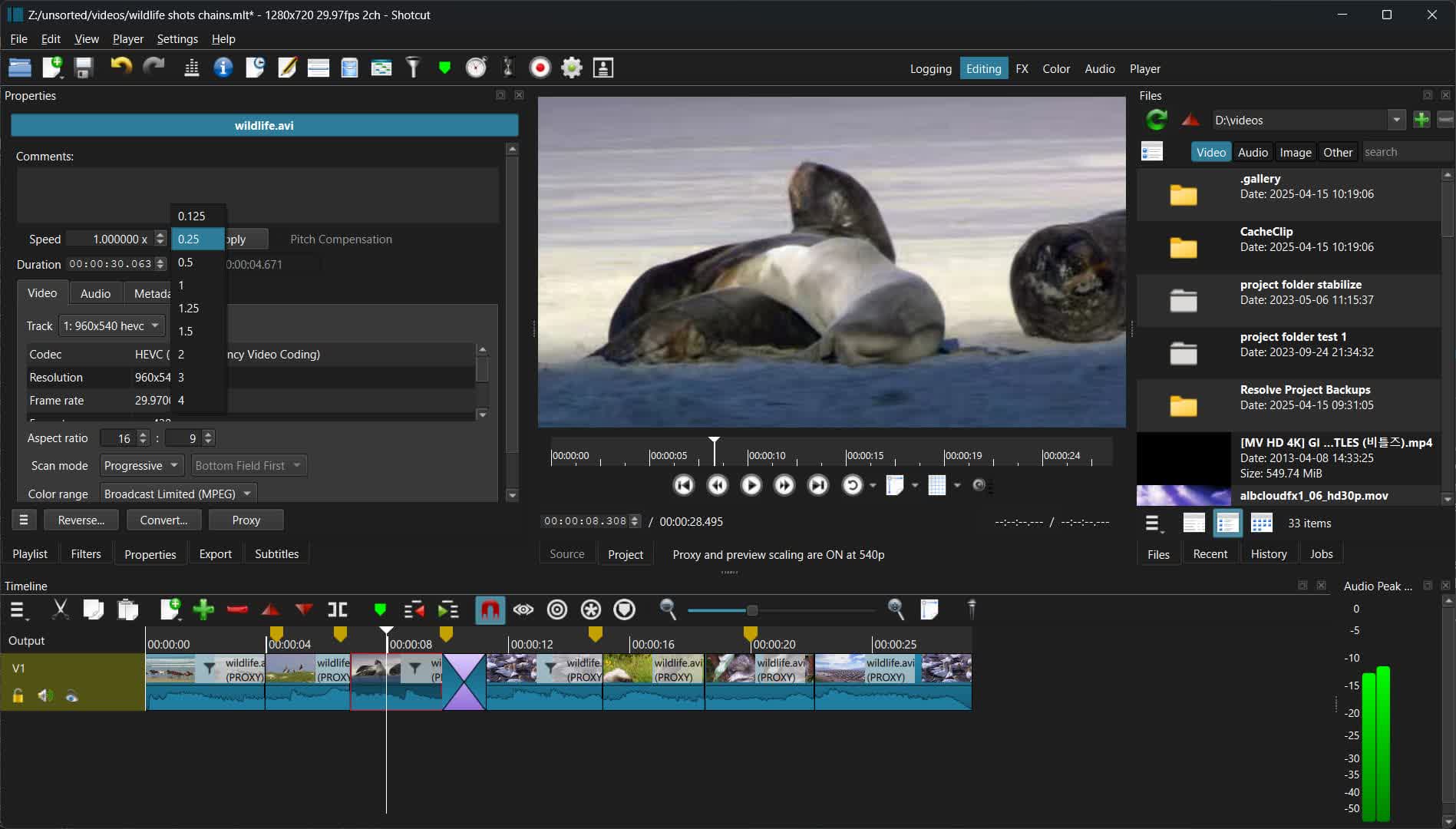
Other features include screen, webcam and audio capture. Network stream playback. Supports capture from SDI, HDMI, webcam, JACK & Pulse audio, IP stream, X11 screen and Windows DirectShow devices.
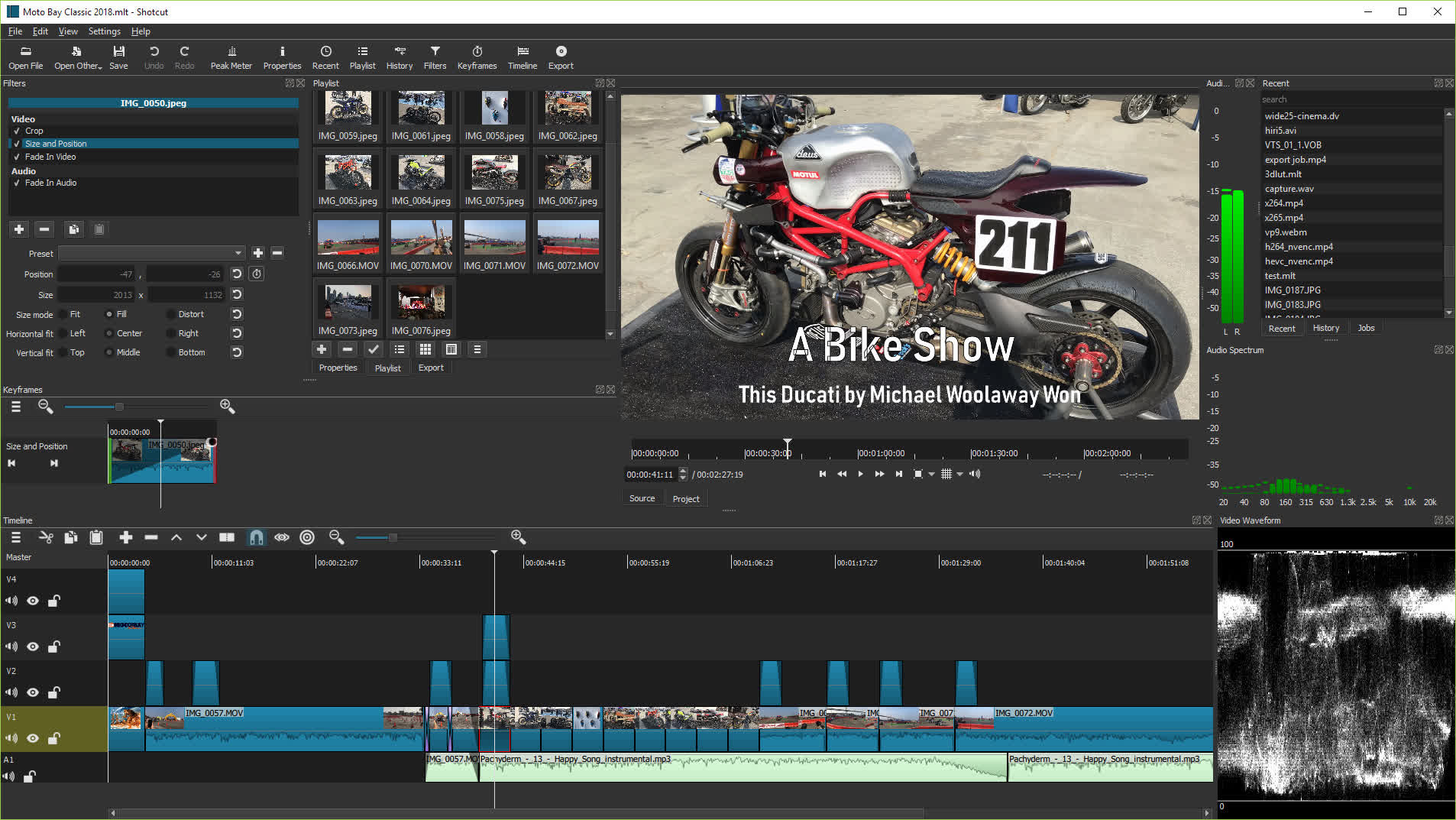
Multiple dockable panels, including detailed media properties, recent files with search, playlist with thumbnail view, filter panel, history view, encoding panel, jobs queue, and melted server and playlist. Also supports drag-n-drop of assets from file manager.
Can Shotcut handle high-resolution formats like 4K or 8K?
Yes. Shotcut supports editing and exporting in high resolutions, including 4K and even 8K, as long as your system hardware can handle the workload.
Does Shotcut support hardware acceleration for faster rendering?
Shotcut can use hardware acceleration through Intel Quick Sync, Nvidia NVENC, and AMD VCE/AMF on supported GPUs. This can significantly reduce export times compared to software-only encoding.
Can I use professional formats or codecs in Shotcut?
Yes. Since Shotcut relies on FFmpeg, it supports a wide variety of professional formats and codecs, including ProRes, DNxHD, and other intermediate formats often used in post-production.
Is it possible to do advanced editing like keyframes or masking?
Shotcut has support for keyframes in filters and transitions, as well as features like masking and chroma key (green screen). While not as extensive as other high-end editors, these tools cover many creative needs.
Is color grading possible in Shotcut?
Yes. Shotcut includes tools such as color wheels, curves, and scopes (like waveform and vectorscope) for color correction and grading. While not as advanced as dedicated grading suites, it provides enough control for most editing needs.
Can Shotcut run as a portable app?
On Windows and Linux, Shotcut can be used as a portable application without installation, making it convenient to run from an external drive or USB stick.
Features
Wide Format Support
- Support for the latest audio and video formats thanks to FFmpeg
- Supports popular image formats such as BMP, GIF, JPEG, PNG, SVG, TIFF, WebP as well as image sequences
- Lottie and rawr JSON animations
- No import required - native timeline editing
- Frame-accurate seeking for many formats
- Multi-format timeline: mix and match resolutions and frame rates within a project
- Webcam capture
- Audio capture
- Support for 4K resolutions
- Network stream playback (HTTP, HLS, RTMP, RTSP, MMS, UDP)
- Frei0r video generator plugins (e.g. color bars and plasma)
- Color, text, noise, and counter generators
- EDL (CMX3600 Edit Decision List) export
- Export single frame as image or video as image sequence
- Videos files with alpha channel - both reading and writing
- Tone mapping HDR to SDR
- Optional full range video input, processing, and export
Audio Features
- Audio scopes: loudness, peak meter, waveform, spectrum analyzer
- Volume control
- Audio filters:
- Balance, Band Pass, Compressor, Copy Channel, Delay, Downmix, Equalizer: 3-Band, Equalizer: 15-Band, Equalizer: Parametric, Expander, Gain, High Pass, Invert, Limiter, Low Pass, Noise Gate, Normalize: One Pass, Normalize: Two Pass, Notch, Pan, Pitch, Reverb, Stereo Enhancer, Swap Channels
- Audio mixing across all tracks
- Fade in and out audio and fade video from and to black with easy-to-use fader controls on timeline
- Cross-fade audio and video dissolve transitions easily by overlapping shots on the same track of the timeline
- JACK transport sync
- Tone generator
- Stereo, mono, and 5.1 surround
- Pitch compensation for video speed changes
- Record directly to timeline for voiceover, for example
Video Effects
- Video compositing across video tracks
- 3-way (shadows, mids, highlights) color wheels for color correction and grading
- Eye dropper tool to pick neutral color for white balancing
- Deinterlacing
- Auto-rotate with manual override
- Fade in/out audio and fade video with easy-to-use fader controls on timeline
- Video wipe transitions:
- bar, barn door, box, clock (radial), diagonal, iris, matrix, and custom gradient image
- Track compositing/blending modes:
- None, Over, Add, Saturate, Multiply, Screen, Overlay, Darken, Dodge, Burn, Hard Light, Soft Light, Difference, Exclusion, HSL Hue, HSL Saturation, HSL Color, HSL Luminosity.
- Video Filters:
- Alpha Channel: Adjust, Alpha Channel: View, Audio Dance Visualization, Audio Level Visualization, Audio Light Visualization, Audio Spectrum Visualization, Audio Waveform Visualization, Blend Mode, Blur: Box, Blur: Exponential, Blur: Gaussian, Blur: Low Pass, Blur: Pad, Brightness, Choppy, Chroma Hold, Chroma Key: Advanced, Chroma Key: Simple, Contrast, Color Grading, Corner Pin, Crop: Source, Crop: Circle, Crop: Rectangle, Deband, Distort, Dither, Elastic Scale, Flip, Glitch, Glow, GPS Text, Gradient, Grid, Halftone, Hue/Lightness/Saturation, Invert Colors, Key Spill: Advanced, Key Spill: Simple, Lens Correction, Levels, 3D LUT, Mask: Apply, Mask: Chroma Key, Mask: From File, Mask: Simple Shape, Mirror, Mosaic, Nervous, No Sync, Noise: Fast, Noise: Keyframes, Old Film: Dust, Old Film: Grain, Old Film: Projector, Old Film: Scratches, Old Film: Technocolor, Opacity, Posterize, Reduce Noise: HQ3DN, Reduce Noise: Quantization, Reduce Noise: Smart Blur, Reduce Noise: Wavelet, Reflect, RGB Shift, Rotate and Scale, Saturation, Scan Lines, Sepia Tone, Sharpen, Size and Position, Sketch, Spot Remover, Stabilize, Text: Rich, Text: Simple, Threshold, Time Remap, Timer, Trails, Vertigo, Vignette, Unpremultiply Alpha, Wave, White Balance
- 360° Video Filters:
- Equirectangular Mask, 360: Equirectangular to Rectilinear, 360: Equirectangular to Stereographic, 360: Hemispherical to Equirectangular, 360: Rectilinear to Equirectangular, 360: Stabilize, 360: Transform
- Speed effect for audio/video clips
- Reverse a clip
- Video scopes: Histogram, RGB Parade, RGB Waveform, Waveform, Vectorscope and Zoom
Editing Features
- Trimming on source clip player or timeline with ripple option
- Easy-to-use cut, copy, and paste operations
- Append, insert, overwrite, lift, and ripple delete editing on the timeline
- 3-point editing
- Hide, mute, and lock track controls
- Multitrack timeline with thumbnails and waveforms
- Unlimited undo and redo for playlist edits including a history view
- Create, play, edit, save, load, and export (render) MLT XML projects (with auto-save)
- Save and load trimmed clip as MLT XML file
- Load and play complex MLT XML file as a clip
- Drag-n-drop files from file manager
- Scrubbing and transport control
- Keyframes for filter parameters
- Detach audio from video clip
- Presets for most filters and Export - both supplied and user-created
- Sort playlist by name or creation/recording date
- Multi-select items in the playlist and timeline
- Create custom name for clips and enter comments about it
- Low resolution proxy editing to improve speed of seeking and eliminate or minimize scaling
- Timeline markers and ranges, including export from a range and exporting as text chapters
- A Notes panel to keep notes about your project or contain text to reaad for voiceover
- Flexibly insert and reorder tracks
- Edit Lottie and rawr JSON animations with [Glaxnimate](https://glaxnimate.mattbas.org/) vector animation tool (included in our Shotcut downloads)
Cross Platform & Codec Independent
- Cross platform support: available on Windows, Linux, and macOS)
- Codec independent so does not rely on system codecs
- Can run as a portable app from external drive
- UI translations: Arabic, Catalan, Chinese, Czech, Danish, Dutch, English, Estonian, Finnish, French, Gaelic, Galician, German, Greek, Hungarian, Italian, Japanese, Korean, Nepali, Norwegian Bokmål, Norwegian Nynorsk, Occitan, Polish, Portugese, Romanian, Russian, Slovak, Slovenian, Spanish, Swedish, Taiwanese, Thai, Turkish, Ukranian (not all 100%, but you can help
- Batch encoding with job control
- Encode/transcode to a variety of formats and codecs thanks to FFmpeg
- Stream (encode to IP) files and any capture source
- Video quality measurement (PSNR and SSIM)
- Perform integrity check of an audio/video file
- View detailed information about an audio/video file
Display and Monitoring
- External monitoring via Blackmagic Decklink card on NTSC monitor
- External monitoring on an extra system display/monitor
- UI themes/skins: native-OS look and custom dark and light
- Control video zoom in the player: fit viewable area (default), 10%, 25%, 50%, original (100%), and 200%
- Flexible UI through dock-able panels
- Detailed media properties panel
- Recent files panel with search
- Thumbnail and waveform caching between sessions
- Save and switch between multiple UI layouts.
- On-screen grid and safe areas with snapping.
- Low resolution preview (Preview Scaling) to improve speed of realtime effects.
- Preview the Shotuct timeline as a background within Glaxnimate
Hardware Support
- Blackmagic Design SDI and HDMI for input and preview monitoring
- Leap Motion and Contour Design Shuttle PRO for jog/shuttle control
- Webcam capture
- Audio capture from system device (microphone, line in)
- Capture (record) SDI, HDMI, webcam (V4L2), JACK audio, PulseAudio, IP stream, and Windows DirectShow devices
- Multi-core parallel image processing (when not using GPU and frame-dropping is disabled)
- OpenGL GPU-based image processing with 16-bit floating point linear per color component
- AMD, Intel, and NVIDIA hardware encoding
Replace the Mask video filter with 3 new filters:
- Mask: Simple Shape
- Mask: From File
- Mask: Apply
The new Mask: Apply filter makes it possible to mask filters without using multiple tracks! Use Mask: Simple Shape or Mask: From File to start the filter mask followed the video filters to be masked followed by Mask: Apply to apply the mask to the filters in between. Filters before or after the mask filters affect the entire video frame. One can still use Mask: Simple Shape or Mask: From File to affect the alpha channel for multitrack compositing as before. This makes them compatible with existing information and tutorials that suggest using multiple tracks as well as enabling collage/montage or transition effects when the tracks do not use the same clip.
The new Mask: From File is a powerful new video filter offering 3 modes:
- Wipe transition (stock or custom)
- Channel > Brightness from a video or image file (File > Custom...)
- Channel > Alpha from a video or image file. Moreover, Threshold can be animated with simple or keyframes, which is especially nice when used with luma-wipe image files (stock or custom). Not only can you wipe on a masked filter but also you can use this as an alternative way to make a wipe transition using multiple tracks (instead of same track transition).
What's New
External Monitor with a System Display
Three years ago, when we upgraded our UI library to a major new version, we lost support for using an additional system display as an external monitor. Many people were disappointed to lose that feature. Now, after a major change to the video plumbing, it is back!
The External Monitor submenu is moved from Settings to the top of the Player menu. It is incompatible with newly added Settings > Player > Use Old Video Output (provided just in case the new plumbing does not work).
The new plumbing also provides a way to preview HDR video except, for technology reasons, it must be shown in a separate window…
HDR Video Preview and Export
As a quick reminder for those unfamiliar: "HDR" means high dynamic range, not high definition resolution. It is about expanded color and light. A lot of phones and cameras are recording with this today, and many people are not aware until they try to edit and run into problems. Also, HDR game captures on computers is increasingly common. A year ago, we added very limited, hidden support for editing HDR video because, basically, we had no way to display it without a device from Blackmagic Design. Now, there is a way.
- Added Player > External Monitor > Preview Window (HDR) that can be made fullscreen.
- It also works for SDR.
- HDR requires a display properly configured with HDR, Native 10-bit CPU or Linear 10-bit GPU/CPU processing modes, and HDR video sources.
- For HDR, only use filters tagged with #gpu or #10bit.
- It does not appear to work on Linux, at least I have not been able to get it working.
- Switching between PQ HDR (HDR10) and HLG HDR requires restarting the app.
- The default shortcut to open or raise the preview window is Ctrl+'. It does not toggle between open and close because raise is more convenient.
- You can move the window by clicking anywhere inside except the controls bar and dragging.
- F toggles fullscreen and Esc also leaves fullscreen.
- Incompatible with Use Old Video Output.
- Added Dynamic range to custom Video Mode and Timeline Properties.
- This offers SDR, which follows the colorspace, HLG HDR, and PQ HDR.
- At this time, Shotcut only supports converting log profile video to HDR with GPU processing mode and HLG HDR video mode. And it cannot convert between HDR formats or combine multiple HDR formats within a project.
- Added support for PQ HDR (HDR10) to External Monitor > DeckLink.
- Added support for HDR to Export (based on Video Mode and 10-bit processing mode).
- Added HDR10 metadata dialogs for External Monitor > DeckLink and Export > Codec.
- Export only embeds HDR10 metadata for the libx265 and libsvtav1 video codecs and no hardware encoders.
- TODO: Properties > Convert and View > Resources > Convert do not support 10-bit yet; that will be added in the next release.
External Plugins
We added limited support for external audio and video plugins.
"Limited" means it does not support a plugin's included UI, and our UI generator is new and experimental. That means you can only try it if you are an advanced user who knows how to supply a command line option to reveal the new UI generator. There are many mysterious effects, and uncertainty if things are working correctly. As a result, the user experience is not yet good enough with an increased risk of crash.
"External" means both effects included with Shotcut but not yet available in the UI or plugins that you install yourself to the standard, expected location for your OS.
OpenFX Image Effect Plugins
- Added a UI (--experimental not required) for NTSC-rs.
- Limited compatibility: not available, seems to do nothing, or makes the video black.
- No support for plugins that operate temporally or require multiple image/video inputs.
- No support for generators, transitions, or retimers.
- No support for the UI embedded in the plugin.
- No support for GPU technologies but multi-threaded CPU does work.
- Very limited testing. There are many plugins we have not tested especially commercial ones, and we know there are some that do not work.
- None are included with Shotcut.
- Looks for plugins in the standard folder for the operating system.
Other New Features
- Added Reduce Noise: Audio (RNNoise) filter. More info about RNNoise
- Added Settings > Display Method > Vulkan on Linux.
- Added Settings > Timeline > Create Transitions on Overlap to disable that feature.
- Added support for the .lot filename extension for Lottie animation handled by Glaxnimate.
- Added support to load custom filter UIs installed to App Data Directory > extensions > filters. If someone shares a custom or generated UI for an external effect/plugin that seems useful and safe, you can install it here to use it in your Shotcut without needing to use the --experimental mode. This can also be a place to add custom general purpose scripts by making a dummy filter. Use mlt_service: 'shape' as the dummy/no-op backend filter in the meta.qml. Soon we will add a proper scripts panel.
- Documented a scripting interface.
Changes
- Changed Linux Snap to use a desktop environment file dialog if possible.
- Changed the new Log Event shortcut to Shift+D because one conflicted with Remove Subtitle Item.
- Moved Declick Audio from the Time category to Audio in the filter menu.
- Upgraded MLT to version 7.40.0
- Upgraded FFmpeg to version 8.1.2
- Upgraded libspatialaudio to 0.4.0
- Upgraded frei0r to version 3.2.2
Fixes
- Fixed the Font style from the font dialog is overwritten on filter UI reload on Windows (broke in v26.4).
- Fixed hardware scaler on Windows when using Settings > Preview Scaling > Use Hardware Decoder (broke in v26.4).
- Fixed mouse wheel and keyboard not incrementing/decrementing numeric fields in filter UIs (broke in version 26.4).
- Fixed moving clips may create a very long gap.
- Fixed Player > External Monitor > DeckLink (and related such as UltraStudio) HDMI/SDI may deadlock.
- Fixed export with libopus audio codec warns about frame_duration.
- Fixed incorrect current track after moving clip to another track.
- Fixed undo after changing Video Mode corrupts the timeline.
- Fixed double-clicking a project file in Finder with Shotcut already running on macOS.
- Fixed zooming in the player with non-square pixels.
- Fixed a possible crash when Text: Rich filter is first in the list and playhead is not over selected clip.
- Fixed File > Export EDL adds 1-frame clip before transitions.
- Fixed full-width spaces replaced by half-width spaces in Import Subtitles From File.
- Fixed Text: Typewriter not animating correctly after changing rate parameters.
- Fixed reordering Filters breaking selecting another filter.
- Fixed some actions disabled after deleting, moving, or updating an item in Subtitles.
- Fixed repeated prompts to convert a project to GPU processing mode if project was started before version 25.12.
- Fixed skim not working over Timeline clips.
- Fixed mouse wheel not scrolling a filter's UI within Filters.
- Fixed 10-bit H.264 encoder fails with hardware encoding on.
- No H.264 hardware encoders support 10-bit; this change simply makes it use software encoding with x264.
- Fixed Export > Ogg Vorbis with Cover Art fails (no longer fails but our Ogg integration does not support cover art).
- Fixed Export > From > Marker using the Reframe output video filter with keyframes.
- Fixed some toolbar icons' tooltips not showing keyboard shortcut.
- Fixed Zoom Timeline to Fit may not scroll to start.
- Fixed a crash using some Markers actions with nothing open.
- Fixed using Windows UNC paths with filters, e.g. GPS Graphic.
- Fixed extended/special characters in metadata of custom Export preset.
- Fixed Rebuild Audio Waveform was not saving on Windows.
- Fixed tab focus did not allow editing numeric fields in filters.
- Fixed Export > Video > Aspect ratio can be incorrect if very close to a common ratio: 4:3, 16:9, or 9:16.
- Fixed changing many things in Properties enabled Filters that were disabled.
- Fixed crash in Text: Rich filter on some Linux/Wayland versions.
- Fixed toggling visibility of other tracks in Timeline could make an audio clip with an image appear on top.