

Blockbench is a free, easy-to-use 3D modeling tool built specifically for voxel and low-poly assets. It's especially popular among Minecraft creators, but it's also widely used for game development, modding, and simple animated models.
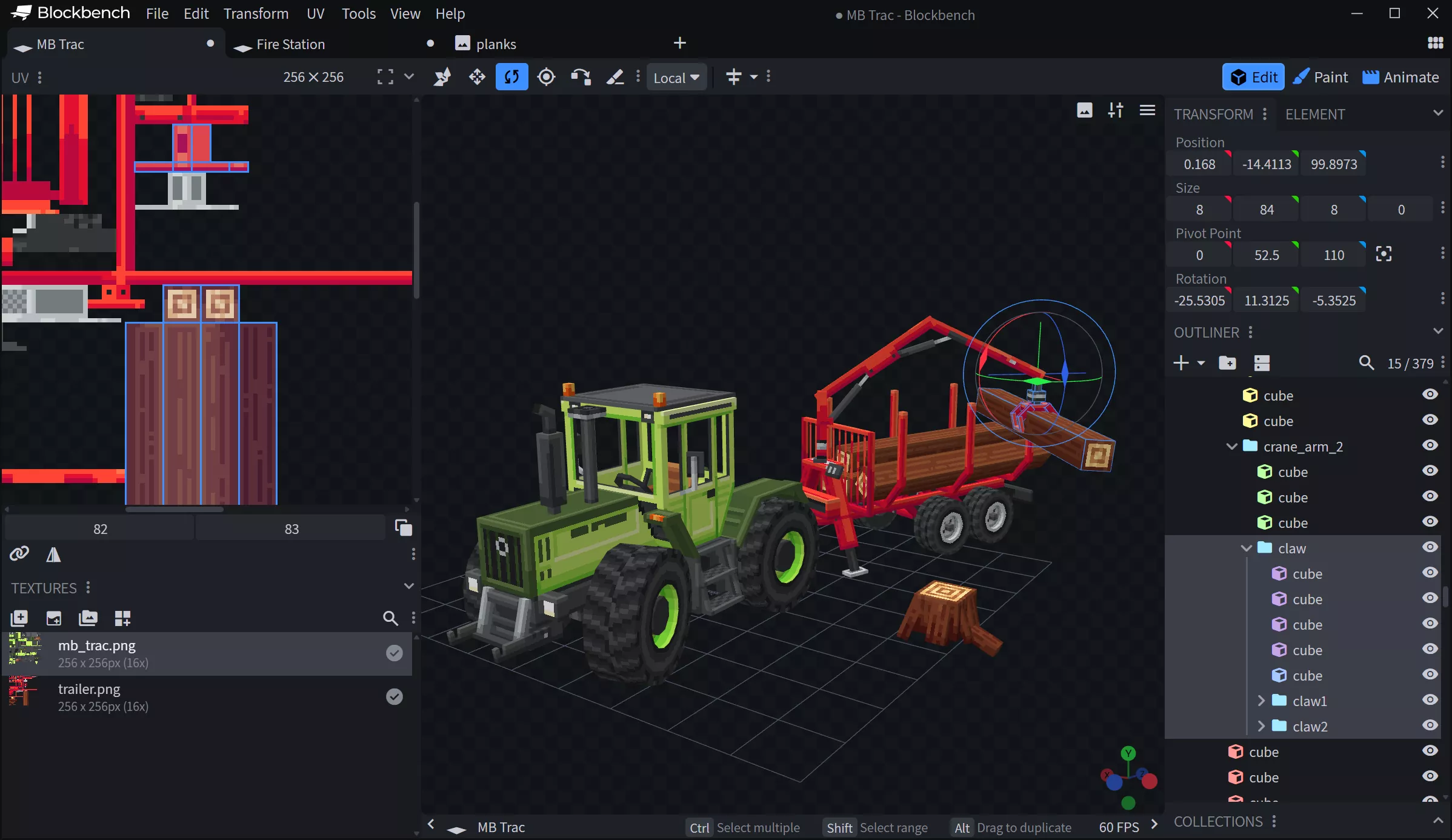
The interface is clean and beginner-friendly, while still offering powerful features like real-time previews, texture painting, bone-based animation, and multiple export formats. Whether you're creating custom Minecraft mobs, game assets, or stylized low-poly models, Blockbench makes the process fast, intuitive, and accessible – even if you're new to 3D modeling.
Blockbench puts all the tools at your disposal to make the creation process of low-poly models as easy as possible. Use cuboids to get that Minecraft aesthetic, or create complex low-poly shapes using the mesh modeling tools.
What file formats does Blockbench support?
Blockbench supports formats commonly used in voxel and game workflows, including JSON-based formats (such as Minecraft models), OBJ, and glTF, depending on the project type and plugins in use.
Can I extend Blockbench with plugins?
Yes. Blockbench includes a plugin system that allows users to add tools, export options, workflow enhancements, and custom features developed by the community.
How does Blockbench handle UV mapping and textures?
Blockbench provides built-in UV editing with pixel-accurate control, texture painting tools, and live texture previews directly on the model.
Can I export directly into a resource or behavior pack for Minecraft?
Yes. Blockbench can export models and related files directly into Minecraft resource packs (Java Edition) and behavior packs (Bedrock Edition), allowing creators to test and iterate on models inside the game with minimal setup.
What are good alternatives to Blockbench for Minecraft modeling?
Blender is the most common alternative, offering more advanced modeling and animation tools but with a steeper learning curve and additional setup for Minecraft workflows. For simple block and item models, in-game tools and basic JSON editors, such as Visual Studio Code, Notepad++ and Sublime Text are sometimes used, though they lack visual previews and animation support.
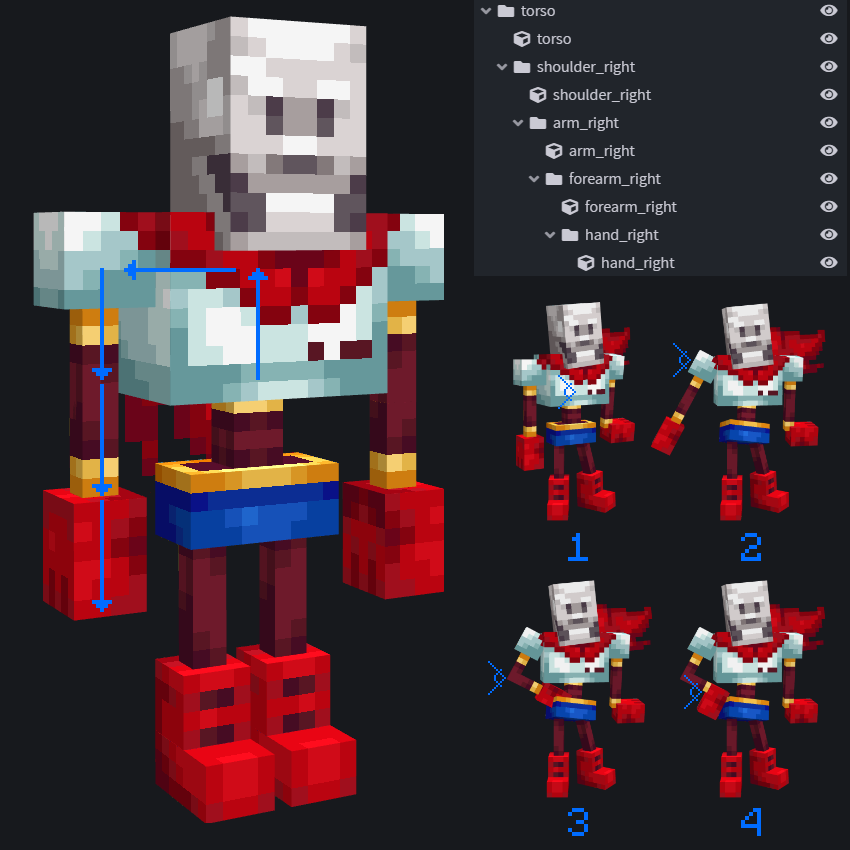
Features
Texturing Tools
Create, edit and paint texture right inside the program. Create or import palettes, paint, or draw shapes.
Blockbench can automatically create a UV map and template for your model so that you can start painting right away.
You can paint directly on the model in 3D space, use the 2D texture editor, or connect your favorite external image editor or pixel art software.
Animations
Blockbench comes with a powerful animation editor. Rig your model, then use position, rotation and scale keyframes to bring it to life. Use the graph editor to fine-tune your creation.
Animations can later be exported to Minecraft: Bedrock Edition, rendered in Blender or Maya, or shared on Sketchfab.
Plugins
Customize Blockbench with the built-in plugin store.
Plugins extend the functionality of Blockbench beyond what it's already capable of. They add new tools, support for new export formats, or model generators.
You can also create your own plugin to extend Blockbench or to support your own format.
Free and Open Source
Blockbench is free to use for any type of project, forever, no strings attached.
The project is open source under the GPL license.
What's New
Highlights of this update:
- Screen-Space Brush
- Layer Groups
- 3D Plane Reference Images
- Movable Reference Models
- New Color Wheel
- Better Inverse Kinematics
Screen-Space Brush
- The Screen Space brush (#1384) is a new brush preset that lets you paint on the viewport as if it was a flat painting.
- It does not snap to the face your are painting, and is ideal for painting and blending together the edges between faces.
- Like most brush options, there are two ways to enable this:
- You can use a brush preset. Press the small down arrow next to the brush tool and use the built-in "Screen Space Brush" preset. Or click "Brush Presets..." and create your own preset with the "Screen Space Brush Projection" option enabled
- Use the "Screen Space Brush Projection" toggle and add it to a toolbar or a keyboard shortcut. This is useful for toggling the option on the fly without switching to a different brush.
References
- Added the new view mode "3D Plane" for reference images. This lets you place your reference image in the 3D space of your project, it will move with the model as you move your view.
- Added new "Add Reference Image" dialog. This provides basic options when adding a new reference image, such as selecting the view mode.
- Video reference images now have a video controls UI (#2800). This lets you skip to a certain part of the video, control the sound, etc. It has the following options:
- Play/pause button
- Video progress bar and timecode
- Audio toggle and volume control
- Full screen toggle
- Additional options (on desktop app and most browsers)
- Reference images now have better support in the 2D image editor, including support for Locked Blueprint mode
- Added new reference model "Minecraft Crafting Table"
- Preview Models can now be toggled individually from View > Preview Models
- Preview models can now be transformed from the same menu and will remember their position after a restart (JannisX11/hytale-blockbench-plugin#83)
- Skyboxes are now rendered in orthographic view (#3702, thanks @ewanhowell5195!)
- Disabled preview scenes in the GUI display slot (#3703, thanks @ewanhowell5195!)
Inverse Kinematics (IK) upgrades
- The IK System has been improved. Thanks @PROMETHIA-27 for their contributions!
- Added IK Poles. These are positions that can be placed via Locator or Null Object and determine in which direction an IK chain bends. This is useful for animating things like legs.
- IK compatibility with armatures (#3339)
- IK options and target elements can now be controlled in the Element panel
- Improved IK rendering performance
Texturing Tools
- Added Layer Groups
- Added brush aspect ratio slider
- New custom HSV color selector wheel (#1020)
- The current color is now displayed in the panel selector bar on mobile
- Fill faces and elements via Paint Bucket in UV editor (#3739, thanks @Kannoma!)
- Added setting to switch opacity sliders between 100 and 255 range (#3404, #2254, JannisX11/hytale-blockbench-plugin#182)
- Added option to lock brush to first clicked element or face, or to all selected faces (#1898)
- Color picker now allows picking on locked elements
- Face selections are now kept while switching to Paint mode and painting
- Added presets for Generate PBR Map (#3658)
Mesh Modeling & Weight Painting
- Added more mesh primitives: Icosphere, Octahedron, Dodecahedron
- Added even loop cutting (#1269)
- Use spatial interval as default for extrude/solidify (#3545, thanks @nklbdev!)
- Compute new UVs when using Inset (#3545, thanks @nklbdev!)
- Added proportional editing support on resize and rotate (#3731)
- Made vertices more visible during weight painting
- Made Set Vertex Weights available in object selection mode
Transform UX Improvements
- Added "Flip in place" actions
- Added toggle for moving elements individually with position sliders (JannisX11/hytale-blockbench-plugin#187)
- Added "Move Pivot Values Directly" toggle
Animation
- Added Select Keyframes Before/After Playhead actions
- Added Variable Placeholder panel toolbar
- Added Create Variable Placeholder tool
- Added View Built-in Variables tool (#3355)
- You can now drag to reorder entire animation groups or files
- Particle effects no longer pause at the last frame in "hold on last frame" animations
- Remember timeline filter preferences between restarts
Interface
- Added "Native Window Frame" setting (#3529)
- Added "New Project Dialog" setting
- Improvements to file inputs in dialogs (#3693, thanks @ewanhowell5195!)
- Long paths overflow on the left, so you see the file name instead of the drive letter
- Full path on hover as a tooltip
- Files can be dropped onto an input
- Settings can now be searched by their plugin name
- Rank settings search results by relevance
- Added the ability to resize the start screen
- Double clicking the dialog resizer will now reset dialog size
- Text in the "About" dialog and on the update screen is now user selectable
Plugin Browser
- Added Recently Updated plugin row (#2811)
- Added setting to disable plugin auto updates
- Change plugin icon rendering based on resolution (#3538)
- Save plugin files in the web app (#1186) (#3733, thanks @ewanhowell5195!)
Experimental Settings
- Added Experimental Settings menu (#3641)
- An alternative to the settings menu, but for niche use-cases, debugging, and experiments.
- By design with no localization, no settings profiles, no Action Control integration.
- Contains the following settings (to be expanded in the future):
- Plugin load timeout (#3640)
- Max chat message length
- Edit Session server
- Projected Brush sample interval
- Minecraft
- Added Cushion skin preset
- Improvements to generated Java item models (#2813) (#3697, thanks @ewanhowell5195!)
- Read the PR for more details
- Option to resolve the whole parent chain when opening a child model (#3730, thanks @ewanhowell5195)
- Added new Minecraft Java "Shade Direction Override" cube property
- Fill in the bedrock display transform defaults (#3734, thanks @ewanhowell5195)
- Remember bedrock geo material config files in recent project
- Automatically turn on Holding Item toggle for attachables
- Particles and sound effects in animations are now automatically loaded from Minecraft Bedrock resource pack (#3604)
- Exclude new supported Molang queries from generating placeholders (#3355)
Misc changes
- Added "Constant Outlines" setting
- Added option to export armatures to GLTF with multiple separate meshes (#3596)
- The Advanced Screenshot tool now displays a preview of the result
- Added billboard marker colors (#3664)
- Toggle to display element markers in viewport for locators, null objects (#3626)
- Added Keybind to configure scroll to pan view (#3555)
- Allow selecting faces of not selected elements in UV editor (JannisX11/hytale-blockbench-plugin#186)
- Added Close other tabs and Close tabs to the right options (#2651)
- Added support for drag and dropping files from VS Code into Blockbench
- Update Scale tool box UV warning message
- Added new language: Arabic
- Added Max Zoom Distance setting
- Improved Action Control sorting of search results
- Unfold/collapse Groups now affects other nested elements
- Added relative asset path support for sound/particle keyframes (#3177)
- Custom context menu for 2D editor
- Added Flipbook Editor sorting for multi-selection
- Flipbook Editor now displays initial frame indices
- Bounding boxes are now available in generic models
- Center View on Selection in UV panel now focuses on all faces of selected element if no faces are selected (#3744, thanks @ewanhowell5195)
