

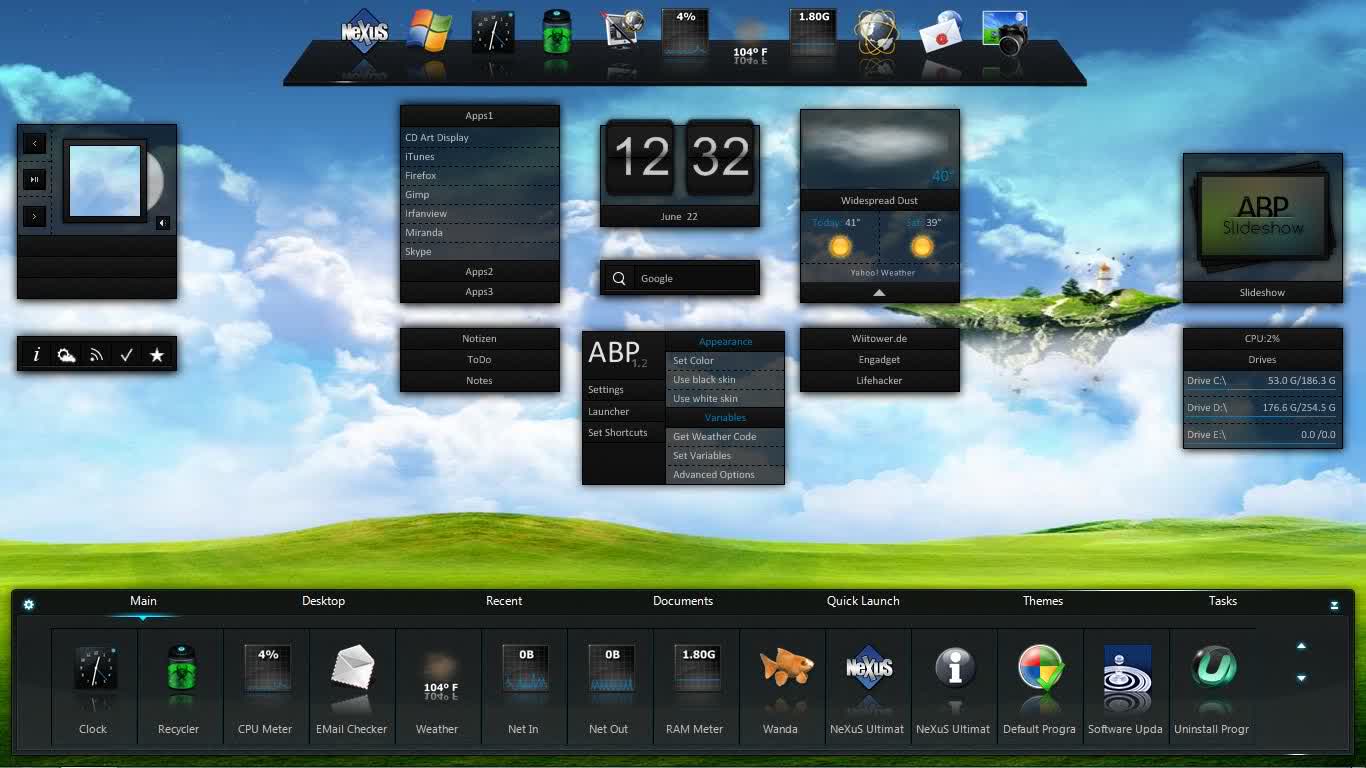
With Nexus, your most frequently used applications are only a mouse click away - and Nexus turns working with your computer into a fun and exciting experience.
Nexus Ultimate is an enhanced version of the free-to-use Nexus dock which is available stand-alone or as a component of Winstep Xtreme (a single easy-to-install package featuring all of Winstep's popular desktop enhancement products for Windows).
Is Winstep Nexus safe and lightweight, or does it slow down Windows?
Yes, it's considered safe and stable. Most users report that it runs efficiently, but performance depends on the number of widgets, effects, and live icons enabled. The base dock alone is very light, but when people stack many animated modules or weather/CPU monitors, memory usage can rise.
Can it be used together with the Windows taskbar, or should the taskbar be disabled?
Both approaches work. Some prefer leaving the taskbar for system tray and quick access to open apps, and use Nexus purely as an app launcher. Others auto-hide or completely rely on the dock for a more macOS-style desktop. It's personal preference, but keeping the taskbar visible helps if you use system icons often.
Are custom themes and icon packs easy to install?
Customization is one of the main reasons people use it. You can apply different icon sets and themes by simply dragging and dropping image files or importing .ico/.png packs. There's no strict format, so most user-made icon packs designed for docks or launchers will work without conversion.
Is there any real difference between the free and the paid version?
The free edition works fine as a simple dock, but the paid suite adds multiple docks, shelves, task management features, and deeper customization. People who only want a single launcher dock rarely feel limited, while heavy desktop tweakers tend to upgrade for the added layout control.
Features
- Display running applications on the dock with task grouping, task filtering and icon customization options.
- Display system tray on the dock as single or grouped icons.
- Blur-Behind (7/Vista) and colorization of dock backgrounds.
- Over 80 special commands such as Sleep, Empty Recycler, CD Control, etc...
- Monitor active connections and bandwidth usage with Net Meter module.
- Get weather forecast for over 39,000 cities world-wide.
- Monitor CPU and RAM usage, multiple mailboxes for incoming mail, and more!
- Multiple animated mouse over effects: zoom, swing, bounce and many more!
- Live icon reflections and animated water-like effects.
- Quickly change icons of shortcuts and running programs by dropping PNG and ICO image files directly into the icon.
- Built in support for animated icons.
- Minimize windows to the dock.
- Multi-monitor support.
- Compatible with skins for all 3rd party docks.
What's New
The Winstep Nexus dock is a FREE dock for Windows. Every feature you'd expect from a dock, including widgets, mouse-over effects, skins, drag-and-drop, and many others not available in most other docks, such as live icon reflections, in-dock system tray, blur-behind effects, and much more. Completely customizable, with thousands of different backgrounds freely available online, Nexus is fully compatible with skins for all 3rd party docks.
This release is packed with new features for Nexus Ultimate: Launch Pads, one-click bundles that launch multiple apps/docs/URLs together, multi-select in shelves/drawers/grid stacks with marquee + CTRL A selection as well as Shift/Ctrl modifier keys, per-tab colors for shelves, multi-timezone support with DST handling for the iconic clock module, and much more! Please read complete change log below.
Nexus runs on the 32 and 64 bit versions of Windows 7, 8.x, 10 and 11.
Language Updates
French, German, Italian, Japanese, Korean, Portuguese and Spanish language files fully updated to the current version.
Launch Pads: Instant Workspaces at Your Fingertips (Nexus Ultimate)
A Launch Pad is a stack of shortcuts – apps, documents, URLs, internal commands – that launch together with a single click. Whether you're coding, designing, writing, or just switching gears, a Launch Pad lets you start an entire workflow instantly.
Launch Pads are similar to Grid Stacks in form and function, but unlike Grid Stacks they only accept shortcuts to applications, documents, URLs and Internal Commands.
- To add a Launch Pad right-click any dock, shelf, drawer, or grid stack → Add New Item → Launch Pad.
- Launch Pads expand automatically as you drag items into them, making setup fast and intuitive.
- To open an existing Launch Pad, right-click and select Open, or hold Alt and left-click.
- Clicking the Launch Pad icon starts the whole set at the same time.
- By default, items launched from a Launch Pad follow the global setting "Do not launch multiple sessions of the same application". To force a new session click the Launch Pad icon with your middle mouse button instead of the left button.
If any of the items in the Launch Pad requires elevation, it is critical that you check the 'Run as Administrator' setting in that item's Properties dialog. This ensures that any UAC prompt appears full screen, not minimized, and prevents Windows from discarding elevation requests for other apps launched at the same time, guaranteeing that all elevated apps in the Launch Pad are launched properly.
Windows will ignore elevation requests if a UAC prompt is already active - so setting this option is essential for seamless multi-app launches.
Multi-select for shelves, drawers, and grid stacks (Nexus Ultimate)
Before, you could only pick up and manipulate one item at a time, making bulk operations tedious and error-prone, especially when organizing large stacks or shelves. Now you can select many items at once and move, delete, or organize them together, just like in a modern file explorer.
Marquee Selection: Click and drag your mouse to draw a selection box around multiple items. All items within the box are selected.
Modifier Keys:
- SHIFT + Click: Selects a range of items between the first and last clicked.
- CTRL + Click: Toggles selection of individual items without affecting others.
- CTRL + A: Selects all items in the current container (shelf, drawer, or grid stack).
Click an empty area outside the selection to de-select all items.
You can drag a selection of items onto a Grid Stack, Launch Pad, or Sub-dock – these containers will automatically expand while you're hovering, making it easy to drop items exactly where you want them.
To delete all currently selected items, simply press the DEL key. If confirmation is enabled (which it is by default), you'll be prompted before deletion.
Important: If you're working inside a Folder-type Shelf or Grid Stack, pressing DEL will delete the actual files from disk – not just shortcuts. Use caution when bulk-deleting in these containers.
If you prefer the old single-item behavior or wish to use the shift modifier keys as before, you can disable multi-select: Properties → Behavior → More Options → turn off Multi-select.
Multi-Time Zone Support in the Iconic Clock Module (Nexus Ultimate)
The iconic Clock module now supports multiple time zones by adding more than one Clock item, each configured to a different region. Whether you're coordinating with colleagues in Tokyo, monitoring server uptime in New York, or staying connected with family abroad, this feature provides a clear, customizable view of global time – right from your desktop.
To set it up add a new clock item to your dock, shelf or grid stack, then right-click the clock and select Item Properties. In the Item Properties dialog select the desired time zone and enter a custom label (optional). Repeat for each time zone you want to track.
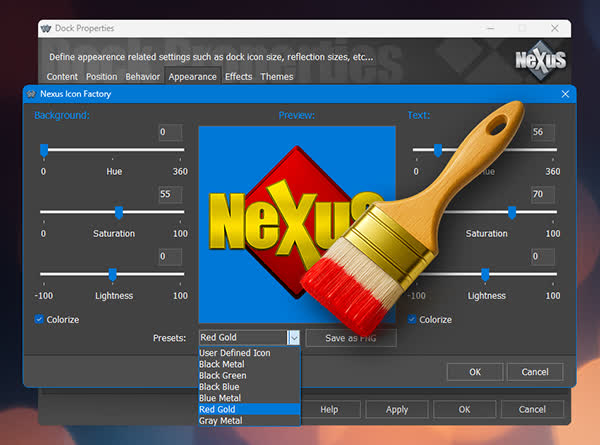
Nexus Icon Factory: full color customization for the Dock Control Icon.
The Nexus Icon Factory introduces a powerful new dialog that lets you customize the native Nexus dock control icon with precision. Instead of relying solely on preset styles, you can now fine-tune the icon's appearance using Hue, Saturation, and Luminance sliders – independently for both the background shape and the overlapping "Nexus" text.
Use Cases:
- Match the dock icon to your current theme's palette – whether vibrant, muted, or monochrome.
- Create high-contrast icons for better visibility in dark mode.
- Design subtle variants for different docks (e.g., main dock vs. sub-docks).
- Use color cues to distinguish between different workspace contexts.
Shelf tab colorization – make tabs faster to scan (Nexus Ultimate)
Tab colorization lets you give each shelf tab its own color. It's great for visual grouping (e.g., green = apps, purple = documents). While not all themes support this feature, compatible themes let you assign distinct colors to each tab using one of three colorization methods: Hue Shift, Tint, or Tone Monochrome Bitmaps.
To enable tab colorization click the new "Tab Color Settings" button in the Appearance tab of the shelf's Properties dialog. From there, choose the colorization method that works best for that particular theme and assign colors to each tab.
Alternatively, you can set the color for a specific tab directly via its Tab Properties dialog – ideal for quick adjustments or fine-tuning.
Restored Tray Icon Customization in Windows 11 22H2+ (Nexus Ultimate)
Starting with Windows 11 22H2, direct access to native system tray icons – such as Battery, Volume, and Network – is no longer possible. Winstep now provides functional clones of these core icons.
These Battery, Volume, and Network system tray icon clones can now be customized using the same built-in mechanism available in earlier Windows versions.
Default Data Folder Relocation.
In fresh installations, the default data folder – used for storing user-writable content such as themes, licenses, and profiles – has been relocated from Public Documents to C:\ProgramData.
This change helps avoid repeated issues where overly aggressive anti-virus software to mitigate ransomware threats blocks write access simply because the folder resides under Public Documents.
Since ProgramData is a hidden system folder, a new button has been added to the About tab in Preferences to quickly open the current Winstep data folder.
Bug Fixes and Stability Improvements
After v25.6 the application could crash if a theme used fonts that weren't installed on the system. (Nexus Ultimate)
Moving or copying nested grid stacks could lead to cross-linked items or orphaned stacks. (Nexus Ultimate)
Deleting shelves containing nested grid stacks could cause structural corruption. (Nexus Ultimate)
Docking via the Position tab or right-click context menu might only work reliably on dual-monitor setups. On systems with three or more monitors, docking to a middle screen could require manually dragging the floating dock to the desired monitor, then selecting a screen edge from the context menu.
Should have resolved race condition issues affecting reserved screen areas and object positioning - particularly noticeable after waking from low power states such as sleep or hibernation.
Many other features plus performance and stability improvements! Please see complete change log below...
Nexus v25.9 complete change log:
- Updated Japanese language file.
- Updated Korean language file.
- Updated Italian language file.
- Updated French language file.
- Updated Spanish language file.
- Updated German language file.
- Updated Portuguese language file.
- In new installations the folder used to store data the user needs to write to (themes, licenses, profiles, etc) has been moved from Public Documents to C:\ProgramData. This is to help prevent recurring situations of ransomware-paranoid anti-virus software blocking the writing of data to Winstep's own folder just because it is under Public Documents.
- The application will now show the real Systray under Windows 11 22H2 and above if Explorer Patcher is running.
- Added a "Nexus Icon Factory" dialog that allows full color customization of the native Nexus dock control icon via Hue, Sat and Lum sliders for both the background shape and the overlapping "Nexus" text. Previous color presets are still available and a new preset, Gray Metal, has been added.
- Previous Nexus icons were added to the \Winstep\Icons\Samples\ folder...
- Icon in the delete confirmation dialog is now a warning symbol instead of a recycler if the item is about to be PERMANENTLY deleted.
- Added new "Open Data Folder" button to the About tab of Preferences. Opens the user-modifiable Winstep data folder where themes, icons, license keys, etc, are stored. This folder in new installations now lives in ProgramData (which is a hidden folder by default) instead of Public Documents.
- Improved visual stability of the dock when the insertion point changes while dragging items over it.
- Added "Draw clock hands" setting for the iconic analog clock. Will force the clock hands to be drawn instead of using bitmaps.
- Under Windows 10 and 11 the default "fade in" menu opening animation was not being displayed properly because the menu background blur was being applied even if menu itself was not yet visible.
- The position of the Language and Keyboard symbols in the Language Bar IC was off if using Windows 11 style icons, the IC used the key background, and the two symbols were present.
- Items pointing to shortcuts to UWP apps .lnk files could still appear as blank document icons.
- Question mark ("?") characters could sometimes appear in dates shown in balloon tooltips.
- Improved issues with reserved screen areas and positioning of screen objects due to race conditions, especially after returning from a low power mode (e.g. sleep, hibernation).
