

If you're switching from Photoshop to GIMP and want to feel at home right away, PhotoGIMP is for you.
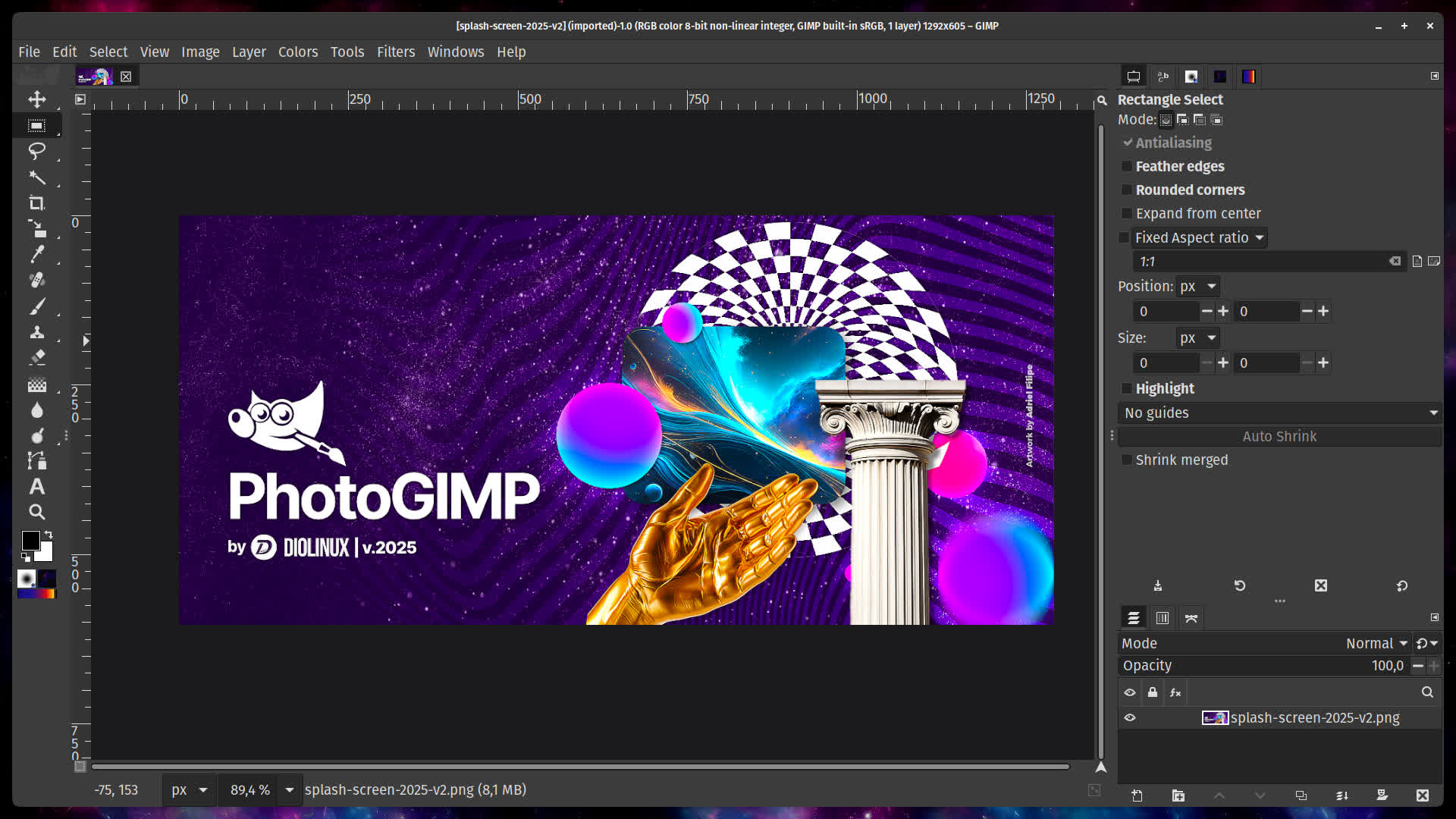
Features
- Photoshop-like tool layout - Tools are reorganized to mimic the positions you're used to in Adobe Photoshop.
- Custom Splash Screen - A unique PhotoGIMP splash screen greets you on startup.
- Maximized canvas space - Default settings are optimized to give you the largest possible working area.
- Photoshop keyboard shortcuts - Keyboard shortcuts follow Adobe's official documentation for the Windows version.
- Custom icon & name - A dedicated .desktop file gives PhotoGIMP its own icon and app name in your system menu.
Before installing PhotoGIMP, make sure you have:
- GIMP 3.0 or newer
- Run GIMP at least once. GIMP needs to generate its config files before PhotoGIMP can overwrite them. Install GIMP → open it → close it → then install PhotoGIMP.
Install on Windows:
- Make sure you have GIMP installed.
- Open GIMP once, then close it – this creates the config folders that PhotoGIMP needs.
- Download the latest PhotoGIMP for Windows (.zip)
- Extract the contents of PhotoGIMP.zip to any folder (e.g., your Desktop).
- Open the extracted folder and copy the 3.0 folder.
- Press Windows + R to open the Run dialog.
- Type %APPDATA%\GIMP and press Enter – this opens GIMP's settings folder.
- Paste the 3.0 folder here.
- When prompted about existing files, select "Replace the files in the destination".
- Open GIMP – you should see the new PhotoGIMP layout!
Install on macOS:
- Make sure you have GIMP installed.
- Open GIMP once, then close it – this creates the config folders that PhotoGIMP needs.
- Download the latest PhotoGIMP for macOS (.zip)
- Extract the contents of PhotoGIMP.zip to any folder (e.g., your Desktop).
- Open the extracted folder and copy the 3.0 folder.
- Open Finder, press Cmd + Shift + G to open "Go to Folder".
- Type ~/Library/Application Support/GIMP and press Enter.
- If you see a 2.10 folder from a previous installation, delete it to avoid conflicts.
- Paste the 3.0 folder inside the GIMP folder.
- When prompted about existing files, select "Replace" or "Merge".
- Open GIMP – you should see the new PhotoGIMP layout!
What's New
- Improved Photoshop-style keyboard shortcuts and tool organization.
- Added bracket-key shortcuts for changing brush size during editing.
- Added alpha channels automatically to imported images.
- Improved Flatpak launcher portability across distributions and architectures.
- Added improved macOS installation instructions, including an rsync alternative.
- Removed obsolete and redundant GIMP configuration files.
- Updated screenshots, icons and visual assets.
- Added or updated README translations in Spanish, Hebrew, Korean, Italian, Chinese, Russian, Polish and Portuguese.
- Expanded installation, troubleshooting and contribution documentation.
Compatibility
- Designed for GIMP 3.0 and newer.
- Supports native package and Flatpak installations through the documented configuration paths.
- Back up your current GIMP configuration before installing.
