
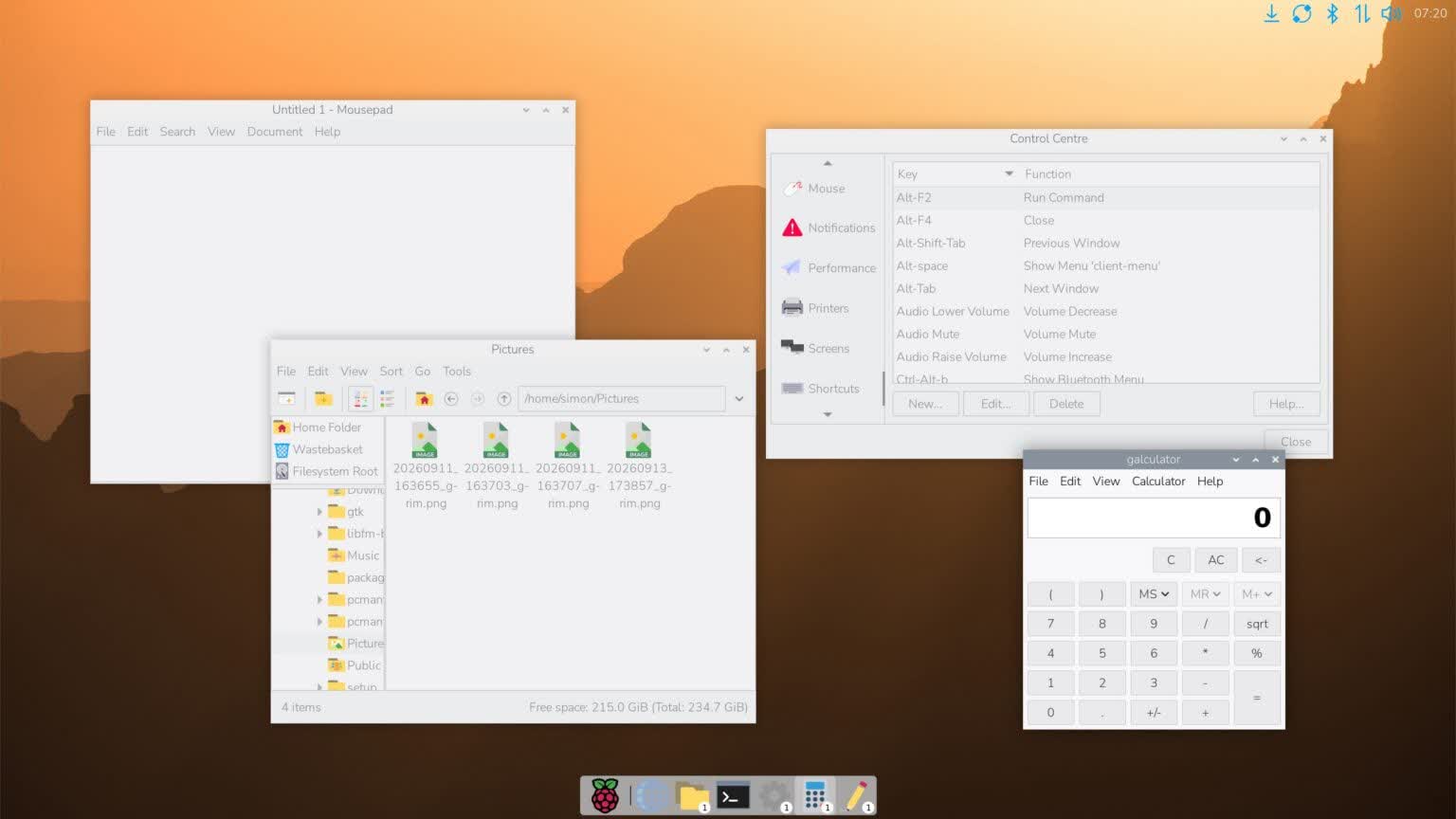
Raspberry Pi Desktop is a Debian-based Linux distribution that brings the familiar Raspberry Pi desktop environment to conventional PCs and Intel-based Macs. It provides a lightweight, straightforward alternative to Windows and macOS, with a familiar interface, built-in applications, and tools for everyday computing.
The operating system can run directly from a USB drive without modifying an existing installation, or it can be installed on a computer's internal storage. It is particularly suited to older hardware, educational environments, and users who want a consistent desktop experience across Raspberry Pi devices and traditional computers.
Is Raspberry Pi Desktop the same as Raspberry Pi OS?
Not exactly, both share a similar desktop environment and are based on Debian Linux, but Raspberry Pi OS is designed for Raspberry Pi computers, while Raspberry Pi Desktop runs on conventional x86-64 PCs and Intel-based Macs.
Can I run Raspberry Pi Desktop on a Windows PC?
Yes, Raspberry Pi Desktop can run on compatible Intel or AMD 64-bit computers, including PCs that normally run Windows 10 or Windows 11. It is a standalone operating system, not a Windows application.
Does Raspberry Pi Desktop work on Apple Silicon Macs?
No, the current release supports x86-64 processors, including Intel-based Macs. Apple Silicon models using M-series chips are not supported.
Can I try Raspberry Pi Desktop without installing it?
Yes, you can boot Raspberry Pi Desktop from a USB drive without modifying your existing operating system. Persistent storage is also supported, allowing you to save files and settings between sessions.
Is Raspberry Pi Desktop free?
Yes, Raspberry Pi Desktop is free to download and use. It is based on Debian Linux and includes access to Debian's software repositories.
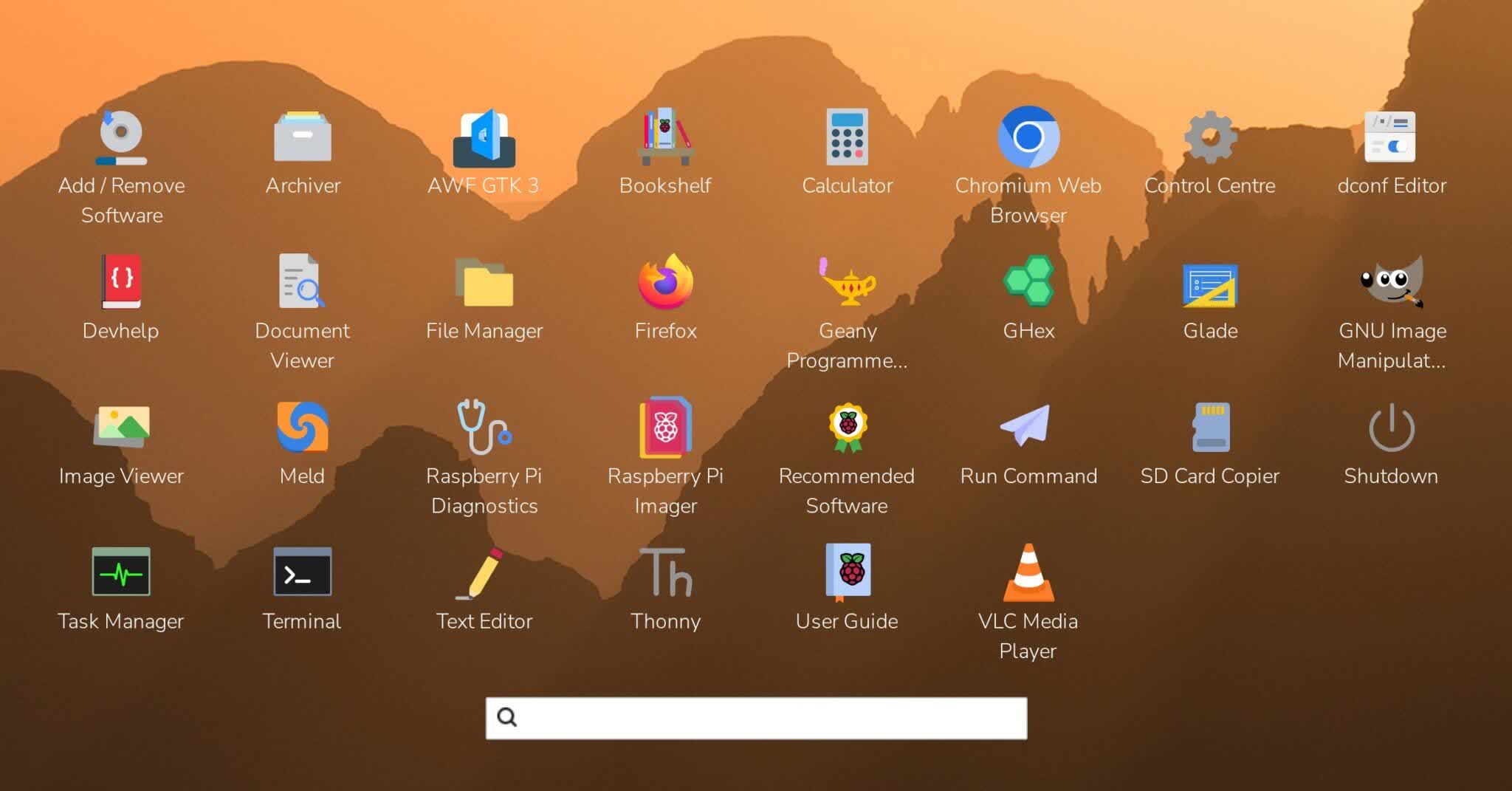
The new launcher screen
Features
- Debian-based Linux: Built on Debian, providing access to its software repositories and package management tools.
- Familiar desktop interface: A lightweight desktop environment designed for straightforward navigation and everyday use.
- PC and Mac compatibility: Supports 64-bit x86 computers, including Intel-based Macs. Apple Silicon is not supported.
- Live USB support: Boot and run the operating system directly from a USB drive without installing it.
- Persistent storage: Save files, settings, and changes between sessions when running from a USB drive.
- Full installation: Install the operating system on an internal HDD or SSD using the Calamares installer.
- Customizable desktop: Includes an optional application launcher, dock, and desktop customization options.
- Remote access: Raspberry Pi Connect enables screen sharing and remote terminal access through a web browser.
- Software availability: Install additional applications through Debian's package repositories.
What's New
Raspberry Pi Desktop returns to PCs and Macs after several years without a major update. The latest release moves to Debian 13 (Trixie), switches from 32-bit to 64-bit architecture, and incorporates the recent improvements to the Raspberry Pi desktop environment.
- Updated to Debian 13 (Trixie) with Linux kernel 6.12.
- Transitioned to 64-bit x86 architecture (amd64).
- Added Raspberry Pi Connect for remote screen sharing and terminal access.
- Introduced an optional application dock with customizable positioning and behavior.
- Added a graphical application launcher with search and keyboard navigation.
- Updated desktop controls and customization options through the Control Centre.
- Improved task management and desktop usability.
- Retained live USB support with persistent storage and the option to install the system locally.
- Compatibility: Requires a 64-bit x86 PC or Intel-based Mac. Apple Silicon Macs are not supported.
You can try Raspberry Pi Desktop without replacing Windows or macOS by running it directly from a bootable USB drive.
- Download the ISO: Download the latest Raspberry Pi Desktop ISO.
- Prepare a USB drive: Connect a USB flash drive with sufficient storage. Any existing data on the drive will be erased.
- Create a bootable USB: Use a tool such as Rufus or balenaEtcher to write the ISO image to the USB drive.
- Boot from USB: Restart your computer and open its boot menu (commonly F12, F11, Esc, or Option on Intel Macs). Select the USB drive.
- Launch Raspberry Pi Desktop: Follow the on-screen options to start the live environment. If available, select the persistence option to retain files and settings between sessions.
- To install Raspberry Pi Desktop permanently, launch the installer from the boot menu or desktop and follow the on-screen instructions. Back up important files before modifying disk partitions.