Full Guide
to OS Dual Booting
Last
Updated on November 08, 2000 by Thomas
McGuire
Dual-booting
Microsoft Operating Systems is a fairly standard practice
for many users nowadays. Using this system you can gain the
reliability & security of Windows 2000, or whenever you
feel like gaming, switch back to the speed (Although Windows
2000 is faster in some cases) & compatibility offered by
Windows 98/Me.
This
guide is more concerned with dual-booting Windows
98/Millennium Edition & Windows 2000 than the older
Microsoft Operating Systems. This is basically because A.
Windows 95 is too old now for most to still be using it, B.
NT4 while also old has other limitations, e.g. inability to
recognize FAT32, limited DirectX support, etc. While a lot
of the procedure here may well apply to those earlier
Operating Systems I’ll not be going into extra detail to
mention those extra…... issues.
Requirements
While
these are probably stating the obvious (well, partially),
there are a few requirements you should meet before you even
attempt dual-booting.
-
Windows
98/Me & Windows 2000 CD’s. Obviously you need
to have some combination of these. Installing with OEM
versions (Particularly of Windows 2000) may be a pain
for many however so the retail versions are recommended.
-
Large
hard drive(s). Installing 2 Operating Systems can take
up a lot of hard drive space. I’d recommend having at least
a 4 Gig hard drive, preferably a fast one at that.
Although preferably you’d have 2 separate UDMA capable
hard drives.
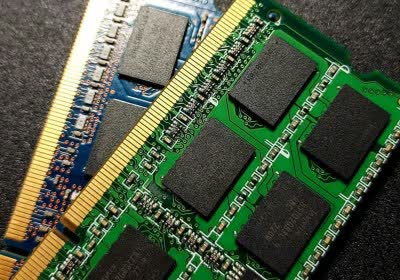
- 128MB RAM or more. While
it’s probably not technically a requirement –
Windows 2000 is very RAM intensive. No serious users
should have less than this amount of RAM.
Backup
Before
you do anything else you should backup any important data
you have, & whatever else needs to be saved. Once
you’re happy that everything’s saved proceed to the next
section.
NOTE
– Please remember the process of
re-partitioning/re-formatting will permanently remove all
data on a hard drive.
Startup
disks
Obviously
it’s a good idea to make a Startup disk for each OS in
case you run into any problems with either OS & you’ll
need such a disk for the next procedure. If you didn’t get
one with your current OS then (In Windows 98/Me); Click on Start,
Settings, Control Panel. Open Add/Remove
Programs & select the Startup Disk tab.
Select the Create Disk button (Insert a blank floppy
disk when required) to make your Startup Disk.
If
you wish to make a Windows 2000 Startup Disk you will
require 4 floppy disks. To make the Startup Disk(s) for
Windows 2000, insert the Windows 2000 CD. Open Windows
Explorer & navigate to the CD\DVD drive where the
Windows 2000 CD is located. On the CD enter the BOOTDISK
folder. Run (Double click it) the MAKEBOOT.EXE
file & follow the prompts as instructed. Be sure to
label the Windows 2000 disks 1-4 to make it easier to boot
from the floppy disks (They need to be inserted in order).
If
your BIOS supports Bootable CD’s you may use your Windows
2000 CD, rather than the 4 floppy disks instead.

Go
to next page
|