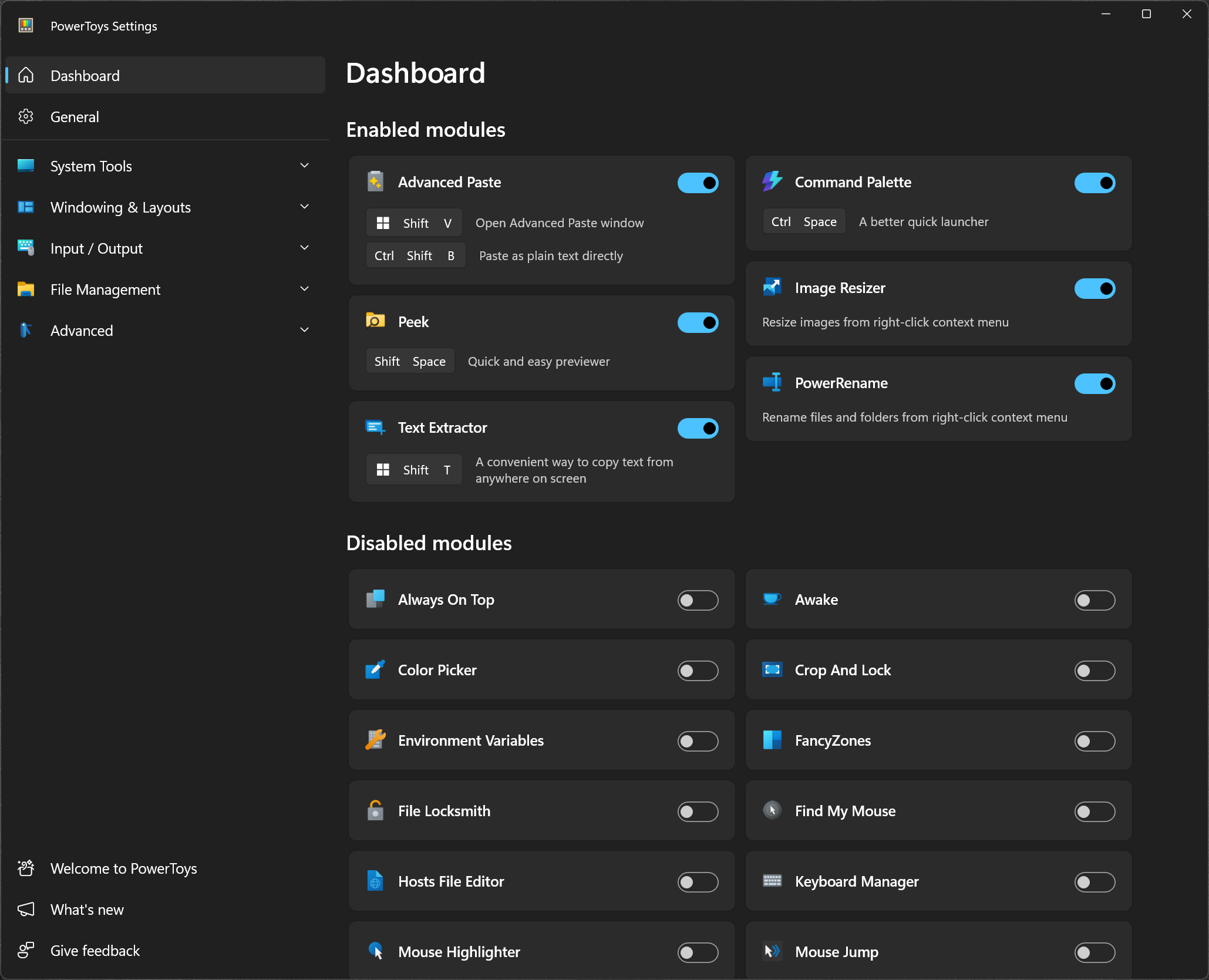
Microsoft PowerToys is a set of utilities designed to enhance productivity on Windows. It includes tools like FancyZones for custom window layouts, PowerRename for batch renaming files, Command Palette for quick app launching and file search, and other utilities like Color Picker, File Explorer add-ons, and Mouse Utilities.
Is PowerToys safe to use and does it slow down my PC?
PowerToys is completely safe and it's an official Microsoft open-source project, with frequent updates and visible development. It generally has a light impact on system resources. Users report no noticeable slowdown, and you can disable individual tools if you don't use them.
How do I set up FancyZones for custom window layouts?
To use FancyZones, launch the PowerToys Settings app, go to the FancyZones section, and click "Launch layout editor." You can create a custom layout by splitting your screen into zones, and then assign windows to those zones using Shift + drag. It makes multitasking more efficient, especially on large or ultrawide monitors.
Can I use PowerToys on Windows 11?
Yes, PowerToys is fully compatible with Windows 11. In fact, it takes advantage of some of Windows 11's newer UI features and integrates smoothly into the operating system. Many users treat PowerToys as an optional "advanced mode" layered on top of Windows rather than a replacement for built-in features.
Which PowerToys tools are actually worth using daily?
The most commonly relied-on tools tend to be FancyZones for custom window layouts, PowerRename for batch file renaming, the Keyboard Manager for remapping keys and shortcuts, and the Command Palette (which replaced PowerToys Run) for quickly launching apps, files, and commands. Others are more niche, but useful once you discover a specific need.
Current utilities
- Advanced Paste
- Always on Top
- PowerToys Awake
- Color Picker
- Command Not Found
- Command Palette
- Crop And Lock
- Environment Variables
- FancyZones
- File Explorer Add-ons
- File Locksmith
- Hosts File Editor
- Image Resizer
- Keyboard Manager
- Mouse utilities
- Mouse Without Borders
- New+
- Paste as Plain Text
- Peek
- PowerRename
- PowerToys Run
- Quick Accent
- Registry Preview
- Screen Ruler
- Shortcut Guide
- Text Extractor
- Workspaces
- ZoomIt
What's New
PowerToys 0.102 introduces two new mouse utilities, Mouse Button Lock and CursorHide, a quick-access shelf for Command Palette, and snip dictation in ZoomIt. This release also adds command-line tools for Advanced Paste, Light Switch, Settings, and Peek, brings tap-alone remaps and easier editing to Keyboard Manager, and moves Color Picker and Text Extractor to WinUI 3.
Mouse Button Lock and CursorHide
Holding a mouse button down during a long drag or selection can be tiring. With Mouse Button Lock, press and hold a button for a moment, then let go. Windows keeps treating it as held, so you can continue dragging or selecting until you click any button. This is especially useful for gaming, working in professional applications that require extensive dragging and selection, and improving accessibility for users who find it difficult to hold down a mouse button for extended periods.
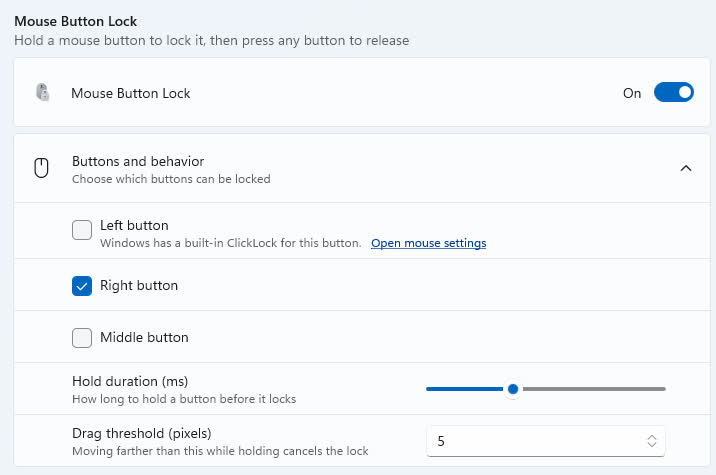
CursorHide is the second new mouse utility. It hides the mouse pointer while you type, after a period of inactivity, or both, and shows it again as soon as you move the mouse.
Command Palette gets a quick-access shelf
Compact mode in 0.101 kept Command Palette out of the way until you needed results. Now your favorite commands can be one keystroke away too. Turn on the quick-access shelf in Settings > Appearance > Compact mode to show your pins below the search box while the palette is collapsed. Press Alt+1 through Alt+9 to launch them, or Alt+Shift+number to select one without running it. Drag to reorder, right-click for more actions, and optionally show recent commands and apps next to your pins.
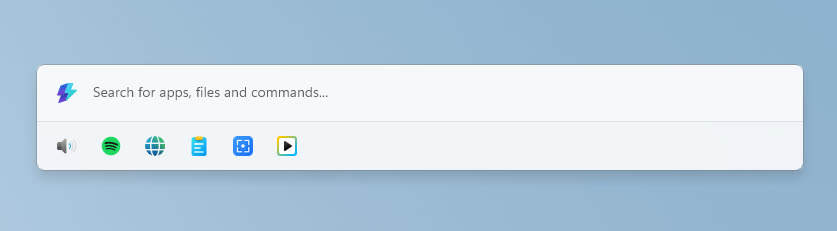
The shelf is just one part of a big Command Palette update:
- Settings search: Fuzzy search finds options, extensions, commands, aliases, and assigned shortcuts, then takes you straight to them.
- Keyboard-first Dock: Press Win+Alt+J to focus the dock and move between its items from the keyboard.
- Copilot key support: Choose Command Palette as the Copilot key app in Windows Settings, and press the key again to toggle the palette.
- Multiple clocks: Pin several dock clocks, each with its own time zone and format.
- Language and links: Pick an app language for Command Palette, and copy links that open a page, run a command, or jump to a specific setting.
- Polish: Sharper app icons, faster grid and gallery browsing, results that keep loading at the end of a list, and clearer nested menus.
Massive thanks to @jiripolasek for the sustained Command Palette work across this release.
ZoomIt adds snip dictation
ZoomIt can now capture what you say along with what you snip. Turn on Snip with dictation in the ZoomIt settings, then press Space while you drag out a snip and describe what you're capturing. ZoomIt transcribes your speech on your device, and a single paste delivers both the screenshot and your text. Dictation uses the microphone selected under Record.
ZoomIt also gets smooth zoom transitions, better audio pacing in recordings, and a fix for silent recordings on multichannel and spatial-audio devices.
New command-line tools
More of PowerToys can now be scripted from the terminal:
- Advanced Paste: Run built-in and custom actions without opening the UI, using files, stdin/stdout, or the clipboard. AI actions use your configured providers and policies.
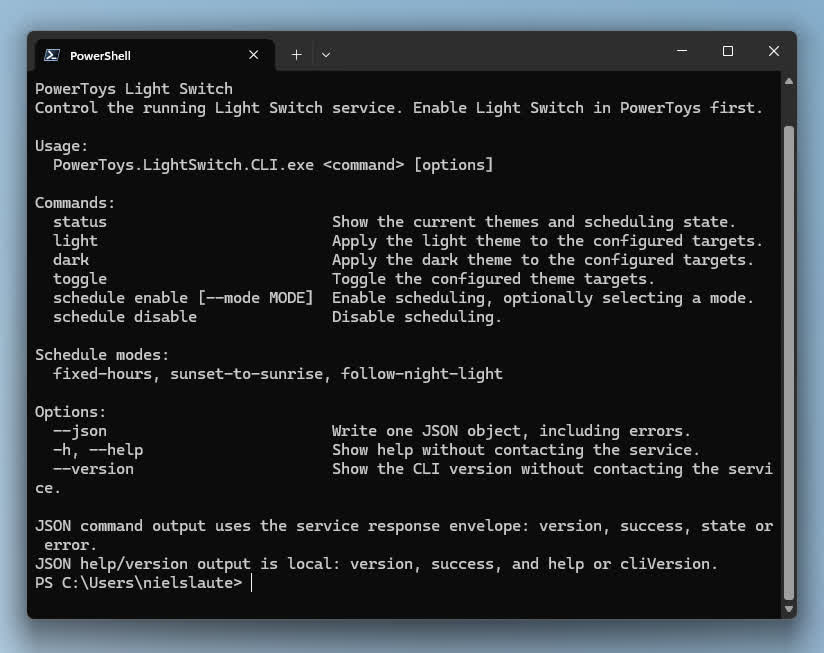
- Light Switch: Check status, set or toggle the theme, and manage schedules, with JSON output.
- Settings: See which utilities are enabled, and turn them on or off even while PowerToys isn't running.
- Peek: Preview multiple files and folders from the command line.
- PowerDisplay: JSON Lines output makes results and errors easy to consume from scripts.
- On your PATH: FancyZones, Image Resizer, File Locksmith, and PowerDisplay commands now work from any terminal folder.
Keyboard Manager adds tap-alone remaps and easier editing
Keyboard Manager now supports tap-alone remaps. Tap a key by itself to trigger a different action, while the key keeps working normally in shortcuts and mouse combinations. Large remapping lists are easier to manage too, with search, modifier and app filters, and bulk deletion.
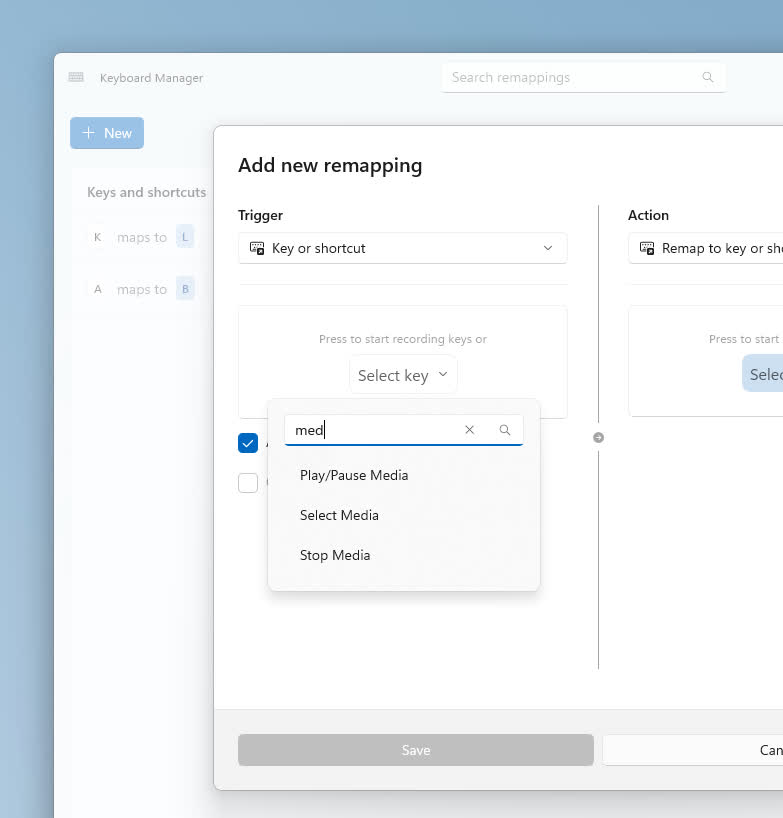
The new editor also gets a searchable key picker, so you can select any key, including media keys or keys your keyboard doesn't have, and build a full shortcut with just the mouse. Recording now only listens while the editor is in focus, and Tab moves you out of the recording field. IT admins can also deploy and export remapping profiles with DSC v3.
Other notable changes
- Color Picker and Text Extractor: Both move to WinUI 3, with a new overlay, editor, and magnifier for Color Picker. Your existing shortcuts and settings carry over.
- FancyZones: Scroll the mouse wheel while dragging a window to switch layouts, with an optional indicator showing the selected layout's name.
- Peek: Added read-only SQLite previews, file and subfolder counts with scanning progress for folders, a plain-text fallback, and Alt+Left/Alt+Right navigation between files.
- Screen Ruler: Measure in device-independent pixels to account for each monitor's scaling, with improved edge detection.
- Environment Variables: A new Remove duplicates action cleans up PATH while keeping the original order.
- Quick Accent: A searchable character reference in Settings lets you browse language sets and copy characters directly.
- Grab and Move: Exclude specific apps so they keep their normal modifier-key behavior.
- Shortcut Guide: Added shortcuts for Claude Desktop and Ableton Live, and made indexing more resilient to malformed manifests.
- Workspaces: Now asks for confirmation before launching an unverified app configured to run as administrator.
- Awake: Windows can now turn off the display while the PC is locked, without ending your keep-awake session.
- New+: Fixed a File Explorer memory leak and improved long-path handling.
- Settings: Added an interactive animated welcome scene, fixed a memory leak when switching pages, and kept module on/off preferences when a utility fails to load.
Advanced Paste
- Fixed Advanced Paste crashes when converting HTML-only clipboard content to plain text, with expanded offline UI coverage in #50504
- Added a headless CLI to run built-in and saved custom actions without opening the UI, with file, stdin, or clipboard input and file, clipboard, or text-only stdout output; AI actions use providers configured in Settings and honor existing policies in #50834
- Updated the Advanced Paste CLI for System.CommandLine 2.0, preserving existing commands, aliases, output formats, and help-like option values in #51230
- Fixed the CLI root --version option to print the executable version and exit without requiring a subcommand in #51298
Alt Window Cycle
- Restored Alt Window Cycle's dark overlay design with rounded snapshot previews, corrected acrylic rendering, and smaller app icons in #50494
- Fixed Alt Window Cycle click-through behavior and missing previews while correcting the page indicator and reducing snapshot memory use in #50495
CursorHide
- Added opt-in Auto Hide Cursor under Mouse Utilities to hide the pointer while typing or after inactivity and restore it on mouse input in #50271 by @DamianEdwards
- Restored hidden cursors when affected touchpads or simulated mouse input move the pointer, instead of leaving the cursor invisible in #50803 by @AkazaRenn
- Renamed Auto Hide Cursor to CursorHide in Settings and refreshed its icon, behavior controls, and new-feature indicators in #51123
Awake
- Updated Awake to let Windows turn off the display while the workstation is locked without stopping the active keep-awake session in #49388 by @Meister1977
Color Picker
- Modernized Color Picker with a WinUI 3 picking overlay, editor, and magnifier while preserving existing color workflows in #49174 by @claude
- Kept adjusted and similar-color selections within the configured history limit, trimming older entries while keeping the selected color first in #51356
Command Palette
- Fixed PowerToys fallback settings so disabling one command no longer changes other commands in #50047 by @LE0-Lin
- Fixed Extension Gallery detection so installed Microsoft Store-only extensions are correctly marked as installed in #48746 by @namdpran8
- Added optional week-number and custom date displays to the dock clock, with correct ISO week numbering around New Year in #49093 by @claude and @MarcelSchm
- Added multiple customizable clocks with individual time zones and display formats that can be pinned for quick access in #49288 by @jiripolasek
- Updated command-parameter fields with theme-aware colors and clearer focus styling in #49751 by @jiripolasek
- Removed the redundant More button when all actions already fit in the command bar while preserving context-menu access in #49769 by @jiripolasek
- Added copyable command links for opening pages and running commands from other apps, with confirmation on first use in #49793 by @jiripolasek
- Added an opt-in quick-access shelf in collapsed compact mode for launching pinned commands without expanding the palette in #49915 by @jiripolasek
- Added optional recent-command sections to Home and the quick-access shelf for reopening recently used commands and apps in #49916 by @jiripolasek
- Added drag-and-drop reordering, pinning, and removal to organize items on the opt-in quick-access shelf in #49932 by @jiripolasek
- Added context menus and standard keyboard shortcuts to access secondary actions on the opt-in quick-access shelf in #49933 by @jiripolasek
- Added Alt+Shift+number shortcuts to select visible quick-access shelf items without running them in #49943 by @jiripolasek
- Fixed Remote Desktop searches to filter and rank saved connections instead of always showing the full list in #50043
- Enabled Enter and Space to activate focused dock items for keyboard-only use in #50044
- Improved Window Walker searches to match app names and window-title words together in any order in #50054 by @Subhro-ai
- Moved Clipboard History image previews into the details content area and improved text formatting for easier reading in #50098
- Fixed recycled list items briefly showing another item's icon while their own icon loads in #50189 by @jiripolasek
- Added file-type icon previews while exact file icons load and reused shared icons across matching files in #50192 by @jiripolasek
- Updated Adaptive Card content in place to reduce flicker in refreshing Performance Monitor graphs in #50211
- Fixed auto-sized icons in grid and gallery views so glyphs are not clipped or lost when items are recycled in #50231 by @jiripolasek
- Virtualized grid and gallery results for more efficient browsing, improved keyboard navigation, and reliable back navigation in #50233 by @jiripolasek
- Preserved search-text editing shortcuts so modified arrow keys no longer move results or accept suggestions unexpectedly in #50334 by @jiripolasek
- Fixed title and subtitle visibility settings being lost when saving newly added dock items in #50363
- Stabilized Performance Monitor dock labels with reserved widths and fixed-width digits to prevent neighboring items from shifting in #50364 by @jiripolasek
- Fixed keyboard shortcuts triggering twice when Windows inspects queued keyboard events in #50427 by @jiripolasek
- Corrected the low-level keyboard hook setting description to explain its limitations when an elevated app has focus in #50428 by @jiripolasek
- Preserved search focus and keyboard shortcuts after clicking empty space or non-focusable content in #50448 by @jiripolasek
- Prioritized visible and selected search results so their content and icons load ahead of pending off-screen items in #50469 by @jiripolasek
- Preserved dock layouts and customizations when a Miracast display reconnects with a different Windows display number in #50502 by @AlanJie
- Reduced excess spacing in compact Performance Monitor dock items while keeping changing values and localized labels aligned in #50525 by @jiripolasek
- Shortened GPU dock labels while preserving adapter distinctions and full model names in details in #50526 by @jiripolasek
- Cleared bookmark placeholder values after a successful launch so the next launch starts with empty inputs in #50629 by @dhruv0703
- Improved repeated extension-command activation so launched windows can regain focus after switching to another app in #50651 by @jiripolasek
- Added an app-language selector to use Command Palette in a preferred language after restarting it in #50680 by @jiripolasek
- Included taskbar-visible owned windows in Window Walker so apps such as LabVIEW can be found and switched to in #50693 by @Subhro-ai
- Added active-operation footer text and four-second WinGet notifications to make installation progress and outcomes easier to follow in #50713
- Added copyable links to specific settings and extension options that scroll to, focus, and highlight their destinations in #50753 by @jiripolasek
- Fixed empty dock center sections on startup and display reconnection by refreshing their visibility after loading in #50755 by @Subhro-ai
- Corrected list and grid input tracking so mouse clicks follow the configured activation behavior after keyboard navigation in #50764 by @jiripolasek
- Fixed built-in fallback defaults so eligible commands appear in global results without first opening settings in #50799 by @Subhro-ai
- Copied the primary dock layout when enabling an unconfigured secondary display while keeping subsequent edits independent in #50810
- Added a customizable Win+Alt+J shortcut to reveal and focus an enabled dock for keyboard navigation in #50812
- Improved per-monitor dock layout retention when Windows renumbers displays or monitors move between ports in #50825
- Extended the monitor-resume wait to avoid closing docks while secondary displays reconnect in #50831
- Added custom display names and stable default labels in dock settings to make monitors easier to identify after reconnecting in #50842 by @AlanJie
- Unified palette and dock context-menu shortcuts to prevent duplicate actions and support secondary commands from focused dock items in #50843 by @jiripolasek
- Added Command Palette as a selectable Copilot key app in Windows Settings for launching it from supported keyboards in #50846 by @noraa-junker
- Added submenu indicators and a Back menu item to make nested context menus easier to navigate in #50847 by @jiripolasek
- Released the dock navigation shortcut when the dock is disabled so it remains available to other apps in #50849
- Added a direct settings link to the dock navigation shortcut for easier sharing and navigation in #50851 by @jiripolasek
- Added dock settings notices that explain per-monitor enablement and position overrides and link to the monitor options in #50868 by @jiripolasek
- Fixed selection on dynamically refreshed subpages so Enter follows the updated first result without overriding a later result chosen by the user in #50938 by @jiripolasek
- Fixed missing or generic Shell icons during concurrent loading and refreshed cached icons after Windows appearance-metric changes in #51031 by @jiripolasek
- Fixed dragging packaged apps onto the dock so pinned entries launch correctly and their icons appear when loaded in #51018 by @jiripolasek
- Added visual previews for choosing full or compact layouts and separated related options into settings cards, making layout customization easier to discover in #51007 by @jiripolasek
- Restored missing file-path and list inputs in Command Palette extension forms in Native AOT builds in #50997 by @jiripolasek
- Fixed double-clicking list and grid results to run the clicked item rather than the previous selection, while ignoring empty space and separators in #50996 by @jiripolasek
- Fixed Command Palette unexpectedly reopening after launching an app so focus stays with the launched app in #50994 by @jiripolasek
- Fixed missing or fallback icons when scrolling through All apps by preserving icon loading for visible results in #50988 by @jiripolasek
- Standardized Ctrl+Shift+Enter for supported Run, Windows Terminal, PowerToys, bookmark, and file-search results so administrator actions work consistently in #50935 by @jiripolasek
- Prevented overlapping settings saves from losing newer changes, so dock pins and other preferences are retained more reliably after restarting in #51036 by @jiripolasek
- Added fuzzy search in Command Palette settings to find options, extensions, commands, aliases, and assigned shortcuts and jump to their settings in #50894 by @jiripolasek
- Fixed copying HTML and custom clipboard formats from Command Palette extensions and improved clipboard text handling in #50893 by @jiripolasek
- Fixed language mapping in Command Palette release builds to avoid an unintended fallback to English in #50889 by @jiripolasek
- Added direct activation for a running Command Palette instance so repeated Copilot key or Win+C presses toggle the palette when configured in Windows in #50872 by @jiripolasek
- Revised the dock shortcut to focus and cycle through items across enabled docks, with Shift reversing direction while the dock is focused in #50865 by @jiripolasek
- Added Alt+number shortcuts to run list results immediately by default and Alt+Shift+number to select without running, with configurable Alt+number behavior in #49947 by @jiripolasek
- Refined the opt-in quick-access shelf with show/hide menus, direct settings links, and empty-shelf guidance to make pinned and recent items easier to manage in #49988 by @jiripolasek
- Kept Settings search-result highlighting animated when page-transition animations are disabled, so navigation targets remain easy to spot in #51070 by @jiripolasek
- Improved back navigation and page cleanup so previously visited pages resume correctly without inactive pages changing the current view in #50501 by @jiripolasek
- Improved packaged-app and shortcut icons by preserving language and contrast variants, native artwork and padding, and configured icon fallbacks in lists and details in #51039 by @jiripolasek
- Replaced compact mode's vertical-position slider with a full-screen preview picker supporting drag, scroll, and keyboard controls, while reserving room for expanded search results in #51011 by @jiripolasek
- Fixed blank details panes when extensions replace a content page's details, initializing new content and detaching the previous details in #51231
- Fixed startup failures in applications launched from Command Palette by preventing them from inheriting its Windows App SDK runtime-directory override in #51235 by @jiripolasek
- Fixed Adaptive Cards updating in place in release builds and enabled custom elements to refresh without rebuilding the entire card in #51204
- Loaded additional result batches when the first list or grid page does not fill the window, so more items remain accessible without a scrollbar in #51285 by @jiripolasek
- Loaded the next result batch when keyboard navigation reaches the end of the current list, preserving selection until loading completes in #51287 by @jiripolasek
- Fixed Ctrl+Enter targeting the wrong command in context-menu submenus and delayed the initial highlight until navigation or filtering in #51290 by @jiripolasek
- Avoided repeatedly saving unchanged provider and fallback settings during startup in #51353
- Replaced the separate native keyboard service with a managed global keyboard listener, with explicit startup-error reporting and regression coverage for shortcut handling in #50981 by @jiripolasek
- Added a context menu to the dock's Home item for opening Settings and logs, reloading extensions, and quitting Command Palette in #51304
- Batched dock-band updates when loading, enabling, disabling, or removing providers to avoid repeatedly rebuilding every monitor's dock in #51362
Crop And Lock
- Fixed Crop And Lock capture alignment so cropped content matches the selected region, including on scaled displays in #49736 by @langningchen
Environment Variables
- Added a Remove duplicates action to the PATH editor that keeps the first occurrence and preserves entry order in #50585 by @joaogabriel15
- Fixed Environment Variables startup crashes with localized window titles when Windows uses the UTF-8 system code page in #50688 by @xianhongtao
FancyZones
- Fixed unintended FancyZones activation on the first window drag after Remote Desktop, wake, or unlock by refreshing the Shift-key state in #49926 by @claude and @Comma8
- Fixed Shift-based zone toggling and initial zone highlighting during window drags, with expanded FancyZones and editor UI coverage in #49985
- Added opt-in mouse-wheel layout switching while dragging a window with zones visible, plus a customizable layout-name indicator to identify the selected layout in #49291 by @claude and @TyrantRey
File Explorer add-ons
- Fixed File Explorer previews and SVG thumbnails failing to load when launched from folders with restricted access in #48602 by @mansiverma897993
General
- Fixed title-bar initialization that could crash several PowerToys windows at startup in Chinese, Japanese, and Korean environments in #50027
- Expanded installer cleanup to close additional running utilities before upgrades or uninstallations replace their files in #50106
- Expanded installer cleanup to include command-line tools and helpers so they do not keep files in use during setup in #50452
- Added PATH-accessible commands for FancyZones, Image Resizer, File Locksmith, and Power Display so their tools can run from any terminal folder in #48631 by @claude
- Fixed caption-button contrast after theme changes across PowerToys windows using shared title-bar theming in #49786 by @jiripolasek
- Fixed context-menu hosts lingering during updates or uninstallations for File Locksmith, PowerRename, Image Resizer, and New+ in #50218
- Reduced duplicated native runtime code by using Windows' built-in Universal CRT where supported, while retaining static VC++ runtime linkage and preserving New+ template behavior in #50899
- Prevented startup and read-only Settings refreshes from overwriting preferences with partially initialized or stale module states in #51115
Grab And Move
- Added per-app modifier-key exclusions to Grab And Move so selected foreground apps retain their normal modifier behavior in #50082 by @foxmsft
Image Resizer
- Honored PNG interlacing and TIFF compression settings, resized every TIFF page, preserved supported image metadata and 16-bit precision, restored JPEG XR fallback output, and rejected invalid numeric CLI unit/fit values in #51359
Keyboard Manager
- Fixed Keyboard Manager profile synchronization and saving so remapping edits and enabled states remain consistent across editor restarts in #50059
- Added DSC v3 deployment and export of Keyboard Manager remapping profiles using readable key names without requiring a PowerToys restart in #49427 by @Gijsreyn
- Added tap-alone key remappings so a key can trigger an alternate action by itself while retaining its normal keyboard and mouse combinations in #49136 by @claude and @MasaYan24
- Added search, modifier and app filters, and confirmed bulk deletion to make large Keyboard Manager remapping lists easier to manage in #49287 by @claude and @MasaYan24
- Fixed normal-elevation program shortcuts to launch in the signed-in user's normal context even when PowerToys runs as administrator in #49571 by @gavinzhangth
- Rejected remappings containing Win+L with additional modifiers so unsupported shortcuts show a validation error instead of failing silently in #49759 by @amanmaurya92
- Fixed duplicate and conflict detection while editing remappings so collisions are caught without incorrectly rejecting the current entry in #50265 by @claude and @MasaYan24
- Added searchable key selection for empty remaps in the new editor, limited recording to the foreground editor, and restored Tab navigation while recording in #51150
Light Switch
- Added a CLI to query status, set or toggle configured theme targets, and enable or disable schedules on the running Light Switch service, with JSON output for automation in #50459
Mouse Button Lock
- Added opt-in Mouse Button Lock for left, right, and middle buttons so dragging and selection can continue after a long press without continuously holding a button in #49279 by @owenpkent
Mouse Jump
- Fixed the undersized Mouse Jump preview in Settings so it fills the intended preview area without changing runtime sizing in #50489 by @mikeclayton
Mouse Pointer Crosshairs
- Added Mouse Pointer Crosshairs to Quick Access so it can be toggled from the flyout with its configured shortcut shown in the tooltip in #48592 by @mvanhorn
Mouse Without Borders
- Updated Mouse Without Borders to create received files in the signed-in user's context so they match their destination folder in #48769
- Improved handling of unexpected local settings connections in Mouse Without Borders while preserving normal configuration and pairing workflows in #50480
- Reduced the PowerToys installation footprint by removing unused Mouse Without Borders dependencies while retaining required Windows service support in #50883
New+
- Improved template creation with more robust destination-folder and long-path handling, and corrected the option to hide Windows' built-in New menu in #51142 by @Arslan-TR
- Fixed a memory leak in File Explorer when repeatedly opening New+ context menus on Windows 10 and Windows 11 in #51152 by @Arslan-TR
Peek
- Added read-only SQLite previews in Peek so database tables, columns, and sample rows can be inspected without opening a database editor in #45846 by @google-labs-jules[bot] and @thomastv
- Enhanced Peek folder previews with file and subfolder counts, scanning progress, and incomplete-result warnings in #50213 by @daverayment
- Restored keyboard interaction inside Peek previews, added Alt+Left and Alt+Right file navigation, and prevented accidental title-bar actions on startup in #50472 by @daverayment
- Added command-line previews for multiple files and folders, with improved relative-path handling and argument validation in #49724 by @daverayment
- Added plain-text previews for text files with otherwise unsupported extensions instead of showing only file information in #50020 by @eglavin and @claude
PowerDisplay
- Added JSON Lines output to the Power Display CLI so scripts can consume structured results and errors in #50433
- Added drag-and-drop and keyboard-accessible profile reordering in Power Display while keeping saved profile identities intact in #50453
- Preserved saved Power Display profile settings when monitors or capabilities are unavailable so editing a profile does not discard them in #50509
PowerRename
- Fixed image-metadata resource cleanup to avoid hangs when PowerRename components unload in #50593
- Removed unused prebuilt Boost.Regex libraries from the installation package without changing the Use Boost library option or regular-expression behavior in #51002
- Fixed EXIF GPS coordinates and XMP author/creator tokens in filename templates, including ordered lists of multiple creators in #51357
PowerToys Run
- Fixed Celsius and Fahrenheit conversions in PowerToys Run when uppercase unit names are entered with Turkish regional settings in #50414 by @cuishuang
Quick Accent
- Added a searchable character reference guide in Quick Accent Settings to browse language sets, view Unicode descriptions, and copy characters directly in #49394 by @daverayment
- Fixed Quick Accent shutdown so disabling the utility reliably stops it, with new UI coverage for accent selection and settings in #50289
- Fixed the Quick Accent toolbar remaining onscreen after a missed key release by dismissing it when focus moves to another window in #50212 by @amail80
- Restored the horizontal scrollbar for overflowing character lists so Quick Accent shows the current position without clipping the scrollbar in #50924 by @daverayment
Screen Ruler
- Added device-independent pixels as an extra Screen Ruler unit so measurements can account for each monitor's Windows display scaling in #49588
- Fixed Screen Ruler edge detection at screen boundaries and across large color differences to improve bounds measurements in #50093 by @4RH1T3CT0R7
- Fixed Screen Ruler's device-independent pixel selection so the chosen secondary unit stays selected and is applied correctly in #50696 by @daverayment
Settings
- Fixed flickering in the shortcut editor when a key is held down while recording a new hotkey in #49662 by @ShimizuTheLotus
- Animated the Settings update activity banner so it fades and slides into place when shown or dismissed in #50375
- Replaced animated welcome-page GIFs with muted, looping H.264 videos, with a PowerToys logo fallback when playback is unavailable in #51057
- Added a Settings CLI to inspect module states in text or JSON and save enable/disable changes while PowerToys is closed in #50507
- Preserved module enablement preferences when modules fail to load, saved changes for missing settings entries, and avoided settings resets caused by shutdown-time or failed-read saves in #50897 by @daverayment
- Added an interactive animated welcome scene featuring PowerToys module icons in #50873
- Fixed retained pages and view models that caused memory use to grow when navigating between Home and General settings in #51060 by @dotMorten
- Refined the Welcome animation with subtle theme-aware tile highlights, removed the top-edge gap during parallax, and softened the introductory light trails in #51367
Shortcut Guide
- Added Claude Desktop shortcuts to Shortcut Guide for quick access to chat and application commands in #49245 by @Bakorlam and @claude
- Added Ableton Live shortcuts to Shortcut Guide so playback, recording, navigation, and editing commands are easier to discover in #50100 by @sundeep8967
- Fixed Shortcut Guide taskbar indicators appearing for apps whose shortcut manifests do not request them in #50672 by @daverayment
- Improved Shortcut Guide indexing to skip malformed or unreadable shortcut manifests, keeping valid shortcuts available and preventing crashes caused by incomplete entries in #50497 by @daverayment
- Improved startup and shortcut indexing, preventing rapid-reopen crashes and initial overlay flicker while picking up PowerToys shortcut changes on the next launch in #50609 by @daverayment
Text Extractor
- Modernized Text Extractor with WinUI 3 overlays while preserving text-capture modes, shortcuts, and settings in #49431
Workspaces
- Added confirmation before Workspaces launches an unverified EXE configured to run as administrator, with options to skip it or run it once in #50508
ZoomIt
- Improved ZoomIt recording audio pacing and bounded buffering, and kept screen recording running with a warning when microphone or system-audio capture is unavailable in #50934 by @foxmsft
- Fixed silent ZoomIt recordings on multichannel and spatial-audio devices so microphone and system audio can play back correctly in #49400 by @claude and @markrussinovich
- Corrected ZoomIt's Settings help to show Ctrl+K and Ctrl+W for opening black and white sketch pads in #50689 by @mmustafasenoglu
- Added smooth ZoomIt zoom transitions that remain continuous when the zoom target changes in #50444 by @foxmsft and @markrussinovich
- Fixed Demo Type in Notepad to avoid unnecessary Space and Backspace keystrokes, with expanded ZoomIt UI coverage in #50606
- Fixed the ZoomIt DSC resource to read and update actual registry-backed settings, detect configuration drift, and notify a running ZoomIt instance to reload changes in #50551 by @Gijsreyn
- Added opt-in offline snip dictation so a screenshot and its spoken description can be transcribed and pasted together in #51286 by @MarioHewardt, @markrussinovich, and @foxmsft
Development
- Skipped Settings search-index generation by default in Debug builds to avoid unnecessary build work in #49709 by @noraa-junker
- Removed redundant repository-local issue-artifact tooling to simplify contributor setup in #49860
- Corrected issue and pull-request triage to skip closed issues, preserve manual product labels, and capture release-channel details in #50052
- Updated the developer setup guide to use the current Microsoft Learn link for enabling long paths in #50102 by @loulanyue
- Updated the PowerToys 0.102 roadmap to describe planned interface modernization and productivity improvements in #50108
- Added automatic UI-test selection for changed modules so pull-request CI reuses existing build artifacts to run the relevant suites in #50220
- Restored automated issue triage by aligning workflow components and disabling automatic failure-report issues in #50320
- Made automatic module UI tests and test-selection failures block pull-request CI instead of being reported as successful in #50344
- Added New Chat for Claude to the community PowerToys Run plugin directory to help users discover the extension in #50381 by @tit-exe
- Updated community acknowledgements to recognize contributions to the redesigned Shortcut Guide in #50419 by @noraa-junker
- Updated localization submissions and downloads to include the required service identifier in #50625
- Added GoogleTranslate to the community PowerToys Run plugin directory to help users discover translation support in #50630 by @nzcodes
- Added WiX bootstrapper package attribution and license text to the installer notices in #50747
- Corrected CI test setup so standalone Image Resizer, File Locksmith, and Screen Ruler suites can exercise Settings-driven module changes in #50891
- Simplified Command Palette packaging by removing its separate Visual C++ runtime dependency and obsolete Adaptive Cards build workarounds in #50707 by @jiripolasek
- Migrated and expanded PowerRename UI tests to cover renaming, filtering, persistence, and Windows context-menu workflows in #50096
- Migrated Mouse Utilities UI tests to the new framework and added Cursor Wrap coverage for activation, edge behavior, and settings in #50230
- Added end-to-end Always On Top tests for pinning, borders, virtual desktops, exclusions, sound, and Game Mode in #50257
- Consolidated UI-test window and monitor helpers to improve visible-window capture and placement assertions in #50343
- Migrated and expanded Hosts File Editor UI tests to cover file updates, entry management, settings, and administrator workflows in #50370
- Added Workspaces UI tests for capture, editing, launching, and window placement using repeatable packaged and unpackaged app fixtures in #50470
- Updated the issue-triage setup action to a newer dependency version in #50201 by @dependabot[bot]
- Added reusable SDK settings controls for file and folder selection, string lists, and key-value lists with configurable validation in #49623 by @jiripolasek
- Added Visual Studio component requirements to the extension template so missing build prerequisites can be detected automatically in #50095
- Added SDK form-action IDs so extensions can distinguish Adaptive Card actions while retaining existing submission handlers in #50178
- Extended the SDK details pane to let extensions embed Adaptive Cards and other supported content types in #50180
- Added opt-in icon-loading diagnostics to measure cache behavior, loading phases, and UI responsiveness during development in #50181 by @jiripolasek
- Separated icon diagnostic measurements of dispatcher waiting and UI-thread execution for more accurate performance investigations in #50182 by @jiripolasek
- Corrected icon cache lifetimes and combined redundant refreshes to prevent stale cache results and unnecessary reloads in #50183 by @jiripolasek
- Prioritized active icon requests and bypassed image-loading queues for glyphs to avoid unnecessary waiting in #50184 by @jiripolasek
- Moved icon conversion into C# helpers to improve testability and make bitmap ownership and threading explicit in #50185 by @jiripolasek
- Pooled temporary icon-conversion buffers and improved failed-conversion cleanup to reduce repeated allocation work in #50186 by @jiripolasek
- Separated glyph and image caches to avoid mutual eviction and unnecessary asynchronous loading of synchronous icon sources in #50187 by @jiripolasek
- Moved app icon extraction into the shared demand-aware loader so icon work can be scheduled instead of performed eagerly in #50188 by @jiripolasek
- Added shared color-swatch and Unicode-initials icon formats so extensions can generate scalable icons without bitmap assets in #50190 by @jiripolasek
- Added plain and theme-aware SVG icon formats so extensions can supply scalable icons from files or inline content in #50191 by @jiripolasek
- Restored image and plain-text SDK documentation and aligned interface generation with the existing API declarations in #50210 by @jiripolasek
- Corrected SDK separator notifications so section-title changes are reported to the host in #50232 by @jiripolasek
- Moved reusable keyboard-hook helpers into ManagedCommon for reuse across PowerToys modules in #50254 by @noraa-junker
- Contained Time and Date item-notification failures so exceptions no longer escape the page-update path in #50390 by @jiripolasek
- Standardized window-message dispatch to keep UI updates and command accounting on the UI thread in #50392 by @jiripolasek
- Fixed SDK event delivery so one failed subscriber no longer prevents other subscribers from receiving updates in #50485 by @jiripolasek
- Coordinated item initialization and cleanup to prevent duplicate subscriptions and updates to discarded items in #50487 by @jiripolasek
- Simplified System extension interop declarations to remove generation warnings without changing the generated API in #50706 by @jiripolasek
- Extended SDK clipboard helpers with image and custom-format support and explicit write failures for background extensions in #50832
- Added Crop And Lock UI tests for live thumbnails, reparenting, cancellation, and module lifecycle across packaged and unpackaged apps in #50431
- Added Environment Variables UI tests for user-variable editing, profiles, PATH changes, and persistence with recoverable test-state cleanup in #50429
- Restricted FancyZones collection replacement while preserving layout serialization, editor bindings, and collection identity in #50726 by @matthudson
- Consolidated File Explorer preview and thumbnail wrappers into a shared provider to reduce duplicated code and output files in #50252 by @noraa-junker
- Added Runner session-end diagnostics to distinguish shutdown, sign-out, and application-restart requests during troubleshooting in #50273
- Restricted collection replacement in extension settings, Mouse Jump, and Hosts File Editor while preserving mutable contents and UI bindings in #50741 by @matthudson
- Added Keyboard Manager UI tests for search, filters, bulk deletion, and persistence to protect remapping-list workflows in #50352 by @claude and @MasaYan24
- Made Peek web-preview disposal synchronous so temporary-file cleanup finishes before disposal returns in #50636 by @claude and @sanskarIN
- Added New+ end-to-end tests and shared Explorer helpers to cover template creation and context-menu behavior across utilities in #50534
- Restricted settings and file-watcher collection replacement while preserving serialization and consistent behavior in Command Palette and PowerToys Run in #50702 by @matthudson
- Added Registry Preview UI tests for editing, saving, importing, and Explorer integration to cover release-checklist workflows in #50387
- Added Simplified Chinese translator guidance to clarify the Quick Access description of quick actions and module toggles in #50198
- Reduced unnecessary Power Display settings writes by persisting only monitor preferences edited in Settings in #50510
- Stabilized Settings certificate test fixtures so generation no longer fails when timestamps cross a validity boundary in #50580
- Refined Settings collection initialization to resolve analyzer warnings while preserving existing JSON formats in #50727 by @matthudson
- Removed a stray carriage return from Screen Ruler settings code to keep source formatting consistent in #50742 by @jiripolasek
- Simplified native PowerToys build prerequisites by removing additional MSVC runtime and ATL library requirements in #50391
- Fixed Workspaces UI-test process discovery races so newly started fixture apps can be identified reliably in #50596
- Refined Workspaces collection ownership to resolve analyzer warnings while preserving saved data and launcher bindings in #50731 by @matthudson
- Migrated Light Switch UI tests to cover theme schedules and location-based behavior, and stabilized ZoomIt recording and window-readiness tests in #50654
- Advanced automatic build versioning to the 0.102 release train so new builds carry the current release version in #51111
- Corrected developer documentation links so readers can reach the referenced Settings, PowerToys Run, and Group Policy files in #51108 by @xThreeh
- Fixed Keyboard Manager developer documentation anchors so contents lists and cross-page links reach the intended sections in #50520 by @QIU-Guanzong
- Updated PowerToys Run architecture documentation to point contributors to the current plugin-management and query-processing code in #50519 by @ElenaGe216 and @Gavin-Yau
- Updated the issue-triage workflow to use GitHub Agentic Workflows setup 0.88.4 for its automation jobs in #50514 by @dependabot[bot]
- Updated the Microsoft Store submission workflow to use Azure Login 3.0.2 for Azure sign-in in #50377 by @dependabot[bot]
- Preserved the originating page and provider context when dispatching Command Palette commands, preparing command routing for future dock flyouts without adding a new flyout in this release in #51034
- Stabilized Run page environment-variable tests by moving Shell parsing out of the page timeout while preserving directory-enumeration coverage in #51043 by @jiripolasek
- Replaced Command Palette's native Windows Run-history dependency with a managed implementation, simplifying packaging while retaining recent-command history in #50974 by @jiripolasek
- Stabilized Command Palette shortcut-navigation tests by serializing menu operations with queued updates to prevent intermittent collection-change failures in #50923 by @jiripolasek
- Prevented intermittent sample-extension packaging failures by disabling debug-symbol rewriting during Release trimming in #50917
- Stabilized Command Palette cache-rebuild tests by avoiding unrelated initialization notifications and checking retry behavior and cache reuse in #51049
- Corrected quick-access shelf test setup to prevent cleanup failures caused by an uninitialized item snapshot in #50921 by @jiripolasek
- Corrected WinRT source generation for the shared hotkey settings hook and made new CsWinRT1028 diagnostics fail the build in #51066
- Removed unused central package entries and documented retained dependency pins without changing the versions resolved by existing projects in #50880
- Moved local build logs into artifacts\logs so context-menu packaging no longer fails when trying to include open MSBuild log files in #51056
- Removed obsolete analyzer suppressions for retired template code to keep shared build diagnostics easier to maintain in #51061
- Promoted IL2081 trimming diagnostics to build errors in the shared AOT configuration while retaining explicit project-level exceptions in #51073
- Enabled nullable reference checking across File Explorer preview and thumbnail projects and their unit tests, with annotations and guards that preserve existing preview behavior in #51099
- Enabled warnings-as-errors for the shared UI-test framework after resolving its analyzer warnings and documenting narrowly scoped exceptions in #51085
- Updated Image Resizer observable models for WinRT and AOT compatibility and made the corresponding MVVM generator diagnostic fail the build while preserving settings serialization in #51067
- Corrected native build configuration warnings, removed an unused COM reference, and separated intermediate output folders without changing shipped filenames or output locations in #51090
- Preserved the Command Palette Toolkit's neutral-resource language metadata in official signed builds without changing version generation in #51179
- Refined PowerDisplay's persisted models and capability collections to address analyzer warnings while preserving saved-data compatibility in #50732 by @matthudson
- Restored SDK-generated assembly metadata in official Command Palette and Advanced Paste builds, preserving resource-language, platform, and internal-access declarations without changing the intended version values in #51098
- Advanced the Command Palette package version to 0.13 in #51232
- Updated shared CLI parsing to System.CommandLine 2.0.1, including rejection of invalid Image Resizer unit and fit values and clearer FancyZones argument errors in #50884
- Enabled stricter C++ standards conformance by default and corrected affected native declarations, while retaining explicit Keyboard Manager and installer exceptions in #51062
- Made new Windows platform-compatibility analyzer violations fail builds so unsupported API calls are caught earlier in #51063
- Updated outdated third-party launcher plugin and author links in #51126 by @karan5028ji
- Removed an obsolete Settings screenshot reference from the module project-template documentation in #51334 by @mmustafasenoglu
- Standardized spacing before comments in module UI tests in #51264
- Reused JSON serializer options in Advanced Paste UI tests in #51280
- Replaced broad message passing with explicit Command Palette control and view-model ownership to support independent navigation surfaces in #51038
- Extracted Command Palette page creation and initialization into a shared navigation service while preserving navigation behavior in #51091
- Removed the superseded Toolkit-specific neutral-language workaround while retaining shared official-build assembly metadata generation in #51291
- Made Command Palette Extension Gallery tests use deterministic synchronization to avoid intermittent ordering failures in #51340 by @foxmsft
- Kept Command Palette test page contexts alive through execution and cleanup to prevent intermittent view-model test failures in #51355 by @jiripolasek
- Aligned multiline argument formatting across module UI tests without changing test behavior in #51257
- Normalized FancyZones UI-test file endings for consistent analyzer compliance in #51258
- Split FancyZones and File Locksmith UI-test helper types into matching source files in #51259
- Ordered System using directives consistently in FancyZones UI tests in #51262
- Normalized split-argument layout in FancyZones, Advanced Paste, and Environment Variables UI tests in #51265
- Removed unnecessary parentheses from FancyZones UI tests in #51267
- Aligned initializer indentation in FancyZones and Mouse Utilities UI tests in #51268
- Removed redundant blank lines from FancyZones UI tests in #51272
- Added consent-aware command and result telemetry for the Light Switch and PowerDisplay CLIs without changing their output or exit codes in #51315
- Resolved possible-null dereference warnings in Advanced Paste and Mouse Utilities UI tests in #51274
- Made Peek UI-test formatting use explicit format providers for consistent behavior across locales in #51260
- Normalized closing-brace spacing in Peek UI tests in #51273
- Resolved nullable-argument warnings in Peek UI tests in #51275
- Aligned nullable argument types in Peek UI tests in #51276
- Used direct indexing for indexable collections in Peek UI tests in #51278
- Reused constant argument arrays in Peek UI tests in #51279
- Aligned PowerRename UI-test comment spacing with analyzer requirements in #51263
- Removed a duplicate shared-suppression source entry from the PowerRename UI-test project in #51282
- Resolved reserved-keyword naming warnings in Screen Ruler UI tests in #51277
- Aligned Settings UI-test parameter names with analyzer conventions in #51271
- Made culture-sensitive operations explicit in Workspaces UI tests in #51261
- Aligned Workspaces UI-test parameter-list formatting with analyzer requirements in #51266
- Standardized spacing between Workspaces UI-test members in #51269
- Kept cleanup exceptions out of finally clauses in Workspaces UI tests in #51281
- Placed readonly fields consistently in ZoomIt UI tests in #51270
- Reapplied stricter resource-language, identifier-naming, and MVVM diagnostics as build errors after correcting official-build metadata in #51065
- Stabilized Keyboard Manager UI tests by retrying Notepad focus and restoring the test document's active tab, with clearer failure diagnostics in #51345
- Stabilized Quick Accent UI-test scroll checks on slow agents with longer waits and clearer selection and viewport diagnostics in #51346
- Stabilized Screen Ruler UI tests by waiting for the toolbar window before creating the automation session and allowing more time for UI Automation discovery in #51343
- Stabilized ZoomIt tray-icon UI tests by retrying notification-overflow opening and reporting the exact readiness condition that failed in #51344
- Kept the pointer away from taskbar hover targets during ZoomIt tray-icon UI tests so the Windows 10 News and Interests feed cannot cover the overflow in #51395