Quick Share lets you wirelessly transfer photos, videos, documents, and other files between Android devices and Windows PCs. Developed by Google, the app makes it easy to share content with nearby devices without relying on cables, email attachments, or cloud storage.
Previously known as Nearby Share, Quick Share works with Android 6.0 or later and Windows 10 or later. It uses Bluetooth to discover nearby devices and Wi-Fi or other supported network connections to transfer files.
How do I send files between my computer and my Android device?
Install Quick Share on your Windows PC and enable Bluetooth and Wi-Fi or Ethernet. Make sure both devices are connected to the same network and are within 5 meters (16 feet) of each other.
How do I install Quick Share on my Android device?
Quick Share is already installed on all modern Android devices. For Windows PCs, you need to download and install the Quick Share app so you can transfer files more easily between the two platforms.
Can I use Quick Share to send files to other Google accounts?
Yes, you can send files to anyone that has Quick Share turned on, with their devices discoverable to you.
How secure is Quick Share?
Before receiving a file you will always be asked to confirm the transfer. As a receiver, you will always have full control over who can discover and share any file with you. According to Google, all Quick Share transfers are protected by end-to-end encryption.
Features
Share how you want.
- Quick Share for Windows was designed with safety and privacy in mind. That means you have control over who can discover your device and send files, whether it's everyone, only your friends and family or just your own devices.
View on a bigger screen.
- Whether you want to edit your photos on a larger screen or organize your digital folders, it's easy to transfer your files straight to your PC.
- Securely transfer photos, videos, documents and more straight to your PC.
- You can even send entire folders with just a few taps.
Take your files on the go.
- Make emailing yourself a thing of the past. Securely transfer files from your PC to your Android device and take them on the go.
- Send photos, screenshots, videos and documents to your Android device using Nearby Share Beta.
- Easily send via drag-n-drop or right click and select "Send with Nearby Share".
Start sharing.
- Step 1. Download the app, then install it to your Windows PC.
- Step 2. Sign into your Google account and set your Device Visibility preferences to choose who can share with you.
- Step 3. Send and receive content effortlessly across your Android device and Windows PC.
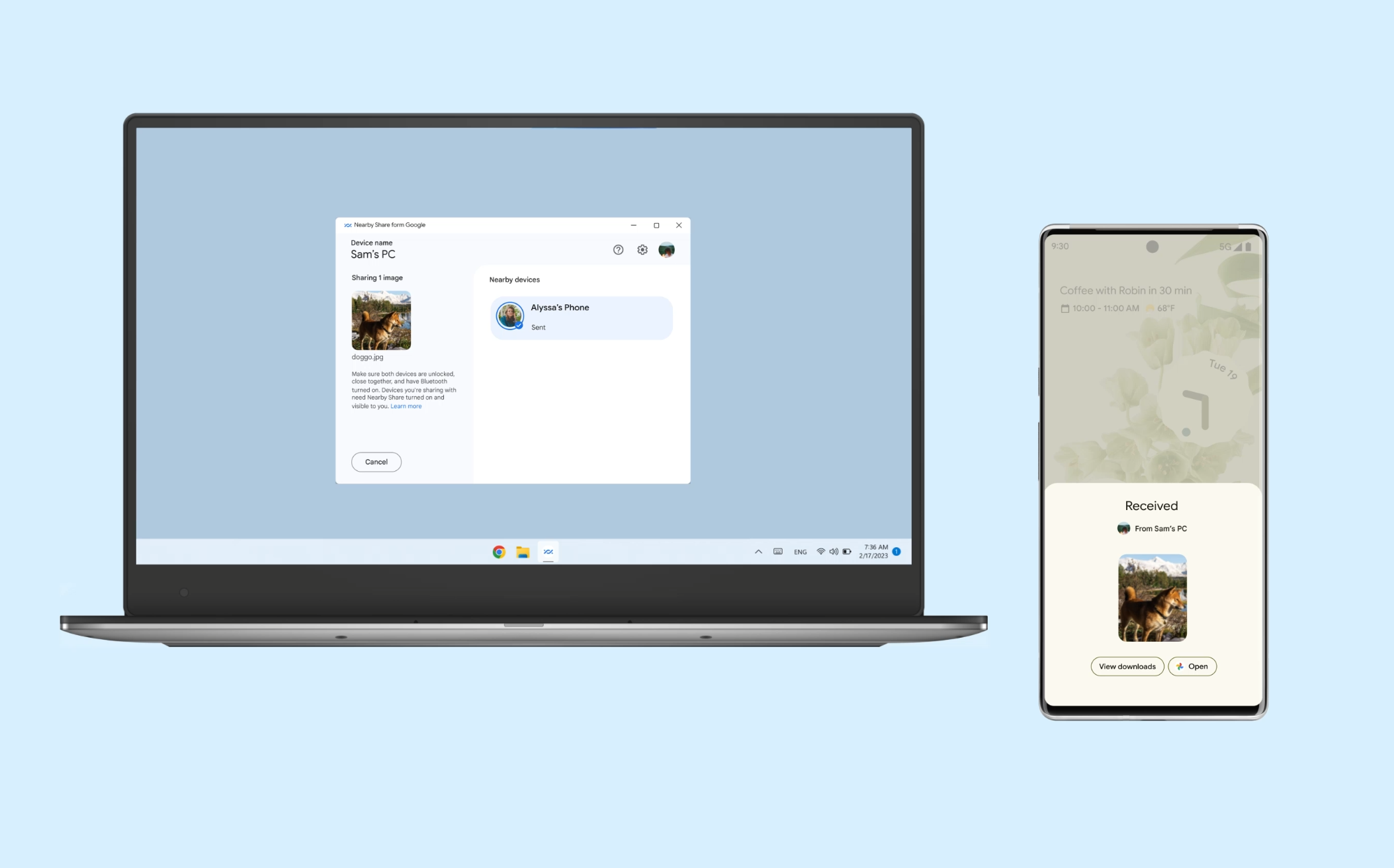
To get started, install Quick Share for Windows to your PC. Send yourself the link to download it.
- Open your device's Settings app.
- In the Settings app's search bar, enter Quick Share.
- Tap Who can share with you.
- Select from:
- Your devices: If your screen is off, your device is still visible to your other devices with the same Google Account.
- Contacts: While your screen is on and unlocked, your device is visible to your nearby contacts.
- Everyone for 10 minutes: To protect your privacy, your visibility automatically switches back to your previous selection after 10 minutes.
System Requirements
- Windows 10 or later (64-bit).
- Windows 11 or later for ARM-based PCs.
- Android 6.0 or later.
- Bluetooth enabled on both devices.
- Wi-Fi or Ethernet connectivity, with both devices connected to the same network.
- Devices must be within approximately 5 meters (16 feet) of each other.
What's New
- Fixed an issue that caused the app to crash.
- Improved GATT advertising reliability.
- Renamed and rebranded the app from "Quick Share from Google" to "Quick Share" and introduced support for compatibility with Samsung's Quick Share app. Support for the Google Quick Share app on Samsung PCs will be terminated on May 28, 2025, at which time the Google Quick Share app on Samsung PCs will redirect the user to install the Quick Share app from Samsung.