

OpenAI will pull the plug on ChatGPT Atlas on August 9, less than a year after launch. Curious Mac users can still download it for one last look, but for an AI browser with an actual future, try Perplexity's Comet or Opera, both offer tools for summarizing pages, answering questions, and helping you navigate the web.
ChatGPT Atlas is a web browser with ChatGPT built in. Atlas brings ChatGPT to every site you visit, offering in-line help as you work, remembering important context (if you choose), and even completing multi-step tasks for you using agent mode. Built for privacy and control, Atlas lets you decide what ChatGPT can see and remember as you browse. It's a smarter, more personal way to use the web.
What is "Agent Mode" in Atlas and who can use it?
Agent Mode lets ChatGPT take action for you in the browser – for example researching, automating tasks or shopping on your behalf – always under your control. It is currently in preview for Plus, Pro and Business users.
What browser engine does ChatGPT Atlas run on?
Atlas is built on top of the Chromium stack, meaning it uses Google's Blink rendering engine and the V8 JavaScript runtime under the hood. In practice, that puts it in the same technical family as Chrome, Edge and Arc. So you get full modern web compatibility, but with the browser itself acting as an AI-first interface instead of a traditional tab-and-toolbar shell.
How do I get started with Atlas and carry over my data from another browser?
Once you download Atlas for macOS, sign in using your ChatGPT account, and you can import bookmarks, passwords and browsing history from your current browser. After that, you can choose whether to enable browser-memories and set Atlas as your default browser.
What platforms is Atlas available on?
Atlas is currently available on macOS for Free, Plus, Pro and Go users, and in beta for Business accounts. Versions for Windows, iOS and Android are coming soon.
Features
New tab page
Ask ChatGPT a question or enter a URL to see faster, more useful results in one place.
Smarter searches
To explore more specific types of results beyond the chat, select from tabs for search links, images, videos, and news (where available).
Ask ChatGPT sidebar
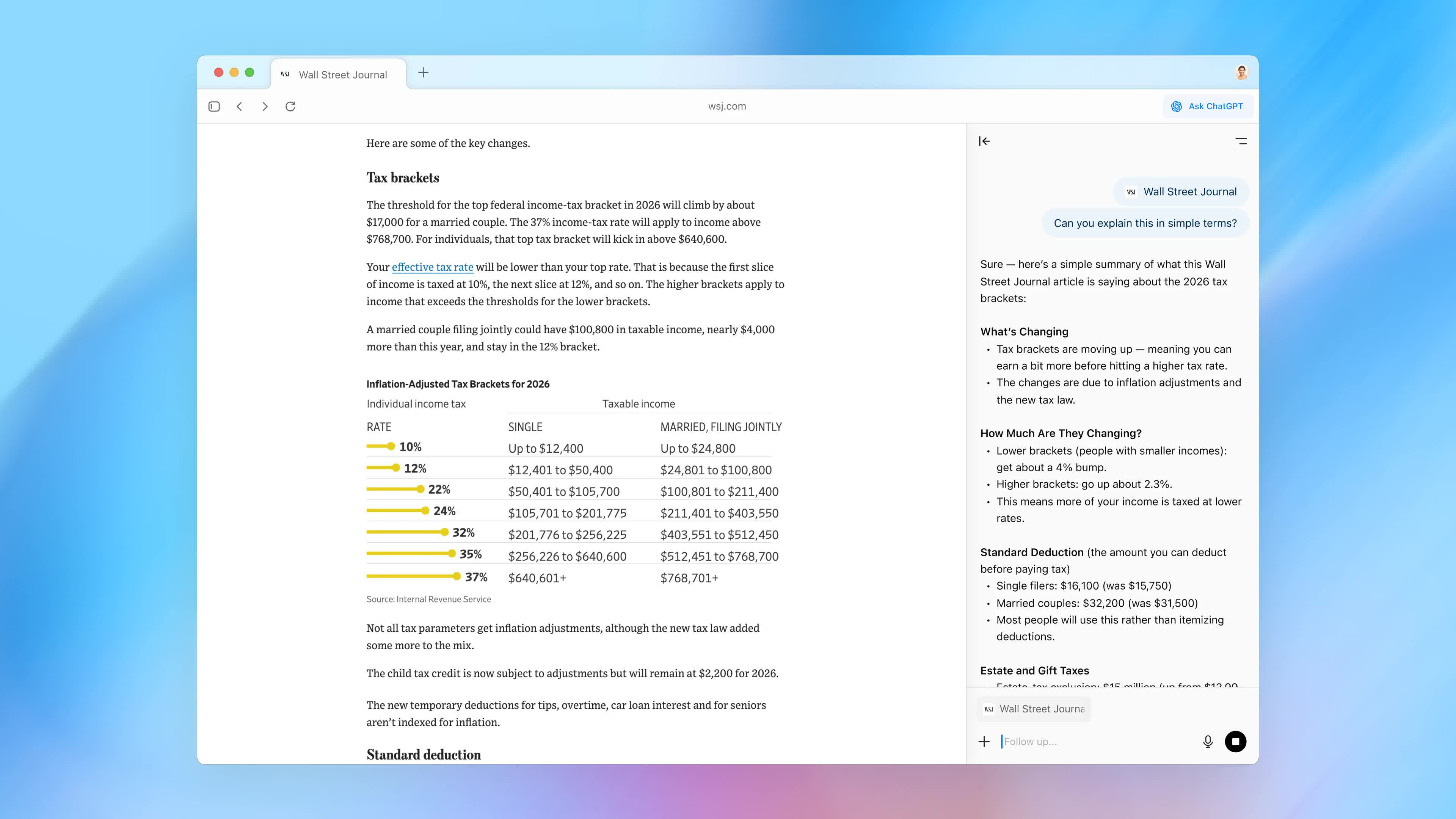
Open ChatGPT sidebar on any page to summarize, analyze, or handle tasks directly in the same window.
In line writing help
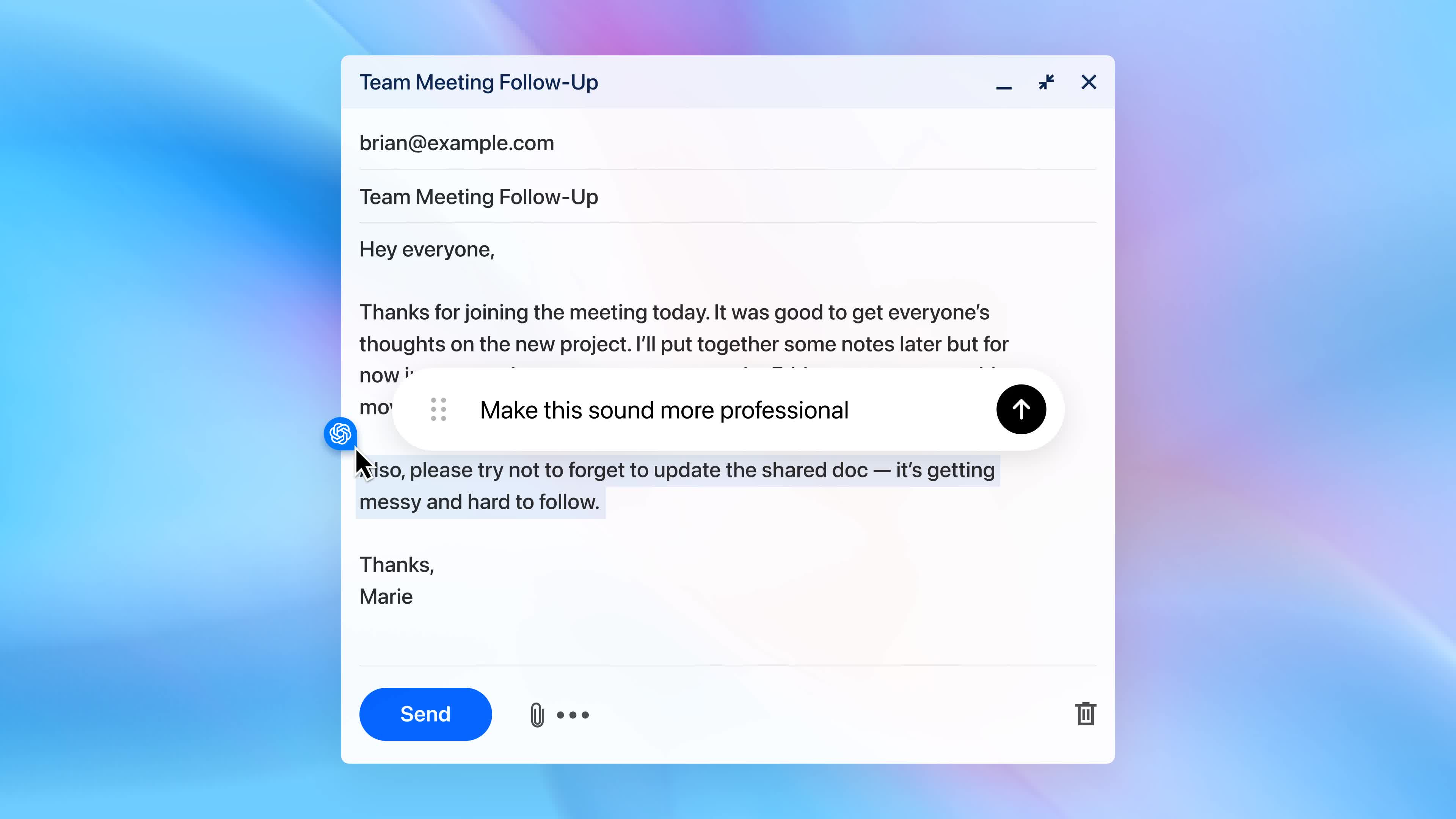
Pull up ChatGPT in any form field to write or edit without switching tabs. Highlight text inside the form field or document and click the ChatGPT logo to get started.
Browser memories
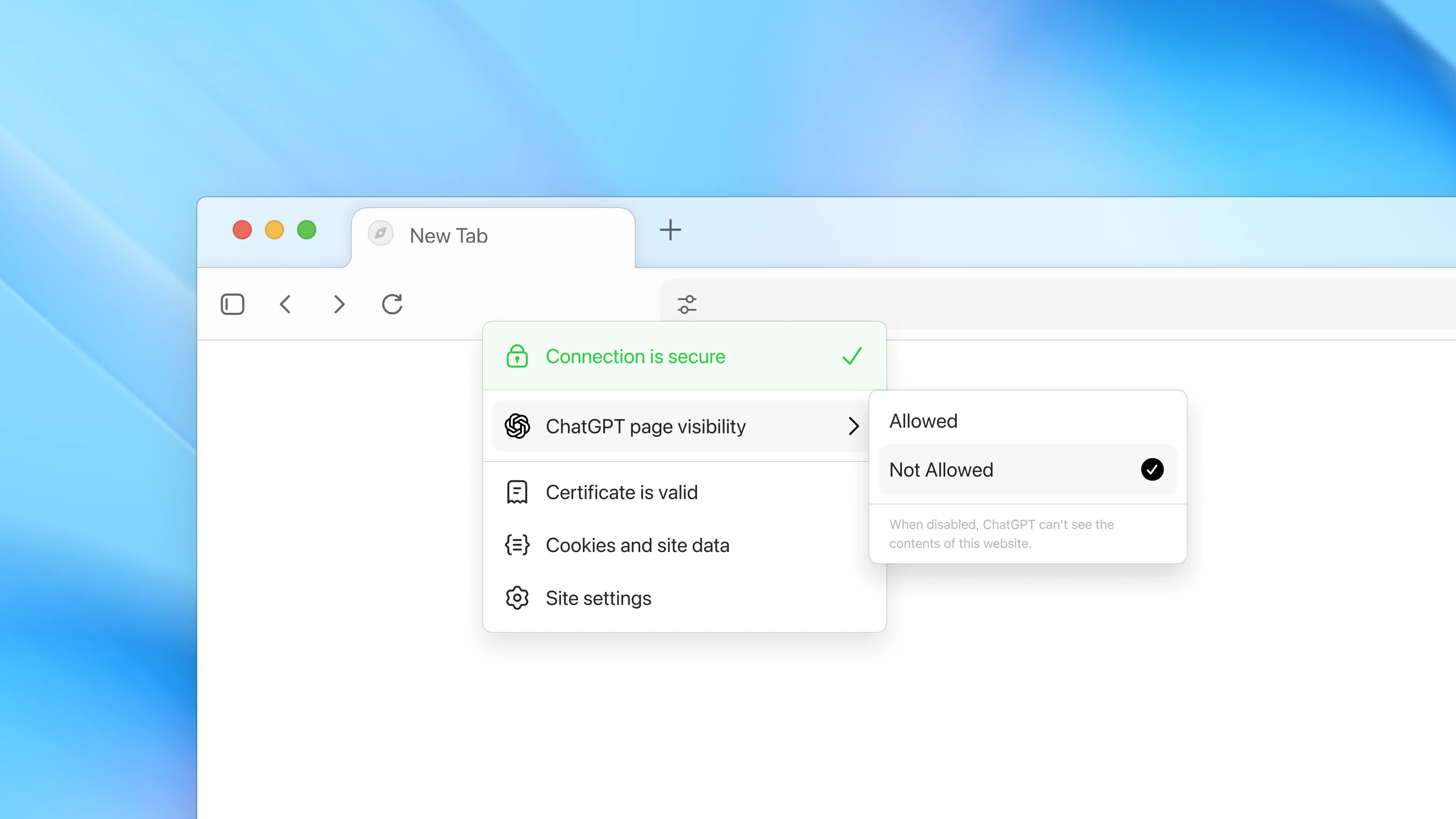
If you turn on browser memories, ChatGPT will remember key details from your web browsing to improve chat responses and offer smarter suggestions – like retrieving a webpage you read a while ago. Browser memories are private to your account and under your control. You can view them all in settings, archive ones that are no longer relevant, and clear your browsing history to delete them. Even when browser memories are on, you can decide which sites ChatGPT can't see using the toggle in the address bar. When visibility is off, ChatGPT can't view the page content, and no memories are created from it.
Home page suggestions
ChatGPT remembers what you've explored and suggests what to do next, whether that's returning to past pages, digging deeper into a topic, surfacing related ideas, or automating routine tasks.
Agent mode (Preview)
Plus, Pro, and Business users can now enable agent mode in Atlas to let ChatGPT do work on your behalf and always under your control. In agent mode, ChatGPT can complete end to end tasks for you like researching a meal plan, making a list of ingredients, and adding the groceries to a shopping cart ready for delivery. You're always in control: ChatGPT is trained to ask before taking many important actions, and you can pause, interrupt, or take over the browser at any time.
Privacy and data controls
We've made it easy to control and adjust your settings in Atlas. You can clear history for a page or your full history altogether. You can also open an incognito window where you're signed out of ChatGPT and chats and memory won't be saved to your account.
By default, we don't use the content you browse to train our models. If you choose to opt-in this content, you can enable "include web browsing" in your Atlas data controls settings. If you've enabled training for chats in your ChatGPT account, training will also be enabled for chats in Atlas. This includes website content you've attached when using the Ask ChatGPT sidebar and details from browser memories that inform your chats.
Parental controls
If a parent has set up parental controls for ChatGPT, these settings will carry over to conversations with ChatGPT in Atlas. We're also introducing new parental controls in Atlas, including the option for parents to turn off browser memories and agent mode.
