11 Need-To-Know Tools in Microsoft PowerToys
Microsoft PowerToys packs more than 30 utilities into a single toolbox, but not all of them are worth using. These 11 stand out as genuinely useful, and a few others you can safely ignore.
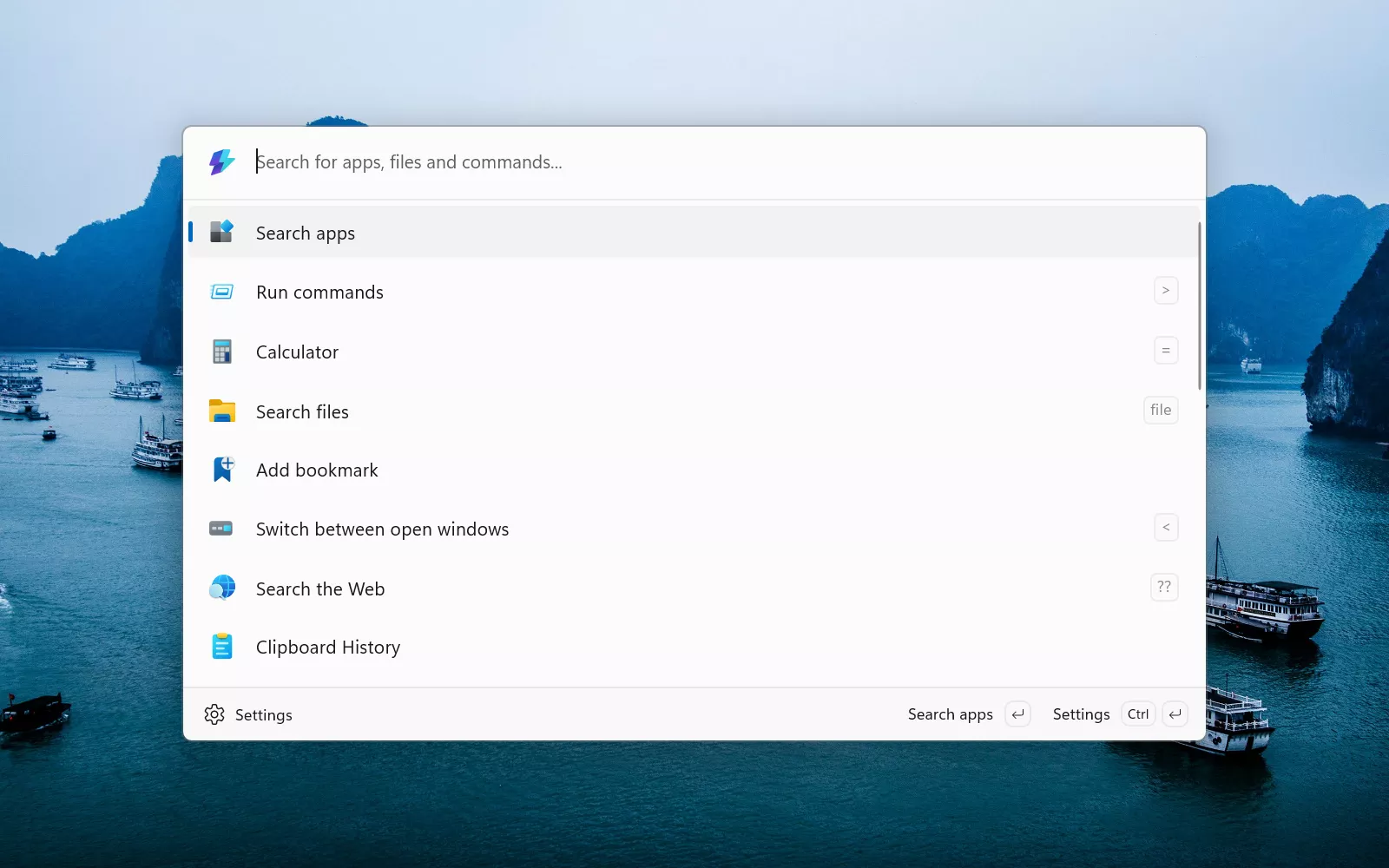
Microsoft PowerToys packs more than 30 utilities into a single toolbox, but not all of them are worth using. These 11 stand out as genuinely useful, and a few others you can safely ignore.


Back to the office? Pranks are awesome. And you're a tech-savvy individual, so it's time that your pranks showed that. Help colleagues grow closer with these practical IT jokes.

Looking to upgrade your computer's SSD without having to reinstall Windows and all your apps? We've got you covered with this guide to cloning a boot drive.

If you've ever wanted free software to handle dictation or to control your PC using voice commands, look no further than Windows 11 itself. Here's our short guide on Voice Access, Speech Recognition, and Voice Typing.

Bothered by blurry looking apps in Windows? Fear not, there is no instant fix for every app that looks blurry but there are various solutions you can try.

Modern computers have components that require lots of power and given that this all costs money, here's our guide to measuring how much energy your PC uses.

Ever read a web page and wanted to keep it offline to study later? Read on and you'll be saving web pages as PDFs and images in no time at all.

If you have several PCs all connected to the same network and want to access one that's currently switched off, you can power it back up remotely thanks to a cool bit of networking tech.

Get peace of mind by automating your backups with this Windows trick. Check out how File History remembers to keep backups so you don't have to.

Need to give someone your Wi-Fi password but can't find the key on the router? Use your Windows PC and our handy guide to uncover the hidden treasure.

Hardcore PC users might consider themselves above learning new tricks, but you can always sharpen your skills, and we bet that you'll find at least one useful thing here that you didn't know before.

I've been using a Das Keyboard exclusively since 2014 without incident. Build quality aside, I credit its longevity to regular maintenance cleanings.

For countless people in business, education and entertainment, PowerPoint is the default app for creating presentations. Here are top 10 shortcuts and hacks to help you become a PowerPoint pro.

Using additional monitors is a great way to help improve your productivity when using your computer. Here's our simple guide to setting up multi-monitor displays in Windows.

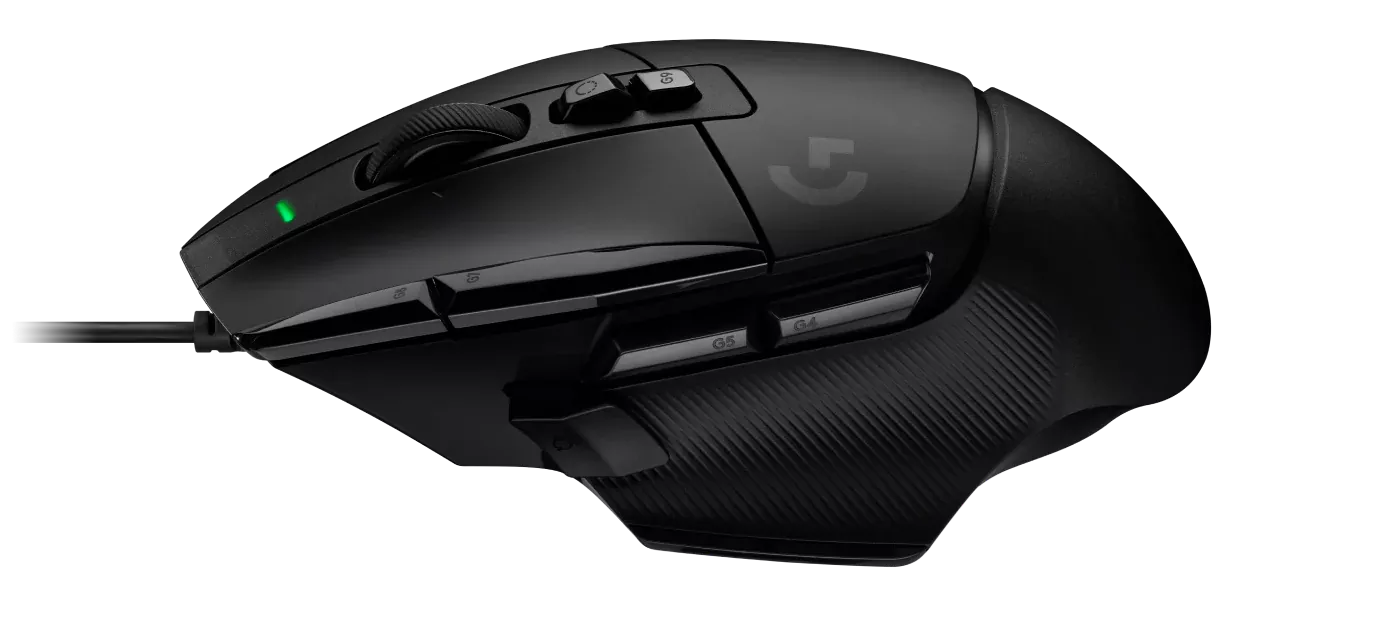
Struggling with sluggish scrolling or muted movement? Default settings causing rodent rage? Read our quick guide to changing your mouse's sensitivity and other settings in Windows.
There are several free PDF editors that include functionality that Adobe's Reader doesn't, such as merging two PDFs, rotating a page, and many others. This guide will help you choose the best tool for you.

Choosing the right font is important for readability, impression, and impact. In this guide, we'll show you where you can source some awesome free fonts and quickly install them.

Millions use Excel to handle all kinds of office and productivity tasks, so here are some of the top 10 shortcuts, tips, and hacks that will help you on your way to becoming an Excel pro.

One noob-friendly option to speed up your system is to upgrade your RAM. This tutorial explains all the essentials step by step. And the best part is, it's fairly easy to do for all.

The Windows 11 POST process happens quickly for improved startup times, leaving little room to hit the designated setup key and access the BIOS menu. Here's how to boot to BIOS in Windows 11.

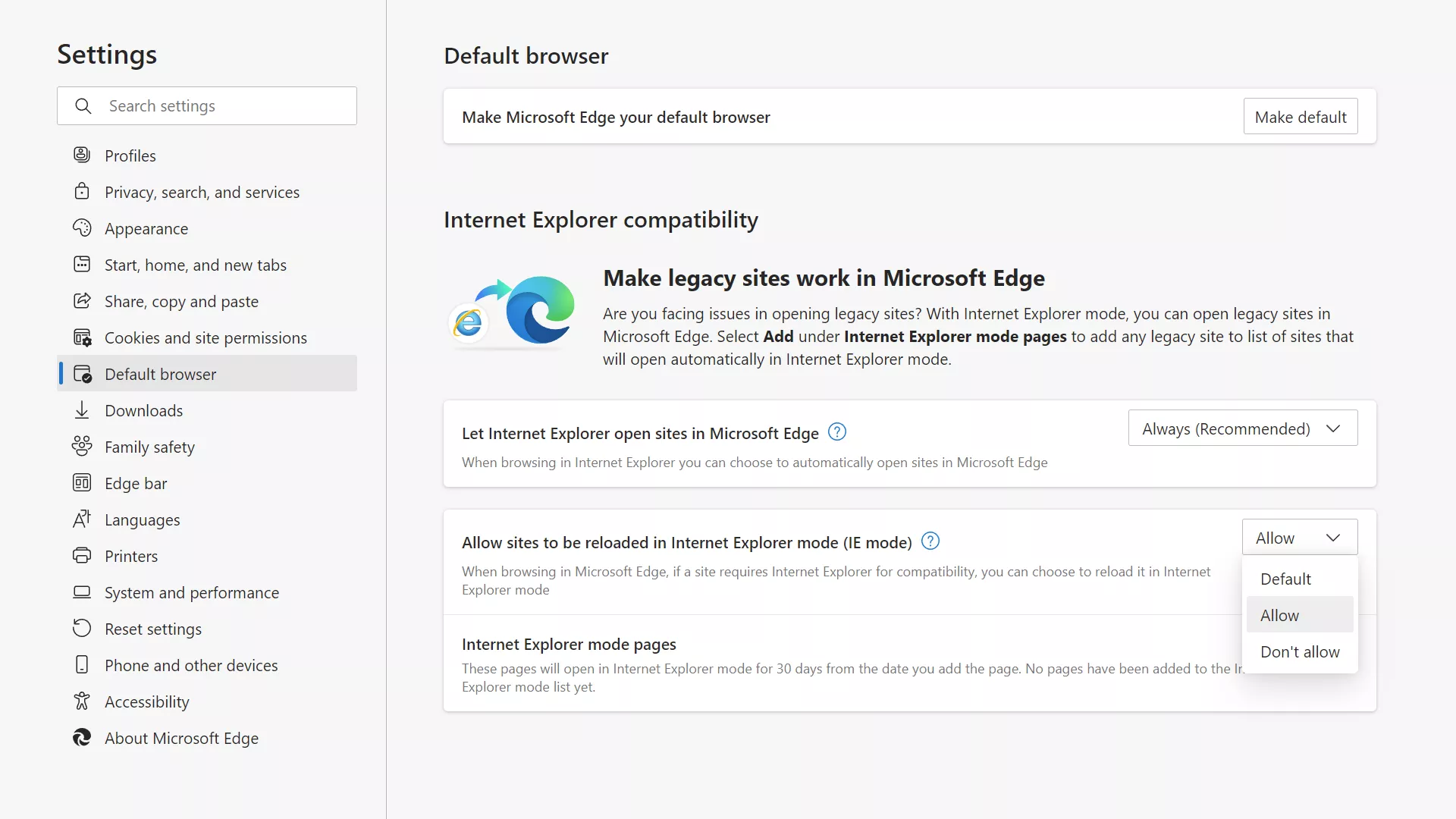
If you use Windows and need to access a website that doesn't support modern browsers, you can still manage to do it thanks to a hidden option in Microsoft Edge called "IE Mode."