
Windows ships with the Snipping Tool, which covers the essentials. It offers basic annotation tools and desktop video recording, and it can even pull text from your captures with OCR. That's on paper, anyway. As many nice features as it has picked up over the years, relying on it day-to-day is still somewhat clunky.
That's why there are so many third-party utilities for the job. There are tons of useful reasons to grab screenshots and mark them up. Developers and designers can flag changes on a mockup, support can walk a customer through a fix, and anyone might circle a correction on a slide before a meeting.
So once you've landed on a good tool, one you can rely on to share or save something in a few clicks or keystrokes, it's a godsend that saves time for you and for whoever is on the other end.
Now, we have retested all the better-known screenshot utilities to see which ones are still great and worth recommending (and others that aren't). Most of them are either designed to be stripped down and work fast, or meant to provide more leveled-up screen capturing. The latter are useful if you need convenient or advanced features, such as automated capturing or more comprehensive image editing. Let's check them out.
For Fast and Easy Capturing
Greenshot
Greenshot is focused on quick captures, basic markup, and getting the result where it needs to go. In this case, that can mean sending captures straight to an Office app installed on your PC, like Excel, Outlook, PowerPoint or Word.
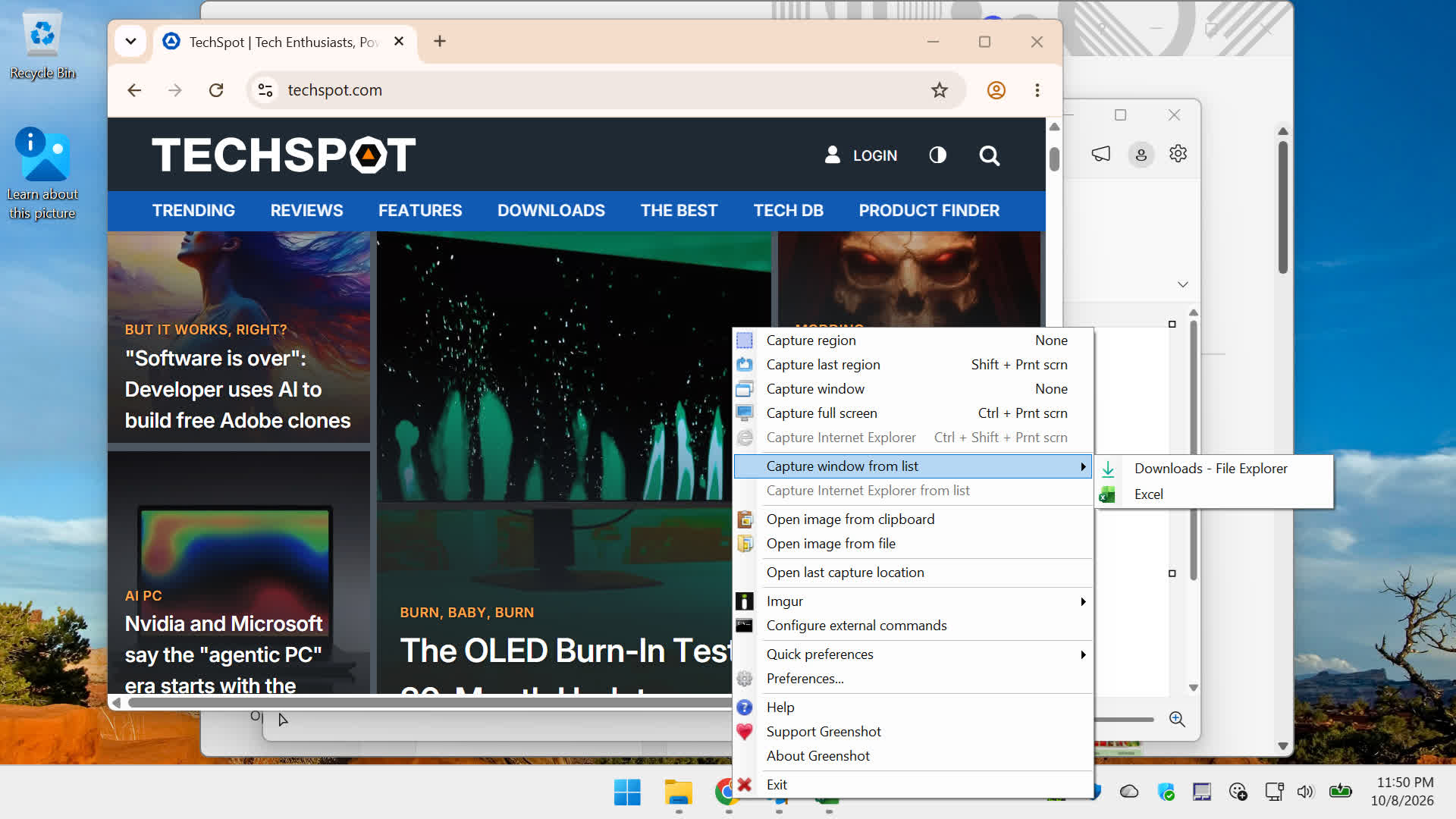
Its built-in editor covers simple annotations like arrows, shapes, and text, plus blur and pixelate effects for hiding sensitive details. The UI may feel a little dated, but Greenshot sits in the system tray and uses minimal system resources. If you work in Microsoft 365 apps all day, it's a snappier alternative to the Snipping Tool.
Greenshot is free and open source, for both personal and commercial use.
Monosnap
Monosnap has been one of our go-to apps for grabbing screenshots for years, it's still good, but it's not at the top of the list because the UI has not been properly updated for a while. This lightweight tool is available as a browser extension and as desktop apps for Windows and macOS.
Its minimalist interface lets you snap specific app windows, custom screen regions (with a useful zoom ruler), or the full screen using customizable hotkeys. A delayed capture timer helps you catch transient UI elements like dropdown menus, and it can record screen video too.
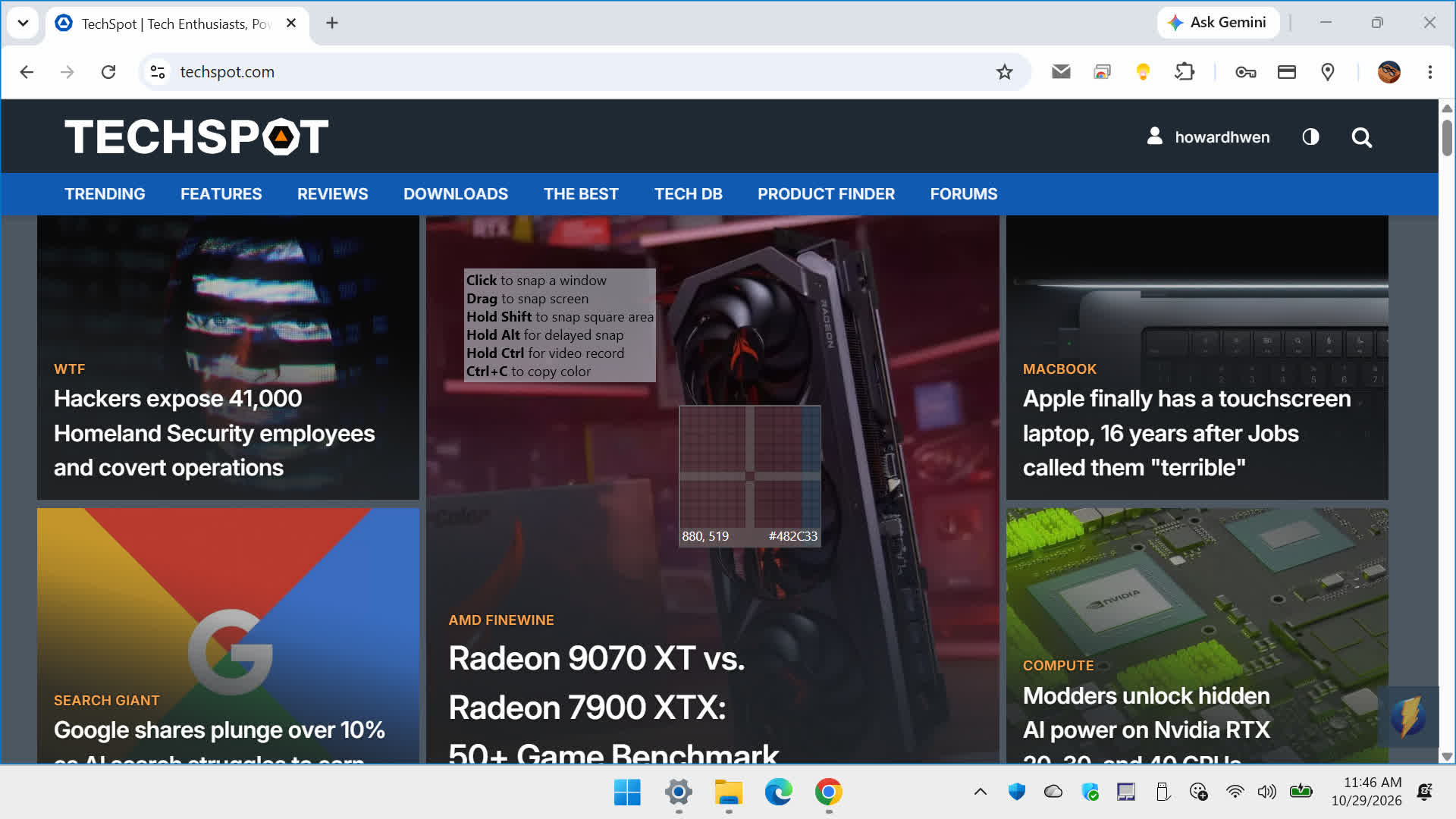
Its image editor has tools for blurring content, cropping, drawing arrows and shapes, and highlighting key details. Built-in cloud uploads generate shareable short links. Overall, Monosnap offers a tight workflow for taking, annotating, and sharing screenshots.
Monosnap is free for non-commercial personal use and includes 2 GB of cloud storage. There are also paid plans available starting at $2.50 per month with 10 GB cloud storage, and third-party integrations like Dropbox, Google Drive, and FTP/SFTP.
Flameshot
Originally popular among Linux users, Flameshot is free and open-source and also runs on Windows and Mac. The preferred workflow is that you drag a box around the area you want to capture, and an overlay appears around your selection, letting you edit the screenshot on the fly.
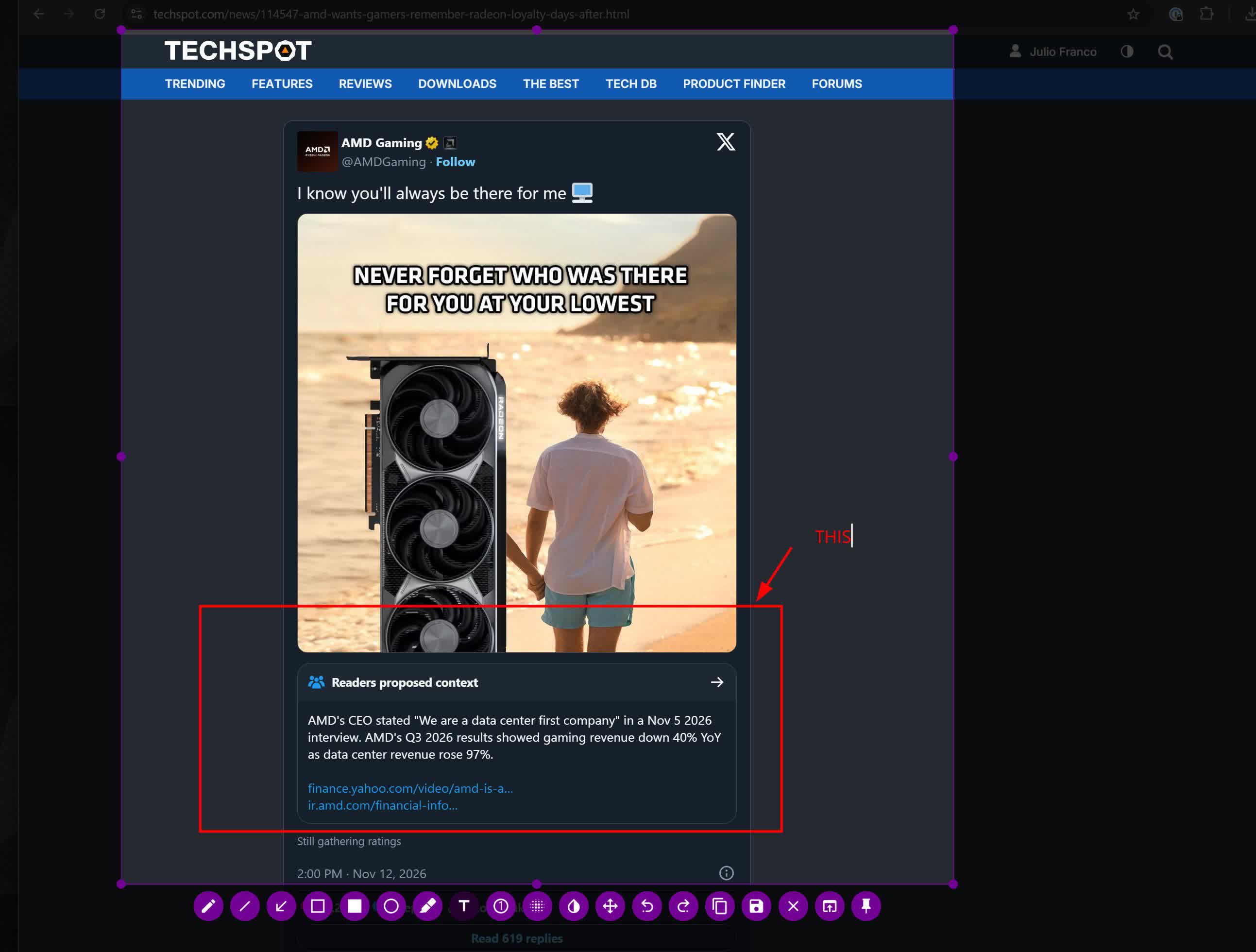
You can draw arrows and shapes, highlight text, add numbered steps, pixelate sensitive information, or cover it with a solid color. You can also customize which tools appear in the toolbar, their colors, and keyboard shortcuts.
Once you're done, you can copy the capture to the clipboard or save it locally. Flameshot's recent updates have improved multi-monitor support on Windows, added customizable hotkeys, and introduced a portable mode.
Lightweight Screen and Video Capturing
PicPick
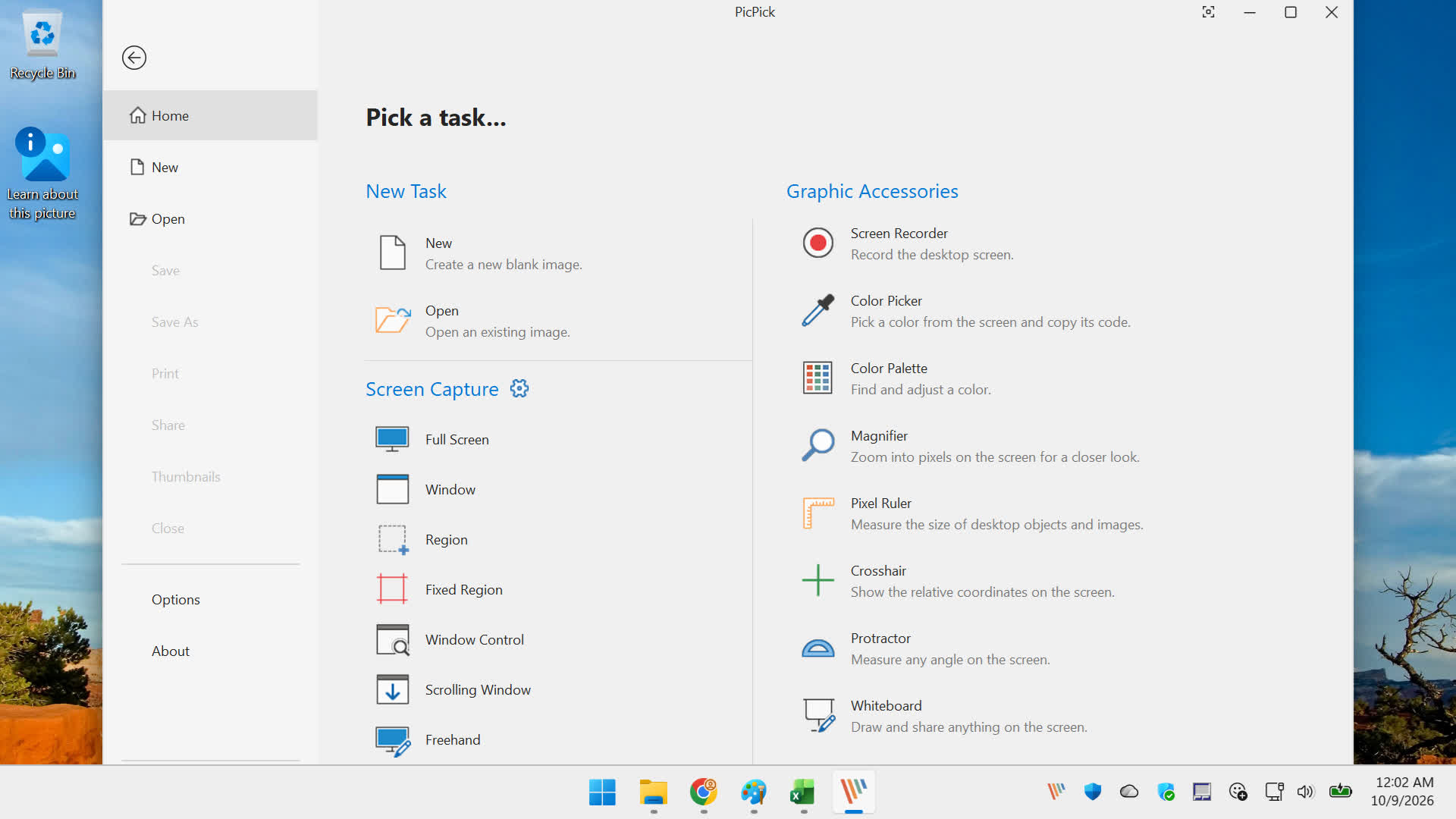
PicPick was designed to be equal parts screen capture utility and image editor. On the capture side, it handles multi-monitor setups and scrolling windows, and it can record your desktop (with system audio or microphone) and save the footage as MP4 or animated GIF.
After you take a capture, PicPick opens it in an editor with a ribbon-style interface similar to Microsoft Office. It offers a broad selection of annotation tools, including blur and pixelation brushes.
It lacks the more sophisticated tools of a full image editor, such as layers, but the familiar interface makes quick edits easy. From the system tray, PicPick also offers handy design tools: a color picker, magnifier, pixel ruler, protractor, and a whiteboard for drawing on screen. PicPick is free for personal use.
Kalmuri
If you're looking for a lightweight Windows utility to grab your screen without relying on the mouse, Kalmuri lets you set custom hotkeys to instantly capture the full screen, the active window, or a preset region.
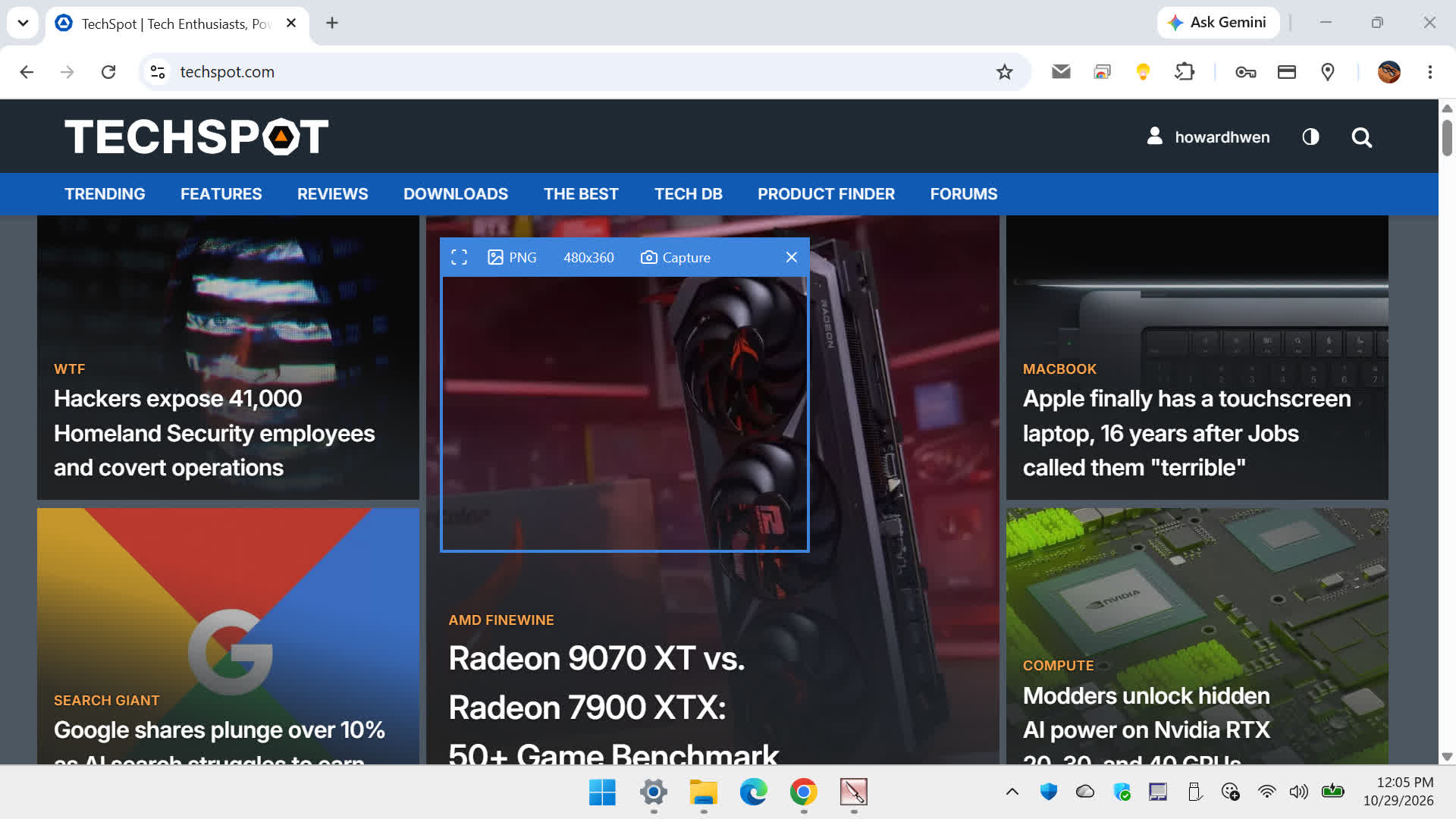
To take a capture, select your target area and output format, then press your hotkey (Print Screen by default). All menu options are available by right-clicking anywhere on the Kalmuri window. It can also capture full web pages, and it runs without installation, so you can carry it on a USB stick.
Beyond static captures, Kalmuri records video of the full screen or a selected area, and recent updates have focused on improving recording stability and quality. It also has OCR for extracting text from captures. Kalmuri is completely free to use, including at work.
Advanced Screen Capturing
These utilities are designed to meet your more complex screen capture needs.
ShareX
ShareX is built around a more sophisticated workflow. What sets it apart is automation: you can chain together actions that run after every capture, like adding a watermark or effects, running OCR, opening the editor, or uploading and copying the link.
On the capture side, it handles scrolling pages as well as video and GIF recording. Its toolbox includes a color picker, ruler, image effects, and a pin-to-screen tool.
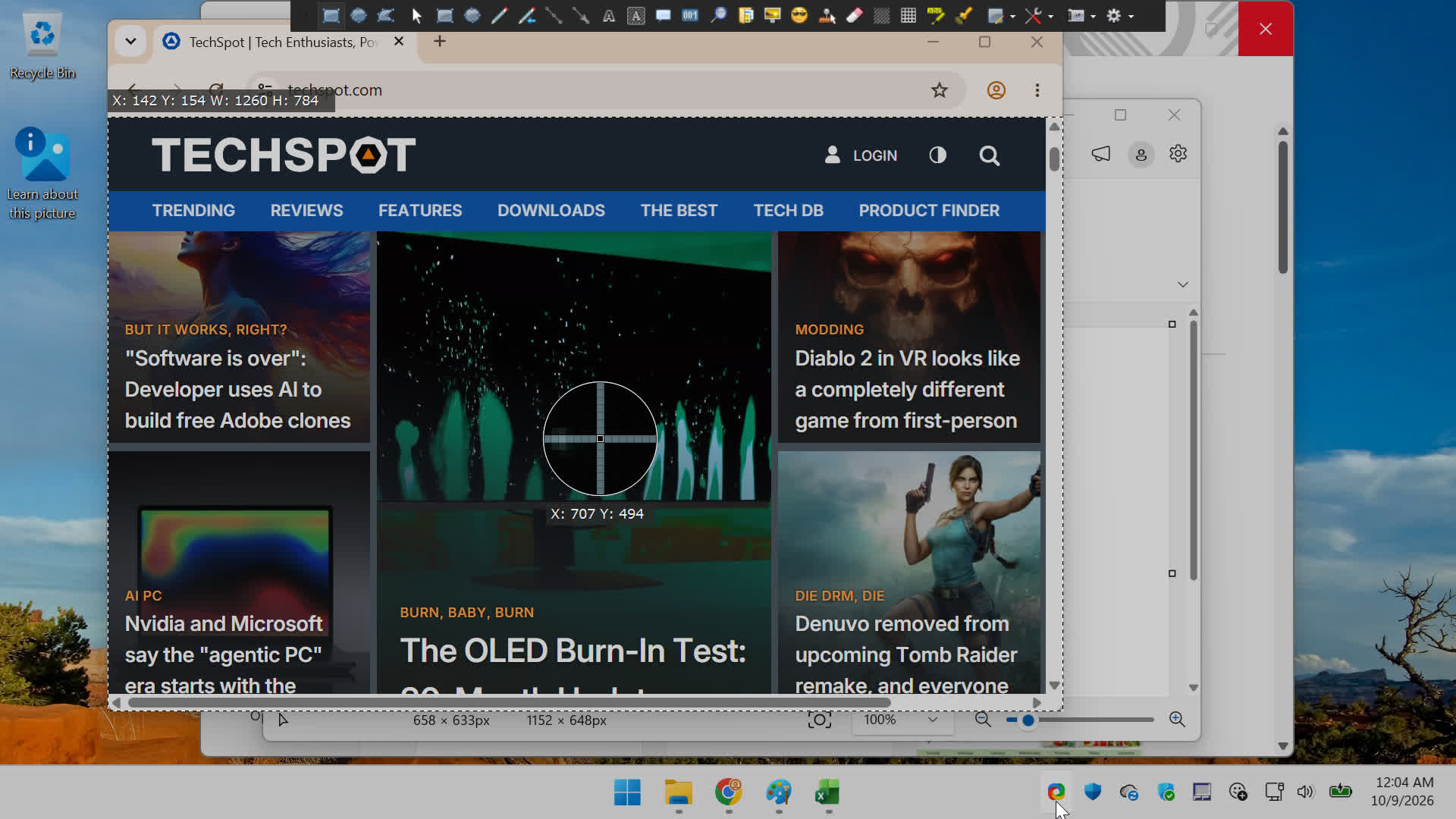
ShareX also supports a huge number of upload destinations, from cloud services (Dropbox, GDrive, OneDrive, etc.) and image hosts to your own server. Automatic uploading is disabled by default however and your captures stay local unless you configure them, for privacy reasons.
The interface can be overwhelming for casual users, but ShareX is free and open source. It's well worth learning if you want to automate capturing, editing, and uploading your shots.
Snagit
Snagit is squarely aimed at people who create tutorials and user guides built around screenshots. It can capture scrolling pages and record desktop activity as video or animated GIFs, with audio from your PC and narration.
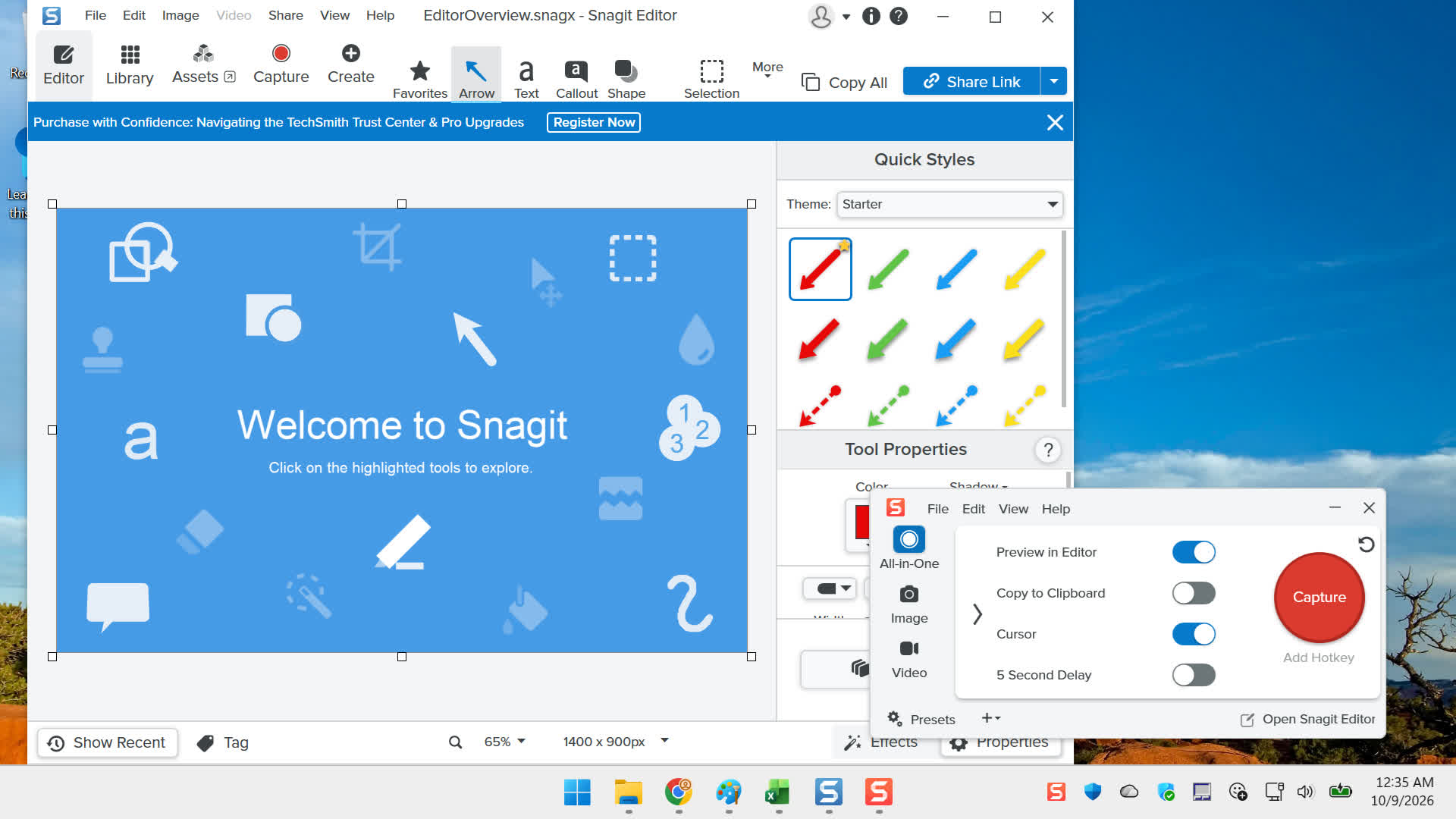
Snagit's editing tools are geared toward documentation work, and many of them automate tedious steps: blurring sensitive info, cleaning screenshots of clutter, extracting text, and numbering steps. The app also offers templates to help you assemble visual guides from your screenshots.
That makes Snagit a different kind of offering from the others on this list, and it's not free: Snagit is now subscription-only, at $39 per year. You obviously don't need it for the occasional screenshot. But if you capture a lot and regularly turn those captures into guides or documentation that others need to follow, its time-saving features can easily justify the cost.
Side alternative: If you'd rather avoid the subscription, FastStone Capture is a long-time favorite alternative to Snagit. It's actively maintained and costs $30 as a one-time fee.
Snipaste
Snipaste presents a unique UI: you capture areas of the screen and pin them as floating windows that are resizable. This snip-and-paste method is meant to help you annotate and edit your screen captures through a more visual way.
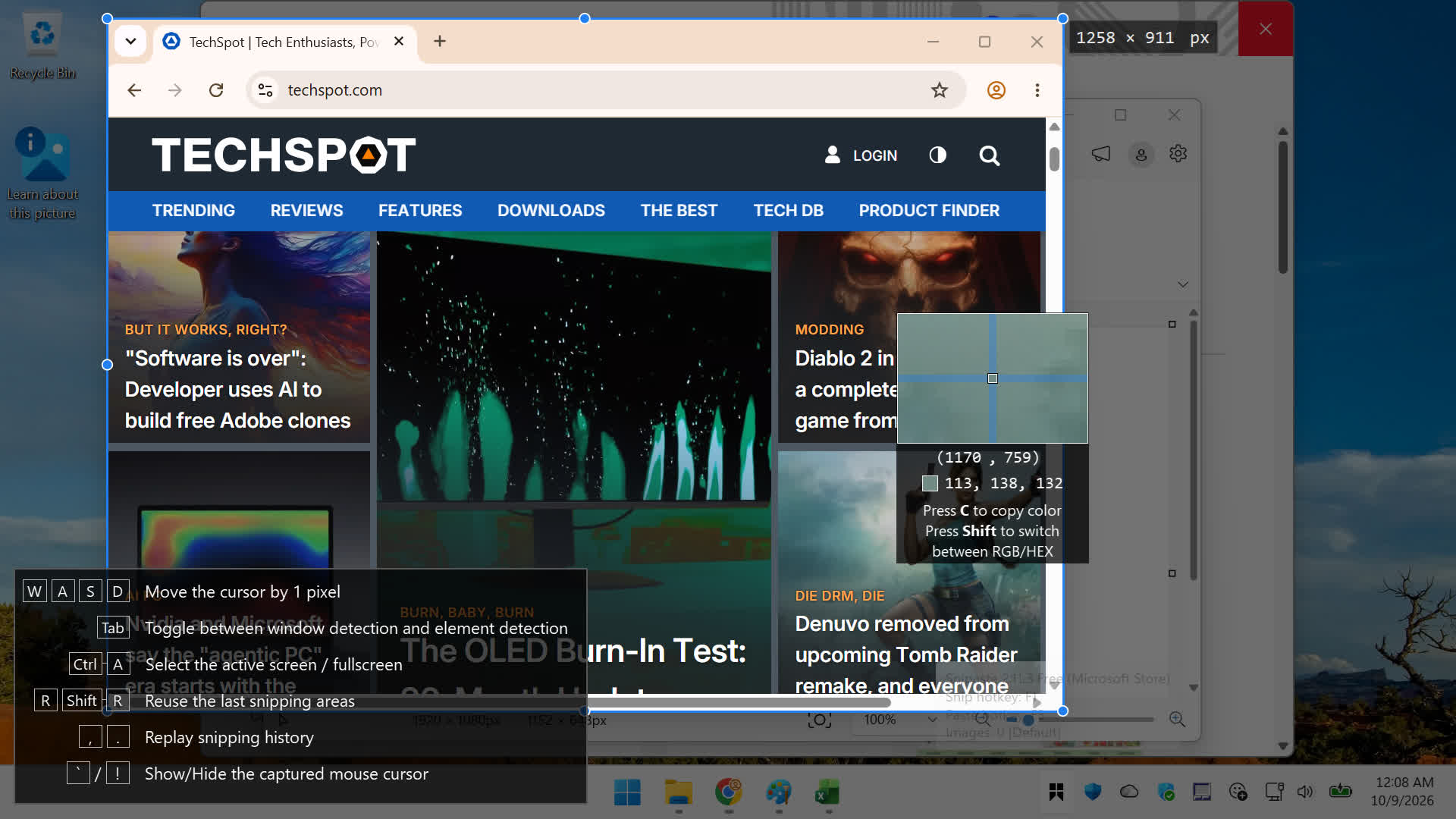
You can also pin images or text from your clipboard as floating windows. Other tools include markup, a color picker, a magnifier, and a privacy redaction tool.
Snipaste lacks some of the advanced features found in ShareX and Snagit, like scrolling capture and video recording. Still, it's worth checking out if you take a lot of screenshots and want to see and manipulate them all on the desktop at once. Snipaste is free for personal use.
WinSnap
WinSnap is built to capture Windows app windows accurately, preserving native visual details like Windows 11's rounded corners and transparency effects. You can also capture multiple separate windows or UI objects in one shot by holding down Ctrl while selecting them.
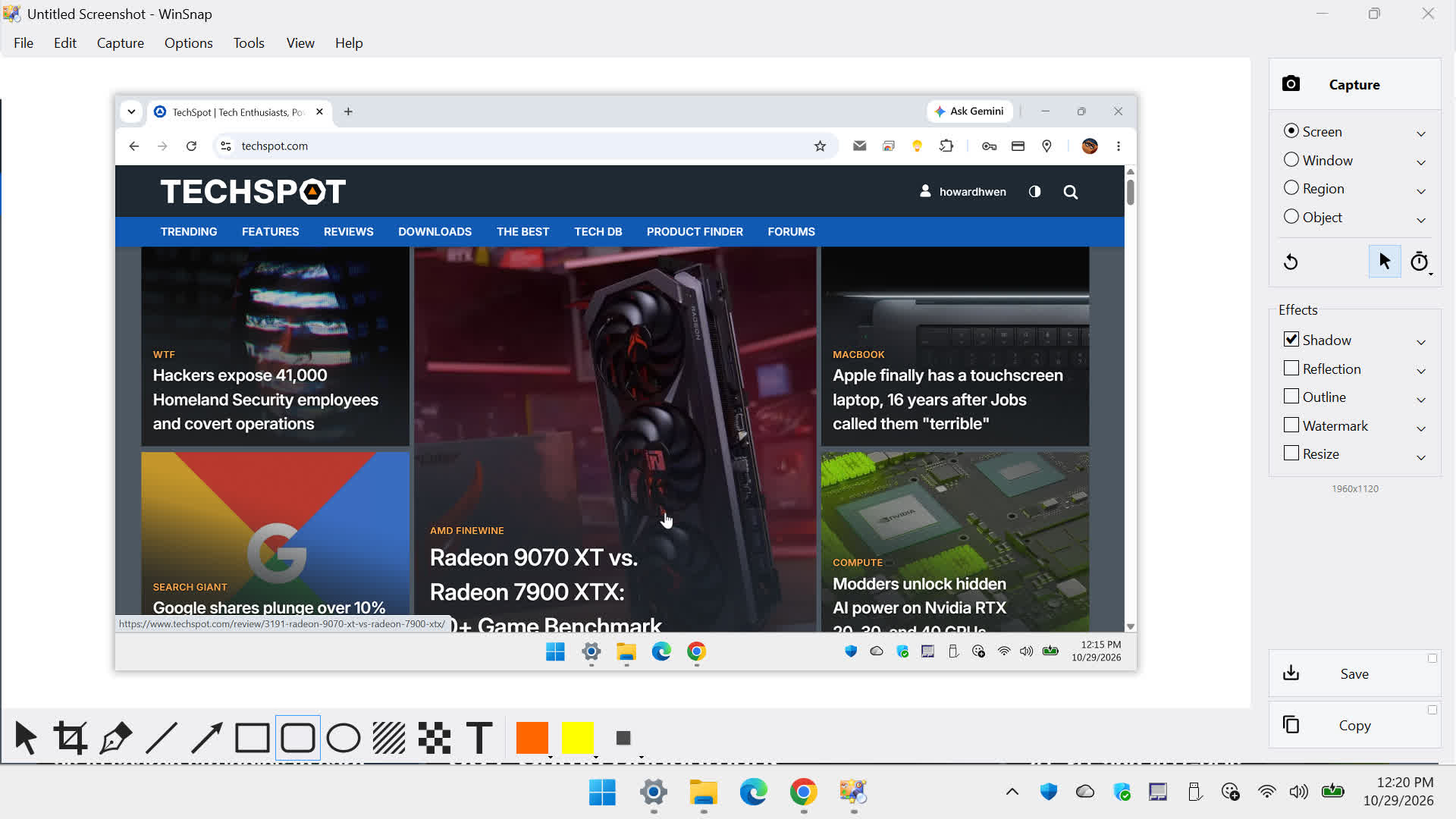
The utility can also dress up captures with customizable effects, replacing the default window background and shadow with drop shadows, reflections, outlines, and watermarks.
Its robust editor includes arrows, shapes, text callouts, and blur and pixelation for redacting private info. Thanks to PNG transparency support, you can paste screenshots into Office apps like PowerPoint and Word with their shadows and rounded corners intact. WinSnap is $20 as a one-time purchase, with a 30-day fully functional trial available.
Ashampoo Snap Pro
This Windows-only suite is also designed for creating documentation, presentations, and tutorials from screen captures and video recordings. Its capture bar automatically detects windows and UI elements under the cursor, so you can select them quickly without drawing a box.
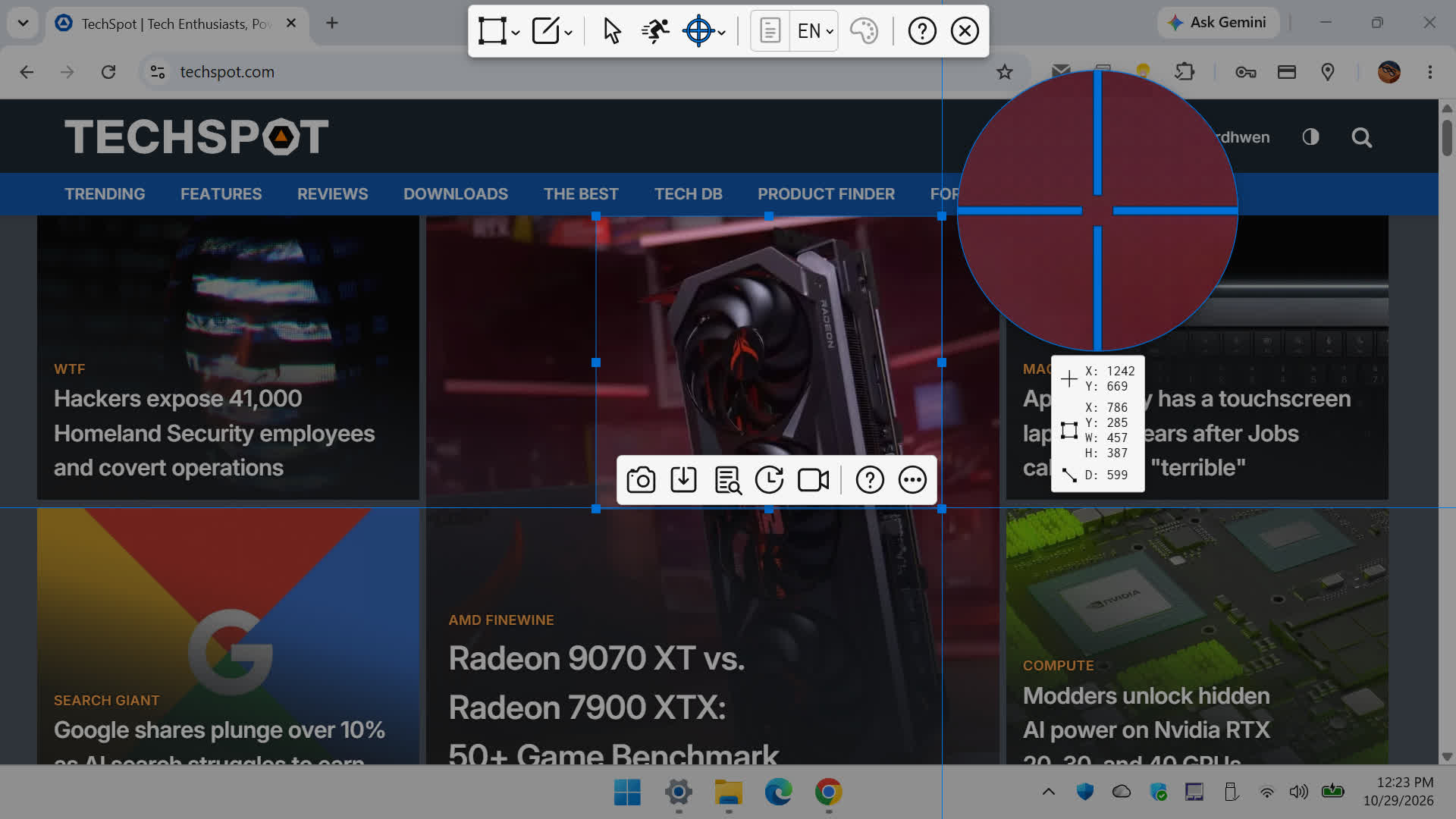
The standout feature is Live Edit. It places a transparent layer over your screen so you can add text, draw, and highlight areas directly on the desktop before you take the final capture.
After capture, images open in a fully featured editor with privacy blurring, spotlight effects, automatic step numbering, and multi-language OCR. It also does timed and scrolling captures, and video recordings can be annotated live with text, drawings, and voice narration.
Ashampoo Snap Pro is a one-time purchase rather than a subscription. Ashampoo discounts it frequently, as of writing it's $13. A 30-day free trial is available, too.
Awesome Screenshot
Available as both a browser extension and a desktop app (Windows and Mac), Awesome Screenshot has been a reliable utility for well over a decade. Its selection interface lets you grab a visible area, a selected region, or an entire scrolling web page with a single click. It also records screen video.
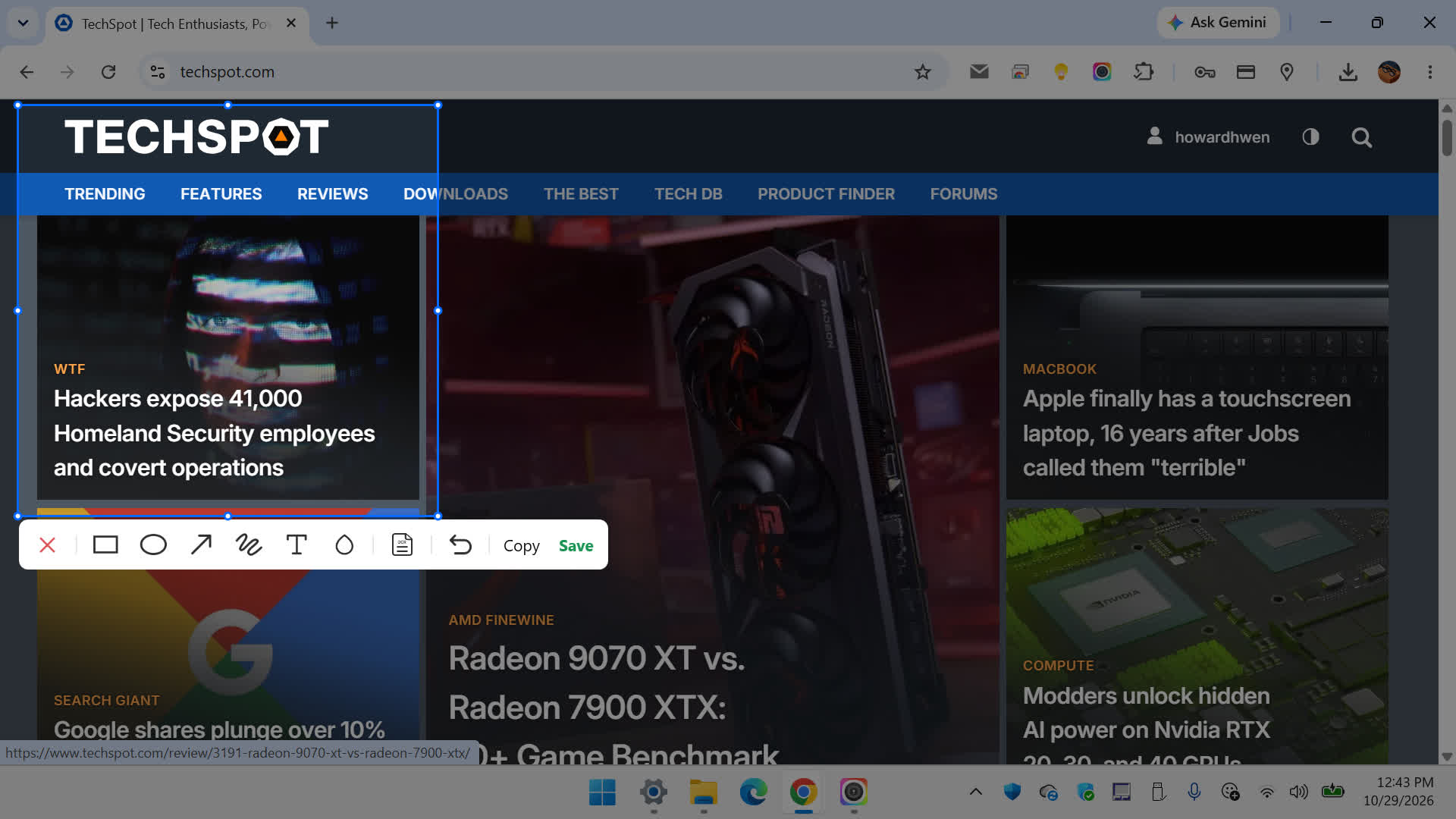
Its post-capture editor includes comprehensive markup tools and integrates with Google Drive, Asana, Slack, Trello, and Jira, making it easy to drop captures into team workflows.
The free plan covers the basics, with limits on cloud-saved screenshots and recordings, and video capped at 720p. Paid plans start at $6 per month, which offer extended recording durations, HD/4K video export, and advanced annotation tools.
Capturing Gameplay Footage
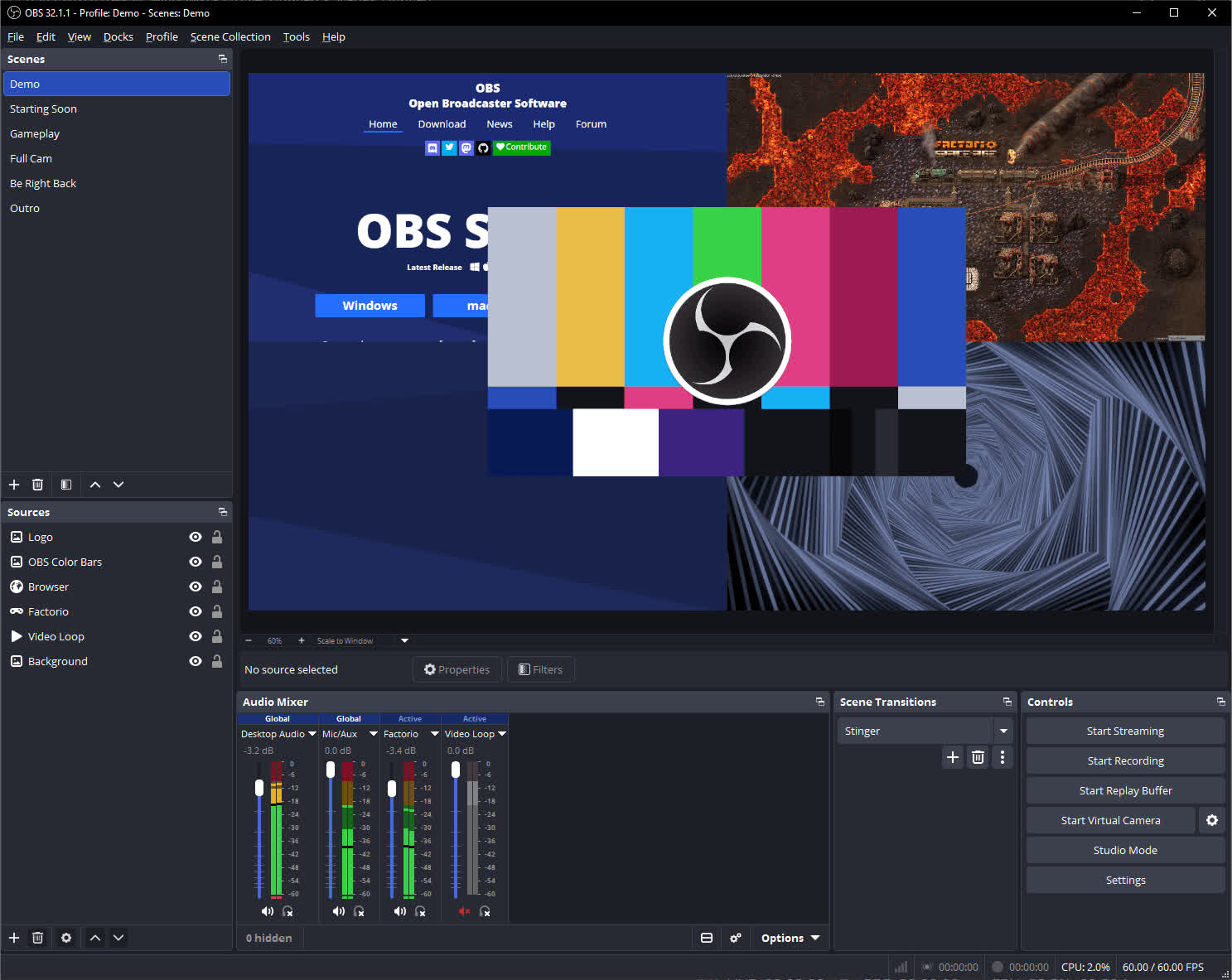
When capturing game footage, a regular screen capture utility can cause frame drops or stutter. For smoother captures, use a tool designed for gaming:
Xbox Game Bar: This comes built into Windows 11 (press Win + G to open it). It can take screenshots and record gameplay using hardware-accelerated encoding to minimize the impact on frame rates.
OBS Studio: This free and open-source suite is the go-to for high-quality, high-frame-rate recording and streaming. It uses your GPU's hardware encoder to record gameplay at high resolutions with minimal performance impact.
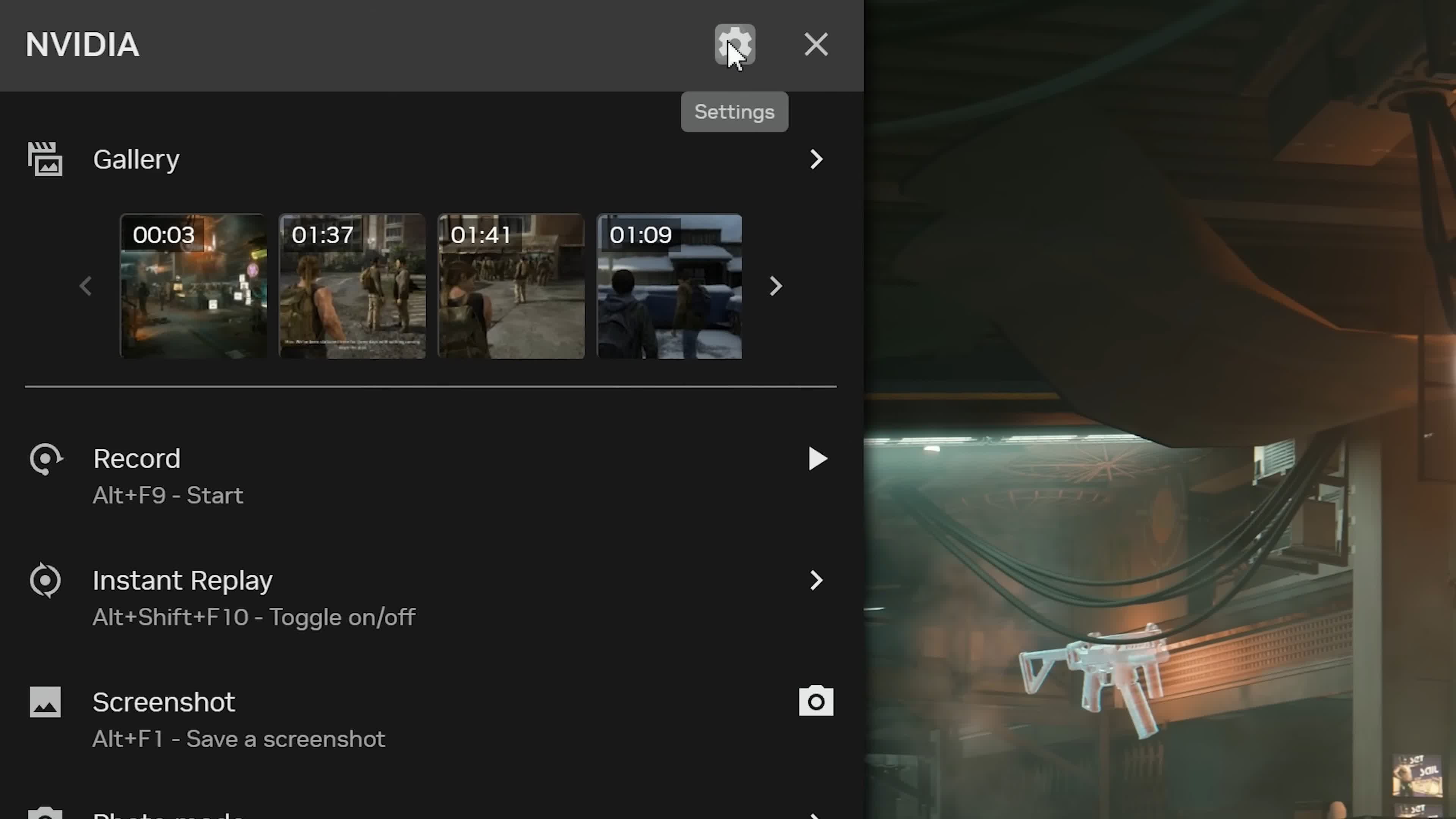
GPU software (Nvidia App, AMD Software): Nvidia's overlay and AMD's Record & Stream both offer screenshots, gameplay recording, and instant replay of your last few minutes of play.
As a side note, we have dedicated guides to configure best settings for Nvidia and AMD's Radeon software.
Other Screenshot Tools, With Caveats
A few screenshot utilities we've recommended in the past still have their merits, but they're no longer among our top picks. Some haven't kept pace with the competition, while others come with privacy or security concerns worth knowing about.
Lightshot is one of the simplest screenshot utilities around. Drag a box around the area you want to capture, and a small toolbar lets you add arrows, text, highlights, and drawings before saving or copying the image. It's free, and you can also upload captures to its own hosting service to generate a shareable link.
The problem is that Lightshot hasn't evolved much over the years, and alternatives like Flameshot offer a similar workflow with more capable editing tools. We'd also advise against using Lightshot's online sharing feature for anything sensitive, as uploaded screenshots get shortened predictable links that are easy to guess, and they've been scraped en masse. For simple, local captures, it still works just fine.
ScreenshotX is a compact 3MB freeware utility for capturing desktop regions or app windows. It offers basic image editing tools and a clever auto-balancing feature that centers the main subject with even padding. You can also share screenshots online without an account, with uploaded images automatically deleted after 30 days.
While there's plenty to like about its lightweight approach, ScreenshotX hasn't seen a new desktop release since March 2023. With other actively maintained freeware alternatives offering more comprehensive capture and editing tools, there are fewer reasons to choose it today.
Gyazo makes sharing screenshots almost effortless. Capture an area of the screen, and the app uploads the image to the cloud and copies a shareable link to your clipboard. It also captures animated GIFs and short video clips, making it particularly convenient for sharing quick visuals in conversations.
However, a major security breach in September 2026 exposed data associated with over 23 million users and metadata for hundreds of millions of uploaded images, including previously deleted captures. Gyazo has since fixed the vulnerability, but given how central cloud uploads are to the app's workflow, we're no longer comfortable recommending it over the many alternatives that let you keep your captures local.
***
Whether you want a fast utility that's better than the Snipping Tool, one that handles the entire capture-to-share process for you, or a full suite for building tutorials, there's a tool here for the job.
Which screenshot tool do you rely on? Is there one we missed that deserves a spot on this list, or has the Snipping Tool gotten good enough for you?