Google Chrome is a fast, simple, and secure web browser, built for the modern web. Chrome combines a minimal design with sophisticated technology to make the web faster, safer, and easier.
Used by over 3 billion people worldwide, Chrome owes its dominance to a combination of speed, a vast extension ecosystem, and tight integration with Google services.
Is Chrome the fastest browser?
Chrome, Firefox, Safari, and other major browsers are updated every few weeks, making direct speed comparisons a moving target. Chrome has long had a reputation as a RAM hog, but competing browsers can be just as resource-hungry under heavy use.
In recent years Google has added built-in tools to address this. Memory Saver (Settings > Performance) suspends inactive tabs to free up RAM. Google claims up to 40% less memory usage, while Energy Saver reduces background activity when your battery is running low. Both are enabled by default.
Overall, Chrome remains among the fastest browsers for complex web apps and JavaScript-heavy sites. Web developers optimize for Chrome's engine because it is the most-used browser by a wide margin, roughly 68% of global browser share across desktop, Android, and the many other browsers built on the same Chromium engine.
Is Google Chrome safe and private?
Chrome is generally considered safe against malicious websites, phishing, and malware, thanks to features like sandboxing, safe browsing, and AI-powered scam detection. Privacy is a different story.
Everything you do in Chrome (including every character typed into the address bar) is recorded by Google and can be linked to your account and cross-referenced with other Google services. Chrome's Incognito mode does block third-party cookies by default, but it does not prevent Google from seeing your activity. More privacy-conscious users may prefer Firefox, which blocks cross-site tracking by default.
What information does Chrome Sync save?
When signed in, Chrome can save bookmarks, passwords, browsing history, open tabs, settings, themes, extensions, addresses, and other selected data to a Google Account. This information can then be accessed on other devices using the same account. Users can choose which categories are saved instead of synchronizing everything.
To enable it on desktop, click the profile icon in the top-right corner and select Turn On sync. On Android, go to Settings > Account > Sync. On iOS, signing into your Google account in Chrome enables sync automatically. Keep in mind that syncing your data ties it to your Google account, which factors into the privacy trade-offs discussed before.
Does Incognito mode make browsing completely private?
No. Incognito mode prevents Chrome from keeping local browsing history, cookies, and site data after all Incognito windows are closed. However, websites, internet providers, employers, schools, and network administrators may still be able to see browsing activity. Downloads and bookmarks created during the session also remain on the device.
Why is Chrome using so much CPU and memory, even with only a few tabs open?
Chrome's resource appetite is a known issue, but most cases come down to a handful of causes: extension bloat, background processes, and accumulated cache and cookies. Extensions are a particularly common culprit – even idle ones can consume hundreds of megabytes of RAM.
The fastest way to diagnose the problem is Chrome's built-in Task Manager (Shift+Esc, or More Tools > Task Manager), which shows per-tab and per-extension memory and CPU usage. From there you can identify and close the worst offenders. Regularly clearing your browsing data (cache and cookies) can also help over time.
What are the best Chrome alternatives?
There are plenty of free alternatives. For more private browsing, Firefox blocks cross-site tracking by default. If you want a Chrome-like experience without Google's data collection, Ungoogled Chromium removes those integrations entirely.
Microsoft Edge, and Vivaldi are feature-rich Chromium-based options. Edge in particular has grown in popularity and competes seriously on Windows. A new wave of AI browsers has also emerged: Comet and Opera both offer agentic assistants that can summarize content and automate multi-step tasks on your behalf.
Does Chrome update automatically, and how do I check my version?
Yes, Chrome updates silently in the background, so most users never need to think about it. When an update is ready, it downloads automatically and gets applied the next time you relaunch the browser. To check your current version, go to Menu > Help > About Google Chrome. Chrome will check for updates on the spot and prompt you to relaunch if one is pending. Google ships a new major version roughly every four weeks, with security patches in between, so staying current is important.
How can I prevent Chrome from automatically translating web pages?
Chrome's automatic translation feature can be frustrating. To stop this behavior, go to the Settings menu, select "Languages," and turn off the option that offers to translate pages not in a language you read. You can also manage individual language preferences there.
How do I stop websites from sending notifications in Chrome?
Open Settings > Privacy and security > Site settings > Notifications to review which websites are allowed to send alerts. Individual sites can be blocked or removed from the allowed list, and notification requests can be disabled entirely. Similar controls are available for pop-ups, redirects, camera access, and location permissions.
Features

Speed
Chrome is designed to be fast in every possible way: It's quick to start up from your desktop, loads web pages in a snap, and runs complex web applications fast. Learn more about Chrome and speed.
Stay organized with tabs
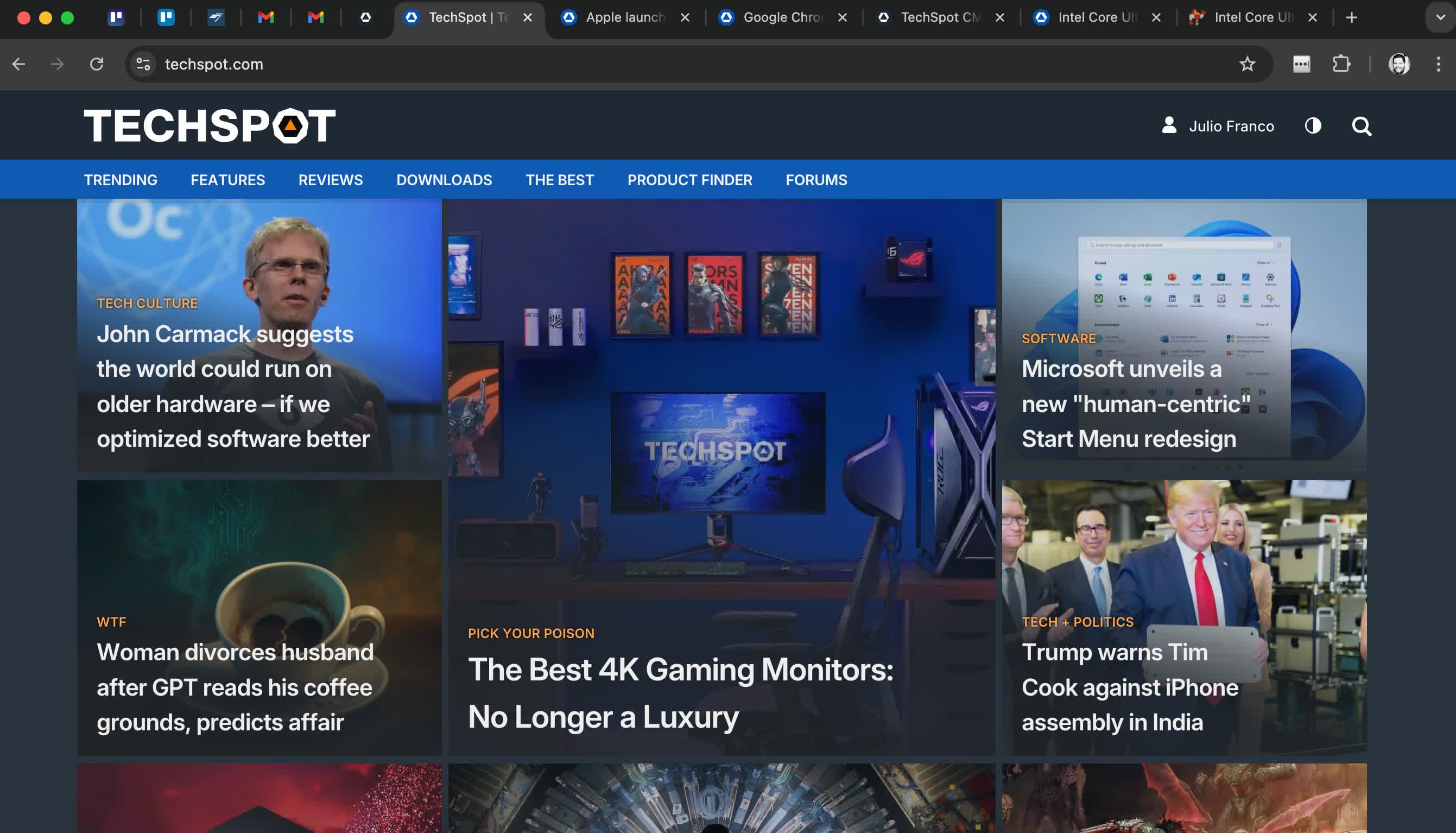
Tabs help you stay organized, keep track of multiple pages, and multi-task. You can group tabs together for better organization or pin tabs to automatically open websites you use the most.
Have Chrome read pages aloud
Chrome can now read web pages aloud. Words on the page are highlighted to help you follow along. Read aloud is best for content like news stories, articles, or even PDFs.
- To use read aloud, right-click on a page, and select Open in reading mode. This opens the side panel, which has controls you can use for read aloud.
- Click the Play button.
- You can adjust the voice , speed, and highlight style in the toolbar next to the Play button.
View two pages in one tab
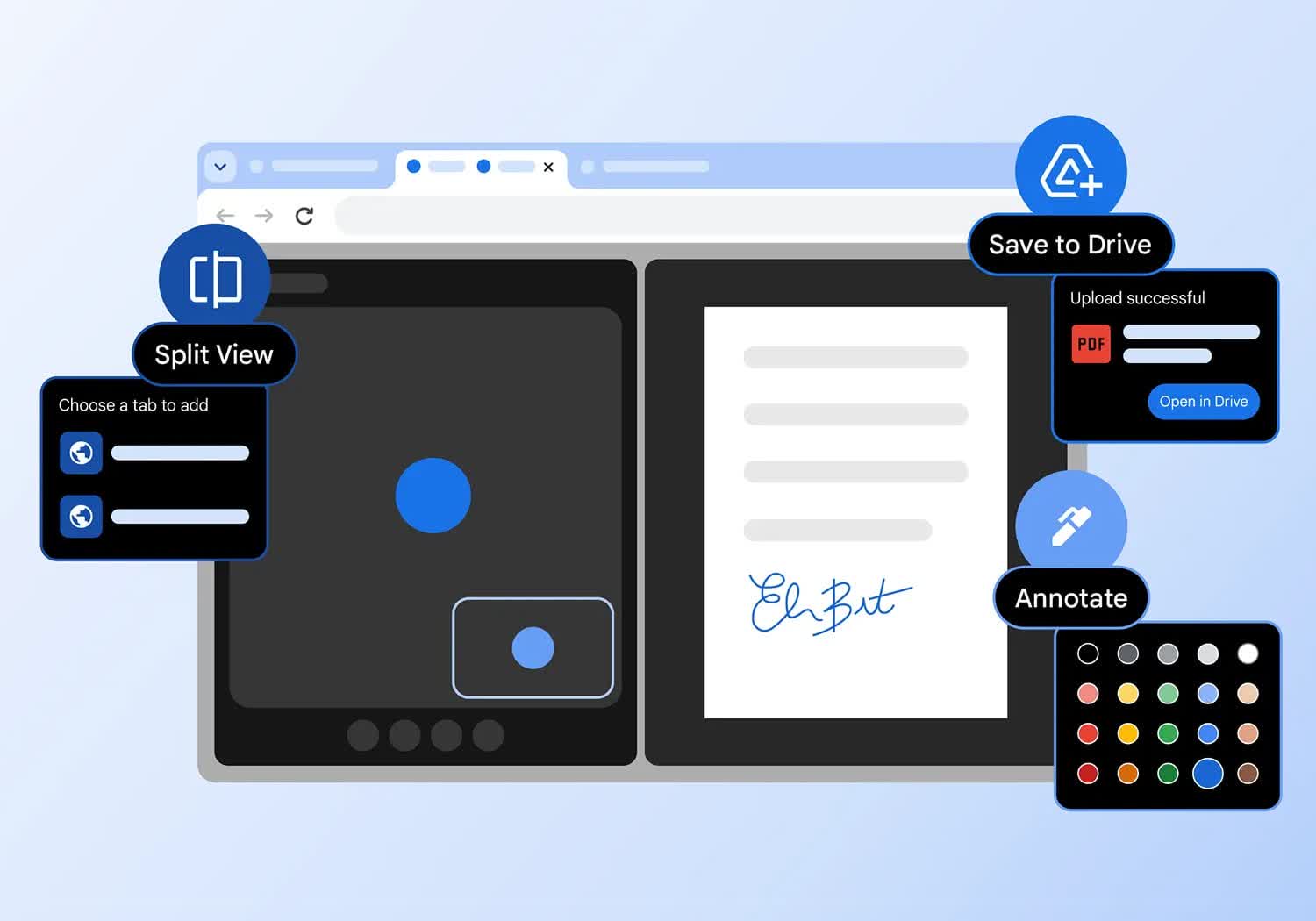
Split view puts two pages side-by-side in the same tab so you can easily compare options, watch a video while taking notes, and more.
Ways to open a split view:
- Drag another tab or link to the left or right edge of your browser window.
- You can also right-click a link and select Open link in split view.
Sign and annotate your PDFs
Skip downloading and printing when it's time to sign a PDF. Use the annotation tool to hand-draw your personal signature, complete forms, and highlight lines.
- Open a PDF and click Annotations.
- Choose your pen or highlighter style and color.
- Draw your annotation or signature, and click Save .
Tip: To make it easier to draw on a small line, Zoom the PDF.
Get your tab groups on the go
Just like your bookmarks and passwords, your tab groups are now available across all your devices. Get started on one device and pick up your project on another device.
To start seeing your tab groups across devices:
- Sign in and create a tab group on your computer or phone.
- Your tab group will automatically save to your account.
- Open your group on a different device.
- Mobile: go to your open tabs, click the tab group section .
- Desktop: click the tab group icon in your bookmarks bar (if open) or the Chrome menu.
What's New
The Stable channel has been updated to 151.0.7922.137/.138 for Windows and Mac and 151.0.7922.137 for Linux, which will roll out over the coming days/weeks. A full list of changes in this build is available in the Log.
Security Fixes and Rewards
Note: Access to bug details and links may be kept restricted until a majority of users are updated with a fix. We will also retain restrictions if the bug exists in a third party library that other projects similarly depend on, but haven't yet fixed.
This update includes 5 security fixes. Please see the Chrome Security Page for more information.
- [$500][535000102] High CVE-2026-19556: Use after free in V8. Reported by Jihyeon Jeong (Compsec Lab, Seoul National University / Research Intern) on 2026-07-15
- [N/A][534867485] High CVE-2026-19557: Use after free in TabStrip. Reported by Google on 2026-07-14
- [N/A][536676756] High CVE-2026-19558: Use after free in Extensions. Reported by @bean5oup on 2026-07-20
- [N/A][540100588] High CVE-2026-19559: Use after free in HTML. Reported by Google on 2026-07-28
- [N/A][540482895] High CVE-2026-19560: Use after free in Blink. Reported by WinD39 - Huynh Dinh Vu on 2026-07-30
We would also like to thank all security researchers that worked with us during the development cycle to prevent security bugs from ever reaching the stable channel.
Many of our security bugs are detected using AddressSanitizer, MemorySanitizer, UndefinedBehaviorSanitizer, Control Flow Integrity, libFuzzer, or AFL.
Google Chrome 151.0.7922.108/.109 Changelog
Security Fixes and Rewards
Note: Access to bug details and links may be kept restricted until a majority of users are updated with a fix. We will also retain restrictions if the bug exists in a third party library that other projects similarly depend on, but haven't yet fixed.
This update includes 41 security fixes. Please see the Chrome Security Page for more information.
- [TBD][499602793] Critical CVE-2026-19137: Use after free in WebGL. Reported by anonymous on 2026-04-05
- [N/A][524824288] Critical CVE-2026-19149: Use after free in Aura. Reported by Google on 2026-06-17
- [N/A][532941869] Critical CVE-2026-19154: Use after free in Skia. Reported by Google on 2026-07-09
- [N/A][534903095] Critical CVE-2026-19157: Out of bounds write in ANGLE. Reported by Google on 2026-07-14
- [TBD][537729021] Critical CVE-2026-19170: Use after free in WebGL. Reported by Muhammad Alifa Ramdhan, Pan ZhenPeng, Billy Jheng Bing Jhong of STAR Labs SG Pte. Ltd. on 2026-07-22
- [N/A][537838324] Critical CVE-2026-19172: Use after free in Views. Reported by Google on 2026-07-22
- [$5000][537390933] High CVE-2026-19169: Insufficient validation of untrusted input in Contextual Tasks. Reported by Sven Dysthe (@svn-dys) on 2026-07-21
- [$500][536945254] High CVE-2026-19168: Inappropriate implementation in V8. Reported by XBOW and triaged by Andrés Luksenberg on 2026-07-20
- [N/A][500097298] High CVE-2026-19138: Heap buffer overflow in CrashReporting. Reported by Google on 2026-04-06
- [N/A][511731805] High CVE-2026-19139: Race in CredentialProvider. Reported by Google on 2026-05-10
- [N/A][513044017] High CVE-2026-19140: Use after free in GPU. Reported by Google on 2026-05-14
- [N/A][513602949] High CVE-2026-19141: Use after free in Resources. Reported by Google on 2026-05-15
- [N/A][515428251] High CVE-2026-19142: Use after free in Views. Reported by Google on 2026-05-21
- [N/A][517772612] High CVE-2026-19143: Insufficient validation of untrusted input in WebAPKs. Reported by Google on 2026-05-29
- [N/A][520167277] High CVE-2026-19144: Use after free in HTML. Reported by Google on 2026-06-05
- [N/A][521878431] High CVE-2026-19145: Use after free in Translate. Reported by Google on 2026-06-09
- [N/A][523713150] High CVE-2026-19146: Uninitialized Use in GPU. Reported by Google on 2026-06-14
- [N/A][524439798] High CVE-2026-19147: Use after free in Aura. Reported by Google on 2026-06-16
- [N/A][524460000] High CVE-2026-19148: Out of bounds write in GPU. Reported by Google on 2026-06-16
- [N/A][526380803] High CVE-2026-19150: Inappropriate implementation in V8. Reported by Google on 2026-06-22
- [N/A][530663440] High CVE-2026-19151: Use after free in V8. Reported by Google on 2026-07-02
- [N/A][531165110] High CVE-2026-19152: Inappropriate implementation in Navigation. Reported by Google on 2026-07-04
- [N/A][532939327] High CVE-2026-19153: Insufficient validation of untrusted input in Workers. Reported by Google on 2026-07-09
- [N/A][533053621] High CVE-2026-19155: Use after free in Payments. Reported by Google on 2026-07-09
- [TBD][533331920] High CVE-2026-19156: Heap buffer overflow in Base. Reported by Viktoria Zlatinova on 2026-07-10
- [N/A][535749174] High CVE-2026-19158: Use after free in Views. Reported by Google on 2026-07-17
- [N/A][536067175] High CVE-2026-19159: Use after free in Views. Reported by Google on 2026-07-17
- [N/A][536068737] High CVE-2026-19160: Uninitialized Use in Skia. Reported by Google on 2026-07-17
- [N/A][536165038] High CVE-2026-19161: Uninitialized Use in Skia. Reported by Google on 2026-07-18
- [TBD][536271629] High CVE-2026-19162: Out of bounds write in V8. Reported by OpenAI Codex Security (amyb) on 2026-07-19
- [N/A][536449742] High CVE-2026-19163: Use after free in Media. Reported by Google on 2026-07-19
- [N/A][536470854] High CVE-2026-19164: Insufficient validation of untrusted input in Codecs. Reported by Google on 2026-07-19
- [TBD][536512612] High CVE-2026-19165: Use after free in Extensions. Reported by @bean5oup on 2026-07-19
- [TBD][536584251] High CVE-2026-19166: Use after free in Web Authentication. Reported by heesun on 2026-07-20
- [N/A][536666274] High CVE-2026-19167: Integer overflow in GPU. Reported by Google on 2026-07-20
- [N/A][537832446] High CVE-2026-19171: Use after free in Media. Reported by Google on 2026-07-22
- [TBD][538332338] High CVE-2026-19173: Out of bounds write in Skia. Reported by Vu Van Tien (@n0_Be3r) on 2026-07-24
- [TBD][538378084] High CVE-2026-19174: Integer overflow in V8. Reported by Seunghyun Lee (@0x10n) of QED Audit (qedaudit.io) on 2026-07-24
- [N/A][540138836] High CVE-2026-19175: Use after free in Payments. Reported by Google on 2026-07-29
- [TBD][540157141] High CVE-2026-19176: Use after free in Skia. Reported by WinD39 - Huynh Dinh Vu on 2026-07-29
- [TBD][540289900] High CVE-2026-19177: Insufficient validation of untrusted input in UI. Reported by Fabian Wahle (Hap Security) on 2026-07-29
We would also like to thank all security researchers that worked with us during the development cycle to prevent security bugs from ever reaching the stable channel.
Google Chrome adds split view, PDF annotations, and Drive saves
Google is making Chrome a little more work-friendly with a trio of productivity upgrades that are now rolling out on the desktop. The browser's new built-in split view lets you run two tabs side by side without juggling windows, while its PDF viewer can now handle highlights, notes, and even signatures.
There's also a smarter Save to Google Drive option that sends PDFs straight into a dedicated "Saved from Chrome" folder, cutting out the download-and-reupload dance. If you live in your browser all day, the latest Chrome update is worth grabbing.